
.webp)
How to Embed Forms on Websites



Embedding forms on your website is a simple way to collect user information without redirecting visitors to another page. This improves user experience, increases form completion rates, and ensures real-time data collection. You can embed forms using JavaScript, iframe, or inline HTML, depending on your technical skills and design needs.
Key Takeaways:
- JavaScript: Easy to implement and automatically updates form changes.
- Iframe: Simple copy-paste method; avoids CSS conflicts but may need manual height adjustments.
- Inline HTML: Offers full design control but requires coding knowledge.
Platforms like Reform make the process straightforward by providing ready-to-use embed codes for WordPress, Webflow, and custom HTML sites. They also support features like query parameter tracking, responsive design, and Google Tag Manager integration for analytics.
Quick Comparison:
| Method | Ease of Use | Design Control | Automatic Updates | Best For |
|---|---|---|---|---|
| JavaScript | High | Moderate | Yes | Dynamic forms with auto-updates |
| Iframe | Very High | Low | No | Simple setup, avoiding CSS conflicts |
| Inline HTML | Low | High | No | Advanced customization needs |
Choose the method that aligns with your website's requirements and technical expertise.
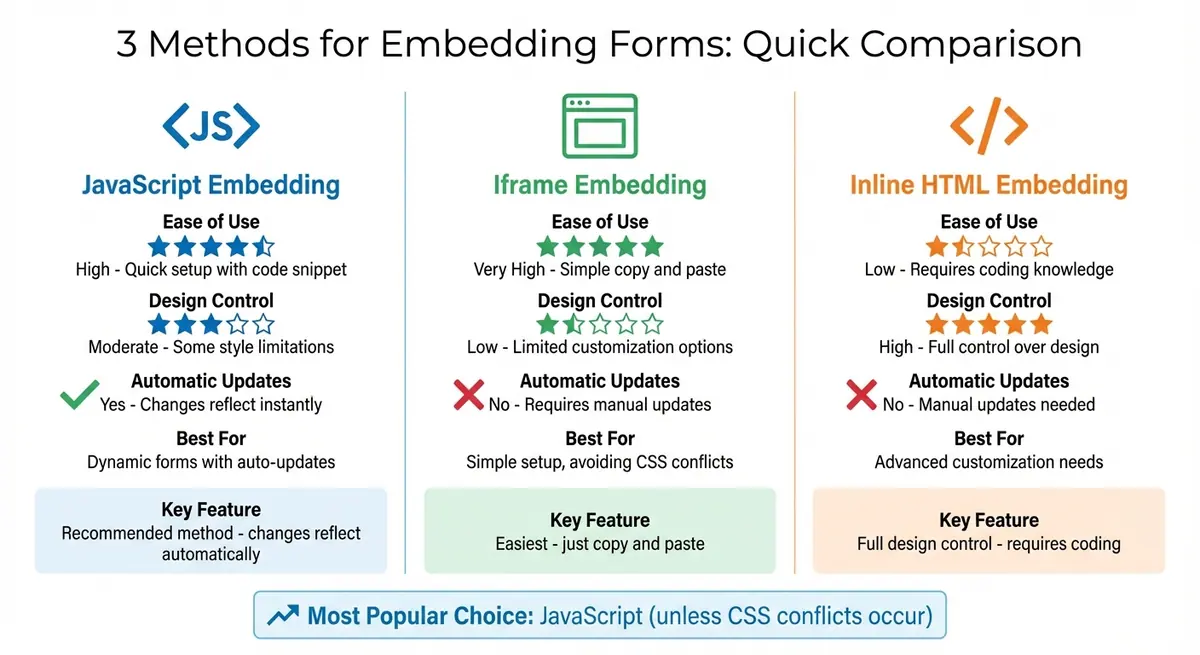
Comparison of 3 Form Embedding Methods: JavaScript vs Iframe vs Inline HTML
How to Embed Forms Into Your Website
3 Methods for Embedding Forms
When it comes to embedding forms, you have three main options: JavaScript, iframe, or inline HTML. The right method for you depends on your technical know-how, design preferences, and how much control you need over the form's appearance and functionality.
JavaScript embedding is often the go-to choice. ConvertKit's documentation highlights its flexibility:
This is the embed code we recommend you use unless you have a particular reason not to... Any changes made within Kit will be reflected automatically on your site.
Using JavaScript, your form is dynamically loaded with a simple script tag. This means any updates to the form are instantly applied without requiring you to edit the code. Plus, the script adjusts the form's size automatically, eliminating issues like scrollbars or cut-off buttons.
Iframe embedding is the easiest method - just copy and paste the code. This approach loads the form as a separate document within a frame on your page. Because the form’s styling is isolated, it avoids conflicts with your website's CSS. However, you might need to tweak the iframe's height to avoid extra white space or hidden elements. Wufoo explains the potential challenge:
We estimate the height of your form in the iframe, so it may not display perfectly on all browsers... sometimes, this means the submit button won't display.
Inline HTML embedding offers the most design control. According to Reform's documentation:
Users looking to embed their form directly inline, without the use of an iframe, can use Reform's headless embed option.
Here, the form’s HTML is added directly to your site, allowing seamless integration with your website’s styling. However, this method requires some coding skills to map input fields correctly, and you’ll need to manually update the code whenever the form changes.
In most cases, JavaScript is the best option - it's easy to implement and keeps everything updated automatically. However, if CSS conflicts arise, iframe embedding can save you time. For those with specific branding needs or advanced design requirements, inline HTML gives you full control. Choose the method that aligns with your site's needs and technical capabilities before diving into embedding Reform forms.
How to Embed Reform Forms on Your Website
To publish your form, click the arrow next to the "Draft" button and select "Published". Once published, you can grab one of Reform's ready-to-use embed codes. (Embedding is available with the Basic Plan at $15/month or $150/year, and the Pro Plan at $35/month or $350/year).
Getting Your Reform Embed Code
You can find your embed code in two places: the post-publication overlay or the "Share" tab. Click "Embed" to access the standard iFrame code, which includes built-in scripts for auto-resizing and smooth navigation on multi-page forms. Before copying the code, you can adjust the appearance, such as enabling a transparent background to make the form blend seamlessly with your website's design.
If you're a developer looking for more control, the Headless option allows raw HTML integration. You can find this under Share → Headless. This method lets you integrate the form directly into your site without using an iFrame. However, you'll need to manually map input fields by adding a name attribute formatted as answers[<block-id>] to each field. Keep in mind that the headless option doesn't support Reform's custom code features, certain integrations, or file upload blocks.
Follow the platform-specific instructions below to embed the form on your website.
Embedding Reform Forms on WordPress
For WordPress, embedding your form is simple. Copy the iFrame code from Reform's Share tab, then use a Custom HTML block in the Block Editor (Gutenberg). Paste the code into the block where you'd like the form to appear. No additional plugins are needed, as the script runs automatically. If you've enabled the transparent background option, the form will align with your WordPress theme's styling.
Be sure to double-check that your form's status is set to "Published." If it's set to "Closed", visitors will see a notification that the form is no longer accepting responses.
Embedding Reform Forms on Webflow and Custom HTML Sites
For Webflow and custom HTML sites, use a "Code Embed" element or paste the iFrame code directly into your HTML.
The embed script automatically adjusts the form's height to prevent scrollbars and ensures smooth scrolling to the top of the form when navigating between pages on multi-step forms. It also captures query parameters from your website's URL, which can be useful for tracking campaigns or pre-filling form fields. If you're using the headless option, make sure to add the required attribute to HTML inputs to align with Reform's browser validation.
sbb-itb-5f36581
Fixing Common Embedding Problems
Resolving Iframe Blocking and Script Errors
If your form appears as a blank white box, it means the HTML loaded, but the JavaScript didn’t execute. To troubleshoot, open your browser’s developer tools and check the console for error messages. These errors might indicate that your CMS or a plugin is blocking a script.
Make sure your website uses HTTPS and has a valid SSL certificate to avoid connection issues.
If strict security settings block the JavaScript, consider using a plain iframe as a fallback. While this disables advanced features like auto-resizing, it ensures the form is displayed correctly.
Finally, confirm that your form is optimized for different devices to preserve both functionality and appearance.
Making Forms Responsive on All Devices
To ensure your form adjusts properly across various screen sizes, set its width to 100%. Reform’s embed script is designed to automatically resize the form window based on its content, eliminating internal scrollbars regardless of the form's length.
Avoid setting the embed height to 100% unless the parent container has a defined size. Without a set height, 100% of zero equals zero, which can hide the form entirely. Instead, use a minimum height of at least 500 pixels to ensure the form is visible and the submit button remains accessible. You can also use your browser’s developer tools to test the form across different device resolutions.
Confirming Spam Prevention and Analytics Work Correctly
Once you’ve resolved embedding issues and ensured responsiveness, it’s time to verify that spam prevention measures and analytics tracking are functioning properly.
Submit a test form and check the 'Responses' tab in Reform. If you’ve enabled Google Tag Manager (GTM) integration, use GTM Preview Mode to monitor events like reform.onFormLoaded when the form appears and reform.onFormCompleted after submission. Additionally, check the browser console for JavaScript errors or iframe-related issues that might disrupt analytics tracking.
For multi-page forms, make sure the window scrolls to the top when navigating between pages. This behavior confirms that the embed script is working as intended.
| Event Name | Trigger Point | Purpose for Verification |
|---|---|---|
reform.onFormLoaded |
When the form first appears | Confirms the embed and tracking script loaded |
reform.onInputChanged |
When any field is modified | Verifies "Form Started" analytics are tracking |
reform.onFormCompleted |
Upon successful submission | Confirms lead generation tracking is active |
reform.onPageChanged |
When moving between pages | Verifies multi-page funnel tracking |
Conclusion
Embedding forms directly on your website helps capture leads without redirecting visitors elsewhere. When implemented properly, these forms align with your site's design, automatically adjust their size to avoid awkward scrollbars, and keep users engaged with features like automatic scroll-to-top navigation for multi-page forms.
Reform takes this process a step further with its user-friendly tools. Features like query parameter passing allow for personalized, pre-filled forms, making the experience smoother for users. Whether your site is built on WordPress, Webflow, or custom HTML, Reform centralizes all responses in one dashboard, simplifying management.
"The embed script automatically adjusts the size of the form's window based on the content. This ensures that your users never see a scrollbar." - Reform
For those looking to track performance, Reform integrates seamlessly with Google Tag Manager, enabling event tracking for actions like onFormLoaded and onFormCompleted. This helps identify and address potential drop-off points.
Ultimately, whether you choose to embed forms via iframe, JavaScript, or headless methods, it's all about finding the right fit for your website's technical setup. With Reform's conversion-focused features available on Basic or Pro plans, creating professional, well-integrated forms has never been easier.
FAQs
What are the benefits of using JavaScript to embed forms on a website?
Using JavaScript to embed forms is a game-changer for creating a more interactive and streamlined experience. With a single script tag, your form stays in sync with any updates made in the form builder - no need to dive back into the code. Whether you're tweaking field options or fine-tuning validation rules, those changes show up instantly on your site.
This approach also gives you more control and adaptability. You can use query parameters to adjust how the form behaves, dynamically load custom styles, and even set up advanced features like conditional logic or custom event listeners. Unlike iframes, JavaScript embedding ensures the form integrates smoothly with your website’s design, maintaining a cohesive look. It’s also a great fit for responsive layouts and single-page applications, offering a lightweight and efficient way to boost usability and performance.
How can I make sure my embedded form works well on all devices?
To make sure your embedded Reform form looks fantastic and works seamlessly across all devices, follow these easy steps:
-
Add this tag to your page’s
<head>section:
<meta name="viewport" content="width=device-width, initial-scale=1">.
This ensures the layout adapts to different screen sizes. -
Set the iFrame width to 100% in your embed code, so it automatically adjusts to the screen dimensions:
<iframe src="https://app.reform.app/..." width="100%" height="auto" style="border:none;"></iframe> -
Place the iFrame inside a container with a max-width (e.g.,
max-width:800px; margin:auto;) to avoid it being too wide on larger screens. - Use CSS media queries to tweak the form's appearance on smaller devices. For example, you can stack fields vertically or reduce font sizes for better readability.
Once you’ve set it up, test your form on different devices and browsers to confirm it looks and functions as intended. Thanks to Reform’s mobile-friendly design and real-time analytics, keeping an eye on performance and making adjustments is a breeze.
Why isn’t my embedded form displaying correctly?
If your embedded Reform form isn’t displaying correctly or seems broken, here are some steps to help you troubleshoot:
- Ensure the form is published: The embed code will only function if the form is live. Double-check that the form’s status is set to "Published."
- Use the exact embed code: Always copy the iFrame code directly from Reform without making any manual changes. Even minor edits can lead to display problems.
-
Verify the embed container’s height: The container should have a fixed height of at least 500 pixels. If it’s set to
100%without a defined parent size, the form might not display properly. - Watch out for conflicting custom CSS: Custom styles that override the embed’s dimensions can cause the form to either disappear or display incorrectly.
It’s also a good idea to test the page on multiple devices and browsers to ensure the form appears as expected. If the problem persists, inspect for conflicts with other scripts or plugins on the page. For further assistance, reach out to Reform support and provide detailed information about the issue.
Related Blog Posts
Get new content delivered straight to your inbox

The Response
Updates on the Reform platform, insights on optimizing conversion rates, and tips to craft forms that convert.




Drive real results with form optimizations
Tested across hundreds of experiments, our strategies deliver a 215% lift in qualified leads for B2B and SaaS companies.
