
.webp)
Manual vs. Automated Accessibility Testing


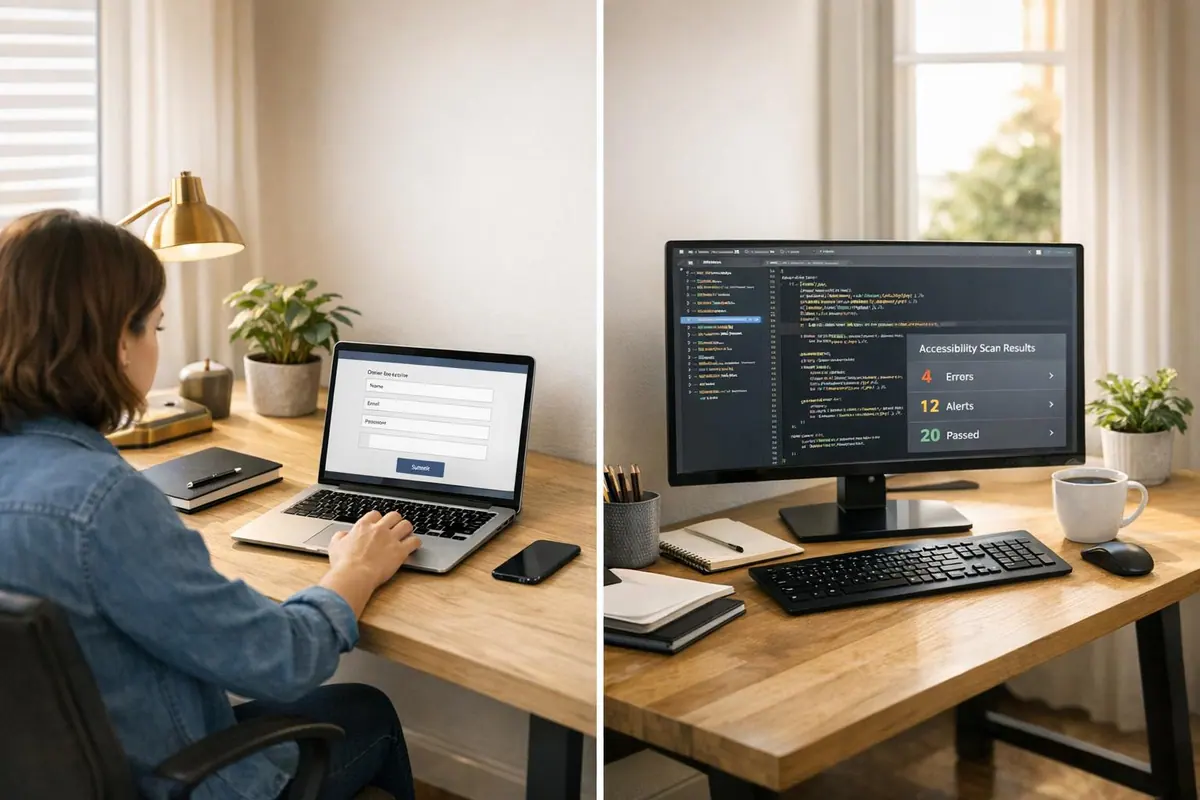
Accessibility testing ensures websites and apps work for everyone, including users with disabilities. The article compares two approaches:
- Manual Testing: Performed by humans, it identifies usability issues like unclear error messages or poor navigation. It’s thorough but time-intensive and requires expertise.
- Automated Testing: Uses tools to quickly scan code for issues like missing labels or low contrast. It’s fast and scalable but misses context and user experience problems.
Key takeaway: Automated tools catch technical errors efficiently but only cover 15–40% of issues. Manual testing fills the gaps, addressing 70–85% of barriers. Combining both methods ensures better accessibility for forms and other interactive elements.
Quick Comparison
| Factor | Automated Testing | Manual Testing |
|---|---|---|
| Speed | Fast, scans large sites quickly | Slower, requires more time |
| Issue Coverage | 15–40% of issues detected | 70–85% of issues addressed |
| Cost | Lower for repetitive tasks | Higher due to skilled labor |
| Best For | Technical code checks | User experience evaluations |
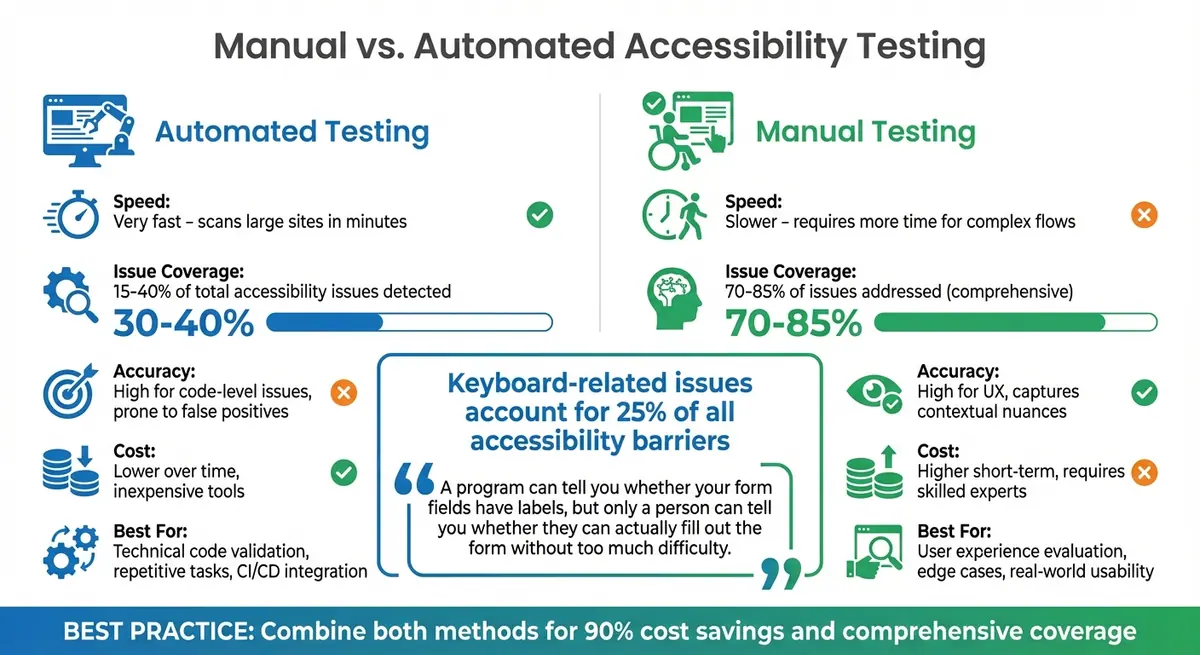
Manual vs Automated Accessibility Testing: Coverage, Speed, and Cost Comparison
Automated vs Manual Accessibility Testing - Knowing the Difference
What is Manual Accessibility Testing?
Manual accessibility testing is a hands-on approach where human testers actively interact with a website or application to uncover barriers that automated tools might miss. This process often involves using assistive technologies, like screen readers, and navigating solely with a keyboard to simulate real-world user experiences. Unlike automated tools that focus on detecting code-level issues, manual testing evaluates whether users can successfully complete tasks, such as filling out a multi-step form or closing a pop-up window, without encountering obstacles.
Testers employ specific techniques during manual testing. For instance, they rely on keyboard navigation (Tab, Shift + Tab, Enter, and arrow keys) to ensure all elements are accessible and follow a logical focus order. Screen readers like NVDA or JAWS are used to assess how content is announced - checking not just for the presence of image descriptions but also for their accuracy and relevance. They also confirm that error messages are clearly communicated in a way that users can understand and act upon.
What sets manual testing apart is its ability to evaluate subjective usability aspects that automated tools simply can’t address. For example, while an automated tool can confirm the presence of an alt attribute on an image, only a human tester can judge whether the description is meaningful. Similarly, automated scans might detect that a form label is linked to its input field, but manual testing ensures the label provides enough guidance for users to complete the task.
"Automated tools aren't effective at making subjective decisions, nor do they experience a website in the same way as a human user." - Bureau of Internet Accessibility
Manual testing is especially crucial because keyboard-related issues account for about 25% of all accessibility barriers. Additionally, automated tools often fall short, identifying only 30% to 40% of total accessibility issues. A study by the UK Government Digital Service demonstrated this limitation: out of 142 known accessibility barriers on a webpage, the best-performing automated tool detected just 40%.
This emphasis on real user interaction highlights the value of manual testing, though it also comes with its own set of strengths and challenges.
Strengths and Limitations
Manual accessibility testing provides insights that automated tools cannot, but it also poses practical challenges for teams. Here’s a closer look:
| Strengths | Limitations |
|---|---|
| Identifies usability and "real-world" barriers that impact users directly | Requires significant time and effort, making it slower than automated scans |
| Confirms complex interactions, like multi-step forms, modals, and dynamic content | Needs skilled testers with expertise in accessibility |
| Assesses subjective elements, such as the clarity of language and usefulness of error messages | Hard to scale consistently across large systems |
| Covers WCAG criteria that automated tools often miss | Results may vary depending on the tester’s experience |
When it comes to forms, manual testing ensures that navigation buttons in multi-step flows are properly announced by screen readers, data persists between steps, and error messages are correctly linked to fields while being clearly communicated to assistive technology users.
Next, let’s dive into automated testing to see how it complements manual efforts.
What is Automated Accessibility Testing?
Automated accessibility testing uses specialized software to analyze your code and identify violations of standards like the Web Content Accessibility Guidelines (WCAG). Think of it as a spell-checker for your code - it spots programmatic errors that don’t require human judgment, making it much faster than manual testing.
These tools dive into the DOM to catch issues like missing attributes, incorrect ARIA roles, and low contrast. For example, they can flag problems such as a button missing an accessible name, a list item (<li>) placed outside a <ul> structure, or focusable content mistakenly hidden with aria-hidden="true". This allows for rapid and large-scale error detection.
Automated testing can scan hundreds of pages in minutes, uncovering common issues like missing page titles, empty links, incorrect heading structures, and invalid tabindex values. Research shows that automation can identify about 57.38% of accessibility issues during first-time audits, with color contrast problems making up roughly 30% of the detected errors.
For example, in December 2022, a demo audit of the "Medical Mysteries Club" website using Google Lighthouse uncovered eight types of automated failures, including missing required ARIA children and buttons without accessible names. Correcting these issues and adjusting color contrast ratios to meet the 4.5:1 standard boosted the site’s Lighthouse accessibility score from 62 to a perfect 100.
However, automated tools have their limits. While they can confirm the existence of an alt attribute or verify that a form label is programmatically associated with an input field, they can’t judge whether the text or label is meaningful or clear.
Strengths and Limitations
Automated testing is an excellent resource for teams managing large codebases, but it’s not a substitute for human evaluation. Here's a breakdown of its strengths and limitations:
| Strengths | Limitations |
|---|---|
| Quickly scans entire websites, analyzing thousands of pages in minutes | May produce false positives (e.g., one site reported 474 false alerts) |
| Integrates with CI/CD pipelines to catch errors before deployment | Cannot determine if content is clear, meaningful, or user-friendly |
| Identifies technical issues like missing form labels, empty links, and low contrast | Struggles with dynamic content, modals, sliders, and complex ARIA patterns |
| Scalable and cost-effective for repetitive code reviews | Detects only 30–50% of overall accessibility issues, missing context-specific problems |
| Flags structural problems like improper list markup and incorrect ARIA roles | Cannot evaluate user tasks, such as completing forms or navigating multi-step processes |
A September 2023 study by Equal Entry tested six major automated scanners - including aXe, SiteImprove, and TPGi - on a Shopify site with 104 intentional accessibility defects across 31 pages. The results were underwhelming: the tools identified only 3.8% to 10.6% of the issues, revealing that automated scanners often fall short of vendor claims.
Despite these limitations, automated tools are invaluable for tasks like form testing. They can quickly pinpoint unlabeled fields, missing error message associations, and poor color contrast on buttons. However, they can’t assess whether a multi-step form’s navigation feels intuitive or whether error messages effectively guide users to correct their mistakes.
Next, we’ll compare automated and manual testing to see how they complement each other.
sbb-itb-5f36581
Manual vs. Automated Testing: Direct Comparison
Deciding between manual and automated testing often hinges on the specific goals and available resources. For form builders, where accessibility is a top priority, understanding the strengths and limitations of each approach is essential. Automated tools excel at scanning hundreds of pages in minutes to identify code-level issues like missing labels or low contrast. On the other hand, manual testing, though more time-intensive, uncovers subtle usability problems that automated tools often overlook - such as whether an error message actually helps users resolve their mistakes.
The difference in issue detection is striking. Automated tools are efficient but limited, typically identifying only 15% to 30% of accessibility issues. Manual testing addresses the remaining 70% to 85%, filling in the gaps. For example, a study conducted by UK government accessibility advocates tested 13 automated tools against a webpage with 142 barriers. The most effective tool caught just 40% of the issues, while the least effective detected only 13%. This disparity impacts not only the speed and precision of testing but also the overall cost, which varies significantly between the two methods.
Automated testing requires a higher initial investment but becomes cost-effective for repetitive tasks over time. Manual testing, however, involves ongoing labor costs due to the need for skilled professionals. Combining both approaches can lead to significant savings, cutting costs by as much as 90%.
"A program can tell you whether your form fields have labels, but only a person can tell you whether they can actually fill out the form without too much difficulty." - Sam Stemler, Author, Accessible Metrics
When it comes to forms, automated tools are adept at verifying technical elements like labels and ARIA tags. Meanwhile, manual testing ensures that conditional logic functions as intended, focus moves logically through multi-step forms, and error messages are clear and actionable.
Comparison Table
| Factor | Automated Testing | Manual Testing |
|---|---|---|
| Speed | Very fast; scans large sites in minutes | Slower; time-intensive for complex flows |
| Issue Coverage | 15%–30% of total accessibility issues | Comprehensive; covers remaining 70%–85% |
| Accuracy | High for code; prone to false positives | High for UX; captures contextual nuances |
| Cost | Lower over time; inexpensive tools | Higher short-term; requires skilled experts |
| Dynamic Content | Limited handling of interactive states | Best for modals, carousels, and live updates |
| Form Features | Verifies presence of labels and ARIA tags | Tests logic, focus order, and error handling |
| Best For | Code validation and maintenance | UX flows, edge cases, and legal audits |
This table outlines the key trade-offs, emphasizing how a balanced approach - leveraging both manual and automated testing - can deliver the most effective results for form accessibility.
How to Combine Manual and Automated Testing
Combining manual and automated testing ensures a thorough approach to accessibility compliance. Automated tools excel at scanning large codebases for common issues, offering broad coverage, while manual testing dives deeper into real user experiences, catching more nuanced problems.
Start by integrating automated accessibility checks into your CI/CD pipeline. This helps catch common issues, like missing <label> tags or broken ARIA associations, during development - long before they reach production. Automated checks identify these technical flaws, allowing manual testers to focus on confirming that labels and error messages are effective and user-friendly. This setup addresses both static code errors and dynamic user interactions.
"This does not mean you should avoid automated tools. Like any tool, it means they have a place in your toolbox. When used correctly they can be extremely helpful. When used in the hands of a novice they can result in a sense of complacency." - Adrian Roselli, Accessibility Consultant
For forms with dynamic elements - like modals, accordions, or conditional routing - manual testing becomes indispensable. Automated tools often miss issues that arise during content updates or state changes. For example, using keyboard navigation (Tab, Shift+Tab, Enter) can uncover focus traps or illogical tab orders. Additionally, manually triggering form validation errors ensures that error messages are descriptive and that focus shifts appropriately to guide users.
Using Both Methods for Form Testing
When it comes to form testing, combining both approaches is key to ensuring forms are not just technically compliant but also intuitive for users. Automated testing handles code-level validation, flagging issues like missing or improperly linked labels. However, only manual testing can determine if those labels are meaningful and helpful to users.
For platforms like Reform, which feature conditional routing and real-time validation, this hybrid strategy is crucial. Automated scans ensure required attributes are in place, while manual testing verifies that focus management works correctly when new fields appear based on user input. Running screen reader tests (e.g., NVDA, JAWS) further confirms that instructions and error messages are clearly announced, ensuring dynamic form elements function as intended.
Conclusion
Creating accessible forms requires a mix of automated tools and manual testing. While automated tools are excellent for spotting code-level issues - like missing labels or poor color contrast - they typically catch only 13% to 40% of accessibility barriers. Manual testing fills in the gaps, identifying usability problems that automated scans simply can't detect.
Together, these methods tackle common pitfalls like focus traps, confusing error messages, or illogical tab orders. Automated tools ensure technical compliance by flagging issues such as broken ARIA attributes or missing labels. Meanwhile, manual testing ensures real-world usability, verifying that users can navigate forms with a keyboard or screen reader. These hands-on checks are crucial, as many keyboard-related issues are often overlooked by automated scans.
The benefits go beyond meeting compliance standards. Accessible forms enhance the user experience for everyone, reducing frustration and encouraging successful submissions. To achieve this, integrate automated checks into your CI/CD pipeline and conduct manual audits whenever forms are updated. This balanced approach ensures both technical accuracy and ease of use, boosting accessibility while improving conversion rates.
FAQs
Why do we still need manual accessibility testing if automated tools are faster?
Manual accessibility testing plays a key role in creating inclusive websites because automated tools can only catch a fraction of the issues. While automation is great for flagging straightforward problems like missing alt text or poor color contrast, it falls short when it comes to more nuanced or contextual challenges. For instance, it takes human judgment to decide if an image description truly captures its meaning or if a button label makes sense when spoken aloud.
This type of testing also lets you step into the shoes of users with disabilities by using tools like screen readers, keyboard navigation, or voice commands. Through this hands-on process, you can uncover problems that automation often overlooks - like a confusing focus order, unclear error messages, or interactive elements that don’t respond properly. By combining automated scans with manual testing, you can ensure your site works for everyone, not just those who pass a software check.
How do manual and automated accessibility testing work together to improve form accessibility?
Automated testing offers a fast and effective way to catch common accessibility issues, such as missing alt text, poor color contrast, or incorrect ARIA labels. These tools are particularly useful for spotting technical problems early in the development process, helping to ensure your code aligns with basic accessibility standards.
That said, automated tools can only catch about 15–25% of accessibility issues. Many accessibility criteria require human evaluation. Manual testing, which involves real users or testers using assistive technologies like screen readers or keyboard navigation, can uncover usability challenges that automated tools often miss. These might include confusing navigation, unclear error messages, or barriers in custom elements.
By combining automated tools with manual testing, you can ensure your forms aren't just technically compliant but also practical and accessible for all users, including those with disabilities. This balanced approach is especially important for platforms like Reform, where accessibility plays a central role in creating effective and inclusive forms.
What are the drawbacks of using only automated tools for accessibility testing?
Automated accessibility tools can be a great starting point, but they come with some clear limitations. On average, these tools can spot only 15–25% of accessibility issues. Why? Because while they can confirm the presence of certain elements, they fall short when it comes to assessing how those elements function in practice. They struggle with evaluating usability, interpreting the user experience, or examining compliance with subjective guidelines.
This is where human insight becomes irreplaceable. Manual testing is crucial for identifying subtle problems that automated tools miss. It ensures content is accessible to everyone and helps meet standards like WCAG with greater precision. While automation is helpful for efficiency, it’s no substitute for the depth and context provided by human evaluation.
Related Blog Posts
Get new content delivered straight to your inbox

The Response
Updates on the Reform platform, insights on optimizing conversion rates, and tips to craft forms that convert.



Drive real results with form optimizations
Tested across hundreds of experiments, our strategies deliver a 215% lift in qualified leads for B2B and SaaS companies.
