
.webp)
WhatsApp Lead Forms: CRM Integration Guide



WhatsApp Lead Forms are transforming how businesses collect and manage customer information. With over 3 billion monthly users, WhatsApp's in-chat forms offer a frictionless way to gather leads without redirecting users to external pages. Integrating these forms with a CRM automates lead management, saving time and boosting efficiency.
Here’s why this matters:
- Higher Engagement: WhatsApp messages have a 95%+ open rate, with 80% read within 5 minutes.
- Automation: Leads flow directly into your CRM, eliminating manual data entry and reducing errors.
- Faster Response: Integrated systems assign leads instantly, increasing conversion rates by up to 250%.
- Streamlined Workflows: Automatically log customer interactions, trigger sales tasks, and track lead progress.
To integrate WhatsApp Lead Forms with your CRM, you’ll need:
- A verified Meta Business Manager account.
- Access to the WhatsApp Business API via a trusted provider like Twilio or MessageBird.
- Proper field mapping to sync WhatsApp data (e.g., phone numbers, names) with CRM properties.
This guide covers how to set up the API, choose a Business Solution Provider, and connect WhatsApp Lead Forms with popular CRMs like HubSpot, Salesforce, and Zoho. By automating lead capture and routing, businesses report 400% efficiency boosts and 60% less manual work.
Key takeaway: Integrating WhatsApp Lead Forms with your CRM simplifies lead management, speeds up response times, and improves customer engagement.
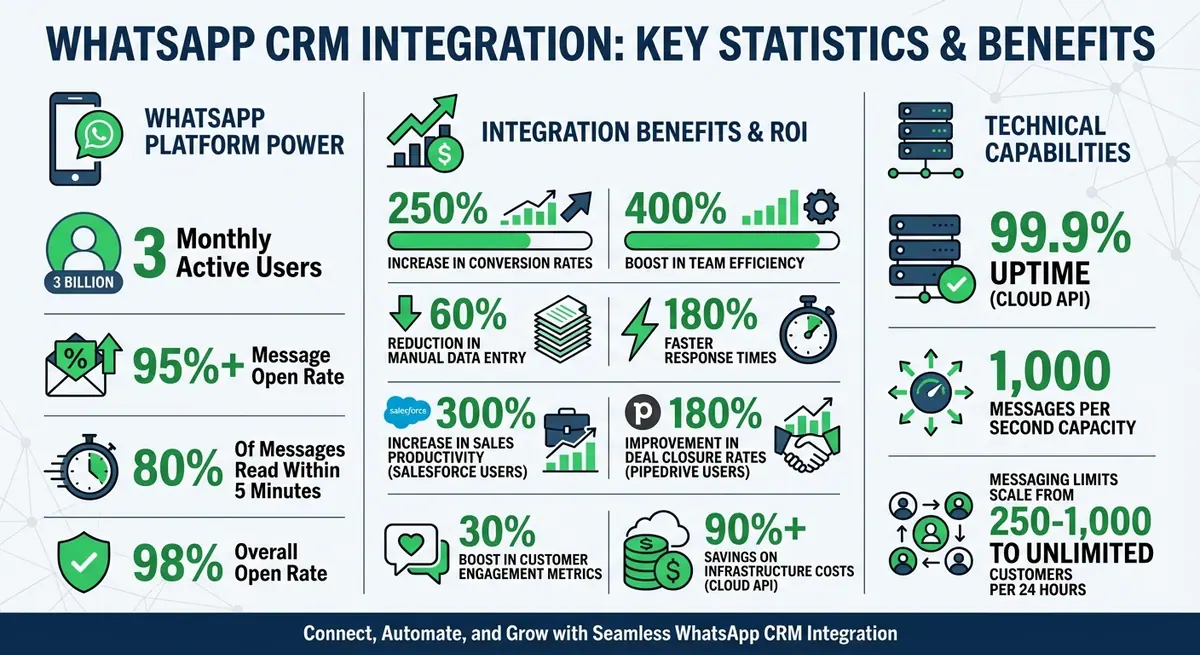
WhatsApp CRM Integration Benefits: Key Statistics and ROI Metrics
How to Connect WhatsApp API to Zoho CRM | Step-by-step tutorial
Prerequisites for WhatsApp Business API Setup
To integrate WhatsApp lead forms with your CRM, you first need to set up the WhatsApp Business API. This involves meeting several technical and legal requirements outlined by Meta.
WhatsApp Business API Requirements
Start by ensuring you have a verified Meta Business Manager account. Meta verifies your business as a legitimate entity by reviewing documents such as incorporation certificates, business licenses, or tax/VAT certificates. These documents must match the business name and address in your Business Manager account. The verification process typically takes 2 to 7 days if all documents are accurate.
A dedicated phone number is also required. This number should not already be linked to WhatsApp and must be able to receive an OTP via SMS or voice call. For landline or toll-free numbers with IVR systems, you’ll need to temporarily disable IVR or forward calls to a live agent to ensure the OTP verification call is received.
Additionally, your business must have a professional website that clearly displays your legal business name. You’ll also need to link a valid Visa or MasterCard in Meta's Billing & Payments section to cover fees for message categories like Marketing, Utility, Authentication, or Service. Starting July 1, 2025, WhatsApp transitioned to a per-message pricing model based on these categories.
Compliance with WhatsApp's Business Messaging Policy and Meta Commerce Policy is mandatory. Restricted sectors include alcohol, tobacco, gambling, and weapons. Also, the display name shown to users must be approved by Meta and should directly reflect your brand - generic names like "Customer Support" are not allowed.
"Setting up two-factor authentication is a requirement to use the Cloud API. If you do not set it up, you will get an onboarding failure message." – Meta Developer Documentation
New accounts start with a messaging limit of 250 to 1,000 unique customers per 24 hours. This limit automatically scales based on message quality and volume, reaching thresholds of 10,000, 100,000, or even unlimited. After October 23, 2025, the Cloud API will be the only supported platform, offering 99.9% uptime and the capacity to handle up to 1,000 messages per second.
These steps lay the groundwork for integrating WhatsApp with your CRM smoothly.
Selecting a Business Solution Provider (BSP)
After setting up the API, choosing the right Business Solution Provider (BSP) is critical for connecting WhatsApp to your CRM. BSPs like Twilio, Vonage, and MessageBird are official Meta Business Partners that simplify API integration with platforms such as Salesforce, HubSpot, or Zoho.
Ensure your chosen BSP is a Meta Business Partner to guarantee secure API access and compliance with Meta’s policies. Look for BSPs offering "Embedded Signup", which streamlines the registration process to under 10 minutes by automating the creation of WhatsApp assets and handling technical registration. Evaluate their pricing carefully, as some BSPs may add setup, hosting, or per-message fees on top of Meta’s charges. It’s also important to check if they provide native CRM connectors or offer webhooks and APIs for custom integrations.
Integrating WhatsApp with your CRM can lead to a 30% boost in customer engagement metrics. Opt for BSPs that support the Cloud API (hosted by Meta) to avoid infrastructure maintenance and enjoy automatic updates. Businesses that switched to the Cloud API have reported over 90% savings on infrastructure costs. Official partners also receive enhanced Meta support, ensuring better service for your business.
How to Connect WhatsApp Lead Forms with Your CRM
Once you've set up your API and selected a BSP, the next step is to link your WhatsApp lead forms to your CRM. This involves authenticating accounts, mapping fields, and setting up automation rules. Here's how to do it for HubSpot, Salesforce, and Zoho CRM.
HubSpot Integration
To integrate WhatsApp with HubSpot, start by mapping WhatsApp fields to the corresponding CRM properties. In your form builder's integration settings, select "Add HubSpot", log in, and grant the necessary permissions. Then, access the configuration settings (via the gear icon) to map fields like Phone to "Phone Number", Name to "First Name", and Email to "Email Address."
For more advanced setups, you can enable Company Mapping or Deal Mapping to automatically create related records alongside contact entries. To track marketing attribution, create hidden fields that match UTM parameters (e.g., utm_source, utm_medium, utm_campaign). Additionally, activate HubSpot analytics tracking and whitelist your form domain to avoid submissions being flagged as bot traffic. Enable partial submission capture for multi-step forms to generate leads even if users abandon the form halfway.
If you're using a webhook-based integration, you'll need a HubSpot API key. Set up a webhook block to send POST requests to HubSpot's Contacts API, including the captured data in JSON format.
Salesforce Integration
Salesforce integration relies on API credentials and webhook security measures. First, get your API credentials from the Salesforce Developer Console. Then, create a webhook endpoint that processes the WhatsApp JSON payload, extracting key elements like "from" (phone number) and "message.text.body" (lead intent).
Use Salesforce's sObjects REST API to update lead records in real time. Configure your server to handle routing, tagging, and scoring leads before pushing them to Salesforce. Make sure your webhook endpoint uses HTTPS, responds to GET requests by returning the "hub.challenge" parameter, and handles POST requests within 20 seconds with an HTTP 200 status.
For security, validate the X-Hub-Signature-256 header from Meta to block unauthorized requests. To avoid duplicate CRM entries, implement idempotent handlers that check for unique message IDs during retries. Use asynchronous processing - acknowledge webhooks within 5 seconds, then handle CRM updates in the background using tools like Redis or RabbitMQ.
Zoho CRM Integration
Zoho CRM simplifies integration through workflows and webhooks. Start by creating a workflow rule in Zoho CRM (e.g., "When a lead is updated") and click "+ New Webhook." In your WhatsApp management platform, set up a "Webhook Received Trigger" to generate a unique URL, then paste this URL into Zoho's webhook configuration.
Set up the Contact Identifier to detect existing contacts and prevent duplicate records. Map incoming data to Zoho flow variables, such as linking the WhatsApp phone number to Zoho's Lead Phone field. Add a condition to check if the contact already exists; if not, trigger an action to create a new lead via the Zoho Leads API.
| Field to Extract | Data Type | CRM Mapping |
|---|---|---|
| from | Phone Number | Contact / Lead Phone |
| name | String | Contact Name |
| message.text.body | String | Last Message / Note |
| timestamp | Unix Time | Last Activity Date |
| button.payload | String | Lead Stage / Intent |
| statuses.status | String | Engagement Status (Delivered/Read) |
Test your configuration using tools like Postman. Send test data through your integration settings to ensure your CRM is receiving the information accurately.
sbb-itb-5f36581
Data Mapping and Automation Setup
Streamline your workflow by integrating WhatsApp leads with your CRM. This ensures no lead slips through the cracks, eliminates duplicates, and maximizes every opportunity.
How to Map Form Fields to CRM Properties
Field mapping is all about making sure the information collected on WhatsApp lands in the right place in your CRM. Start by connecting the essentials: link Phone Number to your CRM's phone field, Name to the first or full name field, and Email to the email field. If your CRM supports custom fields, consider adding properties like "Last Message Received" or "WhatsApp Opt-in Status" to capture more specific data.
To avoid duplicate entries, rely on unique identifiers like phone numbers and email addresses. Many CRMs include built-in synchronization tools and custom triggers. For instance, you can map "New Incoming Message" to automatically "Create/Update Record" in your system.
Want to go further? Map fields like the message body to better understand lead intent. Start simple with the core fields before diving into advanced setups like automation rules or AI-based sentiment analysis.
Here's a compelling stat: integrated WhatsApp-CRM systems can boost team efficiency by 400% and cut manual data entry by 60%. To maintain these gains, implement data validation and error-handling processes. Use a sandbox environment to test your setup before going live. Deduplication systems are also a must - they flag duplicate contacts based on shared details and allow for merging.
Once your data is mapped correctly, you’re ready to set up automation for lead routing.
Setting Up Lead Assignment Automation
Effective lead assignment starts with solid field mapping. Use automation to assign leads based on factors like region, deal size, product interest, or lead priority. For example, if a lead inquires about enterprise solutions, your CRM can automatically route them to a senior sales rep.
AI chatbots can simplify lead qualification by tagging leads based on their initial responses. These tags can trigger CRM routing rules - for instance, a "High Intent" lead might go straight to a top closer, while a "General Inquiry" lead could be directed to customer support.
"The key to successful integration lies in careful planning, gradual implementation, and continuous optimization".
Next, automate your sales pipeline. Update lead statuses in real-time - from "New" to "Contacted" to "Qualified" - based on actions like demo requests. This reduces manual updates and ensures your pipeline reflects current engagement. Companies using Salesforce for WhatsApp integration have reported a 300% boost in sales productivity, while Pipedrive users saw a 180% improvement in deal closure rates.
Set up automatic follow-up reminders and tasks for new leads, prioritizing hot leads with appropriate deadlines. Use intelligent queuing and batching to handle API rate limits during peak activity. For messages sent outside WhatsApp's 24-hour window, use Meta-approved templates to stay compliant.
Regularly monitor your automation performance. Audit the integration to catch any synchronization errors or rate limit issues. Track metrics like response time improvements (up to 180% faster), lead conversion rate increases (as high as 250%), and overall team efficiency gains. Use these insights to fine-tune your workflows and keep your system running smoothly.
Testing and Troubleshooting Your Integration
Once you've set up data mapping and automation, it's time to ensure everything works smoothly. Testing and troubleshooting are essential steps to confirm your integration accurately assigns and updates leads while maintaining data consistency.
Start by verifying that WhatsApp leads are properly flowing into your CRM before going live. Most integration platforms and Business Solution Providers offer a "Send Test Data" feature. This allows you to simulate a lead submission without involving an actual user, making it easier to confirm the connection. After initiating the test, look for an HTTP 200 status code - this indicates successful data delivery. Any other status code means there’s an issue that needs attention.
For a more detailed check, tools like Postman can be invaluable. By importing your CRM's cURL code into Postman, you can review and test the URL, headers, and body configurations before deployment. Send test data through Postman, then refresh your CRM's contact list to confirm that records are created correctly. Ensure fields like Name, Email, and Company are mapped to the right properties. To complete the process, conduct an end-to-end test on a mobile device. This could involve scanning a QR code or triggering the bot as a user to confirm that lead submissions work as intended.
Pay attention to details like wrapping variables (e.g., {{email}}) in quotation marks and including your API key in the URL or headers as specified in your CRM's documentation. If you're using multi-step forms, test whether "Update" webhooks correctly modify existing records. For instance, verify that a field like "Company Name" updates after completing the second step of a form.
Some common issues to watch for include duplicate contacts, missing emails, or rejected message templates due to overly promotional content. To avoid problems like account bans, never import cold contact lists for bulk messaging - WhatsApp prohibits unsolicited communication. Instead, rely on opt-in methods like QR codes or click-to-WhatsApp ads to ensure users initiate the conversation. If you notice data syncing issues, check whether your CRM is flagging test submissions as bots. Whitelisting your form provider's domain (e.g., reform.app) in the CRM's analytics settings often resolves this issue.
Here’s a quick guide to interpreting error states during testing:
| Error State | What It Means |
|---|---|
| Error State A | Integration saved, but test data wasn’t successfully sent. |
| Error State B | Data wasn’t sent from the source platform. |
| Error State C | Data was sent, but the CRM didn’t respond. |
| Error State D | Data was sent, but the CRM returned an error (not HTTP 200). |
| Success State | Data was sent, and the CRM returned HTTP 200. |
Lastly, configure your webhook to capture and save the CRM response ID. This step is critical for performing "Patch" or "Update" actions on a specific lead later in the conversation.
Conclusion
Linking WhatsApp lead forms with your CRM can transform how you manage customer relationships. By utilizing the WhatsApp Business API through a Business Solution Provider, mapping form fields to CRM properties, and setting up automated workflows, you create a system where leads move effortlessly from initial contact to conversion.
Integrated systems like these can cut manual processes by 60% and increase lead conversions by 250%. As the OnSync Integration Team explains:
"WhatsApp Business CRM integration represents the future of customer relationship management. By connecting your messaging platform with business tools, you create a unified customer experience."
To maximize the benefits, start with basic contact syncing and gradually introduce advanced features like lead scoring and intelligent routing. Use unique identifiers, such as email addresses, to avoid duplicate records, and always secure explicit opt-in consent before sending automated messages.
Regular maintenance is essential for smooth operation. Test your system frequently to ensure data syncs correctly, triggers fire as expected, and leads are assigned to the right team members. With WhatsApp's impressive 98% open rate and its ability to engage leads instantly, a well-optimized integration can consistently enhance lead conversions.
FAQs
What’s the easiest way to connect WhatsApp lead forms to my CRM?
The easiest way to link WhatsApp lead forms to your CRM is through webhooks. Webhooks transfer data straight from the forms to your CRM instantly, cutting down on delays and eliminating manual input. Tools like Reform make this process smoother by allowing you to create secure URLs, map form fields, and use features like HTTPS or authentication tokens to keep data secure while tracking activity.
How do I prevent duplicate leads when syncing WhatsApp data to my CRM?
To keep your CRM free of duplicate leads when syncing WhatsApp data, it's important to implement effective deduplication strategies. Start by identifying and merging records using key identifiers such as phone numbers or email addresses. Configure your CRM to automatically spot duplicates by enabling field matching, validation rules, and automated merging processes. Additionally, using tools that offer features like data validation and deduplication ensures your records stay clean and accurate, making lead management more efficient.
What should I do if my WhatsApp-to-CRM webhook test doesn’t return HTTP 200?
If your webhook test fails to return an HTTP 200 response, here are some troubleshooting steps to consider:
- Ensure the target URL is publicly accessible: Your webhook's destination must be reachable from the internet.
- Verify the webhook is subscribed to the correct event: Double-check that the webhook is set up to listen for the specific event you're testing.
- Confirm endpoint configuration: Make sure the endpoint is properly set up to handle incoming requests.
Additionally, review your webhook logs to see if the event was successfully fired and received. If the logs indicate the event was delivered but your system doesn't reflect it, investigate how your server processes incoming requests. For secure communication, always use HTTPS.
Related Blog Posts
Get new content delivered straight to your inbox

The Response
Updates on the Reform platform, insights on optimizing conversion rates, and tips to craft forms that convert.




Drive real results with form optimizations
Tested across hundreds of experiments, our strategies deliver a 215% lift in qualified leads for B2B and SaaS companies.
