
.webp)
Multi-Step Forms And Conditional Logic: Guide



If you want more form completions, shorter paths usually win. The article’s main point is simple: split long forms into steps, use if/then rules to show only what fits, and make sure hidden fields don’t block submission or send old data. That matters because multi-page forms average a 13.85% completion rate, while single-page forms average 4.53%.
Here’s the short version in plain English:
- I start with a decision tree before touching the form builder
- I write each branch as an if/then rule
- I keep one default path, then add side paths only when needed
- I use show, hide, require, skip, jump, finish, or redirect rules with care
- I clear hidden values so old answers don’t stay in the payload
- I test every branch, including changed answers, blank inputs, and edge cases
- I track drop-off points, validation delays, branch completion rates, and step time
A good multi-step form does not just look shorter. It also cuts extra validation, trims data noise, and sends people to the right next step - whether that’s a sales path, self-serve content, or a thank-you page.
The article also warns about the mistakes that break form flow:
- Circular logic
- Hidden required fields
- Stale hidden values
- Routes that don’t update after earlier answers change
- No fallback for blank or “Other” answers
One part I’d keep top of mind is data handling. The cleanest setup is usually to submit only active, valid answers. That keeps CRM records cleaner and makes reporting easier to trust.
If I had to sum up the whole guide in one line, it would be this: map the path first, keep the form state clean, and test every route before launch.
Building a Multi-Step Form with Conditional Logic and Progress Tracking
sbb-itb-5f36581
Map Branching Rules Before You Build
Once you’ve mapped the decision tree, turn each branch into plain written rules before you build anything. Put every branch into an if/then statement first. Each rule should include five parts: the trigger field, operator, value, target field or step, and action. Use field IDs or stable internal names instead of labels. That way, the logic still works if someone changes the field text later.
A rule spreadsheet is a simple way to do this. One row per rule makes the flow easy to review before anyone touches the builder. It also gives marketing, operations, and sales a way to check the logic without digging through the form setup. Clean rules help cut extra loads, validations, and re-renders, ensuring multi-step forms beat static ones for performance and UX.
| Trigger | Operator | Value | Target | Action |
|---|---|---|---|---|
Needs implementation help |
equals | Yes |
Implementation timeline |
Show and require |
Monthly budget |
greater than | $5,000 |
[Sales qualification step](https://www.reform.app/blog/enhance-your-sales-through-lead-qualification) |
Jump to step |
Company type |
equals | Individual |
Business tax ID |
Hide and clear |
Project details |
is empty | - | Clarification message |
Show message |
Use closed-ended fields as triggers, such as dropdowns, radio buttons, and yes/no choices. They’re much easier to control. Keep free-text fields out of routing logic.
Separate the Main Path from Optional Branches
After the rules are written, group them around one default path. Start with the main path first: the shortest route most people will take. Then add optional branches on top of it.
A U.S. software consultation form might follow a default path like this: contact information → use case → timeline → consent or submission. That’s the base flow. Then you add side paths only when they’re needed. For example, a pricing branch can show budget and purchasing timeline only when someone asks for pricing. A technical branch can show platform and integration questions only when the user says they need implementation help.
Each optional branch needs a clear rejoin point. In other words, where does the user return to the main flow after that side path ends? You also need a fallback rule for blank answers, "Other", or anything unexpected. If Estimated annual spend is left empty, show a short clarification field and send the submission to manual review. Don’t leave the user stuck without a next step.
Logic Mistakes That Break Form Flow
This same branch map also makes it easier to spot failure points.
One common problem is circular conditions. That happens when Field A controls Field B, while Field B also controls Field A. The result is a loop that can make the form unstable.
Another issue is hidden required validations. A field may be invisible, but if it’s still marked as required, it can block submission with an error the user can’t even see. Required validation should always follow visibility. If a field is hidden, it should be optional, cleared, or left out of the submission.
Stale hidden values can cause quieter problems. Say a user picks "Business", enters a tax ID, and then changes the answer to "Individual." That tax ID shouldn’t stay in the submission. It needs to be removed or kept out of downstream processing.
There’s also a problem with rules tied to answers users can change. A user updates an earlier answer, but the dependent fields and step routing stay stuck in the old state. That’s where form logic starts to feel broken. If a trigger answer changes, clear or re-check every dependent field and route.
Configure Conditional Fields and Step Routing
Once the branch map is done, the next job is to turn it into rules that control how the form behaves. That means sending people through only the pages that fit their answers and turning off fields from paths they no longer need. Every page you skip and every field you hide cuts wasted effort and keeps the flow shorter and more engaging.
How to Use Show, Hide, Require, and Skip Rules
In multi-step forms, routing happens at the page level through Page settings. Use Skip this page to bypass a step, Jump to to send users to a later page, and Finish and show or Redirect to to end the form.
Keep fields visible only in the active branch. Hide anything that no longer fits, require only inputs people can actually see, and skip pages that don't apply. Use And when all conditions must be true before a branch should run. Use Or when a single matching condition should trigger the action.
How Hidden Field Values Should Behave
When a branch turns off, its values should be cleared, its required status should be removed, and it should be left out of the submission. Otherwise, old answers can sneak into validation or clutter the final submission.
How Reform Handles No-Code Conditional Routing
Reform handles this with page-level logic inside Page settings, using dropdown controls. From the same interface, you can set rules for Skip this page, Jump to, Finish and show, and Redirect to. You can also place multiple rules on one page, so different groups can follow different routes without breaking the flow.
Reform also lets you label the progress bar with step names like Contact Info or Details. That gives users a clearer sense of where they are, even when the path shifts based on their answers. Those routing decisions also shape load time and validation cost.
Once routing is in place, the next step is cutting the validation and loading work caused by inactive paths.
Speed, Data Handling, and Measurement
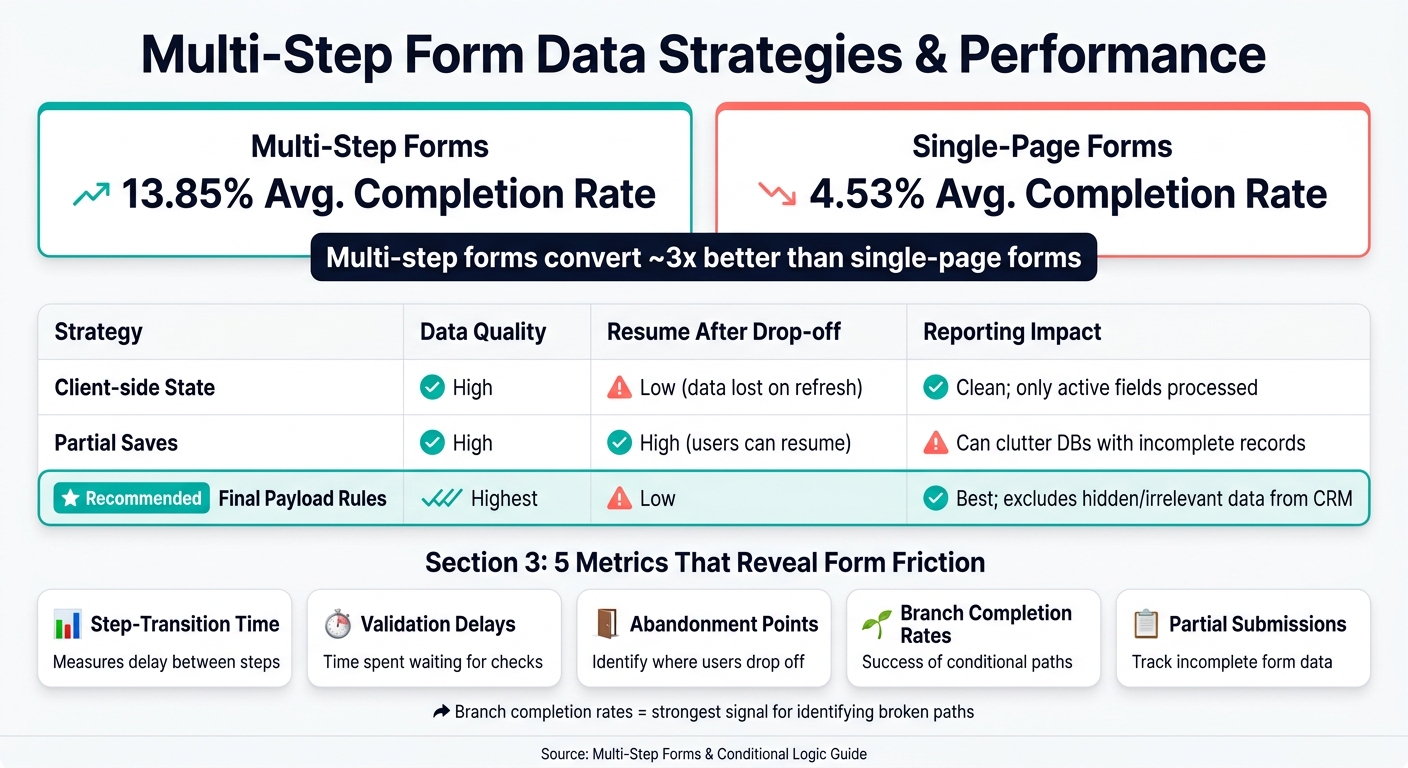
Multi-Step vs Single-Page Forms: Data Strategies & Key Metrics
Cut Wasted Loads and Validation Work
Once your branch map is in place, the next thing to check is simple: what are inactive paths still costing you?
If a branch isn't active, it shouldn't keep rendering fields, running validation, or sending extra data. Every page you skip means fewer inputs to process, fewer rules to check, and less stuff in the submission. That matters more than it sounds.
When a user's answer rules out an entire branch, ending the session early with Finish and show or Redirect to cuts off more field rendering and submission work right away.
You should also use And/Or conditions to filter paths with more control. That way, only the active fields and rules run when more than one condition needs to be met.
Pick a Clear Data Strategy for Active and Inactive Fields
Inactive branch data should not end up in the final payload. The final record needs to contain only active, valid answers. If hidden or irrelevant data slips through, CRM data gets messy and reporting becomes harder to rely on.
| Approach | Data Quality | Implementation Effort | Resume after drop-off | Reporting Impact |
|---|---|---|---|---|
| Client-side State | High | Moderate | Low (data lost on refresh) | Clean; only active fields are processed |
| Partial Saves | High | High | High (allows users to resume) | Can clutter databases with incomplete records |
| Final Payload Rules | Highest | Moderate | Low | Best; excludes irrelevant/hidden data from CRM |
Final payload rules usually give you the cleanest output without making the build too heavy. It's a good middle ground.
If recovering drop-offs matters, partial saves can help people come back and finish later. The tradeoff is pretty clear, though: you'll likely end up managing incomplete records in your database.
Metrics That Reveal Form Friction
A form can look fine in testing and still frustrate people once it's live. That's why the right metrics matter.
Watch these closely:
- Step-transition time
- Validation delays
- Abandonment points
- Branch completion rates
- Partial submissions
Branch completion rates are one of the most useful signals here. If an enterprise path performs worse than an SMB path, for example, that's a strong clue that one branch needs attention.
Reform's real-time analytics and incomplete-response tracking make it easier to see exactly where users drop off inside a given branch. So instead of guessing which step is causing trouble, you can spot the weak point and test that path before launch.
Test Every Path and Launch With Guardrails
Check Every Branch, Edit Path, and Device Type
Once your routing and hidden-field rules are in place, test every possible path before launch.
Don’t stop at the happy path. Go through every branch. Build a test matrix for each route, then check boundary values right at the trigger points. For example, if a rule fires at “greater than $50,000,” test $50,000 and $50,001 as separate cases to make sure the trigger is exact.
Here’s what to check for each core logic action:
| Logic Action | QA Focus Area | Expected Behavior |
|---|---|---|
| Skip this page | Page sequence | Bypasses the next page based on the answer |
| Jump to | Destination accuracy | Moves the user to a non-sequential page |
| Finish and show | Outcome relevance | Displays the correct "Thank You" page for the user's input |
| Redirect to | External handoff | Sends the user to the correct external URL |
| AND/OR Logic | Condition stacking | "And" requires all conditions; "Or" requires only one |
Make sure skipped paths don’t render, validate, or submit hidden values. Then go back and change an earlier answer after moving forward. The route should update right away. Test “is empty” rules on their own too.
After you’ve checked routing, test state changes on mobile as a separate pass. Look at CTA access. Check the progress bar layout. And if step labels only appear on desktop, review the mobile layout on its own.
It also helps to run negative tests before launch. Try typos. Skip optional fields. Enter unexpected inputs. That’s often where edge cases show up.
Conclusion: Keep Paths Relevant, Fast, and Clean
After launch, review incomplete and unexpected submissions, then cut any branch that adds friction. Use completion data and abandonment metrics to find the steps where users drop off, and tighten the logic from there.
FAQs
When should I use conditional logic?
Use conditional logic when you want a form to change its path, steps, or fields based on a person’s answers, especially in multi-step forms.
It lets you skip pages that don’t apply, jump to a certain step, end the form early, or send the user to a URL. It also keeps data handling lean, since the form only validates and requires the fields shown in that person’s current path.
How do I stop hidden fields from blocking submissions?
In Reform, apply required and validation rules only to fields users can actually see. If conditional logic can hide a field, don’t mark that field as required. And only validate the visible fields on the current step.
If a field is required for routing or integrations, keep it visible whenever it’s required. Then test every branch so the validation lines up with each path.
What should I track after launch?
Track performance at the path level and treat each branch like its own funnel. That gives you a clearer view of how people move through the form instead of lumping every user into one report.
Watch a few key signals:
- Completion rates
- Time spent on each section
- Drop-off points
These numbers show where users quit, stall, or hit friction.
Use GA4 custom events to track step changes. Check your submission dashboard every week. Then review your logic on a regular basis to make sure data mapping, completion times, alerts, and routing still match current pricing, territory, or campaign changes.
Related Blog Posts
Get new content delivered straight to your inbox

The Response
Updates on the Reform platform, insights on optimizing conversion rates, and tips to craft forms that convert.




Drive real results with form optimizations
Tested across hundreds of experiments, our strategies deliver a 215% lift in qualified leads for B2B and SaaS companies.
