
.webp)
How to Use Progressive Profiling for Lead Segmentation



If you ask for too much too soon, more people leave your form. The fix is simple: I collect a little data first, ask fit and buying questions later, and use each answer to sort, score, and route leads right away.
Here’s the short version:
- Start small: ask for basic contact details first
- Ask more later: add role, company size, industry, and use case in later steps
- Save high-friction fields for high intent: timeline, budget, and buying authority fit demo or pricing requests
- Use fixed choices: dropdowns and radio buttons keep CRM data clean
- Route by answer: send leads to sales, nurture, or self-serve based on fit and intent
- Review performance often: watch completion rate, drop-off points, bad entries, and profile depth
A few numbers make the case clear:
- Multi-step forms convert at 13.85% on average
- Single-step forms convert at 4.53%
- Cutting a form from 11 fields to 4 can improve completion by about 120%
- Poor data quality costs companies about $12.9 million per year on average
I’d use progressive profiling in a simple order: identity first, fit second, intent last. That keeps forms short while still giving sales enough detail to act.
To make that work, I’d focus on four things:
- Choose only fields that change an outcome
- Build interactive multi-step forms in low-friction steps
- Map answers to segments, scores, and follow-up
- Review drop-off and fix weak spots every quarter
The main idea is simple: keep the first ask light, collect more context over time, and make every field earn its place.
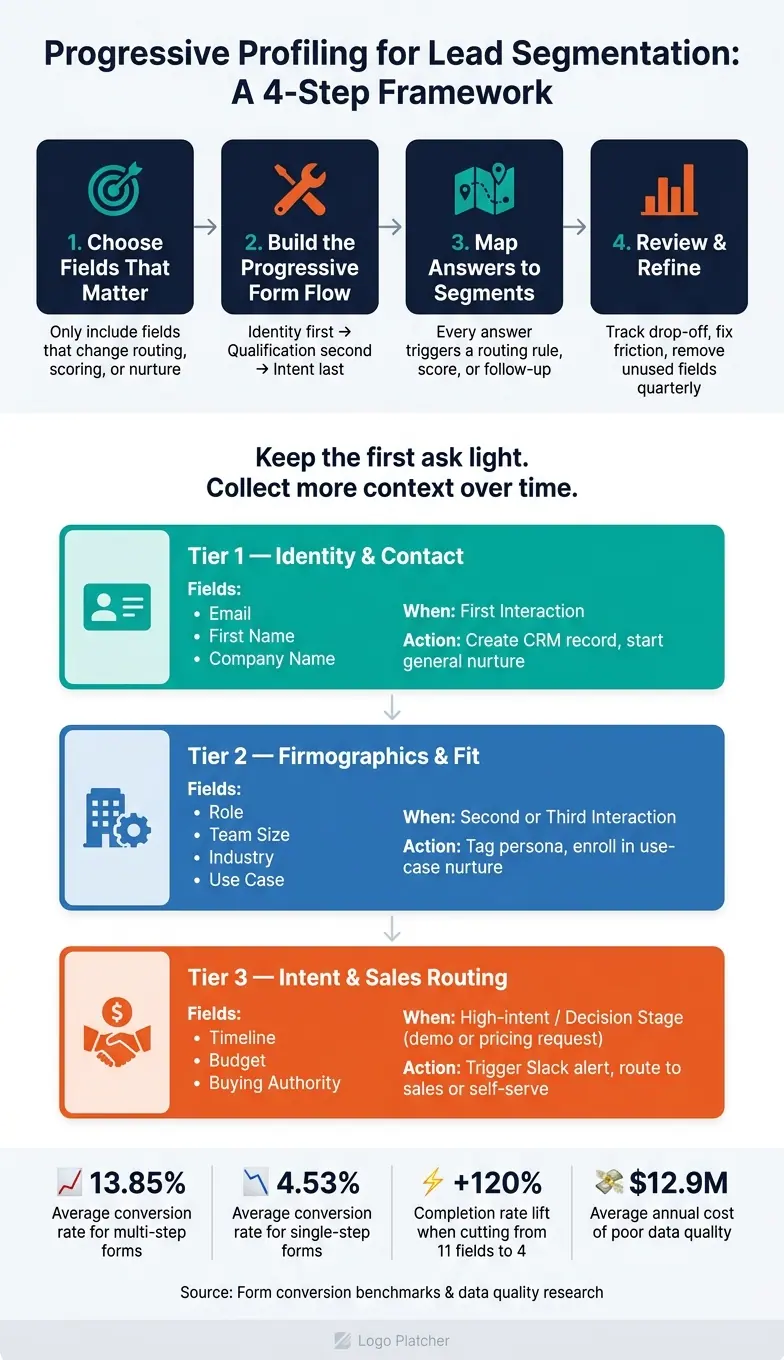
Progressive Profiling Framework: Identity → Fit → Intent
Smarter Forms in HubSpot with Progressive Profiling
sbb-itb-5f36581
Step 1: Choose the Fields That Matter for Segmentation
Pick only the fields that change segmentation, routing, scoring, or nurture. Each field should have a clear job after submission. If it doesn’t change what happens next, it just adds friction without improving segmentation.
Start with Minimum Data on the First Step
Keep the first step light. You can start with a single-choice opener, or ask only for work email, first name, and company name. Save firmographic questions like role, company size, and industry for later, or use real-time enrichment to keep forms short.
A low-friction opener works for a simple reason: when someone takes a small first step, they’re more likely to keep going. Forms built this way perform much better. Multi-step forms convert at 13.85% on average, compared with 4.53% for single-step forms.
Split Questions into Early, Middle, and Late-Stage Fields
A simple way to plan the form is to group fields by timing:
| Tier | Typical Fields | When to Ask |
|---|---|---|
| Core - Identity & Contact | Email, first name, company name | First interaction |
| Enrichment - Firmographics | Role, team size, industry, use case | Second or third interaction |
| Intent - Sales Routing | Timeline, budget, buying authority | High-intent or decision stage |
Use this table to move from identity to intent. That sequence gives you the basic flow for the next step.
Rank Fields by Business Value and Drop-Off Risk
Before building the form, score each field on two things: business value and drop-off risk. Put high-value, low-friction fields early. Push higher-friction questions, like phone number, revenue, or buying authority, to a later point when intent is stronger, such as a pricing-page return or a demo request.
Talk to your sales team and ask which fields they use in practice. If a field doesn’t help with routing, scoring, messaging, or reporting, cut it. Going from 11 fields to 4 can lift completion rates by about 120%.
After you rank the fields, build the sequence around that order. Put the easy, useful questions first, and save harder ones for later steps.
Step 2: Build the Progressive Form Flow
Take your ranking and turn it into a clear step order: identity first, qualification second, intent last. In plain English, the first step should ask for contact details with as little drag as possible.
Use a Low-Friction First Step to Capture Identity
Start with one identity field or a very short set. The goal of the first screen is to get the lead moving, not to screen them out.
That first step should capture contact info and build momentum, not handle qualification. Labeled progress indicators like "Contact Info" and "Details" help the form feel shorter and easier to finish. Once someone starts, use the next step to check fit.
Add Qualification Questions After the First Step
After that first step, move into firmographic questions. Save budget and timeline for demo requests or pricing requests, where those answers matter more.
Collect role to judge fit, budget to set priority, and timeline to measure urgency. Use fixed budget ranges so answers stay standardized. Dropdowns with 5–8 choices help keep responses consistent and make CRM data cleaner.
Ask only what changes the next action.
Use Conditional Routing Based on Previous Answers
Conditional routing should decide which segment a lead enters next, not just which questions appear on screen. Skip questions that don't apply and route leads based on earlier answers. For example, send high-revenue leads straight to scheduling, and skip CRM follow-ups when the answer is no.
If you already know something, don't ask for it again. Pull country from an IP address or infer industry from an email domain, then use that space for a new qualification question instead.
Reform supports multi-step forms, conditional routing, email validation, and lead enrichment in a no-code builder. From there, map each answer to a segment, score, or follow-up rule.
Step 3: Map Form Answers to Lead Segments
Don’t treat form answers like storage. Treat them like signals.
The goal here is simple: each response should trigger the next step. Based on the fields you picked in Step 1 and the flow you built in Step 2, turn every answer into a routing rule, score change, or follow-up action inside your CRM or automation tool.
Assign Each Field to a Clear Segment, Score, or Action
Before you add a question, decide what happens after someone answers it. A clean way to do that is to sort fields into three levels: identity, fit, and intent.
For fields you want to segment, use dropdowns or radio buttons. Fixed answer choices keep CRM rules tidy and easy to work with. Open text usually makes routing messier.
Create Rules for Routing, Scoring, and Follow-Up
Use if/then logic to combine signals and route leads in real time. For example, a VP-level role, 200+ employees, and a specific integration requirement can point to a high-priority enterprise lead and trigger an alert to sales.
Use tags for routing, like enterprise-fit, nurture-only, or high-intent, and use point values to rank priority. Someone who says they plan to buy within 30 days should score higher than someone who’s still researching.
Negative scoring helps too. If a person says they’re a student or freelancer, you can tag that submission as disqualified and keep it out of the main sales queue.
Multi-step forms with conditional thank-you pages can also move each lead to the next best step instead of sending everyone to the same generic page.
Field-to-Segment Planning Table
Map each field to one segment, one score change, or one workflow:
| Field | Segment Value | When to Ask | Workflow Trigger |
|---|---|---|---|
| Email / Name | Identity | Tier 1 - First touch | Create CRM record; start general nurture sequence |
| Company Size | SMB vs. Enterprise | Tier 2 - Consideration | Route to Enterprise AE (>200 employees) or SMB flow (<50 employees) |
| Job Role / Function | Persona | Tier 2 - Consideration | Tag as Decision Maker; trigger role-specific content |
| Primary Use Case | Solution Fit | Tier 2 - Consideration | Enroll in use-case nurture sequence |
| Budget Range | Qualification | Tier 3 - Decision | Increase lead score; route to sales vs. self-serve |
| Purchase Timeline | Intent Level | Tier 3 - Decision | Trigger Slack alert for immediate outreach |
| Current Tool / Stack | Migration Opportunity | Tier 3 - Decision | Flag for sales context |
Set up the handoff so each submission reaches the right owner within minutes. Once the rules are mapped, review where leads still drop off or where data comes back incomplete.
Step 4: Review Performance and Refine the Sequence
Once you've mapped answers to segments, step back and look at the form as a whole. Treat it like a system, not a pile of fields. Then use the data to tighten each step.
After the form goes live and leads start coming in, check your progressive profiling on a regular basis.
Track Completion, Abandonment, and Field-Level Friction
Track completion by stage, abandonment, invalid submissions, and the exact field where leads drop off. That last one matters a lot. If people keep leaving on the same question, you've found the friction point. In a multi-step form, this makes it much easier to see which step is slowing people down and whether that question should move earlier or later.
Also keep an eye on invalid submissions, like fake email addresses or placeholder text such as "asdf." That's often a sign the form feels too long or too intrusive.
Then look at profile completeness by tier. If too few leads move from Tier 1 identity data to Tier 2 firmographics or Tier 3 sales-ready data, your middle steps may be asking for too much too soon. That tells you whether the form is producing usable segments, not just raw submissions.
Adjust the Form When Segments Are Misrouted or Incomplete
If sales still has to ask for the same details later, the form is likely pushing too hard too early. A quarterly sales review can show which fields actually affect routing, scoring, or follow-up.
Start with the fields that don't change anything. If a question doesn't affect lead score, routing, or messaging, cut it.
Then adjust the order so high-friction questions show up later. After that, simplify the format. Swap open-text inputs for dropdowns or predefined ranges where you can. That helps keep CRM data clean and easier to segment. Reducing a form from 11 fields to 4 has been associated with completion-rate gains of approximately 120%.
Review fields every quarter and remove any question that no longer changes routing, scoring, or messaging.
If leads that reach later stages still aren't converting or getting accepted by sales, go back and review your field choices and scoring rules. A better MQL-to-SQL rate is a good sign that the sequence is collecting more useful qualification data.
Conclusion: Keep Forms Short, Segments Useful, and Data Progressive
Keep progressive profiling short and useful. Capture identity first, add qualification later, route by answer, and remove fields that no longer improve segmentation.
FAQs
When should I ask for budget and timeline?
Ask about budget and timeline after you’ve built enough intent or trust - not during early awareness-stage interactions.
These questions usually make more sense later in the journey, like after a second or third content download, a video demo request, or a return visit to your pricing page.
With Reform, you can gather this information over time through multi-step forms.
How do I decide which fields belong in each step?
Group your form fields into three tiers based on where the user is in the journey and what your business needs at that moment:
- Tier 1: basics like name and email
- Tier 2: qualifying details like job role, company size, and industry
- Tier 3: higher-friction fields like budget, timeline, and pain points
Here’s the rule of thumb: if a field doesn’t help with routing, scoring, or messaging, cut it.
Then check your form analytics to see where people drop off. If certain fields keep causing abandonment, don’t force them upfront. Move them to a later step instead.
What metrics should I track to improve progressive profiling?
Track both quantitative and qualitative signals. Check form analytics and heatmaps to see where users drop off.
If one field keeps causing abandonment, move it to a later step. You can also compare your progressive form against a long, standard form or a version with fewer questions. That makes it easier to measure shifts in lead quality and conversion rates.
Related Blog Posts
Get new content delivered straight to your inbox

The Response
Updates on the Reform platform, insights on optimizing conversion rates, and tips to craft forms that convert.




Drive real results with form optimizations
Tested across hundreds of experiments, our strategies deliver a 215% lift in qualified leads for B2B and SaaS companies.
