
.webp)
Best Practices for Salesforce API Form Integration



Connecting web forms to Salesforce Marketing Cloud can be tricky. Small mistakes - like mismatched field names or expired tokens - can disrupt your system, leading to errors like duplicate records or failed automations. This guide breaks down key practices to ensure smooth, secure, and reliable integrations:
- OAuth Authentication: Use OAuth 2.0 for secure API calls. Cache tokens and refresh them before they expire to avoid disruptions.
- Field Alignment: Match form fields exactly with Salesforce's data model, including capitalization and data types.
- Data Validation: Validate inputs on multi-step forms both on the client and server sides to catch errors and block bot submissions.
- Rate Limit Management: Monitor API rate limits, handle errors gracefully, and use exponential backoff for retries.
- Data Security: Route API calls through server-side processes and enforce HTTPS with bearer tokens in headers.
- Duplicate Prevention: Use upsert operations and unique keys to avoid duplicate records.
- Consent Management: Track user consent and preferences to ensure compliance with regulations like GDPR and CCPA.
These steps help maintain data accuracy, security, and compliance, ensuring your forms integrate seamlessly with Salesforce Marketing Cloud.
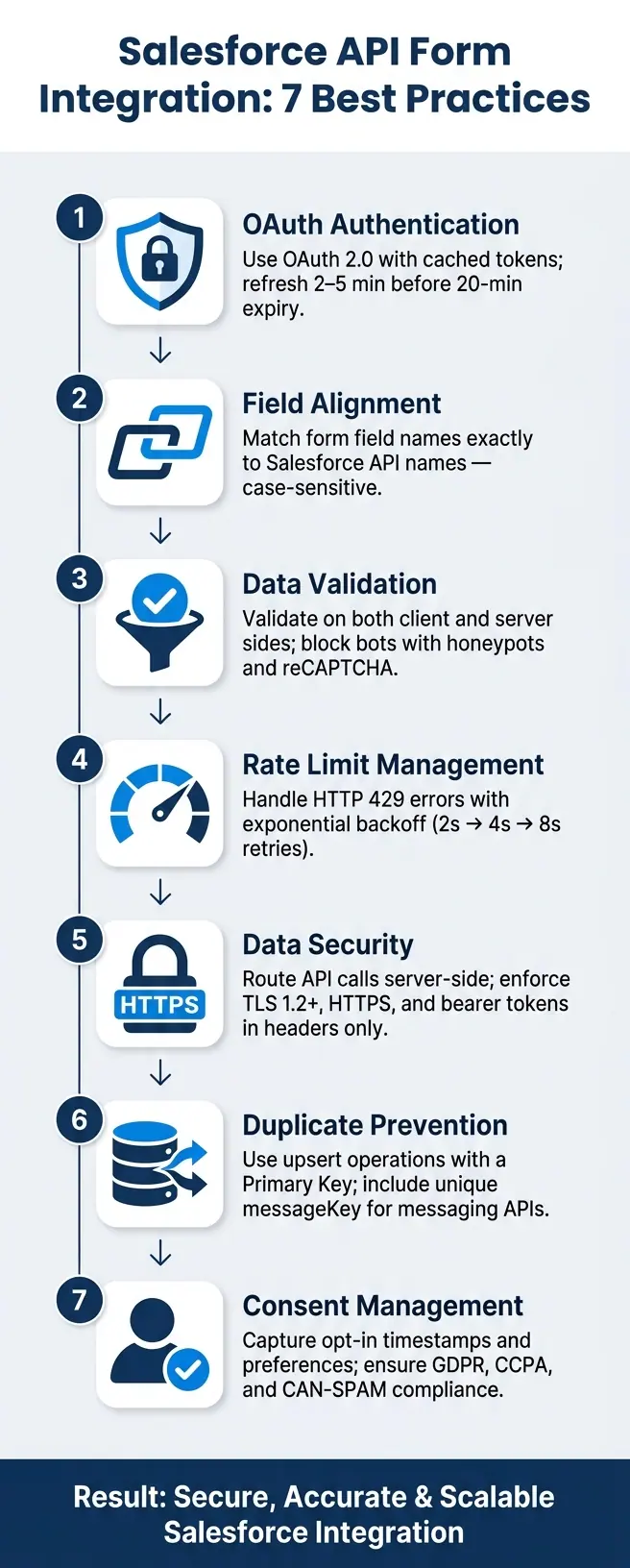
Salesforce API Form Integration: 7 Best Practices
1. Use OAuth-Based Authentication
Always authorize API calls using OAuth 2.0 - it’s the industry standard and far more secure than embedding static credentials directly into your code.
To set it up, head to Marketing Cloud’s Installed Packages. An admin will need to create a package, add an API Integration component, and choose the appropriate grant type. For most form-to-CRM integrations, Server-to-Server (Client Credentials) is the best fit since it operates seamlessly in the background without requiring user login. Once this is configured, you’ll receive a Client ID and Client Secret, which should be stored securely on your server.
To obtain an access token, send a POST request to your tenant’s Authorization Base URI, appending /v2/token to the URL. Use the token you receive in the Authorization: Bearer header for every subsequent API call. Keep in mind that access tokens expire after 20 minutes. To avoid disruptions, cache the token, monitor its expires_in value, and refresh it 2–5 minutes before expiration. This proactive approach helps prevent unnecessary rate limiting.
When setting up integration scopes, request only the permissions your form actually needs. This helps maintain security and ensures accurate data synchronization with your CRM. Additionally, make it a practice to rotate your Client Secret at least every 180 days. Marketing Cloud allows a "staged" secret alongside the active one for a brief 5-minute window, enabling you to rotate secrets without causing downtime.
| Token Type | Lifetime | Storage Best Practice |
|---|---|---|
| Access Token | 20 minutes | Store in-memory only |
| Refresh Token | 30 days (default) | Secure server-side storage |
Finally, ensure all API calls use your organization’s specific subdomain in the format https://YOUR_SUBDOMAIN.my.salesforce.com. Using the wrong subdomain can result in 403 Forbidden errors.
Once OAuth-based authentication is securely implemented, the next step is aligning your form fields with Salesforce’s data model for smooth integration.
sbb-itb-5f36581
2. Align Form Fields With the Salesforce Data Model
Before you start coding, take the time to audit every field in your Salesforce Data Extension or object. You need to know which fields are required, the expected data types, and their exact API names. This step is crucial to avoid failed submissions or missing records.
Field names must match exactly. The name attribute for each form field has to match the corresponding Salesforce external field name perfectly, including capitalization. For example, EmailAddress is not the same as emailaddress in Salesforce's eyes. As noted in Salesforce Developers' documentation:
"The body of the POST request contains a formData object that includes the field names to update. The keys in the formData object must exactly match the external field names you configured."
Data types are just as critical. For instance:
- Checkboxes must send
trueorfalse- not"yes"or1. - Date fields need the
YYYY-MM-DDformat. - Datetime fields require the full ISO format:
YYYY-MM-DDTHH:mm:ss.sssZ.
If you send the wrong data type - like plain text into a Boolean field - it might not always throw an error but could silently corrupt your data.
| Input Type | Salesforce Requirement |
|---|---|
| Text | Must not exceed the field's maximum length |
| Checkbox | Send true (checked) or false (unchecked) |
| Select/Radio | Values must match predefined picklist options exactly |
| Date | Format: YYYY-MM-DD |
| DateTime | Format: YYYY-MM-DDTHH:mm:ss.sssZ |
| Hidden | Use for metadata like CampaignID, Source, or SubscriberKey |
Hidden fields are especially useful for passing system-level data like SubscriberKey, form_id, or Status. These are things users don’t need to see or interact with. If your Data Extension has a primary key, Salesforce will perform an upsert: updating an existing record if a match is found or creating a new one if it’s not. Without a primary key, every form submission creates a new record, which can lead to duplicates.
Pay attention to picklists. Dropdown values must match Salesforce picklist API values exactly, or the sync will fail. To handle mismatches, you can set up a server-side transformation layer to adjust values before sending them to the API.
If coding isn’t your thing, tools like Reform can make this process easier. Reform offers built-in options to map form fields directly to your Salesforce data model, helping to reduce integration errors.
The next step? Validate and clean your data to ensure smooth integration.
3. Validate and Clean Data Before Sending to the API
Accurate field mapping is only part of the equation - ensuring your data is clean and valid is just as critical. Typos, missing details, bot submissions, or improperly formatted dates can quietly wreak havoc on your Salesforce records.
Start with client-side validation. Leverage HTML5 attributes like required, type="email", and pattern to enforce proper formatting. For example, use these tools to validate phone numbers, and make sure to trim any extra spaces from text inputs before submission. To guard against bot activity, add honeypot fields and validate reCAPTCHA tokens.
However, don't stop there. Server-side validation is essential to catch anything that might slip through or bypass client-side checks. As Jonas Lamberty, a developer active on Salesforce Stack Exchange, explains:
"Frontend validation is good to improve the usability of the page for the user. Backend validation should be employed as a security measure, should someone try to circumvent the form frontend somehow."
Another crucial step is ensuring the correct HTTP method. Always use POST for form submissions. Marcel Szimonisz, a MarTech consultant, highlights the risks of improper methods:
"The main issue is that the form can be submitted using a GET request. This means you don't even need to fill out the form - you can simply enter the form URL, append GET parameters, hit refresh, and flood someone's Data Extension."
To avoid duplicate submissions, implement the Post-Redirect-Get pattern. This technique redirects users after a successful form submission, reducing the risk of accidental resubmissions. Finally, verify that all field values match their expected types before assembling your API payload.
4. Handle API Rate Limits, Errors, and Retries
After setting up reliable validation and OAuth, it's important to manage token caching efficiently to avoid unnecessary OAuth requests. Too many token requests can lead to throttling. To prevent this, cache the response token and use the expires_in value to schedule a refresh about five minutes before it expires. For web integrations, include the offline_scope so your system can renew tokens without needing an active user session. These steps help reduce API load and set the stage for handling errors effectively.
Once you've secured token management, the next step is to handle API responses properly. If you hit rate limits, the API will respond with an HTTP 429 error. Always check the Retry-After header, which specifies how many seconds to wait before making another request. For HTTP 500 errors, keep in mind that within the Marketing Cloud, these often indicate account-level throttling due to system strain, rather than a generic server issue.
For retrying failed requests, use exponential backoff. This means doubling the wait time between retries - for example, 2, 4, 8 seconds - until you hit a maximum limit. This approach gives the system time to recover and helps prevent further throttling.
When it comes to error handling, wrap API calls in try-catch blocks and log failures. Include details like timestamps, request IDs, and error messages in a dedicated Data Extension. This makes troubleshooting much easier and provides a record for manual follow-up if automated retries fail. For large asynchronous batch operations, use the RequestID from an error postback to retry only the specific failed records instead of the entire batch.
Additionally, avoid running three or more concurrent imports into the same data extension. This is classified as "Extreme" usage and can lead to significant performance issues. Instead, stagger your imports to run one after another, particularly in Enterprise 2.0 accounts where business units share the same subscriber pool.
Once you've addressed rate limits and error management, the next priority is ensuring sensitive data is protected throughout the process.
5. Protect Sensitive Data End to End
Once you've tackled error management, the next step is ensuring sensitive data stays secure throughout every interaction.
Never call the Salesforce Marketing Cloud API from client-side code. Embedding credentials or tokens in client-side code makes them vulnerable to interception through network inspection. Instead, route form submissions through a server-side process that handles the API call on behalf of the user. This adds a layer of protection by keeping sensitive information away from prying eyes.
Always enforce TLS 1.2 or higher with HTTPS and use your tenant-specific subdomain rather than generic endpoints. When sending OAuth bearer tokens, include them only in the Authorization header. Avoid placing tokens in URL query parameters, as these can be logged by servers, proxies, or even browser history - creating unnecessary security risks. This approach ensures secure transmission and proper token handling.
Token storage requires extra care. Store access tokens temporarily and keep refresh tokens securely on your server, treating them as securely as your Salesforce login credentials. When setting up Installed Package scopes, apply the principle of least privilege. Only request the permissions your integration truly needs, such as "Data Extension Write" or "Lists and Subscribers Read." This way, even if a token is compromised, its limited scope minimizes potential damage.
Controlling access is equally critical. Register your form's domain in Salesforce's CORS (Cross-Origin Resource Sharing) settings to ensure only authorized domains can submit data to the API. This blocks unauthorized requests from unknown origins. Additionally, configure your application to mask error responses in production environments to prevent exposing system details that attackers could exploit.
Lastly, always use the HTTP POST method for form submissions. This prevents sensitive data, like names or email addresses, from appearing in URLs, where it could be cached by browsers or logged by servers. Keeping this data out of URLs is a simple yet effective way to reduce exposure to potential threats.
6. Build for Idempotency and Prevent Duplicate Records
Once you've implemented strong security measures, the next step is to ensure that every valid submission is recorded only once. This is where upsert operations come into play. Unlike standard inserts, an upsert checks if a matching record already exists. If it does, the record is updated; if not, a new record is created. To make this work, your Data Extension must have a designated Primary Key - a specific field that the API uses to identify existing records. As noted by RizeX Labs:
"The endpoint above performs an upsert - it inserts new records and updates existing ones based on the primary key field. Make sure your DE has the correct field marked as the primary key." - RizeX Labs
Beyond upserts, idempotency is equally important, especially in messaging workflows. When working with the Transactional Messaging API, include a unique messageKey - a UUID generated on the client side - to prevent duplicate sends. Keep this key stored locally to monitor the status of each request. If the same messageKey is used again within 72 hours, Salesforce will reject it, ensuring the message isn't sent twice:
"The message key must be unique across all sends from your Business Unit over the past 72 hours. If the message key isn't unique, the API responds with an error message." - Salesforce Developers
It's also essential to confirm that your submission method and post-submission redirection strategies, as mentioned in Section 3, support duplicate prevention.
For large-scale operations using Bulk API 2.0, you can further prevent duplicates by including an externalIdFieldName in your request body. This tells the API which field acts as the unique identifier during upsert operations. If a batch partially fails, you can use the RequestID to isolate and retry only the failed rows, avoiding duplicates for records that were already processed successfully. This approach ensures that even large-scale processes maintain data integrity and avoid unnecessary duplicates.
7. Manage Consent and Subscription Preferences Clearly
Once your data is properly deduplicated, the next step is to focus on managing user consent and subscription preferences in a clear and compliant way.
Consent isn’t just a best practice - it’s a legal requirement. Whether you're dealing with GDPR, CCPA, or CAN-SPAM regulations, your API integration must accurately capture when and how a user gave permission to be contacted. This information must also flow seamlessly into Salesforce Marketing Cloud.
Make sure your Installed Package includes the list_and_subscribers_write scope. Without this, attempts to create or update subscriber consent status through the REST API could fail or result in an authorization error.
To maintain a clear audit trail, include an UpdateDate timestamp in your API payload for consent changes. Pair this with a SubscriberKey and a boolean IsSelected flag in a dedicated Data Extension (e.g., pref_center_selections_updated). For SMS consent, use the REST API’s /sms/v1/messageContact/{messageApiKey}/send endpoint and set "Subscribe" and "Resubscribe" to true to manage mobile consent programmatically.
Instead of relying on a single global opt-out, consider building granular preference centers with multi-step form design. These allow users to select specific types of communications - like newsletters, product updates, or promotions. This approach not only ensures compliance with GDPR and CCPA but also helps reduce unsubscribe rates by giving users more control over their preferences. For those using Marketing Cloud Next (Growth or Advanced editions), the built-in Signup Form flow template can automatically create consent records across various messaging channels as soon as a form is submitted.
Conclusion
The integration process outlined earlier is the foundation of an effective Salesforce Marketing Cloud strategy. Connecting custom forms with Salesforce Marketing Cloud APIs goes beyond just technical execution - it ensures data accuracy, security, and compliance. The best practices highlighted tackle common pitfalls like expired tokens, mismatched fields, bot submissions, duplicate records, rate limits, and consent tracking issues.
The stakes couldn't be higher. Small errors - like a delay in processing or a simple field mismatch - can disrupt lead follow-ups and compromise data integrity. As Salesforce Trailhead aptly states: "Security tops the list when dealing with credentials and customer data."
The difference between a manual setup and an automated integration isn't just about convenience - it's about ensuring fast responses and avoiding missed opportunities.
While implementing these best practices requires thoughtful planning, the payoff is a secure, dependable, and compliant system. Tools like Reform can simplify this process significantly. With features like built-in spam prevention, email validation, CRM integrations, and no-code field mapping, Reform allows teams to apply these best practices without needing to write custom code for every connection.
These streamlined processes not only protect your data but also build customer confidence and improve marketing outcomes. The goal is clear: ensure clean data, prevent duplication, track consent, and handle errors discreetly. When done right, the integration scales effortlessly. Start applying these practices now to create a secure, accurate, and scalable form integration.
FAQs
What’s the best primary key to use to prevent duplicates?
The best primary key is a specific field in your Data Extension that is set as the primary key. This setup ensures that the system can either update existing records when a match is found or add new records when no match exists. Defining a primary key is crucial for keeping your data accurate and avoiding duplicate entries.
How can I refresh OAuth tokens without hitting rate limits?
To prevent hitting rate limits while refreshing OAuth tokens, it's smart to cache the access token and reuse it until it expires. Use the expires_in parameter to calculate when the token will expire, and aim to refresh it about 5 minutes before that happens. For web or public applications, enabling the offline scope allows you to use long-lived refresh tokens, ensuring continuous API access without interruptions. Following these steps reduces token requests and helps you stay within rate limits.
What’s the safest way to store and use Salesforce API tokens?
To safely manage Salesforce API tokens, make sure to store only the refresh token on your external server, treating it with the same care as sensitive credentials. The access token should remain in memory only, as it has a short lifespan. Always ensure your API requests are made over TLS 1.2 or higher for secure communication. Avoid exposing tokens or credentials in any client-side code, and limit permissions strictly to what’s necessary for your specific tasks.
Related Blog Posts
Get new content delivered straight to your inbox

The Response
Updates on the Reform platform, insights on optimizing conversion rates, and tips to craft forms that convert.




Drive real results with form optimizations
Tested across hundreds of experiments, our strategies deliver a 215% lift in qualified leads for B2B and SaaS companies.
