
.webp)
How to Route Facebook Leads to Your CRM



Routing Facebook leads directly into your CRM is essential for fast follow-ups and better conversions. Studies show that responding to leads within 5 minutes makes you 100x more likely to connect and 21x more likely to convert. Without integration, businesses face hours of manual data entry, risking delays and lost opportunities. Here's how you can automate this process:
- Why It Matters: Integration ensures instant lead delivery, clean data, and automated workflows.
- Integration Options: Use native CRM tools (easy but less flexible), middleware like Zapier (more control), or webhooks/APIs (instant but complex).
- Setup Essentials: Prep your Facebook Page permissions and CRM fields to avoid errors.
- Post-Integration: Automate lead routing, notifications, and follow-ups for a seamless workflow.
Fast response times and automated processes can double your conversion rates. Below, we break down the steps to connect Facebook Lead Ads to your CRM and optimize your lead management.
How to Connect Facebook Lead Ads to Your CRM with Make.com (No Coding Required!)
sbb-itb-5f36581
Facebook Lead Ads and CRM Integration: The Basics
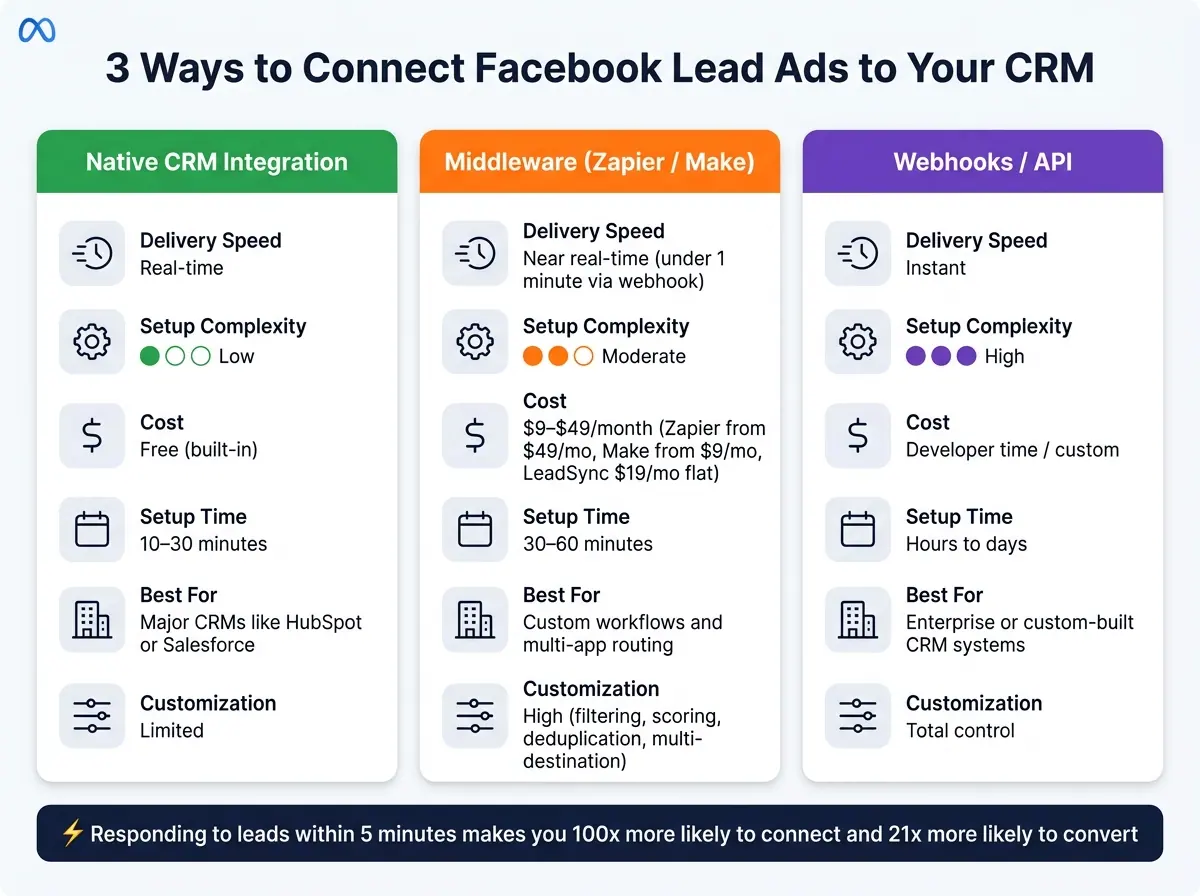
3 Ways to Connect Facebook Lead Ads to Your CRM
What Are Facebook Lead Ads?
Facebook Lead Ads, now officially called Meta Lead Ads, are designed to make it incredibly easy for users to share their contact information directly within Facebook or Instagram. When someone clicks on your ad, an Instant Form appears, pre-filled with their name, email, and phone number. No need to leave the platform.
The process is quick - just two taps to submit: review the details and confirm. This seamless experience is why Instant Forms often achieve conversion rates 2–3x higher than high-converting lead forms hosted externally. In contrast, redirecting mobile users to an external site can result in a 50–90% drop-off rate before they even reach the form.
Meta provides two types of forms to suit different goals:
- More Volume: Designed for maximum submissions with minimal barriers.
- Higher Intent: Adds an extra review step—similar to multi-step form design—to reduce accidental submissions, though this typically lowers lead volume by 10–30%.
One important detail: Meta only keeps lead data for 90 days. After that, the information is permanently deleted. This makes integrating your leads with a CRM essential for timely follow-ups. By connecting Facebook Lead Ads to your CRM, you can ensure leads are captured and acted upon immediately.
Why Connect Facebook Leads to Your CRM?
Timing is everything. A direct CRM connection allows you to respond to leads within the critical first five minutes, which can make all the difference.
Integrating your leads also eliminates the hassle of manually exporting CSV files each week. This automation reduces lead leakage by 22% compared to manual exports, ensuring fewer potential customers slip through the cracks.
But it’s not just about speed. Automated syncing ensures your data stays accurate and well-organized. For example, you can automatically clean and standardize incoming records - splitting full names into first and last names, removing duplicates, and routing leads to the right sales rep or pipeline right from the start.
"Manual export is not a Facebook limitation but a process design failure." - Jesus Vargas, Founder, LowCode Agency
Ways to Connect Facebook Lead Ads to Your CRM
There are three main ways to link Facebook Lead Ads to your CRM, each with its own benefits and challenges in terms of speed, setup, and flexibility:
| Method | Delivery Speed | Setup Complexity | Best For |
|---|---|---|---|
| Native CRM Integration | Real-time | Low | Major CRMs like HubSpot or Salesforce |
| Middleware (Zapier/Make) | Near real-time | Moderate | Custom workflows and multi-app routing |
| Webhooks/API | Instant | High | Enterprise or custom-built CRM systems |
Native CRM integrations are the easiest option. Most major CRMs, like HubSpot or Salesforce, offer built-in connectors for Facebook Lead Ads. These integrations are typically free and can be set up in about 10–30 minutes. However, the downside is limited customization - you get a straightforward sync but can’t add advanced filters or conditional workflows.
Middleware tools like Zapier (starting at $49/month for premium apps) or Make ($9–$29/month) provide more flexibility. These tools act as a bridge between Facebook and your CRM, enabling you to create multi-step workflows. For instance, you can score leads, separate name fields, check for duplicates, and even send data to multiple destinations before it reaches your CRM.
Webhooks and API connections are the most advanced option, offering instant delivery and total control over the process. However, they require developer expertise. This route is ideal for large organizations with custom CRM systems or highly specific workflows that middleware tools can’t handle effectively.
What to Set Up Before You Start the Integration
Getting everything ready before tweaking your CRM or automation tool is crucial. Overlooking permissions or unprepared fields can result in lost leads - without any error notifications. Here's what you need to take care of on both ends.
Facebook Setup Checklist
Start in Meta Business Suite. You must have Admin access to your Facebook Page, as all lead data is linked directly to the page. Without Admin access, no integration tool will be able to pull your leads.
Next, head to Business Settings > Integrations > Lead Access Manager and confirm that your integration tool has explicit permission to access leads. This step is often skipped, leading to situations where the connection looks fine but fails to deliver data.
Each Instant Form must also include a functional privacy policy URL - Meta won’t allow the form to go live without it. If you plan to use webhooks or a custom API, your Facebook app must pass App Review to get permissions like leads_retrieval and pages_manage_ads. However, this step isn’t needed for most teams using native or middleware integrations.
Finally, use the Facebook Lead Ads Testing Tool to generate a mock lead before launching your campaign. This ensures permissions are set up correctly and data is flowing properly - without spending a dime on ads.
Once Facebook is ready, shift your focus to preparing your CRM for smooth data handling.
CRM Setup Checklist
Make sure your CRM is fully set up before syncing to avoid losing leads due to missing fields.
"Most quality problems start at the form, not the integration." - Victor Hoang, Co-Founder & CMO, Rework
Before turning on the integration, create any custom fields your forms will capture, such as "Budget Range", "Timeline", or "Meta Campaign Name." Use the exact API field names to avoid mapping issues. While standard fields like email and phone are usually pre-configured, custom attribution fields like meta_campaign_name or meta_adset_name often need to be created manually.
Here’s how to handle specific field configurations:
| Meta Field | CRM Action Required |
|---|---|
| full_name | Split into First Name and Last Name using middleware |
| phone_number | Configure as plain text; remove country code if needed |
| ad_id / campaign_name | Map these to custom attribution fields |
| Meta Lead ID (15–17 digits) | Create a dedicated numeric or text field for this ID |
Set your default lifecycle stage to MQL (Marketing Qualified Lead) instead of SQL, as Facebook leads are typically early-stage, top-of-funnel prospects. Also, configure an "Upsert" logic based on the email address. This ensures returning leads update existing records rather than creating duplicates, keeping your pipeline organized from day one.
If you’re using a no-code form builder like Reform to collect leads, its user-friendly interface makes setting up custom fields and CRM connections straightforward.
How to Connect Facebook Lead Ads to Your CRM: Step-by-Step
Once you've confirmed your Facebook Page permissions and prepped your CRM fields, it's time to connect the two systems. This connection is crucial for real-time follow-ups and keeping your data accurate. There are two main methods to achieve this: using a native integration built into your CRM or employing a middleware tool to link the platforms.
Using Native Facebook-CRM Integrations
Native integrations are often the quickest way to set things up. For instance:
- HubSpot: Go to Settings > Marketing > Ad Integrations.
- Zoho CRM: Search for "Facebook Lead Ads" in the CRM Marketplace.
- Salesforce: Download the Facebook Lead Ads Connector from AppExchange (requires an active Sales Cloud license).
While the steps vary slightly depending on your CRM, the general process is consistent. You'll need to:
- Log into Facebook directly through your CRM's interface.
- Grant permissions for your Page, Ad Account, and Lead Forms.
- Select which lead forms to sync.
During the OAuth authorization process, make sure to check all permission boxes - this prevents silent errors. Keep in mind that native integration tokens expire every 60 days, so you'll need to reauthorize periodically to avoid disruptions.
Using Middleware or Automation Tools
If your CRM doesn't support native Facebook integration or you want more control over lead management, middleware tools like Zapier or Make can help. These tools operate on a trigger-action model: when a new lead is submitted on Facebook, it triggers an action, such as creating or updating a contact in your CRM.
Middleware tools offer additional flexibility. For example, you can:
- Create a CRM contact.
- Send a Slack notification to your sales team.
- Enroll the lead in an email sequence - all from a single form submission.
You can also filter out low-quality leads (e.g., those with placeholder emails like "test@test.com") before they enter your system. Middleware tools using webhooks can deliver leads in under a minute, while polling-based systems may take 5–15 minutes.
"The difference between contacting a lead in 5 seconds vs 5 hours can double conversion rates." - LogicIssue
Costs to consider: Zapier's premium plan for Facebook Lead Ads starts at $49/month, Make ranges from $9 to $29/month, and LeadSync - a tool tailored for Meta Lead Ads - charges a flat $19/month.
Once you've chosen your integration method, the next step is ensuring your data is mapped accurately.
Mapping Fields and Testing the Integration
After setting up your lead flow via a native integration or middleware, it's vital to map your fields correctly. This is where many setups encounter issues. For example, Facebook's full_name field is a single string, but most CRMs require separate fields for First Name and Last Name. Middleware tools like Zapier's Formatter or Make's Text Parser can automatically split these to prevent errors in email personalization.
| Facebook Field | CRM Property | What to Watch For |
|---|---|---|
full_name |
First Name + Last Name | Requires split logic |
email |
Direct mapping | |
phone_number |
Phone / Mobile | Strip country codes if needed |
ad_id / campaign_name |
Lead Source / Attribution | Map to custom fields for ROI tracking |
| Custom Question | Custom CRM Field | Ensure data types match (text, number, etc.) |
Once your fields are mapped, test the setup using the Meta Lead Ads Testing Tool. Submit a test lead and verify its appearance in your CRM or middleware logs. Following these steps ensures that every lead from Facebook is delivered to your CRM without delay, setting you up for timely and effective follow-ups.
Setting Up Lead Routing and Post-Integration Workflows
Once Facebook leads start flowing into your CRM, the next step is making sure they’re routed to the right sales reps immediately. Timing is everything - quick follow-ups can make or break your conversion rates.
Setting Up Real-Time Lead Routing
To route leads effectively, use the data you’ve already gathered. For example, map Facebook metadata like campaign_name and ad_id to CRM fields. This allows you to assign leads based on the specific product or offer they responded to. multi-step form questions, such as company size or budget, can help prioritize high-value leads for enterprise reps, while smaller accounts might go into automated nurture sequences.
Your automation should first check for an existing contact by email to avoid duplicates. If a match exists, update the record and notify the account owner instead of creating a new lead for another rep. This simple step saves time and prevents a messy CRM. Additionally, configure a catch-all rule at the Page level in your middleware to capture leads from unmapped or newly created forms. This ensures no leads are lost when campaigns are updated or changed.
"A week-old lead is a cold lead. The person has already solved their problem elsewhere or forgotten they filled in the form." - Jesus Vargas, Founder, LowCode Agency
Once a lead is assigned, set up an instant notification, such as a Slack message or email alert, to ensure the rep is aware. After routing is in place, the next focus should be on automating tailored follow-ups.
Automating Follow-Ups and Nurture Sequences
When Facebook leads come in, label them as Marketing Qualified Leads (MQLs) by default, not SQLs. Social leads often show lower intent compared to someone filling out a form directly on your website. Mislabeling them could trigger overly aggressive sales workflows too soon.
Your CRM’s workflow engine can handle the follow-up process efficiently. Start by sending a confirmation email within 60 seconds of submission. Then, enroll the lead in a nurture sequence tailored to their campaign source and schedule a follow-up task for the assigned rep. For high-value leads - like those with C-level titles or from companies with 500+ employees - a separate "fast-track" workflow can bypass the standard process and route them directly to senior reps with an urgent notification.
Once follow-ups are automated, focus on keeping your integration running smoothly.
Monitoring and Troubleshooting the Integration
Even the best integrations need regular maintenance. Common issues include expired API tokens and broken Form IDs. Facebook’s security tokens expire roughly every 60 days, so set a recurring reminder to reauthorize the connection before it lapses. Similarly, when you duplicate or refresh an ad campaign, the new lead form will have a different Form ID. Be sure to update your integration tool to map the new ID.
| Monitoring Signal | What "Healthy" Looks Like | Resolution |
|---|---|---|
| Lead volume | 100% match between Meta Ads Manager and CRM | Check Lead Access permissions in Meta Business Suite |
| Sync speed | Under 2 minutes from submission to CRM record | Switch from polling-based to webhook-based delivery |
| Data accuracy | Fields land in the correct CRM properties | Re-map fields using a fresh test lead from the Meta Testing Tool |
| Connection status | "Connected" or "Active" in integration settings | Reconnect and refresh API tokens manually |
Perform a monthly audit by comparing lead counts in Meta Ads Manager with new CRM contacts. Any discrepancies could indicate permission issues or broken form mappings. Use your middleware’s task history - like Zapier’s "Zap History" or Make’s execution logs - to spot and fix errors before they escalate. With automated synchronization, you can reduce lead leakage by 22% compared to manual CSV exports, but only if the integration is actively monitored and maintained.
Conclusion: Building a Reliable Facebook-to-CRM Lead Workflow
Connecting your Facebook leads directly to your CRM can dramatically improve your conversion rates. Research shows that companies responding to leads within 5 minutes are 100x more likely to make contact and 21x more likely to convert. To make this happen, focus on the essentials: webhook-based delivery, precise field mapping, deduplication logic, and attribution data. These elements ensure your CRM stays organized and your pipeline remains effective.
However, setting up the workflow is just the beginning. Regular maintenance is critical. For example, an expired API token or a new Form ID from a duplicated campaign could disrupt your lead flow without immediate detection. Conducting monthly audits - comparing lead counts in Meta Ads Manager with your CRM contacts - can help you catch and fix these issues before they cause significant damage.
The benefits are undeniable. For instance, resolving integration problems like quality filters and delivery delays has been shown to boost MQL rates from 3% to 18% - all without changing your audience targeting. By refining the integration process, not just the ads, you can achieve much higher MQL rates and maximize the impact of your campaigns.
FAQs
Which integration method should I use for my CRM?
The best way to integrate depends on your CRM, technical expertise, and how much automation you need:
- Native CRM integrations (like HubSpot, Salesforce, or Zoho) offer straightforward and reliable syncing.
- Third-party tools such as Zapier can handle more complex workflows, like adding lead enrichment or setting up conditional logic.
- Webhooks are ideal if you have a development team and need real-time performance with complete control over your data.
How do I prevent duplicate leads when syncing from Facebook?
To prevent duplicate leads when syncing data from Facebook to your CRM, make sure to add a deduplication step to your workflow. Set up your integration to search for existing contacts by matching email addresses. If it finds a match, update the existing record by adding the new lead source and an activity note. If no match is found, proceed to create a new contact.
Why did my Facebook leads stop syncing to my CRM?
If your Facebook leads suddenly stop syncing to your CRM, a few common culprits could be to blame:
- Expired authorization: Security tokens can expire, so you may need to reconnect your account to restore the connection.
- Page permissions: Double-check that you have the appropriate access level to retrieve lead data from the page.
- Field mapping errors: Changes to field names in either Facebook or your CRM can disrupt the sync. Review and update the mappings if needed.
- No submissions: If no leads are coming through, try Facebook’s Lead Ads Testing Tool to ensure the form is functioning and receiving submissions.
Identifying and addressing these issues promptly can help restore the flow of leads to your CRM.
Related Blog Posts
Get new content delivered straight to your inbox

The Response
Updates on the Reform platform, insights on optimizing conversion rates, and tips to craft forms that convert.



Drive real results with form optimizations
Tested across hundreds of experiments, our strategies deliver a 215% lift in qualified leads for B2B and SaaS companies.
