
.webp)
5 Ways to Handle Duplicate HubSpot Form Entries


Duplicate form entries in HubSpot can distort metrics, waste ad budgets, and create compliance risks. Here’s how to tackle them effectively:
- Use Built-In Deduplication: Leverage HubSpot’s tools that match records using unique identifiers like email.
- Optimize Form Settings: Make email fields mandatory, disable cookie tracking on shared devices, and use dropdowns instead of free-text fields.
- Manually Merge Records: Use the "Manage Duplicates" tool to review and merge flagged records.
- Automate Detection: Set up workflows to flag or handle duplicates automatically.
- Clean Data Before Imports: Standardize data (e.g., email formatting, phone numbers) to prevent duplicates during uploads.
Duplicate data affects accuracy and decision-making, but these strategies can help maintain a clean and reliable CRM.
How to Create Custom Rules to Identify Hubspot Duplicates Full 2026 Guide

sbb-itb-5f36581
1. Use HubSpot's Built-In Deduplication Features
HubSpot has a built-in system to handle duplicate contacts, using email addresses as unique identifiers. If someone submits a form with an email already in your CRM, HubSpot updates the existing record instead of creating a new one. The same applies to companies, which are identified by their primary domain name.
This automatic matching feature is available across all HubSpot plans. By default, HubSpot uses a browser's tracking cookie to link submissions, even if different users on the same device provide different email addresses. To prevent this, you can enable the "Always create new contact for new email" option in the form's Options tab. This ensures that records are updated or created strictly based on the email address provided.
For duplicates that aren't caught by automatic matching, HubSpot Professional and Enterprise plans offer the Manage Duplicates tool. This tool uses machine learning to identify potential duplicates by comparing seven key data points: first name, last name, email, IP-derived country, phone number, zip code, and company name. Ari Plaut from HubSpot notes:
"The [Manage Duplicates] tool uses machine learning, it'll get smarter as you grow. So you'll be more efficient, and your customers will have more frictionless experiences with your brand."
You can find this tool under Contacts > Actions > Manage Duplicates, where you can review flagged pairs and decide to merge or dismiss them. If you're on Data Hub Professional or Enterprise, you can manage duplicates in bulk - up to 5,000–10,000 pairs at a time. These plans also allow you to create custom rules for identifying duplicates based on specific properties.
Finally, to reduce duplicates from the start, make sure your forms are set up to collect clean and accurate data.
2. Set Up Forms to Collect Clean, Consistent Data
The way you configure your forms can make or break the quality of data flowing into HubSpot. Proper setup not only ensures cleaner data but also works hand-in-hand with HubSpot's deduplication features to keep records accurate.
Since HubSpot uses email as its primary unique identifier, always make the email field mandatory on every form. Avoid creating alternative email fields that bypass this logic. As Tom Ryan, Founder & CEO of MarCloud, emphasizes:
"Ensure email is required on all forms. Avoid creating alternative email fields that bypass primary email logic."
HubSpot also uses the hubspotutk cookie to link multiple submissions from the same browser into a single record. While this system works great for individual users, it can cause issues with shared devices, like a tablet at an event booth. Daniel Zapata, CRM Specialist at ICX, explains:
"If two form submissions come from the same browser and computer, the submissions will be merged into one record because HubSpot detects the same user token for both submissions."
To avoid this, disable cookie tracking on shared devices so that each submission is treated as a separate entry.
Another smart adjustment is swapping free-text fields for dropdowns or multi-step formats wherever possible. For example, fields like job title, industry, or country are prone to inconsistencies when users type freely ("VP of Sales" vs. "VP, Sales" vs. "vp sales"), which complicates deduplication later. Lastly, double-check that fields like Phone Number or Company Name are consistently mapped to the same HubSpot properties across all forms and landing pages. Inconsistent field mapping can corrupt data and create unnecessary headaches.
3. Use HubSpot's Manage Duplicates Tool to Merge Records Manually
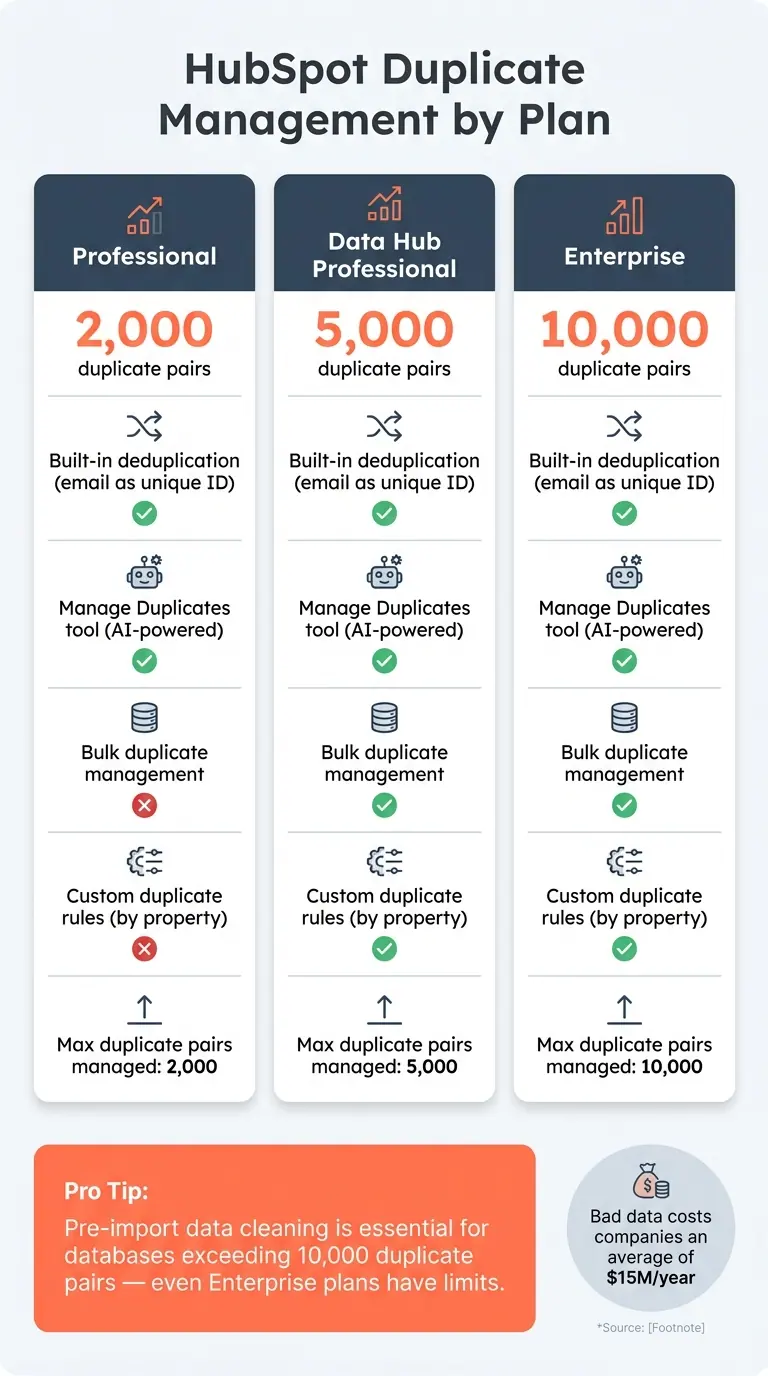
HubSpot Duplicate Management: Plan Limits & Features Compared
Even with optimized forms, duplicate records can still sneak into your database. Learning how to craft killer lead forms can help minimize these issues from the start. HubSpot's Manage Duplicates tool is here to help. Powered by its AI model, Breeze, this tool scans your database daily to identify duplicate pairs and ranks them based on similarity. For contacts, it compares details like first name, last name, email address, phone number, zip code, and company name. For companies, it evaluates factors such as domain, company name, country, phone number, and industry.
To use this tool, follow these steps:
- Go to CRM > Contacts (or Companies).
- Click Actions and select Manage duplicates.
From there, you can review flagged pairs one by one. You’ll decide which record to keep as the primary and qualify your leads and which property values to retain.
Why is this manual review important? It gives you control over your data. As Bastien Paul, a Data & CRM Expert, points out:
"When one contact exists as two records, their engagement data gets split... Your funnel reports and dashboards tell the wrong story."
When merging duplicates, focus on keeping the record with the most recent engagement and the earliest creation date. This approach ensures you retain a complete and accurate history. Remember, merging is permanent, so double-check your selections before finalizing.
The number of duplicate pairs you can manage depends on your subscription level:
- Professional plans: 2,000 pairs
- Data Hub Professional: 5,000 pairs
- Enterprise: 10,000 pairs
4. Automate Duplicate Detection and Handling with HubSpot Workflows
Handling duplicates manually can be effective, but it's not practical when you're dealing with hundreds of submissions each week. That's where automation comes in - it helps you manage duplicate detection at scale and prevents them from piling up.
A great place to start is by using HubSpot's "Number of form submissions" contact property. This allows you to create a workflow that automatically enrolls any contact who has submitted a form more than once. As TomM2, a HubSpot Thought Leader and Platinum Partner, explains:
"You could use a workflow to notify you every time a contact has submit a form more than once. There's a contact property called 'Number of form submissions' which we can use in workflows."
One key step that often gets overlooked is enabling re-enrollment. By default, workflows only process a contact once. To ensure the workflow catches every repeat submission, go to the Enrollment tab and enable re-enrollment for the "Form submission" trigger. Without this setting, the workflow will only act on the first submission and ignore subsequent ones.
Once re-enrollment is active, you can refine the process further with If/Then branches. For example, you could route duplicate contacts into a specific path, such as:
- Sending an internal email alert to the contact owner
- Creating a task for manual review
For teams handling large volumes, integrations with a "Find and Merge" action can automatically consolidate duplicate records based on shared identifiers like email addresses.
Another effective strategy is using "shadow" or interim properties. These custom fields, like "Recent Form Message", can hold incoming form data temporarily. Workflows can then compare this data with existing records to decide whether to update the contact, flag it for review, or take other actions. HubDoPete, a HubSpot Key Advisor and Gold Partner, suggests:
"Create a set of extra 'form input' properties to accept the fields on the form... Have the workflow look at the existing contact and apply your own rules to decide whether to copy the input properties into the real properties or to generate an exception task for a person to inspect and decide."
Lastly, if you need to notify backend systems about duplicate submissions, you can trigger external webhooks directly from workflows. Keep in mind that this feature requires a HubSpot Operations Hub subscription.
5. Clean and Standardize Data Before Imports and Integrations
When data isn't standardized, both automation and manual reviews can fall short. Duplicates often appear not because of form issues but due to inconsistent formatting. Even small differences can slip through and lead to duplicate entries. Since HubSpot's duplicate detection relies on exact matches, minor variations - like a period or abbreviation - can result in new records being created instead of updating existing ones.
"Standardizing your data before running dedup catches more duplicates. If one contact record has the company name 'Acme Corp' and another has 'Acme Corporation,' HubSpot's duplicate detection may not match them." - SearchReplace
To avoid this, clean your data before importing it. For example:
- Convert email addresses to lowercase.
- Remove company suffixes like "Inc." or "LLC."
- Format phone numbers consistently, such as using the E.164 standard.
If you're working with CSV files, tools like VLOOKUP in Excel or Google Sheets can help. Cross-reference your import file with an export of HubSpot Record IDs. Including a Record ID column in your file ensures that rows with matching IDs update existing records, while rows without matches create new entries.
Once you've standardized your import data, apply the same principles to real-time integrations. Misconfigured integrations that fail to match key identifiers can flood your CRM with duplicate records. Regularly audit field mappings in your integrations to prevent this issue.
Cleaning and standardizing data isn't just about keeping things tidy - it directly impacts your bottom line. Bad data costs companies an average of $15 million annually. And with HubSpot's native duplicate management tool limited to 10,000 duplicate pairs even on Enterprise plans, pre-import cleaning becomes a necessity for large databases.
"In RevOps, the old adage 'Garbage In, Garbage Out' isn't just a saying, it's a warning: if your data is messy, every decision built on it is compromised." - Karin Tamir, Glare Marketing
Conclusion
Duplicate HubSpot form entries can undermine the credibility of your entire CRM system. As Bastien Paul, Data & CRM Specialist, explains: "Duplicates... quietly wreck your reporting, your automations, and your team's trust in the CRM."
The five strategies outlined - built-in deduplication tools, manual merging through the Manage Duplicates feature, workflow automation, pre-import data standardization, and clean form setups - work together to create a strong defense against duplicate entries.
It all starts with clean form submissions. If your forms allow inconsistent formatting, accept spam, or skip email validation, the downstream cleanup process will always fall short. Tools like Reform can help address this issue by incorporating spam prevention, email validation, and lead enrichment features. These features ensure that the data entering your CRM is accurate and actionable, saving your team from unnecessary cleanup later.
"Clean submission data protects your metrics, strengthens compliance, and keeps your CRM usable. Deleting what no longer serves your team is not maintenance. It is a strategy." - Jigar Thakker, HubSpot Certified Expert and CBO, INSIDEA
FAQs
Why does HubSpot create duplicates if the email already exists?
HubSpot relies on browser cookies to monitor visitor activity. If a user submits multiple forms during the same browser session, HubSpot usually links those submissions to a single contact. Additionally, HubSpot uses email addresses to deduplicate contacts.
To ensure a new contact is created for every unique email address, even if submissions come from the same device, you can activate the "Always create contact for new email address" option in your form settings.
Which HubSpot plans include the Manage Duplicates tool and bulk merging?
The Manage Duplicates tool is available with Professional and Enterprise subscriptions across Marketing, Sales, Service, Content, and Smart CRM hubs. However, if you're looking to use bulk merging, you'll need a Data Hub Starter, Professional, or Enterprise plan.
With Professional-tier hubs, you can manually merge records and identify duplicates using basic tools. But for bulk merging capabilities, a Data Hub subscription is required.
How can I prevent duplicates from shared devices at events?
To prevent duplicate contacts when using shared devices at events, activate the Always create contact for new email address option in your HubSpot form settings. This feature ensures that a new record is generated for every unique email address, bypassing any reliance on cookies or device sessions. Alternatively, you can avoid duplicates by using separate devices, opening fresh browser windows, or submitting forms in incognito mode for each entry.
Related Blog Posts
Get new content delivered straight to your inbox

The Response
Updates on the Reform platform, insights on optimizing conversion rates, and tips to craft forms that convert.




Drive real results with form optimizations
Tested across hundreds of experiments, our strategies deliver a 215% lift in qualified leads for B2B and SaaS companies.
