
.webp)
HubSpot Form Settings to Stop Duplicate Submissions


Duplicate submissions in HubSpot forms can create messy CRM data and disrupt workflows. HubSpot's default cookie-based tracking often merges submissions from shared devices, leading to overwritten contact records. This article compares two solutions to handle these issues: HubSpot's native form settings and Reform, a third-party form builder.
Key Takeaways:
-
HubSpot Native Forms:
- Use the "Always create new contact for email address" toggle to create unique records for each email.
- Add a "Not you?" reset link to clear cookie tracking for shared devices.
- Limitations: Overwrites existing records if emails match; disables page view tracking and field pre-population.
-
Reform Forms:
- API-driven submission bypasses cookies, improving data accuracy in shared-device environments.
- Offers advanced features like real-time JavaScript validation and hidden fields for UTM tracking.
- Requires a Pro Plan ($35/month) and disabling HubSpot's "Non-HubSpot forms" setting.
Quick Comparison:
| Feature | HubSpot Native Forms | Reform Forms |
|---|---|---|
| Duplicate Prevention | Built-in toggle | API-based, no cookie dependency |
| Shared-Device Accuracy | Moderate | High |
| Data Overwrite Control | Limited | More control |
| Ease of Setup | High | Moderate |
| Cost | Included in HubSpot | $35/month (Pro Plan) |
Conclusion: HubSpot's native forms are easy to set up and work well for basic needs. For more control and accuracy, especially in shared-device scenarios, Reform is a better choice but requires additional cost and setup.
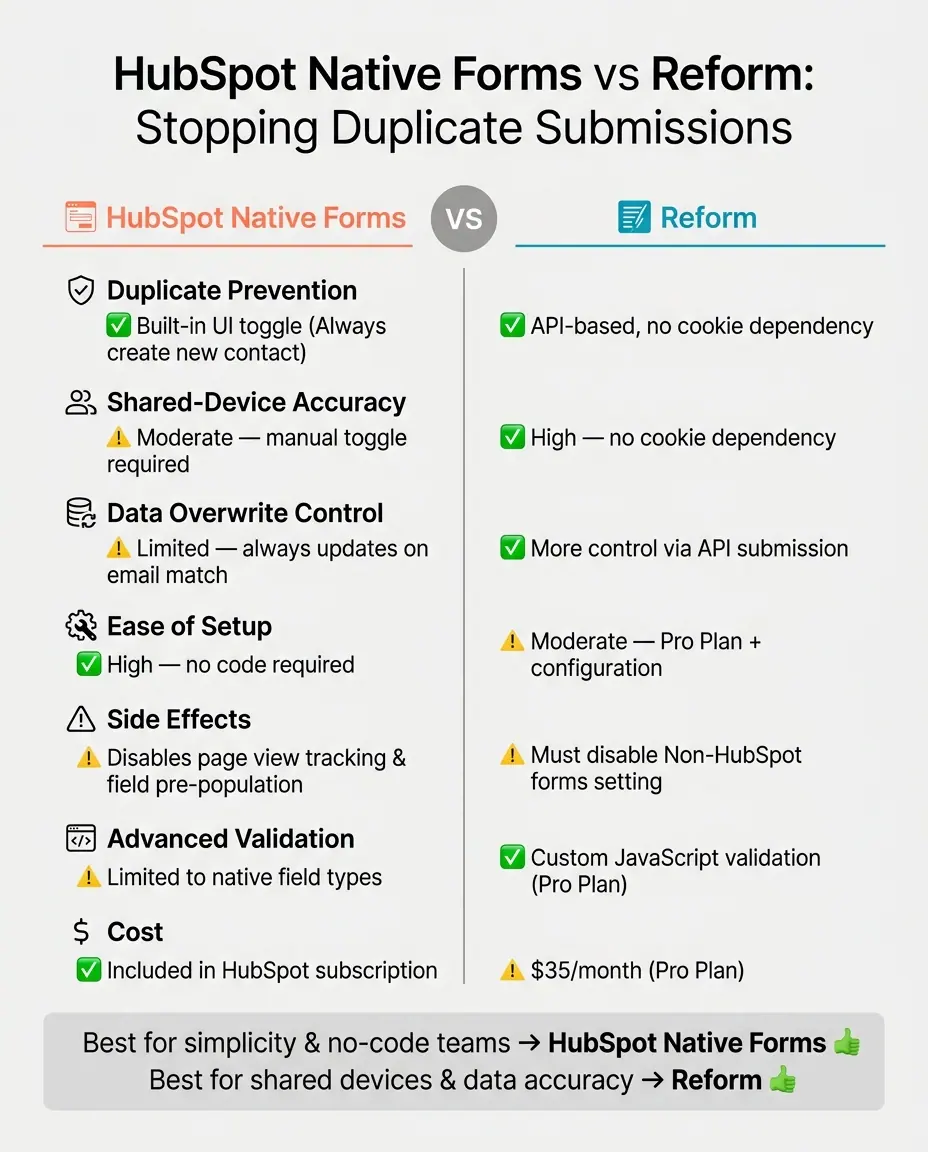
HubSpot Native Forms vs Reform: Duplicate Submission Prevention Compared
1. HubSpot Native Form Settings

HubSpot provides built-in options to manage duplicate submissions effectively. Knowing how these settings work - and their limitations - helps you configure forms to meet your specific needs.
Duplicate Prevention Features
The primary tool for preventing duplicates in HubSpot is the "Always create new contact for email address" toggle. You can find this under Marketing > Forms > [Your Form] > Options. When activated, HubSpot creates a new contact record for every unique email address, bypassing cookie-based deduplication.
Here are two key features designed for shared-device scenarios:
- Always create new contact for email address: Ensures a new contact is created for each unique email, ignoring cookie tracking.
- Add link to reset the form: Adds a "Not you? Click here to reset" link to pre-filled forms. This clears cookie data for that session, making it ideal for kiosks or shared workspaces.
However, there’s a hard rule to keep in mind: HubSpot automatically deduplicates contacts by email address. As Karsten Köhler explains:
"HubSpot automatically deduplicates contacts by email address... This cannot be turned off. HubSpot does not allow for two records with the same email addresses to exist."
Integration with HubSpot
These settings integrate seamlessly with the HubSpot CRM. Any new contact created through a native form is immediately available for workflows, lists, and email sequences - no syncing delays or extra mapping required. However, forms embedded via external scripts don’t support the "Always create new contact" toggle and instead rely on cookie-based tracking.
Ease of Configuration
HubSpot’s native forms are straightforward to configure. You can toggle settings on or off for individual forms, allowing stricter duplicate prevention for specific use cases, like event registrations, while keeping default tracking on others. For more advanced needs, the "Manage Duplicates" tool (available with Professional or Enterprise subscriptions) identifies potential duplicate pairs. Professional accounts can review up to 5,000 pairs, while Enterprise accounts can handle up to 10,000.
Data Quality Impact
Maintaining clean CRM data is essential for accurate segmentation and effective lead generation. Enabling the "Always create new contact" setting minimizes the risk of overwriting data by ensuring each unique email address creates a new record. However, if a returning contact submits updated information, HubSpot will update the existing record. This could lead to outdated information replacing accurate data - a concern highlighted earlier.
A practical workaround involves using a workflow that temporarily stores form values. This allows you to update CRM properties only when they are empty, preserving existing data.
| Setting | Where to Find It | What It Does |
|---|---|---|
| Always create contact for new email address | Form Editor > Options Tab | Creates a new contact for each unique email; ignores cookies |
| Pre-populate fields for returning visitors | Form Editor > Options Tab | Auto-fills fields using cookie data for known visitors |
| Add link to reset the form | Form Editor > Settings > General | Adds a "Not you?" link to clear cookie tracking for that session |
| Non-HubSpot forms toggle | Settings > Marketing > Forms | Enables or disables data capture from third-party HTML forms |
sbb-itb-5f36581
2. Reform Form Builder
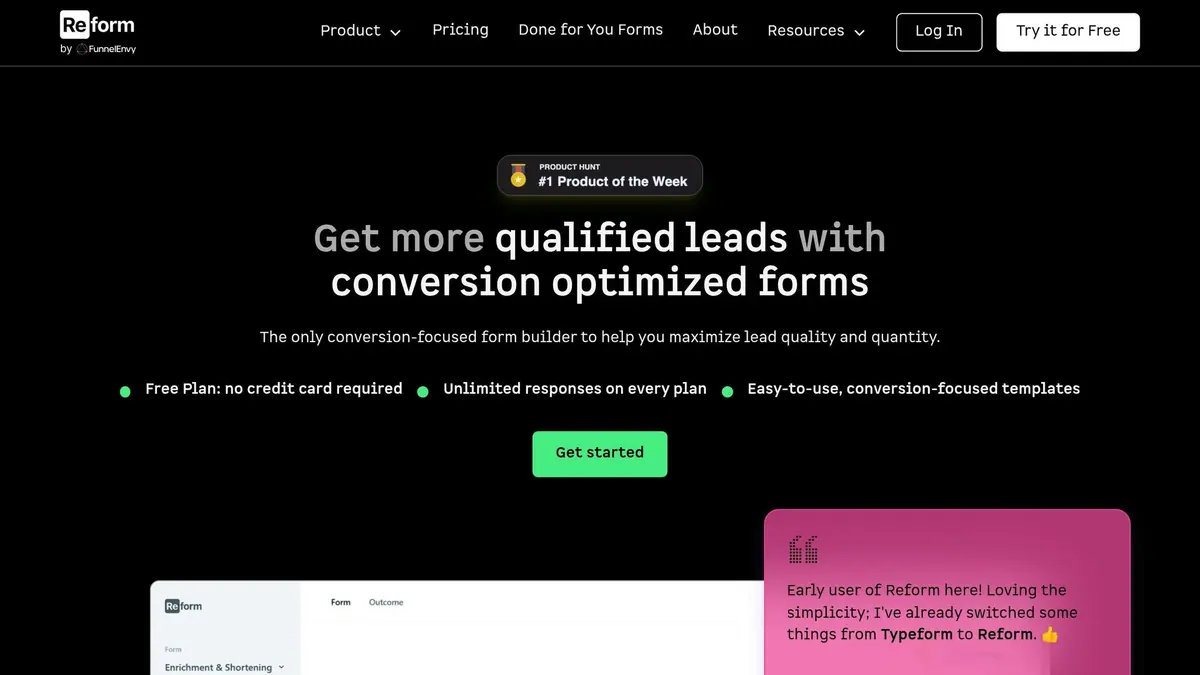
Reform is a no-code form builder that integrates seamlessly with HubSpot through its API. This setup gives you more flexibility in handling form submissions, especially in situations where HubSpot's native forms might not meet your needs.
Duplicate Prevention Features
Reform leverages HubSpot's email deduplication logic alongside custom JavaScript validations (available with the Pro Plan). These validations help block invalid inputs - like restricted email domains or unnecessary whitespace - before the form is even submitted.
Integration with HubSpot
Reform's form fields map directly to HubSpot's contact, company, and deal properties. This allows HubSpot's deduplication system to handle incoming data efficiently. By submitting data via the HubSpot API and avoiding the use of cookies, Reform eliminates issues like data conflicts on shared devices. To prevent duplicate tracking, you'll need to disable the "Non-HubSpot forms" setting in HubSpot, as this setting tracks submissions through both API and cookie-based methods. The API-driven approach also makes configuration straightforward and reliable.
Ease of Configuration
Getting started with Reform is simple for most scenarios. All you need to do is map Reform fields to HubSpot properties, enable the HubSpot integration (available with the Pro Plan), and turn off the "Non-HubSpot forms" setting in HubSpot. Basic duplicate management doesn't require any coding, while advanced customizations - like event handlers using JavaScript - are handled within the form builder itself. Reform also supports hidden fields for UTM parameters, making it easy to track lead sources without cluttering the form with extra fields.
Data Quality Impact
By relying solely on email address submissions and avoiding cookies, Reform enhances data accuracy, particularly in shared-device environments. However, if you're using multi-step forms, you may need workflows to filter out incomplete records.
| Feature | What It Does | Plan Required |
|---|---|---|
Event Handlers (onInput) |
Provides real-time JavaScript validation to block invalid inputs | Pro |
| Property Mapping | Syncs form fields directly to HubSpot Contact/Company/Deal properties | Pro |
| Partial Submissions | Captures data from incomplete multi-step forms | Pro |
| Hidden Fields (UTMs) | Passes metadata (like UTM parameters) to HubSpot without user input | Standard |
| API Submission (no cookies) | Prevents data overwrites in shared-device environments | Pro |
Pros and Cons
When deciding between HubSpot native forms and Reform, it's essential to weigh the trade-offs based on technical needs and the level of control required.
HubSpot native forms are all about simplicity. They offer a built-in toggle for duplicate prevention, found in the Options tab, and require no coding - making them ideal for teams without technical expertise. However, there are limitations. If you enable the "Always create contact for new email address" setting, HubSpot stops tracking page views for that session, and form fields won't pre-fill with known data. As noted by the HubSpot Product Team:
"If this option [Always create contact for new email address] is enabled... views will not be tracked for this contact. Therefore, form fields will not pre-populate with known information." - Willson, HubSpot Product Team
Another drawback is that native forms always update existing records if there's an email match, which can lead to data quality issues in shared-device environments. This lack of control can compromise data reliability in more complex scenarios.
On the other hand, Reform provides an API-driven solution that avoids these pitfalls. By submitting data through the HubSpot API rather than relying on browser cookies, Reform ensures cleaner data, particularly in shared-device setups. However, this comes at a cost - Reform's HubSpot integration is only available on the Pro Plan, which costs $35/month, and advanced features like custom JavaScript validation require additional setup. While the upfront effort is greater, Reform's approach prioritizes data accuracy and flexibility.
Here’s a side-by-side comparison of the two options:
| Factor | HubSpot Native Forms | Reform |
|---|---|---|
| Duplicate prevention toggle | Built-in UI toggle ("Always create new contact") | No toggle needed; API submission bypasses cookies |
| Shared-device accuracy | Requires manual toggle; still overwrites on email match | High - no cookie dependency |
| Data overwrite control | Always updates existing record on email match | Controlled via API; no accidental overwrites |
| Ease of setup | High - no code required | Moderate - Pro Plan plus integration configuration |
| Side effects of prevention | Disables page view tracking and field pre-population | Requires disabling the "Non-HubSpot forms" setting |
| Advanced validation | Limited to native field types | Custom JavaScript validation available (Pro Plan) |
| Plan required | Included in HubSpot | Reform Pro ($35/mo) |
The choice ultimately depends on your needs. For teams without technical resources or those using standard HubSpot forms in single-user environments, the native toggle is quick and easy. However, if you're working with shared devices, need API-driven accuracy, or want more control over submissions, Reform offers a more reliable solution - albeit with a higher setup cost.
Conclusion
Handling duplicate submissions effectively depends on your setup, team expertise, and the level of data accuracy you need.
Using HubSpot native forms is a straightforward option for most teams. The "Always create new contact for new email address" toggle provides a no-code solution that works well in shared-device environments. However, keep in mind that this disables page view tracking and field pre-population.
For teams needing more precise control, Reform offers expert form strategies and an API-driven approach that prioritizes data accuracy. By relying on the HubSpot API instead of browser cookies, it avoids session-merging issues. This option requires the Pro Plan ($35/month) and disabling the "Non-HubSpot forms" setting, making it a better fit for more advanced requirements.
It's important to note that neither option prevents submissions from overwriting existing contact properties. As Karsten Köhler explains, preventing this requires complex workarounds, often involving a HubSpot Professional or Enterprise subscription.
Choosing the right form settings - whether HubSpot native or Reform - can help maintain the reliability and usability of your CRM data.
FAQs
When should I enable “Always create new contact for email address”?
When multiple people are using the same device and browser to submit a form - like at a trade show with shared devices - it's a good idea to enable the Always create new contact for email address setting. This ensures that each unique email entered creates a separate contact record, preventing any accidental overwrites of existing data. Keep in mind, though, that enabling this will turn off the feature that pre-fills form fields for returning users.
How can I stop shared-device cookies from pre-filling the wrong person’s data?
To avoid shared-device cookies from auto-filling incorrect data, activate the Always create contact for new email address setting in the form editor under the Options tab. This ensures fields won't be pre-filled with existing values. Alternatively, you can provide users with the ability to clear pre-filled data by enabling a reset link on your form, giving them the option to submit it as a fresh entry.
How do I prevent form submissions from overwriting existing HubSpot properties?
To prevent form submissions from overwriting existing contact properties in HubSpot, you can enable the Always create contact for new email address option in the Options tab of your form editor. This setting ensures that new submissions within the same browser session won’t modify the original contact’s record. For non-HubSpot forms, developers can achieve this by using the HubSpot Forms API to submit data without relying on tracking cookies.
Related Blog Posts
Get new content delivered straight to your inbox

The Response
Updates on the Reform platform, insights on optimizing conversion rates, and tips to craft forms that convert.




Drive real results with form optimizations
Tested across hundreds of experiments, our strategies deliver a 215% lift in qualified leads for B2B and SaaS companies.
