
.webp)
How to Debug HubSpot Form API Connection Problems


When your HubSpot Form API connection breaks, it can silently disrupt your lead capture process. Submissions might seem successful to users but fail to reach your CRM, derailing workflows and sales efforts. Here's how to fix common issues:
- Authentication Errors: Expired or improperly scoped tokens cause 65% of connection issues. Ensure your token is valid, includes the
formsscope, and refresh it regularly. - Rate Limits: HubSpot caps API requests at 100 per 10 seconds for standard accounts. Check headers like
X-HubSpot-RateLimit-Remainingto monitor usage. - Configuration Problems: Verify that external submissions are enabled, required parameters (
pageUri,pageName) are included, and your tracking code is correctly installed. - Testing Tools: Use Postman or browser developer tools to inspect API calls, HTTP responses, and JavaScript errors.
For a simpler alternative, consider tools like Reform’s HubSpot integration, which handles authentication, field mapping, and data syncing automatically.
These steps can help you troubleshoot quickly and keep your lead capture process running smoothly.
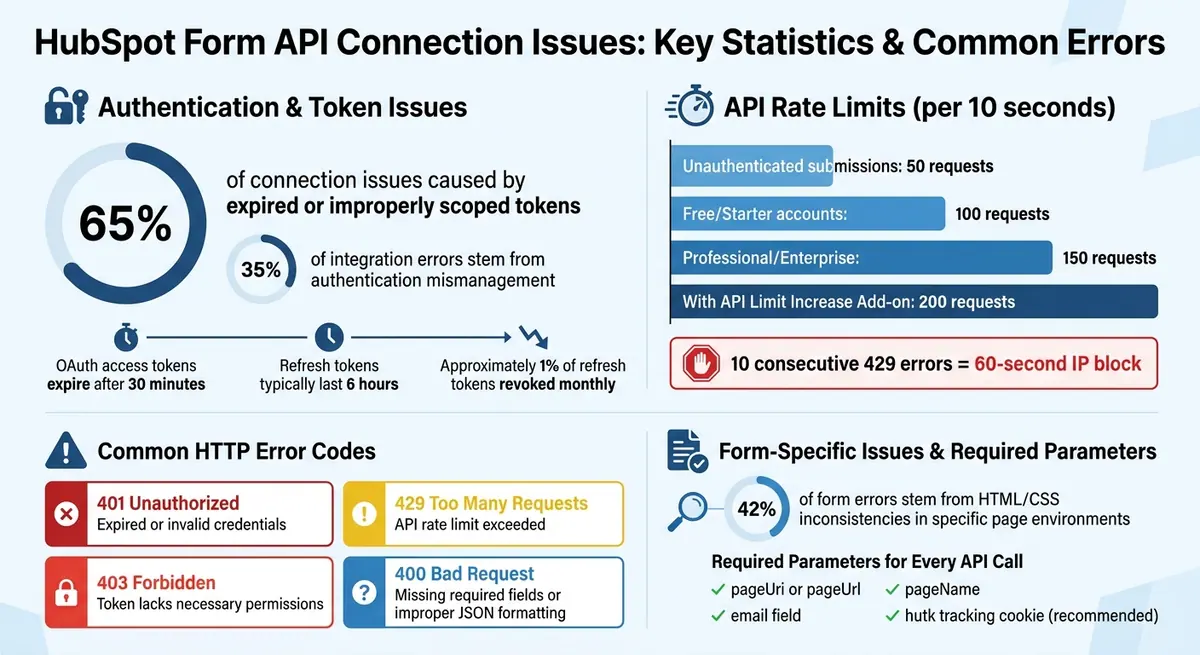
HubSpot Form API Connection Issues: Common Errors and Statistics
Mastering HubSpot APIs with Postman: Comprehensive Demo
sbb-itb-5f36581
Check Prerequisites and Basic Setup
Start by confirming your basic configuration. Most issues with connecting to the HubSpot Form API stem from authentication errors or disabled settings - not coding mistakes.
Verify API Authentication and Access
HubSpot now relies on Private App access tokens for single-account integrations and OAuth 2.0 for applications managing multiple accounts. Older API keys are no longer supported for most standard tasks.
To authenticate, include your access token in the Authorization header as Bearer [YOUR_ACCESS_TOKEN]. If you encounter a 401 error, it likely means your token is expired or invalid. A 403 error suggests that the token lacks the necessary permissions - make sure the forms scope is enabled.
You can test your token's validity using tools like cURL or Postman. Send a GET request to https://api.hubapi.com/crm/v3/objects/contacts. If this request fails, your authentication setup needs to be fixed. Also, double-check your HubSpot settings to ensure your Private App is active and has the forms scope enabled. For OAuth users, remember to refresh tokens before they expire (tokens typically last 6 hours).
Enable External Form Submissions in HubSpot
If you're using forms that aren't built in HubSpot, you'll need to allow external submissions. Go to Settings > Marketing > Forms, then select the Non-HubSpot Forms tab and enable the "Collect data from website forms" option.
Additionally, make sure your external domain is listed in HubSpot's tracking settings. If it's not, legitimate submissions may be flagged as spam. It's also crucial that the HubSpot tracking code loads correctly on your external page for submissions to be processed. Once these settings are verified, test your lead capture form submissions on a standalone page to identify any remaining issues.
Test Form Submissions on a Standalone Page
Once you've verified your API configuration, the next logical step is to test your form in isolation. This helps you figure out whether the problem is specific to your website or tied to the API. If the form works perfectly on its standalone page but fails when embedded on your site, you're likely facing a site-specific issue rather than an API-related one.
Determine If the Issue Is Page-Specific or API-Related
Start by opening your form's standalone URL in your browser. In HubSpot, navigate to Marketing > Lead Capture > Forms, select your form, and then click the "Share" tab to find the standalone link. Submit some test data and check if the submission appears in your HubSpot contacts.
If the submission works on the standalone page but fails when embedded on your site, the issue might be caused by JavaScript conflicts, CSS interference, or iFrame restrictions. Interestingly, about 42% of reported form errors stem from HTML or CSS inconsistencies that only appear in specific page environments.
To directly test the API, use Postman to send a POST request to https://forms.hubspot.com/uploads/form/v2/:portal_id/:form_guid. A successful response in Postman confirms your API setup is correct, meaning the issue lies within your website's front-end. Alternatively, you can copy a failed request from your browser's Network tab as cURL and run it in your terminal. This approach helps pinpoint whether further troubleshooting with developer tools is necessary.
For more detailed debugging, append ?hsDebug=true to your form's URL to load additional scripts and view rendering data. You can also click the HubSpot sprocket icon to access "Developer Info" in JSON format. These tools provide deeper insights into what might be going wrong.
Use Browser Developer Tools to Inspect Errors
If your form isn't working as expected on your website, browser developer tools can help you figure out what's going wrong. These tools show exactly what happens when someone clicks the submit button. The Network tab, for instance, reveals the raw communication between your site and HubSpot's API.
To open Developer Tools, press F12 (or Cmd+Option+I on a Mac). Be sure to open the tools before submitting your form, then go to the Network tab and check the "Preserve log" option. This ensures the log won't clear if the form triggers a page redirect. When you submit the form, you'll see a list of network requests. To narrow things down, filter by "XHR" or "Fetch" to isolate background data requests to domains like forms.hubspot.com or api.hsforms.com. From there, you can inspect the HTTP requests and responses to identify specific error codes.
Review HTTP Requests and Responses
Failed requests are easy to spot - they're highlighted in red. Click on any failed request to dive into its details. In the Headers and Payload tabs, confirm that the Request URL matches the format https://api.hsforms.com/submissions/v3/integration/submit/PORTAL_ID/FORM_ID. Also, check that the Request Method is POST and that all required JSON fields (like email or firstname) are properly formatted.
The Response tab will tell you what went wrong. Here are some common error codes you might encounter:
- 400 Bad Request: Indicates missing required fields or improperly formatted JSON.
- 401 Unauthorized: Happens when credentials are expired or invalid.
- 403 Forbidden: Suggests that the token lacks the necessary permissions.
- 429 Too Many Requests: Means you've hit the API rate limit (standard accounts are capped at 100 requests per 10 seconds).
"Activate the Network tab immediately when a HubSpot page misbehaves. Pinpoint failed file loads, 404 errors on JavaScript, or API response codes above 299 - these often expose root causes in seconds."
For more advanced debugging, you can right-click a failed request and select "Copy as cURL." This allows you to replicate the exact request using Postman or a terminal, which can help identify browser-specific issues.
Once you've reviewed the network requests, move on to the Console tab to check for script-related problems.
Find JavaScript Errors
Switch to the Console tab and filter by "Errors" to uncover JavaScript issues that might block your form from reaching the API. Pay close attention to Uncaught ReferenceError messages - they usually point to missing variables or undefined functions, which can happen if scripts load out of order. TypeError messages, on the other hand, often indicate operations on incompatible data types.
CORS errors are another common problem. These occur when HubSpot's API rejects a request from an unauthorized domain. To rule out interference from browser extensions, try testing the form in an Incognito or Private browsing window. If the form works there but not in your regular browser, a browser extension might be injecting conflicting scripts. For complex setups, using multi-step form design can also help isolate issues by breaking down data collection into smaller, manageable chunks.
Check API Rate Limits and Required Parameters
When troubleshooting HubSpot API submission issues, it's essential to determine whether rate limits or missing parameters are the root cause. These two factors are frequent culprits behind failed submissions and can often be resolved with precise checks or by using powerful form templates designed for reliability.
Check API Rate Limits
HubSpot imposes strict limits on API requests. For unauthenticated submissions, you're capped at 50 requests every 10 seconds. If you're using authenticated endpoints, the limits are higher:
- Free and Starter accounts: 100 requests per 10 seconds
- Professional and Enterprise accounts: 150 requests per 10 seconds
- Accounts with the API Limit Increase Add-on: 200 requests per 10 seconds.
To keep track of your API usage, go to Development > Monitoring > API call usage in your HubSpot portal. Alternatively, check the HTTP response headers for:
X-HubSpot-RateLimit-Remaining: Shows how many calls are left in the current window.X-HubSpot-RateLimit-Daily-Remaining: Tracks your remaining daily quota.
If you exceed the limit, you'll receive an HTTP 429 status code. Additionally, hitting ten 429 errors in a single second will result in a temporary IP block for 60 seconds.
"A 429 from HubSpot normally just means you've hit the documented limits on the API." – Ruben Burdin, HubSpot Advisor
When you encounter a 429 error, inspect the Retry-After header to determine how long to wait before resubmitting. To minimize the risk of hitting limits, consider:
- Using batch API endpoints (process up to 100 records per call).
- Implementing exponential backoff with retry logic to manage temporary throttling.
Confirm Required Parameters Are Included
Even if you're within rate limits, submissions will fail if mandatory parameters are missing. For instance, every request to the HubSpot Form API must include the following in the context object:
pageUri(orpageUrl)pageName
These parameters identify where the form was submitted. Missing them can result in a 400 error.
Your API request URL should follow this format:
https://api.hsforms.com/submissions/v3/integration/submit/:PORTAL_ID/:FORM_GUID.
The request body must also contain a fields array, which should include objects with:
name: The internal property name in HubSpot (not the display label).value: The corresponding input value.
Additionally, it's recommended to include the hutk tracking cookie in the context object. This associates the submission with the contact's activity history.
"Include full context (hutk, pageUrl, pageName, optional ipAddress) on every Forms API call." – Brandon Woodruff, Senior Software Developer, Pearagon
To verify your request, use your browser's developer tools. Inspect the "Request Payload" in the Network tab to ensure the JSON structure correctly nests both fields and context. If errors persist, double-check that the name values in your fields array match HubSpot's internal field names exactly.
Once you've confirmed rate limits and required parameters, you're ready to move on to resolving authentication token issues in the next section.
Fix Authentication Token Problems
When dealing with HTTP errors, authentication token issues often require special attention. For example, a 401 error with an "EXPIRED_AUTHENTICATION" response typically points to a token problem. HubSpot access tokens expire 30 minutes after they are generated, so it’s crucial to refresh the token before this window closes.
To confirm a token’s validity, compare the timestamp of its issuance (plus the expires_in value) with the current time. Alternatively, you can check the token’s status by sending a POST request to the /oauth/2026-03/token/introspect endpoint. This will tell you if the token is still active and provide details about its associated scopes.
Reconnect Your HubSpot Integration
Encountering a 400 Bad Request error with a status like "BAD_REFRESH_TOKEN" or "invalid_grant" suggests the refresh token is invalid, revoked, or that the app has been uninstalled. In these cases, you’ll need to restart the OAuth flow to generate a new authorization code.
"BAD_REFRESH_TOKEN in HubSpot is usually one of three things: the user uninstalled/reinstalled the app (token revoked), you're refreshing in parallel (race condition across workers/instances), or you're using a token issued to a different app/env." – OA0023, HubSpot Community Member
To check if a refresh token is still valid, use the GET /oauth/v1/refresh-tokens/[YOUR_REFRESH_TOKEN] endpoint. If you receive an HTTP 404 response, the token is no longer valid, or the app has been uninstalled. If the token exchange fails, avoid retrying automatically. Instead, redirect users to https://app.hubspot.com/oauth/authorize to restart the OAuth handshake and issue a new authorization code.
Once the integration is reconnected, focus on managing token expiration proactively. This ensures your data flows smoothly into your CRM, which is a key part of creating high-converting lead forms.
Manage Token Expiration and Refresh
Stay ahead of token expiration by calculating the token’s expiration time as soon as you receive it. Use the formula Date.now() + expires_in * 1000 and save this timestamp along with the token. Before making any API calls, check the token’s validity. If it’s within five minutes of expiring, refresh it.
"The access token is what you use for every API request... it expires quickly." – HubSpot Developer Blog
In systems with multiple servers, avoid simultaneous refresh attempts by using distributed locking tools like Redis with NX and EX. When refreshing tokens via the 2026-03 API, send a POST request to https://api.hubspot.com/oauth/2026-03/token with grant_type set to refresh_token. Include sensitive credentials (client ID and client secret) in the request body as application/x-www-form-urlencoded data.
Always update your database with the new refresh token from the response, as some systems rotate these tokens during the refresh process. Although refresh tokens don’t have a fixed expiration date and remain valid indefinitely unless revoked, around 1% are revoked monthly due to user actions or security protocols.
If token problems persist, reconnect the integration and re-initiate the OAuth process as needed.
Review HubSpot Form Submission Logs
After resolving any authentication issues, the next step is to dive into HubSpot's submission logs to figure out where data might be slipping through the cracks. To access these logs, go to Marketing > Forms, click your form's name, and then select the Submissions tab. Keep in mind that new submissions might take a few minutes to show up after processing. This review is key to identifying submission discrepancies or spotting recurring error patterns.
For API-related troubleshooting, it’s important to note that HubSpot doesn’t provide detailed technical logs, like complete request/response bodies, in its interface. As Karsten Köhler, a Hall of Famer in the HubSpot Community, points out:
"If [the form is integrated via API], the log would not be accessible in HubSpot but in the form of returned status codes".
Instead, focus on submission records and any visible error flags. Hover over entries in the Submissions tab and click View submission to see the data that was sent. Look out for error messages such as "No cookie was found" or "No contact record", as these could point to issues with your API payload or configuration.
Compare Submission Counts vs. Contact Creation
Once you’ve reviewed the logs, it’s time to analyze how submission data aligns with contact creation. This can help you spot inconsistencies, like submissions not resulting in new contacts. HubSpot automatically deduplicates submissions based on email addresses. For example, if the same email is submitted twice, you might see two submissions in the logs but only one contact created.
To check whether a submission led to a contact record, hover over the entry and click View object records. If you notice submissions without corresponding contacts, confirm that the Email field is set as required in your form. Without an email address, HubSpot won’t create a contact record unless you’ve enabled the option to allow form submissions without email addresses [18, 61].
Check for Deleted or Duplicate Contacts
Another potential issue to investigate is missing contact records due to deletions or deduplication. If a submission appears in the logs but the associated contact is nowhere to be found, it’s possible the contact was deleted. According to HubSpot’s Knowledge Base:
"If a contact is deleted from HubSpot, their form submission will still count toward the total, but the contact will no longer appear in a list filtered by the form's submissions".
Check the recycling bin for any recently deleted contacts to confirm this.
Additionally, watch for "No record" errors in API submissions. These errors often indicate that the pageName and pageUrl parameters were omitted from your API call [18, 61]. Missing a tracking cookie (hutk) can also cause issues, as these parameters are essential for HubSpot to properly log and attribute submissions. Addressing these inconsistencies ensures every submission is accurately recorded in your system.
Use Reform's HubSpot Integration for Better Reliability
If you're tired of dealing with common API connection issues, Reform's integration with HubSpot can make your life a lot easier. Designed to simplify form management and improve reliability, this native integration is available on the Pro Plan ($35/month or $350/year). It takes care of authentication and data syncing automatically - no coding skills required.
One standout feature is the visual field mapping tool, which lets you link form blocks directly to HubSpot properties for contacts, companies, or deals. This minimizes errors that can happen with manual mapping. Reform also checks if a contact already exists in HubSpot by using the submitted email address. If it finds a match, it updates the record; if not, it creates a new one.
In January 2025, Reform introduced partial form submission tracking. This means you can capture and send data to HubSpot even if a user abandons a multi-step form. Not only does this help you capture leads earlier, but it also shows where users might be dropping off, giving you insights to improve your form flow.
To prevent submissions from being flagged as spam, you can add reform.app to your HubSpot analytics domains and enable tracking in Reform's settings. This setup captures UTM parameters and monitors performance through hidden fields, helping you filter out low-quality responses before they clutter your CRM.
For businesses that want a simple, reliable alternative to debugging APIs, Reform's integration is a game-changer.
Track Submissions with Real-Time Analytics
Reform ensures that your data flows smoothly by pushing form submissions to HubSpot instantly. This real-time synchronization makes it easy to verify data flow and address issues as they arise. Plus, it supports workflow triggers, so automated emails and sales follow-ups can start immediately after a submission.
If you notice any delays or missing data, you can quickly reauthorize the connection or tweak your field mappings directly from the Integrations page. This hands-on control ensures that your forms stay effective and your campaigns keep running smoothly.
Simplify Form Management with Reform
Reform's no-code builder eliminates the need for custom AJAX scripts or complex error-handling code often required with HubSpot's standard Form API. The integration handles deduplication automatically, saving you from manually dealing with duplicate records.
You can also create hidden fields for UTM parameters (like utm_source and utm_medium) and map them to HubSpot properties such as "Original Source Drill-Down 1" for accurate attribution tracking. When tracking is enabled, HubSpot will record the submission URL as the "Conversion Page" property, giving you better insights into lead sources.
With features like multi-step forms, conditional routing, and advanced spam prevention, Reform provides a seamless connection to HubSpot - without the usual debugging headaches.
Conclusion
Troubleshooting issues with the HubSpot Form API requires systematic testing and careful attention to configuration details. Start by isolating your environment - test the form on its standalone page URL, verify that the HubSpot tracking code is correctly installed, and ensure key parameters like email, pageName, and pageUrl are included. Also, keep API rate limits in mind, as exceeding these limits can result in errors that are hard to detect. These initial steps lay the groundwork for resolving authentication and configuration challenges.
Authentication problems are a major source of integration issues. In fact, about 35% of integration errors stem from authentication mismanagement, and nearly 65% of request denials are caused by expired or improperly scoped credentials. Since HubSpot OAuth access tokens expire after 30 minutes, setting up automated token refresh logic is crucial to maintaining a seamless connection. Additionally, upgrading from the older v2 endpoint to the v3 endpoint can improve error handling and validation, reducing the risk of silent failures.
"That Forms API endpoint [v2] doesn't do any validation client-side, so it was likely a case of 'failing silently' where we give you a 204 because it submitted to the API, but we didn't actually save the contact." - cbarley, HubSpot Employee
Beyond authentication, effective debugging often relies on the right tools and automation. Be aware that browser extensions like Ghostery or Privacy Badger might block HubSpot's JavaScript from loading, which can interfere with form functionality.
If manual debugging becomes too time-consuming, Reform's native HubSpot integration offers a straightforward alternative. Available with the Pro Plan at $35/month or $350/year, it simplifies authentication, handles field mapping, and manages deduplication automatically. With features like partial submission tracking and real-time analytics, you can shift your focus from troubleshooting to optimizing lead conversion.
FAQs
How can I tell if my form issue is my website or HubSpot’s API?
When troubleshooting, start by identifying the error type. If you're seeing API errors - like 400 or 500 status codes, or even silent failures - it's likely a connection issue. In this case, double-check the following:
- Request formatting
- Headers
- Endpoint accuracy
- Data being sent
But here's the twist: if the API responds with a 200 status code (indicating success) and the form still doesn't work, the issue might be on your website. Common culprits include:
- JavaScript errors
- Network problems
- Incorrect form setup
Addressing these areas can help you narrow down the root cause effectively.
What’s the quickest way to find the exact error code on submit?
To pinpoint the exact error code after submission, take a look at the API response's status code. HubSpot APIs use specific HTTP codes like 400, 401, or 403 to indicate whether the request was successful or if an error occurred. You can also check the response headers or console logs to quickly identify these codes. This approach makes it easier to diagnose issues and resolve them efficiently.
How do I prevent token expiration from breaking submissions?
To prevent issues with token expiration when using the HubSpot Form API, it's essential to set up a token refresh system. Keep an eye on the tokenExpire timestamp and schedule a refresh a few minutes before the token runs out. If you encounter errors like a 401 status, trigger an immediate refresh to address the problem. By consistently updating tokens and keeping them valid, you can ensure smooth and uninterrupted form submissions.
Related Blog Posts
Get new content delivered straight to your inbox

The Response
Updates on the Reform platform, insights on optimizing conversion rates, and tips to craft forms that convert.




Drive real results with form optimizations
Tested across hundreds of experiments, our strategies deliver a 215% lift in qualified leads for B2B and SaaS companies.
