
.webp)
Troubleshooting HubSpot Form Integrations


When your HubSpot forms don’t sync properly, leads can disappear without warning, causing missed sales opportunities and inaccurate CRM data. Common issues include:
- Form submissions not appearing in HubSpot.
- Incorrect or incomplete contact data.
- Silent failures where forms appear to work but don’t send data.
- Problems with third-party platforms like Elementor, Gravity Forms, or Webflow.
To fix these, start by checking your HubSpot settings, API permissions, and tracking codes. Test forms on their standalone HubSpot page to identify conflicts with your website’s scripts or settings. For third-party tools, verify authentication, field mapping, and plugin configurations. If issues persist, set up error logging and monitoring to catch problems early.
Quick Tip: For a simpler solution, consider using tools like Reform, which streamline form integrations and reduce troubleshooting time.
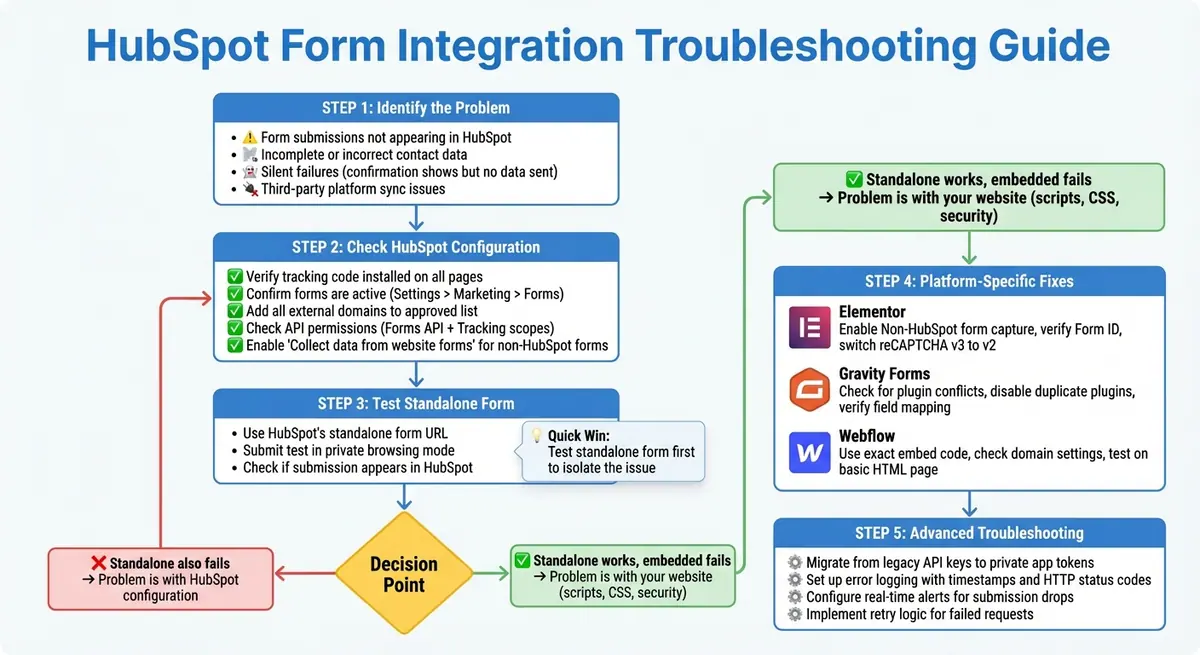
HubSpot Form Integration Troubleshooting Flowchart
How To Connect HubSpot CTAs, Forms & Landing Pages To Your Website | HubSpot How To's
Common HubSpot Form Integration Problems
It’s frustrating when forms seem to work but fail to send leads to HubSpot. The first clue often comes from sales asking, "Why aren’t we getting leads?" or noticing discrepancies in reports. For example, Google Analytics might show 50 form completions, but HubSpot only logs 10 submissions during the same timeframe. That’s a clear sign of a sync issue.
Another red flag is missing or incomplete contact data after a known form submission. You might also spot mismatched data between HubSpot and your email platform, or see unusually low submission counts compared to your on-page analytics. Sometimes, customers even report, "I filled out the form, but no one contacted me", indicating that the submission never made it to HubSpot. These issues often point to deeper problems, which we’ll explore in the sections below.
Form Submissions Not Appearing in HubSpot
If submissions aren’t showing up at all, the issue is likely with your HubSpot configuration or API connection. One common culprit is mismatched fields - when your form fields don’t align with HubSpot’s contact properties, data can get lost. Another frequent issue involves broken API connections or expired tokens, which block submissions from reaching HubSpot.
Permissions can also cause silent failures. If the connected app or integration doesn’t have the necessary Forms API and Tracking scopes, submissions won’t sync. Errors like "authentication failed" or HTTP 401/403 responses in your integration dashboard are telltale signs.
Additionally, submissions from unapproved external domains may be flagged as spam by HubSpot. If your website’s domain isn’t listed in HubSpot’s approved site domains, even correctly configured forms will be filtered out.
Another tricky issue involves test submissions. HubSpot cookies can cause repeated test submissions to update the same contact record, making it appear as though submissions are failing.
Forms That Fail Without Error Messages
Sometimes forms fail silently, even though the visitor sees a confirmation message. For example, someone fills out the form, clicks submit, and gets a confirmation - but no contact is recorded in HubSpot. This can happen if tools like reCAPTCHA v3 or browser privacy settings block essential cookies. One Elementor user discovered that switching from reCAPTCHA v3 to v2 fixed a similar issue, instantly resolving the sync problem.
Consent banners can also interfere. If someone submits a form before accepting tracking consent, the submission may never be logged.
Custom JavaScript on your page can further complicate things. Scripts that intercept the submit event might show a confirmation message but fail to send the data to HubSpot. To troubleshoot, test the form on its standalone HubSpot URL. If it works there but not on your website, the issue likely lies with your page’s scripts, security tools, or browser settings - not HubSpot itself.
How to Verify Your HubSpot Configuration
Start by double-checking your HubSpot configuration. It's often the small, overlooked details - like form settings, tracking codes, site domains, or API permissions - that lead to integration hiccups. Begin by reviewing these areas to catch any basic setup issues.
Verify Form and API Permissions
First, check your forms under Settings > Marketing > Forms. Make sure all forms are active and not set to block submissions from specific domains or email addresses. Then, head over to Settings > Tracking & Analytics to confirm that the HubSpot tracking code is properly installed on every page where your forms are embedded. List all external domains and subdomains where forms are hosted to avoid spam issues.
Next, review your integration under Settings > Integrations > Connected Apps (or Private Apps). Ensure the integration is active and free of errors. It must have the necessary Forms API and Contacts/CRM permissions to create or update contact records when submissions are made. If you encounter "authentication failed" or HTTP 401/403 errors in the integration dashboard, regenerate the token and update it.
For those using non-HubSpot forms, such as those from website builders like Elementor, enable the "Collect data from website forms" option under Settings > Marketing > Forms > Non-HubSpot Forms. Without this setting, HubSpot won't capture submissions from these forms at all.
Once you've confirmed permissions and settings, test your form on its standalone HubSpot page.
Test Forms on Standalone Pages
Use the standalone HubSpot form URL to troubleshoot configuration issues. Open the form editor, copy the standalone page link, and load it in a new browser tab. This page eliminates potential conflicts from your site's scripts, CSS, or other customizations.
Submit a test entry using a unique email address in a private browsing mode to ensure cookies don't interfere with the results. Check if the submission shows up in the form's submissions list and creates or updates a contact in HubSpot. If the standalone test succeeds but the embedded form fails, the issue lies with your website's code, scripts, or browser settings - not HubSpot. Look for conflicting JavaScript, aggressive script optimization tools, or security settings that might block the embed code. If the standalone test also fails, the problem likely stems from the form configuration or your HubSpot account settings. In this case, reaching out to HubSpot Support is your best bet.
Fixing Third-Party Platform Integration Issues
After verifying your HubSpot configuration, it's time to tackle integration challenges with third-party platforms. When connecting HubSpot forms to platforms like Elementor, Gravity Forms, or Webflow, unique issues can arise. These might include problems with field synchronization, authentication, or submissions appearing in one system but not the other.
Start by isolating the issue with a clean test environment. Test your form on a simple page without additional scripts or customizations. Gradually reintroduce custom elements to identify the source of the problem. If the minimal test page works but the issue persists on your platform, the conflict likely stems from the platform itself.
Platform-Specific Solutions
Here’s how to address common problems in Elementor, Gravity Forms, and Webflow integrations. Each platform has its own quirks and troubleshooting steps.
Elementor: If Elementor forms fail to send data to HubSpot, check that Non-HubSpot form capture is enabled. Also, verify that the Form ID is set correctly. If you're using reCAPTCHA v3 and data isn't syncing, switch to reCAPTCHA v2 as it tends to work more reliably.
Gravity Forms: Integration issues with Gravity Forms often stem from plugin conflicts. For instance, the "HubSpot All-In-One Marketing – Forms, Popups, Live Chat" WordPress plugin can create HubSpot contacts even if Gravity Forms doesn’t record an entry. This happens because the HubSpot plugin sends data immediately upon form submission, bypassing Gravity Forms' validation. To avoid duplication or errors, decide whether to use the native Gravity Forms HubSpot add-on or the HubSpot All-In-One plugin - don’t enable both. Additionally, ensure Gravity Forms email and notification settings are correctly mapped to HubSpot fields. Temporarily disable other plugins to identify potential conflicts.
Webflow: For Webflow (or any externally embedded HubSpot form), the embed code is crucial. Always use the exact embed code provided by HubSpot without altering it, and double-check your domain settings. If the form only loads after refreshing the page, this could be due to single-page app behavior or dynamic content loading. In such cases, make sure the HubSpot form script reinitializes after the DOM updates. To confirm whether Webflow’s layout or scripts are causing the issue, test the embed code on a basic HTML page without any additional scripts or styles.
sbb-itb-5f36581
Advanced Fixes for Persistent Integration Errors
If your HubSpot form integration issues persist despite standard troubleshooting, it's time to dive into authentication and monitoring. Many recurring problems stem from outdated API keys, insufficient app permissions, or unnoticed failures. With HubSpot phasing out legacy API keys in favor of private apps that use access tokens and more specific permissions, integrations relying on older keys are increasingly prone to failure.
Fixing Authentication and API Key Problems
First, determine whether your integration relies on an outdated API key or a private app token. If it’s still using a legacy API key, migrate it to a private app configured with only the necessary scopes, such as Forms, CRM, and Tracking.
When updating tokens, follow a safe rotation process to avoid disruptions. Start by generating a new private app token with the required scopes, and test it in a staging environment before applying it to your live setup. Use environment variables or configuration flags to make credential swaps easier without altering code. Perform the switch during off-peak hours, monitor form submission logs for 30–60 minutes afterward, and only then deactivate the old token. Make sure to document the rotation date and schedule the next update within 60–90 days.
Double-check that your OAuth redirect URL matches exactly, including the protocol and any trailing slashes. If you’ve recently updated the scopes for an existing app, re-authenticate it through HubSpot’s Connected Apps section to ensure it operates correctly.
Once you’ve resolved authentication issues, shift your focus to real-time error tracking.
Setting Up Error Logging and Monitoring
Advanced troubleshooting requires robust error logging and real-time alerts. Record each integration call with details like timestamp, destination, HTTP status, error messages, and unique request IDs. Store these logs in an accessible system to enable quick filtering and analysis.
Real-time alerts can help you catch submission issues before they escalate. Set up health checks to ensure form submissions are creating HubSpot contacts as expected, and configure alerts for sudden drops or spikes in submission volume. Use automatic retry logic with exponential backoff to handle failed requests, especially when encountering HubSpot’s 429 rate-limit responses.
For more complex workflows, such as multi-step forms or integrations pushing data to multiple destinations, tools like Reform can simplify the process. These tools offer built-in submission logs, real-time analytics, and detailed field mapping, reducing the need for custom monitoring setups and making debugging quicker and easier.
Reform: A Better Way to Build HubSpot Forms
Struggling with HubSpot integration headaches? Reform is here to simplify your workflow. This no-code form builder connects seamlessly with HubSpot, saving you from the hassle of debugging API keys and fixing field mappings. Let’s break down how Reform's features make form integrations a breeze.
What Reform Brings to the Table
Reform is packed with tools designed to boost conversions. It offers multi-step forms to keep users engaged, real-time email validation to ensure your contact lists stay clean, and advanced spam prevention to block unwanted bot submissions.
But where Reform truly shines is its lead enrichment capabilities. It automatically searches the web to gather extra details about your prospects - information you’d otherwise have to request yourself. Plus, with conditional routing, you can tailor the user journey based on their responses. For instance, enterprise leads can be directed to a VIP scheduling link, while smaller accounts might receive a prerecorded demo.
How Reform Enhances HubSpot Integrations
Reform’s Pro Plan, priced at $35/month or $350/year, takes your HubSpot integration to the next level. It supports custom CSS/JavaScript for maintaining brand consistency, allows file uploads, and even tracks incomplete submissions so you can follow up with potential leads. Its user-friendly field mapping and duplicate management make setup straightforward, while real-time analytics keep you informed about your form’s performance.
"Reform is what Typeform should have been: clean, native-feeling forms that are quick and easy to spin up. Reform does the job without a bunch of ceremony." - Derrick Reimer, Founder, SavvyCal
Conclusion
HubSpot form integration problems can throw a wrench into your lead generation efforts, often caused by small, easily overlooked issues. Start by covering the basics: double-check that your tracking code is correctly installed, test your forms on their standalone HubSpot page, and make sure all external domains are added to your site settings to prevent submissions from being flagged as spam. If your form works on HubSpot's URL but not on your website, the issue likely lies with a script conflict or a problem with your page builder.
When third-party tools like Elementor or Gravity Forms come into play, extra diligence is required. Confirm that your integrations have proper authentication and permissions, with access to Forms and Tracking APIs. Double-check form IDs, field mappings, and CAPTCHA settings. If you're using reCAPTCHA, review those settings carefully to ensure they're not causing disruptions.
Adopt a methodical testing strategy: tweak one variable at a time, retest, and document each submission with timestamps and form IDs. Testing across various browsers and devices is also crucial. Use U.S. date formats (MM/DD/YYYY) and phone number conventions in your test data to ensure your forms function smoothly for your audience.
Every failed form submission is a missed opportunity - both for capturing leads and generating revenue. Treat your forms as essential infrastructure that needs regular maintenance. Consistent monitoring, error tracking, and proactive testing will keep your HubSpot integrations running smoothly alongside your CRM and email tools.
If manual troubleshooting becomes too cumbersome, consider a simpler alternative like Reform. With its no-code setup, built-in lead enrichment, and seamless HubSpot integration, Reform can save you time and effort, allowing you to focus on what really matters: turning leads into loyal customers.
FAQs
Why aren’t my HubSpot forms syncing correctly?
HubSpot forms can sometimes run into syncing issues, and there are a few common culprits behind this. These include missing or incorrect API keys, outdated or incompatible integrations, or mistakes in the form's configuration. On top of that, network issues or interference from spam or validation filters can also throw a wrench into the syncing process.
To fix these problems, start by checking your integration settings to confirm everything is set up correctly. Make sure your API keys and other credentials are accurate, and verify that your internet connection is stable. Don’t forget to review your form’s configuration - ensure all required fields match up with the expectations of your CRM or email platform. A little attention to detail here can save you a lot of headaches later.
How can I tell if my HubSpot form issue is caused by my website scripts or HubSpot settings?
If you're trying to determine whether the problem lies with your website's scripts or HubSpot settings, start by temporarily disabling your website's scripts. Test the form again. If it starts working once the scripts are off, the issue likely stems from your website's scripts.
If the problem persists, shift your attention to your HubSpot setup. Double-check that the form is embedded correctly, verify the API keys, and ensure that the integration settings are configured properly. You can also use browser developer tools, like the console or network monitoring, to spot script conflicts or errors tied to the API. Take a methodical, step-by-step approach to isolate the issue and identify the root cause.
Why aren’t my HubSpot form submissions showing up?
To start, make sure your HubSpot form is properly connected and embedded on your website. Double-check that the tracking code is installed correctly, and test the form to confirm submissions are being recorded. It's also a good idea to review the integration logs in HubSpot to spot any errors or conflicts with other scripts or plugins.
If you're still facing issues, try disconnecting and reconnecting the integration or re-embedding the form. For more complex problems, reaching out to HubSpot support can provide additional guidance. Alternatively, tools like Reform offer a simple way to create reliable, high-performing forms with smooth integrations.
Related Blog Posts
Get new content delivered straight to your inbox

The Response
Updates on the Reform platform, insights on optimizing conversion rates, and tips to craft forms that convert.




Drive real results with form optimizations
Tested across hundreds of experiments, our strategies deliver a 215% lift in qualified leads for B2B and SaaS companies.
