
.webp)
How to Sync Form Data with CRMs in Real Time



Syncing form data with CRMs in real time ensures that your leads and updates are instantly available to your team. This process improves follow-up speed, reduces manual errors, and keeps your CRM data accurate. Here's how you can set it up effectively:
- Real-Time Sync: Transfers data instantly using webhooks, ideal for high-priority forms like demo requests.
- Near Real-Time Sync: Uses short polling intervals (1–5 minutes), suitable for marketing tasks.
- Batch Sync: Transfers data on a schedule (e.g., hourly), best for non-urgent updates.
Key steps include mapping form fields to CRM properties, setting up webhooks, validating data for accuracy, and ensuring compliance with regulations like GDPR. Tools like Reform simplify this process with built-in integrations and features like email validation and lead enrichment.
Quick Tip: Always test your integration in a sandbox environment before going live to avoid errors or data issues.
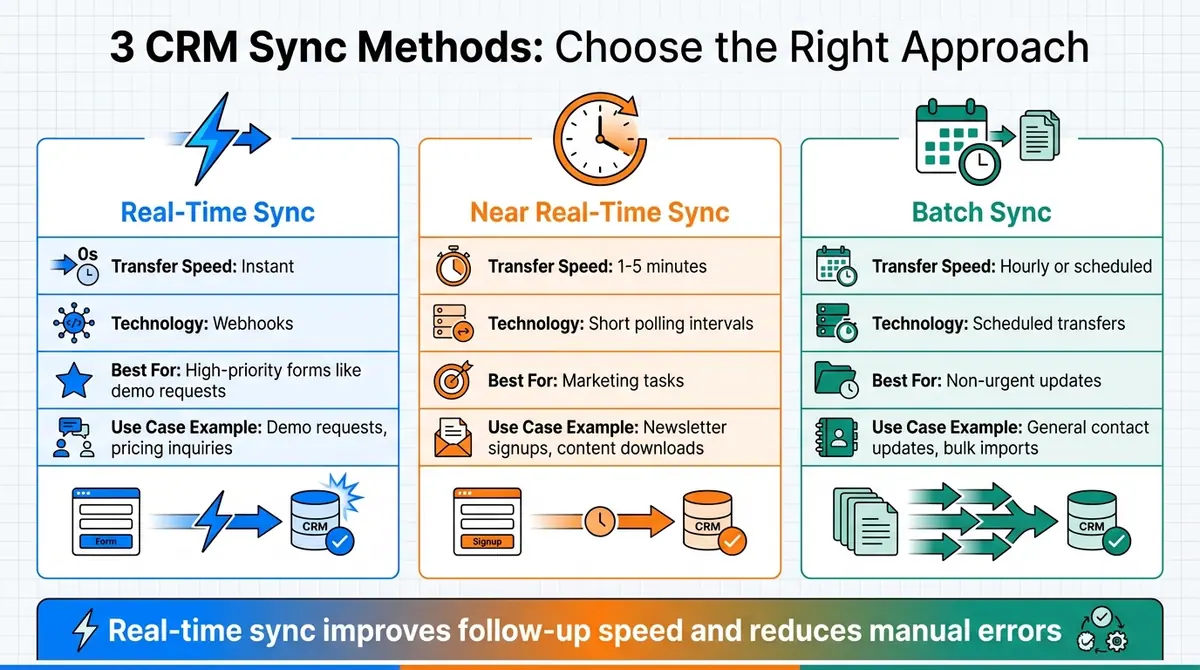
Real-Time vs Near Real-Time vs Batch CRM Sync Methods Comparison
Zoho Creator to Zoho CRM Integration | Real-Time Data Sync Step by Step
Planning Your Real-Time Sync Strategy
When setting up real-time sync for your forms and CRM, careful planning is key. Skipping this step can lead to disorganized data, broken workflows, and even legal challenges. Here's how to approach it effectively.
Inventory Forms and Map CRM Data
Start by cataloging all your lead-capture forms and linking each one to the appropriate CRM object, such as Contact, Company, or Deal. For example, a "Request a demo" form might create both a Contact and a Deal, while a newsletter signup form might only create a Contact.
Pay attention to the type of forms you're using. Single-step forms are straightforward, but multi-step forms offer unique advantages. They can capture partial submissions in real time, allowing you to retrieve data - like an email address - even if a user doesn't complete the entire form.
Make sure your forms include hidden fields for background data collection. For instance, UTM parameters like utm_source, utm_medium, and utm_campaign should be captured and mapped to CRM properties to ensure accurate marketing attribution.
Field types also matter when syncing data. Currency fields, like "Deal Amount", should match your CRM's format (e.g., USD), and date fields may need to be converted to Unix timestamps for systems like HubSpot. Additionally, country fields can be synced as full names (e.g., "United States") or abbreviations (e.g., "US"), and multiselect fields may require pipe-separated values (||) depending on your CRM's requirements.
Don't forget to add your form provider's domain (e.g., reform.app) to your CRM analytics allowlist. This ensures legitimate submissions aren't mistakenly flagged as bot traffic.
Once your forms are mapped and categorized, the next step is to define how and when data will flow between systems.
Define Sync Parameters and Direction
Decide whether your data will flow in one direction (form-to-CRM) or both ways. Most lead capture scenarios only need form-to-CRM sync, but some cases - like member portals or account update forms - may require pulling data from the CRM to pre-fill fields before pushing updates back.
Set up real-time sync using webhooks triggered by form submissions. For multi-step forms, configure webhooks to fire after specific pages instead of waiting for the final submit button. This approach helps you capture partial submissions and maximize lead data.
Establish clear rules for data ownership. For example, when a form submission updates an existing contact, decide which system's data takes priority. While many teams prefer using the most recent data, you might want to lock certain CRM fields - like sales stage or owner assignment - from being overwritten.
If users update their email addresses, map the "previous email" field to a custom CRM property. This ensures you preserve the contact's history and any associated tags.
Once you've set your sync parameters, focus on maintaining data integrity and compliance.
Ensure Compliance and Data Governance
To stay compliant with regulations like GDPR and CCPA, map opt-in checkboxes to CRM properties. This creates a clear record of when and how users gave their consent. If you're collecting partial submissions from multi-step forms, ensure your privacy policy explicitly mentions this practice.
Use HMAC validation on webhooks to confirm the authenticity of incoming data. Additionally, validate timestamps on requests and reject any older than 5 minutes to protect against replay attacks.
Regularly audit your field mappings, especially after CRM schema updates. If new custom fields don't appear in your mapping tool, use the "Resynchronize" or "Refresh" function to reload the latest schema from the CRM API. This step is critical to avoid sync failures caused by changes in your CRM structure.
| Compliance Feature | Purpose | Implementation |
|---|---|---|
| HMAC Signatures | Verify data authenticity | SHA-256 hash using a secret key |
| Timestamp Validation | Prevent replay attacks | Reject requests older than 5 minutes |
| Consent Mapping | Meet legal requirements (GDPR/CCPA) | Map opt-in checkboxes to CRM properties |
| TLS/SSL | Encrypt data during transfer | Ensure valid SSL certificates |
Configuring Real-Time Form-to-CRM Sync
Once you've outlined your sync strategy, the next step is connecting your forms to your CRM to start transferring data seamlessly. This setup involves three key steps: creating forms with the necessary fields, setting up secure connections, and enabling triggers for instant data transfer.
Set Up Forms with Required Fields
Start by building your forms in Reform, ensuring they include all the fields your CRM requires - such as email, name, and phone number. The email address acts as a unique identifier, helping to prevent duplicate entries. You can also add fields for company details or any custom data your team needs.
To maximize lead capture, use multi-step forms. For example, if a user only fills out the first step (like entering their email), you can sync that partial submission immediately, reducing the risk of losing potential leads. Additionally, take advantage of hidden fields to collect background data like campaign parameters. Name these fields utm_source, utm_medium, and utm_campaign to automatically pull URL parameters when someone visits your page. This ensures accurate campaign tracking in your CRM.
Don’t forget to activate email validation and spam prevention. Reform’s built-in tools check email formats in real time, helping you avoid invalid addresses and fake submissions. Once your forms are ready, you can move on to connecting them to your CRM.
Connect to CRM and Map Fields
Reform provides native integrations with popular CRMs like HubSpot, Salesforce, and Close. These connections use OAuth authentication to ensure your accounts are linked securely. To set this up, head to the Integrations section in your Reform dashboard, select your CRM, and follow the OAuth authorization steps.
After connecting, map your form fields to the corresponding properties in your CRM. For instance, link your form's "Email" field to the CRM's "Email Address" property, and map "Phone" to "Phone Number." You can also connect hidden fields like utm_source to CRM properties such as "Original Source" or "Lead Source" for detailed campaign insights.
Here’s a quick example of how field mapping might look:
| Mapping Category | Form Field Example | CRM Property Example |
|---|---|---|
| Contact Data | Email, Name, Phone | Email Address, First Name, Phone Number |
| Company Data | Company Name, Industry | Company Name, Industry |
| Campaign Tracking | utm_source, utm_medium |
Original Source, Lead Source Detail |
Once all fields are mapped, you’re ready to set up real-time triggers to send data instantly to your CRM.
Implement Real-Time Sync Triggers
Real-time syncing ensures that form submissions are sent to your CRM as soon as they’re completed. This is especially important for time-sensitive actions, like assigning hot leads to your sales team.
If your CRM is natively integrated with Reform, the webhook configuration happens automatically after you complete the field mapping. Simply toggle the integration to "on", and Reform will handle the rest, pushing data to your CRM in real time.
For CRMs without native integrations, you can set up a custom webhook. Just paste your destination URL into Reform’s webhook settings. Reform secures these connections using SHA-256 HMAC signatures in the request header, which your server can verify to ensure data integrity.
To avoid duplicate records, configure your CRM to use the email address as the unique identifier. When a webhook triggers, your CRM should check if a contact with that email already exists. If it does, the system updates the record; if not, it creates a new one. This simple step keeps your CRM data clean and organized.
Enhancing and Validating Data Before Sync
Once your sync setup is in place, refining the data that flows into your CRM becomes crucial. Clean, accurate data not only reduces the need for manual fixes but also builds trust in your reports. The trick is to validate, enrich, and standardize the information before it enters your system, avoiding duplicate records and messy reporting.
Use Lead Enrichment and Validation Tools
Reform's real-time email validation is a game-changer. By verifying email addresses as they're entered, it can cut down fake or invalid contacts by 20–40%. This means better email deliverability and higher efficiency for your sales team. With this pre-sync check, you’re setting up your CRM for success with accurate, enriched records from the start.
Lead enrichment takes things further by automatically adding firmographic data - like company size, industry, and location - using the email domain provided. This lets you ask for fewer details on your forms, which can boost completion rates, while still providing your sales team with valuable context for personalized outreach. For instance, when a work email is entered, Reform can fetch details like the company name and employee count, then use that data to assign CRM picklist values like "Enterprise" or "SMB." These features are available with Reform's Pro Plan and can be powered either by Reform's shared API key or your own ExactBuyer key.
Normalize and Standardize Data
Inconsistent data formats can wreak havoc on workflows and reporting. To avoid this, standardize fields like phone numbers - using formats such as E.164 (e.g., +1 415-555-1234) or a consistent U.S. layout like (XXX) XXX-XXXX. This ensures integrations like click-to-call or dialers work seamlessly. Similarly, for U.S. states, variations such as "California", "Calif", or "ca" should be converted into the official two-letter USPS code (CA) to prevent duplicate entries and maintain accurate geographic reports.
Currency fields should also be consistent. Store numeric values in USD with two decimal places (e.g., $1,250.00). If you operate across multiple currencies, include a separate field for the currency code. Free-text fields, like job roles or industries, should be mapped to standardized values using defined rules or lookup tables. For example, entries like "marketing manager" or "Mktg Mgr" can be standardized to "Marketing Manager." This keeps CRM picklists clean and ensures automation rules function as intended. Standardized data lays the groundwork for more meaningful insights.
Sync Contextual Data for Better Reporting
Going beyond basic contact details, capturing campaign tracking parameters in hidden fields can elevate your multi-touch attribution and channel reporting. This added segmentation leads to more precise analysis and gives your sales team a clearer view of how prospects discovered your offerings. You can also sync device and browser data to understand how user experience impacts conversion rates and fine-tune your channel strategies - all without cluttering your visible form fields.
sbb-itb-5f36581
Testing, Monitoring, and Maintaining the Sync
Test the Integration and Handle Errors
Before launching your sync, always start in a sandbox or test environment. This helps you catch potential issues early on. Begin with a small batch of dummy contacts that are clearly labeled for easy identification.
"It's always better to start slow and sync too little and then widen your sync scope gradually, than to yolo-sync 'All contacts', causing you to clean up all the records that you didn't need afterward." – Frans Leys, HubSpot Product Team
Make sure your test data is realistic - use proper formats for phone numbers like (415) 555-1234, valid ZIP codes, and correctly structured addresses. However, avoid using sensitive information from live databases. Apply filters on both your form and CRM to control which records are included in the sync during testing. Conduct functional tests to ensure the data flows align with your business rules, and simulate high-volume scenarios to uncover any bottlenecks before they affect live data. Once the integration passes these tests without errors, shift your focus to monitoring its performance in real-time.
Monitor Sync Performance and Metrics
After going live, keep an eye on key metrics like sync speed, failure rates, and the time it takes for leads to move through your pipeline. Use your CRM's dashboards and Reform's analytics tools for tracking. With Reform's January 2025 update, you can even monitor partial submissions for multi-step forms, allowing you to identify where potential leads drop off. Regularly reviewing these metrics can help you spot trends - like higher failure rates during peak traffic - and address performance problems before they escalate.
Maintain and Update Sync Configurations
Sync configurations require ongoing attention - they aren’t something you can set up once and forget about. Conduct regular audits of your CRM to ensure form data is populating the correct fields and that all mappings are still accurate as your business needs change. If you add new form fields or modify CRM properties, update your integration settings accordingly. For setups syncing across multiple objects, review all mappings periodically.
To maintain security, rotate API credentials regularly and reauthorize any inactive integrations. If your CRM undergoes significant schema changes, use the integration's on/off toggle to pause syncing temporarily. This helps prevent data errors during the transition. Lastly, take advantage of new platform features as they roll out to improve your data quality and overall sync performance.
Avoiding Common Pitfalls in Real-Time Sync
Real-time form-to-CRM syncing can run into problems that may hurt your data quality and system performance. Knowing these common challenges - and how to sidestep them - can save you from time-consuming and expensive fixes later.
Prevent Data Quality Issues
Spam and poor-quality leads are major threats to your CRM's reliability. A real-time sync can flood your database with junk - think fake email addresses, bot submissions, or responses that don’t meet your lead criteria. To tackle this, add validation rules to your forms. Features like email validation and spam filters can catch typos and fake entries. Tools like Reform’s lead enrichment can also verify contact info and weed out questionable submissions.
Another common issue is duplicate records, which create confusion and inefficiencies. These often happen when someone submits multiple forms or when field mappings don’t align with your CRM’s deduplication rules. To avoid this, keep formatting consistent across all forms. For instance, always format phone numbers as (415) 555-1234 instead of mixing styles like 415-555-1234 or 4155551234.
Now, let’s look at how submission volumes can affect system performance.
Manage Performance and Scalability
While maintaining data quality is essential, ensuring your system can handle heavy traffic is just as important. High submission volumes, especially during events like product launches or big marketing pushes, can push your CRM to its limits. API rate limits, for example, can cause sync failures if you exceed them, resulting in missed leads.
"Webhooks provide real-time data transmission, which is crucial for timely actions and updates in external systems. Unlike polling methods that check for updates at intervals, webhooks push data instantly when events occur, reducing delays and resource consumption." - Reform
Switch to webhooks instead of polling methods to reduce unnecessary API calls and save resources. Set up conditional triggers so only qualified submissions - those with complete and accurate information - get synced. This prevents your CRM from being bogged down by incomplete or irrelevant data. Reform also uses SHA-256 HMAC signatures in webhook transmissions to ensure the data is secure and unaltered, even when processing large volumes of submissions.
Design for Resilience and Clarity
Studies reveal that 30% to 70% of CRM implementations fail to meet their goals, often due to poor planning and unclear data rules. Start off strong by defining clear "source-of-truth" rules. Decide whether your forms or your CRM will act as the master record for each type of data, and document these decisions. If multiple systems can update the same field, establish clear rules about which source takes priority during conflicts.
Only sync data that serves a specific purpose. Overloading your system with unnecessary fields increases complexity and the risk of errors. Use your CRM’s built-in features whenever possible, instead of relying on custom solutions that can be harder to maintain. Also, test edge cases thoroughly. For example, what happens if someone enters a foreign phone number, skips optional fields, or submits the same form twice in quick succession? Experts suggest adding 20% to 25% more time to your project timeline to account for unexpected challenges.
Conclusion
Real-time syncing plays a crucial role in ensuring smooth CRM integration and quick lead responses. To make it work effectively, start by identifying the forms that capture your most important leads - like pricing inquiries, demo requests, and quote submissions. Decide what information needs to flow immediately into your CRM, then set up precise field mappings and validation rules. Test your setup by submitting entries and confirming they appear instantly in the correct CRM lists or pipelines. Keep an eye on performance, and update your mappings whenever you launch new campaigns or add fields. This ongoing process can make a noticeable difference in lead response times and revenue.
Fast lead response drives revenue. When high-intent leads are followed up within minutes, your sales team gains a competitive advantage, especially in fast-paced U.S. markets.
Tools like Reform simplify this process with native integrations, lead enrichment, and HMAC-secured webhooks. By connecting directly to popular CRMs like HubSpot, Salesforce, and Close, Reform eliminates manual data entry. Its webhooks send data instantly when triggered, cutting down on delays and saving resources compared to slower polling methods.
To manage risks like spam, duplicate entries, and API limits, use validation rules, conditional triggers, and proactive monitoring. Assign clear ownership of the integration to ensure that any issues are addressed quickly.
Here’s how to keep your integration running smoothly:
- Audit your forms to confirm which CRM objects they should update.
- Configure and test an end-to-end integration using live submissions.
- Monitor error logs and sync performance daily.
- Review and adjust your mappings quarterly to align with new campaigns and CRM updates.
Think of your real-time sync as an evolving system. With regular attention, you’ll benefit from quicker follow-ups, cleaner data, and improved conversion rates over time.
FAQs
How can I sync form data to a CRM while staying GDPR-compliant?
To stay compliant with GDPR when syncing form data to a CRM, the first step is to obtain explicit consent from users. This can be done using a clear opt-in mechanism, like a checkbox. Make sure to securely store this consent with a unique identifier, such as a hashed email, so it can be referenced later if necessary.
When transferring data, prioritize secure transmission methods like HTTPS, and include authentication tokens to safeguard against tampering. Only send the data that’s absolutely necessary for your CRM workflow, and validate all inputs to prevent errors or the storage of irrelevant information.
Additionally, ensure users’ GDPR rights are upheld by offering straightforward ways for them to access, correct, or delete their data. Keeping detailed consent records and maintaining an audit trail of data transfers will allow you to handle requests, such as the "right to be forgotten", efficiently while staying within legal requirements.
Why is real-time syncing better than batch syncing for form data?
Real-time syncing ensures that form submissions are sent directly to your CRM the moment a user clicks Submit. This gives your team immediate access to the latest data, enabling quicker follow-ups, shorter sales cycles, and an overall better customer experience. By cutting out delays, real-time syncing also helps maintain clean, accurate records, avoiding duplicates or outdated information.
It doesn't stop there - real-time syncing can trigger automated actions right away. Whether it's sending a welcome email, assigning a lead, or kicking off a workflow, these instant responses streamline operations and reduce manual work. Compared to batch syncing, which processes data in bulk at set times, real-time syncing delivers faster decision-making, greater efficiency, and insights you can trust from up-to-the-minute data.
How can I avoid duplicate entries in my CRM when syncing form data?
To keep your CRM free of duplicate records during data sync, it’s crucial to set up your form and integration with a clear plan for identifying and managing duplicates. Start by choosing a unique identifier - like an email address - that can reliably distinguish one lead from another. Make sure this field is mapped in your form to the corresponding field in your CRM for seamless matching.
Take advantage of built-in validation tools to standardize data, such as ensuring consistent email or phone number formatting. This minimizes inconsistencies that could lead to duplicate entries. Configure your integration to update existing records when a match is found (a process often referred to as "upsert") instead of creating new records. To ensure everything works as expected, test the system by submitting duplicate data and verify that the CRM updates the existing records correctly. Regularly review sync logs to spot any issues and fine-tune your setup.
Setting this up properly ensures your CRM stays organized and focused on high-quality, unique leads.
Related Blog Posts
Get new content delivered straight to your inbox

The Response
Updates on the Reform platform, insights on optimizing conversion rates, and tips to craft forms that convert.




Drive real results with form optimizations
Tested across hundreds of experiments, our strategies deliver a 215% lift in qualified leads for B2B and SaaS companies.
