
.webp)
5 Steps to Troubleshoot Form Integration Errors



Form integration errors can disrupt workflows, leading to lost data, delayed follow-ups, and unreliable reporting. These errors often stem from issues like expired API keys, incorrect field mappings, or silent failures where everything seems fine but data never reaches its destination.
Here’s the quick fix process:
- Identify the Error: Check for HTTP status codes (e.g., 401, 404, 500) or signs like missing data or a sudden drop in form submissions.
- Check Connection & Authentication: Ensure the form is connected to the receiving system and validate API keys or tokens.
- Verify Field Mapping: Align form fields with CRM fields and ensure data formatting matches system requirements.
- Run Controlled Tests: Submit test data to confirm the integration works as intended.
- Validate in Production: Test in live conditions and set up monitoring to catch recurring issues.
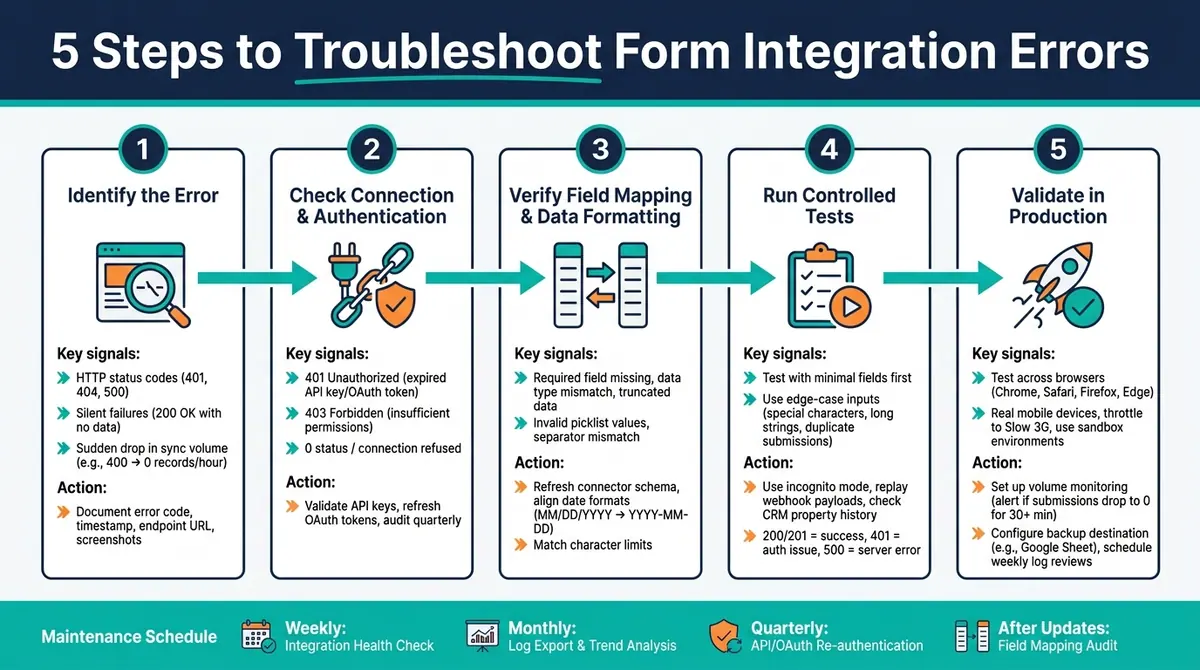
5 Steps to Troubleshoot Form Integration Errors
Step 1: Identify the Exact Integration Error
Before jumping to solutions, take a moment to identify the exact error causing the issue. Avoid assuming that "the integration isn't working" - dig deeper to pinpoint the root cause.
Common Signs of Integration Issues
The most obvious indicator of a problem is an error code. HTTP status codes like 401 Unauthorized, 404 Not Found, or 500 Internal Server Error each hint at a different issue. For instance:
- A 401 Unauthorized error often means an expired API key or token.
- A 404 Not Found error suggests the webhook URL is incorrect or the endpoint no longer exists.
- A 500 Internal Server Error points to a server crash on the receiving end.
Documenting these codes is crucial because they determine the steps you'll take to resolve the problem.
Sometimes, however, errors can be subtle. Silent failures may return a 200 OK status, masking underlying issues like data loss. Another red flag is a sudden drop in sync volume - if your system normally processes 400 records per hour and suddenly shows zero, that's a sign something has gone wrong.
"The specific metric to obsess over is unexpected silence. If your CRM normally receives 400 records an hour from your MAP and suddenly receives zero, that silence is as loud as an error code." - House of MarTech
Data mismatches between submission logs and CRM entries are another common indicator of integration failure.
Here’s a quick reference table for common HTTP status codes and their typical causes in form integration:
| HTTP Status Code | Meaning | Likely Cause |
|---|---|---|
| 200 OK (empty) | Silent failure | Deprecated API version or schema mismatch |
| 400 Bad Request | Invalid data sent | Missing required fields or incorrect Content-Type |
| 401 Unauthorized | Auth failed | Expired API key or OAuth token |
| 403 Forbidden | Permission denied | User lacks write access to the CRM |
| 404 Not Found | Endpoint missing | Incorrect webhook URL or deprecated API route |
| 429 Too Many Requests | Rate limit hit | High submission volume or misconfigured loops |
| 500 Internal Error | Server crash | Receiving server is down or handler code failed |
Once you've identified the error, document these findings before moving forward.
What to Document Before You Start
Having pinpointed the issue, take time to record all relevant details. This documentation will act as your guide during troubleshooting. Key items to log include:
- The HTTP status code
- Event ID
- Timestamp
- Screenshots of console errors or logs
- Endpoint URL (if working with a webhook)
- Whether signature verification is enabled
"Webhooks fail silently. Your provider sent an event, nothing happened on your end, and now you're staring at two systems that each think they did their part correctly." - Aleksa Vukovic, Developer Relations, GetHook
To run a quick diagnostic, open your browser's DevTools (press F12), go to the Network tab, and submit the form. Check if a request was initiated. If a request appears, review its status code. If no request is logged, switch to the Console tab to look for JavaScript errors. Testing in incognito mode can help rule out interference from browser extensions or ad blockers.
This documentation becomes your baseline. Every fix you apply in subsequent steps should be traceable back to the information you've recorded here.
Step 2: Check the Form Connection and Authentication
After documenting the error, the next step is to ensure the connection between your form and the receiving system is active. A misconfigured or broken connection is a common reason integrations fail - and it's often easy to miss.
How to Check for Connection Issues
Start by reviewing the delivery logs to confirm outbound requests are being sent. You can also run curl -I [endpoint URL] to check if the server responds. If you see a 0 status or "connection refused", it means the receiving server is completely unreachable - it’s not even returning an error. A 404 status, on the other hand, typically points to an outdated or unregistered webhook URL.
Sometimes, the issue lies with firewalls, Web Application Firewalls (WAFs), or expired TLS/SSL certificates, which can silently block inbound POST requests. If your logs look fine but the data isn’t arriving, check these areas to rule out any filtering at the infrastructure level.
Once you've confirmed connectivity, move on to verifying your authentication credentials.
Common Authentication Failures and Fixes
Authentication issues are another frequent culprit. Start by ensuring the credentials used for the connection are still valid. Expired or revoked credentials often cause integration failures.
"Authentication decay is silent and common. Treat credential health like you treat password hygiene." - House of MarTech
The most common causes include rotated API keys, expired OAuth tokens, or OAuth drift - a situation where the person who originally set up the integration leaves the company or changes their password, causing the integration to lose access without any warning. Conducting a quarterly audit of your API keys and OAuth connections can help prevent these problems.
Here’s a quick reference for common authentication errors and their solutions:
| Auth Issue | Likely Cause | Fix |
|---|---|---|
| 401 Unauthorized | Expired token or revoked API key | Re-authenticate or generate a new API key in settings |
| 403 Forbidden | Valid credentials, insufficient permissions | Check the connecting user's role in the receiving system |
| 400/401 (Webhooks) | Signature verification failure or secret mismatch | Verify the webhook secret; ensure raw body is used for HMAC |
| Token Error (OAuth) | Token revoked due to inactivity or account reset | Generate a new token or reconnect under an active account |
For webhook integrations, a common pitfall is body consumption. Middleware can read the request body before the signature verification code runs, leaving it empty and causing the HMAC hash to fail. If you're using Express.js, apply express.raw() on webhook routes to keep the original request body intact for signature verification.
"Signature verification rejections are one of the most common webhook debugging failures, and they often produce an opaque 401 or 400 with no log entry." - Aleksa Vukovic, Developer Relations, GetHook
Lastly, double-check that you’re not using a test mode API key in a production environment. This simple mistake is surprisingly common and can lead to 401 errors, wasting valuable debugging time.
Step 3: Verify Field Mapping and Data Formatting
After confirming your connection and authentication, the next step is to ensure that your form fields are correctly aligned with the fields in the receiving system. Misaligned mappings can cause data to leave the form but fail to arrive at its intended destination.
Field Mapping Basics
Each form field must correspond to a specific field in the destination system. To ensure everything is set up correctly, review the mapping interface and verify that every form field is matched to its destination field.
Field renaming in CRMs can often cause unexpected issues. For instance, if "Company Name" is renamed to "Organization", any existing mapping tied to the old name will break. If your integration suddenly stops working, checking for renamed fields should be one of your first steps. Refresh your connector schema whenever changes are made in the CRM to update field names and remap them as needed.
To streamline troubleshooting and onboarding, maintain a master spreadsheet that maps each form field to its corresponding CRM field.
Once field mapping is confirmed, the next step is to ensure the data in each field is formatted in a way that the destination system can accept.
How to Fix Data Formatting Issues
Correctly mapping fields is only part of the solution. The data within those fields must also meet the destination system's format requirements. Here are some common formatting issues you might encounter:
- Date formats: If your form collects dates as "06/10/2026" but the CRM requires
YYYY-MM-DD, the data might be rejected or stored incorrectly. Use form validation rules to standardize date inputs. - Phone numbers: Some CRMs require raw digits (e.g.,
5551234567), while others expect formatted numbers with a country code (e.g.,+1-555-123-4567). Apply input masking to enforce the correct format during data entry. - Picklist values: Dropdown or multi-select field values must match the destination options exactly, including capitalization and spacing. Use the field's API name instead of its display label to avoid mismatches.
- Character limits: If a form field allows 500 characters but the CRM caps it at 255, the data might be truncated or rejected. Adjust the form's character limits to match the CRM's requirements.
For multi-select fields, ensure the separator used in the form (comma or semicolon) matches the CRM's configuration.
Common Field Mapping Errors: A Reference Table
Here’s a quick guide to diagnosing and fixing common mapping issues:
| Mapping Error | Likely Cause | Fix |
|---|---|---|
| Required Field Missing | Mandatory CRM field has no mapped source | Map a form field to it, or assign a default value |
| Data Type Mismatch | Text mapped to a number or date field | Update form validation to match the CRM's expected data format |
| Silent Sync Failure | Field renamed or contains unsupported characters | Refresh the connector schema and remap the field |
| Truncated Data | Form input exceeds the CRM field's character limit | Set matching character limits on the form field |
| Invalid Multi-Select | Separator mismatch (comma vs. semicolon) | Configure the integration to use the correct separator |
| Restricted Picklist Error | Submitted value doesn’t match CRM options exactly | Use the field's API name and sync picklist options |
| ID Value of Incorrect Type | Wrong ID type sent (e.g., Account ID instead of Contact ID) | Use an Object Reference tool to confirm the correct ID type |
If you're unsure which field is causing the issue, check your integration's sync logs. Look for error messages like "Required field missing" or "Invalid data format", which usually pinpoint the problem field.
sbb-itb-5f36581
Step 4: Re-Test the Integration with Controlled Submissions
Once you've verified field mapping and data formatting, it's time to test your integration in a controlled environment. Controlled testing involves submitting data in a structured, deliberate way to ensure the integration behaves as expected, whether the submission succeeds or fails. This step is crucial for uncovering any remaining issues before moving forward.
Best Practices for Testing Fixes
Start with the basics. Begin by submitting a pared-down version of your form - just the essential fields like name and email. Once you're confident the core connection works, gradually reintroduce additional fields, testing after each update. This incremental approach helps isolate any lingering issues.
To avoid interference, test submissions in a private browser session. This eliminates potential disruptions from cached scripts, browser extensions, or ad blockers. Use unique test data and edge-case inputs, such as names with special characters (e.g., apostrophes), unusually long text strings, or varied phone number formats. These inputs can quickly reveal encoding problems or truncation errors.
"Testing your integrations before deployment ensures that all components function correctly, data flows seamlessly, and potential issues are identified and resolved early." - Revecast
Testing for Consistent Behavior
A single successful test isn't enough to guarantee reliability. Run the same submission multiple times to ensure consistent performance. If your integration tool offers a webhook replay feature - like those in Stripe or GitHub - take advantage of it. Replaying the original payload eliminates manual re-entry errors, letting you focus solely on the integration's performance.
Don't overlook failure scenarios. Test deliberately by leaving required fields blank, entering invalid email formats (e.g., "name@com"), or rapidly clicking the submit button twice to check for duplicate prevention. After each test, review your CRM's Property History to confirm whether the integration updated the data or if another automated process intervened.
Here's a handy table of key scenarios to test:
| Test Scenario | Action | Expected Behavior |
|---|---|---|
| Basic Success | Fill all fields with valid data | Data arrives in CRM within 5 minutes |
| Required Field Failure | Leave a CRM-required field empty | Form blocks submission; error logged |
| Special Characters | Use apostrophes or ampersands (e.g., D'Angelo) | Data transfers without breaking the API call |
| Character Limit | Enter 255+ characters in a text field | CRM truncates or rejects - verify which |
| Duplicate Submission | Click submit twice rapidly | Only one submission is processed |
| Data Validation | Enter an invalid email (e.g., name@com) |
Validation blocks the submission |
If you're using Reform's no-code form builder, its built-in testing tools and real-time analytics can simplify this process. These tools help ensure that every fix is thoroughly validated during your controlled submissions.
For failed submissions, open DevTools (F12) to identify errors. Cross-check the integration's activity logs for HTTP status codes - 200 or 201 indicates success, 401 points to an authentication issue, and 500 signals a server-side problem during data processing. This step-by-step troubleshooting will help you resolve issues efficiently.
Step 5: Confirm the Fix Under Production Conditions
After completing controlled testing, it's time to ensure your integration performs reliably in live, real-world environments. While Step 4 helps validate functionality, this step confirms your integration's resilience under actual production conditions.
How to Simulate Production Scenarios
Start by testing in incognito mode across various browsers like Chrome, Safari, Firefox, and Edge. Don’t forget to test on real mobile devices - desktop emulators often miss mobile-specific issues. Use your browser's developer tools to throttle network speeds to settings like "Slow 3G". This helps identify whether your form can handle poor connections without timing out or losing data. To track your test submissions, label them uniquely so they can be easily identified in your integration.
"A form that works today could break again tomorrow due to an unrelated update or integration change." - qa.ai
If your CRM provides a sandbox environment (e.g., Salesforce Sandbox), use it to simulate production workflows. This allows you to stress-test data flows without the risk of disrupting live data or active processes.
Once you’ve successfully simulated production conditions, the next step is to implement monitoring systems to catch potential issues.
How to Monitor for Recurring Errors
Fixing an issue once isn’t enough - ongoing monitoring is essential. For instance, OAuth tokens for platforms like HubSpot and Salesforce often expire after 6 to 12 months, and changes like renaming CRM fields or adding new required properties can silently break integrations overnight. As House of MarTech points out:
"The most dangerous failures are the ones that look like everything is fine. Alert on silence, not just errors." - House of MarTech
Here’s how to stay ahead of such problems:
- Volume Monitoring: Keep an eye on submission trends. For example, if your form usually generates 50 submissions daily but suddenly drops to zero for 30 minutes, something is wrong - even if no error codes appear in your logs. Tools like Reform’s real-time analytics can help you spot these drops immediately.
- Backup Submissions: Configure a secondary destination, like a Google Sheet, to store form submissions. If your primary CRM integration fails silently, you’ll still have a complete record of all submissions.
- Weekly Log Reviews: Regularly review your logs to identify recurring issues before they escalate.
| Monitoring Method | What It Catches | Key Signal |
|---|---|---|
| Error Rate Alerting | Failed API calls and authentication issues | 4xx and 5xx HTTP status codes |
| Volume Monitoring | Silent failures with no error code | Transaction count drops below baseline |
| Latency Monitoring | Slow or timing-out integrations | Response time spikes |
| Log Auditing | Data discrepancies between systems | Mismatches between form and CRM counts |
Conclusion: A Repeatable Process for Fixing Form Integration Errors
Form integration errors can be sneaky, often lurking unnoticed even when everything appears fine on dashboards. Establishing a consistent process helps tackle these issues at their root, preventing bigger disruptions and data loss down the line.
Here’s a simple five-step approach: identify the error, confirm authentication, check field mapping, perform controlled tests, and validate in production. Research indicates that most integration failures stem from testing and mapping issues. These steps not only address immediate problems but also lay the groundwork for maintaining a reliable integration system.
To keep your integrations running smoothly, consider these regular maintenance tasks:
| Maintenance Task | Frequency | Purpose |
|---|---|---|
| Integration Health Check | Weekly | Review logs and test sample submissions to ensure data flow. |
| API/OAuth Re-authentication | Quarterly | Refresh credentials to avoid silent disconnects. |
| Field Mapping Audit | After Updates | Verify that updates or renamed CRM properties haven’t disrupted syncs. |
| Log Export & Trend Analysis | Monthly | Spot minor issues before they escalate into major disruptions. |
Another critical piece of the puzzle is thorough documentation. For every issue you resolve, record the error message, its root cause, and the steps you took to fix it. A detailed runbook can save you from turning a quick fix into a multi-day headache.
"Think of form optimization as an ongoing process rather than a one‑time fix. Markets change, visitor expectations evolve, and new technical issues emerge." - OrbitForms
The goal isn’t to eliminate every single error - it’s about catching them early, resolving them efficiently, and making sure the same problem doesn’t trip you up again.
FAQs
How can I tell a silent failure from a real success?
A silent failure occurs when a system gives the impression that everything is working - like showing a success message or returning a 200 HTTP status - but doesn't actually process or deliver the data. To catch this type of issue, don't just trust what the user interface tells you. Instead, monitor submission volumes and compare them to historical trends. For example, if the number of records in your CRM or inbox suddenly drops to zero, that's a red flag. Check your logs right away - unexpected silence often points to a hidden problem.
What should I check first when a form stops syncing to my CRM?
To troubleshoot, first confirm the integration connection status in both your form builder and CRM. Even if it appears connected, the authentication credentials - such as OAuth tokens or API keys - might have expired. Look for any connection testing tools provided and use them to refresh the link. If the test doesn’t work, carefully examine the error message. This can help pinpoint problems like authentication failures, rate limits, or insufficient user account permissions.
How can I prevent form integrations from breaking again later?
Proactive maintenance is key to steering clear of integration headaches down the road. Whenever possible, stick to native integrations - they tend to offer more stability. To keep things running smoothly, use version pinning to manage API updates and avoid unexpected changes.
It’s also smart to schedule quarterly audits. During these, you can rotate credentials, check for outdated endpoints, and confirm user permissions are still accurate. Finally, set up monitoring tools to catch sudden drops in lead volume. This can help you spot silent failures that might not show up in your standard error logs.
Related Blog Posts
Get new content delivered straight to your inbox

The Response
Updates on the Reform platform, insights on optimizing conversion rates, and tips to craft forms that convert.




Drive real results with form optimizations
Tested across hundreds of experiments, our strategies deliver a 215% lift in qualified leads for B2B and SaaS companies.
