
.webp)
How Zapier Simplifies Snapchat Lead Form Integration



Snapchat Lead Forms make it easy to collect user information directly from ads, but manually managing that data can be slow and error-prone. Zapier automates this process, instantly sending leads to tools like CRMs, email platforms, or spreadsheets. This ensures your sales and marketing teams can act quickly while leads are still engaged.
Key Takeaways:
- What you need: Accounts for Snapchat Ads Manager, Zapier, and your destination app (e.g., Salesforce, Google Sheets).
- Setup: Create a lead form in Snapchat, connect it to Zapier, and map fields to your target app.
- Automation Benefits: Immediate lead transfer, reduced manual work, and faster follow-ups.
- Common Uses: Sync leads with CRMs, email tools, or analytics platforms for better lead management.
By automating lead handling, Zapier helps you save time and ensures no lead is overlooked.
How to Automate Your Meta Leads With Zapier Step by Step
sbb-itb-5f36581
What You Need Before Getting Started
To connect Snapchat lead forms to your tools, you'll need three accounts: Snapchat Ads Manager, Zapier, and your destination app (like a CRM, email platform, or spreadsheet).
- Snapchat Ads Manager: This is where you design and manage your lead generation campaigns. Snapchat reaches 943 million users every month. Notably, 63% of Snapchatters have made purchases on the platform, and nearly 25% of users are over 35 years old.
- Zapier: This tool serves as the link between Snapchat and over 9,000 other apps. It uses an "Instant" trigger to send leads directly to your chosen app as soon as they're submitted[2,4,7].
- Your target app: This is where your leads will ultimately be stored. It could be a CRM like Salesforce, an email platform like Instantly, or even a spreadsheet like Google Sheets or Zapier Tables. Make sure you have login credentials or API access for the app you plan to use.
Once your accounts are ready, you're all set to create your Snapchat lead form.
How to Create a Snapchat Lead Form
Building high-converting lead forms on Snapchat is key to capturing quality leads. Here's how to do it:
- Start by choosing "Leads" as your campaign objective in Snapchat Ads Manager. This step activates the in-app lead form feature.
- In the "Ad Set Details" section, select "Lead Form (generate leads from your lead form)" instead of directing users to an external website. Keeping users within the app makes it easier for them to complete the form.
- Customize the form fields based on your goals. For higher lead volume, stick to basic fields like name and email. If you're aiming for higher-quality leads, include qualifying questions. Snapchat also pre-fills forms with users' profile data, which can improve completion rates.
- Reinforce your offer at the top of the form to reduce drop-offs. Highlighting the value of your offer here can make all the difference.
- When setting your bid strategy, consider using auto-bid or setting a target cost bid that's about 20% higher than your actual cost-per-lead (CPL) goal.
Once you've created and activated your lead form, make sure you have your Organization, Ad Account, and Form ID ready to connect it to Zapier[4,12].
How to Set Up Your Zapier Account
After your Snapchat form is ready, the next step is setting up Zapier to automate lead transfers.
- Go to Zapier's website and create a free account. Zapier offers a "Free forever" plan for basic features, along with a 14-day trial for premium apps and features[3,4].
- Once your account is set up, authenticate your Snapchat credentials within Zapier. During this process, you'll need to provide your Organization and Ad Account details[3,5,6].
- Next, connect your target app - the destination where your leads will be sent. Zapier will guide you through logging in and authorizing access to the app[3,13].
Once both Snapchat and your target app are connected, you're ready to build your first Zap. Setting up this automated workflow usually takes under six minutes. With everything in place, leads from Snapchat can flow directly into your CRM, email platform, or spreadsheet in real time.
How to Create Your First Zap
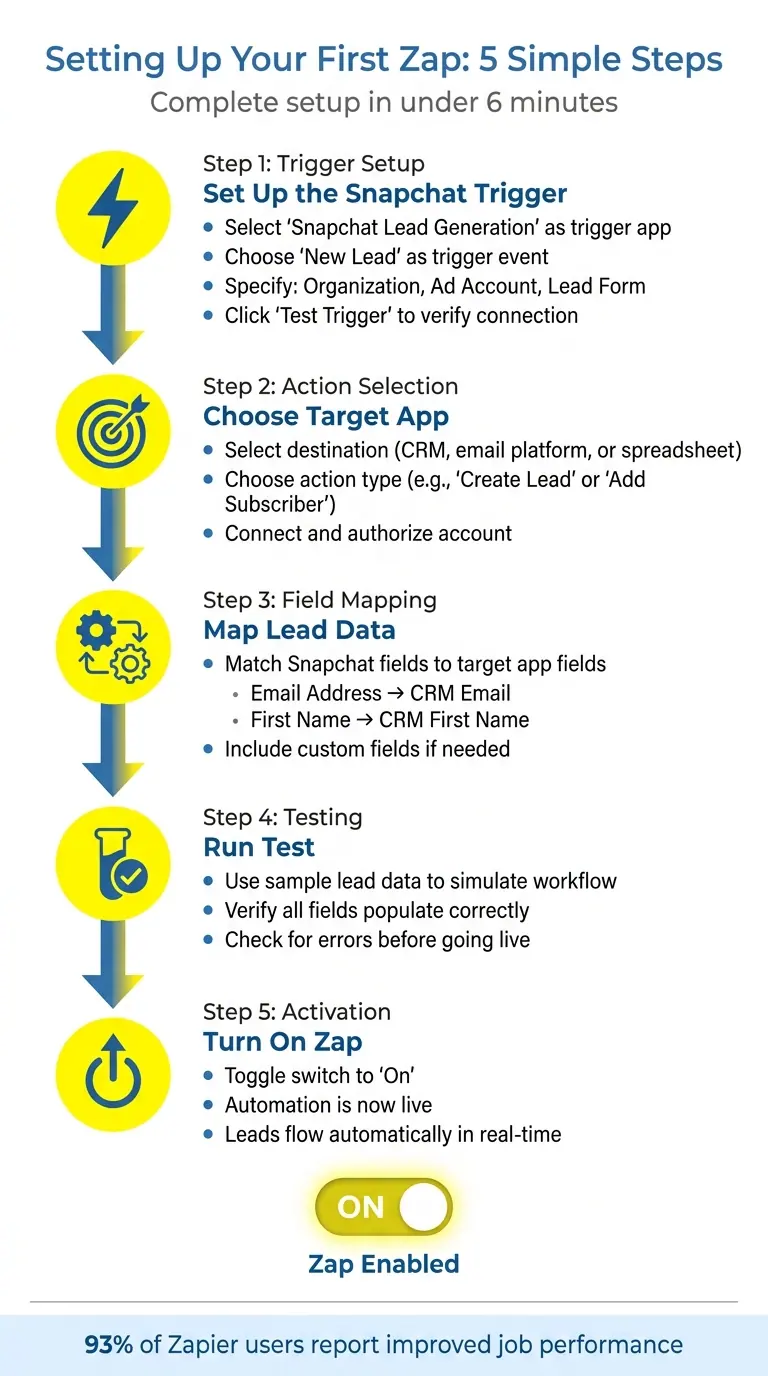
5-Step Process to Set Up Snapchat Lead Form Integration with Zapier
Creating your first Zap is quick and straightforward - it takes less than six minutes to set up. Here’s the basic process:
- Set up the Snapchat trigger
- Map the lead data
- Test and activate your Zap
Setting Up the Snapchat Trigger
Start by clicking "Create Zap" in your Zapier dashboard. Under the trigger section, search for and select "Snapchat Lead Generation" as the trigger app, then choose "New Lead" as the trigger event. This setup ensures the Zap activates whenever a lead is submitted.
Next, you'll need to specify three key fields: Organization, Ad Account, and the specific Lead Form you want to monitor. These fields help Zapier know where to pull the data from.
Once those details are in place, click "Test Trigger". This step allows Zapier to fetch sample lead data from your Snapchat account to ensure the connection is working properly. It’s an important check to confirm that Zapier can access all the form fields you’ll need. Make sure your Snapchat account has the right administrative permissions for the Organization and Ad Account you're connecting.
After verifying the trigger, you’re ready to map the lead fields to your target app.
Mapping Lead Data to Your Target App
Now, choose the app where you want the data to go - this could be a CRM like Salesforce, an email platform, or even Google Sheets. Then, select the action you want Zapier to perform, such as "Create Lead" or "Add Subscriber".
Using Zapier’s visual builder, match each Snapchat field to the corresponding field in your target app. For example, map Snapchat’s "Email Address" and "First Name" fields directly to their equivalents in your CRM. This ensures the data flows seamlessly.
If your Snapchat form includes custom fields, you can map those as well. For instance, phone numbers or specific responses can be linked to the appropriate fields in your target app. Double-check that all required fields are mapped correctly, as errors here could disrupt the workflow.
Testing and Turning On Your Zap
Before going live, it’s crucial to test your Zap. Zapier will use the sample lead data you pulled earlier to simulate the workflow, ensuring that the information moves correctly from Snapchat to your target app. Verify that all fields populate as expected.
Once the test is successful, activate your Zap by toggling it to "On." Your automation is now live! As soon as a new lead comes in from Snapchat, the Zap will send it directly to your chosen app, keeping your sales and marketing teams updated in real time.
| Setup Phase | Key Action | What You'll Need |
|---|---|---|
| Trigger | Select "New Lead" | Organization, Ad Account, and Lead Form |
| Action | Choose Target App | Account connection and event type |
| Mapping | Match Fields | Snapchat fields linked to app fields |
| Testing | Run Test | Verification using sample lead data |
| Activation | Turn On Zap | Toggle the switch to "On" |
Common Ways to Use Zapier with Snapchat Lead Forms
Zapier makes it easy to route Snapchat leads to various platforms, streamlining your lead management process. Popular integrations include CRM systems, email marketing tools, and analytics platforms, each playing a key role in keeping your workflow efficient and effective.
Sending Leads to Your CRM
Integrating Snapchat leads directly into your CRM saves time and ensures immediate follow-up. Zapier supports a wide range of CRMs such as Salesforce, Microsoft Dynamics 365, HubSpot, Pipedrive, and Homeworks (Copilot CRM). By using Zapier’s trigger-and-action setup, a new Snapchat lead can instantly create a contact or record in your CRM.
You can also build multi-step Zaps to enhance your workflow, often incorporating multi-step form design principles to improve conversion. For example, you can score leads, segment them into categories, or send notifications to your sales team. Tools like Clearbit can enrich lead data, helping you focus on prospects with higher potential value.
Zapier reports that 93% of its users feel the platform has improved their job performance, and in 2023, 87% of Forbes Cloud 100 companies used Zapier for automation.
Adding Leads to Email Marketing Tools
Automating your email marketing is another powerful way to use Zapier with Snapchat Lead Forms. You can connect Snapchat leads to tools like Mailchimp, Mailshake, or Email by Zapier to add subscribers, launch welcome campaigns, or send personalized follow-ups.
To set this up, choose "New Lead" as your trigger, select your email marketing tool as the action app, and map fields from Snapchat (like name and email address) to the corresponding fields in your email platform. Research shows that automated, personalized email sequences can boost open rates and conversions by 20% to 30%.
Real-time syncing ensures no lead gets overlooked. If you’re using Email by Zapier, keep in mind it has a limit of 10 outbound email sends per hour.
Syncing Leads with Analytics Platforms
For a better understanding of your campaign performance, you can use Zapier to connect Snapchat leads with analytics tools. For example, send lead data to Google Analytics 4 to create conversion events or feed it back into Snapchat Conversions to fine-tune your ad targeting and measure return on ad spend.
You can also centralize your data using tools like Google Sheets, Microsoft Excel, Airtable, or Zapier Tables. These platforms act as hubs for custom reporting and ROI analysis. Automation removes the need for manual data exports, keeping your insights current and accurate.
Formatter by Zapier can help clean and standardize data - like dates, phone numbers, or text - before sending it to analytics tools. This ensures your reports remain consistent and reliable.
How to Fix Common Integration Problems
Even though Zapier makes connecting Snapchat Lead Forms to other tools straightforward, challenges can still pop up. Most issues tend to fall into three main categories: authentication problems, field mapping errors, and plan restrictions. Let’s break down how to tackle each one.
Fixing Login and Permission Problems
If your Zap isn’t triggering when new leads come in, the first step is to check if the Zap is toggled to "On" in the editor. Zapier only triggers on new data, not existing records.
"Because of how Zapier works, your Zap will not trigger on existing data. It will only pick up new data." – Zapier Help Center
In the Account tab of your Trigger step, reconnect your Snapchat account to refresh the integration. Double-check that the connected account has full administrator permissions and that Zapier is listed as an authorized third-party integration in your Snapchat settings. Make sure you’ve selected the correct Organization, Ad Account, and Form in the Configure tab. Use the Test Trigger feature to verify that data is being retrieved. If the issue persists, try disabling and re-enabling the Zap to refresh the webhook.
Once the connection is confirmed, move on to ensuring your data fields are properly aligned.
Correcting Field Mapping Errors
Field mapping errors happen when Snapchat data doesn’t match the format your target app expects. To avoid this, always use dynamic "pills" from previous steps instead of manually entering static text. This ensures the data updates with each new lead.
| Mapping Issue | Cause | Recommended Fix |
|---|---|---|
| Missing Fields | Outdated sample data | Re-test the trigger to pull fresh records |
| Data Not Transferring | Missing required fields | Add a Filter to skip records or use Formatter to assign default values |
| Static Data Sent | Manual text entry | Replace typed text with dynamic "pills" |
To prevent errors, add a Filter step right after your Snapchat trigger. This will stop the Zap from running if required fields, like an email or phone number, are missing. If your target app needs a field that might occasionally be blank, use Formatter by Zapier to set a default value before the action step. Reviewing your Zap History and using the Data In/Out feature can help you pinpoint where errors are happening during live runs.
Once field mapping is sorted, it’s time to check your Zapier plan to ensure uninterrupted workflows.
Working Within Zapier Plan Limits
Exceeding your monthly task limit will cause Zapier to automatically turn off your Zap. Keep an eye on your account settings to track usage. On the Free plan, many apps use polling triggers that check for new data every 15 minutes. However, Snapchat Lead Generation uses an Instant trigger, which fires immediately.
If you need quicker processing for multi-step Zaps, upgrading to a Pro, Team, or Enterprise plan may be worth considering, as these plans offer polling intervals as short as 1 minute. For critical Zaps, you can also use Zapier Manager to get alerts if a Zap stops working or encounters a spike in errors.
Conclusion
Zapier simplifies the way you handle Snapchat lead forms by automating the process and eliminating the need for manual CSV exports or tedious data entry. With this setup, leads are instantly transferred from Snapchat to your CRM, email platform, or database, allowing for quicker follow-ups and more efficient workflows.
Here’s a standout stat: 93% of customers say Zapier helps them perform better at work. And with access to over 9,000 apps and more than 450 AI tools, you can design high converting forms and lead management systems - all without touching a single line of code.
This automation doesn’t just save time; it transforms how you manage leads. By linking Snapchat directly to your business tools, Zapier ensures your workflow is smooth and efficient. The result? A centralized system where every prospect’s information is automatically updated across platforms. This unified view empowers your marketing and sales teams with accurate data, leading to better reporting, faster decisions, and more tailored outreach. In short, no lead slips through the cracks.
FAQs
How do I send Snapchat leads to multiple apps at once?
To send Snapchat leads to several apps, you can use Zapier to create either separate Zaps or a single Zap with multiple action steps. Each Zap links Snapchat Lead Ads to a specific app, such as a CRM or an email platform. By setting up each step carefully, you can ensure lead data is routed to your selected apps automatically, making it easier to manage new leads across multiple platforms.
How can I prevent incomplete or spam leads from syncing?
To keep incomplete or spam leads out of your system, incorporate filtering and validation into your Zapier workflow. For instance, you can set up filters to process only leads that include complete contact details or valid email addresses. Tools like Reform can also help by offering features such as spam prevention and email validation. These steps improve lead quality, ensuring that only reliable leads make it to your CRM or marketing tools.
Why aren’t my new Snapchat leads triggering my Zap?
If your Snapchat leads aren't triggering your Zap, a few things might be causing the issue. Here's what to check:
- Trigger Setup: Ensure your Zap is using the correct Snapchat Lead Generation trigger and that it's turned on.
- Authorization: Double-check that Snapchat is properly connected to Zapier with the necessary permissions.
- Lead Form Activity: Make sure your lead form is actively capturing new leads.
- Filters or Conditions: Look for any filters or conditions in your Zap that might be preventing it from running.
- Testing and Errors: Run a manual test or review the task history in Zapier to identify any errors.
By addressing these areas, you can troubleshoot and get your Zap working as expected.
Related Blog Posts
Get new content delivered straight to your inbox

The Response
Updates on the Reform platform, insights on optimizing conversion rates, and tips to craft forms that convert.



Drive real results with form optimizations
Tested across hundreds of experiments, our strategies deliver a 215% lift in qualified leads for B2B and SaaS companies.
