
.webp)
How to Build Multi-Step Forms in Joomla



Creating multi-step forms in Joomla simplifies long forms by breaking them into smaller steps, improving user experience and reducing drop-offs. These forms often include progress indicators and per-page validation, ensuring users can track their progress and correct errors easily. To implement multi-step forms in Joomla:
- Use extensions like RSForm! Pro or Balbooa Joomla Forms, which offer tools like page breaks, progress bars, and conditional logic.
- Update Joomla to the latest version for compatibility and security.
- Plan your form structure, including the number of pages, field placement, and any conditional logic.
- Enable features like "Save and Resume" to let users complete forms over multiple sessions.
- Test thoroughly on different devices and browsers to ensure smooth functionality.
Quick Overview:
- Extensions Needed: RSForm! Pro, Balbooa Forms, or similar.
- Key Features: Page breaks, progress indicators, per-page validation, conditional logic.
- Steps: Update Joomla, install an extension, plan the form, and test before publishing.
Multi-step forms are ideal for improving form completion rates and creating a smoother user journey. Once set up, you can embed these forms into your Joomla site using modules, shortcodes, or custom HTML.
How to Create a Multi-Page Form in Joomla? | Forms Tutorials and Guides

Setting Up Your Joomla Environment
Getting your Joomla site ready involves updating it, installing the right extension, and organizing your form's layout.
Update Joomla to the Latest Version
Keeping Joomla up to date ensures your site stays secure and works seamlessly with modern form builder extensions. Before you start, always create a full backup. Tools like Akeeba Backup can simplify this, or you can manually back up your files and database.
To update Joomla, navigate to System → Update → Joomla and use the Joomla Update Component. Check the "Pre-Update" screen to confirm that your server and extensions are compatible with the new version.
- For updates within the same version (e.g., Joomla 5.1 to 5.2), use the Default channel.
- For major upgrades (like Joomla 4 to Joomla 5), switch to the Joomla Next channel.
After updating, clear your browser cache (hold Shift and click Reload) and check System → Maintenance → Database to resolve any database structure issues. If new core features seem missing, go to System → Discover and click "Install" to register any uninstalled components.
Once your Joomla site is updated, you're ready to install a form builder extension.
Install a Form Builder Extension
Joomla doesn’t come with built-in multi-step form functionality, so you’ll need an extension. Popular options like Shack Forms or RSForm!Pro can be downloaded as ZIP files from their developers' sites and installed through Joomla's backend.
To install:
- Go to the Home Dashboard.
- Select System, then click Extensions under the Install panel.
- Use the "Upload Package File" tab to upload and install the extension.
Before installing, double-check the extension’s compatibility with your Joomla version. Also, confirm whether the multi-step functionality is included in the free version or requires a paid upgrade. For instance, Visforms only offers multi-page forms in its premium tier.
Shack Forms Pro is a highly rated choice, boasting over 300 reviews and a perfect score on the Joomla Extensions Directory.
"This forms extension has tens of thousands of happy users. It has more than three hundred reviews and a perfect 10/10 score on the Joomla Extensions Directory." - Steve Burge, Joomlashack
Once installed, you’re ready to start planning your form layout.
Plan Your Form Structure
Before diving into the form-building process, take time to map out its structure. Think about how many pages you need and what information belongs on each one. For example, you might collect contact details on the first page and follow up with inquiry-specific questions on the next.
If your form includes conditional logic, plan which pages should appear based on user responses to create a tailored experience.
Consider adding per-page validation to catch errors early. Also, decide what happens after submission - will users see a "Thank You" message, be redirected to another page, or receive a confirmation email? For longer forms, enabling a "Save Progress" feature can help users return and complete the form later without starting over.
Creating Your Multi-Step Form
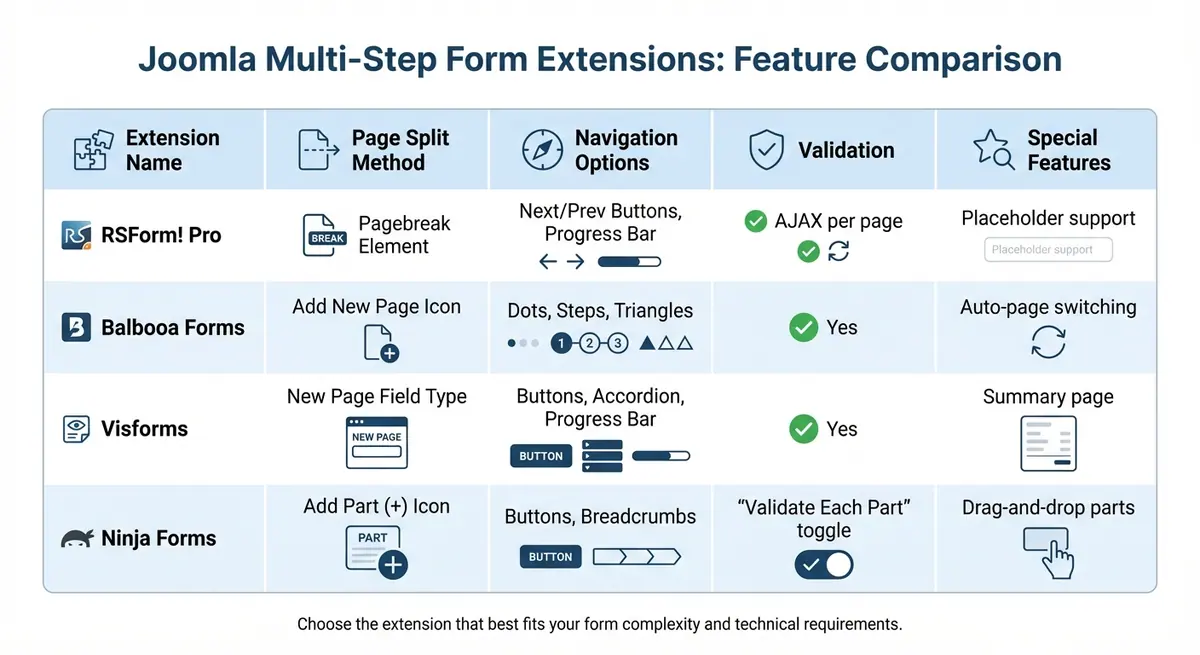
Joomla Multi-Step Form Extensions Comparison: Features and Capabilities
Once your Joomla environment is ready, it’s time to dive into creating your multi-step form. This section walks you through the process of form creation, navigation setup, and logic configuration.
Create a New Form
Start by opening your form builder and selecting either "New" or "New (Wizard)" in RSForm! Pro. The Wizard simplifies the process by guiding you through setting a title, picking a layout (like Bootstrap 5 or UIkit), and defining post-submission actions. Be sure to select a layout framework that aligns with your Joomla template to ensure a cohesive design and proper functionality across devices, especially mobile.
Add Pages and Form Fields
To divide your form into multiple steps, use the page-splitting tool provided by your form extension (e.g., Pagebreak or New Page button). Once your form is divided into pages, you can add fields to each section just like you would with a single-page form. For example, place Name and Email fields on the first page, and use the second page for options like Radio Buttons or Dropdown menus. Organize fields logically to make the form easy to follow.
Add Navigation and Progress Indicators
When you add page breaks, Next and Previous buttons are automatically generated. To help users track their progress, enable progress indicators. RSForm! Pro allows you to create customizable progress bars using placeholders like {page}, {total}, and {percent}. Balbooa Forms, on the other hand, offers visual styles such as dots, steps, or triangles. For multi-step forms with more than three steps, progress indicators are crucial to keep users engaged and reduce drop-offs.
Some extensions also enhance navigation. For instance, Balbooa Forms has an Automatic Page Navigation feature that can instantly move to the next page after users make a selection on fields like Radio Buttons or Dropdowns.
Configure Validation and Conditional Logic
Validation ensures users complete required fields before moving to the next step. RSForm! Pro uses AJAX to validate fields on the current page when users click "Next", identifying errors without reloading the page. Ninja Forms includes a Validate Each Part option to prevent users from advancing until all required fields on the current page are filled.
Conditional logic takes things further by customizing the user experience. For example, if a user selects "No" to a question about additional drivers, you can skip the "Driver Details" page entirely. While Balbooa Forms and Ninja Forms offer built-in conditional logic, implementing this in RSForm! Pro requires custom JavaScript.
| Extension | Page Split Method | Navigation Options | Validation | Special Features |
|---|---|---|---|---|
| RSForm! Pro | Pagebreak Element | Next/Prev Buttons, Progress Bar | AJAX per page | Placeholder support |
| Balbooa Forms | Add New Page Icon | Dots, Steps, Triangles | Yes | Auto-page switching |
| Visforms | New Page Field Type | Buttons, Accordion, Progress Bar | Yes | Summary page |
| Ninja Forms | Add Part (+) Icon | Buttons, Breadcrumbs | "Validate Each Part" toggle | Drag-and-drop parts |
sbb-itb-5f36581
Improving Form Usability
Creating a multi-step form is just the beginning - making it easy to use ensures users complete the process smoothly.
Add Save and Resume Functionality
For longer forms, letting users save their progress and return later can significantly boost completion rates. This can be achieved by leveraging HTML5 Local Storage to retain form data across sessions.
If you're using Balbooa Joomla Forms, you can enable this feature in the Form Editor. Simply click Add New Page, go to Navigation Settings > Properties, and turn on Save Progress. For extensions like RSForm!Pro, you can implement a JavaScript routine to save field changes to local storage. When users return, display a modal offering two options: "Use Data" to pre-fill the form or "Clear" to start fresh.
If you're scripting this manually, ensure your code accounts for different input types. For instance, only save the selected value for radio buttons, and store multiple-select dropdown values as arrays. Avoid saving sensitive fields like passwords or CAPTCHA entries to ensure security.
Customize Form Design
Your form should reflect your brand's identity. Use custom CSS - via "Class Suffixes" or a custom.css file - to style navigation buttons, progress bars, and other design elements.
For more advanced design options, tools like Helix Ultimate or SP Page Builder can be invaluable. These Joomla-specific layout builders offer drag-and-drop controls and responsive settings, making it easier to create forms that look great on desktops, tablets, and mobile devices. Responsive frameworks like Bootstrap 5 can further ensure your form adjusts seamlessly across screen sizes.
As Jima Victor points out: "An easy way to ruin the user experience for a multi-step form is to wait until the user gets to the last step in the form before letting them know of any error they made along the way". To avoid this, display clear, immediate error messages so users can address issues as they go.
Once your design is complete, test every element to confirm it works as intended.
Test the Form
Before publishing, thoroughly test your form to ensure every feature works correctly. Here's a checklist to guide you:
- Per-page validation: Trigger an error on an intermediate step to confirm AJAX validation keeps the user on the same page with a clear error message.
- Save and Resume: Complete several pages, close the browser, and return later to verify that saved data persists and users can continue from where they left off.
- Conditional logic: Test all possible user paths to ensure the correct fields or pages appear based on specific inputs.
- Progress bar: Check that it accurately reflects the user's current page and the total number of pages using placeholders like
{page}and{total}.
| Testing Category | Checklist Item | Expected Result |
|---|---|---|
| Navigation | Check first and last pages | No "Previous" on page 1; no "Next" on the final page. |
| Validation | Trigger an error on page 2 | AJAX validation should keep the user on page 2 with an error message. |
| Usability | View on mobile device | Form fields and navigation buttons should be easy to tap and clearly visible. |
| Persistence | Close form mid-way | Data should be saved for the user's next visit (if "Save Progress" is enabled). |
Don't forget to test spam protection measures like reCAPTCHA or hCaptcha. These should block bots without disrupting navigation between steps. Lastly, confirm all post-submission actions - such as "Thank You" pages, redirects, and email notifications - trigger only after the final step is completed.
Once you're confident in the form's usability, it's time to embed and publish your optimized creation.
Publishing Your Form
Once you've thoroughly tested your multi-step form, it's time to embed it into your Joomla site.
Embed the Form on Your Site
After validating your form, the next step is integrating it into your Joomla layout. Joomla provides several ways to embed forms. If you're using modules, navigate to Extensions > Modules, find your form builder module, and adjust the Menu Assignment to "On all pages" or specific pages as needed. Then, publish the module in your desired position. For embedding forms directly in articles, you can use Joomla's {loadmodule} tag or the shortcode provided by your form builder.
If your form builder generates JavaScript or iframe embed codes, be aware that Joomla’s editors often strip these for security reasons. To avoid this, temporarily set your editor to "None" or use a tool like Sourcerer to paste the code without interference. Once embedded, save your article and preview it to ensure the form appears correctly.
| Embedding Method | Best For | Key Requirement |
|---|---|---|
| Dedicated Plugin | Quick setup | Installing the builder's specific .zip file |
| Module Position | Sidebars or Footers | Assigning it to a template position |
| Shortcodes/Tags | Inside Articles | Using {loadmodule} or builder-specific tags |
| Custom HTML/Script | External Builders | Disabling Text Filters or using Sourcerer |
Test the Live Form
After embedding, test the live form by completing a full submission to ensure everything functions properly. Double-check that per-page validation, navigation buttons, and data persistence work seamlessly on the live site. Test the form on mobile devices and various browsers to confirm that fields and navigation buttons are touch-friendly and don’t overflow the screen. Finally, verify that data is being captured in the backend, "Thank You" pages display correctly, and email notifications are sent to both administrators and respondents.
Conclusion
Summary of Steps
Creating multi-step forms in Joomla involves using a dedicated extension such as RSForm! Pro, Balbooa Joomla Forms, Visforms, or stepFORM. Start by dividing your form into multiple pages, each equipped with navigation and progress indicators to guide users. Incorporate AJAX validation on each page to provide instant feedback on errors. Enable the Save and Resume feature so users can complete the form across multiple sessions. Before going live, test your form thoroughly on different devices and browsers to ensure compatibility. Once ready, embed the form using modules, shortcodes, or custom HTML. After launch, double-check that data flows correctly to your backend, email notifications are functioning, and navigation elements are working as intended.
For those looking to go beyond the basics, there are additional advanced features to consider.
Advanced Options with Reform
If you're looking for a more streamlined and no-code option, Reform (https://reform.app) offers a suite of advanced features that enhance form creation while simplifying the process. Its visual builder allows you to implement conditional routing, dynamically adjusting questions based on user responses. This feature lets you create personalized user journeys without needing technical expertise.
Reform also provides real-time analytics to monitor user behavior, such as drop-off points and overall form performance. Additional tools like lead enrichment and email validation help ensure high-quality data collection. With direct integrations to CRMs like HubSpot and Salesforce, plus connections to marketing tools via Zapier, Reform simplifies lead management workflows.
Its branded, mobile-responsive templates and support for custom CSS allow you to align forms perfectly with your website's design. Features like abandoned submission tracking offer a way to recover incomplete leads, making it a great choice for businesses focused on maximizing conversions without relying on Joomla extensions. Reform delivers enterprise-level form functionality with minimal setup, making it an excellent option for businesses aiming for efficiency and results.
FAQs
Which Joomla form extension supports multi-step forms best?
JoomForms is a popular option for building multi-step forms in Joomla. It comes packed with features like progress bars, per-page validation, and a powerful form builder that simplifies the design process. Another excellent choice is Visforms, which supports multi-page forms with features such as progress tracking, organized page layouts, and summary pages. While both are solid tools, JoomForms is particularly noted for its ease of use and comprehensive functionality.
How do I add conditional logic between form steps?
To incorporate conditional logic between form steps in Joomla, you can use features like conditional fields or implement custom scripting. Extensions such as RSForm!Pro or Visforms make this process more straightforward. These tools allow you to configure rules that determine which pages or fields are displayed based on the user's input.
By setting up these conditions, you can control the navigation and visibility of different steps in your form. This creates a more dynamic and personalized multi-step form experience, tailored to the user's responses.
How can users save and resume a multi-step form later?
To let users save and come back to a multi-step form later, turn on the save progress feature in your form builder's settings. You can usually find this option in the processing or advanced settings section. Look for a checkbox labeled something like "save progress" or "save and continue." Once activated, users will have the flexibility to pause and finish the form whenever it suits them.
Related Blog Posts
Get new content delivered straight to your inbox

The Response
Updates on the Reform platform, insights on optimizing conversion rates, and tips to craft forms that convert.




Drive real results with form optimizations
Tested across hundreds of experiments, our strategies deliver a 215% lift in qualified leads for B2B and SaaS companies.
