
.webp)
How Real-Time Dashboards Track Email Forms



I count an email form conversion only when the submission passes validation, clears spam checks, and saves - not when someone clicks Submit. A real-time dashboard connects tagged email visits to form starts and accepted submissions.
Here’s the setup I use:
- Tag email links and keep campaign data attached to each submission.
- Connect Reform, analytics, email, and CRM data, then test that each accepted submission counts once.
- Compare campaigns, segments, and devices using the same dates, counting rules, and attribution window.
- Check drop-off, missing tags, duplicate records, and sync errors before changing the form.
I also check consent settings, keep personal details out of tracking URLs, and show when each data source last updated. <u>Real-time doesn’t mean final</u>: some analytics reports need 24–48 hours to finish processing.
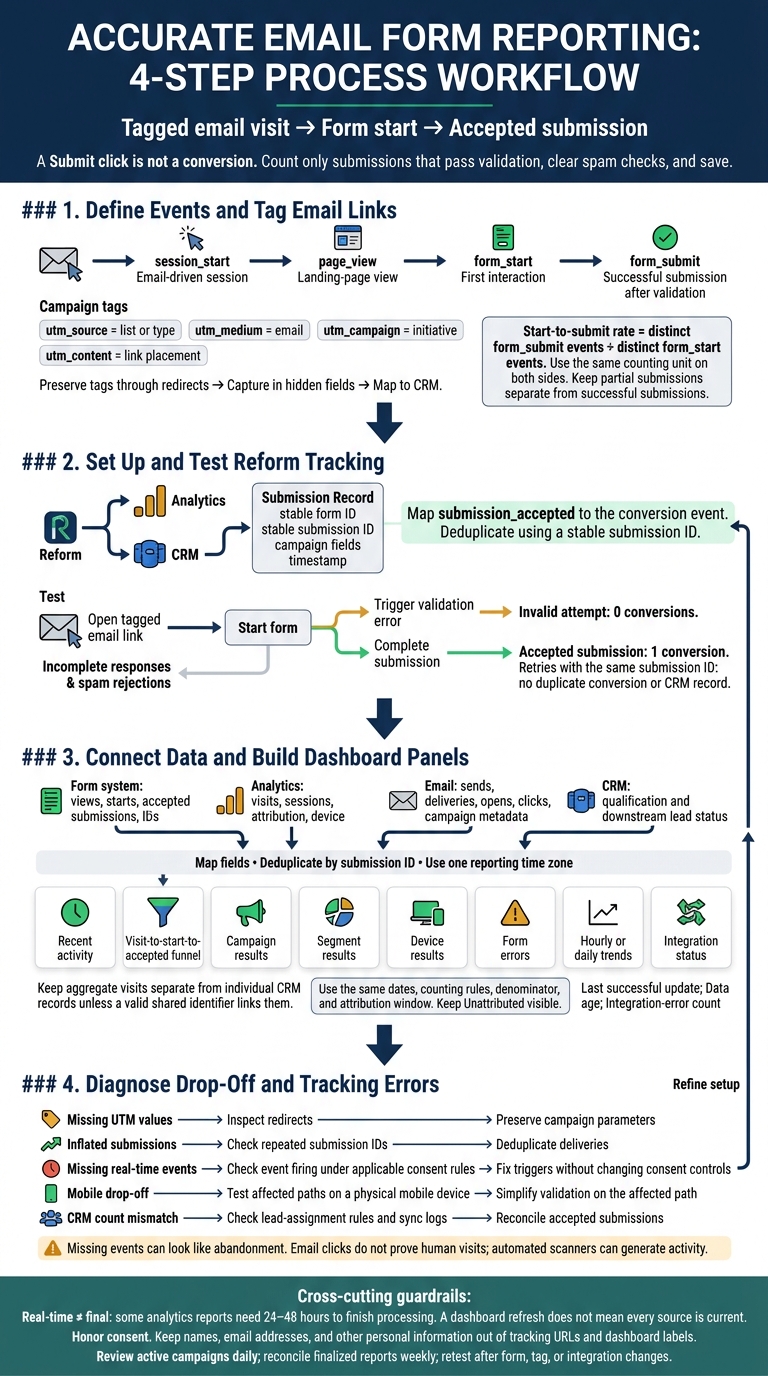
How Real-Time Dashboards Track Email Form Conversions
Step 1: Define Events and Tag Email Links
Define Events and Conversion Rates
Your dashboard metrics start with four events: session_start, page_view, form_start, and form_submit.
| Event | Counting rule |
|---|---|
session_start |
Count the email-driven session that brought the visitor to the site. |
page_view |
Count the landing-page view for that session. |
form_start |
Record the first interaction with a form field. |
form_submit |
Count only a successful submission after validation. |
Use the same counting unit on both sides of each rate. For the start-to-submit rate, divide the count of distinct form_submit events by the count of distinct form_start events. This keeps retries and validation loops from inflating the rate. For multi-step forms, track partial submissions separately and leave them out of the successful-submission count.
Set Campaign Tags and Keep Them Intact
Without consistent UTMs, dashboard counts won’t line up with campaign performance. Once you’ve defined your events, set up source tracking before visitors click through to the form.
Stick to one UTM structure: utm_source for the list or type, utm_medium=email, utm_campaign for the initiative, and utm_content for link placement. Use segment codes rather than recipient-level IDs.
Keep attribution attached to the submission record. Preserve query parameters through redirects, then record them in hidden fields named utm_source, utm_medium, utm_campaign, and utm_content. Map those fields to your CRM so source data stays with the lead and becomes the campaign dimension in your dashboard. Never put names, email addresses, or other personal information in tracking URLs.
sbb-itb-5f36581
Step 2: Set Up and Test Reform Tracking
Use the event and UTM setup from Step 1 to link each accepted submission to a campaign. Reform is a no-code form builder with real-time analytics and marketing or CRM integrations. Check which events, incomplete-response signals, integrations, and submission IDs your setup supports. You may need connected analytics tools for custom events and cross-site reporting.
Record Attribution and Accepted Submissions
Give each form a stable ID. Where supported, record its version, campaign fields, landing-page URL, referrer, timestamp, device category, and anonymous session ID.
Link those fields to accepted submissions through supported fields or an attribution layer, then use that data to feed dashboard panels. Map submission_accepted to the conversion event, and keep a stable submission ID to prevent duplicate records across analytics and CRM systems.
For embedded or cross-domain forms, check that referral data, campaign parameters, session identifiers, and consent signals carry over without exposing unnecessary personal information.
Separate Incomplete Responses From Accepted Leads
Track incomplete responses directly when possible. Otherwise, estimate abandonment by identifying form starts with no accepted submission after a set interval. Match records by session and form, and define how you'll handle returning visitors.
Record supported signals for step progress, conditional routes, validation failures, and spam rejections to see where people drop out. Send accepted submissions to marketing or CRM tools, with attribution and deduplication mapped separately from lead qualification.
Test the Email-to-Submission Path
Open a tagged email link, start the form, trigger a validation error, and complete a submission. Check Reform and connected analytics tools: the invalid attempt should create no conversion, and the accepted submission should count once.
Test incomplete paths, desktop and mobile browsers, narrow screens, autofill, keyboard navigation, slow connections, reloads, back navigation, repeated events, interrupted sessions, and consent states. Confirm that retries using the same submission ID don't create duplicate conversions or CRM records.
Save expected and observed counts and timestamps, then reconcile them after known processing delays. Use these test results to populate the dashboard panels in the next step.
Step 3: Connect Data and Build Dashboard Panels
Connect Sources and Match Reporting Fields
Once you’ve verified the email-to-submission path, connect the systems that feed your dashboard. Track email visit → form start → accepted submission. Connect Reform, analytics, email, CRM, and any warehouse through connectors, APIs, or webhooks.
Pull form views, starts, accepted submissions, submission IDs, timestamps, and form names from the form system. Use analytics for visits, sessions, attribution, device, and page behavior. Get sends, deliveries, opens, clicks, and campaign metadata from email data, and use the CRM for qualification and downstream lead status.
For each connector, document its scope, authentication method, update interval, historical-data limits, and expected delay.
Keep aggregate visits separate from individual CRM records unless a valid shared identifier links them. Map form IDs, submission IDs, campaign tags, timestamps, and qualification status to shared reporting fields. Deduplicate by submission ID first.
Keep the original UTC timestamp for audit logs. Display one reporting time zone that handles daylight saving time, and distinguish event time from connector receipt time and CRM processing time.
Build Activity, Funnel, and Form Health Panels
Use your shared fields to build panels that show activity and how current the data is. Each panel should answer one question about arrival, progression, quality, or system health.
Start with the panel inventory below, replacing the intervals with your measured timings. A dashboard refresh doesn’t mean every source is current. Some analytics reports remain provisional for 24–48 hours during processing. Show each panel’s last successful update, data age, and integration-error count. Use confirmation-page views only to validate tracking - not to count conversions.
| Panel | Data source or field | Expected update interval | Purpose |
|---|---|---|---|
| Recent activity | Form views, starts, accepted submissions, submission ID | Near real time to several minutes | Confirm new activity and spot spikes or gaps |
| Visit-to-start-to-accepted funnel | Analytics visits, form starts, accepted submissions | Minutes to several hours; reconcile daily | Measure progression and stage loss through multi-step forms |
| Campaign results | Source, medium, campaign, content | Intraday or daily for campaign, segment, and device panels | Compare tagged email traffic |
| Segment results | Non-identifying audience segment, qualified leads | Same as campaign results | Compare audience response and quality |
| Device results | Device category, browser, form starts | Same as campaign results | Identify device-specific friction |
| Form errors | Error events, incomplete responses, rejected or spam submissions, webhook failures | Minutes to intraday | Detect form and submission-delivery failures |
| Hourly or daily trends | Event timestamp, form, campaign | Hourly or daily | Show send-time effects and recurring changes |
| Integration status | Last successful sync, failed requests, HTTP status, error message | As requests complete | Identify stale data and missing records |
Compare Campaign, Segment, and Device Results
With the core panels in place, compare results by campaign, segment, and device to spot drop-off, device friction, and attribution gaps.
Add shared filters for form, campaign, date range, segment, device, source, medium, content, and attribution status. Include an Unattributed category and a reset control. Make the date basis clear: send, visit, submission, or CRM creation time.
| Breakdown | Denominator | Conversion metric | Interpretation caveat |
|---|---|---|---|
| Campaign, source, medium, or content | Attributed visits | Accepted submissions ÷ attributed visits | Use consistent attribution windows |
| Audience segment | Segment visits | Accepted submissions ÷ segment visits | Overlapping segments can distort comparisons |
| Device | Device visits or form starts | Accepted submissions ÷ device visits or starts | Browser privacy blocking may affect tracking |
| Form | Form visits or starts | Accepted submissions ÷ form visits or starts | Different form intent can distort comparisons |
| Qualification status | Accepted submissions | Qualified leads ÷ accepted submissions | Measures post-submission quality, not visit-to-submit conversion |
| Unattributed traffic | Unattributed visits or starts | Accepted submissions ÷ unattributed denominator | Keep it visible and check tagging, consent, redirects, and connector delays |
Don’t draw conclusions from very small samples. Compare qualification only after the same follow-up period, and treat recent campaign results as provisional.
Step 4: Diagnose Drop-Off and Tracking Errors
When the dashboard shows gaps, pinpoint whether the problem sits in tracking, routing, or the form itself.
Find Where Visitors Leave the Form
If start rates are low, check that visits and starts follow the same consent rules. If mobile completion is low, confirm that events fire through every multi-step and conditional path. Missing events can look like abandonment, while delayed records can make the latest funnel appear incomplete.
Check for validation errors at the points where visitors stop progressing. Compare activity with send times in your reporting time zone. Test one cause at a time, using the same campaign and device.
Fix Attribution Gaps and Count Differences
Email clicks do not prove human visits: automated link scanners can generate clicks or visits without starting a form.
Let the symptom - not the dashboard total - guide your next check.
| Symptom | Likely cause | Verification step | Correction |
|---|---|---|---|
| Missing UTM values | Redirects strip parameters | Inspect parameters after each redirect from email click to submission | Preserve tags through every redirect |
| Inflated submissions | Duplicate webhook delivery or missing idempotency keys | Check whether repeated deliveries share a submission ID | Deduplicate using stable submission IDs as idempotency keys |
| Missing real-time events | Trigger failure | Use GTM Preview/DebugView to check event firing under the applicable consent rules | Fix trigger rules without changing consent controls |
| Mobile drop-off | Validation errors | Test the affected multi-step and conditional paths on a physical mobile device | Simplify validation on the affected path |
| CRM count mismatch | Lead-assignment rules | Check lead-assignment rules and sync logs | Reconcile dashboard totals with accepted submissions in the CRM |
Use a Reporting Accuracy Checklist
- Before each send, test templates and redirects to confirm tracking stays intact.
- Reconcile dashboard totals with accepted submissions in the CRM. Check for missing campaign values and renamed events, not just conversion-rate alerts.
- Retest after any form, tag, or integration change.
Conclusion: Keep Email Form Reporting Accurate
Once setup and validation are complete, keep the full path visible: tagged email visit → form activity → accepted submission. Use stable IDs, one attribution rule, and one conversion definition. Count only validated, accepted submissions as conversions. Compare campaigns, segments, and devices using the same reporting window and denominator.
Show how current the data is, the time zone, the last refresh, and whether totals are provisional. Analytics processing can take 24–48 hours.
Review active campaigns daily and reconcile finalized reports weekly. Log unexplained differences rather than changing totals to make them match. Honor consent, and keep personal details out of URLs and dashboard labels.
FAQs
How should I choose an email attribution window?
Start with a 30-day window, then adjust it to match your business’s sales cycle. If customers usually convert sooner or take longer, set the window to reflect that timeline for more accurate attribution.
Use the same window across your tracking tools to keep reporting reliable and reduce gaps in your performance data.
How can I track conversions when visitors decline cookies?
When visitors decline cookies, use first-party data instead of third-party tracking pixels. Set up workflow triggers with page-specific data or distinct form identifiers rather than cookie-dependent source triggers.
Reform’s direct CRM and marketing automation integrations help collect conversion data at the source. Thank-you page redirects or custom submission events can pass that data to your internal systems - without relying on cookies.
How much data do I need before comparing campaigns?
There’s no fixed amount of data you need. Define clear success metrics and test one variable at a time. For comparison, industry benchmarks include a 2.5%–5% click-through rate and a 20%–25% open rate.
Reform’s real-time analytics let you track conversions and engagement patterns as they happen, helping you decide whether to make changes based on your business goals.
Related Blog Posts
Get new content delivered straight to your inbox

The Response
Updates on the Reform platform, insights on optimizing conversion rates, and tips to craft forms that convert.




Drive real results with form optimizations
Tested across hundreds of experiments, our strategies deliver a 215% lift in qualified leads for B2B and SaaS companies.
