
.webp)
How to Connect Typeform to Klaviyo


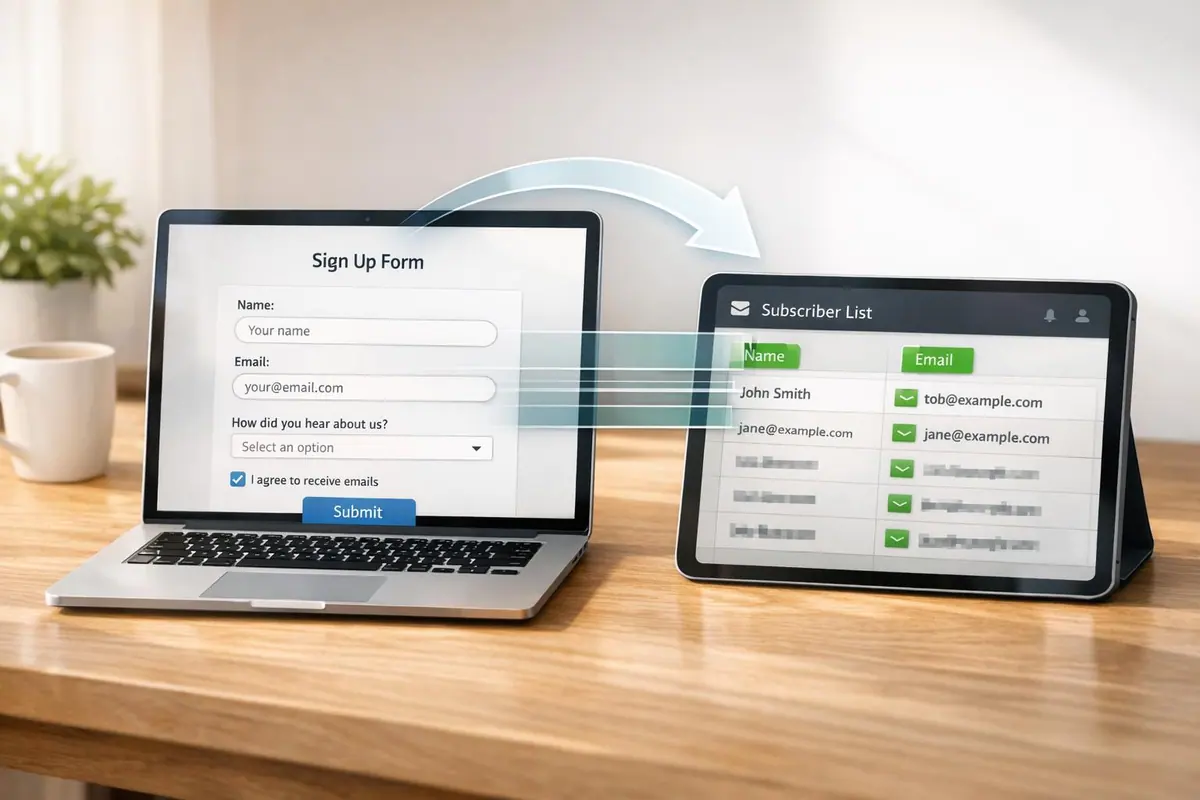
Connecting Typeform to Klaviyo allows you to automatically sync form submissions to your email marketing platform. This integration helps you:
- Send personalized emails based on form responses.
- Trigger automated campaigns like welcome emails or follow-ups.
- Organize contacts using custom properties and segmentation.
- Manage consent for email subscriptions directly from forms.
To get started, you'll need active accounts on both platforms, a published Typeform with an email field, and a target list in Klaviyo. Here's the process:
- Create and publish your Typeform.
- Enable the Klaviyo integration in Typeform's Connect panel.
- Map form fields (like email, name, or preferences) to Klaviyo properties.
- Save the setup to sync data in real time.
This setup ensures your marketing lists stay updated without manual work, helping you create tailored campaigns and improve audience engagement.
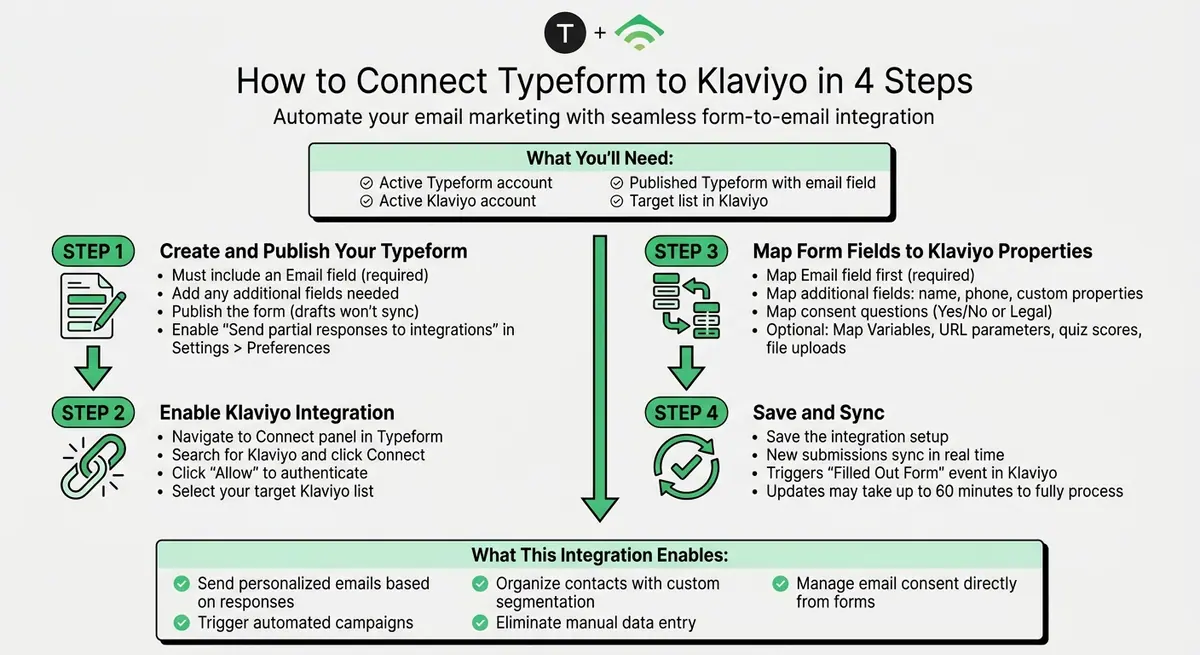
How to Connect Typeform to Klaviyo in 4 Steps
How to integrate Klaviyo + Typeform
sbb-itb-5f36581
How to Connect Typeform to Klaviyo
You can set up the integration between Typeform and Klaviyo in just a few steps. First, you'll create your form in Typeform, connect it to Klaviyo through the Connect panel, and then map the form fields to Klaviyo properties. Here's how to get started.
Create and Publish a Typeform
Start by creating your Typeform. Make sure to include an Email field, as this will serve as the unique identifier. Add any other fields you need to collect information.
Once your form is ready, publish it. Keep in mind that only published forms will sync - drafts won't work. To ensure you capture data from respondents who don't fully complete the form, go to Settings > Preferences and toggle on the Send partial responses to integrations option.
Enable the Klaviyo Integration in Typeform
Log in to your Typeform account and navigate to the Connect panel. Search for Klaviyo, then click Connect. You’ll need to authenticate the connection by clicking Allow.
After that, select the Klaviyo list you want to use. If you’ve just created a new list in Klaviyo and don’t see it in the dropdown menu, refresh the Connect panel and restart the setup process.
Map Form Responses to Klaviyo Properties
Now, map your Typeform fields to Klaviyo properties. Start with the Email field, then map any additional fields like first name, phone number, or custom properties.
If your form includes a Yes/No or Legal question to capture marketing consent, make sure to map it here. This determines whether respondents are added as "subscribed" or "unsubscribed" profiles in Klaviyo. You can also map other data like Typeform Variables, URL parameters, quiz scores, or even File Upload questions - Typeform will send a download URL for any uploaded files.
Once you've completed the mapping, save the integration. From this point forward, new submissions will update your Klaviyo contacts in real time and trigger a Filled Out Form event.
Best Practices for Typeform and Klaviyo Integration
Once your integration is up and running, you can make the most of it by fine-tuning how you gather data and use it in your email campaigns. A thoughtful approach to form design and segmentation can help you capture more leads and send messages that resonate with your audience.
Improve Form Design for Better Engagement
The way you structure your forms plays a big role in the quality of the data you collect and how effectively Klaviyo can segment it. Start by enabling partial responses - this ensures you still collect valuable data even if someone doesn’t finish the form.
Make sure to confirm marketing consent as part of your setup. Without this, profiles may default to "never_subscribed", which limits your ability to engage with those contacts.
Using conditional logic in your forms is another powerful way to personalize the experience. For instance, if a respondent shows interest in a specific product category, you can guide them to follow-up questions tailored to that interest. When you map these responses to custom properties in Klaviyo, you’ll gain detailed segmentation data. According to Typeform, their AI-designed forms collect 3.5x more data than standard forms, with 95% of users saying the platform makes data collection easier.
If you’re embedding a Typeform directly into a Klaviyo email, keep in mind that only certain question types - like Opinion Scale, Multiple Choice, Picture Choice, or Yes/No - will work. Make sure your first question aligns with these formats.
A well-thought-out form design sets the stage for creating highly personalized email campaigns.
Segment and Personalize Email Campaigns
Once you’ve set up the Filled Out Form trigger, use the segmented data to send targeted follow-ups. By filtering triggers using the specific Form ID, you can create tailored email flows for different forms. For example, you might send one sequence for newsletter sign-ups and a completely different flow for product quiz completions.
Take it a step further by adding conditional splits in your email flows based on custom properties. For example, if your form asks about dietary preferences and someone mentions allergies, you can place them in a specialized sequence with product recommendations that align with their needs.
Go beyond basic fields like name and email. Map data such as URL parameters, quiz scores, and outcome results to custom properties for deeper, more meaningful personalization. If you’re running a product quiz, for instance, you can map the "winning_outcome_id" to trigger automated emails featuring product recommendations tailored to each quiz result.
Here’s a quick tip: custom properties won’t show up in Klaviyo’s segment builder until at least one person submits data for that specific question. To speed things up, submit a test response yourself right after setting up the form.
Troubleshooting Common Integration Issues
Sometimes, data sync can experience delays. Thankfully, most issues come down to just a few common causes - and once identified, they’re typically easy to resolve.
Fixing Data Sync Delays
While the integration updates data in real time, it can take up to an hour for Klaviyo metrics and profile properties to fully sync. If you don’t see updates right away, this delay is often just normal processing rather than a broken connection.
As Klaviyo expert Omar Lovert explains:
"Keep in mind that it sometimes takes up to a hour for the data to sync with Klaviyo." - Omar Lovert, Klaviyo Master Platinum Partner
If the data still hasn’t synced after an hour or you encounter an "unauthorized" error, check that Partial Submit Points are enabled in your form. Additionally, re-authenticate your API token by selecting Add Account in the Typeform Connect settings. Enabling Partial Submit Points ensures data syncs at specific checkpoints during the form process, rather than waiting for respondents to complete the entire form.
Resolving Missing or Incorrect Data
One of the most frequent reasons for missing data is a missing or improperly mapped email field. Klaviyo requires a single email question to identify respondents and create profiles. Without this, the integration won’t function.
David To, a Klaviyo representative, emphasizes this requirement:
"In order to sync subscribers into Klaviyo, your Typeform forms must include a single email input field. If your Typeform form lacks an email field, Klaviyo will not be able to sync your Typeform subscribers." - David To, Klaviyo Employee
To fix this, go to the Connect panel in Typeform, click the three dots next to Klaviyo, and choose Edit to review your field mappings. Keep in mind that custom properties won’t appear in Klaviyo’s segment builder until at least one submission containing that data has synced. To test this, submit a response using a new email address that’s not already in your database. Be aware that some question types, like Matrix questions, aren’t compatible with the integration.
Here’s a quick overview of common issues and their solutions:
| Issue | Potential Cause | Recommended Fix |
|---|---|---|
| No data syncing | Missing email field | Add a single Email question to the form |
| Missing properties | Incorrect mapping | Re-map questions in Typeform's Connect panel |
| Delayed visibility | Processing time | Wait up to 60 minutes for metrics to update |
| Authorization error | Expired API token | Disconnect and re-authenticate the Klaviyo account |
| Lists not showing | Cache/sync lag | Refresh the Connect panel |
Editing or Disconnecting the Integration
If re-mapping fields doesn’t solve the problem, you might need to edit or disconnect the integration. To adjust settings, navigate to the Connect panel in Typeform, click the three dots next to Klaviyo, and select Edit.
For more persistent problems, it’s best to completely remove the integration - not just disable it - and reinstall it from scratch. Using an incognito browser during this process can help avoid cache-related issues.
As Klaviyo alum stephen.trumble advises:
"If neither of these work the best solution would be to completely remove the integration (do not just disable it) from your account and reinstall it from the very beginning." - stephen.trumble, Klaviyo Alum
Disconnecting the integration won’t erase existing contact profiles or "Filled Out Form" events already synced to Klaviyo. It simply stops the transfer of new responses.
Wrapping Up
Integrating Typeform with Klaviyo simplifies your workflow and improves targeted marketing by syncing form submissions directly with your email platform. This connection eliminates the hassle of manual data entry, keeps your contact lists up to date, and enables personalized, automated campaigns driven by customer responses.
Setting it up is quick and straightforward: design a high-converting form with an email field, connect Klaviyo, choose a target list, and map the fields to the right properties. With this setup, you can collect detailed customer insights through interactive forms, segment your audience based on their answers, and launch automated email sequences - all without jumping between tools.
If you run into any problems, double-check that your email field is correctly mapped and that your form settings are properly configured. Once everything is in place, you’ll have a dependable system that turns form responses into meaningful, timely marketing interactions - helping you engage your audience more effectively.
FAQs
Will existing Klaviyo profiles be updated or duplicated?
When you connect Typeform with Klaviyo, it ensures profiles are updated instead of creating duplicates. If your form includes an email field and matches an existing profile in Klaviyo, any new responses will update that profile's information. Additionally, the integration logs a "Filled Out Form" event. This event either updates an existing profile or creates a new one - provided an email address is included in the form responses.
Can I sync partial Typeform responses to Klaviyo?
Yes, it's possible to sync partial Typeform responses to Klaviyo. To make this happen, you need to add Partial Submit Points to your form and turn on the option to send partial responses in the settings. Once this is set up, every time a respondent reaches a Partial Submit Point, their profile in Klaviyo will be created or updated with the answers they've provided so far.
How do I capture email consent correctly in Klaviyo?
To collect email consent in Klaviyo using Typeform, add a Yes/No or legal question to your form, asking respondents if they agree to receive emails. Link this response to the subscription status in Klaviyo. Set up the integration so profiles are updated automatically based on their answers, ensuring those who opt in are added to your email list. If necessary, adjust your flows to update profile statuses accordingly.
Related Blog Posts
Get new content delivered straight to your inbox

The Response
Updates on the Reform platform, insights on optimizing conversion rates, and tips to craft forms that convert.


Drive real results with form optimizations
Tested across hundreds of experiments, our strategies deliver a 215% lift in qualified leads for B2B and SaaS companies.
