
.webp)
Constant Contact duplicate contacts: troubleshooting guide


Constant Contact matches contacts by email - not by name or list. I’d check the submitted address first: one contact on two lists isn’t a duplicate, but two email addresses can mean separate records.
My troubleshooting checklist covers four steps:
- Check form data: Review email mappings, hidden fields, and the address each form branch sends.
- Check workflows: Find overlapping writes, lookup errors, and retries. A
409 Conflictmeans a create request hit an existing contact - not that it created another. - Clean up confirmed duplicates: Export first, keep verified data, and <u>resolve consent conflicts before deleting records</u>.
- Test the fix: Submit the same email at least three times, then test a new address and a retry. Check contact IDs, field updates, lists, and consent.
I’d fix the source before cleaning up records, then assign someone to review results daily for the first week and weekly after that.
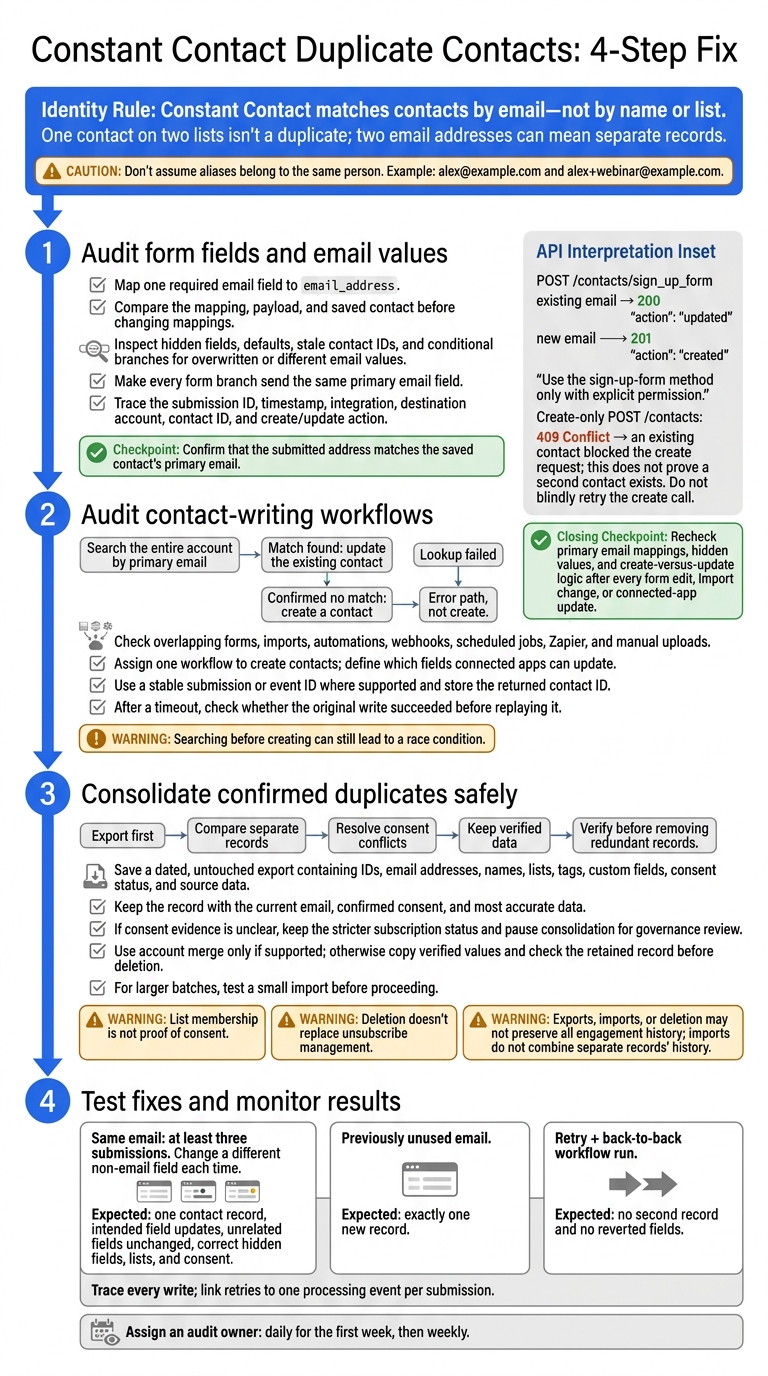
Constant Contact Duplicate Contacts: 4-Step Fix
How To Clean Up Constant Contact [2026 Guide]
sbb-itb-5f36581
Step 1: Audit form fields and email values
Once you’ve confirmed the submitted email, follow one test submission from the form field to the saved contact. Record the submission ID, timestamp, integration name, destination account, contact ID, and whether the contact was created or updated.
Before changing any mappings, compare the mapping, payload, and saved contact values, including list assignment and consent status. Start with the primary email field.
Check the primary email mapping
Map one required email field to Constant Contact’s primary email property, email_address. Check whether personal, work, or hidden backup email fields could send a different address.
Normalize addresses only when every connected system supports the same rule. Keep valid characters, including plus-addressing, and don’t assume aliases belong to the same person.
For example, do not assume
alex@example.comandalex+webinar@example.combelong to the same person.
Submit the same email twice, changing only a non-identity field, such as company. Confirm that Constant Contact keeps one contact, updates the intended company field, preserves list membership and consent status, and logs an update - not a new contact.
For /contacts/sign_up_form, an existing email returns 200 with "action": "updated". A new email returns 201 with "action": "created". A 409 Conflict response from the create-only /contacts endpoint means a duplicate-write error; it does not prove that a second contact exists. Use the sign-up-form method only when the person has given explicit permission.
If the email matches but duplicates still appear, check hidden values.
Check contact fields and hidden values
Compare the saved record with the submitted first name, last name, phone number, company, job title, custom fields, list memberships, and consent or permission fields. With the create-or-update method, non-email changes should update the existing contact.
Inspect hidden fields for hard-coded emails, defaults, duplicate field names, tracking IDs, stale contact IDs, cookies, URL parameters, and prefilled values. Check whether any of them overwrite visible inputs.
Log raw and transformed values separately, and redact personal data in shared screenshots. List membership is not proof of consent. Check the permission mapping separately.
Review Reform forms and integration mappings
For forms built with Reform, review the required email field, email-validation settings, spam-prevention behavior, conditional paths, and integration mappings.
Make sure every branch sends the same primary email field, then compare each branch’s submission record with the saved contact. Email validation helps improve input quality, but it doesn’t prove that two addresses belong to one person.
If every branch sends the same email and duplicates still appear, move to workflow-level contact creation rules.
Step 2: Audit contact-writing workflows
If field mapping is correct, check every workflow that can write to Constant Contact. Track every source that creates or updates contacts: optimized lead forms, imports, automations, webhooks, scheduled jobs, Zapier, and manual uploads. For each source, record its trigger, owner, target account, target list, matching email, action, retries, and last run.
Flag overlapping paths that could process the same submission. Focus on duplicate write paths - not duplicate email addresses.
Match contacts before creating records
Search the entire account for an existing contact using its primary email. If you find a match, update that contact’s fields or list membership. Create a record only after confirming there’s no match. For the matched email, keep one record per person rather than creating a second contact.
In Zapier, use Find or Create Contact to match by email, Update Contact for existing records, and Add Contact to List when only list membership needs to change. Test what happens after a confirmed no match: does the workflow stop or create a contact? Make sure later steps use the returned contact ID.
Prevent repeat writes and workflow conflicts
Check logs for repeated event IDs, identical payloads, parallel writes from forms and your CRM, and retries after successful requests. Searching before creating can still lead to a race condition. Use a stable submission or event ID where supported, and store the returned contact ID.
After a timeout, check whether the original write succeeded before replaying it.
Assign one workflow to create contacts, and define which fields each connected app can update. Limit retries and send permanently failed events to an error queue instead of repeatedly running a create action.
Distinguish lookup errors from missing contacts
A failed search doesn’t mean the contact is missing. Check the connected account, lookup email, permissions, and read/write access. Then compare the result with a manual search or a known contact ID.
Review task logs for timeouts, rate limits, and request errors. Zapier’s guidance identifies the Account Manager role as required for adding or editing contacts through its integration. Route lookup failures to an error path - not the create contact branch.
Step 3: Consolidate duplicate records safely
Once you’ve fixed matching rules and workflows, consolidate only confirmed duplicates. First, make sure they’re separate records - not one contact with multiple list memberships.
Export before editing or deleting anything. Include affected contacts’ IDs, email addresses, names, lists, tags, custom fields, consent status, and source data. Save a dated, untouched copy, then work from a separate file. The export may not preserve all engagement history or relationships with forms, campaigns, and automations.
Compare suspected duplicates
Search by email and name. Compare contact details, lists, tags, custom fields, subscription status, and recent engagement. Record important values before changing anything.
Use email, consent, and recent activity to decide which record to keep. Choose the record with the current email, confirmed consent, and most accurate data.
Resolve consent conflicts before merging. Check opt-in and opt-out dates, sources, and reasons. If the evidence is unclear, keep the stricter subscription status. Pause consolidation until the person responsible for compliance or list governance resolves the conflict.
Choose a cleanup method
Check whether Constant Contact supports merging these records. If it does, review the record you’ll keep, the field choices, and the history that will remain before saving. The merge removes the duplicate record.
If merging isn’t available, copy only verified values into the record you’re keeping. Check the result, then remove the redundant record. Deletion may lose engagement history, and it doesn’t replace unsubscribe management.
| Method | Best use and volume | Control over kept values | Engagement-history risk |
|---|---|---|---|
| Account merge, if supported | A few confirmed duplicates | Review available field choices | Verify what history is retained |
| Manual consolidation | A few records needing careful review | Copy verified values selectively | Deleted-record history may be lost |
| Export and import cleanup | Larger batches of confirmed duplicates | Combine approved values for the retained record | Imports do not combine separate records’ history |
After cleanup, rerun a small import or repeat a submission to confirm that the record you kept stays correct.
Clean exports and test a small import
Sort the file by email. Add a helper column to convert addresses to lowercase and trim extra spaces. Review similar names and alternate addresses manually, then combine approved values.
Keep a change log with the original IDs, the retained record, changed fields, reviewer, and date.
Test a small import before proceeding. Check field mapping, lists, tags, subscription handling, and which contacts were added versus updated. Matching-email imports generally update existing contacts; different emails remain separate. Deleting rows from the file does not delete contacts in Constant Contact.
Then move to testing to check that the cleanup hasn’t created new duplicates.
Step 4: Test fixes and monitor results
After cleanup, pause production traffic and run controlled tests to check the fix. Review the saved Constant Contact record, downstream workflows, list membership, consent, and hidden fields.
Test repeat submissions and new emails
Use a controlled test address and test list. Submit the same email at least three times, changing a different non-email field each time. After every submission, confirm that:
- Only one contact record exists, and the expected field has updated.
- Unrelated fields remain unchanged, hidden fields match, and consent stays the same.
- List membership is correct, checked directly rather than assumed from the workflow result.
Next, submit an email address that has never existed in the account. Confirm that it creates exactly one new record. For integrations using POST /contacts/sign_up_form, an existing email should return 200 with "action": "updated"; a new email should return 201. Use this endpoint only with explicit permission.
Then test a retry and a back-to-back workflow run. Neither should create a second record or revert fields.
Review logs and assign workflow ownership
For each test run, trace every write across the connected systems. Check prefilled form submissions, automation histories, webhook logs, CRM activity, and Constant Contact updates.
Record the event ID, timestamp, email, workflow, action, status, contact ID, field and list changes, consent, and retries. Track one processing event per submission and link any retries to that event. Investigate multiple contact IDs or unexpected create actions. A direct POST /contacts response of 409 Conflict means the record already exists - don't blindly retry the create call.
Document the matching email field, email rules, create-versus-update behavior, secondary-email policy, list rules, consent rules, and field ownership. If Reform feeds multiple destinations, check that every path uses the same primary email and preserves the submission identifier where supported.
Assign an audit owner to review results daily for the first week, then weekly.
Conclusion: Keep contact matching rules consistent
After cleanup, check that the kept record still syncs and retains the latest verified values, consent, and list status. Preserve history when the cleanup method supports it.
Recheck matching rules after every form edit, import change, or connected-app update. Before the change goes live, have the workflow owner confirm that primary email mappings, hidden values, and create-versus-update logic remain consistent.
FAQs
How should I handle contacts who change email addresses?
Constant Contact identifies contacts by their email addresses, so a new address can create a separate record. To avoid duplicates or losing contact history, update the email field on the existing contact record in your CRM or Constant Contact account.
If you collect these updates through forms, set your integration to match contacts using a stable identifier, such as a CRM Record ID or external ID that identifies just one contact, rather than email alone.
How can I trace duplicates to a specific form or workflow?
Use a stable submission ID or correlation ID as the idempotency key in every request. This lets you track a lead from your form logs through your CRM and Constant Contact. Compare integration or middleware logs with form analytics, matching timestamps and submission IDs to pinpoint the workflow involved.
For failed syncs or duplicate records, check API response codes and JSON payloads for field values or validation rules that may be causing conflicts.
How do I keep deleted duplicates from syncing back?
Use strict field mapping and one-way sync rules for consent and opt-out fields. Keep these fields read-only from your source of truth so integrations can’t overwrite unsubscribe flags.
Deleted records may still exist in the backend. Deduplicate by email before sending requests, and use a stable idempotency key, such as a submission ID, for every sync attempt. Audit the data and test your sync logic for automation loops.
Related Blog Posts
Get new content delivered straight to your inbox

The Response
Updates on the Reform platform, insights on optimizing conversion rates, and tips to craft forms that convert.




Drive real results with form optimizations
Tested across hundreds of experiments, our strategies deliver a 215% lift in qualified leads for B2B and SaaS companies.
