
.webp)
CRM Sync Errors: Causes and Solutions



When CRM sync errors happen, they disrupt data flow, create inefficiencies, and hurt team performance. These issues can lead to stuck records, broken automations, and unreliable reporting. Here’s what you need to know:
- Common causes: Data format mismatches, system compatibility issues, field mapping errors, authentication failures, and manual mistakes.
- How to fix: Identify the problem through CRM dashboards, correct data formats, align field mappings, ensure proper permissions, and automate error monitoring.
- Prevention tips: Standardize data, use real-time sync tools, and conduct regular system audits to catch issues early.
Pardot Sync Errors - Diagnosing, Solving, and Preventing Them | ParDreamin' 2020
What Causes CRM Sync Errors
Figuring out why CRM sync errors happen is key to keeping them at bay. Most problems fall into a few common categories, each with its own telltale signs.
Data format mismatches are one of the most frequent culprits. For example, trying to save a text string in a date field or exceeding character limits - like entering a 500-character note into a field with a 255-character cap - can instantly cause sync issues. Other examples include email addresses missing the "@" symbol, phone numbers with the wrong number of digits, or dates not formatted as YYYY-MM-DD. As Outreach Support explains:
Field validation failure errors occur when a field value does not pass the validation rules setup on that field. Most of these errors are caused due to data issues.
But format mismatches are just one piece of the puzzle. System compatibility issues can also throw a wrench in the syncing process.
For instance, platforms like HubSpot and Salesforce handle data differently. While HubSpot treats all contacts as single records, Salesforce splits them into Leads and Contacts. On top of that, API limits can cause problems - Salesforce, for example, restricts API usage over a 24-hour period, and hitting that limit can bring syncing to a standstill. Simultaneous automation workflows running in both systems can even create "race conditions", leading to data loops.
Field mapping errors are another common issue. If a picklist value exists in the source system but is missing from the target system’s dropdown, the sync will fail. Even when field names match (like "Priority"), differences in underlying values - such as High/Medium/Low in one system versus 1/2/3 in another - can cause miscommunication. Without clear ownership rules in bi-directional syncs, you might end up with a "data ping-pong" situation where values keep overwriting each other.
Authentication failures can also disrupt syncing. These occur when credentials expire, API tokens become invalid, or the integration user doesn’t have the right read/write permissions. Environmental settings can make things even trickier. For example, "Admin Only" mode blocks non-admin integration users, and records owned by deactivated employees often fail to sync, especially during staff turnover.
Finally, manual errors and configuration mistakes can lead to sync failures. Bulk imports with incorrect settings, delays in manual processes, or unauthorized changes to mapping configurations are all common trouble spots. Even small oversights, like exceeding Salesforce’s 14-day event duration limit, can stop syncing in its tracks.
How to Find and Diagnose CRM Sync Errors
Once you've identified potential causes for sync errors, the next step is to locate and analyze them. Most CRMs offer integration dashboards that provide a centralized view of sync performance. For example, HubSpot includes a "Sync Health" tab, Dynamics 365 has an "Integration Synchronization Errors" page, and Salesforce features a "Device Events Log". These dashboards often use color-coded indicators - green for successful syncs, yellow for warnings or partial success, and red for complete failures - making it easier to spot issues that need urgent attention.
To dig deeper into specific problems, start by reviewing the execution history. Pay attention to timestamps and job names associated with failures. Next, examine the metadata for each error. Look at key columns like Error Codes, Call Stacks, and JSON payloads (commonly labeled as Action Data or Request Data) to pinpoint the exact data that failed to sync. For instance, the "Action Data" column usually contains JSON payload details, which can highlight specific field values that were rejected during the sync.
Patterns in error data can reveal whether issues are isolated or part of a larger problem. Compare "Error Events" (total occurrences) with "Affected Records" (unique items) to determine the scope of the issue. Export error logs to a CSV file and use pivot tables to analyze trends, such as whether specific record types, field mappings, or users are causing most of the errors. You can also test sync operations in one direction at a time - like syncing only tasks or only contacts - to see if the problem is tied to a particular data object.
It’s also helpful to review recent system changes or updates to identify when errors started. Look for correlations between error timestamps and events like system updates, bulk data imports, or changes to validation rules. For example, adding a new picklist value in Salesforce without updating the corresponding dropdown in the integrated system, or implementing overly restrictive logic in a Salesforce Flow, could lead to sync failures. The "Owner" column in error logs can also help trace the issue back to the specific user whose actions triggered the problem. These details can guide you in applying precise fixes.
To stay ahead of future errors, automate your monitoring processes. Set up email alerts in your CRM’s scheduling settings to notify you when sync jobs encounter warnings or errors. For mobile or offline sync issues, enable "Trace Mode" to capture more detailed logs than standard reports provide. This proactive monitoring helps you catch recurring problems early, preventing them from affecting your data integrity or reporting.
sbb-itb-5f36581
How to Fix CRM Sync Errors
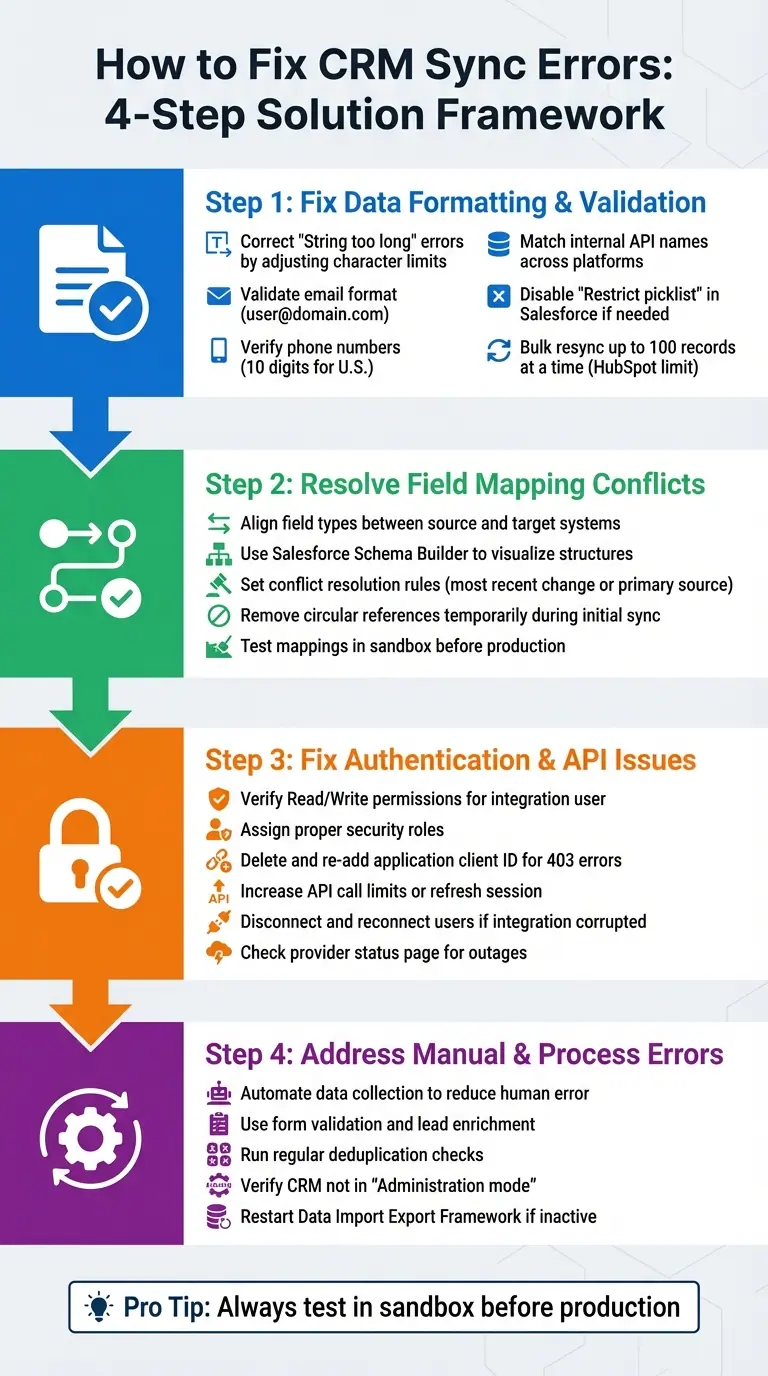
4-Step Process to Diagnose and Fix CRM Sync Errors
Once you've identified the errors, the next step is to apply fixes tailored to the specific issue. Most sync problems fall into four main categories: data formatting, field mapping, authentication, and manual process errors. Each requires a unique approach to resolve.
Fix Data Formatting and Validation
Start by correcting records that break validation rules. For example, if you encounter errors like "String too long", adjust the data to fit within the field's character limit. For email-related issues, ensure addresses follow the standard format (user@domain.com). Similarly, verify that phone numbers meet the required digit count - typically 10 digits for U.S.-based numbers.
If your source system contains values not recognized in the destination's dropdown menus, ensure internal API names match across platforms. In Salesforce, you can bypass this issue by disabling the "Restrict picklist to the values defined in the value set" setting, which allows incoming data to sync without interruption. Once formatting issues are resolved, use bulk resync features to process the error queue. Keep in mind that platforms like HubSpot often limit bulk resyncs to 100 records at a time.
Resolve Field Mapping Conflicts
After fixing data formatting, turn your attention to field mapping. These errors occur when fields in the source system don’t align with those in the target system. For instance, mismatched data types - like trying to sync a text field into a numeric field - can cause sync failures or even corrupt data. Tools like Salesforce Schema Builder can help visualize object structures and confirm field types before setting up mappings.
For bi-directional syncs, establish clear conflict resolution rules, such as prioritizing the "most recent change" or designating one system as the primary source of truth. If circular references are causing issues - like a Vendor record referencing itself through a "Parent Vendor" field - temporarily remove the self-referencing field during the initial sync. You can reintroduce it once the main records are successfully synced. Always test new mappings in a sandbox environment before applying them to your live system.
Fix Authentication and API Issues
Authentication errors often show up as messages like "Principal user is missing privilege" or "Insufficient access." To fix these, ensure the integration user has the necessary Read/Write permissions and security roles in your CRM. For Microsoft Entra-based integrations, a "403 Forbidden" error might require you to delete and re-add the application client ID.
API issues, including timeout errors, can often be resolved by increasing API call limits or refreshing the session. If the integration itself becomes corrupted, disconnect both the end user and the Access User from the CRM, then reconnect them to reestablish the link. Before diving into troubleshooting, check the integration provider's status page to rule out scheduled maintenance or service outages. Once authentication and API problems are addressed, streamline manual processes to minimize future errors.
Address Manual and Process Errors
Human error during manual data entry is a common cause of sync problems. To minimize these issues, automate data collection wherever possible. For example, if you're using forms to capture lead information, tools like Reform include built-in email validation and spam prevention to ensure clean data enters your CRM. Reform's lead enrichment feature can even auto-fill fields like company name and industry, reducing the likelihood of missing required values that could disrupt syncing.
Regularly run deduplication checks to prevent duplicate records from causing conflicts. Additionally, review your sync settings to ensure they're configured correctly. For instance, check that your CRM environment isn’t set to "Administration mode", which can block regular sync operations. If backend services like the Data Import Export Framework are inactive, restarting them can resolve errors like "400 Bad Request".
How to Prevent Future CRM Sync Errors
Fixing sync errors is important, but the real challenge lies in preventing them altogether. Recent data shows that 57% of sales teams feel their tech stack hinders productivity, often due to poor integrations. Fortunately, most recurring sync issues can be avoided with a few proactive measures.
Standardize Data and Processes
A key step in avoiding sync errors is to create consistent data standards across all systems. Start by developing a field mapping guide that clearly defines the source of truth for each field. This helps prevent mismatched or inconsistent data from spreading across platforms.
When using picklists, ensure the values are identical between systems. For example, if you add a new lead source in Salesforce, make sure to update the same value in HubSpot. The internal API names must match to avoid sync failures. Similarly, for geographical data, ensure state and country picklists use the same internal values across platforms.
Set up a dedicated integration user with either a System Administrator profile or a specific "Integration Permissions Set" to guarantee consistent access to all synced objects and fields. This user should also be exempt from validation rules that could block legitimate syncs. These steps lay the groundwork for smoother automation, which we’ll explore next.
Use Automation and Real-Time Sync Tools
Automation plays a big role in reducing manual errors that lead to sync issues. Real-time sync tools and automated retries can help prevent data mismatches. Advanced integration platforms often include features like retrying failed syncs automatically and triggering a full "recovery sync" if incremental updates fail due to connectivity problems.
"A broken Salesforce integration is more than just a technical glitch; it's a disruption to your business's nervous system, affecting data accuracy, operational efficiency, and ultimately, your bottom line." - APPSeCONNECT
Set up instant email alerts for sync failures so admins can resolve issues quickly before they disrupt sales follow-ups or reporting. Look for tools with auto-throttling capabilities to manage API call limits, which helps prevent "REQUEST_LIMIT_EXCEEDED" errors that can halt your sync operations. If you’re capturing leads through forms, platforms like Reform offer built-in email validation and lead enrichment to ensure clean, accurate data enters your CRM, minimizing sync failures caused by incomplete or poorly formatted data.
Conduct Regular System Audits
Regular audits are essential for maintaining sync reliability over time. Check your sync health dashboard weekly to spot error patterns and identify affected records. Monitor API usage daily - if you’re nearing your 24-hour limit, adjust your sync settings to avoid disruptions.
Interestingly, only 27% of operations professionals believe their data is consistent across the organization, compared to 50% of executives who think it is. This gap underscores the importance of quarterly audits. Review user permissions and field mappings regularly to ensure your integration user still has Read and Write access to all necessary fields, especially after system updates. Also, confirm that field types remain aligned between platforms.
"The danger comes when these errors are ignored. Over time, unresolved issues lead to broken automations, missed follow-ups, and marketing or sales reports that no one can trust." - RevBlack
Before deploying changes like new field mappings, validation rules, or automation flows, always test them in a sandbox environment. When reviewing error logs, focus on the number of unique records affected rather than the total error count - this helps you address the most critical data gaps first.
Conclusion
CRM sync errors can disrupt your revenue flow and impact how efficiently your team operates. Lauren Ryan from Coastal Consulting highlights the stakes perfectly:
A single sync issue may cost you countless records from syncing correctly between platforms and hurt both your team's performance and your users' experience.
To avoid these issues, focus on maintaining consistent data practices, aligning picklist values, and assigning a dedicated integration user with the right permissions. Regular monitoring is just as crucial - daily sync health alerts and weekly audits can help you catch small problems before they snowball into broken automations or missed opportunities. These steps lay the groundwork for a smoother, more reliable sync process.
The best prevention starts at the source: data entry. If you're using forms to capture leads, tools like Reform ensure that only clean, validated data makes its way into your CRM. With its seamless integrations, Reform minimizes the risk of mapping errors that often create headaches down the line.
When tackling sync issues, focus on fixing those that affect the highest number of unique records. Assigning a dedicated RevOps or integration specialist to manage your field mapping guide and monitor ongoing sync health is another smart move. By taking these proactive steps, you can protect your CRM's reliability and keep your operations running smoothly.
FAQs
What causes CRM sync errors, and how can you prevent them?
CRM sync errors can pop up for a variety of reasons, but the usual culprits are data validation issues, duplicate records, or permission conflicts. For instance, you might run into trouble if required fields are missing, if data formats (like URLs or picklist values) don’t align between systems, or if a record attempts to connect to another record that hasn’t been synced yet. Duplicate entries or custom rules - like validation settings or automated workflows - can also disrupt synchronization.
To minimize these headaches, focus on keeping your data clean and consistent. Make sure fields meet system requirements before syncing, such as ensuring email addresses are properly formatted or that values don’t exceed length limits. Regularly clear out duplicate records and make sure field mappings between systems are compatible. It’s also a good idea to check user permissions and any custom logic that might block records. Tools like Reform can make this process easier by providing real-time validation and seamless CRM integrations, so your data stays tidy and syncs smoothly with less hassle.
How can I quickly identify and fix CRM sync errors using integration tools?
To handle CRM sync errors effectively, start by navigating to your integration dashboard - tools like the Sync Health feature in HubSpot can give you a clear snapshot of any issues. These sync problems are typically grouped by type and urgency, making it easier to prioritize.
Begin by tackling the most critical errors. Use filters to focus on high-priority problems and examine the error details to pinpoint the root cause. Common culprits include missing records, mismatched field mappings, or conflicts with custom code. Solutions might involve forcing a sync to retrieve missing data, updating field mappings to ensure compatibility, or tweaking custom rules within your CRM system.
Once you've implemented the necessary fixes, re-run the sync to confirm the errors are resolved. To stay on top of things, consider setting up alerts or pinning the dashboard for easy access. This way, you can quickly identify and address any new sync issues as they arise.
How can I maintain consistent data standards across my CRM systems?
To maintain consistent data standards across your CRM systems, start by establishing a clear, organization-wide data policy. Specify formats for key fields - for example, emails should be in lowercase, phone numbers formatted like (555) 555-1234, and dates in MM/DD/YYYY. Document these guidelines in a comprehensive data-governance guide, and use field-level validation to ensure incorrect entries are blocked right at the source.
Once your policy is in place, clean up your existing records to match these standards. Use tools that can automate tasks like trimming extra spaces or standardizing addresses. When integrating data across systems, map fields carefully, using consistent naming conventions and data types. Test the setup with a small sample of data to identify potential issues before rolling it out completely. Make it a habit to regularly audit your data, merge duplicate records, and refine your policies as your needs evolve.
To minimize errors from the start, consider tools like Reform’s no-code form builder. These tools let you apply validation rules and conditional logic directly to your forms, ensuring that data entering your CRM is already standardized. This proactive approach helps reduce errors and keeps your teams working from accurate, reliable information.
Related Blog Posts
Get new content delivered straight to your inbox

The Response
Updates on the Reform platform, insights on optimizing conversion rates, and tips to craft forms that convert.




Drive real results with form optimizations
Tested across hundreds of experiments, our strategies deliver a 215% lift in qualified leads for B2B and SaaS companies.
