
.webp)
Why Accessible Forms Improve Conversions


71% of users leave websites that aren’t accessible. That’s a massive loss for businesses. Accessible forms don’t just comply with legal standards - they improve accessibility to make it easier for everyone to complete tasks, which means higher conversions and more revenue.
Here’s the big picture:
- 1 in 4 U.S. adults lives with a disability. That’s 61 million people.
- Accessible design improves form success rates by 22% and reduces completion times by 42%.
- U.S. consumers with vision loss alone control $175 billion in disposable income.
Accessible forms use features like clear labels, logical navigation, and inline error messages to remove barriers. This helps everyone - whether you’re using a screen reader, filling out a form on your phone, or just dealing with poor lighting. Businesses that prioritize accessibility see up to a 30% increase in form completions and a 20% boost in conversions.
If your forms aren’t accessible, you’re leaving money on the table.
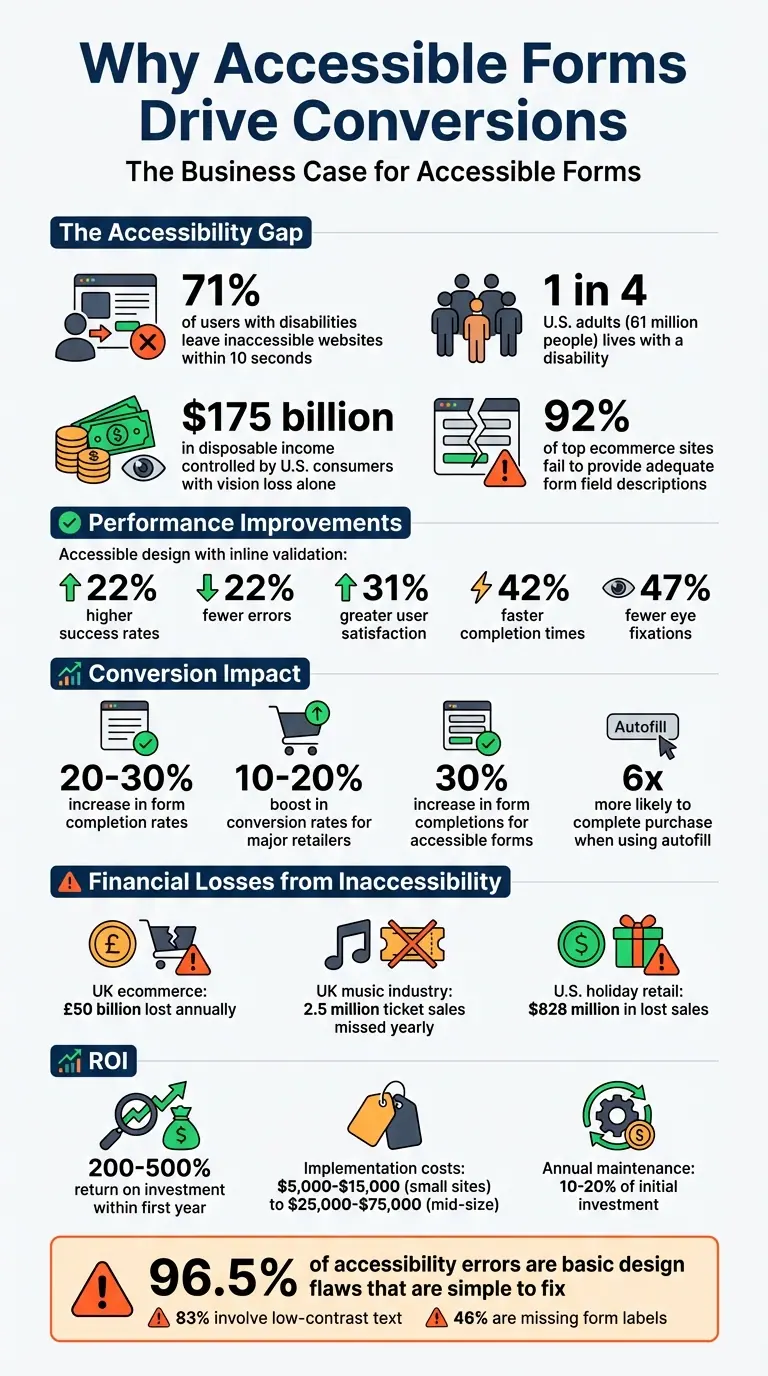
How Accessible Forms Increase Conversions: Key Statistics and ROI Data
How to make accessible forms - with lots of examples!
For more inspiration, check out our guide on creating high-converting lead forms to see these principles in action.
sbb-itb-5f36581
How Accessibility Improves User Experience
Accessible forms don't just benefit individuals with disabilities - they make the experience better for everyone. By addressing common usability challenges, accessible design ensures forms are functional, intuitive, and efficient for all users.
Benefits of Accessibility for All Users
Features that enhance accessibility often solve universal usability issues. For example:
- High color contrast improves text readability for those with low vision and also makes content easier to see in bright or dim lighting.
- Keyboard navigation is crucial for users with motor impairments, but it also allows power users to complete forms faster without relying on a mouse.
- Larger touch targets and proper spacing between clickable elements aid users with limited fine motor skills and make mobile interactions quicker and more accurate.
- Clear, permanent labels reduce confusion for users with cognitive impairments while also helping multitaskers or those filling out forms in a rush.
"Everyone benefits from a well-organized form, especially those with cognitive disabilities." - WebAIM
Even features like captions and transcripts, created for users who are deaf or hard of hearing, help anyone in environments where audio isn’t practical, like noisy cafes or quiet libraries. And as people age, natural declines in vision, hearing, and dexterity make these features increasingly important.
Research Data on User Experience Improvements
Accessible design isn't just thoughtful - it delivers measurable results. For instance, incorporating inline validation (feedback provided as users type) leads to:
- 22% higher success rates
- 22% fewer errors
- 31% greater user satisfaction
- 42% faster completion times
- 47% fewer eye fixations
Moreover, many accessibility issues are simple to fix yet have a major impact. According to the 2022 WebAIM Million Report, 96.5% of accessibility errors stem from basic design flaws. Among these, 83% involve low-contrast text, and 46% are due to missing form labels.
For example, placing labels above form fields (instead of inside them as placeholders) keeps them visible as users type, reducing cognitive strain. Similarly, ensuring logical tab navigation not only helps blind users but also speeds up the process for mobile users. These small adjustments can significantly improve usability for everyone.
The Impact of Accessibility on Conversion Rates
Making forms more accessible has an immediate and measurable effect on business outcomes. Studies show that redesigning high-converting landing page forms with accessibility in mind can increase completion rates by 20–30% and boost conversion rates by 10–20% for major retailers. These improvements translate to real revenue gains that were previously untapped.
In the United States, 1 in 4 adults - about 61 million people - lives with a disability. Among them, consumers with vision loss alone represent an estimated $175 billion in disposable income. Despite this, 92% of top ecommerce sites fail to provide adequate form field descriptions during checkout, creating barriers for millions of potential customers. Below, we explore how accessibility features can drive higher form completions and reduce checkout abandonment.
Higher Form Completion Rates
Accessible design reduces friction and minimizes form abandonment. Features like visible labels and logical keyboard navigation lower the cognitive effort required to complete a form, ensuring that every interactive element is accessible. For example, if a "Submit" or "Pay" button cannot be reached using just a keyboard, the transaction becomes impossible. Ensuring that the tab order matches the visual layout makes it easier for users to navigate elements like "Apply Coupon" or "Pay Now".
Clear and specific error messages also play a critical role. Instead of vague prompts like "Invalid input" or "Required field", accessible forms provide actionable guidance. For instance, rather than saying "Invalid format", an error might read, "Enter date as MM/DD/YYYY (example: 01/15/2024)." This level of clarity helps users resolve issues quickly and prevents them from abandoning the form out of frustration.
"The more accessible your forms are, the more opportunity you have to boost conversions and revenue. The effort you put in will be rewarded with increased signups and sales." – CXL
These improvements not only enhance the user experience but also set the stage for reducing cart abandonment - a major contributor to revenue loss.
Lower Cart Abandonment Rates
Improving the accessibility of checkout forms directly addresses lost revenue. The checkout process is a critical conversion point, and accessibility failures at this stage can result in significant financial losses. For example, ecommerce sites in the UK lose an estimated £50 billion annually due to poor accessibility, while the UK music industry misses out on 2.5 million ticket sales each year for the same reason. In the United States, retailers lose approximately $828 million in holiday season sales because of inaccessible websites.
"Checkout is where accessibility failures cost you money directly. Every customer who can't complete a purchase due to inaccessible forms, confusing error messages, or keyboard traps represents lost revenue." – TestParty
Simple changes can make a big difference. For instance, adding a "same as shipping" checkbox for billing addresses not only meets WCAG 2.2 requirements but also speeds up the checkout process. Incorporating autofill with proper autocomplete attributes (like cc-number for credit cards or postal-code for ZIP codes) enables browsers to fill out fields automatically. Data shows that users who engage with autofill suggestions are six times more likely to complete their purchase.
Even the design of CAPTCHA systems matters. Around 23% of users fail a CAPTCHA on their first attempt, and 15% are unable to complete them at all. One case study revealed that form submissions dropped by 73% after implementing a "no CAPTCHA" reCAPTCHA. Alternatives like invisible reCAPTCHA v3 or honeypot fields can block bots without deterring human users.
The Click-Away Pound survey highlights the urgency of these issues: 71% of customers with disabilities will leave a website within 10 seconds if it isn't accessible. This isn't just a usability problem - it's a direct threat to conversion rates. Removing these barriers creates a smoother path for users to complete their transactions, driving both higher completion rates and increased revenue.
Accessibility Features That Increase Conversions
The design of your forms can make or break user engagement. Thoughtful accessibility features not only reduce friction but also encourage more users to complete forms, ultimately boosting conversions. For example, reducing perceived effort through multi-step designs can significantly increase lead generation.
Clear Field Labels
Labels should always be visible and easy to understand. Hidden or disappearing placeholder text often causes confusion, so stick with clearly displayed labels. For assistive technologies, link labels to their corresponding fields using the for and id attributes [20, 22, 8]. Additionally, group related fields using <fieldset> and <legend> to provide context, especially for screen reader users [20, 21].
When marking required fields, spell out "(required)" instead of relying on symbols like asterisks. This ensures clarity for all users, including those relying on screen readers. Also, ensure that labels have a contrast ratio of at least 4.5:1 for better readability.
For a smoother user experience, add HTML autocomplete attributes (e.g., name, email, tel). These allow browsers to autofill data, reducing the effort users need to complete forms [20, 21, 22].
Error Validation and Recovery
Handling errors effectively can make the difference between a completed form and an abandoned one. Inline error messages and forgiving formatting make it easier for users to recover from mistakes. Use aria-invalid="true" and link errors to fields with aria-describedby for better accessibility [19, 22].
Real-time validation is helpful but shouldn’t overwhelm users. Apply a slight delay (300–500 milliseconds) to avoid flickering error messages while users are still typing. As Raghavendra Satish Peri from Deque puts it:
"To err is human. To prevent, suggest, and correct are divine."
Validate fields when users move away from them (on blur) rather than during typing. If there are multiple errors, include a summary at the top of the form with links that jump directly to the problem areas. Instead of disabling the "Submit" button when errors exist, keep it functional so users can click and see what needs fixing. Allow for flexible input formats (e.g., phone numbers with or without dashes) to prevent unnecessary validation errors.
Mobile Accessibility Standards
Forms optimized for mobile devices lead to higher conversion rates. Multi-step, single-column layouts work best on mobile screens, as they align with natural eye movement and eliminate horizontal scrolling. Touch targets should be large enough - ideally 45–57 pixels wide - to accommodate finger taps comfortably [23, 24]. This size matches the average width of a human index finger, ensuring ease of use.
Leverage HTML5 input types like email and number to display specialized keyboards, making it easier for users to enter data [22, 23, 24]. Top-aligned labels also reduce eye movement, speeding up form completion [22, 23, 24]. With 75% of mobile users likely to abandon a purchase if they encounter issues during checkout or form-filling, clear error messages and well-timed validation are essential for keeping users engaged.
These adjustments not only improve usability but also encourage users to complete forms, directly impacting conversion rates.
Measuring the ROI of Accessible Forms
To understand the financial benefits of making forms more accessible, focus on tracking key metrics before and after implementing updates. Investments in accessibility often yield a return of 200–500% within the first year, making the initial costs much easier to justify.
Metrics to Track
Here are five critical metrics to measure:
- Completion rate: The percentage of visitors who successfully submit your form. This serves as the primary indicator of how effective the form is overall.
- Abandonment rate: Tracks where users drop off, helping you identify specific fields or sections that might be causing frustration or barriers—often solved by transforming long forms into multi-step processes.
- Time-to-complete: Measures how long users take to finish the form. This is especially important for users relying on keyboards or screen readers.
- Error rate: Monitors how often users encounter validation errors, which can highlight unclear instructions or inaccessible labels.
- Mobile conversion rate: Evaluates how well your form performs on mobile devices, where touch targets and compatibility with mobile screen readers are crucial.
By regularly tracking these metrics, you'll gain insights into how users - including those relying on assistive technologies - interact with your forms. This data forms the foundation for a clear ROI analysis of accessibility improvements.
How to Analyze Accessibility Impact
To calculate the return on investment (ROI) for accessibility updates, use this formula:
ROI = ((Total Annual Benefit – Total Investment) / Total Investment) × 100
The total annual benefit comes from four main areas:
- Market expansion: With 26% of U.S. adults having a disability, improving accessibility opens your business to a larger audience.
- Legal cost avoidance: Accessibility-related lawsuits can cost over $200,000, and proactive measures can help you avoid these expenses.
- SEO improvements: Enhanced accessibility often leads to a 10–20% boost in search engine performance.
- Conversion rate gains: Accessibility updates can increase conversion rates by 1–5%.
For market expansion, estimate potential lost revenue by multiplying your annual revenue by 26% (the percentage of U.S. adults with disabilities) and then by your estimated barrier abandonment rate (typically 50–75%). Automated tools can also help you track accessibility violations over time, verifying that improvements align with better conversion metrics.
To calculate net ROI, document your current spending on accessibility efforts, including testing, remediation, and legal fees, and compare it to the benefits achieved after updates. This analysis not only highlights financial gains but also validates how optimized conversion paths and accessible forms can directly improve user engagement and conversions.
For smaller websites, accessibility upgrades typically cost between $5,000 and $15,000. Mid-size businesses may invest $25,000 to $75,000 for more comprehensive updates. Annual maintenance costs, usually 10–20% of the initial investment, are often outweighed by the benefits, such as reaching a broader audience and minimizing legal risks.
Conclusion
Accessible forms do more than meet compliance standards - they can significantly improve conversions. By designing forms that accommodate everyone, you eliminate obstacles for the 1 in 4 U.S. adults living with disabilities.
Beyond benefiting users, businesses that focus on accessibility can tap into the $175 billion in disposable income held by U.S. consumers with vision loss alone. Plus, consider this: 71% of users with disabilities will leave a site immediately if it’s not accessible.
"If more people can fill out your form, the chance of completion rises." - Hazel Bolton, Formisimo
Features like clear labels, inline validation, logical tab orders, and helpful error messages not only make forms easier to use but also reduce friction. Research shows these elements improve form success rates and lower abandonment. The result? A smoother user experience that drives better conversions and gives your business a competitive edge.
FAQs
How do I quickly check if my forms are accessible?
To ensure your forms are easy for everyone to use, start by leveraging automated tools like browser extensions or online validators. These can quickly flag common problems, such as missing labels, poor keyboard navigation, or low color contrast. Beyond that, make sure:
- Users can navigate the form entirely with just a keyboard.
- Every field has a clear, descriptive label.
- Error messages are specific, guiding users on how to fix any issues.
Regularly reviewing your forms not only keeps them accessible but also creates a better experience for all users.
Which accessibility fixes increase conversions the most?
Improving accessibility can have a direct impact on boosting conversions. Key fixes include:
- Clear error messages: Ensure users understand what went wrong and how to fix it. Ambiguous or missing error messages can frustrate users and lead to drop-offs.
- Proper labels and focus management: Labels should clearly describe form fields, and focus should guide users logically through the interface. This is especially helpful for screen reader users and those navigating with a keyboard.
- Simplifying forms: Reduce unnecessary fields and organize layouts intuitively. A clean, straightforward form encourages users to complete it without feeling overwhelmed.
These adjustments not only improve accessibility but also make the experience smoother for everyone, increasing the likelihood of conversions.
How can I measure ROI from form accessibility changes?
To gauge the return on investment (ROI) from making forms more accessible, focus on metrics like increased conversion rates, fewer form abandonments, and better-quality leads. Features like clear labels, helpful error messages, and seamless keyboard navigation not only make forms easier to use but also build user trust and encourage engagement. Conducting regular audits and analyzing data can help you measure these improvements over time. Plus, tackling accessibility issues early can help reduce compliance expenses and enhance overall user satisfaction.
Related Blog Posts
Get new content delivered straight to your inbox

The Response
Updates on the Reform platform, insights on optimizing conversion rates, and tips to craft forms that convert.




Drive real results with form optimizations
Tested across hundreds of experiments, our strategies deliver a 215% lift in qualified leads for B2B and SaaS companies.
