
.webp)
Form.io API Integration Guide for Lead Forms



If you want Form.io lead forms to work well with a CRM, focus on four things first: clean field keys, the right delivery setup, clear response rules, and ID tracking. That’s the short version.
When I look at this setup, the pattern is simple:
- I map fields by component key, not by form order
- I choose direct API for simple one-system handoff
- I use middleware when I need dedupe, routing, retries, or multi-tool sync
- I keep async webhooks as the default for a faster user experience with multi-step flows
- I use sync delivery only for blocking checks like duplicate email lookup
- I verify the webhook HMAC SHA-256 signature
- I store the returned CRM record ID with the submission
- I plan different handling for 2xx, 4xx, and 5xx responses before launch
A few data rules matter right away:
- Dates should move from 08/29/2026 in the UI to 2026-08-29 for APIs
- Phone numbers should move to E.164 format, like +15550123
- Currency like $5,000.00 should usually be sent as 5000
- State values should use 2-letter codes, like TX
- Emails should be stored in lowercase
Here’s the quickest way to think about setup:
| Need | Best option |
|---|---|
| One CRM and clean field match | Direct API |
| Duplicate check before save | Middleware or sync logic |
| Lead routing by state, budget, or territory | Middleware or custom action |
| Send one lead to more than one system | Middleware |
The core idea is easy: keep the payload clean, keep delivery simple, and keep enough IDs and logs to trace every submission later. That cuts down on bad CRM data, missed leads, and hard-to-fix retry issues.
Below, I’ll walk through the setup in plain English so you can connect Form.io to an external API without making the workflow messy.
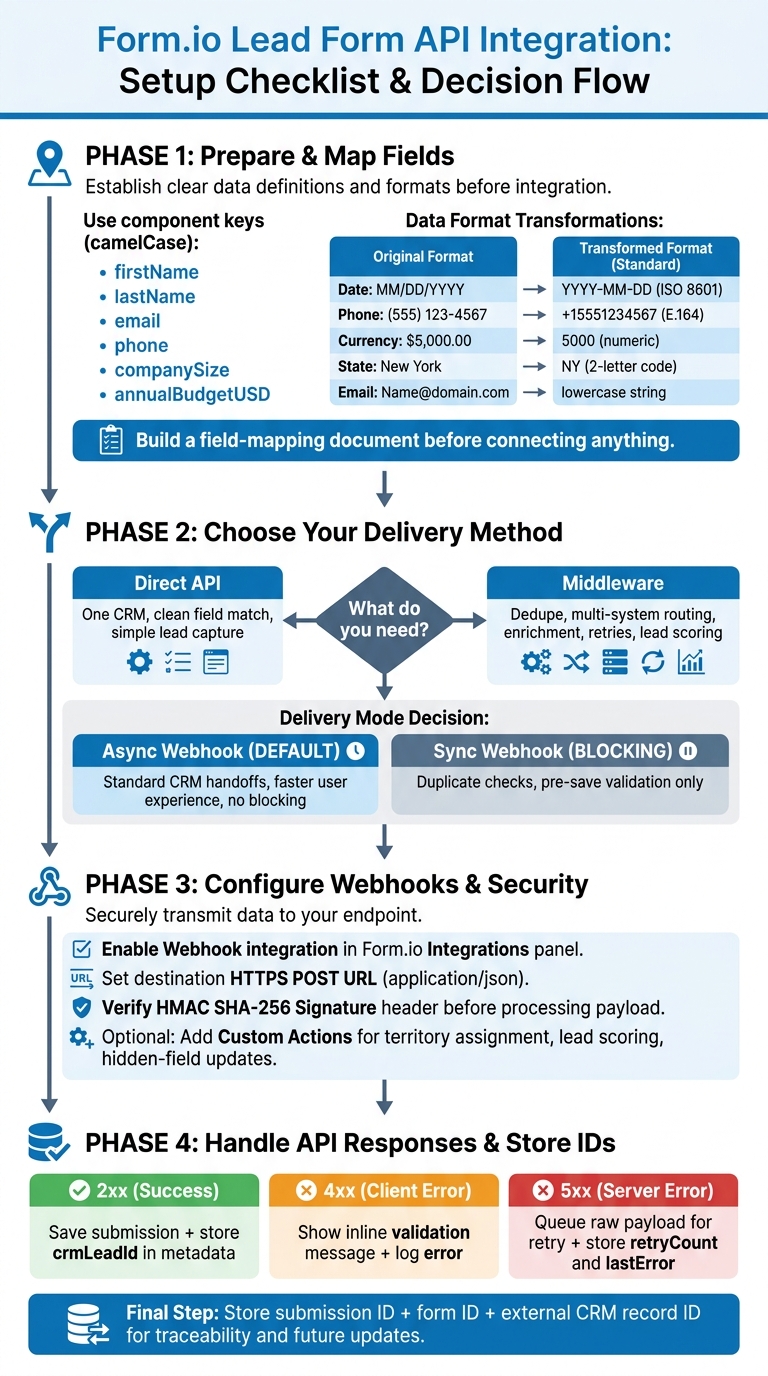
Form.io Lead Form API Integration: Setup Checklist & Decision Flow
Prepare the lead form and map fields to the external API
Map by component key, not by position. Each submission payload includes the form ID, submission ID, timestamp, and field values. If someone reorders questions in the form builder, position-based mapping can fail fast. Key-based mapping holds up. Once you map fields by key, webhook payloads stay steady.
Use clean field keys and U.S.-friendly data formats
Use camelCase for component keys like firstName, lastName, email, phone, companySize, and annualBudgetUSD.
| Field Type | UI Format (U.S.) | API/Integration Standard | Example Key |
|---|---|---|---|
| Date | MM/DD/YYYY | ISO 8601 (YYYY-MM-DD) | submissionDate |
| Phone | (555) 123-4567 | E.164 (+15551234567) | phone |
| Currency | $5,000.00 | Numeric (5000) | annualBudgetUSD |
| State | New York | 2-Letter Code (NY) | state |
| Name@domain.com | Lowercase string | email |
This part matters more than it seems. A form can look perfect in the UI and still send messy data downstream if formats don't line up. For example, $5,000.00 may look fine to a user, but most APIs want 5000 with no dollar sign or commas.
Build a field-mapping document before connecting anything
Before you set up webhooks or middleware, make a field map. List each component key, the matching external API field name, the data type, and whether the field is required. Also call out any derived fields. That could mean joining firstName and lastName into fullName, or removing symbols from annualBudgetUSD before sending it to deal_value.
| Form Field Key | External API Field | Data Type | Required | Transformation |
|---|---|---|---|---|
firstName |
first_name |
String | Yes | Trim whitespace |
email |
email_address |
String | Yes | Lowercase |
annualBudgetUSD |
deal_value |
Number | No | Strip currency symbols and commas |
phone |
mobile_phone |
String | Yes | Prepend +1 if missing |
companySize |
employee_count |
Integer | No | Ensure numeric value |
state |
state_code |
String | Yes | Convert full name to 2-letter code |
submissionId |
external_source_id |
UUID | Yes | Derived from submission metadata |
A simple mapping doc saves a lot of cleanup later. It gives form builders, devs, and CRM admins one shared reference instead of three different guesses.
Store the CRM record ID on the submission for later updates. That makes follow-up updates easier and helps cut down on duplicates.
sbb-itb-5f36581
Configure webhooks and custom actions in Form.io
Once your field map is ready, the next step is connecting Form.io to your external API with a webhook. Each submission is sent as an HTTPS POST in application/json, so your system gets the data right away. After that, your response logic decides what happens next: accept the submission, retry the request, or send it down another path.
Set up a webhook for real-time lead submission
Go to your form’s Integrations area and turn on the Webhook integration. Then add your destination URL in the webhook settings. Form.io will send every submission to that endpoint as an HTTPS POST request in application/json format.
Security isn’t something to gloss over here. Form.io sends a Signature header with each request. That header contains a SHA-256 HMAC signature of the raw request body, keyed with the webhook-specific secret shown under the lock icon in settings. Before your server does anything with the payload, verify the Signature header first.
Choose synchronous or asynchronous delivery based on user experience
The "Wait for Response" setting decides whether delivery is synchronous or asynchronous.
| Factor | Synchronous | Asynchronous |
|---|---|---|
| User waits for response | Yes | No |
| Blocks form save | Yes | No |
| Best for | Duplicate checks, pre-save validation | Standard CRM handoffs, analytics |
| Latency risk | Higher if the endpoint is slow | Minimal for the user |
Use synchronous delivery when the form needs a blocking check before saving the submission. A common case is checking whether a lead already exists. Use asynchronous delivery for standard CRM handoffs, where speed matters more and the user should see the success message right away.
Use custom actions for conditional lead routing
Sometimes one webhook won’t cut it. That’s where custom actions come in. They let you run JavaScript-based workflows during submission processing.
You can use custom actions for things like:
- Territory assignment
- Real-time lead enrichment
- Hidden-field updates based on external API lookups
That gives you more control over where leads go and what data gets changed before the process moves on. Next, define how API responses should be handled and where external IDs should be stored for later updates.
Handle API responses, errors, and CRM handoff
Once the webhook fires, the response code tells you what happens next. If you handle those responses well, your CRM stays cleaner, duplicate records are less likely, and future updates get a lot easier.
Parse responses and save external IDs for future updates
After Form.io sends the submission, check the status code and store any returned IDs. If the external API sends back a success response, save returned values like crmLeadId, lead score, or enrichment flags in the Form.io submission metadata. Read the payload by API field name, then store crmLeadId in submission metadata. That ID connects the Form.io submission to the CRM record and helps stop duplicate records during later updates.
That saved ID should guide how you handle each response code after that.
Plan for 2xx, 4xx, and 5xx responses before going live
Each response group needs its own handling. Treating them all the same is where things start to fall apart.
| Response Range | Category | Expected Behavior |
|---|---|---|
| 2xx | Success | Save the submission and store crmLeadId. |
| 4xx | Client Error | Show an inline validation message and log the error. |
| 5xx | Server Error | Queue the raw payload for retry; store retryCount and lastError in the error log. |
For 5xx errors, the downstream service is unavailable. So instead of dropping the submission, queue the raw payload and retry it. For 4xx errors on a blocking call, show a clear message so the user can fix the issue before submitting again.
Send leads into the CRM using a direct or middleware pattern
Once response handling is mapped out, choose the handoff path that fits your retry rules. A direct webhook works for simple CRM handoff. Middleware makes more sense when you need deduping, routing, or retries.
| Factor | Direct (Form.io → CRM) | Middleware (Form.io → Middleware → CRM) |
|---|---|---|
| Control | Best for straightforward API calls | Better for complex logic |
| Flexibility | Limited to the CRM's API capabilities | High; supports enrichment, routing, and scoring |
| Error Recovery | Basic; relies on CRM-side handling | Strong; supports queuing and custom retries |
| Best For | creating high-converting lead forms | Complex orchestration and routing |
Choose the path that fits your retry and routing rules.
Conclusion: Building a reliable Form.io lead form integration
Once mapping, delivery, and error handling are set, the next job is stability as the form changes over time. Key-based mapping helps keep submissions steady because it uses component keys instead of field order.
Your delivery mode should match the experience you want people to have. In most cases, asynchronous webhooks are the right default. Save synchronous calls for blocking validation, and use custom actions only when you need conditional routing. That setup keeps lead capture fast and cuts down on submission delays.
After the webhook responds, traceability matters just as much as delivery. Storing the submission ID, form ID, and external record ID ties the Form.io submission to the CRM record and makes later updates much easier.
The best integrations stay fast, traceable, and easy to maintain.
FAQs
How do I verify the Form.io webhook signature?
Verify the webhook signature by comparing a locally generated HMAC with the signature sent in the request header.
Start with your webhook secret from your dashboard’s integration settings. Then grab the Signature header and the raw request body. Use the secret to generate a SHA-256 HMAC from that body, and compare the result to the header value.
If both values match, the request is valid.
Where should I store the CRM record ID?
Store the CRM record ID in hidden fields in your form. That way, you can pass and save backend data during submission without showing it to the user.
The form stays clean, and your backend stays in sync for API integrations.
When should I use middleware instead of a direct API?
Use middleware when submission data needs a bit of work before it reaches its destination. A direct API is the better fit when your field names and data types already line up with what the endpoint expects.
Middleware helps when you need to change field names, reformat values, or map data into a shape your destination can accept. It also makes sense when the submission flow depends on custom backend logic or other server-side steps.
Related Blog Posts
Get new content delivered straight to your inbox

The Response
Updates on the Reform platform, insights on optimizing conversion rates, and tips to craft forms that convert.




Drive real results with form optimizations
Tested across hundreds of experiments, our strategies deliver a 215% lift in qualified leads for B2B and SaaS companies.
