
.webp)
Form.io API Data Mapping Guide



Form.io simplifies form building by automatically generating JSON schemas and REST API endpoints for every form and resource you create. This guide focuses on data mapping - ensuring your form submissions align with external systems like CRMs or marketing tools. Here's what you need to know:
- Submission Data Structure: Form.io stores user inputs as JSON objects, with each form component's
keydetermining where its data is saved (e.g.,data.firstName). - Schema vs. Submissions: Form schemas (blueprints) and submission data (user entries) are separate, ensuring schema updates don’t affect existing data.
- Nested Data: Use components like Containers or Data Grids for structured, nested data. Layout components (e.g., Panels) don’t affect data structure unless explicitly keyed.
- API Integration: Map Form.io data to external APIs using Webhooks, Save Submission actions, or the Transform Payload feature for custom formatting.
- Best Practices: Choose clear, consistent
keynames that match external API field names. Plan carefully to avoid issues with schema changes.
Proper data mapping ensures smooth integration with external systems, reduces errors, and simplifies workflows. Keep reading for detailed steps on organizing, transforming, and routing your Form.io data.
Getting Started with Form.io (Part 5): Integrating With Other Systems
sbb-itb-5f36581
Understanding Form.io Submission Data Structure
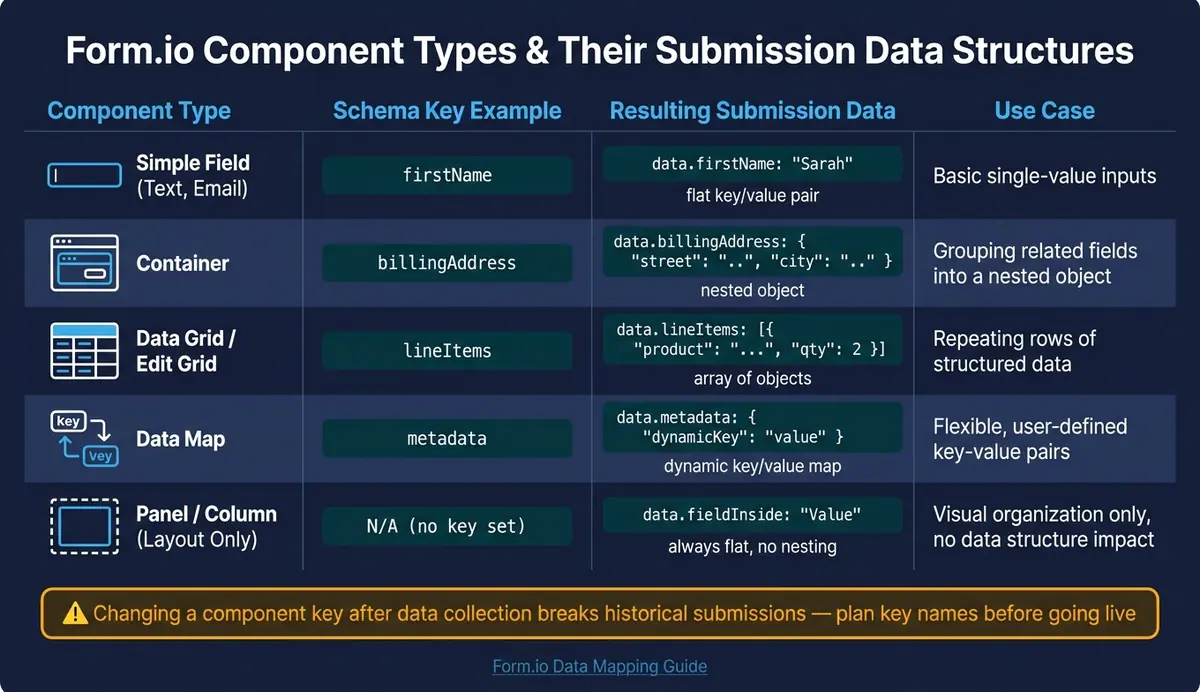
Form.io Component Types: Data Structure & API Mapping Cheat Sheet
Form Schema vs. Submission Data
In Form.io, the form schema and submission data are kept separate. Think of the form schema as the blueprint - a JSON file that defines the components, layout, validation rules, and behavior of your form. Meanwhile, the submission data is where all the user-entered information is stored.
"This separation means you can update a form schema without invalidating existing submissions." - Form.io Wizard, Content Writer, Form.io
These two elements are stored in different database collections. The schema resides in a "forms" collection, while the submissions are stored in a "submissions" collection. Submissions are linked to their parent form by a form ID field. Additionally, each submission includes a _fvid (Form Version ID), which tracks the schema version active when the data was submitted. This is especially helpful when you’ve made updates to a form and need to handle older submissions accurately.
Components and Keys in Submissions
The clear separation of schema and submission data allows for a straightforward mapping between form components and the submitted data. For example, a text field with the key firstName will store its value as data.firstName. Similarly, an email field with the key email will store its value as data.email. This predictable structure simplifies how you process submissions.
"The key property on each form component determines where submitted data appears in the data object. This mapping is direct and predictable, which matters when you write code that processes submissions." - Form.io Wizard, Content Writer, Form.io
Every submission also includes system-generated metadata. These fields are automatically added and include:
_id: A unique submission ID.owner: The ID of the user who submitted the form.createdandmodified: Timestamps for when the submission was created and last updated.state: Indicates whether the submission is"submitted"or still a"draft".
This metadata is part of every API response, making it easier to filter and audit submissions.
Data Grids and Nested Objects
While basic form components result in simple data structures, more complex forms often require nested data. Layout components like Panels, Columns, and Field Sets are purely visual - they don’t create nested data structures by themselves. For instance, a text field inside a Panel will still map to data.fieldKey, not data.panelKey.fieldKey.
"Container components like Panels, Columns, and Field Sets do not create keys by default. They exist for layout purposes only... This trips up developers who expect container nesting to affect data structure." - Form.io
If you need nested data, you’ll need to use specific components like Container, Data Grid, or Edit Grid. A Container with a key will create a nested object, while Data Grids and Edit Grids create arrays. The difference between Data Grids and Edit Grids lies in their UI, but both store data in a similar format.
Here’s a quick look at how different components translate into submission data:
| Component Type | Schema Key | Submission Data |
|---|---|---|
| Text Field | firstName |
data.firstName: "Sarah" |
| Container (with key) | address |
data.address: { "street": "123 Main", "city": "Denver" } |
| Panel (no key) | N/A | data.fieldInsidePanel: "Value" (flattened) |
| Data Grid | emergencyContacts |
data.emergencyContacts: [{ "name": "Michael", "phone": "..." }] |
| Edit Grid | workHistory |
data.workHistory: [{ "company": "Acme", "title": "CEO" }] |
When querying data through the API, you can access nested structures using dot notation. For example, to filter submissions where the city is "Denver", you can use:
GET /form/:formId/submission?data.address.city=Denver. This makes it easy to work with nested fields directly through API requests without additional data transformations.
Best Practices for Naming Component Keys
When working with JSON payloads, naming your component key property correctly is essential. This isn't just about labeling; it's about ensuring that the property names in your form submissions align perfectly with your external API. Missteps here can lead to unnecessary data transformations and mismatched field names, which can be a hassle to fix later.
Using Dot Notation for Nesting
Dot notation is incredibly handy when dealing with nested data in the Form.io API. For example, if you’ve placed fields inside a Container component, you can query submissions with something like:
GET /submission?data.customer.email=user@example.com.
Why does this work? The Container’s key creates a nested object in the submission payload, and dot notation allows you to access specific fields without extra processing.
In Form.io’s logic engine, you can safely access nested values using Lodash-style dot notation, like this:
_.get(data, 'customer.firstName').
This approach helps avoid "undefined" errors and simplifies working with deeply nested data.
Naming Conventions for U.S. CRMs and APIs
By default, Form.io uses camelCase, which aligns with JavaScript and most U.S. REST API conventions. For example, use emailAddress instead of Email Address or email_address. Matching your component keys to your CRM’s API field names - whether it’s Salesforce, HubSpot, or another platform - can save you the trouble of creating a transformation layer.
Pro Tip: Changing a key after collecting data can create issues. Older submissions will retain the original key, while new ones will use the updated key. This can break historical records, so plan your key names carefully before going live.
Handling Complex Components
The type of component you choose directly affects the structure of your API payload. Here’s a quick overview of how different components map to the resulting data structure:
| Component Type | Key Example | Submission Data Structure |
|---|---|---|
| Simple Field | firstName |
data.firstName: "Sarah" |
| Container | billingAddress |
data.billingAddress: { "street": "...", "city": "..." } |
| Data Grid / Edit Grid | lineItems |
Produces an array, e.g., [{ "product": "...", "qty": 2 }] |
| Data Map | metadata |
data.metadata: { "dynamicKey": "value" } |
| Panel / Column (layout) | N/A | data.fieldInside: "Value" (always flat) |
If your external API expects a nested object, a Container is your best bet. Wrap the related fields inside the Container and set its key to match the object name your API requires. For APIs that expect arrays - like a list of line items - use a Data Grid or Edit Grid instead.
"The components inside the Container are grouped into an object under the Container's API Property key... This feature is particularly useful for creating more complex objects and data sets within your form." - Form.io Documentation
One thing to watch out for: enabling the "Multiple Value" option changes a field's output from a single value to an array. If the receiving API expects a string, this could cause errors. Always double-check your API’s data expectations to avoid surprises.
Mapping Form.io Submissions to External APIs
Once your component keys are structured, the next step is to route your data to external systems. Form.io offers several ways to connect submission data to external APIs, tailored for different use cases. These options work hand-in-hand with structured component keys to ensure seamless data flow.
Direct Webhook Integration
Using the Direct Webhook method, you can send mapped data directly to external systems. To set this up, navigate to the Webhook action in your form's Actions tab. From there, configure the request method (commonly POST) and decide if the webhook should trigger before or after the submission is saved.
By default, webhooks operate asynchronously, meaning the form completes its process while data is sent in the background. If the external API requires validation before finalizing the submission, you can enable the "Wait for the webhook response before continuing actions" setting to make the process synchronous.
"By default, webhook actions fire asynchronously... When you need synchronous behavior, enable 'Wait for the webhook response before continuing actions.'" - Form.io
Synchronous webhooks are particularly useful for capturing external IDs - like a Salesforce record ID - directly into the submission metadata. This creates a two-way link between your Form.io submission and the external record. To keep your data secure, always use HTTPS endpoints and secure the connection with Basic Auth or API key headers.
Using Save Submission Actions
The Save Submission action is designed to map form data to other internal Form.io resources rather than external APIs. For instance, a single registration form could send data to both a Users resource and a Leads resource at the same time. Simple field-to-field mappings work well for straightforward forms. However, if your form includes complex components like Edit Grids or nested Containers, you can use the Transform Data option to handle these structures more effectively. When mapping data for external APIs, the Transform Payload option allows you to reshape the data for compatibility.
Transforming Data for External APIs
External APIs often require data in a specific format, which may differ from Form.io's JSON structure. The Transform Payload setting within the Webhook action lets you use custom JavaScript to adjust the data structure as needed. This could include renaming keys, flattening nested objects, or converting data types to match the external API's schema.
"The Transform Payload setting accepts JavaScript code that reshapes data before transmission... This is where you adapt Form.io's JSON structure to match whatever format your legacy systems expect." - Form.io
For example, if your CRM requires a flat object but your form uses a billingAddress container, you can use JavaScript (e.g., the spread operator or Array.map) to flatten the structure before sending the data. For critical integrations, it's a good idea to implement retry logic with exponential backoff and jitter to handle temporary failures effectively.
Normalizing and Restructuring Lead Data
When working with API integrations, raw data submissions often need further refinement to align with external API requirements. This process, known as data normalization, ensures your payload is clean and ready for transmission. Without it, inconsistencies like unsplit names, unformatted phone numbers, or nested objects can lead to errors. By cleaning and restructuring data within Form.io before it’s sent out, you can avoid these issues altogether.
Common Data Transformations for U.S. Markets
In the U.S., lead data often presents specific challenges, particularly with phone numbers, ZIP codes, and name fields.
- Phone numbers: Use the Phone Number component's input mask (e.g.,
999-999-9999) to enforce uniform formatting during entry. This eliminates inconsistencies right from the start. - Addresses: Enable Manual Mode in the Address component. This breaks down the address into distinct fields - Address, City, State, and ZIP - making it easier to map these fields directly into CRM systems.
- Name fields: With Form.io's Calculated Value setting, you can automatically create a full name field by combining first and last names. For instance, a formula like
value = data.firstName + ' ' + data.lastName;dynamically updates as the form data changes.
"Calculated Value runs continuously as the form data changes... This suits derived fields like totals, concatenated names, or conditional values." - Form.io
Flattening and Rebuilding Nested Data
Many CRMs struggle with nested JSON structures, such as data.userInformation.firstName. To address this, you can use a Hidden component with a Calculated Value to pull nested fields up to the top level, making them easier to process. For more complex components like Data Grids or Edit Grids, a simple JavaScript snippet in the Transform Payload setting can help. For instance, you might reformat arrays into comma-separated strings or flatten each row into a straightforward record.
Building API Payloads
The Transform Payload feature within the Webhook action offers powerful tools to prepare your data for external APIs. You can rename keys, remove unnecessary fields, format dates to ISO 8601, and even restructure the entire payload. This feature provides a JavaScript context that includes data (the form submission), user (authenticated user metadata), and form (the schema), giving you full control over the transformation process.
"The Transform Payload setting accepts custom code that reshapes the data before transmission. This is where you adapt Form.io's JSON structure to match whatever format your legacy systems expect." - Form.io
It’s also crucial to strip out metadata fields like _id, owner, or modified that aren’t needed by the external API. Every key name should match the destination schema precisely, ensuring smooth integration. By following these steps, you can guarantee that your payload is formatted exactly as required, avoiding unnecessary errors during transmission.
Integrating Form.io with Reform Workflows
This section dives into how to effectively integrate Form.io with Reform workflows, building on the earlier discussion of data mapping and normalization. Once your Form.io payloads are cleaned up and properly structured, connecting them to Reform becomes straightforward. Here’s how to make that connection work smoothly.
Syncing Form.io Data to Reform
Start by configuring the Webhook Action in Form.io to trigger when a submission is created. This ensures that Form.io sends its JSON payload directly to Reform's endpoint. For more advanced setups, you can route the payload through middleware to handle complex transformations. This approach keeps each platform focused on its strengths: Form.io handles data collection and validation, middleware manages normalization, and Reform processes the ready-to-use lead record.
A helpful tip is enabling the "Wait for Response" setting on the webhook. This feature keeps the submission open in Form.io until Reform validates the data. If Reform flags a duplicate lead or a validation error, the submission fails on the Form.io side. This ensures that only verified, high-quality leads make it into your workflow.
To streamline the integration further, standardize your component keys between the two platforms.
Aligning Data Structures Between Platforms
One of the most effective ways to simplify integration is by standardizing component keys during the form-building process. The key property in Form.io maps directly to the submission data. For instance, if Reform expects leadEmail but your Form.io key is email_address, you can avoid unnecessary transformation steps by aligning these keys from the start.
Additionally, when Reform returns a Lead ID after a successful submission, you can use Form.io's External ID feature to store it. This creates a permanent link between the Form.io record and the corresponding Reform lead, making future queries and updates much easier.
Improving Lead Flow with Structured Data
Reform thrives on consistent and predictable data for its multi-step forms and real-time analytics. By using well-named component keys and structured payloads, you enable Reform to route leads efficiently, apply conditional logic, and deliver precise analytics. For cases where a lead has multiple contact entries, Form.io's Data Grid components can generate nested JSON arrays. Reform processes these arrays as detailed lead profiles, all within a single payload.
Testing and Validating Data Mappings
Once your integration framework is set up, the next step is ensuring data consistency through thorough testing. After launching your Form.io-to-Reform integration, it’s crucial to rigorously test your data mappings to identify any schema or payload issues. Let’s dive into how you can inspect submission data and automate your testing process effectively.
Inspecting Submission Data
To get a clear view of your submission data, start by using the Developer Portal’s Data tab. However, keep in mind that this tab only displays "Table view" fields and doesn’t show complex nested structures like Data Grids. For a complete and accurate picture, you’ll need to use the API.
Run a GET request on /form/:formId/submission to retrieve the full JSON payload. Use the select query parameter to focus on specific fields, which saves you from sifting through large payloads. For example: ?select=data.firstName,data.email. Avoid relying on CSV exports for testing nested data, as they flatten the structure and can obscure important details.
"Since data in Form.io is stored in JSON format, this will be the truest form of the data." - Form.io User Guide
If a webhook to Reform triggers but fails, the Action Logs (available with the Security Module) can help troubleshoot. These logs provide timestamps, triggers, and the results of every action attempt. As highlighted in the Form.io User Guide, "The Action Logs... can be particularly helpful when finding a failed action".
Automating Mapping Tests
While manual inspection is useful for one-off checks, it’s not practical for ongoing validation. This is where automation comes in. The Form.io CLI offers a powerful tool for automating mapping tests. With the formio migrate command, you can use a custom transformer.js middleware file - a Node.js function that processes each submission, applies your mapping logic, and validates the result before calling next().
"The migrate command allows you to migrate submission data from one source to another... sending it through a middleware function called <transformer> (which you provide) that transforms the data into the correct format." - Form.io CLI Documentation
Test your transformer.js script locally by running it against a batch of real submissions. This helps identify any mismatches between your expected and actual outputs early in the process.
For real-time validation, consider using the "Wait for Response" webhook pattern. This approach holds a submission open until Reform confirms the payload is valid. If there’s a structural mismatch, the submission fails immediately, preventing invalid data from entering your workflow.
Once your automated tests confirm the accuracy of your mappings, document the process thoroughly to ensure consistency.
Documenting Your Mapping Specifications
The Form JSON Schema serves as your primary technical reference. It includes every component key, validation rule, and data structure definition in a single, portable file. To keep things organized, create a mapping table that aligns Form.io keys with their corresponding target API fields. For example:
| Component Type | Form.io Key Example | Resulting Submission Structure |
|---|---|---|
| Simple Field (Text, Email) | firstName |
data.firstName: "Value" |
| Data Grid / Edit Grid | contacts |
data.contacts: [{...}, {...}] (Array) |
| Layout (Panel/Column) - no key | (none) | data.fieldKey (Flat) |
| Layout (Panel/Column) - key | addressPanel |
data.addressPanel.fieldKey (Nested) |
When your form schema evolves, enable Submission Revisions to maintain an audit trail. Each revision is tied to a _fvid (Form Version ID), allowing you to validate historical submission data against the schema version that was active during collection. This is particularly helpful for troubleshooting when a mapping breaks after a form update, as it allows you to pinpoint exactly when the structure changed.
Conclusion: Key Takeaways
Summary of Key Concepts
When it comes to Form.io data mapping, everything revolves around one crucial principle: the key property on each component shapes the structure of your submission data. If your key mapping is accurate, your data flow downstream will remain predictable and smooth.
"The same JSON schema that defines the form structure also defines the API structure." - Form.io
It's not just about naming, though. Knowing which components create nesting is just as important. For instance:
- Simple fields result in flat key/value pairs.
- Data Grids and Edit Grids generate arrays.
- Containers group fields into nested objects.
- Layout components like Panels and Columns don’t create nesting unless you explicitly set a key.
Missteps in these areas can lead to integration headaches. Maintaining consistency in key-naming is the backbone of reliable API integration.
For external API connections, take advantage of the Transform Payload feature to reshape your data for smooth integration. Combine that with the "Wait for Response" option for real-time validation, and use External IDs to ensure permanent links between records across systems.
Next Steps for Implementation
Now that the key concepts are clear, it’s time to put them into action. Start small: choose one form and map its component keys to match your target API’s field names. Run a GET /form/:formId/submission request to check the JSON structure. Once you’ve verified it, build out your transformer.js logic, testing each mapping rule with real submission data before scaling up your workflow.
Don’t wait to enable Submission Revisions - set it up from the start. A versioned audit trail will save you time and frustration when troubleshooting schema changes later on.
FAQs
How do I plan component keys so CRM mapping won’t break later?
To avoid CRM mapping problems, it's essential to plan and standardize your component keys right from the beginning. Use keys that are clear, consistent, and stable, ensuring they accurately represent the data they correspond to. Stay away from auto-generated or dynamic keys, as these can change during updates and disrupt your mappings. Instead, align your keys with the field names your CRM expects to maintain compatibility. Taking the time to define and manage these keys properly helps prevent mapping issues as your forms and systems grow and change.
Why isn’t my data nested when fields are inside a Panel or Columns?
In Form.io, Panels and Columns are layout components meant for visual arrangement - they don't create nested data structures. If you need to nest data, use a Container component. This component groups fields into an object. Without a Container (or a similar component designed for nesting), fields inside Panels or Columns will simply be submitted as part of the parent object.
What’s the safest way to reshape payloads before sending a webhook?
To keep your payload secure, it's best to use signatures for verification. Reform’s webhooks come with a Signature header that contains a SHA-256 HMAC signature. This signature is generated using a unique secret. Here's how to ensure everything checks out:
- Extract the
Signatureheader and the request body. - Use your webhook secret to create a SHA-256 HMAC signature.
- Match your generated signature with the one provided in the header.
If they align, you can trust the payload hasn’t been tampered with.
Related Blog Posts
Get new content delivered straight to your inbox

The Response
Updates on the Reform platform, insights on optimizing conversion rates, and tips to craft forms that convert.




Drive real results with form optimizations
Tested across hundreds of experiments, our strategies deliver a 215% lift in qualified leads for B2B and SaaS companies.
