
.webp)
HubSpot Forms in Emails: Common Issues and Fixes



Embedding HubSpot forms directly into emails doesn’t work. Why? Email clients like Gmail and Outlook block forms due to security risks and technical limitations. Instead, you should use links or CTAs directing users to a landing page with a form.
Key Takeaways:
- Forms don’t work in emails: JavaScript, essential for HubSpot forms, is stripped by email platforms.
- Security concerns: Embedded forms can expose users to potential threats like malicious code.
- Tracking issues: Without browser cookies, HubSpot can’t reliably track submissions from emails.
- Form problems: Issues include improper rendering, missing fields, or failed contact creation.
Solutions:
- Use landing pages or standalone form pages to host your forms.
- Adjust form settings:
- Enable progressive fields to collect new data over time.
- Use hidden fields for campaign tracking.
- Turn on pre-fill options to simplify form completion.
- Troubleshoot errors:
- Test forms on standalone pages to isolate issues.
- Check for browser or script conflicts (e.g., ad blockers or consent tools).
- Verify field mapping and ensure the email field is required.
Alternatives:
- Link to dedicated landing pages for a better user experience.
- Use Reform to create polished, multi-step forms with advanced tracking.
Bottom line: Skip embedding forms in emails. Instead, focus on clear CTAs and well-designed landing pages to boost conversions and avoid technical headaches.
Why HubSpot Forms Cannot Be Embedded Directly in Emails

HubSpot forms rely on JavaScript for features like dynamic validation, dependent fields, and error messaging. However, email clients such as Gmail, Outlook, and Apple Mail strip out <script> tags before displaying an email. Without this necessary code, the forms cannot function as intended.
This limitation isn't just technical - it also addresses security concerns. Embedded forms can create vulnerabilities, such as cross-site scripting (XSS) and data injection attacks. These risks arise when malicious actors exploit form fields to inject harmful code. To protect users, email platforms block script elements entirely.
There’s another downside to embedding forms in emails: it can hurt deliverability. Spam filters often flag emails with interactive elements. As HubSpot community expert Karsten Köhler explains:
"Interactive embedded elements are considered risky and will very likely strongly and negatively affect your email deliverability."
Additionally, HubSpot relies on browser cookies to identify contacts. Since email clients can’t set or read these cookies, even if a form partially worked in an email, HubSpot wouldn’t be able to reliably link submissions to specific contacts.
These technical and functional barriers also impact user behavior. Users must click a link to access the form, which can increase drop-off rates, especially on slower connections. Understanding these challenges is essential for improving the effectiveness of email campaigns.
sbb-itb-5f36581
Common Problems When Using HubSpot Forms in Email Campaigns
When using HubSpot forms in email campaigns, several challenges can arise due to technical limitations and compatibility issues. Below, we'll dive into some of the most frequent problems and their causes, along with symptoms that users might encounter.
Unsupported Embedded Forms
HubSpot's own Knowledge Base makes this clear:
"Forms aren't supported in emails across common email clients because of security risks."
Email providers like Gmail, Outlook, and Apple Mail either block or strip out form-related code. This can lead to broken layouts, awkward blank spaces, or even emails being flagged as spam. Unfortunately, there’s no reliable way to make embedded forms work consistently across all major email platforms.
Forms Not Rendering Correctly
Even if a form does load, it might not display as intended. According to HubSpot:
"HubSpot forms are built with JavaScript, not HTML. Customizing the form's embed code requires the help of a developer who knows how to work with JavaScript."
On external landing pages linked from emails, browser extensions like Ghostery or Privacy Badger may block the scripts needed for forms to function properly. This often results in a "We had some trouble loading this form" error message. Additionally, third-party tools like OneTrust can interfere; for instance, the OtAutoBlock.js script may prevent the form from loading until cookies are accepted.
Submission Tracking Errors
Tracking issues are another common headache. When a contact clicks a link in an email and submits a form on a landing page, the submission may not be properly tracked. This can happen for several reasons:
- The HubSpot tracking code is missing on the destination page.
- Cookies are blocked or declined by the user.
- Certain IP addresses are excluded from analytics tracking.
If a user is browsing with privacy-focused tools or declines cookie consent, HubSpot may fail to associate the form submission with their contact record. This can result in submissions showing up in analytics without triggering workflows or updating contact properties.
Field Visibility Problems
Progressive profiling can be a helpful feature, but it often causes confusion in email campaigns. HubSpot hides fields that already contain data in a contact's record, which means returning visitors might see a much shorter form - or even an empty one. To avoid this, ensure any fields that must always be visible are added as standard form fields instead of progressive ones.
If a property doesn’t appear in the form editor, it might need to be enabled. Navigate to Settings > Properties, select the property, go to the Rules tab, and check the Show property in forms box.
Additionally, form submissions can fail if there are issues with contact creation settings.
Contact Creation Failures
Form submissions don’t always lead to new or updated contact records. HubSpot’s deduplication logic relies on cookies to match submissions with existing contacts. If cookies are blocked or multiple submissions come from the same device or link, the system might overwrite existing records or fail to create new ones. To minimize this risk, enable the "Always create contact for new email address" setting in the form's Options tab. If this option is off, submissions from unrecognized email addresses may not generate new contact records.
Quick Reference Table
| Issue | Root Cause | Visible Symptom |
|---|---|---|
| Unsupported embeds | JavaScript stripped by email clients | Broken layout or empty space in email |
| Rendering failure | Script conflicts or browser extensions | "Trouble loading this form" error |
| Tracking errors | Blocked cookies or missing tracking code | Submissions with no contact attribution |
| Field visibility | Progressive profiling logic | Fields missing for returning contacts |
| Contact creation failure | Deduplication settings or cookie blocking | Submissions that don't create records |
These challenges can disrupt the effectiveness of email campaigns, making it harder to capture data, track activity, and maintain accurate contact records. The following sections will explore ways to address these issues and improve campaign outcomes.
How to Adjust HubSpot Form Settings for Email Campaigns
Getting your HubSpot form settings right can save you a lot of headaches. By fine-tuning these settings, you can ensure clean data collection and effective tracking for your email campaigns, or design the perfect landing page form to capture leads more effectively. Three key areas to focus on are progressive fields, property visibility, and prefilling known contact information. Let’s break down how to configure each for better results.
Using Progressive Fields Correctly
Progressive fields help you gather additional information over time by hiding fields that your contact has already filled out. These are only available in the legacy HubSpot form editor and function properly only when the "Always create contacts for new email address" option is disabled in the form's Options tab. If this setting is left on, the progressive logic won’t work as intended.
Here’s the trick: a progressive field will only appear if the contact doesn’t already have a value for that property. However, the email field should always stay visible as a standard field. Why? Keeping it visible allows contacts to update their email address and helps avoid duplicate entries in your system.
Managing Property Visibility
To make sure a property appears in your form editor, you need to enable it for forms. Go to Settings > Properties, select the property, then open the Rules tab and check the box for "Show property in forms".
For fields that need to capture data from email link parameters - like campaign source or UTM values - use hidden fields. In the form editor, toggle the hidden field option and set a default value. This way, the data gets captured automatically without the contact seeing the field. If a field needs to stay visible at all times, regardless of a contact's history, make it a regular form field instead of a progressive one.
Prefilling Known Contact Information
Prefilling fields can make things easier for your contacts, especially when they’re coming directly from your emails. In the form’s Settings tab, turn on the "Pre-populate fields with known values" option. This feature uses tracking cookies to automatically fill in fields with data HubSpot already has on the contact.
Keep in mind that default values will overwrite existing data, and preselected values won’t stick. If you think your email might be forwarded to others, enable the "Add link to reset the form" option. This gives new recipients the ability to clear any prefilled data that doesn’t belong to them.
How to Fix Submission and Tracking Issues
Even after fine-tuning your form settings, unresolved submission problems often arise from external conflicts or configuration errors. Similarly, tracking issues usually follow predictable patterns and can be resolved with a systematic approach.
Testing Forms on Standalone Pages
The easiest way to troubleshoot a misbehaving form is by testing it on its standalone page. Open the form's dedicated page in a new tab. If it works there but fails on the embedded page, the problem likely stems from the embedding environment.
"If the submission is successful [on a standalone page], the issue is likely related to the page it is embedded on. Check with your developer about the possible elements on the page that could've affected the submissions, such as any scripts or attached stylesheets." - HubSpot Knowledge Base
This simple test can save you hours by pinpointing whether to focus on the form itself or investigate the hosting page for conflicts.
Fixing Script and Browser Conflicts
Sometimes, privacy-focused browser extensions like Ghostery or Privacy Badger block HubSpot's JavaScript file (v2.js), leaving you with a blank form. Built-in browser features such as Firefox's Enhanced Tracking Protection or Microsoft Edge's Tracking Prevention can also block requests to hsforms.net.
To diagnose this, open your browser's Network tab (press F12) and refresh the page. Check if your Hub ID script returns a 200 OK or 304 Not Modified status. Look for the __ptq.gif pixel - if it’s not firing with a 200 OK, your page views and submissions won’t be tracked. Testing the form in an Incognito window can help rule out interference from extensions.
Third-party consent tools like OneTrust can also cause problems. For instance, OneTrust’s OtAutoBlock.js may block forms from loading until a visitor accepts cookies. If you're using a consent manager, ask a developer to allowlist HubSpot's embed scripts so the form displays for all users.
Also, make sure you’re using the HubSpot-hosted JavaScript file rather than a self-hosted version of the embed code.
"HubSpot forms should only be loaded using the HubSpot-hosted JavaScript file. Making a copy of the form embed code and self-hosting it is not supported." - evaldas, Recognized Expert | Platinum Partner
Checking Field Mapping and Workflow Settings
If browser and script conflicts aren’t the issue, take a closer look at your field mapping and workflow settings.
One common problem: submissions go through, but no contacts are created. This often happens when the Email field is missing or not set as required. HubSpot needs the default Email field to be present and mandatory for submissions to generate contact records.
Additionally, double-check your form’s field mapping to ensure data is being recorded correctly. A mismatch in field mapping can result in data being submitted but not saved where it’s needed. If you’re embedding forms on platforms like WordPress, be aware that it might automatically convert characters like & into &. Use a tool like Diff Checker to compare the live embed code on your site with the original code in your HubSpot account. Even small formatting changes can disrupt tracking without triggering visible errors.
Alternatives to Embedding Forms in Emails
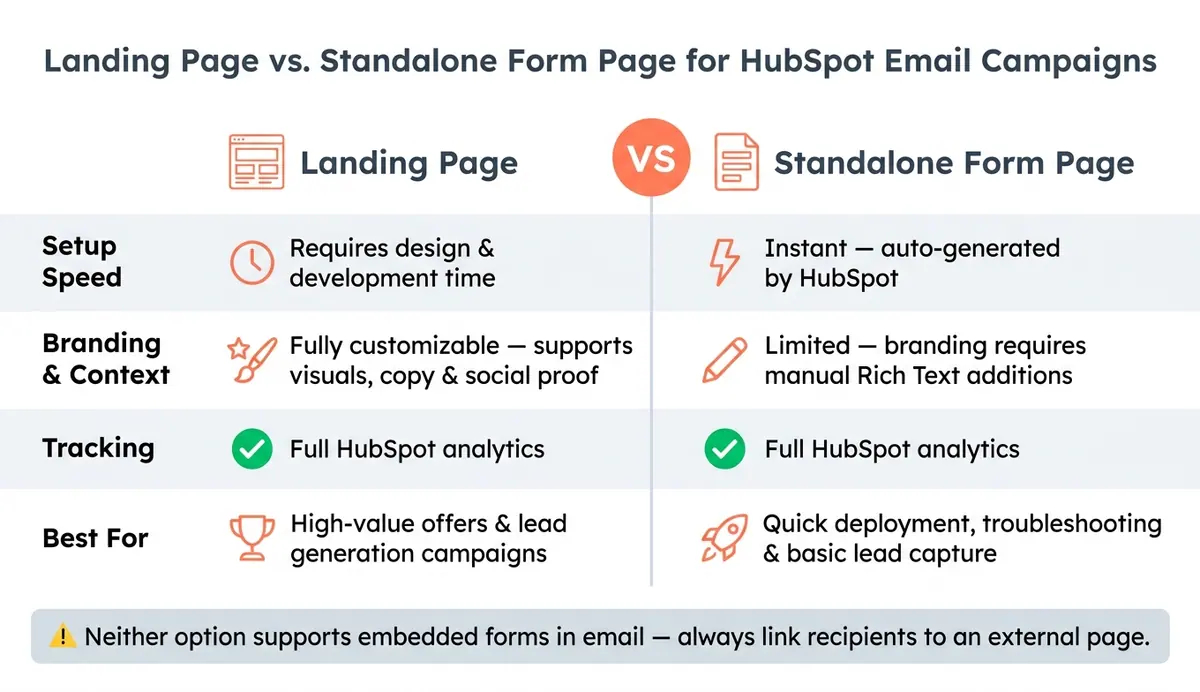
HubSpot Forms in Emails: Landing Page vs. Standalone Form Page
Embedding forms in emails often comes with technical challenges, but there are other ways to achieve reliable data capture and improve conversions. Below are some effective alternatives to consider for your email-to-form campaigns.
Linking to Landing Pages
One of the most reliable methods is linking recipients to a dedicated landing page that hosts your HubSpot form. A landing page allows you to include additional context - like supporting text, visuals, or testimonials - so visitors fully understand what they’re signing up for before completing the form. This added clarity often boosts conversion rates.
Here’s a tip: always link directly to the final destination URL rather than reusing a link from a previously sent email. Old tracked links can accumulate query parameters, which may make the URL too long to function properly. If your landing page uses a redirect, ensure the "Match the query string" option is disabled. This prevents issues when HubSpot appends tracking parameters like hsenc and _hsmi.
Using Standalone Form Pages
When creating a full landing page isn’t feasible, standalone form pages are a great alternative. HubSpot automatically generates a standalone form page for every form, giving you a simple, distraction-free URL to share immediately.
While these pages don’t have full branding by default, you can enhance them by adding Rich Text elements like your logo and a brief description of the form.
"If you're not creating a landing page and would prefer the stand alone form... add rich text to the top of your form. Here you can add your brand logo and copy that describes the form." - Dan Moyle, Principal Onboarding Specialist, Accelant
Standalone pages also make troubleshooting easier. If the form works correctly on its standalone URL but not on your website, the issue is likely caused by a conflicting script or stylesheet on the hosting page - not the form itself.
| Landing Page | Standalone Form Page | |
|---|---|---|
| Setup Speed | Requires design and development time | Instant; auto-generated by HubSpot |
| Branding & Context | Fully customizable; supports visuals and social proof | Limited; branding requires manual Rich Text additions |
| Tracking | Full HubSpot analytics | Full HubSpot analytics |
| Best For | High-value offers and lead generation campaigns | Quick deployment, troubleshooting, and basic lead capture |
Creating Branded Forms with Reform
For a polished, high-performing form experience, consider using Reform. This no-code form builder allows you to create multi-step forms, conditional routing, and enriched lead capture - all while addressing the rendering, tracking, and branding issues that embedded forms often encounter.
Reform excels in user experience. Multi-step forms with progress indicators make the process feel less overwhelming, which often leads to higher completion rates compared to long, single-page forms. Additionally, Reform’s real-time analytics and abandoned submission tracking give you valuable insights into where users drop off - something basic embedded forms can’t provide.
Reform integrates seamlessly with CRM and marketing automation workflows, ensuring that submissions are automatically routed to the right place. Its Pro plan, priced at $35/month, includes HubSpot integration, custom CSS, incomplete response tracking, and team access. This makes it an excellent choice for marketing teams that need reliable, branded forms for ongoing email campaigns.
Conclusion: Key Takeaways for Email-to-Form Campaigns
Embedding HubSpot forms directly into emails isn't an option, as email clients block them for security reasons. There’s no workaround for this limitation, but the solution is simple: include a CTA or a direct link that takes recipients to a landing page or a standalone form page where the form works as intended.
To recap some key technical hurdles: issues often arise from settings that are easy to adjust. For instance, progressive field logic can unintentionally hide required fields, tracking codes might fail if the domain isn’t allowlisted, and forgetting to include the default Email field can prevent contact creation.
When troubleshooting, the standalone form URL is your go-to tool. If the form works on its own but fails on your website, it’s likely due to a script conflict on the external page - not an issue with the form itself. Testing in an incognito browser window can also help avoid misleading results caused by existing tracking cookies. By combining thorough testing with smart tool choices, you can simplify the email-to-form process.
For a smoother user experience, test your forms extensively. Tools like Reform can help you refine multi-step flows, monitor drop-offs in real time, and create a polished design - all without requiring extra development work.
Ultimately, successful email-to-form campaigns depend on ensuring a smooth and reliable transition from your email to a fully functional form page.
FAQs
What’s the best CTA to use instead of an embedded form?
The most effective call-to-action (CTA) to replace an embedded form in emails is a link that directs recipients to a landing page or a dedicated form. This approach works better because forms are generally unsupported in emails due to security restrictions and compatibility issues across different email clients.
How can I ensure HubSpot links form submissions to the correct contact?
To make sure submissions are tied to the right contact, ensure the form is configured to either update or create contact records. A cookie needs to be present at the time of submission to link it to an existing contact. You can also improve accuracy by adding a query parameter, such as ?email=emailaddress, to the form URL. This automatically fills in the email field. Correct cookie settings and form setup are crucial for accurate attribution.
Why do HubSpot form fields disappear for some visitors?
HubSpot form fields might vanish for several reasons, including:
- Embedding Errors: If the form isn't embedded correctly, it might not display as intended.
- Browser or Extension Conflicts: Certain browsers or extensions can interfere with how forms load.
- VPN Usage: A VPN can sometimes disrupt form functionality.
- Custom Code Issues: Errors in custom code can prevent forms from loading fully.
To tackle these issues, double-check the embedding process, try loading the form in different browsers, temporarily disable browser extensions, or carefully review any custom code for mistakes.
Related Blog Posts
Get new content delivered straight to your inbox

The Response
Updates on the Reform platform, insights on optimizing conversion rates, and tips to craft forms that convert.




Drive real results with form optimizations
Tested across hundreds of experiments, our strategies deliver a 215% lift in qualified leads for B2B and SaaS companies.
