
.webp)
HubSpot Form Automation for Lead Routing



HubSpot's form automation simplifies lead routing by automatically assigning leads to the appropriate sales reps or teams based on specific criteria like location, company size, or product interest. This process eliminates manual sorting, reduces errors, and ensures faster response times - conversion rates can be 8x higher when reps respond within five minutes. Proper routing also matches leads with the right expertise, balances team workloads, and prevents missed opportunities.
Using HubSpot workflows, businesses can automate this process with If/Then logic, segment leads, and assign them using round-robin or direct methods. Key steps include setting up contact-based workflows, configuring form triggers, and testing before going live. For advanced needs, strategies like modular workflows, weighted lead distribution, and SLA-based rerouting help manage complex setups.
Key Takeaways:
- Faster response times: Automated workflows cut delays by up to 90%.
- Improved accuracy: Leads are matched with the right reps based on expertise.
- Scalable processes: Advanced workflows handle multi-product or regional setups.
- Higher conversions: Companies like Espresso Translations saw a 23% boost by slashing response times.
Switching to automated routing ensures leads are handled efficiently, giving your sales team more time to focus on closing deals.
Route Leads to Sales Reps with HubSpot Workflows

sbb-itb-5f36581
How to Set Up Workflows for HubSpot Form Automation
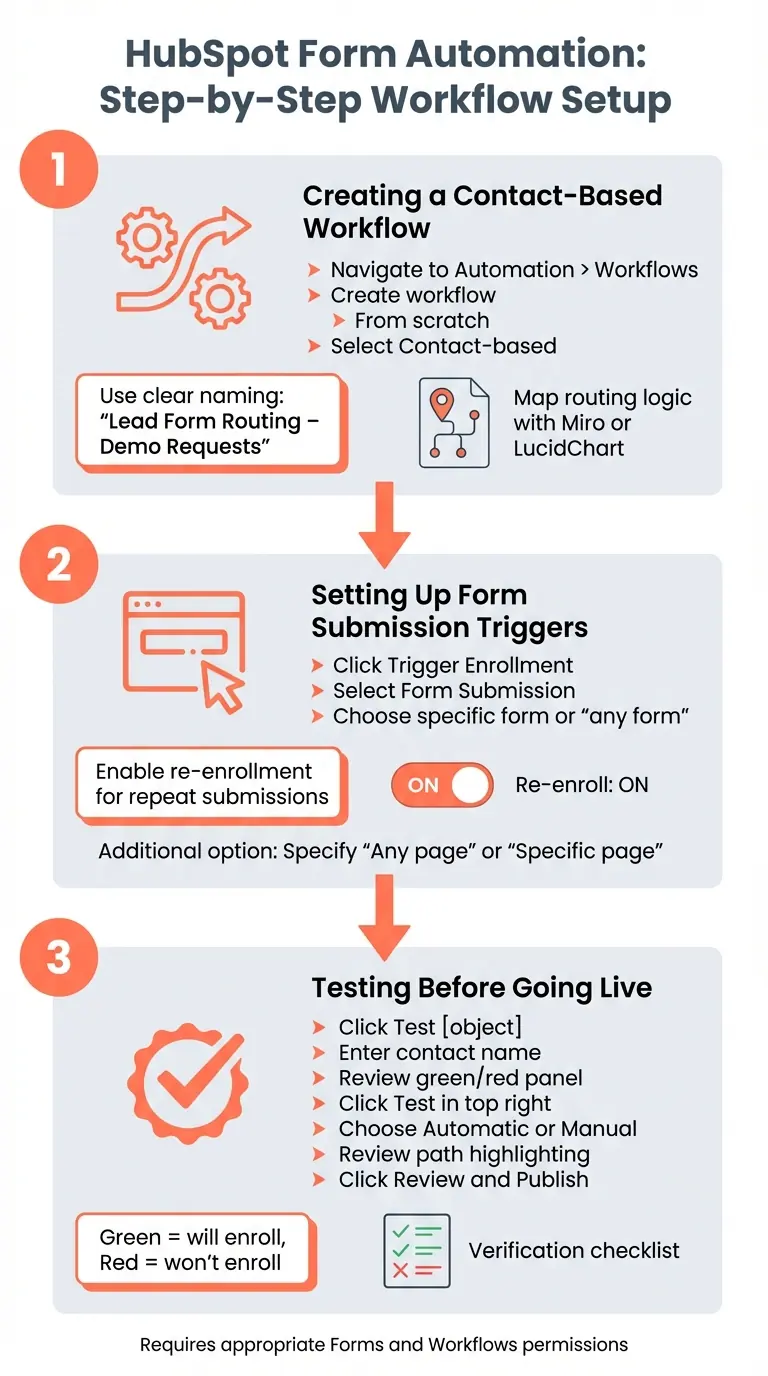
HubSpot Form Automation Lead Routing Setup Process
Creating a Contact-Based Workflow
To get started, head over to your HubSpot dashboard and go to Automation > Workflows. Select Create workflow and choose From scratch. When prompted, pick the Contact-based option - this is key for managing leads who submit forms.
Make sure to give your workflow a clear, descriptive name like "Lead Form Routing – Demo Requests" or "Contact Us Form – Sales Assignment." A good naming system helps your team quickly identify and manage workflows. Michael Dabrowski from Michael Strategy emphasizes:
"The better organized your contact capture and user management process is, the better the routing and assignment process will be."
To save yourself time in the long run, consider documenting your routing logic with a tool like Miro or LucidChart. Map out how leads should flow based on criteria such as company size, territory, or product interest. This planning step reduces the need for future adjustments or rebuilding workflow branches.
Once your workflow is named and mapped, set up your form submission triggers to activate it automatically.
Setting Up Form Submission Triggers
In the workflow editor, click on Trigger Enrollment and select Form Submission under the Websites & Media category. You can either set the workflow to trigger for any form submission or narrow it down to a specific form, like "Request a Demo" or "Contact Sales."
Don’t forget to enable re-enrollment. By default, contacts only enroll once. If a lead fills out the form multiple times, they won’t re-enter the workflow unless you turn on the Re-enroll option. This ensures repeat submissions are captured and processed.
You can further refine your triggers by specifying if the form was submitted on "Any page" or a "Specific page." This is a helpful way to segment leads based on their intent. Keep in mind, you’ll need the appropriate permissions to access and edit "Forms" and "Workflows." Without these, the form submission trigger won’t show up in your menu.
Once your triggers are configured, test the workflow to ensure it’s working as intended. If you haven't built your form yet, using a lead gen multi-step template can help ensure you're capturing the right data for these triggers.
Testing Your Workflow Before Going Live
Before activating your workflow, take advantage of HubSpot's testing tools to confirm everything is functioning properly. Start by navigating to the Enrollment triggers box and selecting Test [object]. Enter a specific contact’s name to see if they meet the enrollment criteria. A green panel means they’ll enroll, while a red one indicates they won’t.
For a more thorough test, click Test in the top right corner of the workflow editor. Choose a contact and select either Automatic for trigger-based enrollment or Manual for direct testing. HubSpot will visually highlight the contact’s path in green, showing exactly where they’ll go in the workflow. If you’ve set up branching logic, use the dropdown menu to preview alternative paths.
Once testing is complete, click Review and Publish to finalize the workflow. To double-check, use the contact list to verify that enrollment criteria are being met. You can also use the Send preview option to confirm email formatting and personalization tokens are working correctly.
Using Conditional Logic to Route Leads
Fine-tuning your workflows with conditional logic ensures leads are segmented accurately and routed to the right representatives.
How to Use If/Then Branches for Lead Segmentation
After a form submission triggers your workflow, the next step is to segment leads based on specific criteria. In the workflow editor, you can add an if/then branch to define the paths for routing. Use AND/OR logic to set the conditions for each branch.
To ensure smooth data processing, insert a short delay after the trigger. A 5-minute delay typically works for syncing basic data, but if your logic depends on analytics (like page views), extend the delay to 80 minutes for updated information.
Now, segment the leads based on relevant factors such as company size, location, or product interest. For example, in June 2023, RevenueHero demonstrated a setup where leads were first qualified by checking if their "Employee size" exceeded 50. From there, a second branch segmented leads by region: North American leads were assigned to AE John Stewart, UK leads went to AE Martha Wayne, and any remaining leads were routed to a general representative, Matt Banner.
Keep in mind that HubSpot processes branches in sequence. Once a lead matches the criteria for a branch, it follows that path and skips the rest. Each branch can include up to 20 conditions, and leads that don’t match any criteria are sent down the "None met" path. This structured segmentation lays the groundwork for creating effective routing logic.
How to Structure Conditional Logic Effectively
Start by prioritizing your most important criteria. Since leads exit the workflow as soon as they meet a branch’s conditions, placing high-value criteria like "Enterprise" company size before "Small Business" ensures your top prospects are routed to the right team.
If your multi-step forms use multi-checkbox properties, apply "is any of" logic to avoid misrouting. Also, include all properties referenced in your branch conditions within the workflow’s enrollment trigger. This ensures leads only enter the workflow once all necessary data is available.
After building your branches, use the "Clean up" tool in the workflow editor. This feature provides automated suggestions to streamline your setup without altering its functionality.
How to Assign Leads to Sales Teams
Once your leads are qualified and segmented, the next step is making sure they’re assigned to your sales teams in a way that maximizes efficiency. HubSpot provides two main methods for lead assignment: round-robin assignment and direct assignment. Each method caters to different team setups and business needs.
Round-Robin vs. Direct Assignment: Which to Use
With round-robin assignment, the "Rotate record to owner" action ensures leads are evenly distributed across your sales team. This method is ideal for managing high volumes of inbound leads and maintaining fairness among team members. On the other hand, direct assignment relies on the "Set property value" action to match leads with specific team members based on criteria like geography or expertise.
"The reason why we use sales teams and not specific people is if over time your sales team changes... you can just add the folks to your sales team instead of having to go through every single workflow."
– Good Team, HubSpot Certified Solution Partner
Key Note: Round-robin assignment requires a Sales Hub or Service Hub subscription at the Professional or Enterprise level. When setting up rotation logic, it’s smarter to assign leads to Teams rather than individual users. This makes it easier to adjust team members without having to tweak multiple workflows.
Before implementing round-robin, double-check that no "Contact Owner" is already assigned to a lead. This avoids disrupting existing relationships.
| Feature | Round-Robin Assignment | Direct Assignment |
|---|---|---|
| HubSpot Action | Rotate record to owner | Set property value (Contact owner) |
| Best For | High-volume leads; fair distribution | High-value leads; specific territories or expertise |
| Pros | Automates distribution; ensures equal opportunity | Matches leads with the most qualified rep |
| Cons | Doesn’t factor in workload or availability | Can cause delays if the assigned rep is unavailable |
Once leads are assigned, it’s crucial to set up notifications and follow-up tasks to ensure your team acts quickly.
Setting Up Notifications and Follow-Up Tasks
After assigning leads, the next step is to make sure your team knows about them immediately. Set up internal email notifications and create follow-up tasks to encourage a swift response.
"Speed-to-lead wins deals. Routing leads instantly improves conversion by reducing time-to-contact."
– Bastien Paul, Lead Management Expert
Customize notification emails to include essential lead details like the company name, form responses, and submission time. For follow-up tasks, assign a "Today" due date to encourage immediate action. Michael Dabrowski from Michael Strategy highlights the risks of poor lead routing by pointing out that ignoring just two qualified leads per weekday, each worth $2,500 in potential contracts, could result in over $1.3M in lost pipeline annually.
For leads that go cold, you can set up a time-based workflow to monitor inactivity. If no action is taken within 24 hours, use the "Rotate record" action with "Overwrite existing owner" enabled to reassign the lead to another team member. This keeps your pipeline moving and ensures no opportunities slip through the cracks.
Advanced Lead Routing Strategies
Once you've nailed down the basics of segmentation and assignment, it's time to dive into more advanced strategies. These approaches are essential for organizations with complex setups, like multi-product companies, regional sales teams, or intricate service lines. As your business grows, simple routing rules might not be enough to keep things running smoothly. Advanced workflows can help strike the right balance between specialization and fair lead distribution.
Managing Workflows for Multi-Product Organizations
Instead of relying on one massive workflow, break it down into smaller, modular workflows tailored to each product or lead type. For instance, you could create separate workflows for Product A leads, partner referrals, and enterprise-level requests. This modular approach simplifies troubleshooting and ensures that a single broken rule doesn’t disrupt the entire system.
A layered routing hierarchy can help refine the process further. Start with geography, then narrow it down based on product interest, and finally consider account ownership. Behavioral signals - like visiting specific demo pages or using certain trial features - can help route leads to reps with the right expertise. Using multi-step form design can further capture these signals by asking qualifying questions upfront. For organizations handling up to 250 product values, HubSpot’s "Value equals" branches are effective. For more complex segmentation, use "AND/OR" logic branches.
"In cases where various products focus on the same audience, leads tend to fall in a grey space. This generates disagreements among reps and slows down the response mechanisms."
– Caleb Johnstone, SEO Director, Paperstack
Another key step is checking if a lead’s company domain already exists in your CRM. If it does, assign the lead to the current account owner to avoid fragmented communication. Additionally, create a custom “Routing History” property and use the “Append to property” action to track every reassignment. This is especially useful since HubSpot doesn’t offer a native routing log.
Balancing Lead Distribution Across Teams
While modular workflows are great for product-specific routing, balancing lead distribution ensures your teams perform at their best. Keep in mind, fair distribution doesn’t always mean equal distribution. Weighted round-robin rotations allow you to assign more leads to senior reps or those with higher quotas, while gradually ramping up newer team members. For global teams, consider "follow-the-sun" routing, where leads are sent to reps working within their active business hours.
Espresso Translations offers a great example of how effective lead routing can transform performance. In late 2025, led by Director Nicola Leiper, the company automated lead routing for enterprise customers across regions like London and Sweden. By eliminating manual assignments and "cherry-picking", they slashed response times from 4.2 hours to just 37 minutes within a quarter. This change led to a 23% jump in conversion rates.
"I suggest targeting based on client lifetime value potential, rather than initial project size. Often we find that the smallest of pharmaceutical translation inquiries have a tendency to blossom into six-figure regulatory compliance contracts."
– Nicola Leiper, Director and Head of Project Management, Espresso Translations
For more complex or high-value deals, a hybrid approach works well. Start with automation for initial routing, but include a manual review step by a sales manager. This ensures leads are matched with the best possible rep for the job.
Conclusion
Switching to automated lead routing in HubSpot transforms the manual assignment process into a scalable, always-on system. The advantages are clear: faster response times and shorter routing delays can significantly boost conversion rates. Consider this - ignoring just two qualified leads per weekday, each valued at $2,500, could result in over $1.3 million in lost opportunities annually.
With solid workflows, segmentation, and assignment methods in place, the next step is refining your approach. Use contact-based workflows triggered by forms, incorporate If/Then branching for precise segmentation, and select round-robin or direct assignment to distribute leads effectively. As your needs grow, advanced tactics like capacity-based routing, account matching, and SLA-based rerouting can help manage more complex scenarios.
"Automated routing ensures that the right lead is automatically transferred to the right team without an opportunity for human bias and without wasting time with manual reassignment."
– Caspar Matthews, Director, Electcomm Group Electrical & Data
Before rolling out workflows, test them thoroughly and review logs quarterly to identify and resolve bottlenecks. Even small gains in speed-to-lead can have a huge impact - responding within two hours could mean landing a $50,000 contract instead of losing it to a competitor.
Start with a straightforward setup, track your results, and make adjustments over time. By automating form triggers and applying conditional routing, HubSpot helps your sales team focus on what matters most: closing deals. Leads receive the fast, attention tailored to their intent they expect, while your team spends less time on admin work and more time driving results.
FAQs
Which HubSpot plan do I need for round-robin lead assignment?
To access round-robin lead assignment, you'll need at least the HubSpot Sales Hub Professional plan. This feature is part of the professional tier and allows for automated and fair lead distribution across your team.
How do I prevent leads from being misrouted when form fields are blank?
Blank form fields can lead to misrouted leads, creating inefficiencies in your sales or marketing process. To tackle this, consider these strategies:
- Set up routing rules for incomplete data: If critical fields like lead source are left blank, establish rules to assign these leads to a generic team or default owner.
- Require essential fields: Make key fields mandatory on your forms to minimize blank submissions right from the start.
- Use workflows to catch missing data: Automated workflows can identify leads with incomplete information. These workflows can either assign a default owner or flag the lead for manual review.
By implementing these measures, you can ensure that leads are directed appropriately, even when some data is missing.
How can I reroute a lead if the assigned rep doesn’t follow up fast enough?
To ensure leads are promptly followed up on, you can use HubSpot workflows to automate lead reassignment. Set up rules that track response times or activity levels. If a delay is detected, the workflow can automatically reassign the lead to another representative or team. This keeps the follow-up process smooth and prevents any leads from slipping through the cracks.
Related Blog Posts
Get new content delivered straight to your inbox

The Response
Updates on the Reform platform, insights on optimizing conversion rates, and tips to craft forms that convert.




Drive real results with form optimizations
Tested across hundreds of experiments, our strategies deliver a 215% lift in qualified leads for B2B and SaaS companies.
