

HubSpot Regional Routing: 7 Setup Examples


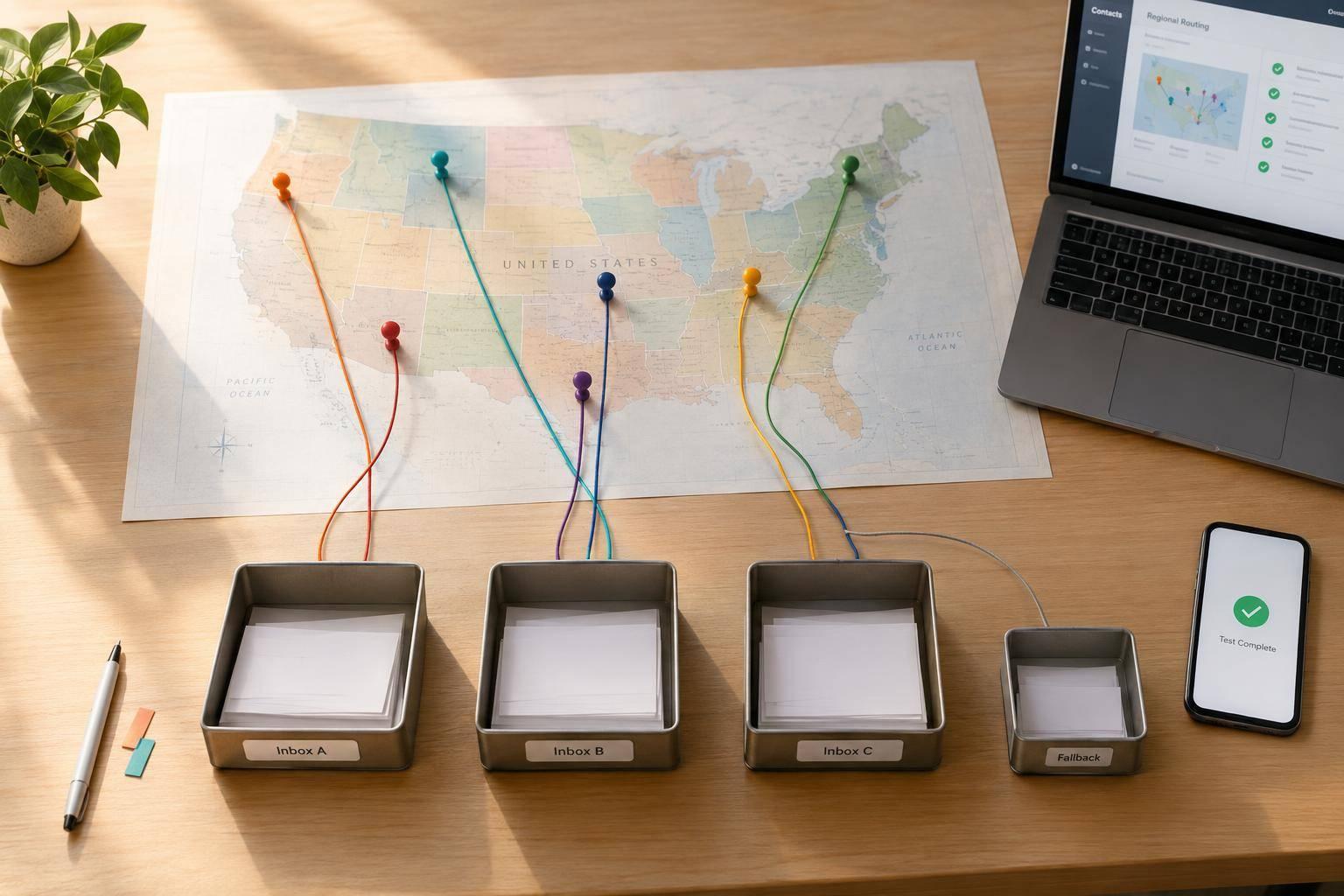
To route leads by location in HubSpot, I start with clean location properties, owner-assignment rules, and a named fallback owner. My default: keep the current owner unless an approved rule calls for a change.
This guide covers 7 routing setups:
- Country: Assign leads by market.
- U.S. state: Split coverage across 50 states, DC, and five U.S. territories.
- City: Match country, state, and city together.
- ZIP code: Use text fields to preserve leading zeros, such as
02108. - State plus industry: Add industry and company-size rules.
- Form source plus region: Route by form or campaign, then location.
- Regional round-robin with fallbacks: Share leads among eligible owners and send unmatched records to review.
I’ll also cover field mapping, workflow access, owner protection, live-form testing, and territory upkeep. The goal is correct assignment, not more branches: <u>test every routing path before turning it on</u>, including missing data and unavailable owners.

HubSpot Regional Lead Routing: From Form to Owner
Set Up Automated Lead Routing in HubSpot Based on Territory (Step-by-Step)
sbb-itb-5f36581
Set Up Routing Rules in HubSpot
Once your location fields are mapped, use them to build routing rules in HubSpot. Workflows require Professional or Enterprise access, plus workflow edit/publish permissions. Rotate record to owner also requires Sales Hub or Service Hub Professional or Enterprise, with active users who hold eligible paid seats.
Create a contact-based workflow for multi-step form submissions. Route contacts using mapped location properties, not raw form fields, and branch on exact matches rather than “contains” rules. If location data arrives later, enroll contacts when the property updates. Turn on re-enrollment only when a corrected value should trigger a new assignment.
Document territory coverage, owner pools, backup owners, and effective dates. Coverage determines which owners qualify for each branch. Before assigning a contact, add a Contact owner is unknown check to protect existing relationships. Handle territory-based reassignment separately, with clear exceptions for open opportunities and key accounts.
Within each matched branch, use Edit record to set Contact owner to a specific user, or Rotate record to owner to distribute contacts among an approved pool. Assign an owner - not a territory label or team. HubSpot sets the record’s team from the owner’s primary team, not the other way around.
Send blank, invalid, or uncovered locations to the unmatched branch. Define what happens when an assignment fails or an owner isn’t eligible. Use custom code only when native branches can’t handle the logic. These rules drive the country, state, city, and ZIP examples below.
Map Form Fields to Location Properties
Before workflow branches can route records correctly, your form needs to send clean location data to the right properties.
Choose one routing address - Business, Mailing, or Residence - before mapping fields. Use that label consistently in the property description. HubSpot’s contact location properties refer to the person’s residence, while company properties refer to the organization’s location. If business and personal addresses differ, create separate custom business-location properties rather than mixing the two. HubSpot’s Country/Region Code property supports two-letter country codes.
Map each question to the contact’s or company’s Country/Region, State/Region, City, and Postal code properties. Use controlled country and state choices to keep values consistent. Then stick to one agreed format - full names like California or USPS abbreviations like CA - across workflow branches and territory tables. Add an Other, Unknown, or Not listed option so unmatched records go to fallback logic.
For U.S. routing, match State/Region and City together; city-only rules leave too much room for confusion. Store ZIP codes as text to preserve leading zeros and ZIP+4, and send incomplete or malformed values for review. Normalize location values in the workflow rather than relying on automatic formatting alone.
If Reform powers your form, check the HubSpot object mapping before publishing and use property-based enrollment in HubSpot workflows. Test repeat submissions with the same email to make sure later location updates don’t overwrite the routing basis. These mappings feed the country, state, city, and ZIP rules below.
1. Route Leads by Country
Form Fields and Property Mapping
Collect Country, email, company name, and required consent fields using multi-step form design to improve completion rates. Map Country to a single standardized contact property with controlled values, such as United States, Canada, United Kingdom, and Australia.
Enrollment and Branch Logic
Country routing is the broadest regional rule. Enroll contacts only when Country is known and the submission qualifies for routing. Branch on exact country values, and send blank fields and unsupported countries to fallback.
Contact Owner Assignment
Assign one owner per country or rotate leads among an approved pool of owners for that country. If a record already has an active owner or an open opportunity, route it to the current account team.
Routing Errors and Safeguards
Normalize aliases like US and USA to United States before branching. Use the same structure for state, city, and ZIP routing, with stricter match criteria as the geography gets more specific.
2. Route Leads by U.S. State
Form Fields and Property Mapping
Show a required State/Region dropdown when Country/Region is United States. Map it to HubSpot’s State/Region property, and use one stored format across workflow branches. The workflow and territory table must use the same stored values.
Enrollment and Branch Logic
After confirming the country, route leads by state. Enroll eligible form submissions, then check Country/Region = United States before matching states. Use the coverage map below for all 50 states, DC, and five U.S. territories. Each group has an owner pool and a fallback owner.
| State group | Stored values | Assigned pool | Fallback owner |
|---|---|---|---|
| Northeast | CT, ME, MA, NH, RI, VT, NJ, NY, PA | Northeast SDRs | Northeast manager |
| South | DE, FL, GA, MD, NC, SC, VA, WV, DC | Southeast/Mid-Atlantic SDRs | East regional manager |
| Midwest | IL, IN, IA, KS, MI, MN, MO, NE, ND, OH, SD, WI | Midwest SDRs | Central regional manager |
| South Central | AL, AR, KY, LA, MS, OK, TN, TX | South Central SDRs | South regional manager |
| Mountain | AZ, CO, ID, MT, NV, NM, UT, WY | Mountain SDRs | West regional manager |
| Pacific | AK, CA, HI, OR, WA | Pacific SDRs | West regional manager |
| U.S. territories | AS, GU, MP, PR, VI | Territories pool | Global routing owner |
| Unknown/invalid | Blank, unrecognized, or conflicting | Review queue | Revenue Operations owner |
Contact Owner Assignment
Use Rotate record to owner within each eligible pool. Set eligibility by role, territory, language, working hours, and active employment status. Remove unavailable users from the pool.
Routing Errors and Safeguards
If no eligible user is available, the record can remain unassigned. Add a fallback owner after the territory branch to handle this case.
Before activation, test DC, every territory, blank states, and invalid values. If your country dropdown lists territories separately, send those values to territory coverage instead of requiring them to pass the United States check. Record Assigned, Fallback, or Needs review in a Routing status property to keep exceptions visible.
3. Route Leads by City
When state-level routing is too broad, assign leads to city-level territories.
Form Fields and Property Mapping
Use standardized values for Country/Region, State/Region, and City.
For U.S. leads, use consistent values such as
United States,Oregon, andPortland.
Document each custom field’s internal name. Before activation, confirm that each field maps to the correct contact property. Use multi-step forms with dependent fields to limit city choices based on the selected state. Normalize free-text entries or send alternate values to review.
Enrollment and Branch Logic
Match country first, then state, then city, using the same country and state values as the prior rules. Send leads with missing location data to review. Never route by city alone: city names can repeat across states.
Contact Owner Assignment
Once city-matching rules are clear, assign owners based on territory coverage. Give an exclusive city territory one owner, or rotate leads among a shared local pool.
Define which suburbs, counties, ZIP codes, and metro areas each territory includes. Keep the current owner unless the territory map explicitly allows reassignment.
Routing Errors and Safeguards
Send blank, variant, or unmatched city values to review, and set Location Routing Status to Needs Review. Use an approved normalization list - don't guess which city an entry means.
Before activation, test a covered suburb, an alternate spelling, an unsupported city, and a contact that already has an owner.
4. Route Leads by ZIP Code
Form Fields and Property Mapping
Use ZIP routing when country, state, or city rules are too broad. It’s the most granular territory rule in these examples.
Map Business ZIP Code to a HubSpot single-line text property so leading zeroes stay intact. Accept ZIP or ZIP+4, validate the format with regex, and store the first five digits separately as ZIP5 for five-digit routing. Keep the raw ZIP in a separate audit property if troubleshooting or compliance requires it.
Enrollment and Branch Logic
Once ZIP data is mapped and validated, match it to a territory. Enroll records when a lead gen multi-step form is submitted or the location property changes. Check Country = United States before evaluating ZIP5, and send non-U.S. records to an international queue.
Match exact ZIPs or ZIP prefixes using string rules such as is equal to, is any of, or starts with. Don’t use numeric comparisons.
Example ZIP map:
ZIP input ZIP5 Territory label Owner or pool 0210802108Boston Core Northeast pool 02108-123402108Boston Core Northeast pool Blank Blank Unknown ZIP Qualification queue Unmapped ZIP Submitted five digits Unassigned Operations queue
Contact Owner Assignment
After setting ZIP Territory, assign the owner or pool. For a small map, branch on ZIP Territory and use Edit record to set Contact owner. For large ZIP maps, use a maintained lookup or custom-code action that returns the territory, routing status, and assigned owner or pool.
Keep effective dates, backup owners, and active/inactive status in the map. A pool label is not an owner.
Routing Errors and Safeguards
Format validation checks the pattern - not whether the ZIP exists. Set Routing Exception status and send records to a manual-review queue for invalid input, missing coverage, stale mappings, inactive owners, unsupported countries, or lookup failures.
Before activation, test:
- A leading-zero ZIP:
02108- A valid ZIP+4:
02108-1234- An invalid value:
0210- A blank ZIP
- A non-U.S. record
- An unmapped ZIP
- A ZIP whose owner is inactive
For each test, verify the submitted value, normalized ZIP5, country check, territory label, assigned owner, and exception status.
5. Route Leads by State and Industry
Use this setup when state-based routing needs a second filter for account tier or industry.
Form Fields and Property Mapping
Map State, Industry, and Company size to controlled HubSpot properties. Use consistent U.S. postal abbreviations, such as CA, and one standard industry label, such as Technology rather than Tech.
For this example, define Enterprise as 500 or more employees, Mid-market as 100–499, and Small business as fewer than 100.
Normalize Company name and match it to an approved account list. Don’t infer employee count from the name. If the form data conflicts with the company record, use the verified company record for routing.
Enrollment and Branch Logic
Enroll contacts when they submit the relevant form and the routing fields are populated or updated. Check whether the associated company already has an owner, then send incomplete or invalid records to a review queue.
Order branches from most specific to broadest, and stop at the first match.
Hypothetical routing order:
Priority Conditions Destination 1 CA AND Technology AND 500 or more employees California enterprise technology pool 2 CA AND Technology California technology pool 3 CA California regional pool 4 Technology Broader technology pool 5 All other valid records General qualification queue
Contact Owner Assignment
Keep the existing company owner. If there isn’t one, route by territory first, then by industry specialist. Use Rotate record to owner to distribute contacts among the specified specialist users. Keep owner overwriting disabled unless you intend to reassign the contact.
Routing Errors and Safeguards
Before launch, test the 499-to-500 employee boundary. A California technology lead should move from the California technology pool to the California enterprise technology pool at 500 employees.
Send records with blank or malformed state, industry, or company size fields to a review queue - not a standard route. Also check duplicate company matches, re-enrollment behavior, and routing-field changes after the initial assignment.
Allow reassignment only after approved routing-field changes, and maintain a backup owner for specialist coverage.
6. Route Leads by Form Source and Region
Form Fields and Property Mapping
Use this setup when leads in the same region need different owners based on campaign, form, or product interest. Create a controlled Form source dropdown. Then map each form to its routing category using a hidden form-source value or a unique form ID. Don’t route leads with traffic-source fields: those track attribution, not assignment.
Enrollment and Branch Logic
Start with form source, then narrow by region. Enroll only submissions from the intended forms with matching form-source values. Avoid a generic has filled out any form condition - it can send the wrong contacts to sales.
Branch by form source, then country, state or territory, and product interest. Send submissions with mismatched form-source values to review.
Contact Owner Assignment
Within each region, assign a dedicated owner or owner pool when the source calls for partner coverage, product expertise, or an SLA. Otherwise, use Rotate record to owner with the regional pool.
Check customer status and open opportunities before assigning a lead. If a relationship owner already exists, notify them instead of replacing them.
Routing Errors and Safeguards
Keep source and region assignment in one workflow so ownership rules don’t conflict. Allow re-enrollment only after a new qualifying submission or a change to Form source.
Test repeat submissions from both unowned prospects and existing customers. Confirm that protected owners stay unchanged and no duplicate ownership actions occur. Log the form source, region, matched branch, and assignment result to check that source-based exceptions don’t disrupt regional assignment.
7. Set Up Regional Round-Robin and Fallback Rules
Use this setup when territory rules need a catch-all path for records with unmatched or incomplete location data.
Form Fields and Property Mapping
Keep only the fields needed for regional fallback: Country/Region, State/Region, City, ZIP/Postal Code, and Routing status. Store the original submitted values separately when you need them for audits or data cleanup. Use Needs regional review to make exceptions easy to find.
Enrollment and Branch Logic
Validate location data before branching. Send uncertain records to triage, valid matches to the regional rotation action, and unsupported territories to the global fallback owner.
Contact Owner Assignment
Use Rotate record to owner for the selected regional pool. Keep the current owner by default, and allow reassignment only through an approved transfer path. Leave inactive or ineligible users out of the pool.
Routing Errors and Safeguards
Send exceptions to a designated triage owner. Set Routing status to Needs regional review, add the contact to the Location Data Exceptions active list, and create a task that includes the failed field, submitted value, form name, and submission date.
Use the table to separate exceptions that must stay out of the regional pool from valid matches that can enter rotation.
| Routing condition | Expected action | Owner or triage destination | Monitoring check |
|---|---|---|---|
| Blank country or required state | Stop rotation; create a review task and exception-list entry | Designated triage owner | Missing-location count |
| Invalid ZIP format | Keep the submitted value; flag it for correction; stop regional assignment | Designated triage owner | Invalid ZIP rate by form |
| Country, state, or ZIP conflict | Hold regional assignment until the location is verified | Designated triage owner | Conflict list and workflow history |
| Unsupported territory | Use unsupported-market fallback | Global triage owner | Unsupported-location volume |
| No eligible regional users | Use the fallback owner and create a staffing alert | Fallback owner or triage owner | Empty-pool and workflow-error checks |
| Valid regional match | Rotate among eligible representatives | Regional owner pool | Assignment counts per rotation action |
Once the pool is live, track failures as routing exceptions, not normal assignments. Check workflow history, unassigned records, and pool membership on a regular schedule.
Test Form Data and Owner Assignments
Once routing rules are live, check the full path from submission to assignment. Test the live form, not just the workflow. Submit controlled test contacts, then trace each one through mapped location properties, workflow enrollment, branches, and owner fields - including fallback owners. Review submission, workflow, and property history. A thank-you page confirms submission, not correct routing.
Use a compact QA sheet to check every territory rule, including state-plus-industry and form-source rules. Test boundary values, invalid inputs, unsupported locations, and blank or malformed data. For each test, record the input, normalized value, expected and actual branches, expected and actual owners, timestamp, and pass/fail result.
Next, check rule priority. Submit records that match both a narrow rule and a broader one, then confirm that the intended rule still wins after delayed actions run. Review every enrolled workflow for later owner updates or routing property changes. Date and count filters can also affect enrollment.
Check reassignment and pool coverage, too. Resubmit the same email with and without an existing owner. On another submission, change the location and verify contact updates, re-enrollment, and compliance with your reassignment policy. Confirm that the rotation action targets the intended owner field and that its overwrite setting matches your policy. Test pool eligibility and fallback behavior when representatives are deactivated, removed, unavailable, or ineligible.
Run a controlled batch large enough to reach every eligible user in each regional pool. Compare owner values against the rotation action’s assignment history. Rotation distributes records within its configured pool; it does not balance total workload or availability. Save the test evidence, and rerun affected cases whenever you change fields, territory rules, pools, or competing workflows.
Maintain Territory Maps and Owner Pools
After launch, put routing changes through formal change control. Maintain one territory map as the source of truth, with one row per rule. Include the geographic condition, normalized value, routing owner, fallback owner, priority, effective date, and status. Assign one RevOps or CRM admin to approve edits and publish changes. Sales managers review proposals only.
Document rule precedence in the map: ZIP, city, state, country, then default queue. Record exceptions that override geography, such as strategic-account ownership, and define a review path for records with unclear routing.
Review owner pools monthly and after staffing changes to keep country, state, city, and ZIP rules accurate. Track each owner’s HubSpot user ID, territory, role, time zone, employment status, backup owner, and workload limit. Before publishing changes, recheck location lookup tables, form integration mappings, owner eligibility, and re-enrollment settings. For round-robin routing, document whether assignments rotate by named user or team and whether the rotation can overwrite an existing owner.
Keep a versioned change log that records the request date, requester, reason, affected territories and CRM objects, old and new rules, approver, implementation date, and validation result. Require a second reviewer for high-volume territories and fallback logic. Specify whether each change applies only to new records or also to existing records.
Use the territory map and change log to spot drift in live routing. Monitor unassigned contacts, fallback volume, incorrect-owner reports, and assignment time by region, form, source, and workflow version. Give sales reps a consistent correction reason field, and use recurring reports to fix routes rather than adding more exceptions. Alert operations when fallback volume exceeds baseline or assignment delays exceed the agreed target.
Conclusion: Start With Reliable Location Data
Once your workflow and field mapping are in place, start with the most reliable location field - usually Country/Region. HubSpot’s Country/Region, State/Region, City, and Postal Code properties support regional routing. Before adding branches, map clean form values to the intended properties.
Add only the routing layers your coverage model needs. Use the simplest rule that fits the territory: country, state, city, ZIP, or a combined rule when you need a second filter.
Before activation, keep the current owner unless the routing rule explicitly overrides it. Test every routing path, including missing and invalid locations, and assign a named fallback owner to unmatched records. Prioritize reliable inputs and tested fallbacks over another branch.
FAQs
How do I prevent conflicting routing workflows in HubSpot?
Put the most specific rules first and the broadest last - the first match takes precedence. Break large workflows into smaller ones, each with a clear purpose. Add a None Met or catch-all branch to route unmatched, missing, or conflicting submissions to a monitored review queue.
Audit rules regularly, test edge cases, and check HubSpot’s error icons and enrollment tabs for failed logic. Use Reform’s custom mapping and validation to help keep CRM data clean.
Can I route leads by location without requiring address fields?
Yes. You can route leads using visitor-provided ZIP codes or states, or tools that infer a lead’s location or time zone from their IP address. Map those inferred details to hidden fields to trigger routing workflows without adding form questions.
Set a fallback path for missing or unclear location data so no leads are lost.
How can I update territories without disrupting existing owners?
In HubSpot workflows, prioritize existing-account ownership and avoid overwriting owners. When editing a workflow, choose “Save and don’t enroll existing contacts” to prevent reprocessing.
Enable re-enrollment for form submissions and, if needed, region property changes. This lets routing use the latest country, state, and postal code. If you need to reassign owners later, use targeted overwrite logic - for example, when leads go cold - rather than letting the territory update trigger reassignment.
Related Blog Posts
Get new content delivered straight to your inbox

The Response
Updates on the Reform platform, insights on optimizing conversion rates, and tips to craft forms that convert.



Drive real results with form optimizations
Tested across hundreds of experiments, our strategies deliver a 215% lift in qualified leads for B2B and SaaS companies.
