
.webp)
ActiveCampaign Multi-Step Forms Setup



If you want clean ActiveCampaign records from a multi-step form, I’d do three things first: make email required early, create every custom field before mapping, and use tags to control automations and deal creation.
That’s the core setup. ActiveCampaign uses email as the main match key, so repeat submissions usually update the same contact instead of making a second one. And if I want deals to land in the right pipeline, I need the pipeline, stage, owner, fields, and tags set up before the form goes live.
Here’s the short version:
- I map name, email, and phone to standard contact fields
- I send budget, timeline, industry, and use case to custom fields
- I apply source tags and answer-based tags for routing
- I trigger automations from tag added, list subscribe, or field change
- I create deals right away for sales-ready forms, or later after qualification checks
- I keep drop-offs out of follow-up flows by tracking partial submissions
- I use one email field only to cut duplicate risk
A good setup is less about fancy form logic and more about clean mapping. One wrong email mapping can break deduplication. One missing custom field can stop data from syncing. And one loose automation trigger can send the wrong lead into your pipeline.
Bottom line: I’d treat the form, tags, fields, and deal flow as one system. If those parts line up, the CRM stays clean and follow-up starts fast.
| Area | What I’d focus on | Why it matters |
|---|---|---|
| Contact match | Required email on an early step | Helps update existing contacts |
| Field mapping | Standard vs. custom field split | Keeps reports and routing clean |
| Tags | Source + qualification tags | Starts the right automation |
| Deal setup | Pipeline, stage, owner | Sends leads to sales the right way |
| Partial responses | Track but don’t auto-route | Keeps incomplete entries out |
For teams using multi-step forms, that setup can mean the difference between 1 clean contact record and a messy CRM with missing fields, bad routing, or duplicate leads.
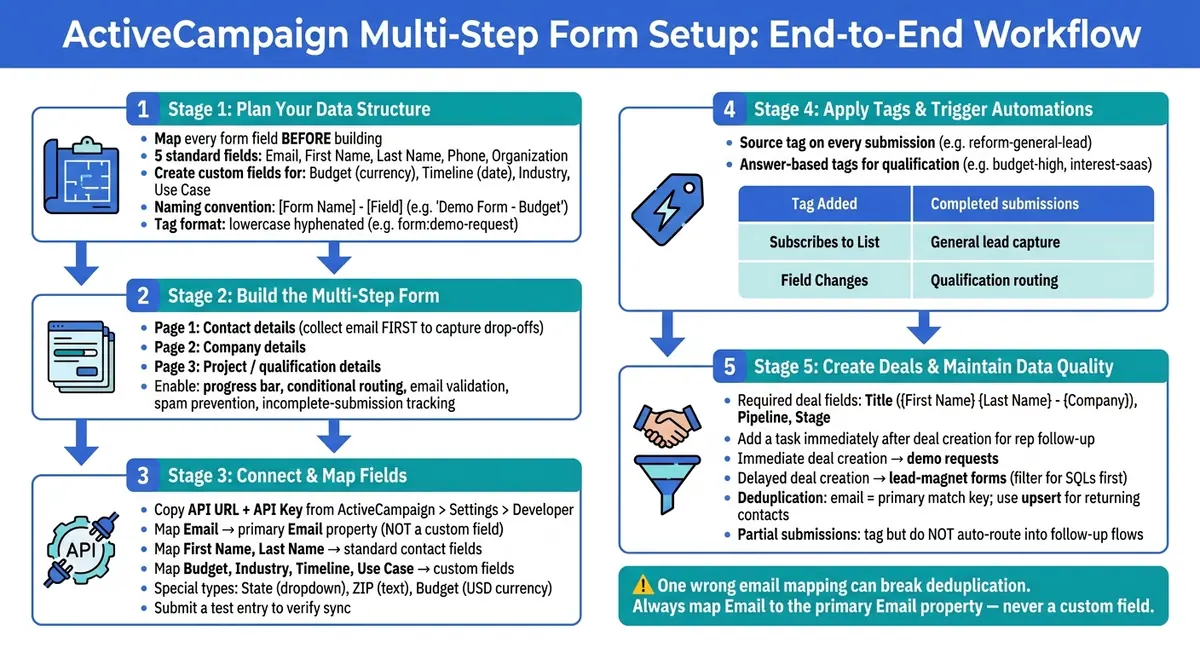
ActiveCampaign Multi-Step Form Setup: End-to-End Workflow
How To Use & Customize ActiveCampaign Forms (With Examples)
Plan your form data structure in ActiveCampaign
With the required fields locked in, map out each form step before you build anything. That part matters because if a field doesn't exist in ActiveCampaign, the form can't map to it.
Create standard and custom fields for each form step
ActiveCampaign comes with five built-in standard fields: Email, First Name, Last Name, Phone, and Organization. If you want to collect things like budget, company size, use case, or timeline, you'll need to create custom fields in ActiveCampaign first.
Match each field type to the way the question is asked. For example:
- Use a currency field for budget
- Use a date field for timeline
That keeps reporting clean and helps you avoid messy mixed data types in your CRM later.
If your form uses one Full Name field, split it into First Name and Last Name during mapping. ActiveCampaign stores those as separate fields.
Set naming rules for fields and tags
Use a clear naming pattern for fields and tags so every submission is easier to route, check, and automate. A simple format for custom fields is [Form Name] - [Field], like Demo Form - Budget. For tags, stick with lowercase hyphenated strings such as form:demo-request or form:pricing-inquiry.
That way, your automations are easier to read, and you can trace each submission back to the right form without digging around.
Standard fields vs. custom fields for lead data
Use standard fields for identity data and custom fields for qualification data. Standard fields are ready out of the box, so there's no setup. Custom fields take a bit more work up front, but they let you collect the exact lead details your sales or marketing team wants.
| Feature | Standard Fields | Custom Fields |
|---|---|---|
| Setup | None (pre-built) | Manual (must create in ActiveCampaign first) |
| Reporting | High for basic contact info | High for specific lead qualification |
| Flexibility | Low (fixed properties) | High (match any question format) |
| Best Use | Identity: Email, Name, Phone | Qualification: Budget, Industry, Use Case, Timeline |
With the field map set, the next move is building the multi-step flow and linking each step to ActiveCampaign.
Build the multi-step form and connect to ActiveCampaign
Once you’ve planned the fields, the next job is simple: build the pages and send each answer into ActiveCampaign.
Create the multi-step flow in Reform
Set up each step as a Reform Page. You can add Pages with the Add Page button below the form blocks and CTA.
Keep the flow in a sensible order:
- Contact details on page one
- Company details on page two
- Project or qualification details on page three
Put contact details first so you collect the email before people drop off. That one choice can save a lot of missed leads.
A few settings are worth turning on while you build:
- Enable a progress bar with labels like "Contact Info" and "Project Details".
- Use conditional routing to skip steps that don’t apply or send high-budget leads straight to scheduling.
- Turn on email validation, spam prevention, and incomplete-submission tracking.
Once the flow is in place, connect the form and map every field.
Connect Reform to ActiveCampaign and map fields
Copy the API URL and API Key from ActiveCampaign > Settings > Developer, then paste them into Reform.
After that, map your fields. Send Email, First Name, and Last Name to the standard contact fields. Send qualification answers to custom fields.
A few field types need a little extra care for U.S.-based forms:
- State - use a dropdown custom field with U.S. state abbreviations or full names.
- ZIP code - use a text custom field so leading zeros stay intact.
- Budget - use a USD currency field.
Email must map to ActiveCampaign's primary Email property - not a custom field. Email is the main deduplication key. If you map it anywhere else, the sync can fail or create contacts listed as "Unknown".
Before moving on, submit a test entry and check that the contact, fields, and tags show up in ActiveCampaign.
Apply tags on form submission
Once field mapping is done, add tags that can kick off automations right away.
Every submission should get a source tag that shows where the lead came from, such as reform-general-lead. Then add answer-based tags for key qualification responses. For example, if someone picks "SaaS" as their industry, apply interest-saas. If they choose a budget over $10,000, apply budget-high.
This setup does two jobs at once. The source tag helps identify the form source, and the answer tags help route people into the right automation right away while keeping segments easy to sort later.
Use tags for triggers and fast segmentation. Use custom fields for structured data and reporting.
Tags are fast. Custom fields are precise.
sbb-itb-5f36581
Trigger automations and create deals from form submissions
Use the tag to start the automation.
Choose the right automation trigger
Pick the trigger based on what the form submission actually does in your setup.
Use a tag trigger for completed submissions. Use a list trigger only when the contact is added to a list. Use a field update trigger when you want to route people based on qualification data.
Use "Subscribes to list" only if the integration adds the contact to a list. If it doesn't, add the contact to the list first.
| Trigger Type | Best Use Case |
|---|---|
| Tag is Added | Completed submissions |
| Subscribes to List | General lead capture and newsletter signups |
| Field Changes | Qualification routing or updated submissions |
If you need a tighter entry point, combine list and tag conditions.
Create deals with the right pipeline, stage, and owner
Once the trigger fires, create the deal and assign the follow-up.
Use the "Add a deal" action to move the contact into your sales pipeline. Three fields are required: deal title, Pipeline, and Stage.
A clear title helps reps move fast. Use something like {First Name} {Last Name} - {Company} so they can scan the pipeline at a glance. For deal fields that should pull in form data, use "Map from Source".
Right after "Add a deal", add an "Add a task" action. That way, the assigned rep gets a follow-up reminder as soon as the deal hits the pipeline.
Create deals right away vs. later in the automation
Choose when the deal should enter the pipeline.
If you want to wait, use a "Filter" or "Condition" step to check qualification data first. If the contact doesn't meet your rules, the automation skips deal creation and keeps that person out of the pipeline until they qualify.
| Immediate Deal Creation | Delayed Deal Creation | |
|---|---|---|
| Control | Low - every submission creates a record | High - only SQLs enter the pipeline |
| Data Completeness | May have empty fields if lead is fast-tracked | All required fields populated before creation |
| Pipeline Hygiene | Risk of clutter from unqualified entries | Clean pipeline focused on high-probability deals |
| Response Time | Instant - sales can reach out right away | Slower - automation logic processes first |
Create deals right away for demo requests. Delay deal creation for lead-magnet forms. That keeps incomplete submissions out of the pipeline.
Handle deduplication, partial submissions, and data quality
Use email as the primary deduplication key
After field mapping, set the rules for repeat submissions. ActiveCampaign matches contacts by email, so when someone submits the form again, the system updates the existing contact instead of making a duplicate.
Put the email field on the first or second step of your multi-step form. That way, the contact can be identified as soon as the form is submitted, even if the person doesn’t finish the full flow. Stick to one email field. In external syncs, use an upsert action so returning contacts are updated instead of duplicated.
Decide how to handle incomplete multi-step responses
Next, decide what should happen when someone drops off before the final submit. Most integrations send data only when the user clicks Submit. Use Reform's incomplete-response tracking to tag partial submissions and keep them out of automations that should run only after a full completion.
Conclusion: Build a clean handoff from form to CRM
Once duplicates and partials are handled, the handoff from form to CRM stays clean. The gap between a dependable ActiveCampaign setup and a messy one often comes down to a few early choices: which fields you create, where you collect email, which tags mark completion, and when deals are created.
Map email and custom fields with care, use tags on purpose, and create deals only when the data is ready. For most teams, email-only deduplication is enough. If contact counts start lagging behind submission counts, check the integration logs. A growing gap usually points to a sync or field-mapping issue.
FAQs
What if a custom field is missing in ActiveCampaign?
If a custom field is missing in ActiveCampaign, add it in your CRM account before you map your form data.
In your ActiveCampaign dashboard, go to Lists and select Manage Fields. From there, create the field you need.
Make sure the field type - like text or number - matches the kind of data you want to collect. Once the field is in place, it will show up in your form builder’s mapping settings.
Should every form submission create a deal?
No. Creating a deal for every submission can clog your pipeline and throw off sales reporting, especially when a lot of entries come from leads that aren’t a fit.
A better move is to use conditional logic. Create deals only for qualified prospects. Send everyone else to a nurture track or keep them as a simple contact record.
How do I track partial submissions without triggering automations?
Configure your form integration so data syncs only after the final submission. ActiveCampaign automations often start when someone joins a list or gets a tag, so keep those triggers on hold until the person finishes the last page.
If you're using Zapier, make sure the trigger fires on the final New Response event, not on partial page saves.
Related Blog Posts
Get new content delivered straight to your inbox

The Response
Updates on the Reform platform, insights on optimizing conversion rates, and tips to craft forms that convert.




Drive real results with form optimizations
Tested across hundreds of experiments, our strategies deliver a 215% lift in qualified leads for B2B and SaaS companies.
