
.webp)
10 Best Practices for Constant Contact Forms


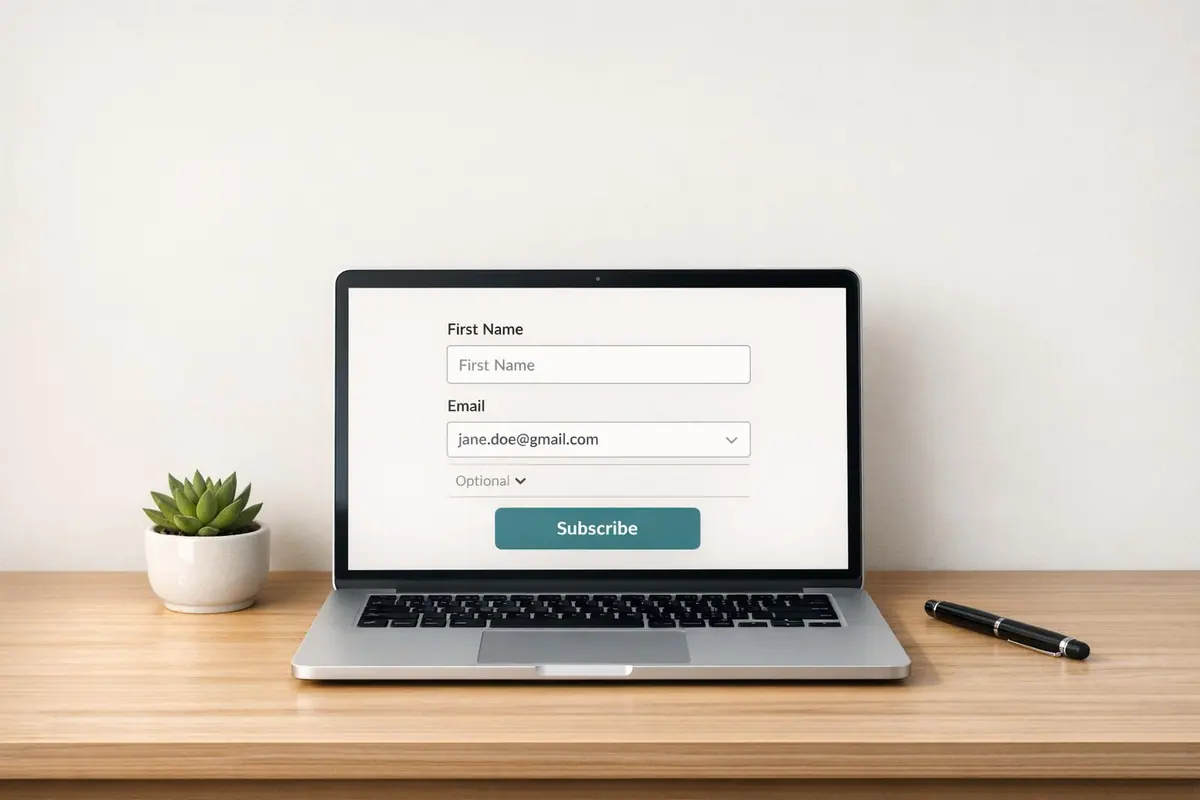
Forms are a key tool for generating leads, but only if they're easy to use and well-designed. This guide covers 10 practical tips to help you create forms that convert better, reduce friction, and integrate seamlessly with your Constant Contact account. Here's what you need to know:
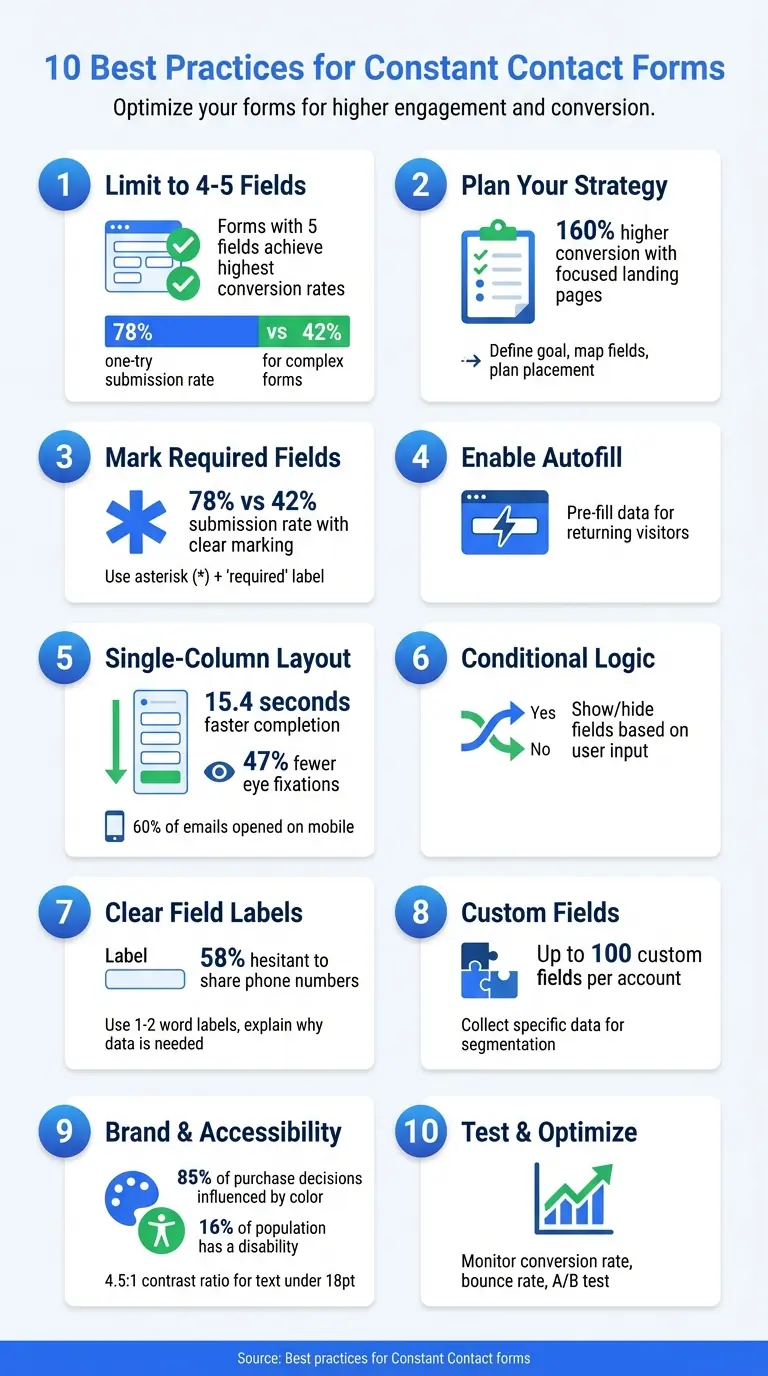
- Keep it short: Forms with 4-5 fields perform best, avoiding unnecessary questions.
- Plan ahead: Define your goal, map out fields, and decide on form placement.
- Mark required fields clearly: Use asterisks and avoid overwhelming users with mandatory inputs.
- Enable autofill: Make it easier for returning visitors by pre-filling fields.
- Stick to single-column layouts: Faster to complete and mobile-friendly.
- Use conditional logic: Show fields only when relevant based on user input.
- Write clear labels: Keep them short, descriptive, and easy to understand.
- Leverage custom fields: Collect specific data tailored to your needs.
- Match your brand: Use consistent colors, fonts, and accessible design.
- Test thoroughly: Check functionality, monitor performance, and adjust based on metrics.
10 Best Practices for High-Converting Constant Contact Forms
How to use Constant Contact | Constant Contact Tutorial 2026
This tutorial covers the basics, but for higher conversion rates, consider why multi-step forms beat static ones in modern marketing.
sbb-itb-5f36581
1. Limit Forms to Four or Five Fields
Studies show that forms with no more than five fields tend to achieve the best conversion rates. Adding more fields often leads to hesitation, as users start questioning if the extra effort is worthwhile.
Longer forms can feel overwhelming and may even come across as intrusive - especially when asking for sensitive details like phone numbers or addresses. This kind of overreach can erode trust, causing potential users to abandon the form altogether.
For most forms, such as newsletter signups or content downloads, sticking to the basics like name and email is usually enough. If you’re offering something particularly valuable, you might include a field for job title or company - but only ask for what’s absolutely necessary. As WPForms highlights:
The average web form length in 2019 was five form fields, which usually result in the highest conversion rates.
To gather more information, consider doing so later through follow-up emails. Techniques like progressive profiling let you collect details gradually, keeping users engaged over time without overwhelming them upfront. By aligning the number of fields with the value of your offer, you’re more likely to see higher completion rates.
Streamlining your forms is key to keeping users engaged and ensuring they follow through.
2. Plan Your Form Strategy Before You Build
Before diving into building your Constant Contact form, take a moment to define your lead generation goal. Are you aiming to grow your email list, qualify leads with gated content, or collect data for better segmentation? Each of these objectives calls for a different approach. For instance, a simple newsletter signup might only ask for an email address, while a whitepaper download form may require additional fields to qualify prospects more effectively.
Make sure to include a strong unique selling proposition (USP) that clearly outlines the benefit of signing up. Research shows that landing pages designed with a single, focused purpose convert 160% higher than other sign-up tools. This makes it crucial to communicate the value visitors will receive.
Once your goal and value proposition are clear, map out the technical details to avoid hiccups later. Decide which fields will connect to your CRM and plan the post-submission actions - whether it’s an immediate autoresponder, a nurture sequence, or a sales team notification. Laying this groundwork ensures your form not only captures leads but integrates seamlessly with your systems.
Next, think about the type of form and its placement. Pop-ups, fly-outs, banners, and inline forms all serve different purposes, depending on where visitors are in their journey. Aligning the form type with user behavior helps you capture interest at the right moment, improving your chances of conversion. A well-thought-out strategy doesn’t just boost sign-ups; it also ensures smooth integration with Constant Contact’s lead management tools.
As Constant Contact wisely points out:
By understanding where form traffic is coming from, you can focus on creating or bolstering content surrounding those areas.
3. Mark Required Fields and Allow Optional Ones
Making it clear which fields are required and which are optional is essential for improving form usability and completion rates. When users are left guessing, they often rely on trial and error, which can frustrate them and lead to abandoned forms. Research highlights this: forms that follow basic usability guidelines see a 78% one-try submission rate, while non-compliant forms only achieve 42%.
The best way to clarify required fields is by combining visual and textual cues. Use a standard asterisk (*) alongside the word "required" to mark mandatory fields. On the other hand, if your form includes just one or two optional fields, label those as (optional) instead of marking every other field as required. This keeps the form visually clean and makes it easier for users to focus on what they need to fill out.
Kathryn Whitenton, a UX Specialist at Nielsen Norman Group, emphasizes:
Eliminating unnecessary fields requires more time, but the reduced user effort and increased completion rates make it worthwhile.
Avoid making every field mandatory just to collect extra data. Users who value their privacy may abandon forms that ask for too much information upfront. For sensitive fields, like phone numbers, you can add a short explanation using a summary box (indicated with a question mark icon). This small step can build trust and reduce hesitation.
Additionally, platforms like Constant Contact suggest using placeholder text to provide examples and applying conditional logic to reveal extra fields only when they’re relevant based on previous answers. This approach keeps forms streamlined while still gathering the necessary information .
4. Add Autofill for Returning Visitors
Autofill is a powerful way to make forms easier and faster for returning visitors. By using stored data, autofill pre-fills information like email, name, or location, so users don’t have to re-enter it every time. This small adjustment can significantly reduce friction and lower the chances of visitors abandoning the form altogether.
Here’s why it works: forms that reduce user effort have a success rate of up to 78%, compared to just 42% for more complex forms. Even simple tweaks, like removing unnecessary fields or pre-filling them, can lead to noticeable improvements in conversion rates.
If you’re using WS Form, enabling autofill is straightforward. Go to the field mapping settings, turn on the 'Populate Using Action' feature, choose Constant Contact, and map each field accordingly.
Don’t forget the essentials: ensure you have informed consent to remain compliant with GDPR, and activate invisible reCAPTCHA to protect against bots. These steps not only build user trust but also ensure a smooth integration with your Constant Contact setup. As Constant Contact emphasizes:
Double opt-in helps to ensure that the contacts filling out forms are the actual contacts themselves.
Pairing autofill with tools like conditional logic creates a streamlined and efficient experience for users, keeping things simple and stress-free.
5. Use Single-Column Layouts
When it comes to designing the perfect landing page form, keeping things clear and efficient is essential. A single-column layout does just that by guiding users through a logical, vertical flow without causing confusion or skipped fields [27, 36]. This straightforward design minimizes the mental effort required to complete the form.
Research from CXL shows that single-column forms are completed 15.4 seconds faster and require 47% fewer eye fixations compared to multi-column layouts. Why? Multi-column designs force users to scan in a Z-pattern, which takes more time and energy to process.
Single-column layouts are also highly mobile-friendly. On smaller screens, multi-column forms can break or become difficult to navigate [27, 37]. Considering that around 60% of email opens happen on mobile devices, starting with a single-column design ensures your form works seamlessly across all devices.
"When you're deciding between a single-column or multi-column form design, default to the single column." - Alex Birkett, Co-founder, Omniscient Digital
If your form feels too long, resist the urge to add columns. Instead, consider an impressive multi-step form design to improve the user experience. Instead, focus on trimming unnecessary fields. Studies show that many websites can reduce form fields by 20–60%, which makes a single-column layout even more practical. Tools like Constant Contact's Visual Form Styler can help fine-tune vertical spacing and padding, keeping your form clean and easy to follow.
6. Show and Hide Fields Based on User Input
Simplifying forms is a great start, but using conditional logic takes things up a notch by tailoring the experience based on user input. This transforms forms from static to dynamic, showing only the fields that are relevant. It’s a smart way to keep users engaged while reducing unnecessary clutter by using multi-step forms.
For instance, if someone selects "consulting services", fields for budget and timeline might appear, while opting for a newsletter skips those extra steps. This method reduces friction, making it less likely that users abandon the form midway. It’s all about creating a smooth, intuitive experience through personalization.
"Lots of required fields can scare people away from signing up. Keep your form to the essentials; you can always ask for more info later." - Constant Contact
To make the most of this feature, Constant Contact suggests sticking with triggers that are easy to predict, like dropdown menus and radio buttons. These inputs work well because they align neatly with your predefined rules. You can even chain conditions - where one field’s response triggers another - creating a step-by-step flow that adjusts as the user progresses. Just remember, before diving into the Conditions Editor, you’ll need at least two fields in your form, and don’t forget to save it first.
Conditional logic also gives you flexibility with its operators. For example, "Is Equal To" works for exact matches, "Contains" helps with partial text matching, and "Is Filled" triggers follow-up questions when a previous field has been answered. These tools let you fine-tune the form to match user intent seamlessly.
7. Write Clear, Persuasive Field Labels
The way you phrase field labels can make or break a form's performance. Opt for short, descriptive labels - ideally just one or two words - to help users quickly understand and complete the form. For instance, "Full name" works much better than "Please enter your full legal name here." It’s clear, concise, and easy to process.
Stick to sentence case for better readability, especially on mobile devices, and position labels above input fields. Avoid using ALL CAPS, as they slow down reading and can frustrate users.
Your submit button is an opportunity to make an impact. Instead of a generic "Submit", use action-oriented phrases that highlight the benefit of clicking. Examples like "Get Your Free Guide" or "Send Me Weekly Offers" are more enticing. If you're collecting business leads, be specific with labels like "Business Email Address" instead of just "Email." In fact, conversion expert Oli Gardner from Unbounce found that this minor adjustment led to an increase in collecting company-branded emails.
Avoid relying on placeholder text as a substitute for labels. Instead, use prefilled forms or floating labels that stay visible as users type, ensuring they don’t lose context.
When asking for sensitive details, like phone numbers or birthdates, provide a brief explanation for why the information is needed. For example, "for order updates only" can reassure users. This is important because 58% of users are hesitant to share their phone numbers.
8. Use Custom Fields to Collect Specific Data
Standard fields like name and email only scratch the surface when it comes to understanding your audience. Custom fields open the door to gathering more relevant details tailored to your business needs - think membership levels, product preferences, appointment dates, or even referral sources. With Constant Contact, you can create up to 100 custom fields per account, with each field name capped at 50 characters.
The type of custom field you select plays a big role in how you can use the data. For short responses like job titles or company names, single-line fields (up to 250 characters) are a great fit. Need to collect longer feedback? Multi-line text fields can handle up to 3,000 characters. If you're looking to provide predefined options, choice fields - whether single-select or multi-select dropdowns - support up to 100 options, making them perfect for segmenting your list later. For financial data like donations or dues, currency fields automatically format numbers in USD with two decimal places.
"Custom fields empower you to move beyond generic contact data and build a richer, more nuanced understanding of your audience." - Constant Contact Developer Portal
This feature doesn’t just enhance your contact profiles; it also allows for more precise and targeted communication.
Tips for Using Custom Fields Effectively
- Avoid Duplicates: Before creating a new field, check your account to ensure a similar one doesn’t already exist.
- Choose Carefully: Once you select a field type, it’s locked in. Changing it later means deleting the field and losing all its data.
- Be Selective on Required Fields: When adding custom fields to sign-up forms, only mark essential fields as required using the "Require field" toggle.
- Respect Privacy Rules: Never use custom fields to store sensitive information like Social Security numbers, credit card details, or protected health information. Doing so violates Constant Contact's Terms of Service.
The data you collect through these custom fields can fuel personalized emails, help you segment your campaigns, and even trigger automated workflows. By leveraging this information, you can improve lead quality and boost conversion rates. Using interactive forms to enrich leads can further streamline this data collection process.
9. Match Your Brand and Follow Accessibility Standards
The design of your form does more than just look good - it reinforces your brand identity and ensures usability. Research shows that colors can boost brand recognition and influence up to 85% of purchase decisions. A well-designed, accessible form builds trust and improves conversion rates, which are critical for generating quality leads. It's also worth noting that 16% of the global population lives with a disability, making accessibility a key factor in reaching your entire audience.
With tools like Constant Contact's Visual Form Styler, you can easily align your form's appearance with your brand. Adjust elements like background, borders, fonts, and spacing to reflect your branding. Customize specific components such as text fields, dropdowns, checkboxes, headers, and buttons. To ensure precision, use a color picker tool to find your brand's exact hex codes and apply them to the form settings. Once you've finalized your design, save it as a Preset for quick application to future forms.
To meet global accessibility standards, follow WCAG 2.1 Level AA guidelines. For example, ensure text under 18pt has a contrast ratio of at least 4.5:1, while UI elements should meet a 3:1 ratio. Stick to sans-serif fonts like Arial, Verdana, or Helvetica, using 16px for body text and 22–24pt for headers to maintain readability.
"Accessible forms are not just ethical; they are smart design. They provide a better user experience, lower error rates, increase conversion rates, as detailed in this lead conversions playbook, and help align with technical standards like WCAG." – Julia Keller, Outreach / PR Coordinator, Accesstive
When designing form fields, always include visible, persistent labels using the <label> element or ARIA attributes. Avoid relying solely on placeholder text, as it disappears when users start typing and is often ignored by screen readers. If you need to visually hide labels while keeping them accessible, use CSS techniques like clip: rect(0 0 0 0) with position: absolute, rather than display: none. For error messages, combine color indicators with text descriptions and icons to accommodate users with color vision deficiencies - around 8% of men and 0.5% of women.
10. Test Your Forms and Make Improvements
Once you've designed and set up your form, thorough testing is a must to ensure everything works smoothly.
Before launching, test your form to avoid missing out on leads. Add the form's code to your site and manually submit a test entry. This step generates mapping data, as new leads will only register after the initial test submission is completed. Double-check that fields like "First Name" and "Email" correctly sync with your Lead Gen & CRM platform.
Take advantage of Constant Contact's "Check & Preview" tool to catch missing links, images, or errors in your subject line or preheader. While automated tools can confirm that links exist, it's better to manually click through all buttons and links in your confirmation email to ensure they lead to the right destinations.
Don’t stop there - test your forms and follow-up emails across major email clients like Gmail, Outlook, and Yahoo, as well as on mobile devices. This helps you spot issues like clipped designs, especially in Gmail. If Gmail trims your content, try reducing the email size. Use verified email addresses during testing to avoid the 24-hour limit on sending more than 50 emails to unverified addresses. After testing is complete, enable real-time notifications to keep track of submissions as they come in.
Set up "Form Fill Notifications" to instantly alert your team whenever a form is submitted. If test emails end up in spam folders, check your "From" email address authentication settings (like DKIM, SPF, and DMARC) and steer clear of spammy phrases before going live. For an extra layer of accuracy, enable double opt-in to test the confirmation process. This step helps verify contact details, validate email addresses, and reduces bounce rates.
Once your form is live, monitor its performance to find areas for improvement. Keep an eye on your conversion rate by dividing the number of completed forms by the total number of page visitors. Also, track your bounce rate to see if visitors are leaving without filling out the form. High bounce rates could mean your form has too many fields or your page takes too long to load. Use A/B testing to experiment with different headlines, call-to-action buttons, or subject lines in follow-up emails to figure out what resonates most with your audience.
Conclusion
Building effective Constant Contact forms boils down to keeping things simple, using a clear strategy, and making consistent improvements. By limiting your forms to just the essential fields (around 3–5), you not only save your visitors time but also reduce the chances of them abandoning the form altogether. This straightforward approach becomes the foundation for a design that works.
Start by defining your goal and identifying the data you need. Pair this with smart design elements - like single-column layouts, clear and intuitive field labels, and conditional logic - to create forms that are user-friendly and functional across all devices. Pay extra attention to mobile responsiveness, ensuring your forms are just as easy to use on a phone as they are on a desktop.
Your form should also reflect your brand and meet accessibility standards. Use your brand’s hex colors, maintain adequate contrast, and ensure easy navigation for all users. These visual and functional details not only support accessibility but also strengthen your lead generation efforts.
Finally, thorough testing is key to improving your form’s performance. Keep an eye on metrics like conversion rates and bounce rates. Use A/B testing to find out what works best for your audience. As Constant Contact reminds us:
A sender-recipient relationship is started with permission, but it is maintained with engagement.
FAQs
What should I ask for first vs later?
When creating forms, begin by asking for simple details like the visitor's name and email address. Starting with these basics builds trust and makes the process feel less intrusive. Once that trust is in place, you can gradually ask for more, such as their preferences or permission to contact them. This approach minimizes resistance and often leads to higher form completion rates.
How do I set up conditional fields in Constant Contact forms?
To configure conditional fields in Constant Contact forms, leverage the "conditional split rules" within the automated marketing journeys. Simply open the Automated Path Builder, where you can create or adjust rules based on specific contact details or behaviors. Set criteria for each condition, like form responses or user attributes, and save your updates. This allows forms to dynamically adjust fields or actions based on user input, helping tailor the experience for each individual.
Which form metrics should I track to improve conversions?
To get the most out of your forms, keep an eye on key metrics like:
- Submission rate: How often users complete and submit the form.
- Abandonment rate: The percentage of users who start but don’t finish filling out the form.
- Time to complete: How long it takes users to fill out the form.
- Conversion rate: The percentage of form submissions that turn into desired actions, like sign-ups or purchases.
- Lead quality: The relevance and value of the leads generated.
- Bounce rate: How many users leave the page without interacting.
- Engagement rate: How actively users interact with the form or page.
Tracking these metrics can highlight problem areas and guide you in making adjustments to improve both user experience and overall performance.
Related Blog Posts
Get new content delivered straight to your inbox

The Response
Updates on the Reform platform, insights on optimizing conversion rates, and tips to craft forms that convert.




Drive real results with form optimizations
Tested across hundreds of experiments, our strategies deliver a 215% lift in qualified leads for B2B and SaaS companies.
