
.webp)
Top Webhook Testing Tools for Form Integrations



A webhook can return 200 OK and still fail your form-to-CRM flow. If I were choosing a tool today, I’d split the job into two parts: use a simple inspector for payload checks, and use a replay or mock-response tool when I need to test retries, errors, and duplicate lead risk.
Here’s the short version:
- Webhook.site works well for fast one-off checks
- Pipedream RequestBin helps when I want request logs tied to a workflow setup
- RequestBin is fine for basic request checks
- Beeceptor is better when I need mock responses like
400,429, or500 - Hookdeck fits teams that need replay, logs, and production monitoring
- Svix Play is a light option for visual request review
- webhook-tester is a simple pick for no-frills debugging
- Postman fits manual API and webhook testing in one place
When I test multi-step form webhooks, I check five things first:
- the raw payload
- the field keys sent to the CRM
- the response code and timestamp
- whether I can replay the event
- how long the tool keeps data, especially if lead info is involved
A few facts stand out from the article:
- 7 days of free URL retention on Webhook.site
- 24 hours of free retention on Beeceptor
- 30+ days of request history on Hookdeck
- tools in the list range from free to about $49/month
The main point is simple: request inspection shows what was sent; the CRM record shows whether it worked. So if I were testing a form integration, I’d inspect the webhook first, then confirm the lead record, owner assignment, and automation inside the CRM.
Quickly Setup and Test Your Zapier Webhooks Using Postman API Tool
sbb-itb-5f36581
Quick Comparison
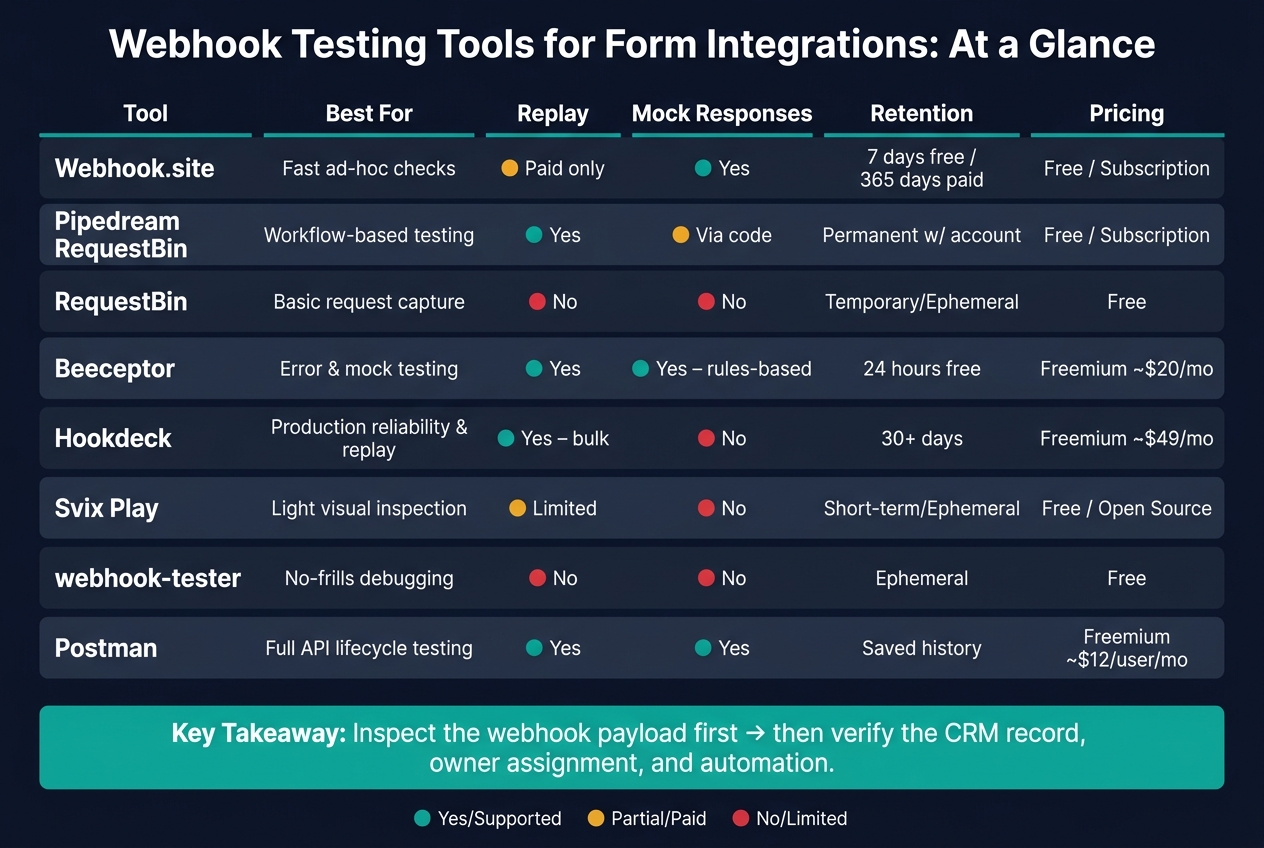
Webhook Testing Tools Compared: Features, Pricing & Retention
| Tool | Best For | Replay | Mock Responses | History/Retention |
|---|---|---|---|---|
| Webhook.site | Fast ad-hoc checks | Paid | Yes | 7 days free |
| Pipedream RequestBin | Workflow-based testing | Yes | Via code | Account-based |
| RequestBin | Basic request checks | No | No | Temporary |
| Beeceptor | Error and rule testing | Yes | Yes | 24 hours free |
| Hookdeck | Live delivery logs and replay | Yes | No | 30+ days |
| Svix Play | Light visual inspection | No/limited in article notes | No/limited in table notes | Short-term |
| webhook-tester | Simple debugging | No/limited in table notes | No/limited in table notes | Ephemeral |
| Postman | Manual API and webhook testing | Yes | Yes | Saved history |
If you only need to see what the form sent, start with a simple tool. If you need to test failures, retries, or duplicate handling, use one with replay and custom responses.
What to Look for in a Webhook Testing Tool for Forms
Webhook tools aren’t all the same. If you’re testing form-to-CRM flows, focus on a few things that matter most: payload visibility, field mapping checks, response logs, replay, and retention controls.
Payload Visibility: Headers, Body, Query Parameters, and Content Type
You need to see the entire request, not just part of it. That includes the raw body, every header, query parameters, and the content type.
For form integrations, the payload should show things like the submission ID, event timestamp, and version. That way, records stay in sync as multi-step form designs change over time. Security headers matter too. For example, the Signature field used for SHA-256 HMAC verification should be visible here.
Field Mapping Checks for Lead and Attribution Data
This is where a lot of form integrations fail without much warning. A broken key can turn into a broken CRM record fast.
Use stable internal field keys like email or budget_range instead of form labels. Your testing tool should let you inspect those keys directly in the payload without digging around.
It’s not just basic lead fields, either. You also want to confirm that attribution data is coming through, including:
utm_source,utm_campaign, andutm_medium- Referrer values, consent status, and spam-block or validation flags
"By using the ID to refer to an answer when consuming the webhook, you don't need to rely on the order of the questions to always be the same." - Reform Help Documentation
Response Codes, Timestamps, and Delivery Logs
A 200 only tells you the request arrived. It does not mean the CRM processed it.
That’s why you want the full response logged next to the request: HTTP status code, response body, and the exact delivery timestamp. This makes it much easier to spot retryable errors like 429 or 500 and line webhook events up with CRM records when you’re debugging lag or out-of-order delivery.
Replay and Failure Simulation for Troubleshooting
Replay lets you resend captured requests. Failure simulation lets you test how your setup handles 429 and 500 responses.
That’s the easiest way to check whether retry logic works as expected and whether duplicate records get created when the same submission fires twice.
Privacy, Retention, and Self-Hosting Options
Temporary endpoints are fine for checking payload structure and delivery.
But once you’re working with actual lead data like email addresses, phone numbers, and consent data, you’ll want retention limits or self-hosting. That gives you more control over how long data sticks around and where it lives.
Use these criteria to score the tools in the comparison table below.
Quick Comparison of Webhook Testing Tools for Form Integrations
The table below gives you a fast way to compare the webhook testing tools that matter most for form integrations. It’s a handy starting point, but you should still confirm current features before you choose.
| Tool | Best Use Case | Payload Visibility | Request History | Replay | Mock Responses | URL Persistence | Local Dev | Pricing |
|---|---|---|---|---|---|---|---|---|
| Webhook.site | Quick ad-hoc inspection | Full (Headers + Body) | Yes | Paid only | Yes | 7 days (free) | No | Free / Subscription |
| Pipedream | Workflow-heavy integrations | Full (Headers + Body) | Yes | Yes | Yes (via code) | Permanent (w/ account) | No (cloud-first) | Free / Subscription |
| RequestBin | Simple request capture | Full (Headers + Body) | Yes | No | No | Temporary / Ephemeral | No | Free |
| Beeceptor | Mocking & intercepting | Full (Headers + Body) | Yes | Yes | Yes (rules-based) | 24 hours (free) | Local tunneling | Freemium / SaaS (~$20/mo) |
| Hookdeck | Production reliability & replay | Full (Headers + Body) | Yes (30+ days) | Yes (bulk replay) | No | Permanent | CLI / tunneling | Freemium / SaaS (~$49/mo) |
| Svix Play | Quick visual inspection | Full (Headers + Body) | Yes (short-term) | No | No | Ephemeral | No | Free / Open Source |
| webhook-tester | No-frills debugging | Full (Headers + Body) | Yes | No | No | Ephemeral | No | Free |
| Postman | Full API lifecycle testing | Full (Headers + Body) | Yes | Yes | Yes | Permanent | Desktop app | Freemium / SaaS (~$12/user/mo) |
The big tradeoff comes down to this: temporary inspection versus longer request history and replay for live form workflows.
If you just want to see what your form sends, a simple tool like RequestBin, Svix Play, or webhook-tester may do the job. But if you need to trace issues, replay failed requests, or work through a live workflow more than once, tools like Hookdeck, Pipedream, or Postman give you more room to work.
Verify current pricing on each vendor's site before choosing.
Once you pick a tool, validate the full submission flow step by step.
1. Webhook.site
Webhook.site gives you a one-off URL with no account needed. Drop that URL into your form webhook settings, send a test submission, and you can inspect the request right away. It’s one of the fastest ways to check a single form submission before you move on to CRM automation tests.
Payload Visibility: Headers, Body, Query Parameters, and Content Type
Every captured request shows the full request details: headers, body, query parameters, cookies, and content type. You can view the body as JSON, XML, form data, raw text, or formatted text. That makes it simple to check whether fields like first_name, email, company, utm_source, and consent values are present and formatted the way you expect.
This is the place to sanity-check the payload before you start digging through CRM automation. If the form didn’t send the right data here, it won’t magically look right later.
Field Mapping Checks for Lead and Attribution Data
Run test submissions that mirror actual lead paths: standard submissions, multi-step forms, conditional fields, and cases where optional values are blank. Then compare each payload with your CRM field map.
Focus on:
- lead fields
- hidden fields
- attribution data
- consent values
Make sure the field names and value formats match what your CRM expects. Small mismatches can cause big headaches later. For example, email may come through when your CRM expects email_address, or a multi-select answer may arrive as a comma-separated string instead of an array. Catching issues at this stage is much easier than cleaning up bad records after the fact.
Response Codes, Timestamps, and Delivery Confirmation
Each request in the history includes delivery metadata and timestamps, which you can line up with downstream CRM logs. That helps you confirm when the request reached the inspection endpoint.
One thing to watch: this only proves delivery to Webhook.site. It does not prove that your CRM processed the data correctly. You still need to check the final CRM record to make sure the data landed where it should.
Replay and Failure Simulation for Troubleshooting
After you’ve found a request that looks like a good test case, you can replay it instead of filling out the form over and over again. That’s handy after you fix a field map or change an automation rule.
Webhook.site can also return specific HTTP status codes. Use 2xx, 4xx, and 5xx responses to test accepted requests, auth failures, and server-side errors. In plain English, you can see how your form platform reacts when things go right, when access is denied, or when the receiving system breaks.
That matters for one big reason: retry behavior. If your platform retries failed requests without the right safeguards, you can end up with duplicate leads. Replay helps you check the fix before you send another live submission.
Privacy, Retention, and Self-Hosting Options
Free URLs are public to anyone who has the link, so it’s smart to use fake names and test email addresses whenever you can. Free URLs and their data are deleted after 7 days. Paid URLs are login-protected by default and can keep data for up to 365 days.
If your form submissions include personal details like email addresses, phone numbers, or consent data, shorter retention periods or a self-hosted setup give you tighter control over where that data sits and how long it stays there.
Webhook.site also has an MIT-licensed open-source version that you can self-host, including with Docker. The self-hosted version does not include cloud-only features like Custom Actions. The free setup works well for short-term testing. For sensitive lead data, a retained or self-hosted setup is usually the safer call.
2. Pipedream RequestBin
Pipedream RequestBin gives you a one-off endpoint URL that records incoming form webhook requests, including the method, path, and timestamp. It’s a handy option when you want a fast inspection endpoint for field mapping and duplicate-check testing.
Payload Visibility: Headers, Body, Query Parameters, and Content Type
Use the request view to check headers, body, query parameters, and content type. This is where you can confirm signatures, mapped lead fields, and UTM values.
Stick with stable keys like lead_source and email instead of display labels. That way, if someone renames a question in the form, your CRM mapping doesn’t fall apart. If your form uses conditional logic, RequestBin also helps you verify that hidden fields and conditional rules fire the way they should across each submission path.
Request History and Duplicate Delivery Checks
Use the request log to review repeated submissions and spot duplicate webhook fires. If the same submission shows up more than once, inspect the form trigger before you move on to CRM automation.
If you do find duplicate submissions in the request log, check whether the form is firing the webhook more than once for a single submission. Then configure your CRM to “update if exists” based on a unique submission_id to cut down on duplicate records.
Temporary Storage and Private Bins
RequestBin is temporary, so it’s best for non-sensitive test data. If you’re working with lead data, use a private bin.
3. RequestBin
Use RequestBin for quick capture checks before you validate CRM mapping. RequestBin gives you a temporary webhook URL that records form webhook POSTs. It’s a simple way to confirm the webhook shows up and the form data comes through cleanly before you test anything on the CRM side.
Payload Inspection
Inspect headers only for signature, content-type, and auth checks.
Request History
RequestBin keeps a log of captured requests, so you can review earlier submissions without sending the form again. That saves time when you're checking whether the webhook fired as expected.
One thing to watch for: retries can create duplicate submissions. Compare request IDs across test runs so you don’t mistake a retry for a new event. Once the payload looks right, move to CRM-side verification.
Privacy, Retention, and Hosting
Check expiration, access control, and data retention before sending live lead data.
4. Beeceptor
Use Beeceptor when you need to inspect a form webhook and see how your CRM workflow behaves when things go wrong.
Payload Inspection
Beeceptor captures incoming webhooks and shows the headers, body, and query parameters in one view. It parses JSON, XML, and form data, which makes it easy to check whether lead fields, hidden values, and UTM parameters are arriving in the format you expect.
Request History and Replay
Beeceptor logs captured requests, so you can go back through earlier submissions and replay them after a mapping fix. That way, you can confirm the CRM receives the corrected payload before you move on to error-handling tests.
Mock Responses and Failure Simulation
You can create mock responses to test how the form flow handles 4xx and 5xx errors. Use those mock errors to test missing required fields, spam-blocked submissions, and CRM rejection paths.
5. Hookdeck
Hookdeck sits between your form and CRM, so you can see exactly what your webhooks are sending. A smart place to begin is payload inspection. That gives you a clear view of the request before you move on to replay tests or payload changes.
Payload Inspection
Hookdeck captures the full request, including headers and body. Use it to confirm the Signature header and check that field names and answer keys line up with your CRM.
Request History and Replay
Hookdeck keeps a central dashboard with searchable request history. If a mapping error breaks a submission, you can fix the mapping and replay the original payload. Once replay works, test failure paths too. That helps you confirm your automation handles bad responses the way you expect.
Mock Responses and Failure Simulation
Hookdeck's Transformations feature lets you rewrite payloads or return custom status codes. That's handy for testing 422 rejections and missing-field handling without waiting for those cases to happen on their own.
Privacy, Hosting, and Workflow Fit
Hookdeck processes live submissions, so review retention settings before routing real data through it. If your team handles sensitive personal information, make sure retention windows match your data policies.
Next, compare it with lighter request-capture tools if you only need quick visual inspection.
6. Svix Play
If your team needs a lightweight capture tool, Svix Play handles the same core checks without extra setup. It’s a simple way to inspect payloads, replay requests, and test how your app handles responses.
Payload Inspection
Svix Play shows the raw request body, headers, and query parameters for each captured request. That makes it easy to inspect what was sent and spot formatting issues fast. You can also review headers like the Signature header when you need to verify webhook details.
Request History and Replay
Svix Play stores webhook requests and lets you replay them. That’s handy when you want to recheck a submission after fixing a mapping or formatting problem. Once replay works, test error responses too.
Mock Responses and Failure Simulation
Svix Play can return custom status codes and response bodies so you can test error handling.
Use Svix Play for short-form capture and validation. If you need more control over a full workflow, move to the next tool.
7. webhook-tester
Use webhook-tester for fast checks of form lead payloads before they hit the CRM.
Payload Inspection
When a form submission sends a webhook, webhook-tester shows the request body, headers, and query parameters. That makes it easy to confirm the event type, like form.submitted, along with the submission ID and submitted answers. You can also inspect the Signature header for HMAC verification.
Request Replay
You can replay captured requests after fixing field mapping, validation, or automation errors. It’s a simple way to test changes without submitting the form again.
Mock Responses and Failure Simulation
webhook-tester can return both success and error responses. That matters because webhooks may send the same event more than once, and failure tests can help you spot duplicate CRM records before they become a mess.
If you need deeper request editing or want to test a broader API flow, switch to Postman.
8. Postman
Use Postman for controlled, manual webhook checks when you need to inspect a payload, replay it, and verify the CRM response.
Payload Inspection
Postman lets you look closely at the JSON body and headers before the request hits the CRM. That makes it much easier to check lead fields, timestamps, and the signature, so you can catch bad data before it turns into a bigger mess.
Request History and Replay
Postman’s request history makes it simple to go back to a saved webhook request and replay it after a mapping change. This is a handy way to confirm that the corrected payload reaches the CRM the way you expect.
Mock Responses and Failure Simulation
Once replay is working, don’t stop at success cases. Test error responses too. Simulate both success and failure responses to check validation errors, automation failures, and retry behavior without creating duplicate CRM records.
How to Test a Form-to-CRM Webhook Integration Step by Step
Start with a temporary endpoint. Then check the CRM record.
Use the inspection and replay tool you picked earlier to test the full form-to-CRM path. If you're using a no-code form builder like Reform, things can get a little more layered. Conditional routing, spam checks, email validation, and CRM integrations each add their own checkpoint. So it's best to test in a clean sequence.
Create Test Submissions That Match Real Lead Flows
Build test submissions that look like actual leads. Include a business email, company name, phone number, state, consent, and UTMs. The goal isn't just to see whether the form submits. It's to see whether each path behaves the way it should.
Map every conditional branch in the form and submit at least one version for each path. If your form shows a "Company Size" field only when someone selects "B2B", send one submission that triggers that field and one that skips it. Also send a duplicate submission to make sure your CRM handles deduplication the way you expect.
Route the Form Webhook to a Temporary Inspection Endpoint
Before anything reaches your CRM, point the webhook to a temporary inspection URL.
In Reform's Integrations settings, turn on the webhook and swap the production CRM URL for a test endpoint from a tool like Webhook.site. Then submit a test lead and check that the full payload shows up. You should see the form.submitted event, the answers array with stable field IDs, and the Signature header for verification.
This gives you a safe place to inspect the raw payload before you commit to field mapping. It also keeps bad data out of the CRM while you're still checking the basics.
Verify Field Mapping Before Checking CRM Automation
Once you have the payload, compare it against your field map.
Look for hidden inputs like utm_source and referrer. Make sure the consent field includes both a value like yes or no and a timestamp. If the form builder adds enrichment data, check that it arrives under the keys you expect.
Also pay close attention to select fields. If the form sends a value the CRM doesn't accept, the request may appear to work while the field quietly fails with an unrecognized value error. That's the kind of issue that can waste an afternoon.
After field mapping looks right, move on to CRM automation rules.
Check Spam Prevention and Email Validation Behavior
Now test what should not get through.
Submit a lead with a disposable email domain, a malformed address, and a submission that would normally fail a CAPTCHA check. These should be blocked before webhook delivery. If they still go through, your spam and validation layer isn't filtering submissions before the trigger fires.
Reform's built-in spam prevention and email validation are meant to stop these cases before a submission reaches your webhook. This step checks that those filters are set up and working the way you expect. Once blocked submissions stay out, you're ready to test CRM delivery.
Inspect Responses and Simulate Failures
Next, test failure handling on purpose.
Return a 500 status code from your test endpoint and watch how the integration reacts. Then return a 400 to mimic a rejected request and confirm that error handling behaves as expected. After that, replay the fixed request against the CRM endpoint.
This is where small issues tend to show up fast. A 500 tells you how the system behaves when something breaks on the receiving side. A 400 shows what happens when the payload itself gets rejected.
Replay Corrected Requests and Confirm the CRM Record
Use your testing tool's replay feature to resend the corrected payload to the CRM endpoint.
Then open the CRM and check three things:
- The lead record exists and the field values are correct
- The right owner is assigned
- Any automation has fired as expected
If all three check out, the full path - from form submission to CRM record - is doing what it should.
Tool-by-Task Capability Matrix
Use this matrix to choose the right tool for each test in the workflow above. Start with the test objective. Then check the payload or response details in the third column.
| Test Objective | Recommended Tools | What to Verify | Key Limitation |
|---|---|---|---|
| Delivery logs | Hookdeck; Webhook.site | HTTP status, response body, timestamps, event type, and signature headers when available | Webhook.site is mainly an inspection endpoint; Hookdeck is better for repeated delivery checks |
| Field-mapping verification | Webhook.site; Hookdeck; Postman | Headers, content type, JSON body, hidden fields, UTM values, consent flags, and unique answer IDs | Short retention on free tiers can make long-running comparisons hard |
| Spam and email-validation review | Webhook.site; Pipedream RequestBin; Postman | Whether blocked, invalid, or duplicate submissions generate a webhook, and whether validation status appears in the payload | These tools show what reaches the webhook endpoint; they do not replace the form builder's own spam controls |
| Error-response testing | Beeceptor; Webhook.site; Postman | HTTP 400, 401, 403, 404, 408, 429, and 500 responses; retry behavior; whether the sender treats a rejected request as successful | Not all tools support configurable response delays or invalid JSON |
| Replay | Hookdeck; Webhook.site; Svix Play; Postman | Corrected payload delivery, CRM deduplication behavior, and new event creation | Hookdeck replay creates a fresh delivery event |
| Request logs | Hookdeck; Webhook.site | Request history, payload details, and timestamps | Webhook.site free URLs have short retention and request limits; Hookdeck offers more durable history |
| Local receiver testing | Hookdeck; Svix Play | Local forwarding, correct port/path, and HTTPS access | Requires relay or CLI setup; development endpoints must not be exposed without access controls |
| Privacy-sensitive testing | webhook-tester; Svix Play | Synthetic data only; short retention or access control | Use self-hosted or access-controlled setups when handling sensitive lead data |
The goal here is simple: match the tool to the job. A request inspector is great for checking headers and payload shape. A replay tool helps when you need to resend a corrected event. And if you're testing error handling, you need something that can return the exact status code you want.
If you're testing Reform webhooks, pay close attention to the spam and email-validation row. Send synthetic edge cases like:
- an invalid email
- a duplicate lead
- a missing required field
Then verify whether each submission creates a webhook or gets blocked before delivery. For Reform, also check the form.submitted event and the Signature header when you're validating payload integrity. The tool only shows delivered requests; the form settings decide what gets blocked.
Conclusion
After comparing tools and test tasks, the last step is picking the right one for the job.
Match the Tool to the Testing Job
Use the comparison table above to line up each tool with the test you need to run: quick inspection, failure simulation, replay, or privacy-controlled logging.
No single tool handles every case. The smarter move is simple: match the tool to the test goal, use it, and move on.
Tool selection is only half of the check. The CRM record tells you the rest.
Use Request Capture and CRM Verification Together
A webhook can return 200 OK and still fail inside the CRM if fields are mapped the wrong way or retries create duplicates.
Check the payload at the inspection endpoint, then confirm the CRM record, automation, and deduplication behavior. Use a unique submission_id to cut down on duplicates from retries.
Request capture shows delivery. CRM verification shows the integration is doing its job.
FAQs
How do I know if a 200 OK actually worked?
A 200 OK means your server received the data. But it does not mean the data was handled the right way.
To make sure it worked, confirm that the data made it to your destination system with the right field mappings and formatting. Also watch for silent failures, like dropped data caused by schema mismatches or old API versions. It also helps to review your destination logs or compare the sent payload against what was received.
When should I use replay instead of a simple inspector?
Use webhook replay when you need to run the same submission more than once and check whether performance stays the same each time. It sends the original payload again, which helps you avoid mistakes that can happen with manual re-entry.
A simple inspector works better when you want to compare sent and received data side by side. That makes it easier to spot schema mismatches or quiet failures.
What’s the safest way to test webhooks with lead data?
Use a dedicated staging environment that mirrors production so live customer data stays untouched.
Then use built-in testing tools, like Reform’s Send test data feature, to trigger sample HTTP POST requests and check that your endpoint receives and processes the payload the way you expect.
You should also test a few core items before going live:
- Validate the SHA-256 HMAC signature
- Verify your field mappings
- Check edge cases like special characters and empty fields
This part matters more than it may seem. A webhook can look fine at first glance, then fail on something small, like a missing field, odd punctuation, or a signature check that doesn’t match.
Related Blog Posts
Get new content delivered straight to your inbox

The Response
Updates on the Reform platform, insights on optimizing conversion rates, and tips to craft forms that convert.



Drive real results with form optimizations
Tested across hundreds of experiments, our strategies deliver a 215% lift in qualified leads for B2B and SaaS companies.
