

How to Connect Typeform to ActiveCampaign


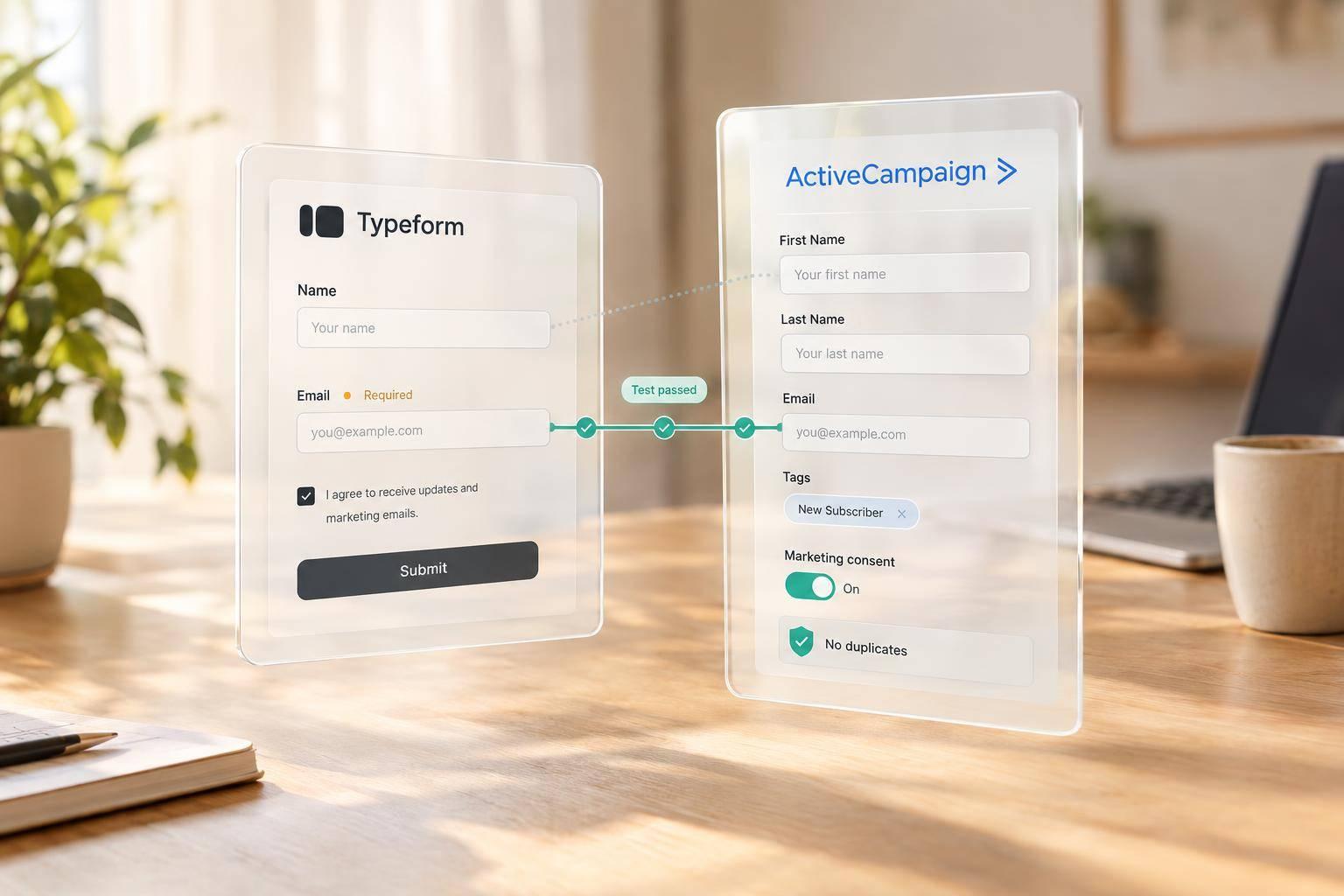
To connect Typeform to ActiveCampaign, open Apps → Typeform in ActiveCampaign, approve access, select a multi-step form, and map its fields. Make the Typeform Email question required - ActiveCampaign uses email to create or update the right contact.
Before going live, check these three things:
- Contact data: Map the fields needed for follow-up and check how blank answers affect existing data.
- Email consent: Contacts aren’t added to a list by default. Use explicit consent to control promotional subscriptions.
- Test results: Submit twice with the same test email to check field updates, prevent duplicates, and verify the intended automation without sending live emails.

Connect Typeform to ActiveCampaign: Setup and Testing
Check Requirements and Connect Accounts
Check Account Access and Required Fields
Check that both accounts are active and that you have permission to approve third-party integrations.
Your Typeform must include a required Email question type. Before mapping custom answers, create matching custom contact fields in ActiveCampaign.
Connect Typeform From ActiveCampaign
In ActiveCampaign, go to Apps, search for Typeform, and open the connector. Follow the prompts to sign in to Typeform and approve the requested access.
Before approving, make sure you’ve selected the right Typeform account and workspace. Once connected, check that the connection displays the correct account.
Connecting the accounts doesn’t automatically sync every form. Next, select the form you want to sync and map its fields.
sbb-itb-5f36581
Choose a Form and Set Up Contact Data
Select the Form and Map Fields
With your accounts connected, select the Typeform form you want to sync. Start by mapping the Email question to ActiveCampaign’s Email Address field. Then map only the fields you need for follow-up, such as first name, company, or job title.
Use this table to match Typeform answers to ActiveCampaign fields:
| Typeform field | ActiveCampaign field | Required or optional | Purpose |
|---|---|---|---|
| Email question | Email Address | Required | Identify the contact for creation or updates |
| First name | First Name | Optional | Personalize follow-up |
| Company name | Organization Name | Optional | Segment business leads |
| Job title | Job Title | Optional | Identify the lead’s role |
Check Contact and Subscription Settings
Set the integration to create new contacts or update existing ones by email. Turn on ignore empty fields so blank answers don’t overwrite data you already have.
Check the connector’s list enrollment and tag settings against the automations you plan to use in ActiveCampaign. Map consent responses to the correct list or tag.
Setting up your ActiveCampaign | Typeform Integration
If you're looking to streamline this process, you can also use powerful form templates to capture leads more effectively.
Test Before Sending Live Leads
Save your mappings, then submit the Typeform with a test-only email address and sample values for each mapped field. Keep the test contact out of live lists and automations.
Verify the Contact and Follow-Up
Find the test email in ActiveCampaign. Compare the contact’s fields, tags, list membership, and subscription status with what you submitted.
During testing, manually add or remove the test contact from specific automations to check the logic without sending broad emails. Then submit the form again using the same email but different answers. Confirm that ActiveCampaign updates the existing contact rather than creating a duplicate.
If something is missing or incorrect, use the test record and the checks below to trace the issue to the form, mapping, or automation.
Fix Missing Contacts and Mapping Errors
If the contact doesn’t appear, check the Email Address mapping, selected form, saved settings, and account authorization.
For incorrect values, check each field mapping and field type. For missing follow-up, review list membership, tags, automation entry rules, and automation status.
Submit another test after each change. If the test contact enters a live automation, remove it before testing again.
Conclusion: Check Readiness for Live Leads
Go live only after a test submission confirms that the workflow works from start to finish. Save the field map and test email for future reference.
Check subscription behavior, too. The integration doesn’t add contacts to a list by default. Use an “Add to List” automation action only for people who opted in through an explicit consent question. Keep everyone else out of promotional follow-up.
Confirm that the contact updated correctly and the intended automation ran once. If every check passes, the integration is ready for live leads. Retest whenever you change the form, field map, permissions, or automation rules.
FAQs
Will my existing Typeform responses sync to ActiveCampaign?
Existing Typeform responses won’t sync automatically when you set up a new ActiveCampaign integration. Only new submissions will sync after the integration is active.
To move past responses, you’ll likely need to export them from Typeform as a CSV file and manually import them into ActiveCampaign. You can also use a third-party data migration tool.
What happens if someone submits a different email address?
ActiveCampaign uses email addresses to spot duplicates. If someone submits a form with a different email address, it creates a new contact instead of updating the existing record.
Use your CRM’s duplicate management tools to find and merge records that share other consistent identifiers. Audit contact records quarterly and standardize their information to keep each lead’s history accurate and in one place.
How can I prevent repeat submissions from retriggering automations?
Use the email address as ActiveCampaign’s primary deduplication key so repeat submissions update the existing contact instead of creating a new one. For multi-step forms, sync data only after the final submission - not after each partial page save.
Set tag-based automation triggers to require a “final submission” tag or status before they activate. This keeps incomplete sessions out of active workflows.
Related Blog Posts
Get new content delivered straight to your inbox

The Response
Updates on the Reform platform, insights on optimizing conversion rates, and tips to craft forms that convert.

Drive real results with form optimizations
Tested across hundreds of experiments, our strategies deliver a 215% lift in qualified leads for B2B and SaaS companies.
