
.webp)
Custom API Integration with HubSpot: Rate Limit Tips


When building a custom API integration with HubSpot, managing rate limits is key to avoiding disruptions. HubSpot enforces burst limits (requests per 10 seconds) and daily quotas (rolling 24-hour request caps). Exceeding these limits results in HTTP 429 errors, which can halt workflows and impact app reliability. Here’s how to handle them effectively:
- Understand Limits: Free/Starter plans allow 100 requests per 10 seconds and 250,000 daily. Enterprise plans offer up to 190 requests per 10 seconds and 1,000,000 daily, with add-ons available for more capacity.
- Optimize API Calls: Use batching to group up to 100 records per request and caching to reduce duplicate calls. These steps can cut API usage by up to 75%.
- Retry Logic: Implement exponential backoff with random delays to manage 429 errors and prevent cascading failures.
- Switch to Webhooks: Replace polling with webhooks to reduce API calls. Workflow-triggered webhooks don’t count toward rate limits for certain plans.
- Monitor Usage: Use HubSpot’s API call usage dashboard and response headers like
X-HubSpot-RateLimit-Daily-Remainingfor real-time tracking.
These strategies ensure smooth integrations while staying within HubSpot’s rate constraints. For growing needs, consider upgrading plans or adding API Limit Increase packs.
How To Use Hubspot API
sbb-itb-5f36581
HubSpot API Rate Limits Explained
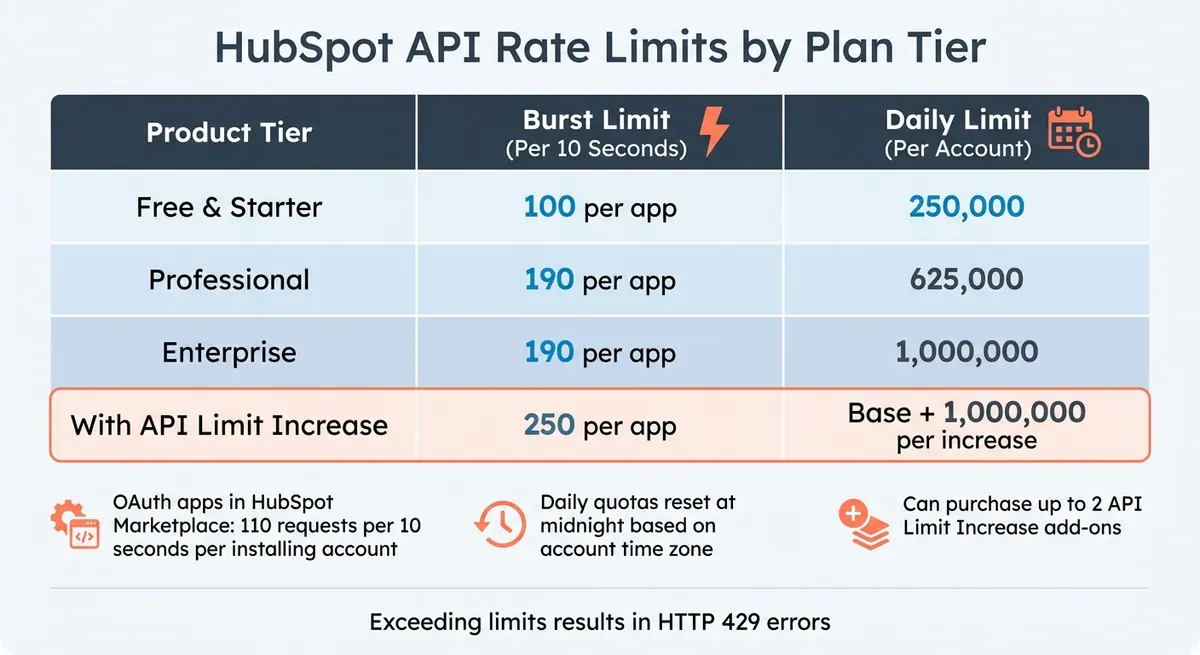
HubSpot API Rate Limits by Plan Tier
What Are HubSpot API Rate Limits?
HubSpot imposes two main types of API rate limits to ensure platform stability and fair usage: Burst Limits and Daily Quotas.
- Burst Limits control how many API requests you can send in a 10-second window.
- Daily Quotas cap the total number of API requests allowed over a rolling 24-hour period.
While burst limits are applied per app, daily quotas are shared across all private apps within a single HubSpot account. If you exceed either limit, HubSpot will respond with an HTTP 429 "Too Many Requests" error, temporarily blocking further API calls until the limit resets.
| Product Tier | Burst Limit (Per 10 Seconds) | Daily Limit (Per Account) |
|---|---|---|
| Free & Starter | 100 per app | 250,000 |
| Professional | 190 per app | 625,000 |
| Enterprise | 190 per app | 1,000,000 |
| With API Limit Increase | 250 per app | Base + 1,000,000 per increase |
HubSpot resets daily quotas at midnight based on your account's time zone. If your integration requires more capacity, HubSpot offers an API Limit Increase add-on, which raises the burst limit to 250 requests per 10 seconds and adds 1,000,000 requests to your daily quota. You can purchase up to two increases.
For publicly distributed OAuth apps listed in the HubSpot Marketplace, the burst limit is slightly different - 110 requests per 10 seconds per installing account.
Understanding these limits is essential for ensuring your integrations run smoothly and without interruptions.
How Rate Limits Affect Your Integrations
These rate limits can directly impact the reliability of your integrations. If you exceed them, you'll encounter disruptions, such as failed requests that prevent data synchronization or halt automated workflows. For example, unhandled HTTP 429 errors can result in missed updates, like unsynced contact changes, form submissions, or deal modifications.
For apps listed in the HubSpot Marketplace, maintaining error responses below 5% of total daily requests is a requirement to retain certification. Repeatedly hitting rate limits could jeopardize your app's eligibility. Additionally, requesting too much data - such as unoptimized CRM Search queries or excessive property requests - can lead to 502 or 504 Gateway Timeout errors.
Another issue to watch out for is the "thundering herd" effect. This happens when multiple threads retry failed requests simultaneously, overwhelming the system with retries and causing even more 429 errors. This cascading effect makes recovery slower and more difficult.
Being aware of these challenges helps you design integrations that are resilient and efficient.
Building Your Custom API Integration
Selecting Your Authentication Method
When creating a custom API integration with HubSpot, you’ll need to choose between two authentication methods: OAuth 2.0 and Private App Tokens. Each serves different purposes depending on your integration’s scope.
OAuth 2.0 is the go-to option for integrations involving multiple HubSpot accounts or if you plan to list your app in the HubSpot Marketplace. It uses a three-token flow: authorization codes, short-lived access tokens (which expire after 30 minutes), and long-term refresh tokens. While this method offers higher security with its short-lived credentials, it does require a backend to handle the token exchange process, making setup more complex.
Private App Tokens, on the other hand, are ideal for single-account integrations. These static tokens are easier to implement since they can be copied directly from your HubSpot settings. They don’t expire, simplifying token management for smaller or internal projects.
"The gap between a working integration and a production-ready one usually comes down to how well you handle tokens." - HubSpot Developer Blog
Proper token management is non-negotiable. Never store tokens in plain text - use encrypted databases with AES-256 encryption or tools like AWS Secrets Manager or HashiCorp Vault. HubSpot also actively scans GitHub repositories for exposed tokens and will automatically deactivate any compromised private app tokens or developer API keys. For OAuth integrations, ensure you refresh access tokens at least 5 minutes before expiration to prevent failed API calls during critical operations.
Once your authentication is securely in place, the next step is testing your integration by interacting with API endpoints. This is especially important when creating high-converting lead forms that rely on real-time data syncs.
Testing API Endpoints First
Before rolling out your integration, it’s crucial to test the API thoroughly to ensure smooth performance and adherence to rate limits. HubSpot provides tools like official Postman collections and SDKs to help you inspect HTTP response headers and monitor API behavior.
Pay attention to specific response headers during testing:
X-HubSpot-RateLimit-Daily-Remaining: Tracks how many requests you can make for the day.X-HubSpot-RateLimit-Remaining: Indicates the remaining requests in the current 10-second burst window.
Optimize your requests by experimenting with limit parameters for pagination. For example, if a request for 100 records times out with a 504 error, try reducing the limit to 50 or 25 until you find the right balance. To avoid unnecessary delays, only request the properties you actually need in the properties array, as large datasets can slow down processing and cause timeouts.
Simulate a 429 error in a controlled sandbox environment to verify that your retry logic works as expected. Testing this ensures your integration can handle HubSpot’s rate constraints without interruptions. Keep in mind that some APIs, like the CRM Search API, have stricter limits (e.g., 5 requests per second), which may require additional testing if default client libraries don’t account for these restrictions.
For ongoing monitoring, use the Monitoring > API call usage dashboard in your HubSpot account. This provides a detailed view of logs and usage metrics across all connected apps.
Once your API endpoints perform reliably within these constraints, you’ll be ready to focus on enhancing your integration’s reliability and performance.
How to Manage HubSpot API Rate Limits
Tracking Your Rate Limit Usage
HubSpot offers several ways to keep an eye on your API usage. Every API response (except those from the CRM Search API) includes headers like "X-HubSpot-RateLimit-Daily-Remaining", which shows how many calls you have left in your 24-hour quota. To get a broader view, head to Development > API call usage in your HubSpot account. If you're using public or legacy apps, you can dive into detailed logs under Monitoring > Logs. There's also a dedicated API endpoint to check your call count for the current day.
If you hit a 429 error (indicating you've exceeded a limit), the JSON response will include a "policyName" field to clarify whether it's the daily or secondly limit. Keep in mind, the daily limit resets at midnight based on your account's time zone. By regularly monitoring your usage, you can avoid unexpected throttling and ensure your workflows run smoothly.
Once you're tracking your usage, the next step is to optimize your API calls through batching.
Batching Your API Requests
Batching is a game-changer for minimizing API calls. HubSpot's batch endpoints let you process up to 100 records in a single call, which can significantly cut down your usage. For example, if you're dealing with complex queries involving nested data (like pulling Company → Contacts → Tasks), using GraphQL can consolidate what might have been thousands of REST API calls into just one.
This approach is especially useful when syncing data, such as form submissions from tools like Reform to HubSpot. By batching, you can transfer data efficiently without burning through your quota. In fact, batching can reduce your API call volume by up to 60%, and combining it with effective caching can shrink your total requests by as much as 75%.
While batching helps reduce calls, incorporating retry logic ensures your app stays resilient when limits are reached.
Adding Retry Logic and Exponential Backoff
When you hit a 429 error, don't just retry immediately. Instead, use exponential backoff, which means increasing the wait time between retries after each failure, up to a defined limit. Adding jitter (a random delay of about ±500 milliseconds) can help avoid multiple retries happening simultaneously.
"A 429 from HubSpot normally just means you've hit the documented limits on the API... Best practice is to add exponential backoff and queuing so that transient 429s don't break your app."
- Ruben Burdin, Founder, Stacksync
For developers working in Node.js, the bottleneck npm package is a handy tool - it can automatically handle request rates and manage 429 errors. Using exponential backoff can cut API error rates by over 50%. Plus, if you're aiming for HubSpot Marketplace certification, keeping error responses below 5% of your total daily requests is a must.
Connecting Reform and HubSpot Efficiently
Let’s dive into how you can integrate Reform with HubSpot in a way that maximizes efficiency while managing HubSpot's API rate limits. With Reform's Pro Plan, form data is sent to HubSpot in real time. This ensures your CRM stays up-to-date, but during high-traffic periods, it can lead to spikes in API usage. Since HubSpot applies rate limits at the portal level (meaning all integrations and forms within the same account share the same quota), careful planning is essential.
Syncing Reform Form Submissions to HubSpot
To manage API calls effectively, control when and how Reform sends data. Instead of syncing every partial submission, configure multi-step forms to push data only after full completion. Although Reform’s January 2025 update introduced partial submissions for multi-step forms, which can help capture leads earlier, keep in mind that this also increases API call volume.
Use Reform's conditional routing to screen out spam and unqualified leads before they reach HubSpot. This reduces unnecessary API calls for submissions that don’t meet your criteria. Additionally, map all essential Contact, Company, and Deal properties in one step to minimize the number of API calls required.
For high-traffic situations, consider adding jitter - random delays of 0–9 seconds - to spread out API requests and avoid exceeding burst limits.
"Throw [the error] so HubSpot retries the step automatically... Pair that with a small randomized delay before each outbound call so 10k enrollments don't align." - Ruben Burdin, HubSpot Advisor
Another key tip: add reform.app to your HubSpot analytics tracking site domain list. This prevents submissions from being flagged as bot activity. By following these strategies, you can optimize how data flows into HubSpot using expert form strategies, setting the stage for better lead enrichment.
Using Reform's Lead Enrichment with HubSpot
Once you’ve streamlined form submissions, focus on improving data quality through lead enrichment. Reform’s lead enrichment feature sends fully populated data packets to HubSpot in a single call. This avoids the "N+1" query problem, where HubSpot would otherwise make extra API calls to external services after creating a contact. During the initial sync, map all enriched fields - such as UTM parameters (e.g., mapping utm_source to "Original Source Drill-Down 1") - to HubSpot properties.
If you’re working with large batches of enriched leads, pre-slice your audience into static lists and stagger workflows to avoid exhausting your daily API quota. For reference, Free/Starter accounts have a daily limit of 250,000 requests, while Enterprise accounts can handle up to 1,000,000. Additionally, monitor the X-HubSpot-RateLimit-Daily-Remaining header in API responses to keep an eye on how Reform’s submission volume affects your remaining limits.
Scaling Your HubSpot API Integration
Once you've implemented batching, caching, and exponential backoff, you might find that these optimizations aren't enough for your growing needs. When that happens, it’s time to look at scaling your integration. This could mean upgrading your HubSpot plan or exploring alternative ways to transfer data.
Upgrading Your HubSpot Plan for Higher Limits
Start by reviewing your API usage under Development > Monitoring > API call usage. This will help you determine if your consumption is nearing burst or daily limits. You can also check API response headers for signs of low daily quotas.
If you’re noticing frequent 429 Too Many Requests errors with the policy name DAILY, it’s a sign you may need a higher subscription tier or an additional capacity pack. However, before committing to an upgrade, make sure you’ve optimized your integration by using batching (up to 100 records per call), caching, and webhooks to reduce unnecessary API calls. For example, using multi-step form design can help you collect data more efficiently before it ever hits your API.
For those needing more capacity, Enterprise subscriptions allow up to 1,000,000 daily requests - 60% more than the Professional plan. Additionally, you can purchase the API Limit Increase add-on, which provides an extra 1,000,000 daily requests. You can buy up to two of these add-ons, giving you a maximum of 2,000,000 additional requests per day. To explore this option, visit the HubSpot Product & Services Catalog and look for the "API Limit Increase" add-on.
"By 2025 most orgs I work with treat 1M requests/day as table stakes, especially when syncing product usage events, ERP data, or real-time engagement metrics." - Ruben Burdin, HubSpot Advisor
If upgrading isn’t immediately feasible, consider reducing API usage further by switching from polling to webhooks.
Using Webhooks Instead of Polling
Polling generates frequent API requests, which can quickly exhaust your limits. Webhooks, on the other hand, push data to your system only when specific events occur. This method not only conserves API calls but also improves the overall efficiency of your integration. For those with a Marketing Enterprise subscription, webhook calls triggered via workflows don’t count toward your API rate limit. This makes webhooks an essential tool for high-volume integrations.
You can configure webhooks in workflows to trigger updates when specific actions occur, like changes to contact records. Each app can support up to 1,000 webhook subscriptions, which should accommodate even the most complex scaling needs. For enterprise-level setups, consider implementing a Queue/Worker architecture. This allows you to process incoming webhook data asynchronously, ensuring your system remains resilient under heavy loads. Additionally, HubSpot retries failed webhooks at increasing intervals for up to three days, giving you time to resolve any issues.
Conclusion
Managing HubSpot API rate limits doesn't have to be complicated. The main thing to remember is that HubSpot applies two types of limits: burst limits (100–150 requests every 10 seconds) and daily limits (a rolling 24-hour window based on your subscription plan). Once you understand these, diagnosing 429 errors and addressing them becomes much simpler.
Batch your requests. By grouping up to 100 records in a single API call with endpoints like /batch/update and using strategies like exponential backoff, you can reduce throttling while keeping HubSpot's servers running smoothly.
Real-time monitoring is essential. Keep an eye on response headers such as X-HubSpot-RateLimit-Daily-Remaining and X-HubSpot-RateLimit-Remaining to adjust your request pace as needed. Proactive monitoring can lower error rates by as much as 37%. Set automated alerts when you reach 80% of your quota to avoid hitting limits unexpectedly.
When integrating Reform with HubSpot, use webhooks instead of polling to cut down request volumes by over 95%. This not only saves your API quota but also ensures data updates are more immediate. For handling high traffic, consider implementing a message queue system with tools like RabbitMQ or AWS SQS to manage outbound requests and stay within burst limits.
If you’ve optimized everything but still need more capacity, review your usage dashboard and consider upgrading to a Professional or Enterprise plan. Alternatively, you can add the API Limit Increase add-on, which provides an extra 1,000,000 daily requests. Before upgrading, ensure you've already applied caching (which can cut down redundant calls by up to 75%), fine-tuned your search queries, and switched to webhooks wherever feasible. By combining these strategies, your HubSpot integration will remain efficient and reliable.
FAQs
How can I tell if I’m hitting burst limits or daily limits?
When working with HubSpot's API, you can check the response headers to monitor your remaining quota for each limit. These headers give you a clear picture of whether you're nearing or exceeding either the burst rate or daily rate limits. Keeping an eye on these details helps you manage your API usage effectively.
What’s the best way to queue API calls so I don’t get 429s?
To steer clear of 429 errors, try using exponential backoff with retries. This means gradually increasing the wait time after each failed request, giving the API a chance to recover without being overwhelmed.
You can also optimize your requests by leveraging batch APIs and implementing proper pagination. This approach reduces the number of individual calls you make, helping you stay within rate limits.
For larger-scale integrations, consider setting up a queue or worker system. This allows you to handle API calls asynchronously, giving you more control over the pace of requests and reducing the likelihood of hitting rate limits.
When should I switch from polling to webhooks in HubSpot?
Webhooks in HubSpot are ideal when you need real-time updates on changes to your data, such as contact or deal updates. Unlike polling, which repeatedly requests data and can lead to API limits being consumed or throttling errors, webhooks are event-driven. This means they automatically send notifications whenever specific events occur. By using webhooks, you not only get instant updates but also significantly reduce API usage, making it easier to stay within rate limits.
Related Blog Posts
Get new content delivered straight to your inbox

The Response
Updates on the Reform platform, insights on optimizing conversion rates, and tips to craft forms that convert.




Drive real results with form optimizations
Tested across hundreds of experiments, our strategies deliver a 215% lift in qualified leads for B2B and SaaS companies.
