

Data Storage and Full-Disk Encryption: Guide



Full-disk encryption protects a lost or stolen drive - not data exposed through a running system. My starting point: encrypt your devices, check every stored copy, and keep recovery keys separate from the data they protect.
In this guide, I cover 4 encryption layers - disk, volume, file, and field - and the steps I use to check storage protection:
- Check device states: A screen lock or sleep mode does not provide the same protection as shutdown.
- Follow every copy: Check server volumes, removable drives, cloud storage, and form destinations, including Reform integrations, exports, and backups.
- Plan recovery: Assign key owners, restrict access to recovery material, and test recovery before rollout.
- Cover the gaps: Pair encryption with secure network transfers, access controls, and endpoint security.
My rule: <u>check each storage location separately</u>. Encryption on your laptop does not mean every copy of your data is protected.
How Do I Encrypt a Disk?
sbb-itb-5f36581
How Full-Disk Encryption Works and Its Limits
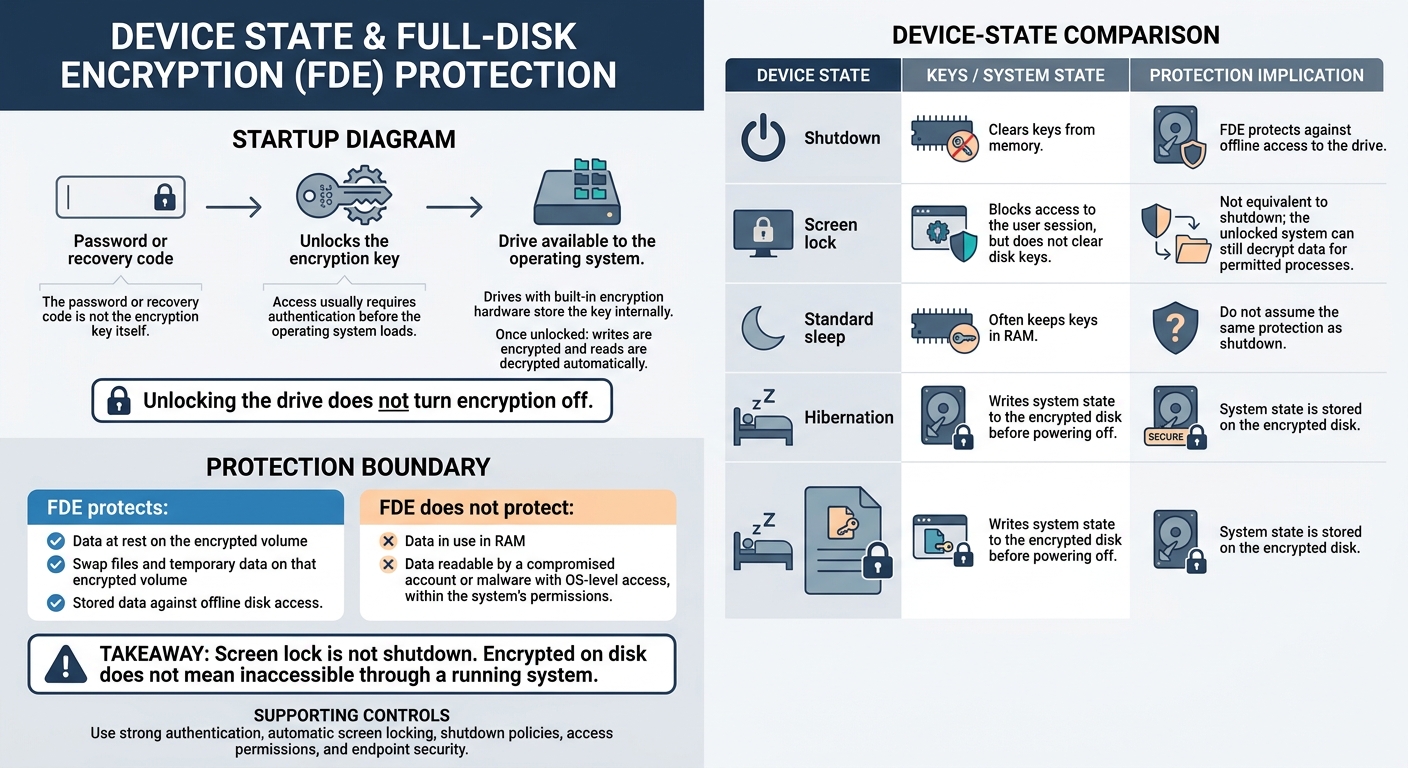
Full-Disk Encryption: Protection by Device State
Encryption Keys and Disk Access at Startup
Full-disk encryption (FDE) depends on when encryption keys enter memory during startup. It uses a separate key to scramble stored data. A password or recovery code unlocks that key - it isn’t the key itself. Drives with built-in encryption hardware store the key internally. Access usually requires authentication before the operating system loads.
Once unlocked, the drive automatically encrypts writes and decrypts reads for applications. Unlocking the drive allows access; it does not turn encryption off. Data stored on the drive stays encrypted.
What FDE Does Not Protect
FDE protects the storage layer: it protects data at rest, not data in use in RAM. It also covers swap files and temporary data on the encrypted volume. Once the drive is unlocked, a compromised account or malware with OS-level access can read whatever data the system permits. Access permissions and endpoint security still matter.
How Shutdown, Screen Lock, and Sleep Affect Protection
Power states affect this protection, too. Screen lock blocks access to the user session, but it does not clear disk keys. Standard sleep modes often keep keys in RAM. Hibernation writes the system state to the encrypted disk before powering off, while shutdown clears keys from memory.
These settings and practices help protect stored form data, backups, and exports. Use strong authentication, automatic screen locking, and shutdown policies on devices that store sensitive records.
Deploy Encryption Across Devices and SaaS Storage
Once you know where FDE starts and stops, map every place your data is stored.
Encrypt Laptops, Servers, and Removable Drives
Assign an owner to every device and volume. Use BitLocker, FileVault, or LUKS based on the operating system. Encrypt server volumes and external backup drives separately - laptop FDE does not cover them.
Check volume encryption, recovery options, and central management. On Linux, verify encryption status with cryptsetup status and keep the LUKS header backup in a separate location.
Endpoint encryption does not cover cloud storage or SaaS backups.
Check Cloud and SaaS Storage Encryption
Treat cloud disks and SaaS databases as separate storage layers, even if your endpoints are encrypted. Review provider documentation, contracts, and SOC 2 reports for cloud disks, databases, object storage, and backups.
Record who controls the keys, how recovery works, and which copies fall outside encryption coverage. Certification alone does not prove that your specific deployment is covered.
Run the same check for every downstream destination that receives form data.
Map Every Multi-Step Form Submission Destination
For forms built with Reform, map every destination: submission storage, CRM integrations, uploaded files, analytics, exports, and backups.
Each integration creates another stored copy that needs its own encryption check. Assign an owner to each destination, verify its storage controls, and request evidence from the service owner. Don’t assume encryption follows the data.
Test Encryption Before a Wider Rollout
Before production rollout, run a pilot using a checklist that covers storage inventory, compatibility, performance, recovery, and encryption of existing data across all required volumes.
Save encryption-status reports and central management logs. Document procedures for lost devices and missing keys, including who handles the response. These records show whether encryption was active when a device went missing.
Use the pilot results to assign key ownership and set recovery procedures before rollout.
Manage Keys, Recovery, and Other Security Controls
Assign Key Management and Recovery Owners
Once you’ve confirmed where data lives, assign named owners for encryption keys, enrollment, and recovery material. For cloud storage, provider-managed keys reduce admin work and the risk of getting locked out.
| Key management model | Control | Admin burden | Recovery responsibility | Suitable use cases |
|---|---|---|---|---|
| Cloud-provider managed | Provider | Low | Provider, under service terms | Standard SaaS usage |
| Customer-managed (CMK) | Customer | High | Customer | High-sensitivity data; requires strict internal key governance |
| IT-managed | User/IT | Medium | User/Organization | Individual laptops or removable drives using FDE |
Hardware-based FDE can store keys in the drive, and many systems also use a TPM. Before choosing customer-managed cloud keys, confirm how the provider handles recovery.
Secure Recovery Keys, Backups, and Other Copies
Keep recovery material separate from the encrypted storage that holds form data. Restrict access and log every retrieval.
After hardware changes or staff turnover, test recovery for backups, snapshots, and removable media. Check each copy’s encryption, recovery method, and retention rules.
Match FDE Benefits With Supporting Controls
FDE protects against offline disk access. It doesn’t cover every risk: threats after startup or outside the drive need other controls.
| Scenario | FDE benefit | Remaining exposure | Supporting control |
|---|---|---|---|
| Stolen powered-off device | Data is inaccessible without the key | Someone may find the key if it’s written down or poorly managed | Secure recovery key storage; user training |
| Discarded drives | Blocks offline recovery without the key | Retained or exposed keys may allow access | Approved sanitization; key destruction |
| Post-startup access | Protects against offline attacks | The unlocked system can decrypt data for authorized processes | Screen locks; MFA; least privilege |
| Malware/ransomware | Does not block malware in an authorized session | An attacker can exfiltrate or encrypt data | Endpoint protection; patching; incident response |
| Exported copies | Does not extend protection to the destination | Copies may lack encryption in transit or at rest | Transport encryption (TLS); SaaS storage checks |
Pair FDE with TLS, MFA, least privilege, logging, patching, endpoint protection, and incident response. Review coverage regularly, including unmanaged devices and new storage.
Conclusion: Protect Every Storage Layer
FDE is one layer, not the whole set of controls. It blocks offline access to a lost or stolen drive. Use file, database, or field-level encryption when specific data needs protection within a system.
Protect data beyond the disk, too. Data at rest and data in transit need different protections. Use transport encryption between forms, integrations, and CRM systems. Disk encryption does not protect those transfers.
Protect lead data from submission through transfer and storage. Apply controls at each layer, assign named owners for keys and recovery, and test recovery.
FAQs
How can I verify that all my stored lead data is encrypted?
Regularly check that storage-level encryption is enabled for databases, file systems, and backups that hold lead data. Include encryption settings in infrastructure-as-code and CI/CD pipelines to prevent configuration drift.
Monitor encryption with automated scans and centralized key-usage logs. Twice a year, audit access permissions and encryption coverage, including new forms and downstream integrations. Keep encryption keys separate from the data, ideally in a hardware security module (HSM) or dedicated key management service (KMS).
When do I need field-level encryption in addition to FDE?
Use field-level encryption alongside full-disk encryption (FDE) when sensitive form or database fields - such as SSNs, health data, or payment data - need protection from internal users with broader system or volume access.
FDE protects data at rest at the drive or volume level. Field-level encryption adds controls for individual fields across databases, file systems, backups, and replicas.
Use AES-256, and store encryption keys separately from the encrypted data in a key management service (KMS) or hardware security module (HSM).
What happens if I lose my encryption recovery key?
Losing your encryption recovery key makes the data it protects permanently unrecoverable, even if the drive is still intact. Full-disk encryption requires that key to make the data readable.
An encrypted backup won’t help if you can’t decrypt it. Keep keys accessible through secure key management services, test recovery steps regularly, and match key management practices to your data retention schedules.
Related Blog Posts
Get new content delivered straight to your inbox

The Response
Updates on the Reform platform, insights on optimizing conversion rates, and tips to craft forms that convert.



Drive real results with form optimizations
Tested across hundreds of experiments, our strategies deliver a 215% lift in qualified leads for B2B and SaaS companies.
