
.webp)
How to Debug HubSpot Forms API Failures



When a HubSpot form submission fails, I check the last confirmed step before resending it. A successful API response doesn’t prove the CRM update finished - and no new contact doesn’t mean failure. HubSpot may have updated an existing contact.
Here’s the order I use to find the problem:
- Trace the request: Check the browser, server, HubSpot response, and submission records with one tracking ID. Keep lead data and secrets out of logs.
- Check the setup: Verify field names, required values, endpoint, account and form IDs, and access permissions.
- Run one controlled test: Compare a direct request with your app’s request using synthetic data.
- Retry with care: Treat timeouts as delivery uncertain. Check for receipt first, then retry only temporary failures with delays and a limit.
- Confirm the result: Match the submission to its CRM record and expected workflow activity. If you use Reform, check its delivery trail too.
My stopping point is <u>confirmed receipt plus the expected CRM update</u>. Then I add a regression test and alerts so the same failure doesn’t keep returning.
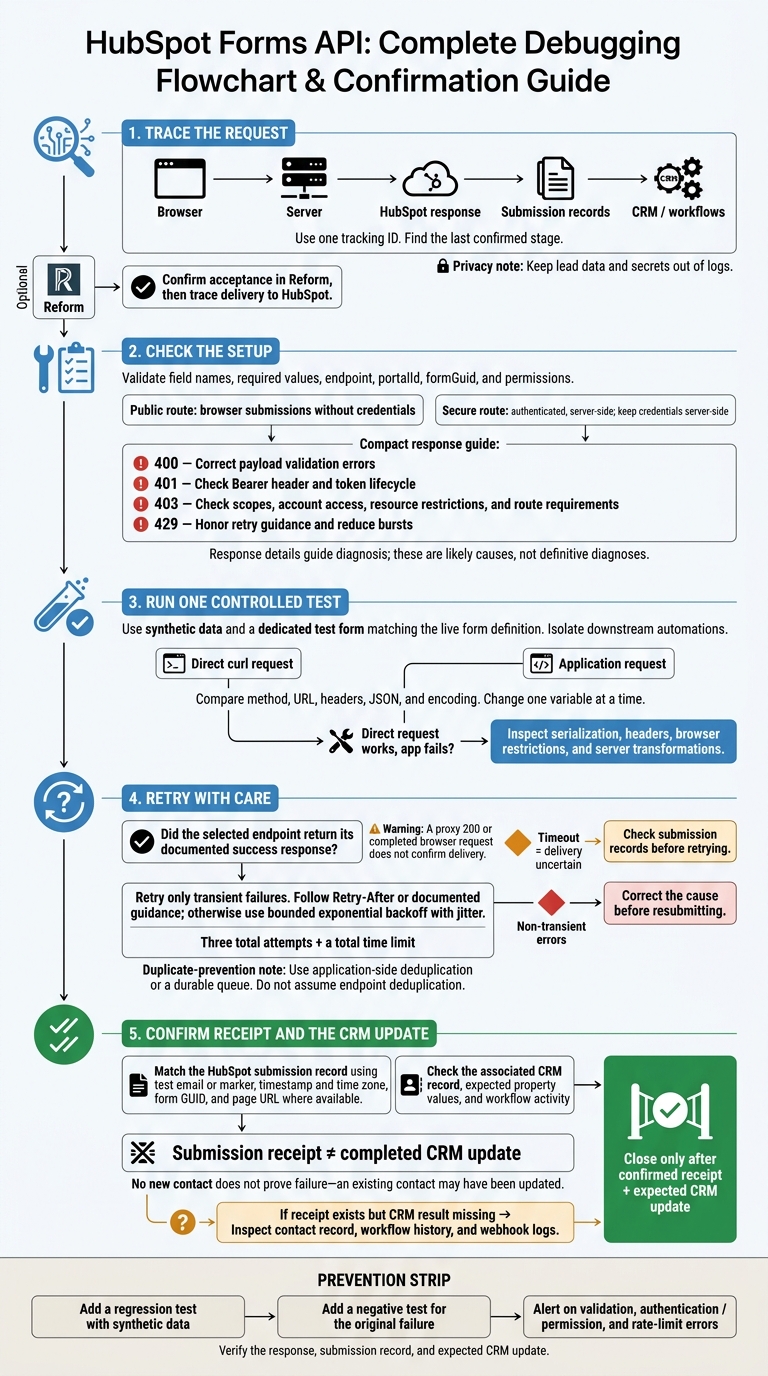
HubSpot Forms API Debugging Flow
Check the Request Data, Endpoint, and Access
Step 3: Validate Fields and Submission Data
With the trace in hand, check the payload first. Compare the request with HubSpot’s current schema and the target form definition. Confirm it uses POST, Content-Type: application/json, and valid JSON with a fields array of name/value objects.
Use internal property names - not visible labels. Check required values, duplicate fields, email syntax, accepted select/checkbox/date/number formats, and documented input limits. The secure route accepts up to 1,000 fields.
If you include submittedAt, use Unix milliseconds. Timestamps older than one month fail. Check that the IP format, consent fields, and legal basis match HubSpot’s requirements exactly. Never invent consent or IP data to pass validation.
Step 4: Verify the Submission Endpoint
If the payload is valid, check the endpoint. Match portalId to the intended HubSpot account and formGuid to its form definition. Look for incorrect environment settings, stray whitespace, and outdated IDs from recreated forms. Use the matching submission route:
Public:
https://api.hsforms.com/submissions/v3/integration/submit/{portalId}/{formGuid}

Secure:
https://api.hsforms.com/submissions/v3/integration/secure/submit/{portalId}/{formGuid}
The public route supports cross-origin browser submissions without credentials. The secure route requires authentication, is intended for server-side use, and has higher documented rate limits.
Form-management routes create, retrieve, or edit forms; they don’t submit leads. Check legacy URLs against the current submission documentation rather than treating them as interchangeable. Sensitive Data requires the supported secure route. An unsupported unauthenticated submission can return 403.
Step 5: Check Credentials and Permissions
If the endpoint is correct, check authentication and permissions. For the secure route, verify the Authorization: Bearer <token> header, token status, scopes, and access to the target account and form.
For a private app, review its scopes and installation. For OAuth, check grants, the authorization account, and refresh-token status. Compare permissions with the current secure route documentation. Adding credentials to the public route isn’t a blanket fix. Read the status alongside the response body and correlation IDs.
| Status | Likely causes | Practical fix |
|---|---|---|
400 |
Invalid JSON, field mismatch, missing value, timestamp, consent, or input-limit error | Correct the payload issue identified in the response body. |
401 |
Missing, malformed, expired, revoked, or invalid token | Check the Bearer header and token lifecycle for the secure route. |
403 |
Missing scope, wrong account access, restricted resource, or Sensitive Data route restriction | Check response details against scopes, account access, form ownership, and route requirements. |
429 |
Rate limit exceeded | Honor retry guidance, reduce bursts, and use bounded exponential backoff without duplicate submissions. |
sbb-itb-5f36581
Test the Failure and Confirm Delivery
Step 6: Send a Minimal Valid Test Request
After checking the payload and endpoint, replay one minimal submission. This helps separate application errors from HubSpot validation and shows whether the failure sits in your app, the transport, or HubSpot.
Use a dedicated test or non-production form that matches the live form’s exact definition. Submit synthetic values with a controlled test contact and a mailbox you control. Isolate downstream automations before testing, and treat this request as a template only. This ensures you are creating high-converting lead forms that don't break during the handoff to your CRM.
curl --request POST \
  --url "https://api.hsforms.com/submissions/v3/integration/submit/PORTAL_ID/FORM_GUID" \
  --header "Content-Type: application/json" \
  --data '{
    "fields": [
      {"name": "email", "value": "debug-2025-01-15@example.com"},
      {"name": "firstname", "value": "API"},
      {"name": "message", "value": "Synthetic debugging submission"}
    ],
    "context": {
      "pageUri": "https://example.com/debug-form",
      "pageName": "API Debug Test"
    },
    "legalConsentOptions": {
      "consent": {
        "consentToProcess": true,
        "text": "Synthetic test consent"
      }
    }
  }'
Use the smallest payload that satisfies the current form definition. Send it through both your app and a direct curl request, then compare the method, URL, headers, JSON, and encoding. Change one variable at a time.
If the direct request works but the app request fails, check application serialization, headers, browser restrictions, and server-side transformations. Test the public browser route and secure server route separately. Keep secure-route credentials server-side.
Step 7: Handle Responses and Retries
Record the status, headers, body, elapsed time, endpoint version, and error category. Count only the selected endpoint’s documented success response as success. A completed browser request, a 200 response from an intermediate proxy, or an empty response body does not confirm delivery.
Keep redacted evidence when a response is empty, HTML, truncated, or invalid JSON. Encrypt retained failed submissions, limit access, and set a short retention period. In ordinary logs, store secure replay references rather than full payloads.
Retry only transient failures. Follow Retry-After or other documented guidance; otherwise, use bounded exponential backoff with jitter, three total attempts, and a total time limit. Treat timeouts as delivery uncertain and check submission records before retrying. Application-side deduplication or a durable queue can help prevent repeated submissions. Do not assume the endpoint deduplicates them.
Step 8: Find the Last Completed Stage
Use response data and records to find the last completed stage in the form-to-CRM path. Match each signal to the last system that completed its part of the request.
| Tool | Inspection location | Evidence | Failure stage |
|---|---|---|---|
| Browser developer tools | Network panel, request, response, console | Payload, URL, status, CORS message, preflight request, timing | Client validation, CORS, transport, or API response |
| Server logs | Structured request and error logs | Sanitized payload summary, status, headers, response body, retry count, trace ID | Backend construction, authentication, API, or retry logic |
curl or REST client |
Direct request and raw response | Whether the endpoint and payload work outside the application | Endpoint, payload, credentials, or HubSpot validation |
| HubSpot submission records | Form submission history or documented retrieval endpoint | Stored fields, submission time, and page URL | Confirmed receipt; later CRM or automation stage |
Confirm receipt by matching the synthetic email or test marker, timestamp in the account’s configured time zone, form GUID, and page URL where available. The retrieval endpoint returns 20 records by default, allows up to 50 per response, and supports pagination. Follow the returned after cursor when needed.
A matching submission confirms form-processing receipt, not completion of downstream CRM work. Next, check the contact record, workflow history, and webhook logs, using the last confirmed stage to decide where to look.
Prevent Repeat Submission Failures
Once you find where the submission fails, add checks to keep the same problem from happening again.
Standardize Validation and Error Alerts
Handle endpoint construction, credentials, payload validation, timeouts, and response parsing in one shared submission service. Keep portal IDs and form GUIDs specific to each environment. Validate each payload against the live HubSpot schema before sending it.
Add contract tests that compare your payload schema with the HubSpot form definition. Run them whenever fields, mappings, credentials, or integration code change. Add a regression test that reproduces the confirmed failure and checks that the fix works. Keep a short runbook covering the fix, regression test, configuration owner, and rollback procedure.
Track failures by form GUID, endpoint, status, and error category - without logging personal information or secrets. Create separate alerts for validation errors, authentication or permission errors, and rate limits. Send each alert to the team responsible for that type of failure. Pause retries when rate limits apply.
Apply these same checks at the form layer when Reform handles submissions.
Trace Reform Delivery to HubSpot
To trace delivery from Reform to HubSpot, first confirm that the correct HubSpot account is connected and the integration is enabled. Check that field mappings match HubSpot property names, required values, types, and options. Review every conditional route, along with any email-validation or spam-prevention rules that might block a valid submission before delivery.
Use Reform submission records and integration diagnostics to separate accepted in Reform from delivered to HubSpot. If a submission appears in Reform but not in HubSpot, compare its timestamp, route, acceptance status, and delivery attempts with HubSpot's form-submission records.
If HubSpot responses aren't available, give support the exact submission time and time zone, form identifier, branch taken, and a non-sensitive attempt ID.
Conclusion: Confirm Delivery and Add a Regression Test
After the fix, replay one controlled request to confirm the same path works from start to finish.
Close only after HubSpot confirms receipt and the CRM record matches. Match the test request to its HubSpot submission record. Then check the associated CRM record for the correct property values and expected workflow enrollment.
Once HubSpot shows both the submission and CRM update, turn that request into a regression test with synthetic data. Assert the response body, HubSpot submission record, and expected CRM update. Add a negative test for the original invalid condition. Compare accepted requests against HubSpot submission records and CRM updates so an accepted request can’t hide a missing lead.
FAQs
How long should I wait for a CRM update?
New submissions usually appear in your HubSpot portal’s Submissions tab within a few minutes. For API errors, the wait depends on the error type.
For 429 rate-limit errors, check the Retry-After response header for HubSpot’s required wait time. For temporary server errors, use exponential backoff: wait 1–2 seconds before retrying, then double the delay with each attempt. Limit retries to 3–5.
How can I safely replay failed submissions?
Log the original payload, status code, and timestamp for every outbound request. Once you’ve found and fixed the root cause, manually resubmit the stored payload. If your integration supports an idempotency key, use it to prevent duplicate CRM records.
For temporary failures, set up automated retries with exponential backoff so submissions can recover without manual intervention.
What should I send HubSpot support?
Send HubSpot support the exact submission request and response details:
- Request: The POST endpoint, including the portal ID and form GUID; request headers, especially Authorization and the bearer token used; and the full JSON payload. Include fields with HubSpot internal property names, any context (
pageUri,pageName,hutk), and anylegalConsentOptionssent. - Response and logs: The HTTP status code, response body or error JSON (including
correlationId), timestamps, and the correlation/request ID from your logs.
Redact the bearer token before sharing. Provide it only if HubSpot support explicitly requests it through a secure channel.
Related Blog Posts
Get new content delivered straight to your inbox

The Response
Updates on the Reform platform, insights on optimizing conversion rates, and tips to craft forms that convert.



Drive real results with form optimizations
Tested across hundreds of experiments, our strategies deliver a 215% lift in qualified leads for B2B and SaaS companies.
