
.webp)
HubSpot Webhooks for Form Submission Apps



HubSpot has 3 paths for moving form data - not one universal form-submission webhook. I recommend a form-triggered workflow when your plan supports it, Forms API polling for submission records, or an app webhook for supported CRM events. A contact update alone does not prove someone submitted a form.
Here’s what I check before launch:
- The source: Test what your Reform-to-HubSpot connection sends, and keep Reform webhook payloads separate from HubSpot events.
- The endpoint: Verify requests using the sender’s rules, then store or queue them before returning success.
- The data: Use submitted answers - not just current contact values - and map fields by stable IDs.
- The delivery: Prevent duplicate writes, retry temporary failures, and test repeat submissions and failed updates.
My final check: <u>confirm the destination record</u>. A 200 response means the request was accepted - not that the data reached your app.
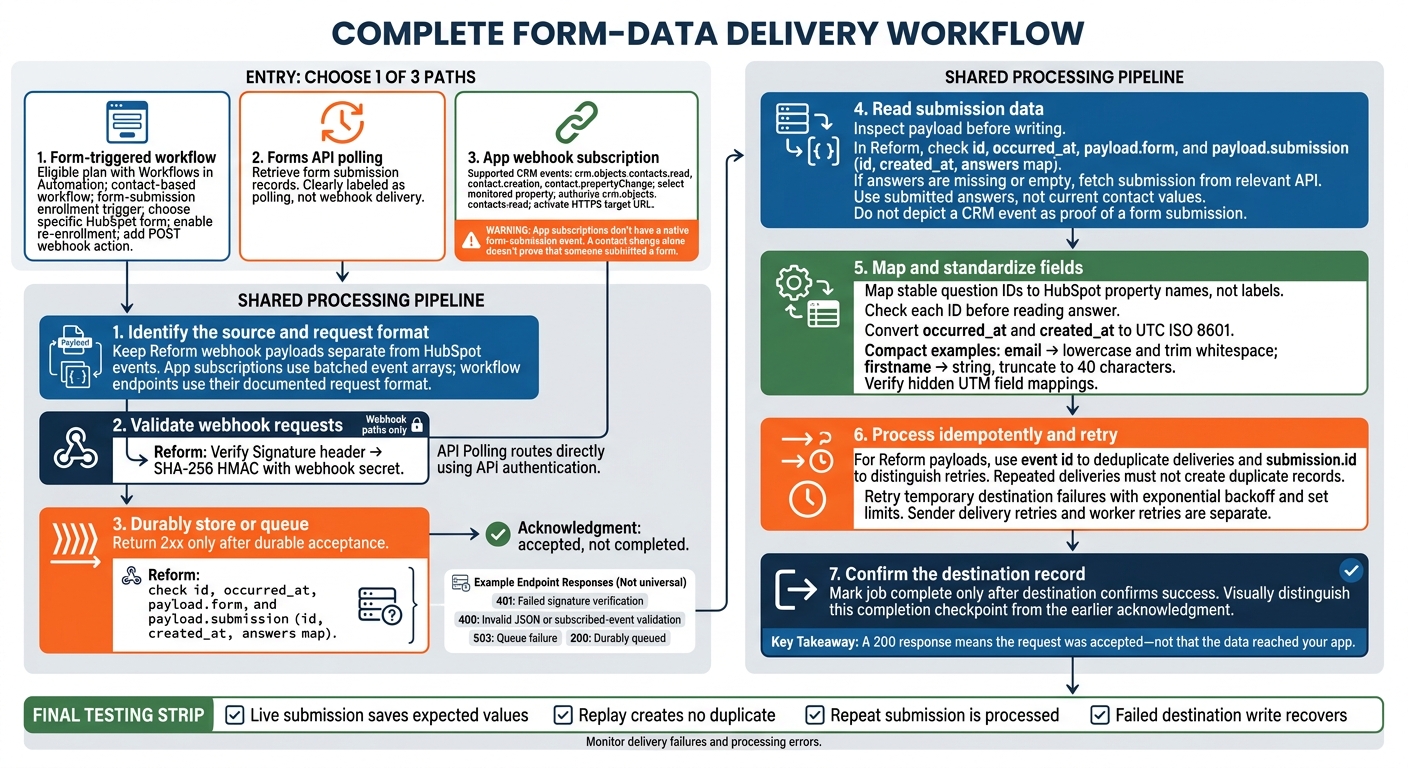
HubSpot Form Data: From Trigger to Verified Record
Set Up the Trigger and Webhook Endpoint
Enable a Supported Trigger
Once your endpoint is ready, activate the event source that will call it. Use the delivery path your account supports: a contact-based workflow webhook or an app webhook subscription.
If your account has Workflows in Automation and an eligible plan, use a contact-based workflow with a form-submission enrollment trigger. For public apps or accounts without Workflows, use a supported contact event, such as contact.creation or contact.propertyChange.
App subscriptions don’t have a native form-submission event. A contact change alone doesn’t prove that someone submitted a form.
For app webhook subscriptions:
- Open your app’s Webhooks settings in the HubSpot Developer Portal.
- Select a supported event. For
contact.propertyChange, choose the property to monitor. - Confirm that
crm.objects.contacts.readis authorized for contact subscriptions. - Enter your HTTPS target URL and activate the subscription.
For eligible workflow webhook actions:
- Create a contact-based workflow.
- Set form submission as the enrollment trigger and choose the specific HubSpot lead capture form.
- Turn on re-enrollment if repeat submissions should trigger another run.
- Add the webhook action, select POST, and enter your endpoint URL.
- Review and publish the workflow.
After activation, verify every request before queuing it.
Validate and Accept Webhook Requests
Read the raw body and verify the signature or auth header. Keep the secret in a secrets manager. Return 2xx only after the request is durably queued.
POST /webhooks/hubspot-app
    rawBody = readRequestBytes()

    # Verify the request using the documented header, raw body,
    # and secret from a secrets manager.
    if not verifyWebhookSignature(request, rawBody, secret):
        return 401

    try:
        events = parseJSON(rawBody)
    catch:
        return 400

    if not isArray(events) or not validSubscribedEvents(events):
        return 400

    try:
        durableQueue.enqueueBatch(events)
    catch:
        return 503

    return 200
This pseudocode illustrates app subscriptions with batched events; it isn’t production verification code. For a workflow endpoint, follow the workflow action’s documented request format and verification rules. Don’t expect an app-event array.
Send Destination Updates Through a Worker
Use an idempotent worker so repeated deliveries don’t create duplicate records. Mark a job complete only after the destination confirms success. Retry temporary failures with exponential backoff.
HubSpot delivery retries and your worker’s retries are separate. Return success only after durable storage - not after starting an in-memory task.
Once the worker is in place, inspect a test payload. Map each form field to its destination property before moving the flow to production.
sbb-itb-5f36581
Read Payloads and Map Form Fields
Review a Test Payload
After the worker dequeues the event, check the payload before writing to HubSpot. In a test payload, confirm that id, occurred_at, payload.form, and payload.submission are present. The submission object should contain its own id, a created_at timestamp, and an answers map keyed by unique question IDs.
If payload.submission.answers is missing or empty, treat the webhook as a delivery notification. Make a GET request to the Reform or HubSpot API to fetch the submission data. Read the submission payload directly, since current contact properties may have changed since the form was submitted.
Map Fields and Standardize Values
Map to HubSpot property names, not labels. Match answers by unique question ID - not question wording or position - and check that each ID exists before reading answer. Convert occurred_at and created_at to UTC ISO 8601 before storing them.
Source field Destination field Transformation Required Fallback submission.answers.[ID].answerLowercase; trim whitespace Yes Reject/error submission.answers.[ID].answerfirstnameString; truncate to 40 characters No Set as "Unknown" submission.idexternal_submission_idNone; unique key Yes Generate UUID occurred_aths_latest_source_timestampISO 8601 to UTC Yes System time Example mapping based on Reform's documented payload structure.
Prevent Duplicate Destination Writes
Use id to dedupe webhook deliveries. Use submission.id to distinguish a retried delivery from a new submission.
HubSpot dedupes contacts by email and updates existing records. If partial-submission capture is enabled, your workflow should also handle partial submissions.
Apply this mapping and dedupe logic in the delivery tests below.
Test Delivery and Troubleshoot Errors
Test Submissions, Replays, and Failures
Once mapping and dedupe are set up, run a live submission test.
Submit a test form with a known name and email address. Follow it through your configured delivery path and confirm the request is accepted. Then check that the saved field mapping matches the values in HubSpot.
Replay a recorded test event and confirm it doesn’t create a duplicate record. Submit the form again to check that a new submission gets processed.
Check both the endpoint response and the destination record. An accepted request doesn’t prove the update succeeded. If the test fails, use the table below to find the first broken step.
Find Errors by Symptom
Start with the first missing step in the delivery path. Check signatures using the sender’s signature scheme: Reform’s Signature header uses SHA-256 HMAC with the webhook secret.
| Symptom | Likely cause | Verification step | Corrective action |
|---|---|---|---|
| Missing requests | Integration disabled or wrong URL | Check the integration toggle and webhook URL | Turn on the integration and verify the endpoint URL. |
| Authorization failures | Invalid credentials or expired token | Check the HubSpot integration status | Reauthorize the HubSpot connection. |
| Invalid signatures | Incorrect secret or altered payload | Check the configured secret and raw request body used for signature verification | Retrieve the webhook secret and hash the unmodified body. |
| Bad requests | Malformed JSON or invalid field values | Inspect parsing and validation errors | Fix the payload or field mapping before retrying |
| Duplicate writes | Duplicate handling failed | Compare the submission ID with existing records | Map the submission ID to a custom unique HubSpot property and check for existing records before updating. |
| Missing values | Unsaved or incorrect mappings | Review Reform’s integration configuration | Correct the property mappings and click Save integration. |
| Timeouts | Slow endpoint or destination | Identify the slow call | Limit retries and investigate the slow service |
| Server errors | Temporary endpoint or destination failure | Identify which service returned the error | Retry temporary failures within set limits |
| Missing hidden field values | Hidden fields not populated or mapped | Check the submission payload | Map the hidden fields and retest |
Review the Production Checklist
Test recovery from a failed destination write before launch. Track delivery failures and processing errors.
- [ ] HTTPS is reachable, authorization works, and sender-specific request validation passes.
- [ ] Secrets are stored securely.
- [ ] Valid requests are durably accepted before acknowledgment.
- [ ] Idempotency, retry limits, backoff, and failed-event recovery are tested.
- [ ] Monitoring covers delivery failures and processing errors.
- [ ] Destination mappings - including hidden UTM fields - are verified.
How-to use webhooks with HubSpot workflows in HubSpot.
Conclusion: Launch Your Tested Form Data Workflow
Before launch, verify the event source, validate form.submitted requests using the Signature HMAC, and map fields by stable answer IDs. Keep deduplication in place so updates reach existing records.
Use the production checklist - not just the endpoint response - to confirm that an end-to-end submission test updates the expected HubSpot record and that the workflow is ready for production.
FAQs
How often should I poll for form submissions?
Use webhooks instead of polling for form submissions when possible. HubSpot can send a form.submitted event to your endpoint when a submission happens. If your endpoint fails, HubSpot can retry the notification up to 10 times over 24 hours.
If you need to poll, choose a regular interval based on how soon you need new leads. Webhooks should remain your first choice for real-time notifications.
How do I handle webhook events arriving out of order?
Use each Reform submission’s submission_id to deduplicate records and apply updates correctly, no matter which submission arrives first. Map answers by their payload IDs, not their question order.
Log the full response, including the delivery timestamp and request identity. This helps you match events with CRM records when debugging delivery delays or ordering issues.
How can I safely replay failed submissions?
Log each outbound request’s status code, timestamp, and original payload. Once you’ve found and fixed the underlying issue, manually resubmit the saved payload. Use the correlationId in HubSpot error responses to trace failed requests.
Set up your system to handle retries smoothly. Consider self-healing processes that recover from temporary errors without manual intervention.
Related Blog Posts
Get new content delivered straight to your inbox

The Response
Updates on the Reform platform, insights on optimizing conversion rates, and tips to craft forms that convert.




Drive real results with form optimizations
Tested across hundreds of experiments, our strategies deliver a 215% lift in qualified leads for B2B and SaaS companies.
