
.webp)
HubSpot Form Automation for Email Campaigns



If I want HubSpot form automation to work, I need clean form data, one clear email path, and rules that stop bad routing.
Here’s the short version:
- A form submission can send one follow-up email or start a multi-email workflow
- Basic form automation handles simple actions inside the form
- Workflows handle delays, branching, lead routing, and nurture tracks
- The form should ask only for fields I will actually use, like job title, company size, region, or product interest
- Dropdowns beat open text because they keep data clean
- I should avoid double sends by choosing either a form follow-up email or a workflow email, not both
- HubSpot only sends workflow emails to marketing contacts with the right subscription consent
- Good reporting ties together form conversion, email engagement, MQL rate, and time to first sales touch
A few numbers stand out. The article points to 35%–40%+ open rates for B2B nurture emails, 2.5%+ CTR, under 0.5% unsubscribes, and 3%–5% of enrolled leads turning into MQLs. If those numbers slip, the issue is often the setup, not the offer.
The main choice is simple: use native HubSpot forms for standard flows, or use a more guided form tool when data quality and routing rules matter more. From there, I’d focus on clean fields, smart enrollment rules, and tight follow-up.
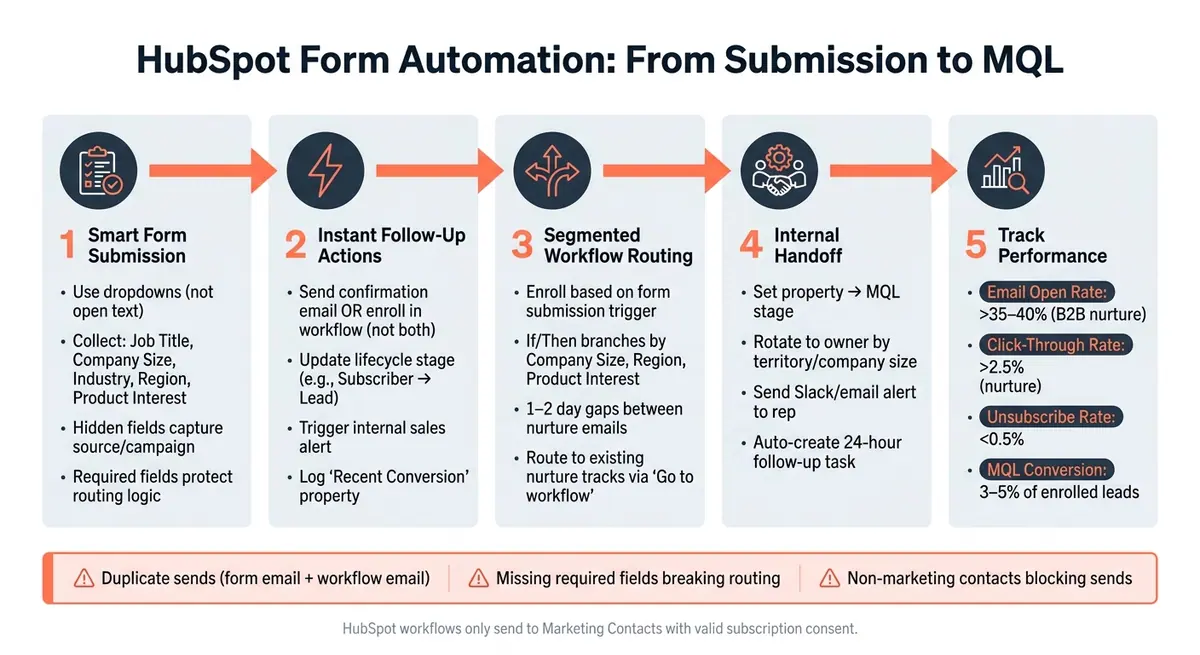
HubSpot Form Automation Workflow: From Submission to MQL
How To Trigger Emails From Form Submissions In HubSpot (Easy Tutorial)

sbb-itb-5f36581
Build Forms That Capture the Right Data for Automation
If your workflow runs on form data, the form needs to collect the data your automation will actually use. An email-only form gives you almost nothing to work with for segmentation or personalization. The simple rule is this: only ask for fields that power the next step.
Choose Fields That Support Segmentation
The most useful fields for automation are job title, company size, industry, product interest, region, and urgency or use case. These line up with HubSpot properties and give your workflows clear values to branch on.
It also helps to use dropdowns instead of open text fields. Here's why: if one person enters "SaaS" and another types "software as a service", your workflow may treat them as different values. That creates messy data and inconsistent routing. Standard options keep things clean and make automation far more dependable.
Two field types get missed all the time: hidden fields and required fields.
- Hidden fields collect context in the background, such as the page URL, campaign source, or the asset a visitor downloaded, without adding extra work for the user.
- Required fields matter when a workflow depends on that value. If "Region" decides which sales rep gets the lead, that field can't be optional or the routing can fail.
Set Up Form Automation and Immediate Follow-Up
HubSpot's form editor has an Automation tab for immediate follow-up actions. This is where you send a confirmation email, alert the right team member, and update contact properties the moment someone submits the form.
A demo request form, for example, can move a contact from Subscriber to Lead right away. For internal alerts, subject lines like [Form Name] – [Contact Name] help sales sort leads fast.
One smart setup is to use a single "Recent Conversion" text property and a "Recent Conversion Date" field to log the latest asset a contact downloaded. If you make a separate property for every ebook or guide, things get messy fast and reporting becomes harder to manage.
That information can then power lists, lead routing, and workflow enrollment.
Use Reform for Higher-Quality Form Submissions
Reform can help improve the quality of the data sent into HubSpot. Multi-step forms, validation, spam prevention, and conditional routing cut down on poor submissions. Once that data syncs over, it can trigger HubSpot workflows and fill the right contact properties.
Better input leads to better segmentation and more accurate workflow branching.
Connect Form Submissions to HubSpot Email Workflows
Once you've finished creating high-converting lead forms and have clean data, connect it to a workflow that enrolls the contact, sends the right follow-up, and moves the lead where it needs to go. Those properties do the heavy lifting here. They help you decide who gets in, what they get, and whether they can enter again later.
Set Enrollment Triggers and Re-Enrollment Rules
In HubSpot, go to Automation > Workflows and create a contact-based workflow. If you're building form-driven automation, use a form submission trigger so contacts enroll as soon as they submit the form. Then add filters for submission date or prior submissions to cut down on duplicate enrollments.
Keep re-enrollment off for one-time offers. Turn it on for repeat submissions, like webinars or downloads, so contacts can go through the sequence each time they submit.
Once those rules are in place, you can shape the email path around timing and branching.
Build Email Sequences with Delays and Branches
Match the timing to the contact's intent. Send an immediate follow-up for high-intent submissions, then space nurture emails with 1–2 day gaps.
Use If/Then branches to route contacts by Company Size, region, or product interest. That keeps the flow simple and logical: capture data → use data → route leads. You can also add branches based on urgency or use case to make each path tighter and more relevant.
Route New Leads into Existing Nurture Programs
If a submission already fits an existing journey, send it there instead of building a new flow from scratch. HubSpot's Go to workflow action lets you move the contact into an existing nurture workflow without rebuilding the same logic again. A common setup is to send the first form-specific email, then pass the contact into the main nurture track.
Segment, Route, and Measure Leads from Form Data
Once the workflow is live, put that same form data to work. It should shape who gets emails, where each lead goes, and what you track. If form data isn't driving those steps, you're leaving a lot on the table.
Create Lists for Targeted Email Sends
Use active lists for lead nurture that keeps running. Use static lists only for one-time snapshots.
For segmentation that lasts, combine form submission filters with contact properties. Don't rely on just one or the other. A high-intent segment might look like this: someone submitted the pricing page form AND visited the pricing page twice in the last 30 days. That AND/OR logic is what turns a rough list into something you can use. If values aren't consistent, segmentation starts to fall apart.
Targeted sends beat generic sequences. It's also smart to build suppression lists so current customers, unsubscribed contacts, and people already in an active sales conversation stay out of top-of-funnel workflows. Send the wrong message to the wrong person, and you can hurt deliverability and burn budget.
Those same rules should guide suppression and routing too.
Automate Internal Handoffs and Data Updates
A form submission should kick off more than an email. Use the "Set property value" action to update the contact's lifecycle stage right away. For example, move them to Marketing Qualified Lead (MQL) so your CRM matches what's happening.
For high-value submissions like demo requests or consultation forms, send an internal notification by email or Slack to the assigned rep the second it comes in. Then add an automatic follow-up task with a 24-hour due date. Speed matters here. Slow routing gives leads time to cool off. Use the "Rotate to owner" action to spread leads across your sales team based on territory or company size, so one rep doesn't end up buried.
"A form is only as useful as what happens after someone hits submit." - Ohad Peter, HubSpot Specialist, IV-Lead
Track Form and Email Performance Together
Track form and email results side by side. If you split reporting across different places, weak spots are easy to miss.
Once routing is in place, check whether those segments are turning into conversions:
| Metric | Benchmark | Meaning |
|---|---|---|
| Form view-to-submission rate | - | Whether your form is converting visitors |
| Email open rate | Above 35–40% for B2B nurture | Whether your subject lines and timing are working |
| Click-through rate (CTR) | Above 2.5% | Whether your content matches what the lead cares about |
| Unsubscribe rate | Below 0.5% | Whether your segmentation is off |
| MQL conversion rate | 3–5% of enrolled leads becoming MQLs | Whether the workflow is moving leads forward |
| Speed to first contact | - | Whether internal routing is actually accelerating the sales cycle |
Low CTR usually means the content doesn't line up with the form data you collected. If unsubscribes are going up, your segmentation probably needs to be tighter. In HubSpot, build a custom report that tracks the time between form submission and first sales touch. That one metric shows whether your automation is closing the gap or letting leads go cold.
If you're using Reform to capture leads before they reach HubSpot, its abandoned submission tracking and real-time analytics give you one more view into what's happening. You can spot where people drop off mid-form and fix that friction before it drags down enrollment numbers later.
Common Setup Mistakes and How to Avoid Them
If results look weak, don't rush to rewrite the offer or tweak the email copy. Start with the setup.
Most automation problems come from setup errors, not the strategy itself. So before launch, clean up the basics first.
Collecting Too Many Fields Up Front
When required fields are missing or messy, routing and segmentation break down. Require the fields you actually use, or take them out of the workflow logic.
This is one of those simple problems that can quietly mess up the whole system. If a field drives a branch, list, or assignment rule, that field needs to be there every time.
Triggering Duplicate or Incorrect Sends
Don't use both a form follow-up email and a workflow email for the same submission. If you do, the same contact gets two confirmation emails. Pick one path and turn off the other.
If you turn on re-enrollment, add a "not currently enrolled" filter so people don't get the same message again by mistake.
Before anything goes live, run a dummy submission test.
Once routing is clean, the next step is simple: make sure the contact can actually receive the email.
Ignoring Consent, Send Eligibility, and Data Hygiene
Only marketing contacts can receive automated workflow emails. And if the subscription type doesn't match the form consent, HubSpot blocks the send.
If emails still aren't going out, check the email's Not sent tab. That's often where you'll spot missing consent or a contact that isn't set as a Marketing Contact.
A few checks matter here:
- Use goal-based unenrollment to remove contacts after they convert.
- Use send-frequency limits so converted contacts don't keep getting emails.
- Confirm your DKIM and DMARC records are set up in HubSpot's Email Health dashboard to help avoid deliverability problems.
These issues aren't flashy, but they can stop a workflow cold. A quick audit up front can save a lot of head-scratching later.
HubSpot Native Forms vs. External Form Builders
After routing and consent are set up, the next call is simple: does the form help clean automation, or get in the way? Once your workflows are live, that form becomes the next thing to check.
When HubSpot Native Forms Are the Better Fit
HubSpot's built-in forms come with native property mapping, automatic contact creation, and direct workflow triggers. For standard use cases like newsletter signups, gated content, and demo requests, they tend to be a good fit.
Progressive Profiling swaps out fields a contact has already completed and shows new questions on later visits. That helps you build a richer lead profile over time without making the form longer. Dependent Fields let you show a "State" field only when someone selects "United States", which keeps the form cleaner for everyone else. Both features are available on Professional and Enterprise tiers.
Native forms make sense when HubSpot only needs standard fields and direct enrollment.
When a More Structured Intake Flow Is Needed
As form logic gets more involved, a more structured intake flow can lead to cleaner data. Multi-step qualification flows, stronger validation, and abandoned submission tracking all help here. Multi-step forms, conditional routing, spam prevention, and lead enrichment can cut down on poor submissions before the data ever reaches HubSpot. That matters because it affects how dependably contacts enroll in the right workflow and land in the right segment.
Reform supports this kind of structured intake, and it offers a native HubSpot integration on the Pro plan.
The choice comes down to how much the data you collect shapes routing and segmentation. A good gut check is this: does the form send dependable data into segmentation and nurture?
Conclusion: A Practical Workflow for Better Lead Nurturing
Once your form, workflow, routing, and reporting are set up, the process gets pretty simple. HubSpot form automation works best when clean form data kicks off the right workflow, and the right email goes out next.
After that, the main task is making sure each lead goes down the right path. Use lead forms that prioritize quality to sort contacts into the right nurture flow.
Then look at form conversion, workflow completion, and email engagement side by side. That makes it easier to spot where leads slow down or drop off. When your data is clean and your workflow is tight, HubSpot can turn form submissions into relevant follow-up on its own.
FAQs
How do I choose between form automation and a workflow?
Choose form automation for simple, instant actions in the form editor, like sending a confirmation email or a basic internal alert.
Choose workflows for more advanced, multi-step automation, such as nurture sequences, conditional branches, CRM updates, and other data-driven tasks across the lead lifecycle.
What fields should I require for better lead routing?
Ask for fields that make segmentation useful in practice, like company size, industry, location, and service or use-case interests. Dropdowns are especially handy here because they can trigger conditional logic, which helps send leads to the right sales rep or team.
Your CRM should also capture standard properties like lifecycle stage and recent conversion source so your data stays consistent. Reform’s conditional routing and email validation can help improve lead quality.
Why aren’t my workflow emails sending after a form submission?
First, confirm the contact is a marketing contact. Only marketing contacts can receive workflow emails. Also check that the email is set to Automated and that it’s published.
Next, make sure the contact hasn’t unsubscribed and is opted into the correct subscription type. Then verify that the workflow is active, the contact meets the enrollment triggers, and re-enrollment is turned on if the contact already existed before.
Related Blog Posts
Get new content delivered straight to your inbox

The Response
Updates on the Reform platform, insights on optimizing conversion rates, and tips to craft forms that convert.




Drive real results with form optimizations
Tested across hundreds of experiments, our strategies deliver a 215% lift in qualified leads for B2B and SaaS companies.
