
.webp)
Klaviyo Form Tracking with Google Tag Manager



Klaviyo forms generate valuable event data when users interact with them, but without Google Tag Manager (GTM), this data remains limited to Klaviyo. By integrating Klaviyo with GTM, you can track form interactions - like submissions or multi-step completions - in Google Analytics 4 (GA4) and other platforms. This lets you tie signups to traffic sources, campaigns, and ad spend for clearer ROI insights.
Key Takeaways:
- Klaviyo triggers
klaviyoFormsevents for every form interaction (e.g.,submit,open,close). - You can capture these events in GTM using a Custom HTML tag and push them to the Data Layer.
- GA4 can track these events, with
form_submitmarked as a conversion to measure campaign performance. - For Shopify users, avoid duplicate tracking by disabling Klaviyo’s native app embed if using GTM.
Steps to Set Up Tracking:
- Add a Custom HTML tag in GTM to listen for
klaviyoFormsevents. - Push event details like
formIdandtypeto the Data Layer. - Configure Data Layer Variables in GTM to access form data.
- Create triggers and tags in GTM for platforms like GA4 and Facebook Ads.
- Test your setup using GTM’s Preview mode to ensure accuracy.
This setup helps you monitor form performance, identify drop-off points, and optimize marketing strategies based on reliable data. For more advanced insights, tools like Reform offer step-level tracking and additional event data.
Understanding Klaviyo Forms and Event Data
Klaviyo Form Types and When to Use Them
Klaviyo offers four types of forms: popups, flyouts, embedded forms, and full-page forms. Each type serves a specific role in the e-commerce funnel.
- Popups and flyouts: These are perfect for capturing email or SMS signups at crucial moments, like when a visitor is about to leave a page (exit intent) or after they've spent a certain amount of time on the site.
- Embedded forms: These are placed directly on a page, making them ideal for footer signups or dedicated landing pages.
- Full-page forms: These are better suited for more complex flows, such as back-in-stock notifications or multi-step lead generation.
Klaviyo tracks revenue generated from form interactions using a lookback window. This means that choosing the right form type is about more than just aesthetics - it can impact your overall strategy. Additionally, understanding how these interactions are tracked as events is key to effective integration with Google Tag Manager (GTM).
How Klaviyo Fires Events
Whenever a user interacts with a form, Klaviyo triggers a klaviyoForms CustomEvent on the browser's window object. This event can be captured in GTM using a Custom HTML tag with a JavaScript event listener.
Each event includes a detail object that contains important properties for tracking:
| Property | Description |
|---|---|
type |
The action taken, such as open, embedOpen, close, submit, stepSubmit, or redirectedToUrl |
formId |
A unique 6-character alphanumeric ID for the form |
companyId |
The public API key for your Klaviyo account |
metaData |
Submitted field data, including email, phone_number, and any custom inputs |
For Google Analytics 4 (GA4) tracking, the submit event is triggered when a user completes an initial email or SMS subscription. Meanwhile, the stepSubmit event fires at each step in a multi-step form, which can help you pinpoint where users drop off. This data is essential for optimizing multi-step form design to improve completion rates. This structure makes it easier to identify which interactions signify conversions.
What Counts as a Conversion for Klaviyo Forms
In Klaviyo's analytics, a submit is logged when a visitor fully completes a form or clicks a "Go to URL" button on a form that doesn’t include email or phone fields. Only submission actions are recorded as conversions - closing a form or plain redirects are not.
For GTM, the submit event is your go-to signal for tracking conversions. It captures the exact moment a new subscriber is acquired, whether through a discount offer or a back-in-stock notification. Klaviyo suggests aiming for a submit rate of 3% or higher for popups and flyouts, providing a clear benchmark to measure success in GA4.
sbb-itb-5f36581
How to Track Klaviyo Form Leads in Google Analytics 4 (Using GTM)

Setting Up Klaviyo Form Tracking in GTM
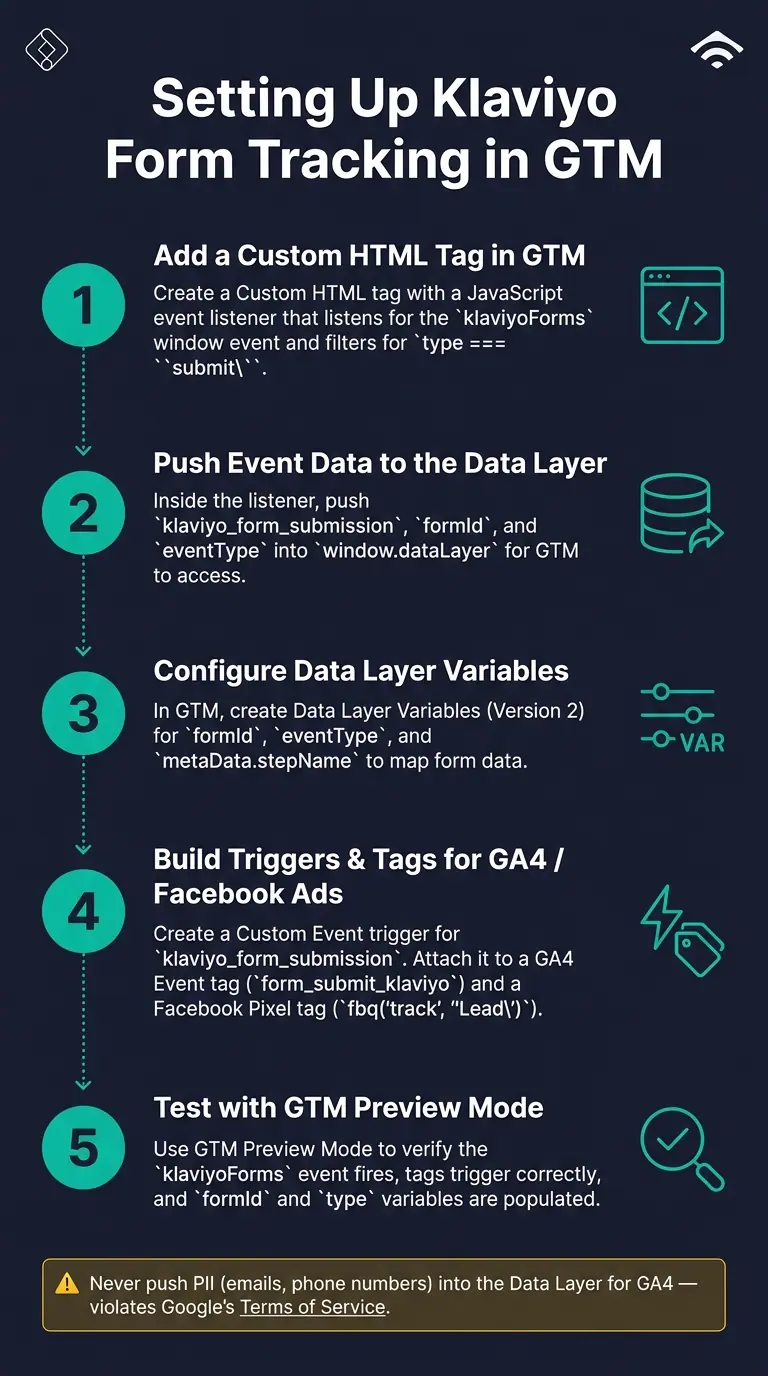
How to Track Klaviyo Forms with Google Tag Manager
Pushing Klaviyo Events to the Data Layer
Klaviyo automatically fires a klaviyoForms event on the window object whenever there's form interaction, but GTM doesn't capture this out of the box. To bridge this gap, you can add a Custom HTML tag in GTM with the following listener script:
<script>
  window.addEventListener("klaviyoForms", function(e) {
    if (e.detail.type === "submit") {
      window.dataLayer.push({
        event: "klaviyo_form_submission",
        formId: e.detail.formId,
        eventType: e.detail.type
      });
    }
  });
</script>
This script listens for the klaviyoForms event and pushes an event object into the Data Layer whenever the type is "submit." If you're working with multi-step forms, you can adjust the script to capture "stepSubmit" events for tracking each step.
Important: Never push raw email addresses, phone numbers, or other PII (Personally Identifiable Information) into the Data Layer for GA4. Doing so violates Google's terms of service unless you're using a feature like Enhanced Conversions that explicitly allows it.
Configuring Data Layer Variables
Once the listener is active and pushing data, you'll need to set up GTM variables to access this information. Here's how:
- Go to Variables → New → Data Layer Variable in GTM.
- Create a variable for each property you're pushing into the Data Layer. The variable name in GTM must match the key in the Data Layer exactly.
Here’s a breakdown of some common variables:
| Variable Purpose | GTM Variable Name | Data Layer Variable Name |
|---|---|---|
| Form ID | DLV - Klaviyo - Form ID |
formId |
| Event Type | DLV - Klaviyo - Event Type |
eventType |
| Step Name | DLV - Klaviyo - Step Name |
metaData.stepName |
When setting up these variables, make sure to select Data Layer Version 2. For the formId, you can find this six-character alphanumeric code in the form editor URL within Klaviyo.
Building Triggers and Tags for Analytics Platforms
Now that your variables are ready, you can create triggers and tags to send data to your analytics platforms. Start by creating a Custom Event trigger for klaviyo_form_submission. Then, attach this trigger to the relevant tags for platforms like GA4 and Facebook Ads.
-
For GA4:
Add a Google Analytics: GA4 Event tag. Name the eventform_submit_klaviyo, and under Event Parameters, include aform_idparameter mapped to yourDLV - Klaviyo - Form IDvariable. This setup allows you to filter data in GA4 by form ID. -
For Facebook Ads:
Use a Custom HTML tag to fire the Facebook Pixel'strackmethod. For example, usefbq('track', 'Lead')and attach the same trigger. This ensures your Facebook Pixel captures the event seamlessly.
Once everything is in place, you can test your setup using GTM’s Preview mode. This will help you confirm that events are firing correctly and refine your tracking as needed.
Improving and Extending Your Form Tracking
Measuring Form Performance in GA4
Once you've set up klaviyo_form_submission events in GA4, make sure to mark the event as a conversion in the GA4 Admin panel. If you skip this step, the event will appear in reports but won't be included in your conversion metrics.
To dig deeper, use GA4 Explorations to build a funnel analysis. For multi-step Klaviyo forms, map each stepSubmit event as a funnel step. This allows you to pinpoint exactly where users drop off - whether it's after entering their email, providing a phone number, or considering a discount offer. Research indicates that about 67% of users abandon forms when they encounter friction, making it crucial to identify those pain points.
"The gap between form_start and form_submit tells you something. It shows how many people begin filling out your form but never finish. That's your form abandonment rate in raw numbers." - Bogdan Sandu
Using the form_id parameter already configured in your Data Layer through GTM, you can filter GA4 reports by individual forms. This lets you compare the performance of a popup form versus an embedded one to determine which drives better conversions. While standard GA4 reports take 24 to 48 hours to update, you can check event accuracy in the Realtime report within a 30-minute window.
For even more detailed tracking, consider using Reform's granular event data. This can provide deeper insights into user interactions with your forms.
Using Reform to Get More from Form Tracking
Reform offers a more detailed view of form interactions by integrating directly with GTM. To enable this, navigate to the Integrations page in Reform, locate the Google Tag Manager option, and toggle it on.
Reform sends specific events such as reform.onInputChanged, which triggers as soon as a user starts typing, and step-specific events like reform.form_step_1_complete, reform.form_step_2_complete, and so on. These events are more precise than Klaviyo's generic stepSubmit event, as each step has its own unique event name. You can capture all these events in GTM using a Custom Event trigger with regex matching: ^reform\.form_step_\d+_complete.
Here’s how Reform events map to GA4:
| Reform Event | GTM Trigger | GA4 Event Name |
|---|---|---|
reform.onFormLoaded |
Custom Event | form_displayed |
reform.onInputChanged |
Custom Event | form_started |
^reform\.form_step_\d+_complete |
Custom Event (Regex) | form_step_completed |
reform.onFormCompleted |
Custom Event | generate_lead |
Each Reform event also includes a reformContext object with properties like form.id, form.name, and page.pageNumber. You can create Data Layer Variables in GTM for reformContext.form.id and reformContext.form.name, then pass these as parameters in your GA4 tags. This approach gives you the ability to filter by individual forms, similar to Klaviyo's form_id, but with the added benefit of step-level insights. Be cautious, though - ensure no PII, such as email addresses or phone numbers, from Reform's answers object is sent to GA4.
Testing, Troubleshooting, and Maintenance
After setting up your tracking, thorough testing and regular upkeep are essential to ensure your analytics platforms capture data accurately.
Testing Your Setup with GTM Preview Mode
Before pushing your setup live, use GTM's Preview Mode to test it. Start by clicking "Preview", entering your website's URL, and confirming that the Tag Assistant shows "Connected." Then, interact with your Klaviyo form - submit it, close it, or move through its steps - and check the Preview console for the klaviyoForms event.
When the event appears, click on it and review two key areas:
- Tags Fired: Confirm that your GA4 tag has triggered.
- Variables: Ensure fields like
formId,type, and other metadata are populated correctly.
For a more robust test, simulate a negative scenario by leaving a required field blank. In this case, the tracking tag should not fire, as firing under such conditions could inflate your conversion metrics. If you encounter any problems during testing, refer to the troubleshooting steps below.
Fixing Common Tracking Issues
Tracking issues with Klaviyo forms often stem from trigger misconfigurations or script conflicts. For instance, GTM's built-in Form Submission trigger frequently fails with Klaviyo forms because they use AJAX and iframes. As Julius Fedorovicius, Founder of Analytics Mania, explains:
"In fact, based on my experience, this [GTM built-in Form Submission] trigger is useless in 99% of cases."
The solution? Use a custom klaviyoForms JavaScript event listener, as detailed earlier in this guide.
On Shopify, script conflicts can arise if duplicate tracking setups are enabled. To fix this, disable any redundant tracking scripts. Another common issue occurs when a form refuses to submit. Open the Klaviyo form editor, click the button, and ensure its action is set to "Submit Form" (not "Close") and that it's linked to an active list.
Keeping Your Tracking Accurate Over Time
To maintain accuracy, always use the unchanging form_id (a six-character code) in your GTM triggers instead of form names . This avoids issues when forms are renamed by marketing teams, which can silently break name-based triggers.
When adding new landing page forms or updating event naming conventions, keep your GA4 event names consistent. Use labels like form_open, form_submit, and form_step_completed for all related tags. After making changes, verify that events are firing correctly by checking the GA4 Realtime report (Reports > Realtime > Event count by Event name). Remember, standard reports may take 24–48 hours to update.
Conclusion
Linking Klaviyo forms to Google Tag Manager gives you a detailed look at how your forms are performing. Instead of making assumptions about which popups or embeds are driving list growth, this setup allows you to track every interaction - from the initial form_open to the final form_submit - and send that data directly to GA4 and Google Ads.
This approach ensures that every step of the form interaction process is captured. It works by using a custom JavaScript listener for klaviyoForms events, Data Layer variables to collect metadata like formId, and GA4 tags that trigger based on these events. By marking form_submit as a conversion, you can directly tie form performance to campaign ROI.
Consistency keeps everything running smoothly. Using the six-character form_id, standardized GA4 event labels, and routinely checking Realtime reports helps avoid tracking issues. Maintaining this consistency means you’ll always have dependable data for better marketing decisions.
For those looking to take things further, Reform offers tools to create multi-step, high-converting forms that integrate effortlessly with GTM. These forms provide deeper insights, such as step-level drop-off rates and cleaner event structures, making your analytics even more actionable.
Accurate tracking leads to smarter decisions. When your form tracking is reliable, every campaign choice is grounded in data, empowering you to make informed decisions and continuously refine your strategies.
FAQs
How do I track Klaviyo form submissions in GA4 using GTM?
To track Klaviyo form submissions in GA4 using GTM, follow these steps:
- Add a Custom HTML tag in GTM with JavaScript that listens for the
klaviyoFormsevent. - When a form is submitted, the script triggers a
form_submitevent in GA4. - If necessary, configure GA4 to treat this event as a conversion.
- Test your setup thoroughly using GTM's preview mode and GA4's real-time reports to confirm that everything is tracking correctly.
This ensures that Klaviyo form submissions are properly captured in GA4.
How can I track multi-step Klaviyo forms without double-counting?
To ensure accurate tracking in multi-step Klaviyo forms, use the stepSubmit event rather than submit. The stepSubmit event tracks each form step separately, preventing duplicate counts. For each step, trigger a klaviyo.track call with the event name Form Step Submitted and include relevant step details. Reserve the submit event for when the entire form is completed. This method avoids double-counting and keeps your data clean.
How do I avoid sending PII (like email) to GA4 when tracking forms?
To ensure you're not sending Personally Identifiable Information (PII), such as email addresses, to Google Analytics (GA4), it's important to sanitize your event data. Stick to tracking non-identifiable information like form IDs or metadata. For example, when configuring Klaviyo form tracking in Google Tag Manager, avoid directly passing email or phone numbers. Instead, use generic parameters that align with privacy regulations and Google's terms of service.
Related Blog Posts
Get new content delivered straight to your inbox

The Response
Updates on the Reform platform, insights on optimizing conversion rates, and tips to craft forms that convert.




Drive real results with form optimizations
Tested across hundreds of experiments, our strategies deliver a 215% lift in qualified leads for B2B and SaaS companies.
