
.webp)
Mailchimp Salesforce Sync Errors: Fix Guide



If your Mailchimp-Salesforce sync fails, the fix usually falls into one of 4 buckets: connection access, bad record data, field mapping issues, or duplicate conflicts.
I’d start here:
- No records sync at all? Check OAuth, API access, and connector status first.
- Only some records fail? Look for missing emails, blank required fields, or bad formats.
- Contacts sync but data is wrong? Audit merge tags and Salesforce field mappings.
- Counts don’t change? Check for unsubscribed, cleaned, or duplicate contacts.
A missed sync can do more than slow down email sends. It can block lead handoff, leave personalization fields blank, and create record conflicts between systems. In many teams, even a 1 bad field mapping can affect hundreds or thousands of contacts in one sync cycle.
Here’s the short version of what I’d check before changing anything:
| Issue type | What it looks like | First place I’d check |
|---|---|---|
| Connection failure | Nothing syncs | Integration status, OAuth, API permissions |
| Record-level failure | Some leads or contacts are skipped | Sync logs, email field, required fields |
| Mapping problem | Contacts arrive with blank or wrong values | Merge tags, field types, renamed fields |
| Duplicate conflict | One email ties to multiple records | Dedup rules, source-of-truth setup |
The main goal is simple: find out whether the problem is with the connector, Salesforce, Mailchimp, or the record itself. Once I know that, the fix is usually much smaller than it first looks.
Below, I’ll walk through the main failure types, what causes them, and how I’d fix them step by step.
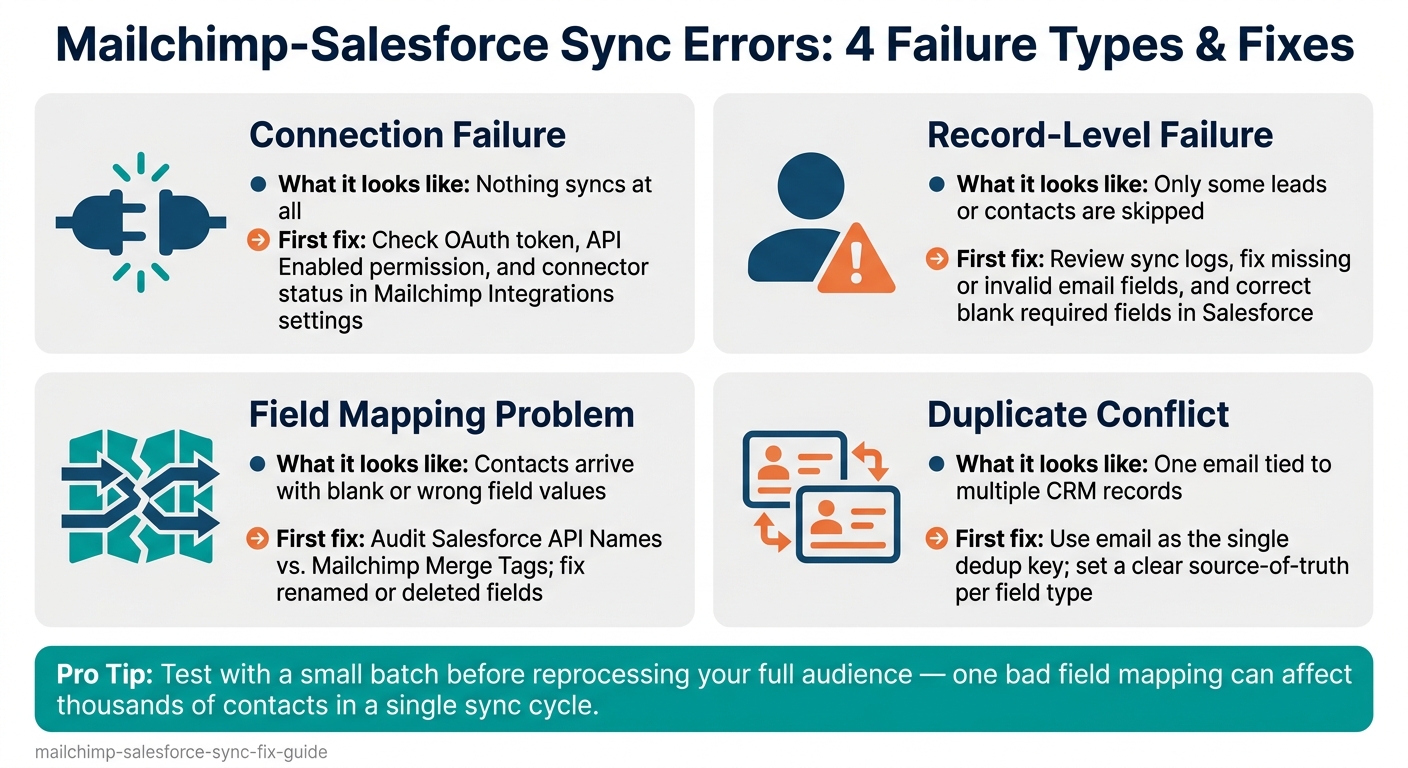
Mailchimp-Salesforce Sync Errors: 4 Failure Types & Fixes
Fix Audience Sync Failures and Missing Contacts
Audience sync failures usually come down to filter rules, sync timing, or bad record data. This section focuses on record-level issues: skipped leads, missing contacts, and records that show up late.
When New Leads Do Not Reach the Mailchimp Audience
One of the most common causes is audience filter configuration. If Salesforce campaign rules or Mailchimp filters are too tight, valid leads never make it into the sync.
Timing can trip you up too. If a lead is created outside the current sync window, it may not show up in Mailchimp until the next cycle. Before you rerun a full sync, test with a small batch. Then check when the last sync ran and whether the missing record was created during that window.
When Invalid Emails or Missing Fields Stop the Sync
If the connector is active but certain records still fail, the issue is usually data quality. In many cases, these are record-level errors, not full sync failures. A single lead can get skipped because the email address is missing, the email format is invalid, or a required field is blank.
Use the sync logs to find the exact skipped records and the fields causing the problem. Fix the email field and any required fields in Salesforce before running the sync again. It also helps to use validation rules so incomplete records don't slip through.
Audience Sync Problems: Symptoms and Fixes
| Symptom | Likely Cause | Specific Fix |
|---|---|---|
| No new contacts appear in Mailchimp | Overly restrictive audience filters or an inactive sync schedule | Review Salesforce campaign and filter rules; confirm the sync schedule is active |
| Only some leads sync | Missing required fields or invalid email formats | Use sync logs to identify exact skipped records; correct required fields and email data in Salesforce |
| Sync runs but audience count stays the same | Records already exist as unsubscribed or duplicates | Check Mailchimp's "Cleaned" and "Unsubscribed" lists; verify consent fields in Salesforce |
| Field data is blank in Mailchimp after sync | Broken field mappings or mismatched merge tags | Review field mapping settings and confirm Salesforce fields align with the correct Mailchimp merge tags |
If contacts are reaching Mailchimp but the field data is blank or mismatched, move to field mapping.
sbb-itb-5f36581
Fix Field Mapping Gaps and Duplicate Records
If contacts are reaching Mailchimp but the data is off, check field mappings and duplicate matching next.
Field mapping issues can leave Mailchimp with blank or wrong values even when the sync looks successful. These silent data errors break personalization and chip away at trust in your data.
Fix Broken Field Mappings and Merge Tags
The usual causes are renamed Salesforce fields, deleted custom fields, and data type mismatches. If a Salesforce admin renames a field or removes it, the connector loses the field reference. Then that field stops filling in Mailchimp.
Match field types exactly. Map Salesforce picklists to compatible Mailchimp merge tags. Map Salesforce Date fields to Mailchimp date tags.
Start by auditing active mappings. Focus first on work email, then company name, job role, team size, and use case. Fix broken mappings before you run the sync again.
If the mappings look right but the data still looks wrong, check duplicate matching next.
Stop Duplicate Contacts and Conflicting Updates
If the field setup is correct, see whether two Salesforce records are tied to the same email.
Use email as the single deduplication key. If two Salesforce records share one email, the connector has no clean match. That can lead to conflicting data in Mailchimp. Review your Salesforce duplicate rules too. They shouldn't block incoming updates or new leads from the Mailchimp connector.
Conflicting updates show up when both systems change the same contact between syncs, and one side overwrites the other. The fix is simple: set a clear source of truth for each field type.
| Mapping Approach | Best Use Case | Main Risk |
|---|---|---|
| Email-Based Matching | Standard lead generation | Duplicates if one email exists on multiple CRM records |
| Bidirectional Sync | Full sales and marketing alignment | Conflicting updates overwriting valid data |
| One-Way (CRM to Email) | Controlled marketing blasts | CRM data can lag behind Mailchimp changes |
| Field Ownership | Strict field ownership rules | Silent failures if data types or picklist values mismatch |
If mappings and duplicates are clean, move on to permissions and connector access.
Fix Permissions, Authentication, and Connector Errors
If the data mapping looks right but the sync still fails, the next place to look is access and login status. Expired tokens, missing permissions, and connector setup problems are some of the most common reasons a Mailchimp-Salesforce sync breaks.
Reauthorize Expired Connections and API Access
OAuth tokens can expire or get revoked. When that happens, open Mailchimp's Integrations settings, find the Salesforce app, and reconnect the account.
Before reconnecting, check that the Salesforce integration user still has the "API Enabled" permission in their profile. If that permission is gone, the connector may fail to reconnect.
Rate limits can also get in the way. If too many sync jobs run at the same time, you may see rate-limit errors. Cut down the number of concurrent jobs to help avoid that. If failures keep happening, review the failed jobs in the sync log and rerun them after access is back.
Check Salesforce and Mailchimp Permission Levels
Permission issues can be easy to miss. A sync can look like it ran fine, while some records or fields still get skipped.
On the Salesforce side, make sure the integration user has read and write access to the objects and fields used in the sync. Field-level security controls whether the integration user can read or update a field. If the user can't access a field, that field won't sync, even if the mapping is correct.
On the Mailchimp side, make sure the connected account can edit audience records. If it can't update the target audience, new contacts and field updates will fail.
Common Connector Errors and What They Mean
These errors usually point to a clear access or connection issue.
| Error Message | Likely Cause | Where to Check | Recommended Fix |
|---|---|---|---|
| 401 Unauthorized | Expired or revoked OAuth token | Mailchimp Integrations settings | Reconnect the Salesforce app and verify API Enabled permission |
| 403 Insufficient Privileges | Integration user is missing object or field access | Salesforce profile and field permissions | Grant the needed read/write access |
| 429 Too Many Requests | API rate limit hit because too many sync jobs ran at once | Sync logs and API usage | Set concurrency limits and retry with exponential backoff |
| Sync Job Stopped Unexpectedly | Persistent connector issue or stale connection | Sync logs | Reauthorize the connection and rerun the job |
Prevent Future Sync Errors
Build a Process for Cleaner CRM-Email Syncs
Once the sync is working again, put guardrails in place so the same issue doesn’t come back. The goal is simple: catch problems early and make changes in a controlled way.
Routine log checks help you spot failures before leads slip through the cracks. A current document should track each Salesforce API Name, the matching Mailchimp Merge Tag, the field owner, and whether that field is required.
Any time you change a form, field, audience, or permission, run a small test batch before you push a full sync. That quick check can save a lot of cleanup later.
Prevent Repeat Sync Errors
When a sync breaks, the fastest way to solve it is to sort the issue into the right bucket first. Figure out whether you're dealing with an audience sync failure, a field mapping gap, a duplicate record conflict, or a permissions/authentication error.
After that, check your sync logs and test with a small segment before you reprocess the full audience. Start small, confirm the fix, then scale.
You can also use those same failure categories when reviewing future changes. It’s a simple way to catch regressions early instead of finding them after data starts drifting.
| Documentation Category | Key Elements to Track | Purpose |
|---|---|---|
| Field Mapping | Salesforce API Name <-> Mailchimp Merge Tag | Prevents broken mappings and data misalignment |
| Data Standards | Required fields, Picklist values, Email formats | Ensures data accepted by Salesforce is valid for Mailchimp |
| System of Record | Source of truth per field | Prevents "ping-pong" updates where systems overwrite each other |
| Sync Frequency | Real-time vs. Batch (Daily/Weekly) | Manages API limits and ensures timely lead routing |
| Permissions | API access, field-level security, audience edit rights | Prevents access-related sync failures |
FAQs
How do I find which records failed to sync?
Review your CRM admin panel and activity logs for specific error messages. They often point straight to the problem: missing fields, bad data formats, or validation rules that stopped the record from syncing.
It also helps to check rejected-record reports or sync failure dashboards. If the issue is harder to pin down, trace the submission across form logs, middleware, and CRM API logs using the same submission ID so you can follow the full path without guesswork.
What should be the source of truth for shared fields?
Each shared field needs one source of truth. That means one system has the final say when values don’t match. It cuts down on sync issues and keeps one app from overwriting another with old data.
Write down each field’s owner, sync direction, and write rule in one central mapping sheet or integration control contract. And use the field’s API name, not the display label.
How often should I test my Mailchimp-Salesforce sync?
Test your Mailchimp-Salesforce sync based on two things: how up to date your data needs to be and how much load your systems can take.
If you need updates right away, use real-time sync. If not, hourly or daily batch updates may do the job just fine.
It also helps to keep a simple review routine:
- Check sync failures and latency every day
- Review logs and test sample submissions every week
- Audit API usage and field mappings every month
That way, you’re not just setting up the sync and hoping for the best. You’re making sure it keeps working the way it should.
Related Blog Posts
Get new content delivered straight to your inbox

The Response
Updates on the Reform platform, insights on optimizing conversion rates, and tips to craft forms that convert.




Drive real results with form optimizations
Tested across hundreds of experiments, our strategies deliver a 215% lift in qualified leads for B2B and SaaS companies.
