
.webp)
Constant Contact Sync Failure Guide for Forms


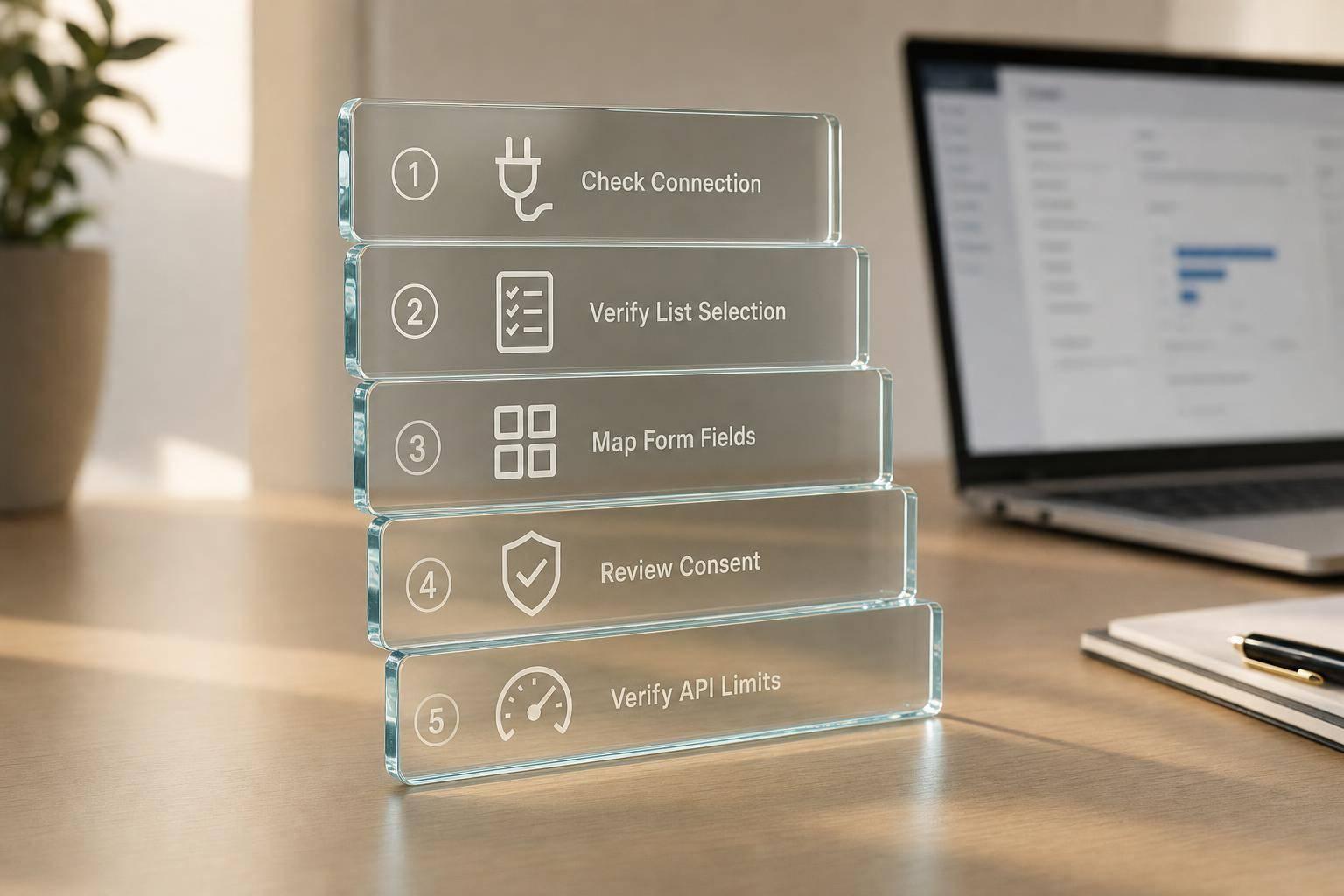
If your form says “success” but the contact never shows up, I’d check four things first: connection, list selection, field mapping, and API errors. In many setups, delays also come from WordPress cron, and API limits can block syncs after 4 requests per second or 10,000 requests per day.
Here’s the short version:
- I start with the account connection and token status.
- Then I confirm the form points to a live Constant Contact list.
- Next, I check email mapping, custom fields, and opt-in settings.
- After that, I review contact status issues like unsubscribed records and duplicate emails.
- Last, I read the API response to tell a bad request from a temporary problem.
A few patterns show up again and again:
- 401 errors usually mean the token expired.
- 409 conflicts often mean the email already exists.
- 429 errors point to rate limits and should wait for retry.
- 500–504 errors are server-side and should go through backoff.
- In WordPress, submissions may wait about 1 minute because of
WP_CRON, and broken cron can stop syncs.
| Check | What I look for | Common problem |
|---|---|---|
| Connection | Connected account, valid token, right permissions | Expired or revoked token |
| List setup | Correct live list selected | Old, deleted, or wrong list |
| Data mapping | Email mapped to email_address |
Blank or mismatched fields |
| Consent/status | Opt-in rules, unsubscribed contacts | Conflict or blocked re-add |
| API response | 400, 401, 409, 429, 5xx | Wrong fix applied to wrong error |
My rule of thumb is simple: if setup is wrong, fix setup first. If data is wrong, fix mapping and validation. If the API says 429 or 5xx, retry with backoff. If it says 400, 401, 403, 409, or 422, I fix the request before sending it again.
That order cuts down wasted time and helps me find the issue faster.
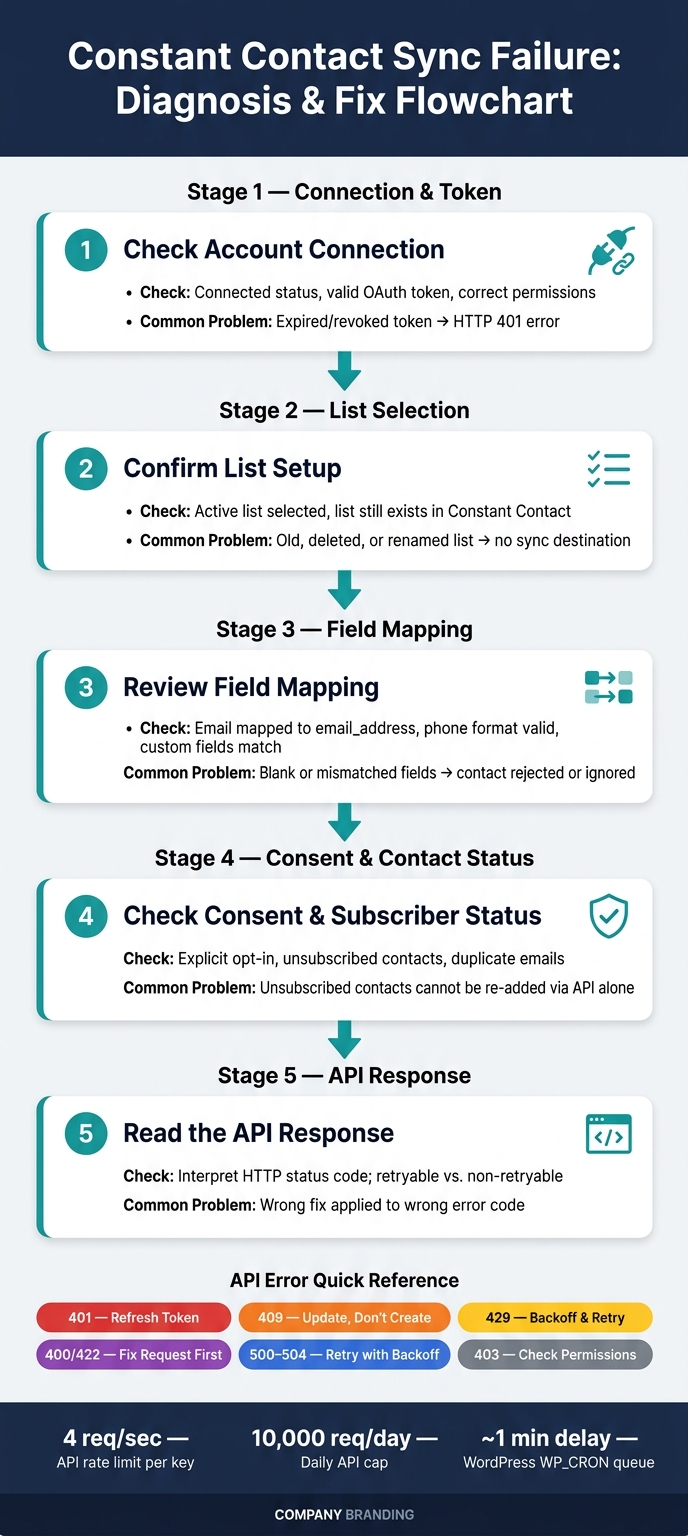
Constant Contact Sync Failure: Diagnosis & Fix Flowchart
Start with setup checks before looking at errors
Start with the basics: authorization, list selection, and page setup. Most Constant Contact sync failures begin there, not in the API logs. That helps you separate connection or setup problems from plain data issues.
Check connection status, tokens, and account permissions
Open the integration settings and make sure the status says Connected or Authorized. If it says Disconnected or Token Expired, reconnect using an account that has contact and list permissions. Constant Contact OAuth 2.0 access tokens expire, and expired tokens often return HTTP 401 errors.
Once the connection looks clean, make sure the form points to the right list.
Confirm list selection and embed or plugin configuration
A valid connection alone isn’t enough. The form still won’t sync if no list is selected or if the list no longer exists. Open the form settings and confirm that one active list is selected. Then check that same list inside Constant Contact to confirm it still exists and is active.
If lists were renamed or the account changed, refresh the list dropdown, pick the target list again, and save. That pushes the integration to store the current list ID instead of an old one. If you use WordPress, run "Sync Lists with Constant Contact" under Contact Form > Lists. If the lists still don’t load or fail to work, recreate the form integration or switch to multi-step forms to improve reliability.
Also make sure the form appears only once on the page. Duplicate embeds, like a shortcode plus an HTML embed, can split submissions between two instances. A quick check of the page source will show if more than one copy of the form is running.
Symptom-to-cause diagnostic table
Use this table as the first triage step. Match the symptom to the likely cause, then check the listed settings page before changing anything else.
| Symptom | Likely Cause | First Place to Check |
|---|---|---|
| Success message shown, but no contact in Constant Contact | Expired token, broken connection, or no form-level feed configured | Integration → Account connection / authorization status |
| Contact created but not added to any list | No list selected, or the selected list was deleted or archived | Form integration settings → List selection; Constant Contact Lists dashboard |
| Integration settings show "Disconnected" or "Unauthorized" | OAuth token expired or revoked | Integration → Reconnect / reauthorize with an account with contact and list permissions |
| Lists don't appear in the dropdown | Cached list IDs after list renames or account changes | Run "Sync Lists" or re-save integration settings |
| Form works in staging but not in production | Environment-specific configuration drift | Production CMS → Form feed settings and account connection |
If these checks pass, move next to field mapping, consent, and subscriber status.
sbb-itb-5f36581
Fix data issues: field mapping, consent, and subscriber status
If your setup checks passed, shift to the data itself. Start with field mapping. Then look at consent and subscriber status.
Review field mapping and input validation
Constant Contact uses the email address as the main identifier for each contact. That means your form’s email field needs to map to Constant Contact’s email_address field. If it points somewhere else - like a custom text field - the API call may still go through, but the contact can be rejected or ignored.
Bad input and mismatched fields are another common problem. They can stop the sync or cause some fields to disappear in transit. A phone number with letters or an extension, a name that goes past the allowed length, or a custom field that was renamed or removed in Constant Contact can all trigger validation errors. Constant Contact supports up to 25 custom fields per contact, but each one still needs the same stable identifier on both sides.
| Form Field | Constant Contact Target | Common Failure Mode |
|---|---|---|
email_address |
Missing mapping, invalid format, or mapped to a non-email field | |
| First Name | first_name |
Exceeds length limits or is combined with last name in one field |
| Last Name | last_name |
Missing separate mapping or schema mismatch |
| Phone | phone or home_phone/work_phone |
Non-numeric characters, extensions, or invalid format |
| Company | company_name |
Field missing in Constant Contact or name mismatch |
| Custom fields | Matching custom field ID | Renamed, deleted, or wrong data type |
Set validation rules in the form before submission. It’s much easier to stop bad data at the front door than to sort out quiet failures later.
Handle consent and list opt-in rules correctly
For U.S. marketing forms, use explicit, unchecked opt-in. Stick with one unchecked checkbox and clear permission text. Hidden boxes, pre-checked boxes, or fuzzy wording make consent harder to prove and can lead to more complaints.
Here’s how Constant Contact will usually treat a submission based on the contact’s current status:
| Contact Status | Submission Action | Likely Outcome |
|---|---|---|
| New contact | Opt-in checked | Created and added to the list; status set to Subscribed |
| Existing (Subscribed) | Opt-in checked | Record updated; remains Subscribed |
| Unsubscribed | Opt-in checked | Sync fails or returns a conflict; status stays Unsubscribed |
| Suppressed / temporary hold | Any | Contact remains suppressed or on hold and is not emailed |
One detail trips people up all the time: unsubscribe requests never expire. Constant Contact will not let you move an unsubscribed contact back to active status through an API call alone. That person has to subscribe again through a compliant sign-up or resubscribe flow.
Watch for existing-contact conflicts and duplicate submissions
Current sign-up flows create new contacts or update existing ones. Older integrations, though, may still return 409 conflicts when an email already exists.
Contacts that were unsubscribed or deleted can still block re-add attempts. A deleted contact may still exist in the account backend, so adding that same email again can be blocked or treated as a conflict until the record is updated the right way or the person signs up again. Double-clicks and automatic retries can also cause trouble. They may trigger race conditions, which can lead to conflict errors or partial updates.
A simple fix is to deduplicate by email before sending the request. If the data looks correct and the sync still fails, check the API response. That’s usually where the real reason shows up.
Read API responses correctly and build a recovery plan
Once setup and data checks pass, the API response tells you something important right away: is this a permanent failure or a temporary one? That makes the response the fastest way to tell bad data apart from short-term service trouble.
Interpret HTTP status codes and Constant Contact error responses
The main split is simple: retryable vs. non-retryable. In most cases, 4xx responses point to a request, mapping, consent, or permission issue. By contrast, 429 and 5xx responses are more likely to be temporary and can be retried with backoff.
For every failed submission, log the method, endpoint, payload, status code, response body, timestamp, and request ID. If privacy rules allow it, also log the form name and destination list.
| Code | Meaning | Common Cause | Recommended Action |
|---|---|---|---|
| 400 | Bad Request | Malformed JSON, missing required field, invalid email format, or consent flag mismatch | Inspect the error body and fix the payload, field mapping, or validation rule before resubmitting. |
| 401 | Unauthorized | Expired or invalid OAuth access token | Refresh the token; if invalid_grant appears, complete a full OAuth reauthorization. |
| 403 | Forbidden | Missing API scopes or insufficient account permissions | Check scopes and account-level access, then update the app configuration or use a user with the right privileges. |
| 409 | Conflict | Existing contact record | Query the existing contact, then update instead of retrying create. |
| 422 | Unprocessable Entity | Valid format, wrong content, such as a malformed email that passes basic checks | Add stricter front-end validation before submission. |
| 429 | Too Many Requests | Per-second or daily rate limit exceeded (10,000 requests/day; 4 requests/second per API key) | Back off and retry; honor the Retry-After header if present. |
| 500–504 | Server Error | Constant Contact internal issue or gateway timeout | Log the error and retry with backoff; escalate if it persists. |
That distinction matters. If the problem is permanent, retrying just burns time and clutters your queue. If it’s temporary, a measured retry gives the request another shot without human work.
Use retries only for transient failures
Retrying a 400, 401, 403, 409, or 422 without changing anything will lead to the same failure again. Save retries for cases where the request was valid, but the API couldn’t finish it at that moment.
A good pattern is exponential backoff with jitter: retry after 1 second, then 2 seconds, then 4 seconds, then 8 seconds, with a small random offset added to each wait time. If you get a 429 response, always check for a Retry-After header and wait at least that long before trying again.
| Error Type | Retry? | Delay Pattern | Escalation Path |
|---|---|---|---|
| 429 Rate Limit | Yes | Exponential backoff + jitter; honor Retry-After |
Notify an admin if the limit is hit again and again |
| 500–504 Server Error | Yes | Exponential backoff (1 s → 2 s → 4 s → 8 s) | Notify the engineering team if errors keep happening |
| Timeout / Network Error | Yes | One immediate retry, then backoff | Check payload size and network stability |
Push failed submissions into a tracked queue so sync health monitoring can spot repeat issues before launch.
Monitor sync health and test before launch
Track logs, alerts, and sync health
Once retries are set up, the next job is watching for the failure patterns that still slip through. Silent failures are the worst kind. The form keeps working, but records stop making it into Constant Contact. In many cases, you won’t spot this from submission counts alone. It tends to show up first as lower conversion rates, not a complete drop to zero submissions.
The best fix is a simple monitoring setup built around four things: submission volume, sync success rate, API response patterns, and time-to-sync. Set alerts for steady drops in sync success rate, spikes in 401, 429, and 5xx responses, or sync delays that start creeping up. And if you’re running a campaign, watch 429 responses in real time when traffic jumps.
It also helps to use validation, multi-step form structures, and spam controls so bad submissions get stopped before they ever reach Constant Contact.
| What to Log | Where to Review | Frequency |
|---|---|---|
| Form submission volume (with timestamp, form ID, source campaign) | Form analytics dashboard | Real-time |
| Sync success rate (successful API calls ÷ total attempts) | Integration or middleware logs | Daily; alert on sustained drops |
| API response codes (401, 429, 500, etc.) | Developer or observability logs | Real-time alerts on spikes |
| Token refresh and authorization events | Audit logs | Daily during campaigns; weekly in steady state |
| Time-to-sync (submission → Constant Contact list membership) | Spot tests in Constant Contact | Before launches and after changes |
Pre-launch and regression testing checklist
Monitoring helps you catch trouble in production. Testing helps keep that trouble out in the first place. Before a form goes live - and after any update to tokens, plugins, field mappings, or list settings - run a full end-to-end test with realistic U.S.-formatted data.
Use the same data shapes and routing rules that production will get. That means testing U.S. formats from start to finish: MM/DD/YYYY dates, 12-hour times with AM/PM, $1,234.56 currency, (555) 123-4567 phone numbers, and 5-digit or 9-digit ZIP codes.
| Testing Scenario | Expected Result | Action if Failed |
|---|---|---|
| New lead with full U.S. data (name, email, phone, ZIP) | Contact appears in the correct Constant Contact list, marked "Subscribed" | Check logs; verify list ID and mapping |
| U.S. date format (MM/DD/YYYY, e.g., 08/24/2026) | Date populates correctly in the contact record | Check field type compatibility and date formatting rules |
| 12-hour time with AM/PM (e.g., 3:45 PM) | Time field matches submission exactly | Verify 12-hour vs. 24-hour field support |
| Existing contact update (same email, new phone or ZIP) | Record updates without creating a duplicate | Review duplicate/upsert logic in integration config |
| Explicit opt-in consent (checked checkbox) | Consent status is saved in Constant Contact | Review consent field mapping and opt-in language |
| Invalid email or missing required field | Submission blocked with a clear inline error; no broken record created | Tighten validation rules in the form builder or middleware |
| Conditional list routing (e.g., Industry = Healthcare → List A) | Contact lands in the correct list | Re-check routing rules and Constant Contact list IDs |
| Token expiration or revoked permissions | System fails with a clear error and alert; no silent data loss | Review authorization handling and alerting |
If any test fails, fix the setup, run the test again, and only then push it to production.
Conclusion: The shortest path to fewer sync failures
Fix setup, mapping, consent, and API handling first. Then monitor every launch and test every change.
FAQs
Why does my form show success but no contact appears?
If your form shows a success message but no contact appears in your CRM, the problem is usually in the integration or CRM layer, not the form itself.
In plain English: the submission can go through, but the CRM may still stop the record from being created.
Common reasons include:
- Failed validation or missing required fields
- Missing permissions for the integration user
- Duplicate rules that block new records
- API rate limits
Check your field mappings first. Then confirm the integration user has the right permissions, review your CRM integration logs for error codes, and use an update-or-create flow for repeat submissions.
Can an unsubscribed contact be added again?
Not unless the user gives explicit opt-in again.
Your email platform controls subscription status, so a new form submission shouldn't override an existing unsubscribe unless the user has given clear, new consent to rejoin your marketing list.
When should I retry a failed sync?
Retry only transient errors, such as:
- 5xx server responses
- timeouts
- DNS failures
- 429 rate-limit errors
Do not automatically retry 400 or 403 errors. Those usually need manual intervention.
Also, include a stable idempotency key with every retry, such as a unique submission ID. That helps prevent duplicate CRM records.
Related Blog Posts
Get new content delivered straight to your inbox

The Response
Updates on the Reform platform, insights on optimizing conversion rates, and tips to craft forms that convert.




Drive real results with form optimizations
Tested across hundreds of experiments, our strategies deliver a 215% lift in qualified leads for B2B and SaaS companies.
