
.webp)
Ultimate Guide To Constant Contact WordPress Integration



Want to grow your email list directly from your WordPress site? Integrating Constant Contact with WordPress makes it easy to collect leads and send personalized emails automatically. Here’s what you’ll learn in this guide:
- What Constant Contact Is: An email marketing platform with features like drag-and-drop email editors, mobile-friendly templates, and performance tracking.
- Why Integration Matters: Automate adding website form submissions to email lists, saving time and improving email personalization.
- How to Prepare: Set up your Constant Contact account and WordPress site, ensuring compatibility with technical requirements like PHP 8.1+ and HTTPS.
- Integration Options: Use the Constant Contact Forms plugin for simplicity or API-based methods for more control.
- Best Practices: Test your forms, optimize placement on your site, and track performance to improve results.
This guide walks you through everything, from setup to advanced workflows, ensuring your email marketing runs smoothly.
How to Integrate WordPress with Constant Contact - Complete Guide
sbb-itb-5f36581
Preparing for Integration
Getting everything in place beforehand is crucial. Make sure both your Constant Contact account and WordPress site are set up correctly before connecting them.
Setting Up Your Constant Contact Account
If you're new to Constant Contact, they offer a 60-day free trial to get you started. Once you’ve signed up, ensure you're logged in as the Account Owner, not a Campaign Manager.
"You will need to make the connection to Constant Contact using the credentials of the account owner. Campaign manager credentials will not have enough access." - Constant Contact Forms Plugin Documentation
Next, update your account settings. Add your organization's name, physical address, and industry type to comply with the CAN-SPAM Act. Don’t skip verifying your sending email address and setting up SPF and DKIM records - these are critical for ensuring your emails don’t end up flagged as spam. Once that’s done, organize your contact lists to make form mapping simple and efficient.
Creating and Organizing Email Lists
Constant Contact uses lists - not tags - for segmentation purposes. Plan how you’ll structure these lists in advance. For example, names like "Website Leads" or "Newsletter Subscribers" can make contact management easier. Every form submission needs to map to a list_id, so you’ll need at least one list ready in your account.
If you plan to collect more than just email addresses - like job titles or company names - set up custom fields now. Keep in mind that custom field values are limited to 50 characters. Constant Contact automatically updates existing contact records instead of creating duplicates, which helps keep your lists organized.
Preparing Your WordPress Site
Your WordPress site must meet certain technical requirements to work with the Constant Contact Forms plugin. Specifically, it should run on PHP 8.1+ and WordPress 6.4.0+. You can confirm these versions through your hosting dashboard.
HTTPS is non-negotiable. Without a valid SSL certificate, you could encounter cURL errors during the API connection, and features like copying embed shortcodes may not work. Before installing any plugins, back up your site to avoid potential issues. Also, double-check that DISABLE_WP_CRON is not set to true in your wp-config.php file, as WordPress cron jobs are needed to refresh API tokens. Once these steps are complete, you’ll be ready to integrate Constant Contact with your WordPress forms.
Integrating Constant Contact with WordPress
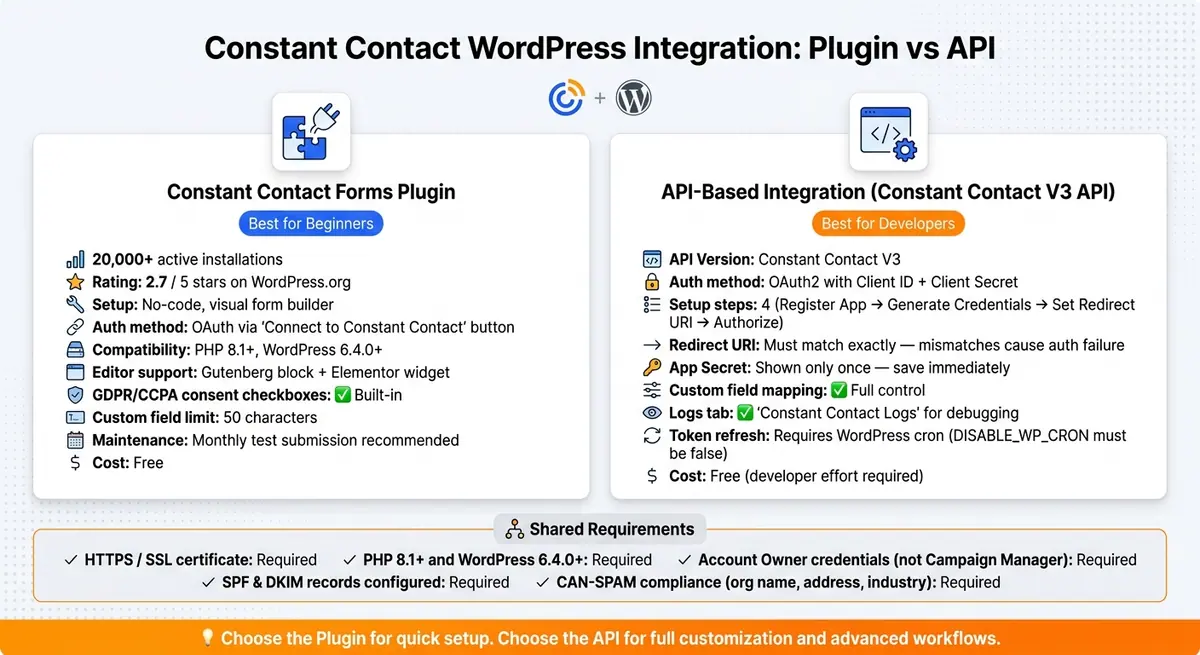
Constant Contact WordPress Integration Methods Compared
Now that you've completed the initial setup for both your Constant Contact account and WordPress site, it's time to integrate the two. You have two main options: the Constant Contact Forms plugin or a direct API-based integration. Each approach serves different needs, so understanding how they work will help you make the right choice.
Using the Constant Contact Forms Plugin
If you're looking for a simple and user-friendly option, the official plugin is a great starting point. You can find it by searching for "Constant Contact Forms" in the WordPress plugin directory. Once installed and activated, head to Contact Form > Settings and click "Connect to Constant Contact." This will redirect you to authorize your account.
The plugin includes a built-in form builder, allowing you to select which email list will receive form submissions and customize your data fields. It integrates seamlessly with WordPress tools like the Gutenberg editor, offering a "Constant Contact: Single Form" block, and also provides an Elementor widget for drag-and-drop functionality.
While the plugin is widely used, with over 20,000 active installations, it has a modest rating of 2.7 out of 5 stars on WordPress.org. To ensure it continues working smoothly, it's a good idea to test the form monthly by submitting a sample entry and confirming that the contact information appears in your Constant Contact list.
Using API-Based Integration
For those requiring more control and flexibility, API-based integration is the way to go. This method is ideal for advanced users who need custom field mapping, enhanced form building, or developer-level customization. It leverages the Constant Contact V3 API with OAuth2 authentication.
Here’s how to set it up:
- Register Your Application: Visit the Constant Contact Developer Portal and create a new application. Choose a name that users will recognize during the authorization process.
- Generate API Credentials: From the application details page, note your API Key (Client ID). Then, generate your App Secret (Client Secret) and save it immediately, as it will only be displayed once.
- Set the Redirect URI: Input the exact Redirect URI provided by your WordPress plugin into the Developer Portal. Even small mismatches can lead to authorization failures.
- Authorize the Connection: In your WordPress admin dashboard, enter the API Key and App Secret, then click "Connect." You’ll be redirected to Constant Contact to log in and grant access.
If the connection ever breaks, you can resolve the issue by disconnecting the account in your plugin settings and re-authorizing it to generate a new OAuth token.
Testing and Verifying the Connection
Regardless of the integration method you choose, testing is crucial. Submit a sample form using a real email address and confirm that it appears in your Constant Contact list. For API-based setups, many plugins include a "Constant Contact Logs" tab where you can check submission statuses and troubleshoot any errors.
Both methods ensure your forms effectively capture leads and send them directly to Constant Contact, helping you stay organized and responsive. Testing your setup is the final step to confirm everything is running smoothly.
Connecting Constant Contact to WordPress Form Builders
After setting up your Constant Contact integration, the next step is to start collecting leads on your website. The method you choose for this affects everything from how your forms look to how smoothly data flows into your email lists.
Integrating via the Constant Contact Forms Plugin
The official Constant Contact plugin makes it simple to create and embed forms without needing to touch any code. Once you connect your account, you can create a form, select the target email list, and map fields like first name, last name, and email directly from your WordPress dashboard. The plugin also includes GDPR/CCPA consent checkboxes and built-in spam prevention measures to keep your lists clean.
Keep in mind: Constant Contact custom fields are limited to a maximum of 50 characters. If you’re collecting longer inputs such as job titles or company names, plan your form fields accordingly. For more polished, branded forms, you may want to explore third-party form builders.
If you need greater flexibility, tools like Reform Forms offer more advanced options.
Using Reform Forms for Lead Capture
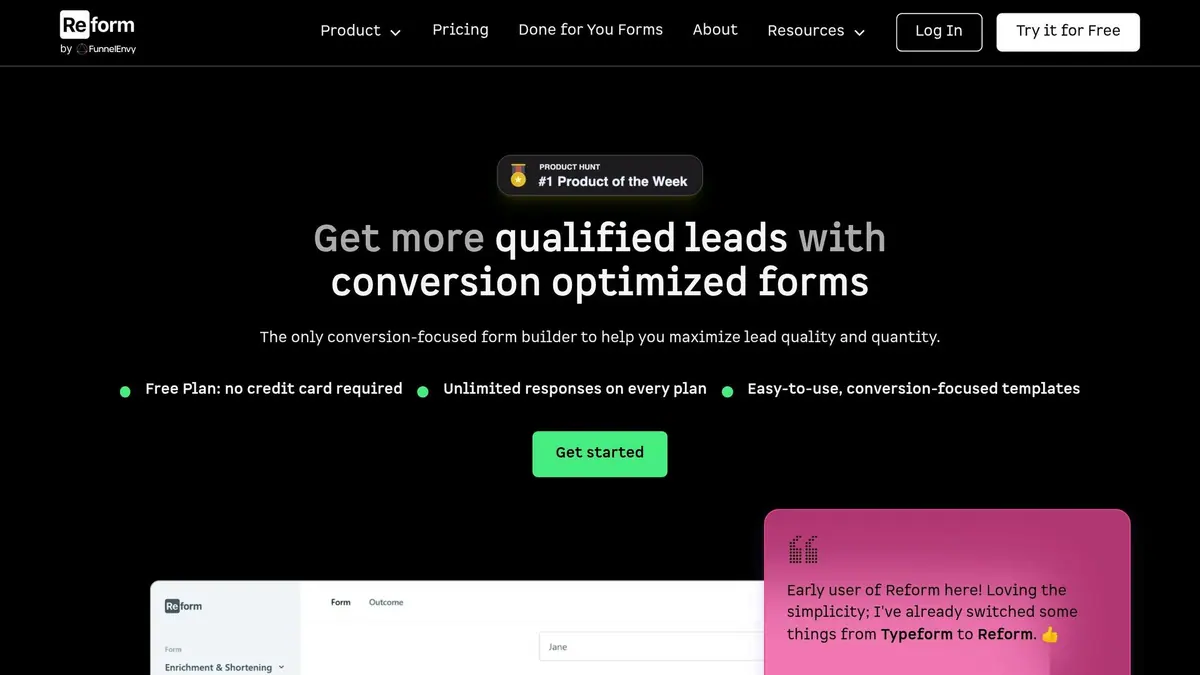
For those looking for advanced customization and features designed to boost conversions, Reform is a great option. This no-code form builder offers features like multi-step forms, conditional routing, email validation, and spam prevention, all of which help improve the quality of leads added to your Constant Contact lists. You can embed a Reform form using a simple code snippet and connect it to Constant Contact either through Zapier (starting at $15/month for the Basic plan) or directly with Reform’s Pro plan ($35/month).
One standout feature of Reform is abandoned submission tracking, which allows you to see where users drop off in multi-step forms. Combined with real-time analytics, this helps you tweak your forms for better performance - something the official Constant Contact plugin doesn’t provide. Additionally, conditional routing lets you funnel high-quality leads into specific email lists based on their responses, eliminating the need to create multiple forms. Both methods ensure a more targeted and efficient lead collection process.
Form Placement Strategies on WordPress
Once you’ve chosen your form builder, where you place your forms on your site is critical for maximizing conversions. Landing pages tend to perform best because visitors arrive with a clear intent. Embedding a single, focused form on a distraction-free landing page often outperforms forms placed within general content.
For blog posts, placing a form after the content works well, as readers are more likely to engage after consuming valuable information. Sidebar forms are ideal for visitors who are casually browsing and not ready to commit, making them a good fit for low-pressure offers like free newsletters. If you’re using slide-in or lightbox popups, trigger them based on scroll depth or exit intent rather than immediately on page load. This approach reduces annoyance and increases opt-in rates.
The golden rule for form placement? One form, one purpose. Avoid crowding a single page with multiple sign-up forms, as this can confuse users and hurt your conversion rates.
Advanced Workflows and Optimization
Personalization and Segmentation
Once leads come in, it's crucial to map your WordPress form fields to Constant Contact properties for better-targeted emails. For example, fields like street_addresses.state and street_addresses.postal_code enable geo-targeted segmentation. This is especially handy for location-specific campaigns or events across different U.S. states.
| WordPress Form Field | Constant Contact Property | Use Case |
|---|---|---|
your-first-name |
first_name |
Personalizing email greetings |
your-address-state |
street_addresses.state |
State-level segmentation |
your-address-postal-code |
street_addresses.postal_code |
ZIP code-based targeting |
your-birthday |
birthday_month / birthday_day |
Birthday automation triggers |
your-job-title |
job_title |
B2B segmentation |
For more advanced segmentation, WP Fusion (starting at $247/year) takes it a step further. It applies tags in Constant Contact based on user actions on your WordPress site, like tracking course progress or purchase history.
"WP Fusion applies tags in Constant Contact based on user activity throughout your site, allowing you to track engagement and perform complex automations." - WP Fusion
With these strategies, you can automate highly targeted follow-ups to keep your leads engaged.
Automation and Follow-Up Sequences
Form submissions are the perfect trigger for automation. The moment someone fills out a form, Constant Contact can launch a welcome email series, a drip campaign, or even a birthday message. To make this happen, link the form's submission event to a Constant Contact workflow and set up the sequence timing.
Before rolling out automated sequences, there are a few things to keep in mind:
- Ensure your SPF/DKIM records include Constant Contact to boost deliverability.
- Use Constant Contact's "Confirm Opt-In" feature or include consent checkboxes on forms to maintain list quality.
- While Constant Contact offers basic behavioral triggers, pairing it with WP Fusion unlocks more advanced, activity-based workflows.
Once your workflows are live, keep an eye on their performance to tweak and improve your approach.
Tracking and Improving Performance
To understand what’s working, track performance on two fronts: form analytics and email metrics.
- Form Analytics: Compare views to successful submissions to calculate your conversion rate. Tools like Reform provide real-time analytics and track abandoned submissions, helping you pinpoint where users drop off in multi-step forms. Fixing these friction points can significantly improve your conversion rates.
- Email Metrics: Check your API request logs regularly to catch silent failures, such as submissions not adding contacts. These issues often stem from expired OAuth tokens or SSL problems. By enabling logging in your integration plugin, you can identify and resolve these gaps before they affect your lead data.
When you maintain strong technical integrations and optimize form placements, subscriber growth can jump between 100% and 500%. Regular monitoring and adjustments are key to keeping your workflows running smoothly.
Conclusion and Key Takeaways
Linking Constant Contact to WordPress is a manageable process as long as you select the right method and stick with it. Whether you go with the official plugin for simple signups, a form builder like Reform for more design options, or WP Fusion (starting at $247/year) for advanced two-way syncing, the trick is choosing one method and avoiding the temptation to stack multiple integrations.
But remember, integration is just the first step. The real results come from how you manage your email capture strategies and engage with your audience.
"It's not the integration that determines success. It's organized lists, relevant content, and reasonable sending frequency."
To maintain a solid integration, follow these key practices: schedule a monthly test submission to catch any unnoticed API issues, and ensure your SPF and DKIM records include Constant Contact to avoid missing leads. Also, always use explicit opt-in checkboxes - never pre-checked - to comply with GDPR and Constant Contact’s anti-spam rules. These steps are essential to avoid pitfalls and maximize your results.
When done right, these integrations not only simplify your workflow but also deliver measurable outcomes. Combined with segmentation and automation, your integration becomes a marketing powerhouse. For instance, email marketing offers an average ROI of 4,300%, and campaigns featuring segmentation can boost open rates by up to 26%. With over 600,000 small businesses already using Constant Contact, the platform proves its value when integrated effectively into your lead capture process.
Take action today. Use Constant Contact's 60-day free trial to fine-tune your WordPress integration and set yourself up for success.
FAQs
Which integration method should I use?
The Official Constant Contact Forms plugin for WordPress makes creating sign-up forms a breeze. These forms are mobile-friendly, align seamlessly with your site's design, and automatically sync new subscribers to your Constant Contact email list. It’s a straightforward way to manage and grow your email audience directly from your WordPress site.
Why won’t my form submissions sync to Constant Contact?
Form submissions can sometimes fail to sync due to a few common issues. These include expired OAuth tokens, recent plugin updates, or changes made in WordPress. A simple fix is to disconnect and then reconnect your account in the plugin settings, which will re-authorize the integration. Double-check that your contact lists are selected, as updates may reset these preferences. Additionally, ensure your form fields are properly mapped and confirm that your server can handle background tasks like Action Scheduler.
How can I segment and personalize emails from WordPress signups?
To tailor and personalize emails for WordPress signups, start by mapping your form fields to custom fields in Constant Contact. This allows you to gather specific details - like user interests or preferences - directly through your WordPress forms. Once synced to your contact lists, these details help you create segmented lists or even set up automated campaigns based on user behavior.
Many integrations also come with conditional logic, letting you collect more targeted data depending on how users interact with your forms. This means you can build richer profiles and deliver content that feels more relevant to your audience.
Related Blog Posts
Get new content delivered straight to your inbox

The Response
Updates on the Reform platform, insights on optimizing conversion rates, and tips to craft forms that convert.




Drive real results with form optimizations
Tested across hundreds of experiments, our strategies deliver a 215% lift in qualified leads for B2B and SaaS companies.
