
.webp)
HubSpot Data Missing After Form Sync


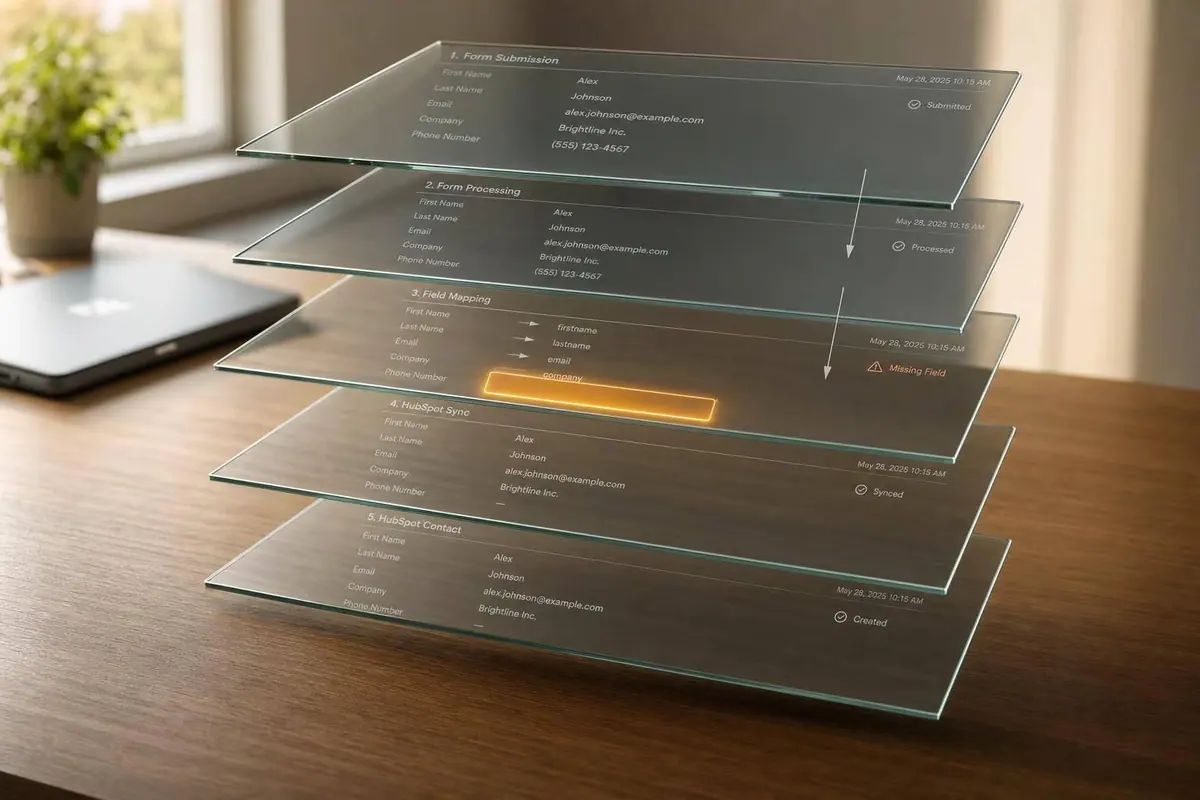
If form data is missing in HubSpot, the problem usually starts in one of 3 places: the field never got sent, the field didn’t map to the right HubSpot property, or the value landed on the wrong contact and was changed later.
I’d check the path in this order:
- Form field: Did the field fill in before submit?
- Payload: Did the request include the field and its value?
- HubSpot property: Does the target property exist, and does the type match?
- Contact record: Did HubSpot write the value to the right person, or did another tool change it after?
A few fast checks solve most cases:
- Open DevTools → Network and inspect the submit payload
- Match each form field to the HubSpot internal property name
- Confirm hidden fields like UTMs and gclid are present in the request
- Review sync logs for record-level errors
- Check Property History to see if a workflow, enrichment tool, or import changed the value
- Search by email to rule out duplicate contacts
One clean test submission can tell you a lot. I’d use a test contact like test+hubspot-qa@yourcompany.com, fill every visible and hidden field, then compare the submitted values with the HubSpot contact record line by line.
Here’s the short version:
| Where data breaks | What I’d look for | What it often means |
|---|---|---|
| Form field | Hidden field is blank before submit | Script timing issue or missing field value |
| Payload | Field missing in request | Form or integration didn’t send it |
| HubSpot property | Value doesn’t appear in record | Bad mapping, missing property, or wrong type |
| Contact record | Value changes after submit | Overwrite, duplicate, or sync conflict |
Bottom line: if I trace the data from the contact record back to the form, I can usually find the first broken handoff and fix the issue without guessing.
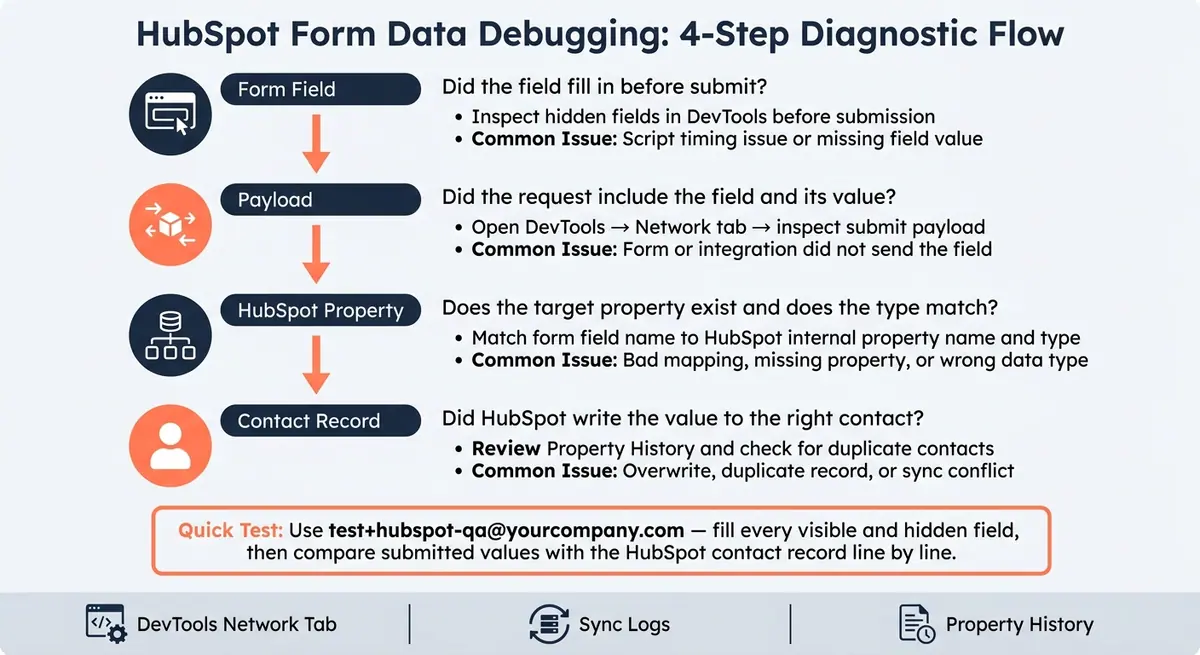
HubSpot Form Data Debugging: 4-Step Diagnostic Flow
HubSpot+ Demo: How to Use HubSpot's New Data Sync Testing Feature

Start with Field Mapping, Property Types, and Hidden Fields
If the payload made it to HubSpot but the contact record still looks off, start with mapping. This is often where things go sideways. HubSpot may receive the data just fine, but if it can't match a field to the right property, the value won't land where you expect. A simple field-to-property map helps a lot: include the form field name, the HubSpot property internal name, and the property type.
Fix Mismatched Field Names and Missing HubSpot Properties
HubSpot matches incoming data using the HubSpot property internal name, not the label shown in the UI. So if your form sends work_email, but the integration points to a different property name, that value may never show up in the right place. The fix is simple: build a basic mapping sheet. Put every form field name in column A, the HubSpot property internal name in column B, and the property type in column C. Then check each row before launch.
The property type matters just as much as the field name. Clean up values before sending them. That means formatting dates, removing currency symbols, and standardizing phone numbers. For dropdowns and multi-select fields, the submitted value has to match the option value in HubSpot, not the label people see on the form.
Tracking fields need extra attention too. If you're using UTMs, click IDs, or lead-source fields, create matching custom HubSpot properties first. Then map each form field to the right one. HubSpot's tracking cookie can fill some built-in source properties, but it won't auto-fill custom hidden fields. If the target property doesn't exist in HubSpot, the value gets dropped.
Confirm Hidden Fields Are Included in the Submission Payload
Once mapping looks right, make sure the hidden fields are actually in the payload. This is where timing issues show up. In many cases, JavaScript runs too late, or a server-side value never gets injected before submit. If a script fills utm_source or gclid after the payload is built, those fields will go out empty.
To check, open browser DevTools, go to the Network tab, submit the form, and inspect the request payload. You should see every hidden field and its value there. If utm_campaign is blank in the payload, the issue starts before HubSpot ever sees the request.
Also check whether your integration is set to send hidden fields at all. Some tools only send visible fields by default. In other words, the field may exist on the form, but never make it into the request.
Field Mapping Errors: Symptoms and Fixes
These patterns can help you narrow down the issue faster.
| Common Error | Likely Symptom | How to Verify | Fix |
|---|---|---|---|
| Wrong property type | Field is blank in HubSpot despite a successful submit | Compare the form field type with the HubSpot property type, such as text vs. date | Update the property type or reformat the value before sending, such as 1250.00 for currency or MM/DD/YYYY for dates |
| Custom field not created in HubSpot | No property appears in the mapping dropdown; signup_source never shows up on contact records |
Search for the property in HubSpot Settings → Properties | Create the custom property in HubSpot, then reopen the integration to map it |
| Hidden field missing from payload | UTM values (utm_source, gclid) are consistently empty across all contacts |
Inspect the network request payload in DevTools at submit time | Ensure JavaScript that fills hidden fields runs before submit, and confirm all hidden fields are included in the request |
| Secondary email mapped to primary Email | The primary email on the contact record changes unexpectedly; duplicate contacts appear | Check the contact mapping settings in your integration | Remap to the correct HubSpot property; use the standard email property only for the primary email address |
| Dropdown value mismatch | Dropdown selections appear blank or don't update in HubSpot | Compare submitted option values against HubSpot property option values | Match form option values to HubSpot's option values, not display labels |
Check for Blocked Scripts, Tracking Issues, and Partial Sync Failures
If the payload looked right in DevTools but HubSpot still missed data, the problem is happening after submission. In plain English: the form sent the right data, but something broke between the browser, the sync, and HubSpot itself.
So if your mapping looks right and HubSpot still misses data, check three places first: the browser, the sync log, and the way the form was submitted.
Test Whether Scripts or Tracking Code Are Being Blocked
Browser extensions, ad blockers, and Content Security Policy (CSP) settings can stop tracking scripts from running. When that happens, UTM parameters, Conversion Page, and browser cookies may never reach HubSpot. Start with the browser console and look for script errors. Then open the Network tab and check for blocked scripts or failed requests to track.hubspot.com.
You should also add the form's domain to HubSpot's approved tracking domains list so browser data is captured as expected. Then confirm tracking is turned on. If it isn't, HubSpot won't collect browser-derived fields.
If the browser request looks clean, the next stop is HubSpot's sync log. That's usually where the record-level error shows up.
Find Partial Sync Events and Failed Records in HubSpot
To track down the handoff from payload to HubSpot, open HubSpot's integration sync logs or Sync Status in Connected Apps. Each failed sync includes a specific error reason. Find the affected record and read the exact failure message.
That single detail often tells you what's wrong. Maybe a field didn't match. Maybe a value failed validation. Maybe the sync hit a limit. Either way, the log points you in the right direction.
Multi-step forms need a bit more attention. If a user drops off before finishing, partial submissions must be enabled to send the data they already entered.
Client-Side vs. API Submission: What Gets Captured and How to Debug It
Once you've confirmed browser capture, compare client-side and API submissions to narrow down the failure point. These two paths fail in different ways, so the submission method tells you where to look first.
| Submission Method | Common Failure Mode | Best Debugging Method |
|---|---|---|
| Client-side | Blocked by ad blockers, CSP settings, or missing domain authorization | Check the browser console for script errors; inspect the Network tab for blocked scripts or failed requests |
| API / server-side | Field mapping mismatches, API limit reached, or field validation error | Review HubSpot integration sync logs and sync status in Connected Apps |
If UTM data is missing, check tracking enablement and domain authorization. If contact properties are missing or wrong, go straight to the sync log for that record and read the exact error HubSpot returned.
sbb-itb-5f36581
Diagnose Overwrites, Enrichment Conflicts, and Duplicate Contacts
If every property made it to HubSpot but the record still looks off, follow what changed after the sync. In most cases, if HubSpot got the submission and the contact record is still wrong, something wrote over the value later.
Use Property History to See What Wrote or Cleared a Value
Before you assume the form missed a value, check the property's history on the contact record in HubSpot. Property history shows the last source that wrote to the field, changed it, or cleared it.
That matters because the problem often isn't the form submission itself. The data may have arrived just fine, then another workflow, integration, or enrichment step changed it afterward.
Check for Duplicate Contacts Before Assuming Data Was Lost
Search HubSpot by the submitter's email before you change the form or the integration. If the data landed on an existing contact, property history can show whether the submission updated the record you expected.
Once you confirm the lead is on the right record, look at whether an overwrite happened next. That extra check can save you from fixing the wrong thing.
Conflict Types: How to Spot Them and What to Do
Start with property history. Then check whether the value landed on an existing contact or got overwritten later.
| Conflict Type | Symptom | How to Confirm | Recommended Fix |
|---|---|---|---|
| Enrichment overwrite | Field value differs from the submitted value | Check whether Reform enrichment is active or whether "Form Shortening" is enabled | Disable Form Shortening or remap enrichment fields |
| Integration overwrite | A property resets or changes shortly after submission | Check property history for the timestamp and source | Review the workflow or integration that wrote the value and update it if needed |
| Duplicate record | New lead data is attached to an existing contact | Search HubSpot by email; check whether an existing contact was recently updated | Use property history to trace the update and confirm which contact received it |
Verify Every Property Reaches HubSpot and Prevent Future Gaps
Once you've fixed mapping, tracking, or overwrite problems, run one clean submission to check the entire path from form to contact record.
Run an End-to-End Test with a Dedicated Contact
Submit one test entry and follow it all the way to the contact record. Set up a dedicated test email address - for example, test+hubspot-qa@yourcompany.com - that isn't part of any live workflows or sales sequences. That keeps the property history clean and easy to read.
Fill out the form with every critical field completed:
- Visible fields
- Optional fields
- Hidden fields such as UTM parameters, campaign IDs, and source tags
- Any conditional fields that only show up based on earlier answers
After you submit, open the contact record in HubSpot and compare each submitted value to the matching property. Then check Property History for key fields like lifecycle stage, lead source, and UTM values. You want to see the test submission listed as the source with the right timestamp.
If a value is missing from history completely, that usually points to a mapping or validation failure. If the value shows up and then gets replaced right away, you're likely dealing with an overwrite issue or a conflict rule.
Use this same test after every future form edit, property update, or campaign launch.
Build a Verification Checklist for Launches and Edits
Running this test one time isn't enough if your team edits forms often, updates HubSpot properties, or rolls out new campaigns. The same problems - mismatched types, unmapped hidden fields, broken sync logs - can come back after almost any change. A short checklist before and after each update helps catch those issues before live traffic hits the form.
Check these six items before launch:
| Check | What to Verify |
|---|---|
| Property exists | Every form field maps to an active HubSpot property |
| Type and format match | The form input type matches the HubSpot property type and formats match HubSpot |
| Hidden field payload | UTM values and other hidden fields appear in the submission payload |
| Required field validation | The form blocks incomplete or invalid submissions before they reach HubSpot |
| Sync logs are clean | No errors like "invalid property", "rate limit exceeded", or "permission denied" |
| Contact record reflects submission | Property history shows the correct source and timestamp |
Keep this checklist in a shared doc and update it whenever your team adds new fields or integrations.
Use it before every launch, edit, or property change.
How Reform Can Reduce Mapping and Validation Mistakes
If you want to cut down on missing-data errors at the source, use a form builder that handles field mapping cleanly and checks submissions before they hit HubSpot. Reform's HubSpot integration lets you map each form field - including hidden fields - to the right HubSpot property through a dropdown UI, which helps reduce manual naming mistakes.
It also includes built-in email validation and spam prevention, so the data reaching HubSpot starts out cleaner.
FAQs
Why is HubSpot missing some form fields?
Missing form data in HubSpot usually comes down to setup gaps or sync issues.
Start with the basics: check the field mapping between your form and the matching HubSpot properties. If even one field points to the wrong property, data can go missing. It’s also worth reviewing your hidden field setup, especially if you use it for enrichment or form shortening. A small mistake there can leave key values blank.
Validation can also block data from getting through. If a form entry doesn’t match HubSpot property rules, that value may fail instead of syncing cleanly.
Then look at the API side. Errors like rate limits or invalid authentication tokens can interrupt the handoff between your form and HubSpot. If the problem seems random, this is often where the issue lives.
And if data is missing from incomplete sessions, confirm that partial submission tracking is turned on. Without it, HubSpot may not record information from users who start a form but don’t finish it.
How do I check if hidden fields were submitted?
Submit a test entry through your form. Then open the matching contact record in HubSpot and check that the related property shows the expected value.
If the value is missing, review your Reform integration settings and make sure each hidden field maps to the correct HubSpot property.
It’s also smart to check HubSpot from time to time so you can confirm both hidden fields and standard fields are coming through as expected.
Why did the contact value change after sync?
A contact value usually changes after sync because Reform updates an existing HubSpot contact based on the submitted email address. If your mapping is set to overwrite HubSpot properties with form data, a new submission updates the record with the latest form value.
Other parts of the sync can change values too. Bidirectional sync, automated workflows, hidden fields, and enrichment services may update or modify properties in the background while the sync runs.
Related Blog Posts
Get new content delivered straight to your inbox

The Response
Updates on the Reform platform, insights on optimizing conversion rates, and tips to craft forms that convert.




Drive real results with form optimizations
Tested across hundreds of experiments, our strategies deliver a 215% lift in qualified leads for B2B and SaaS companies.
