
.webp)
Constant Contact Field Mapping Errors: 7 Fixes


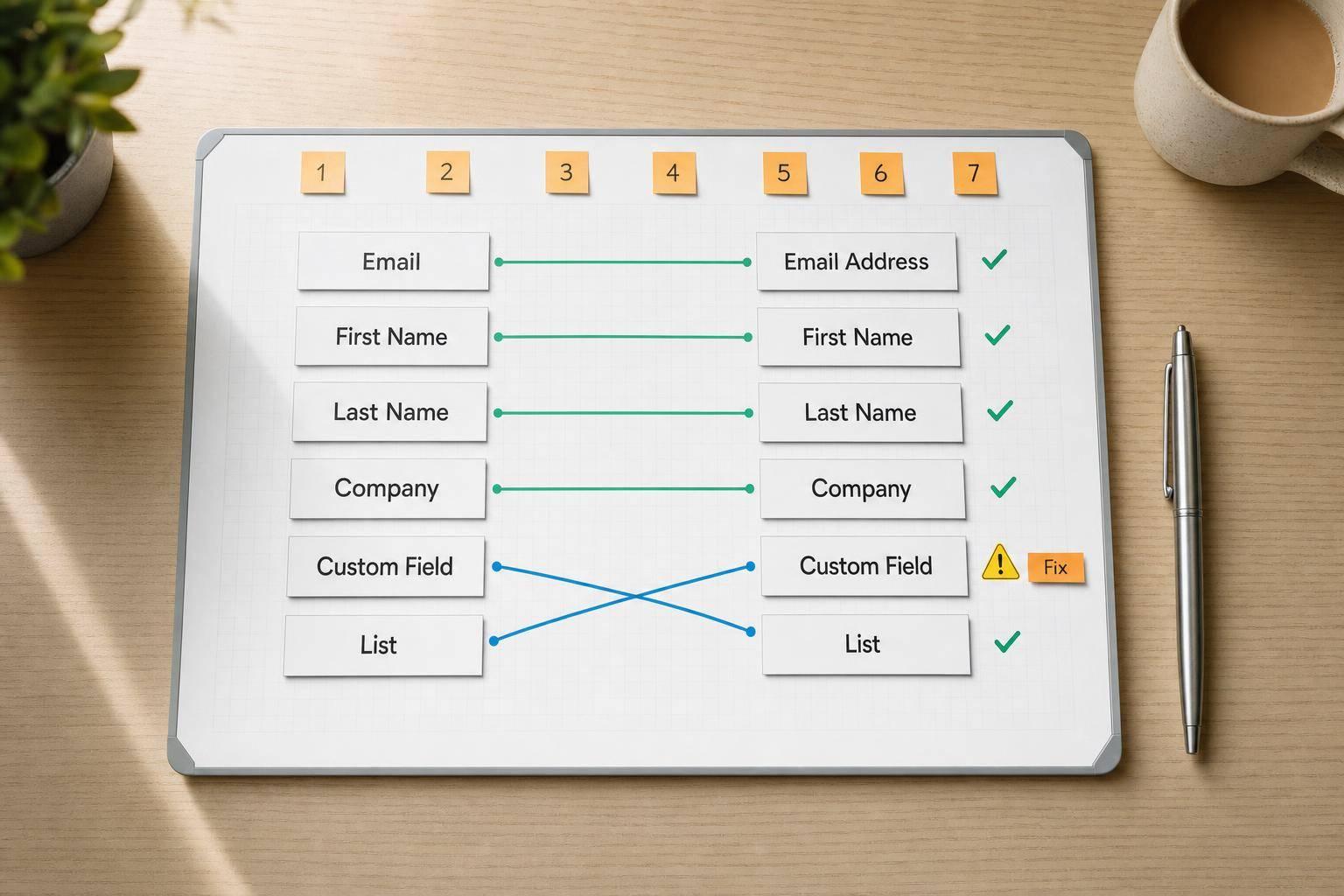
Most Constant Contact sync problems come from 7 simple issues: wrong field types, missing required fields, duplicate custom fields, bad email mapping, unmapped hidden fields, CSV header mismatches, and list assignment or timing errors.
If I want to stop failed syncs fast, I start with these checks:
- Map email to the system Email Address field
- Match field types and formats on both sides
- Confirm required fields are included
- Remove duplicate custom fields
- Map hidden fields on purpose
- Fix CSV headers before import
- Check list assignment and sync timing
That matters because bad mapping can damage list quality fast. The article points out that 66% of marketing files have questionable email deliverability. And a lot of that trouble starts with bad data handling.
Here’s the full set of fixes covered in the article:
- Mismatched field types
- Missing required fields
- Duplicate or conflicting custom fields
- Bad email mapping and invalid email data
- Hidden fields that never get assigned
- Naming conflicts and CSV header mismatches
- Sync timing and list assignment problems
Quick Comparison
| Issue | Main sign | First fix |
|---|---|---|
| Field type mismatch | Blank or misplaced data | Match source and destination field types |
| Missing required fields | Contact not created | Map required fields, especially email |
| Duplicate custom fields | Same data split across fields | Audit and merge duplicate fields |
| Bad email mapping | Broken or blank email values | Map to Email Address and validate input |
| Hidden field failure | Missing source or UTM data | Check hidden field population and mapping |
| CSV header mismatch | Imports land in wrong fields | Rename headers and map columns by hand |
| List/timing issue | Contact exists but not in list | Check sync timing and default list setup |
In short: clean labels, correct formats, and a test submission before launch will prevent most of these problems.
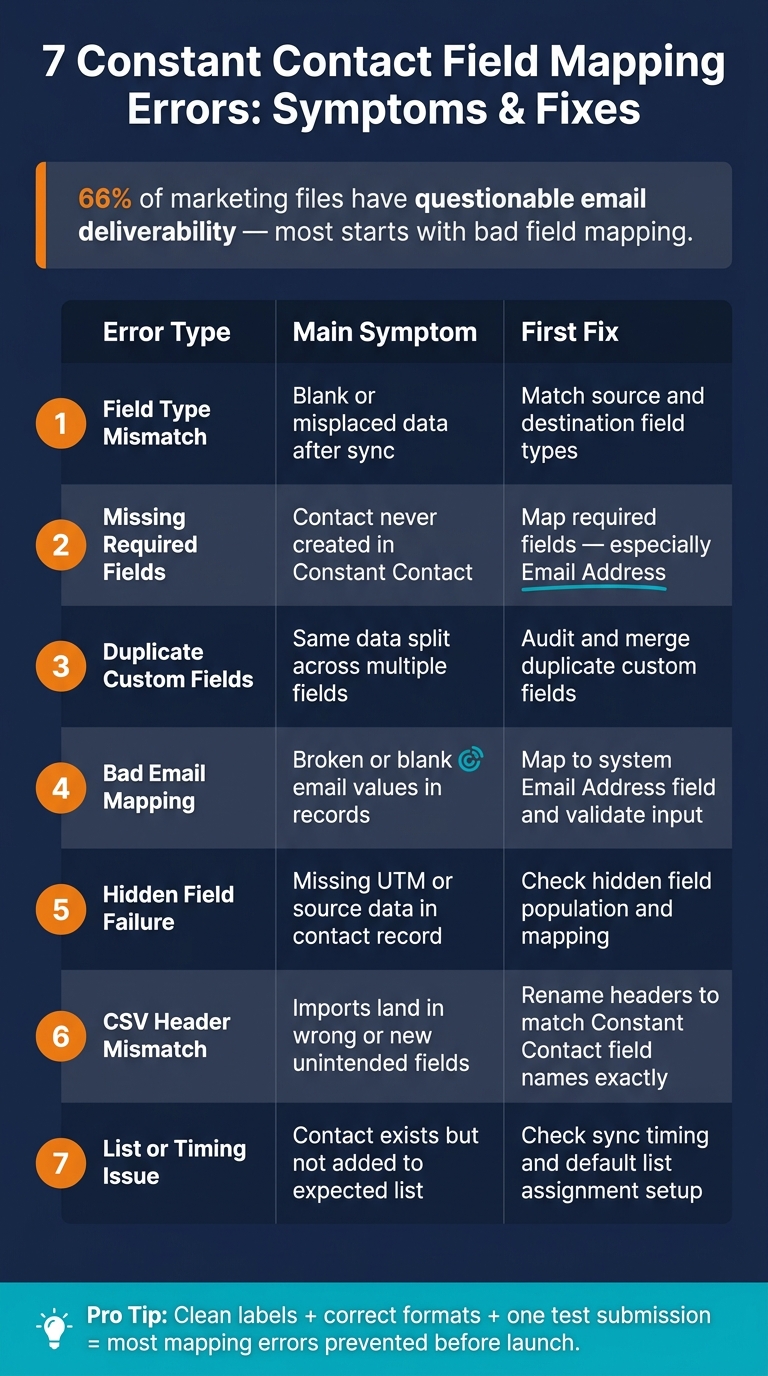
7 Constant Contact Field Mapping Errors: Symptoms & Fixes
Create custom contact fields | Constant Contact
sbb-itb-5f36581
How Constant Contact Field Mapping Works
Field mapping tells Constant Contact where each incoming value should go. When the mapping is right, your contact records stay clean and usable. When it's wrong, data can land in the wrong place or disappear during sync.
Standard Fields vs. Custom Fields
Constant Contact comes with standard fields like Email Address, First Name, Last Name, Company, Phone, Address, City, State, ZIP/Postal Code, and Birthday. These fields power things like segmentation, personalization, and reporting.
Custom fields are for data that doesn't belong in those built-in fields. That might be Lead Source, Product Interest, or Subscription Plan. One common problem? Near-duplicate custom field names. They make mapping mistakes much more likely.
| Field Type | Examples | Primary Use |
|---|---|---|
| Standard | Email, First Name, State, ZIP, Birthday | Core identity, personalization, built-in segments |
| Custom | Lead Source, Plan Tier, Product Interest | Advanced segmentation, business-specific data |
| Hidden/UTM | UTM Source, UTM Campaign, Landing Page URL | Source tracking, campaign attribution, page data |
Start by mapping core contact details to standard fields. That's the safe move. For example, if you place a contact's state in a custom field instead of the standard State field, Constant Contact's geographic filters won't pick it up.
After field type, the next piece is routing. And this is where hidden fields and list assignment often trip people up.
Hidden Fields and List Assignment
Hidden fields are landing page form fields the user never sees. They're usually filled in behind the scenes with context data like UTM parameters, page URLs, campaign IDs, or referrer information. If a hidden field doesn't have a matching Constant Contact field, that value gets lost during sync.
List assignment is a separate setup. It isn't part of field mapping. So if you map a field called List Name, that alone will not subscribe the contact to a list. You have to set that up in the list settings.
U.S. Data Format Requirements
A few formatting issues show up again and again with U.S.-based contacts. And they can lead to failed imports or messy records.
| Field | Expected U.S. Format | Common Problem |
|---|---|---|
| Dates | MM/DD/YYYY (e.g., 08/18/2026) | DD/MM/YYYY or text like "August 18th" can cause import failures or misread dates |
| ZIP Code | Five-digit numeric (e.g., 90210) | Leading zeros dropped, extra characters, or non-numeric values break location filters |
| State | Two-letter USPS abbreviation (e.g., CA, NY, TX) | Full state names like "California" won't match the standard State field |
| user@domain.com | Missing "@", spaces, or non-email values mapped to Email cause sync failures |
Dates, ZIP codes, and state values fail most often. ZIP codes should be stored as text so leading zeros stay intact. States should use two-letter USPS abbreviations.
Most mapping failures start with mismatched field types.
1. Mismatched Field Types Between Your Form and Constant Contact
Start with field types. This is the most common reason a Constant Contact sync fails.
Primary Symptom
The clearest sign is blank data or data showing up in the wrong place after sync. Most of the time, that points to a mismatch between what your form sends and what Constant Contact expects.
Root Cause
This is a field type problem, not just a naming problem. Two fields can have the same label - like "Phone" - and still expect different kinds of data. A dropdown might need a stored value. A checkbox might need a yes/no value. When your form and Constant Contact expect different field types, the sync may reject the value or put it in the wrong format.
Birthday fields are a common trouble spot. Constant Contact uses separate month and day values for birthdays, so a single "Birthday" text field usually won’t map cleanly.
Best Fix
Match each form field to a Constant Contact field that accepts the same type and format. For multi-select answers, make sure the destination field can store that kind of value. If it can’t, create a new custom field with the right data type and then remap the integration.
Constant Contact custom fields accept only string or date values, so sending free-form text into a date-type custom field can break the mapping. Before you remap anything, check the destination field type or customize your form fields to match. Then test with one realistic contact record and make sure each value lands where it should.
| Field | Issue | Fix |
|---|---|---|
| Date / Anniversary | Form outputs a date format Constant Contact doesn't accept | Use a date picker or formatter that outputs an accepted date format |
| Birthday | Single "Birthday" field mapped directly to one destination field | Split the value into separate month and day fields |
| Phone Number | Form and destination field use different phone formats | Format the value before sync |
| Checkbox / Boolean | Form sends "Yes" while the destination expects a yes/no value | Configure the form to send the exact value the field expects |
| Dropdown | Form sends the visible label instead of the stored value | Match the option values to the destination field's expected values |
If the field types line up and the sync still fails, the next thing to check is usually a missing required field.
2. Missing Required Fields in the Mapping Setup
Primary Symptom
Form submissions go through, but the contact never shows up in Constant Contact, or the record shows up half-filled.
If you're using an API-based setup, the sync log may show required-field errors like email_address[address] is missing. With CSV imports, Constant Contact marks the problem rows and gives you a downloadable error report.
Root Cause
Most of the time, the issue is simple: the Email field is missing or not mapped. If Constant Contact doesn't get that field, it can't create the contact record.
Multi-step forms can also cause trouble. A field may be collected in an earlier step, then never make it into the final payload sent to Constant Contact. For CSV imports, you also need a header row and a mapped Email column.
Best Fix
Check which fields Constant Contact requires for your setup. For standard email contacts, an email address is always required.
Then review your mapping closely:
- Make sure each required field has a direct, correctly named mapping.
- Check that fields collected across multi-step forms are passed into the final sync.
- If you use pre-filled or hidden fields like Lead Source or List ID, give them a default value so they don't go through blank.
After that, send one test record and inspect the contact record. You're looking for one thing: did every required field land where it should?
Where to Verify in Constant Contact
Open the new contact in Contacts. Then review Activity and the import error report to see which field failed.
If the record never appears, compare the sync error with your current field mapping. That usually points straight to the missing field. If the contact exists but some fields are blank, look for duplicate or conflicting custom fields.
3. Duplicate or Conflicting Custom Fields
If your required fields are mapped but the data still shows up in the wrong place, duplicate custom fields are often the culprit.
Primary Symptom
The clearest sign is when one contact value gets spread across multiple fields that mean the same thing, like "Source", "Lead Source," and "Campaign Source." That usually means your data has been sent to more than one field over time.
A bigger problem is when a custom field uses the same name as a built-in Constant Contact field. Do not create a custom field with the same name as a built-in Constant Contact field. It can hide or break the built-in field.
Root Cause
This tends to happen when the same piece of data is mapped under different names over time. CSV imports with slightly different column headers can create new fields for what is basically the same thing, such as "Company", "Company Name," and "Company_Name."
It can also happen after a field rename. If you rename a custom field but don't update the integration, Constant Contact may create a second field instead of using the one you already had.
Best Fix
When fields are split or duplicated, start by auditing your field list. Go to Contacts → Settings → Custom Fields and look for names that are almost identical. Then export your contacts to CSV and review the column headers.
After you spot the duplicates, choose one field name for each data point. Merge the duplicate values, keep the latest valid value, re-import the cleaned file, and delete the extra fields. In your integration settings, map each form field to the exact existing Constant Contact field name.
If duplicates aren't the problem, the next thing to inspect is the Email field itself.
Where to Verify in Constant Contact
Open Contacts → Settings → Custom Fields or the Custom Field Manager to review each custom field, its label, and its data type. Then export your contacts to CSV and scan the headers for columns that shouldn't be there. Match that export against your integration mappings to find where the conflict began.
4. Bad Email Field Mapping and Invalid Email Data
In Constant Contact, the email address is the required identifier for every contact record. If there’s no Email Address, Constant Contact can’t keep the contact. That’s why a small mapping mistake can turn into a mess fast.
Primary Symptom
The clearest sign is simple: contacts show up with blank or broken email values even though the user filled out the form the right way.
You may also spot bad entries like example@ or john.doe at gmail.com. In some cases, the email doesn’t land in the main Email Address field at all. Instead, it gets pushed into a custom text field. At that point, the contact data looks fine on the surface, but Constant Contact can’t use it the way it should.
Root Cause
The most common cause is mapping the form’s email input to a custom text field instead of Constant Contact’s main Email Address field.
This usually happens when the integration setup shows several fields that look similar, and the wrong one gets picked. Another common problem is using a plain short-answer field with no email validation. That opens the door for malformed addresses to pass through and get sent to Constant Contact as if they were valid.
Best Fix
First, double-check which field in your integration is Constant Contact’s system Email Address field. Don’t assume a field with “email” in the label is the right one.
Then:
- Map the form’s main email input to Constant Contact’s system Email Address field
- Validate the email before the form is submitted
If you’re using Reform, its built-in email validation and spam prevention features can stop bad formats and bot-made addresses before they hit your Constant Contact list. That helps keep your field mapping clean and your bounce rate under control.
Where to Verify in Constant Contact
Go to Contacts → Activity and review recent sync errors. Then open the contact record and make sure the value landed in Email Address.
If the mapping looks right, the next thing to check is whether hidden fields are syncing and whether list assignment is firing.
5. Hidden Fields That Never Get Assigned
When a form submits with no visible error, but one field still shows up blank, hidden-field mapping is the next thing to inspect.
Primary Symptom
Hidden fields are easy to miss because the user never sees them. The contact may sync to Constant Contact without any obvious problem, but the hidden value never shows up in the contact record. Source and campaign fields stay empty, or the hidden value is missing from the record altogether.
In plain English: the form likely collected the value, but Constant Contact never got it in the field it was supposed to use.
This is a silent failure. On the surface, the integration looks fine, yet the hidden data never makes it into Constant Contact.
Root Cause
The most common reason is simple: the hidden field was never mapped to its matching Constant Contact field. You can run into the same issue if the field name in the form doesn’t match what the integration expects.
Best Fix
Start by checking that the hidden field is populated before the form submits. Then make sure each hidden field is mapped to the right Constant Contact field. If anything is left unassigned in the mapping screen, fix that first and test again.
A good way to test it is with a clear value like hidden-field-test-001. Submit the form, then open the contact record in Constant Contact and confirm that the value appears.
Where to Verify in Constant Contact
Open the contact record and look at the Custom Fields section first. If the value still isn’t there, check the integration mapping and sync history. If the hidden value does appear but the contact still ends up in the wrong place, the next mapping issue is probably the one to check next.
6. Naming Conflicts and CSV Header Mismatches
Primary Symptom
When a CSV import goes sideways, the header row is often the problem, not the data itself. The import may finish without throwing an error, but some columns end up blank or land in the wrong fields. This shows up a lot with Phone, Company, and other main fields.
You may also notice that Constant Contact creates new custom fields from headers it doesn't match.
Root Cause
This happens when your CSV column headers don't match the field names Constant Contact expects. Small differences can be enough to cause trouble. For example, FName isn't the same as First Name, and Zip/Postal isn't the same as ZIP Code. Even if the headers look close, Constant Contact reads them as different fields.
The goal is simple: make each header line up with one clear field map.
Best Fix
Before you upload the file, open the CSV and rename the headers so they match your standard field names exactly. Clean up extra spaces, remove hidden characters, and combine duplicate ideas into one column when needed.
If you're importing custom data, use one custom field with one clear name instead of borrowing the label of a standard field.
| Common CSV Header | Constant Contact Standard Field | What Happens If Left As-Is |
|---|---|---|
Job Title / Job_Title |
Job Title |
Data may be ignored or land in a new unintended field |
FName / First |
First Name |
Data may be ignored during auto-import |
LName / Last |
Last Name |
Data may be ignored during auto-import |
Zip / Postal / ZIP/Postal |
ZIP Code |
Mapping error or data in the wrong field |
Org / Biz |
Company |
Data may be skipped if not manually mapped |
During upload, don't skip the field mapping step. Use the dropdown menus to make sure each column points to the right destination field.
Where to Verify in Constant Contact
After you reimport, check both the standard fields and the custom fields. Go to Contacts > Settings > Custom Fields and look for near-duplicate field names that were created from unmatched headers.
Then open a few contact records and confirm the data landed in the right place. If anything looks off, fix the headers and run the import again.
7. Sync Timing and List Assignment Problems
If the field values look right but contacts still miss the right list, the next place to look is sync timing and list assignment.
Primary Symptom
You’ll usually see one of two things: a contact shows up in Constant Contact but not on the list you expected, or the contact appears hours later instead of right away. In a time-sensitive campaign, that kind of lag can block welcome emails and stop automations from firing.
Root Cause
This usually comes down to two separate problems, and they often get mixed up.
Timing problems happen when the integration sends contacts on a batch schedule instead of pushing them instantly through the API. A common example is a WordPress setup that handles list assignment through cron rather than in real time. If WordPress’ cron system (WP_CRON) is disabled or not working, that job may never run. When that happens, the contact never gets added to the list.
List assignment problems are a different issue. In this case, the contact exists in Constant Contact but has no list membership at all. That usually means the integration was never set to assign a list. It can also happen when the contact is unsubscribed, which may block re-subscription or prevent the contact from being added to lists through normal uploads or many integrations.
Once field mapping is ruled out, the problem is often pretty simple: when the sync runs, and whether the contact gets assigned to any list.
Best Fix
Use a real-time, API-based integration that runs on each form submission.
For list setup, assign one default list per form and map it directly inside the integration. If you use conditional routing, make sure every route leads to a valid list. No dead ends.
If you’re using Reform, check that the Constant Contact integration step maps both:
- the email field
- the main destination list
If you route contacts based on a field like product interest, add a fallback for any value you didn’t plan for. That small step can save a lot of head-scratching later.
Where to Verify in Constant Contact
Start with timestamps, then check list membership.
Go to Contacts and sort by Date Added or Created Date. Then compare those timestamps with your form tool’s submission log. That will show you whether contacts are coming in one by one or in delayed batches.
To spot list assignment failures, use the "Not in any list" filter under the Lists dropdown. This shows contacts that are in the account but were never assigned to a list. Open a few records and review the Lists section.
Here’s what to watch for:
- Unsubscribed: the contact won’t be re-subscribed or added to lists through normal uploads or many integrations.
- Awaiting Confirmation: the contact won’t receive campaign emails until they confirm.
For import-based workflows, check the Activity tab under Contacts. It shows sync history and can help you confirm whether a submission went through or failed quietly.
Quick-Reference Troubleshooting Tables
Use these tables to match each symptom to the fix. Start with field type, then check required fields, naming, and sync behavior. That order usually saves time and cuts out guesswork.
Field-Type Compatibility
| Form Field Type | Example Use | Best Destination | Avoid Mapping To |
|---|---|---|---|
| Work or personal email | Email Address (standard) | Any custom text or phone field | |
| Short text | First Name, Last Name | First Name / Last Name (standard) | Numeric-only custom field |
| Dropdown / Radio | Interest category | Custom text field | Email Address field |
| Dropdown / Radio | US State | State (standard) | Custom text field |
| Checkbox | Opt-in consent | Custom text field for consent tracking | Date field, Email field |
| Date | Event date, birth date | Custom date field (MM/DD/YYYY) |
Text field (causes format mismatch) |
| US Phone | (555) 123-4567 |
Phone (standard) | ZIP Code or date field |
| US ZIP Code | 94103 or 94103-1234 |
Custom text field stored as text | Date or numeric field |
| Hidden field | UTM source, List Name | Custom text field or list-assignment step | Left unmapped |
Required Fields and What Breaks Without Them
Email Address is mandatory. Everything else depends on how your setup works and what you want the contact to do after submission, such as whether multi-step forms beat static ones for your specific workflow.
| Constant Contact Field | Required? | Error When Missing or Wrong | Fix |
|---|---|---|---|
| Email Address | Yes | Contact not created; sync fails | Map to a validated email field only |
| List assignment | Workflow-dependent | Contact is created but not added to the intended list | Assign a default list per form |
| First Name | No, but useful for personalization | Emails send without personalization | Map to a dedicated first-name field |
| Lead Source | No, but useful for segmentation | Downstream segmentation breaks | Set a default value in a hidden field |
| Consent / Opt-in | Workflow-dependent | Contact may be ineligible for campaigns | Map checkbox to a custom text field |
If the field exists but still misfires, the problem may be the label itself. That happens more often than people expect.
Naming Conflicts: Bad Labels vs. Recommended Labels
| Problematic Label | Issue Caused | Recommended Label |
|---|---|---|
Field1, Info, Notes |
Ambiguous; data can land in the wrong field | Lead Source – Website, Work Email, Company Name |
First_Name (form) vs. First Name (Constant Contact) |
CSV import or manual mapping can fail when labels don't match | Use the same label on both sides, such as First Name |
Email used as a custom field name |
Can make the standard Email field invisible or unusable during import | Use Secondary Email or Work Email |
Source |
Too generic; can conflict with internal tags | Campaign Source or UTM Source |
| Field renamed after mapping | Renamed field can break the mapping | Lock labels once an integration references them |
Sync and List Behavior: Symptoms and Fixes
| Symptom | Likely Cause | Fix |
|---|---|---|
| Contact in Constant Contact but not in the expected list | Hidden list field unmapped or blank | Set a default list value; verify the hidden field is populated |
| Contact appears with a delay | Integration runs on a batch schedule rather than in real time | Wait a full sync cycle before troubleshooting further |
| Contact never added to the list | List sync job failed or did not run | Confirm the sync job is active and check server-side configuration |
| Duplicate contacts created | Non-email field mapped to Email; deduplication fails | Always use a validated, unique email as the contact key |
| Contact exists but has no list membership | List assignment step skipped in integration setup | Explicitly assign a list in every integration route |
| Updated submissions do not overwrite the contact record | Integration set to create-only mode | Switch to create-or-update and verify field overwrite permissions |
How to Test Your Mapping Before Going Live
Before launch, run one last mapping test to catch issues the troubleshooting tables may not show on their own. A single test submission can help you confirm the fixes above before the form goes live.
Use Realistic Test Data
Use production-like values instead of placeholders. Enter a real-looking email, date, ZIP code, state, and phone number so format issues show up before launch. Then compare the submission with the Constant Contact record.
Check the Contact Record and List Membership
After you submit your test lead, open the contact record directly in Constant Contact. Check each mapped custom field and make sure the values match what you submitted. A contact can map the right way and still miss the list you wanted.
Next, submit the form again with an email address that already exists in your Constant Contact account. The existing record should update instead of creating a duplicate. After that, test hidden-field values and duplicate-field behavior.
Review Hidden Fields and Duplicate Field Creation
Hidden-field failures are easy to miss. Open the contact record and confirm that the values your hidden fields were meant to send, such as UTM source or campaign name, are there. Then open Custom Fields and scan for near-duplicate entries like Phone and Phone Number.
If you find duplicates, merge them before launch and stick to one name for each field.
| Checklist Item | What to Verify | Expected Result |
|---|---|---|
| Test submission | Form submits without validation errors | Form submits cleanly |
| Field accuracy | Each value matches the contact record | Values land in the right fields |
| List membership | Contact appears in the intended list | Contact appears in the right list |
| Existing contact update | Re-submit with a known email | Existing contact updates, no duplicate |
| Hidden field capture | UTM/source values visible in the record | Hidden values appear |
| Custom field integrity | No new near-duplicate fields created | No duplicate fields created |
Conclusion
Most Constant Contact field mapping failures trace back to the same seven problems: type mismatches, missing required fields, duplicate custom fields, bad email mapping, unmapped hidden fields, header conflicts, and sync timing or list assignment errors. When those issues slip through, contacts can end up on the wrong list, fail without much warning, or chip away at the data quality your segmentation and automations rely on. That can hurt deliverability and send campaigns to the wrong people.
The fix is usually pretty straightforward. Standardize field names and formats, check required fields before submission, review custom fields and list assignment on a regular basis, and test each change with realistic data before launch. Do that, and most Constant Contact sync issues are much easier to spot before they affect delivery. If you use Reform, features like email validation, conditional routing, and lead enrichment can help keep your Constant Contact data clean and consistent.
FAQs
How do I know which field is causing a sync failure?
Review your integration settings and field mapping to make sure field types, formats, and required fields line up on both sides. Then check sync logs or rejected-record reports for errors linked to missing mappings, picklists, or validation rule conflicts.
If the cause still isn’t clear, test one field change at a time and make sure the integration user has permission to update restricted fields.
Why is my contact created but not added to a list?
This usually points to a second automation or integration setting issue. The contact gets created, but list membership can be blocked by missing required fields, custom validation rules, or sync delays.
Also check that your integration user has permission to update list associations and that your field mappings fill in any properties that trigger list membership.
What should I test before turning on a Constant Contact sync?
Before you turn on a Constant Contact sync, review your field mappings carefully. Each field should use the same type in both systems, and the validation rules should line up too. That means checking things like text fields, date fields, and custom properties so they don’t conflict once data starts moving.
You’ll also want to confirm that required fields are handled the same way on both sides. Fields like email, name, and any custom properties you need should be marked consistently and use matching formats. If one system treats a field as required and the other doesn’t, problems tend to show up fast.
After that, test in stages instead of flipping the switch all at once:
- Internal testing to catch setup issues early
- User acceptance testing to make sure the sync works as expected in day-to-day use
- A small live rollout to watch how the integration behaves with actual data
As you test, check logs for failures or delays. Try both new and existing records. Make sure event-triggered syncs fire the way they should, and confirm the integration user has the read and write permissions needed to do the job.
Related Blog Posts
Get new content delivered straight to your inbox

The Response
Updates on the Reform platform, insights on optimizing conversion rates, and tips to craft forms that convert.




Drive real results with form optimizations
Tested across hundreds of experiments, our strategies deliver a 215% lift in qualified leads for B2B and SaaS companies.
