
.webp)
Constant Contact CRM Sync Checklist


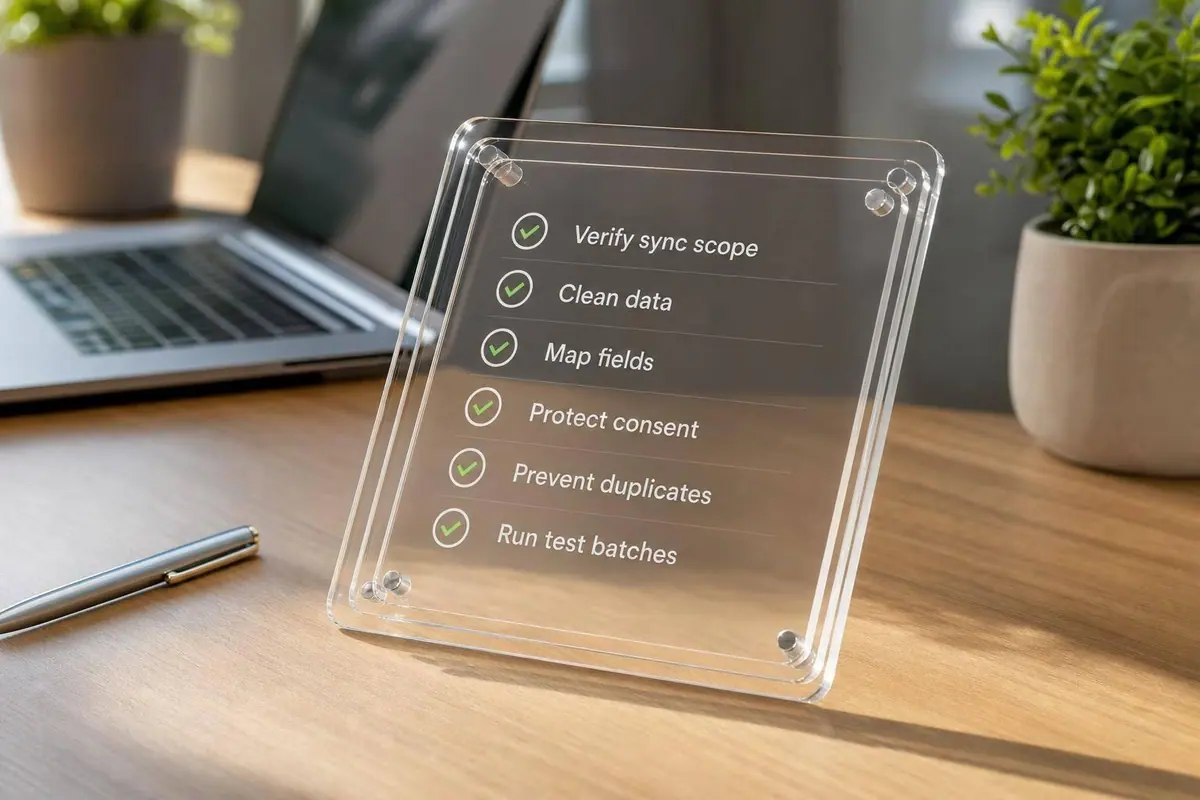
A bad sync can damage consent records, create duplicate contacts, and block leads before your team even notices—often because multi-step forms beat static ones at capturing data but fail during the sync. If I were preparing this launch today, I’d check six things first: sync scope, data cleanup, field mapping, consent rules, duplicate handling, and test coverage.
Here’s the short version:
- I’d decide which records sync and which system wins for each field.
- I’d clean bad data before launch, especially missing or invalid emails.
- I’d map required fields and keep formatting rules strict, like 08/01/2026 for dates and two-letter state codes.
- I’d treat unsubscribe status as locked, with Constant Contact updating the CRM when someone opts out.
- I’d use email address as the main match key and avoid auto-merging weak matches.
- I’d test with 10 to 50 records, including bad inputs, duplicate emails, unsubscribed contacts, and update cases.
- I’d block launch if logging, alerts, retry rules, or ownership are still unclear.
A few numbers matter here. The checklist calls out an invalid-email rate below 1%–2%, honoring unsubscribes within 10 business days, and keeping consent records for at least 3 years after the last send.
If you want the simplest way to think about it, it’s this: clean the data, lock field ownership, protect consent, test failure cases, and do not go live with open questions.
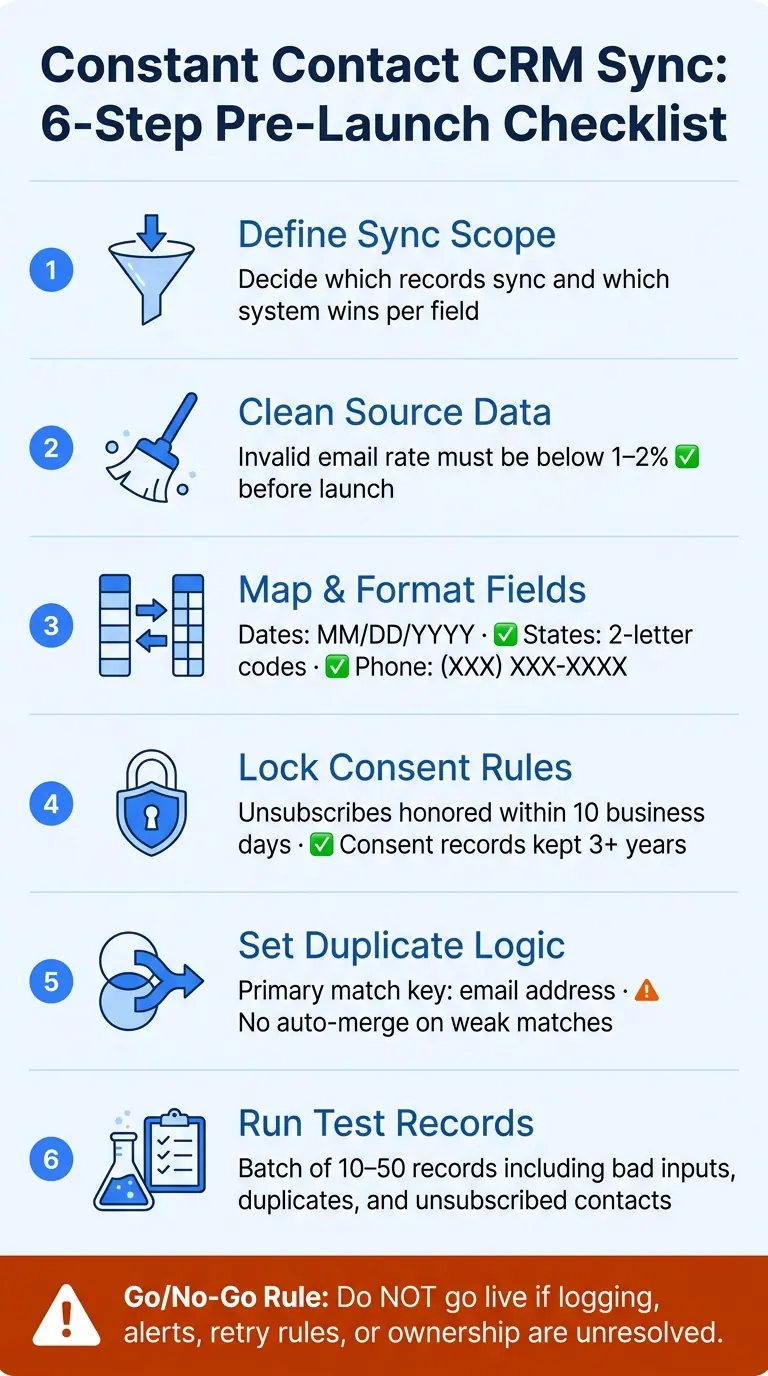
Constant Contact CRM Sync: 6-Step Pre-Launch Checklist
Salesforce and Constant Contact Integration with Sync Apps
sbb-itb-5f36581
Field Mapping Checklist for Constant Contact and Your CRM
Map every field before you touch the setup. That gives you a clear picture of what syncs, where each piece of data lives, and which system gets the final say when something changes. Once you have that inventory, you can set ownership, sync direction, and conflict rules before the sync goes live.
List Standard, Custom, and Attribution Fields
Begin with a full field inventory across four groups so nothing slips through the cracks.
Standard contact fields cover email address, first name, last name, phone number, job title, company name, and postal address. Marketing fields cover list membership, tags, lifecycle stage, subscription status, and engagement signals like opens and clicks. Attribution fields - UTM source, UTM medium, UTM campaign, UTM term, UTM content, original lead source, and referrer URL - help the sync connect records to channels. Then you have technical IDs, such as CRM contact ID, account ID, and Constant Contact contact ID, which the sync uses to match records.
A few fields get missed all the time. Secondary phone numbers are one. Granular address details like state and ZIP code are another. Custom fields inside Constant Contact for product interest or event attendance can also get lost in the shuffle. The same goes for custom CRM fields like lead score or renewal date. The safest move is to export both systems and review every field line by line instead of leaning on default mappings.
Once the list is done, assign a source of truth to each field.
Set Field Ownership, Formats, and Conflict Rules
The CRM should own contact profile and company data. Constant Contact should own subscription preferences and email engagement data. Attribution fields should move one way from the form or marketing layer into the CRM: write once, and never overwrite first-touch values. Using multi-step form design can help capture these details without overwhelming the user.
Here are the core rules by field type:
| Field Category | Source of Truth | Sync Direction | Transformation Rule |
|---|---|---|---|
| Standard Contact | CRM | Bidirectional | Lowercase email; format phone as (XXX) XXX-XXXX |
| Marketing/Segment | Constant Contact | Bidirectional | Map CC tags to CRM picklist values |
| Attribution (UTM) | Form/Marketing layer | One-way → CRM | Write once; never overwrite first-touch values |
| Consent Status | Constant Contact | Bidirectional | Map to boolean; preserve timestamp |
| Technical IDs | CRM | One-way → CC | Exact match only; no transformation |
For each field, set one clear rule: CRM wins, Constant Contact wins, latest timestamp wins, or non-blank wins.
After ownership is locked in, check that every required field on the receiving side has a valid source.
Verify Required Fields and Safe Transformations
Every mapped record needs a valid email. On the CRM side, required fields depend on your setup, but last name and lead status are common. Test the sync in both directions before go-live.
For transformations, keep things simple. Lowercase email addresses before sync. Store dates in MM/DD/YYYY format for U.S.-formatted fields. Normalize state names to two-letter USPS abbreviations. If a transformation fails, skip the update and log the error.
Consent Data and Duplicate Rules to Lock Down Before Launch
Consent handling and duplicate prevention are the two places where teams get burned after go-live. One mistake can turn into a compliance problem. Another can hurt deliverability. So before the sync starts, make the rules explicit.
Map Consent Status, Source, and Timestamp
Once your field mapping is done, lock down the rules that protect consent history and prevent duplicate records.
Treat opt-outs as one-way. Constant Contact should always update the CRM do-not-email flag, and no later import should be allowed to clear it. Under CAN-SPAM, unsubscribe requests must be honored within 10 business days and must stay honored even if you change platforms. That means the final state for any contact with a prior opt-out stays unsubscribed, no matter how they come back into the system.
The CRM should update Constant Contact only when the CRM holds a stricter suppression state. Also keep consent records for at least 3 years after the last send.
Choose Lead Qualification and Survivorship Rules
With consent rules in place, define how records match and what happens when fields conflict.
Use email address as the main unique key. If an incoming record matches an existing CRM contact on a normalized email address, update that record instead of creating a new one. Secondary fields, like phone number or company name, can flag possible duplicates for human review, but they should not trigger automatic merges.
For survivorship, two rules should not change:
- Consent fields never downgrade. If one record shows unsubscribed and another shows subscribed, the merged record stays unsubscribed in both systems.
- Lifecycle stage should only move forward based on CRM or marketing triggers. Constant Contact alone should not move a record backward from Customer to Lead.
| Matching Criteria | Survivorship Rule | Impact on Consent Fields |
|---|---|---|
| Exact email match (primary key) | Most recent activity date wins for profile fields | Unsubscribe or stricter preference always wins; latest timestamp documented |
| Email + exact first and last name | CRM is system of record for owner and lifecycle stage | Constant Contact opt-out immediately updates CRM do-not-email |
| Phone + last name match (no email match) | Flag as potential duplicate; manual review only | No auto-merge; consent fields remain unchanged until a human confirms the relationship |
| Shared company domain + similar name | No auto-merge; create separate contacts | Consent tracked per individual; do not infer consent from another person at the same company |
Clean Existing Duplicates Before the First Sync
Fix duplicates before activation. If you skip this step, the sync will copy the mess into both systems.
Run duplicate detection jobs in each system on its own before turning on the sync. Start with high-confidence matches, like exact email plus exact first and last name, and merge those automatically using survivorship rules that favor more recent engagement and stronger consent evidence. After that, run a second pass with looser logic for records that share a phone number and a similar name, then send those to a manual review queue.
A duplicate in Constant Contact can lead to multiple sends to the same inbox, which can push up complaint rates and damage sender reputation. A duplicate in the CRM can split consent history across two records, making it harder to prove that an opt-out was honored. Turn the sync on only after both systems are clean.
If lead capture runs through Reform, enforce unique email validation at submission.
Error Checks and Test Records Before Go-Live
Once your consent rules and duplicate logic are set, the next job is simple: prove the integration works the way you set it up before live customer data starts moving through it.
These checks help you confirm that the consent, duplicate, and field rules above behave as expected before the sync goes live.
Enable Logging, Alerts, and Retry Rules
Before you test even one record, make sure logging is turned on everywhere the sync touches:
- the CRM activity log
- the Constant Contact sync history
- any middleware in the middle
Your logs should show the error type, HTTP status code, affected record ID, timestamp, and endpoint name. A vague message like sync failed doesn't help much. A clear entry like 400 – Invalid date format for field subscription_start, expected MM/DD/YYYY gives your team something they can act on right away.
Mask sensitive data in logs, but leave enough detail to troubleshoot without playing detective. If the CRM-first flow breaks, consent status changes, or duplicate handling goes off course, log it.
Alerts need clear routing too. Record-level issues and system-level failures shouldn't go to the same place. Set different alert levels, assign owners, and make sure the person reviewing failures each day knows that's their job before go-live, not after the first mess lands in production.
Retry rules matter just as much. Set automatic retries with exponential backoff for short-term problems like timeouts or rate limits. Put a cap on retry attempts so the system doesn't keep slamming the API. If the issue is bad data or an unmapped field, don't retry forever. Send those records to a failed-record queue for manual review.
Run a Small Batch of Test Records First
Start in a sandbox or staging setup that matches production as closely as possible. Begin with one record, then move to a controlled batch of 10 to 50 records that includes both success and failure cases.
Your batch should include:
- a valid new lead
- an existing contact that should update
- an unsubscribed record
- a duplicate email
- a record missing a required field
- an invalid email format
- a malformed phone number
- at least one record with custom field values or an invalid consent state
That mix helps you test required fields, consent states, duplicates, and attribution fields without guessing.
Use U.S.-formatted data the whole way through. Dates should look like 08/01/2026, phone numbers like (555) 867-5309, and states should use two-letter codes. Super-clean fake data can give you a false sense of security. Production usually breaks on formatting issues, not the easy stuff.
After each test runs, check both systems by hand. Confirm the CRM shows the right field values, and make sure Constant Contact shows the correct list assignment and consent status.
Test the Full Lead Path from Form to CRM to Constant Contact
Submit a form, watch the record land in the CRM with every mapped field in place, then confirm the CRM sends that contact to Constant Contact without dropping anything. Check timing too. Some syncs happen in real time. Others run on a schedule.
If Reform is part of your lead capture stack, test email validation at the form layer, conditional routing, and whether UTM source attribution fields pass through to both the CRM and Constant Contact the way they should. If a submission clears the form's email validation but fails a CRM required-field check, it should show up in the error log. It should NOT just vanish.
Run the same scenarios through the CRM-first path and confirm the Constant Contact handoff follows the mapped rules. Use the table below to set pass/fail rules for the main test cases.
| Test Scenario | Input or Trigger | Expected CRM Result | Expected Constant Contact Result | Pass/Fail Criteria |
|---|---|---|---|---|
| Valid new lead submission | Submit a clean form record | Record created with all mapped fields and UTMs | Contact added to the correct list with opt-in status | All fields match form input; no data truncation |
| Existing contact update | Submit a form using an email already in the CRM | Non-locked fields updated; first-touch attribution unchanged | Profile updated; no duplicate created | No duplicate record created |
| Unsubscribed contact re-submitted | Submit a new form for a contact with unsubscribed status | Opt-out flag logged in the CRM timeline | Contact remains unsubscribed | Consent status is not overwritten |
| Duplicate email submitted twice | Submit two identical records in quick succession | Existing record updated | Single record maintained with updated timestamp | No duplicate in either system |
| Missing required field | Submit a record with a required field left blank | Error logged; record rejected | No record created | Specific error message identifies the field |
| Invalid email format | Submit an invalid email address | Validation error triggered at the form or sync layer | No record created | Bad data blocked from entering either database |
| API rate limit hit | Send enough records to trigger throttling | Sync paused; record queued for retry | No change until retry succeeds | Alert fires; retry logic engages; record eventually processes |
| UTM attribution preserved | Submit a form with UTM parameters | UTM fields populate in CRM | Contact tagged or segmented by source | Attribution data is visible and accurate in both systems |
Document any failures here for the final go/no-go review. If anything is still unresolved, carry it into that review so nobody is surprised at the last minute.
Final Go/No-Go Review
Use this final checkpoint to sign off on each item before launch. Do not go live until every row is marked Done and has a clear owner.
Use the test results from the previous section to update each row below.
| Verification Category | What to Confirm | Owner | Status |
|---|---|---|---|
| Source data quality | Invalid-email rate below 1%–2%; key fields complete; U.S. formats consistent (MM/DD/YYYY, two-letter state codes) | CRM Admin | |
| Field mapping | Mapping finalized; sync directions confirmed; transformation rules tested with sample records | Marketing Ops | |
| Consent fields | Opt-in status, source, and timestamp mapped and protected from overwrite; unsubscribe events sync from Constant Contact to the CRM | Compliance / Marketing Ops | |
| Duplicate rules | Matching logic documented (primary key: email); survivorship rules confirmed; duplicate tests passed | CRM Admin | |
| Error handling | Logging active; alert thresholds set; retry logic in place; failed records can be reviewed and retried manually | IT / Marketing Ops | |
| End-to-end testing | All critical test scenarios passed; failures documented and resolved or formally accepted | Integration Owner |
Status: Done / In Progress / Blocked
Pick one owner for post-launch log review before go-live. If any row is marked In Progress or Blocked, do not launch.
FAQs
What should I fix before the first sync?
Before the first sync between Constant Contact and your CRM, decide on your single source of truth. Then map fields with object IDs, not display names.
That step matters more than it may seem. Display names can change. IDs usually don’t. If you map the wrong field, bad data can spread fast and create a mess on both sides.
You’ll also want to set clear duplicate rules and turn on consent tracking. That helps keep records clean and makes sure opt-in status stays tied to the right contact.
Use sample records before you go live. Check the payloads, confirm the data moves where it should, and make sure updates flow in the right direction.
A few more checks can save you a headache later:
- Set alerts for silent failures
- Review the full data flow from end to end
- Make sure your authentication credentials are secure and up to date
This is the kind of setup work that feels small at first, but it can prevent a lot of cleanup later.
How do I keep unsubscribes from being overwritten?
Use strict field mapping and duplicate-handling rules in your Constant Contact and CRM sync. That sounds a bit technical, but the idea is simple: make sure each field has one clear job, and make sure duplicate records don’t bounce bad data back and forth.
Your consent and opt-out fields deserve extra care. Set them as read-only or one-way synced from your source of truth. That way, one system stays in charge, and you avoid mixed signals about who has unsubscribed.
Test the sync on a regular basis to catch automation loops or conflicting updates. A small sync issue can snowball fast. Regular checks help preserve existing unsubscribe flags and prevent accidental re-subscription.
What should I test before going live?
Before going live, run test records all the way through the system. That helps you confirm the data lands in the right fields and moves where it’s supposed to go. And don’t stop at “the connection works.” Check the actual payload so you can verify the data is correct.
It’s also smart to test a few failure points on purpose. Look at things like:
- duplicate prevention
- consent tracking
- alerts for silent failures
That way, if something breaks quietly in the background, you can spot it fast and fix it before it turns into a bigger mess.
Related Blog Posts
Get new content delivered straight to your inbox

The Response
Updates on the Reform platform, insights on optimizing conversion rates, and tips to craft forms that convert.




Drive real results with form optimizations
Tested across hundreds of experiments, our strategies deliver a 215% lift in qualified leads for B2B and SaaS companies.
