
.webp)
Online Learning Privacy Checklist for Lead Forms



A simple lead form can create legal risk fast. I’d check 7 things before publish: audience, purpose, fields, child/student data risk, notice and consent, data flow, and deletion.
Here’s the short version: if a form can be used by children under 13, parents, or school staff, I should not treat it like a normal marketing form. COPPA can apply when a child’s personal information is collected online. FERPA can come into play when a form touches student records or school-held student data. And risk does not depend on the form name. It depends on who submits it, what it collects, and where the data goes next.
Before launch, I’d make sure the form does all of this:
- Collects only needed data
- Blocks or warns against student files like transcripts, IEPs, rosters, and assessment reports
- Shows privacy notice and policy links near the submit button
- Keeps service requests separate from marketing consent
- Uses multi-step age routing for Under 13, 13–17, 18 or older, and Prefer not to say
- Stops standard processing for under-13 or unclear-age submissions
- Routes school and district cases to manual review
- Stores consent proof like timestamp, form URL, and notice version
- Keeps restricted records out of CRM automations, ad audiences, and enrichment tools
- Tests deletion across every system, not just the CRM
A few facts matter here. COPPA applies to children under 13. FERPA covers records directly tied to a student and kept by a school or someone acting for the school. That means even a basic inquiry form can become a problem if it asks for student names, dates of birth, grades, disability details, or file uploads.
If I’m unsure about a field, a workflow, or a vendor handoff, I’d stop the launch. A form is only ready when the front end, CRM, automations, and deletion steps all follow the same rules.
This article walks through that review in plain English so I can check the form before it goes live.
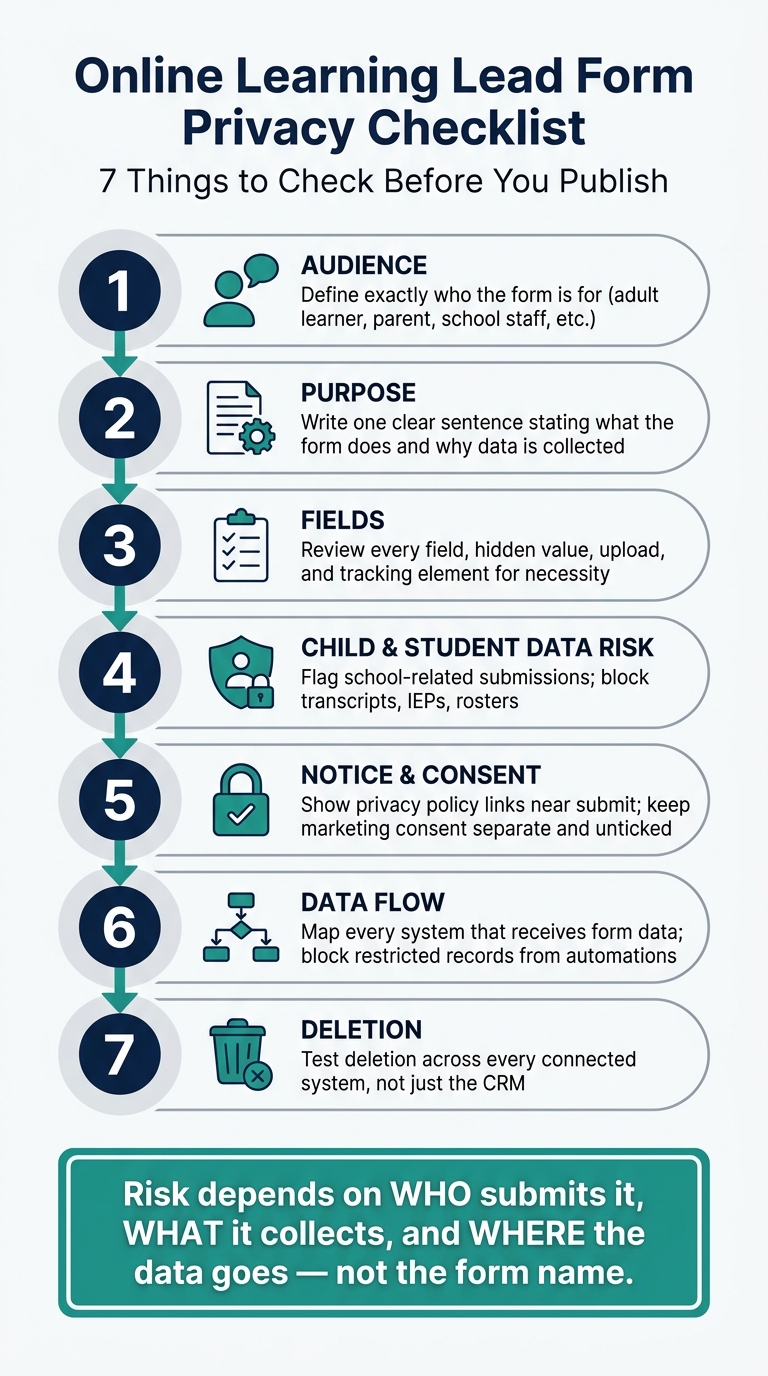
Online Learning Lead Form Privacy Checklist: 7 Steps Before You Publish
Checklist Part 1: Confirm the form's scope, fields, and legal path
Define the audience and purpose for every form
Start with one clear sentence that says exactly what the form does and who it is for.
For example: "Request information about adult certificate programs" or "Connect a school district with an institutional sales representative."
That sounds simple, but it shapes almost everything that follows. The intended user determines the fields, consent steps, routing, access, and retention. A form for adult learners might ask for a preferred program and callback time. A district-buyer form might ask for organization name and role. But it should not ask for student names or classroom details unless there's a documented business need.
Review every field, hidden field, and uploaded item
Once you've set the audience, review every data point the form touches. That includes visible inputs, hidden fields, URL parameters like UTM campaign tags, cookies, IP address and device metadata, enrichment data from third-party providers, file uploads, and CRM-created values.
Then ask a basic question: is each item needed to answer the inquiry, qualify the lead, or deliver the service? If the answer is no, remove it or make it optional.
A few examples make this easier to judge:
- ZIP Code may help with local program routing.
- A full street address is usually too much for an initial inquiry.
Some fields need extra care. Full date of birth, student ID, school-issued email, detailed academic history, and disability information should be treated as manual review triggers, not standard lead fields. When you can, swap them for lower-risk choices, like an age band instead of an exact birth date.
File uploads need a close look too. If uploads are turned on, set permitted file types, access restrictions, and retention rules. Then test what happens after submission. Do uploaded files get copied into the CRM? Sent in email alerts? Passed into analytics tools?
General marketing forms should block transcripts, IEPs, assessment reports, and class rosters.
Flag school and student-record risk early
After the field review, separate school-related submissions right away. Treat a submission as a separate track if it includes a roster, student name, school domain, or an education-record term. Add a clear routing choice like "School, district, or classroom inquiry" with options for teacher, school administrator, district staff, parent, student, and other.
You should also trigger a review when the form mentions a classroom or student roster, or includes terms like "student record", "transcript", "grades", "IEP", or "assessment." Those submissions should go to privacy, security, procurement, or contracts staff, not into a standard consumer marketing campaign.
FERPA defines education records as records directly related to a student and maintained by an educational agency or institution, or by a party acting for that institution. In practice, that can reach farther than many teams expect. It may include indirect identifiers and combinations of context that could reasonably point to a student.
Add a plain-language warning to any general inquiry form:
"Do not submit student education records, grades, individualized education information, or other student-identifying files through this form. Use the approved school or district process instead."
That single instruction can help keep sensitive records out of systems that were never approved to handle them.
The table below sums up the field-review decisions teams should document before moving on to consent and CRM checks:
| Item to review | Key question | Required outcome |
|---|---|---|
| Intended audience | Who is expected to submit this form? | One documented audience or clearly separated paths |
| Business purpose | Why is each item collected? | Specific, approved purpose per field |
| Data category | Could the item identify a child, student, teacher, or school? | Risk label and handling rule assigned |
| Hidden or inferred data | Is the value entered, hidden, enriched, or inferred? | Complete data inventory including metadata |
| Recipient systems | Which systems and vendors receive it? | Approved data-flow map |
| Required legal or contract path | Which notice, consent, FERPA, COPPA, state-law, or contract requirement applies? | Documented review owner |
| Retention | How long is it kept, and who owns deletion? | Defined retention and deletion rule |
If any field, system, or access path is unclear, stop here and move to notice, consent, and age-screening checks.
sbb-itb-5f36581
Checklist Part 2: Verify notice, consent, and age screening
Place clear consent text and policy links near the submit button
Put a short notice right next to the submit button. At that moment, users are about to act, so they should be able to see what you collect, why you collect it, who gets it, and where to read the policy without hunting for it.
Don’t tuck this notice below the fold. Keep it visible at the point of submission.
If the form might collect information from children or students, add a separate children’s or student-data notice link right beside the main policy link. Then test every link on desktop and mobile. Each one should open the current policy on your domain.
Separate required service notice from optional marketing consent
Once the required service acknowledgment is set, keep follow-up consent separate from the request itself. This matters more than many teams think. A brochure request or demo request is not the same as marketing consent.
Use:
- one required service acknowledgment
- one separate, unticked marketing checkbox
For example:
"Yes, I'd like to receive occasional emails about courses, events, and related resources. I can unsubscribe at any time."
Never pre-check that box. And don’t make the inquiry depend on it.
For each submission, store the exact consent text, the policy version, the timestamp, and the form URL. If there’s ever a dispute, those details matter.
Screen for age and route under-13 or parent flows correctly
After consent, ask one age question so the submission goes down the right path. Keep it simple. Ask only what you need to route the record correctly.
Use one age-band question:
- Under 13
- 13–17
- 18 or older
- Prefer not to say
The answer should change routing, not just sit in storage.
Under COPPA, if your service is directed to children under 13, or if you have actual knowledge that you’re collecting information from a child, you must notify parents and obtain verifiable parental consent before collecting, using, or disclosing that child’s personal information. So if someone selects Under 13, standard lead processing should stop at once. No CRM sync to marketing campaigns. No ad audiences. No sales automation. Instead, show parent-consent instructions or direct the child to have a parent complete the request.
Treat uncertainty the same way. If a user chooses Prefer not to say, or if their answers don’t line up, send the record to a restricted review queue rather than treating them as an adult by default.
Before launch, test every route. That includes an adult who declines marketing, a parent submitting for a child, an under-13 learner trying to submit directly, and a user who skips the age question entirely.
| Submission scenario | Minimum notice shown | Processing decision |
|---|---|---|
| Adult requests a demo, declines marketing | Required service acknowledgment + privacy-policy link + optional marketing checkbox | Send the requested follow-up only unless marketing is separately authorized |
| Under 13 or prefers not to say | Age notice + parent-consent instructions | Route to restricted review; do not assume adulthood |
| Parent submits on behalf of an under-13 learner | Parent-facing notice describing collection, use, sharing, and rights | Capture verifiable parental consent where COPPA applies |
Adopting EdTech: FERPA and COPPA
Checklist Part 3: Test CRM sync, routing, and deletion workflows
After consent and routing are in place, test what happens after someone clicks submit. A form isn't done when the button works. It's done when every system behind it follows the same rules as the front end.
Map where each submission goes after the user hits submit
Once a form is submitted, data can spread across several systems before anyone spots an issue.
Start with a simple submission data map. Make it a one-page doc that lists every place form data goes, what fields each system gets, who owns that system, who can view the data, how long the data stays there, and how deletion works. That map should include form storage, internal alerts, CRM, marketing automation, analytics, support tools, enrichment providers, ad audiences, data warehouses, backups, and exports.
Then check what each system actually receives. Send each tool only the fields it needs. And limit staff access to the records tied to their job.
Store consent, consent time, form version, age status, school-data flags, and processing restrictions as structured fields, not as notes.
Use the map to confirm that restricted records never enter automation.
Block restricted records from standard campaigns and automations
Test each record across every connected system.
Before launch, these are the cases you want to run:
- An adult who opts into marketing enters the approved sequence
- An adult who declines marketing gets service emails only
- Withdrawn consent is removed from active campaigns and future sends
- A parent or guardian flow is sent to the right approval path
- A user under 13 stays out of standard workflows
- A school or district inquiry is sent for manual review and kept out of enrichment and ad audiences
- A duplicate submission does not overwrite consent or turn marketing back on
- A failed CRM sync triggers an alert and enters a monitored retry queue, not a fallback route
- An export or integration retry keeps restriction flags and never overwrites a newer opt-out
Check your exports too. Old CSV files, warehouse tables, and integration caches can slip past the rules set in the CRM. They should carry the same consent, age, school-data, and deletion-status fields as the source record.
Once routing is working, move on to deletion testing across every place data lives.
Confirm retention, deletion, and proof of completion
Set a written retention period for each data class. Active leads, unqualified leads, blocked child submissions, consent evidence, support records, audit logs, and suppression records each need their own rules. For child data, keep it only as long as needed for the stated purpose. If education records or personally identifiable student information are involved, align with the applicable FERPA policies and any contract terms with the institution.
When a deletion request comes in, deletion has to go beyond the CRM. Run a deletion test with a synthetic record and verify removal across the form database, CRM, marketing platform, email and SMS tools, support systems, enrichment providers, analytics IDs, data warehouse, exports, backups where applicable, and connected apps. Confirm that the person is removed from active campaigns and that deletion requests do not trigger a new notification or re-import.
Document:
- Request ID
- Checks performed
- Date
- Owner
- Exceptions
The FTC specifically describes parental rights to review, revoke consent, and delete a child's personal information - and expects operators to maintain a written retention and deletion policy.
After deletion, keep only the minimum suppression data needed to block recontact. A deleted contact should not be quietly recreated by a CRM import, an enrichment job, or a form resubmission.
Final pre-publish review and conclusion
Run a final approval pass with test scenarios
Before you publish, treat the final review as a launch gate. This isn't a routine quality check. The form shouldn't go live until someone has checked the whole thing together: fields, notice text, age routing, CRM integrations, and the deletion process.
The goal is simple: make sure the form works the right way across every actual submission path.
Test these seven paths:
- adult learner
- parent for a child
- possible under-13 user
- school inquiry
- district inquiry
- marketing opt-out
- deletion request
For each one, verify the confirmation message, email notifications, CRM record, tags, owner assignment, suppression lists, campaign enrollment, analytics event, and audit log.
After the data-flow review, check usability too. Test mobile and keyboard-only flows. Make sure labels are visible, focus order makes sense, error messages are clear, and consent text is easy to read.
Document the sign-off with named owners across privacy, marketing, IT/security, accessibility, and CRM operations. Record the reviewer, approval date, form version, and any unresolved exceptions.
Key takeaways for a safer lead form launch
Once the form passes review, lock in the launch standard.
Collect only what you need, explain it clearly, route it with care, and remove it all the way.
Privacy review is also a change-management task. Run the full review again any time the team changes a field, hidden parameter, consent wording, policy link, analytics script, CRM integration, routing condition, automation, vendor, retention period, or deletion procedure. Reform can support this workflow with conditional routing, spam prevention, email validation, analytics, and CRM integrations, but approval is still your responsibility.
Here are the four questions to ask before every launch:
| Review area | Core question |
|---|---|
| Collect | Are all fields, hidden values, uploads, and tracking elements actually needed? |
| Explain | Is the notice clear, are policy links working, and is optional marketing consent separate from required service terms? |
| Route | Do age, parent, school, and district cases reach the right systems and stay out of standard campaigns? |
| Remove | Can the team find, suppress, delete, and document the record across every connected system? |
If the answer to any of these is uncertain, the form isn't ready to publish.
FAQs
When does COPPA apply to a lead form?
COPPA applies to online services aimed at children under 13 that collect personal information, such as names, email addresses, or behavior data.
If your lead form collects this kind of data from users under 13, you must get verifiable parental consent before any collection starts.
A simple way to handle this is to place a neutral age-screening question at the very beginning of the form. If a user indicates they are under 13, route them to a parent or guardian flow for verified approval before moving forward.
What form fields create FERPA risk?
Any form field that collects personally identifiable information can create FERPA risk. Some fields need extra care, especially anything tied to academic performance, biometric data, health information, or demographic details.
A couple of less obvious issues can cause trouble too. Abandoned submission tracking may store student data before someone even hits submit. And hidden fields that expose internal student IDs can create compliance problems if that data is shared or stored in the wrong place.
The safest move is simple:
- Don’t collect PII you don’t need
- Mask data when you can
- Make sure CRM syncs and other integrations follow FERPA rules for access and sharing
That way, your forms do their job without pulling in more risk than they need to.
How should under-13 submissions be handled?
For users under 13, get verifiable parental or guardian consent before collecting personal information like names or email addresses.
Start with a neutral age-screening question. If a user is under 13, send the form down a different path: collect the parent or guardian’s contact information instead, and block CRM syncs, enrichment, and tracking pixels until consent is confirmed.
Related Blog Posts
Get new content delivered straight to your inbox

The Response
Updates on the Reform platform, insights on optimizing conversion rates, and tips to craft forms that convert.




Drive real results with form optimizations
Tested across hundreds of experiments, our strategies deliver a 215% lift in qualified leads for B2B and SaaS companies.
