
.webp)
Pinterest lead forms: setup guide


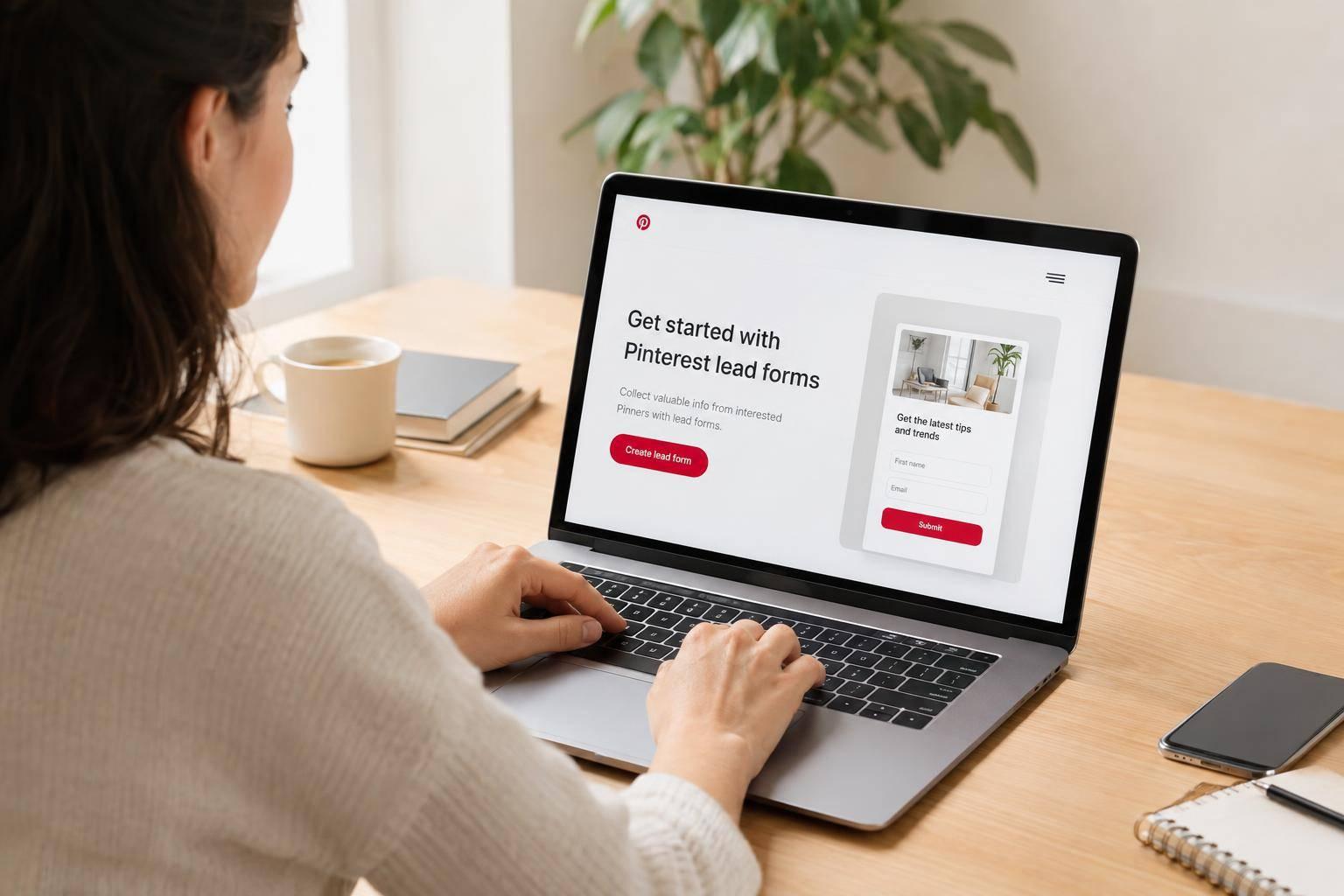
To set up a Pinterest lead form, start in Ads Manager with a Pinterest Business account and confirm that lead forms are available. I’ll walk you through the setup, from choosing fields to lead qualification to ensure they reach the right person.
Here’s what I’ll cover:
- Form setup: Add the fields you need, a privacy policy link, consent disclosures, and a thank-you message.
- Prelaunch checks: Test the mobile view, links, lead delivery, CRM field mapping, and recipient access.
- Campaign launch: Review targeting, budget, and schedule, then check approval and delivery separately.
- Follow-up: Check submissions, lead quality, alerts, and response rules. I’ll also explain when to use Reform for a separate website form.
My rule: <u>check lead delivery before increasing spend</u>. Publishing is not the same as approval - and the guide notes that initial reporting can take 24–48 hours to appear.
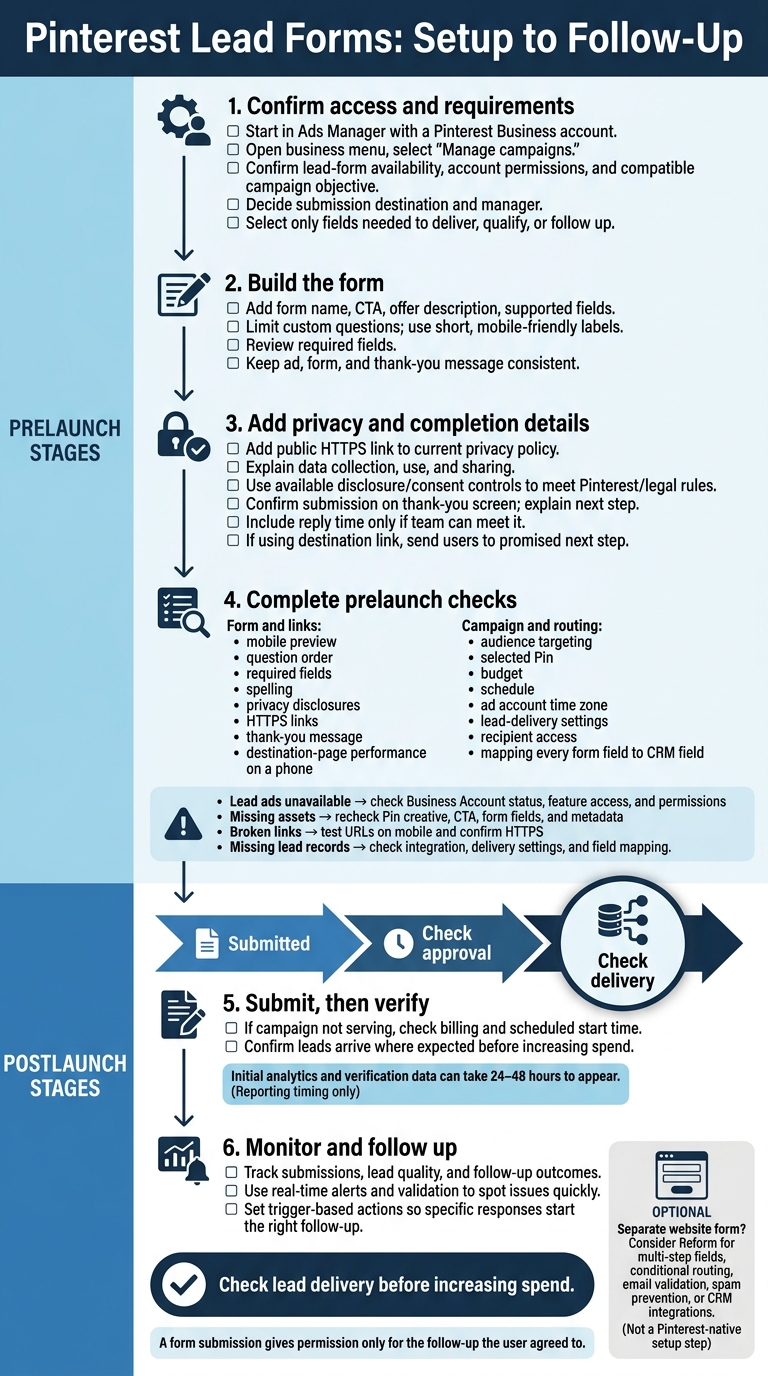
Pinterest Lead Forms: Setup to Follow-Up
1. Check account access and campaign requirements
Open Ads Manager and confirm your account has access to lead forms.
Find the lead ad setup options
Open the business menu and select Manage campaigns. Check that your campaign objective supports lead forms, targeting, and bidding. If you don’t see the lead form option, check your account type and campaign objective again.
Decide where submissions will go and who will manage them.
Choose which information to collect
Before opening the builder, decide what data you need. Include only fields needed to deliver the offer, qualify the lead, or follow up.
Once you’ve confirmed access and chosen your fields, build high-converting lead forms and thank-you screens.
sbb-itb-5f36581
2. Build the form and thank-you screen
Add a form name, call to action, and fields
Build the form with the fields you selected in the previous step. Give it a name, choose a call to action, and describe the offer. Keep the ad, form, and thank-you message consistent.
Use fields your account supports, and limit custom questions or use multi-step forms to manage them. Write short, clear labels that are easy to read on a phone. Check which fields are required so people don’t have to share information you don’t need.
Add the privacy link and consent disclosures
Add a public HTTPS link to your current privacy policy in the privacy link field. Your policy and disclosures should explain how you collect, use, and share lead information.
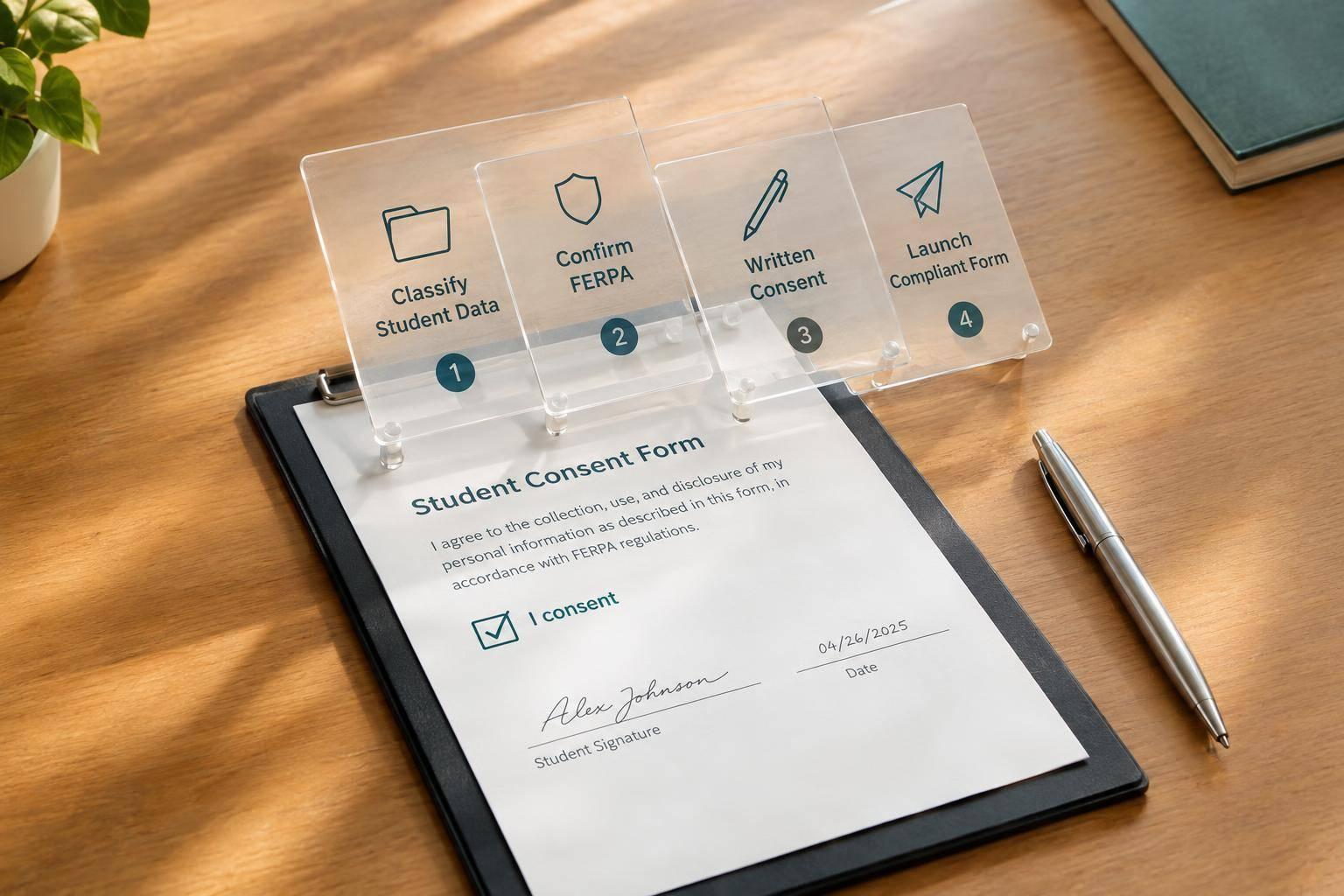
Use your account’s disclosure and consent controls to meet Pinterest’s rules and applicable law. A form submission gives permission only for the follow-up the user agreed to.
Write the thank-you message and next step
Use the thank-you screen to confirm the submission and tell people what happens next. Include a reply time only if your team can meet it.
If you add a destination link, direct people to the promised next step - not a generic homepage. Test the link on a phone to make sure the page loads quickly and works well.
Once these details are set, review the form, routing, and lead delivery before publishing.
3. Review and publish the campaign
Before publishing in Pinterest Ads Manager, check your audience targeting, selected Pin, budget, schedule, and ad account time zone.
Check the form and lead delivery before publishing
Open the mobile preview and check the question order, required fields, spelling, privacy disclosures, links, and completion messaging. Confirm that lead delivery and field mapping are set up correctly before publishing.
Fix common setup and lead-delivery errors
Resolve these issues before submitting your campaign.
| Issue | Likely checks | Next action |
|---|---|---|
| Lead ads unavailable | Feature access and account permissions | Verify Business Account status and feature access. |
| Missing assets | Pin creative, form fields, and metadata | Recheck the Pin, CTA, and form setup. |
| Broken privacy or completion links | Destination URL and privacy policy link | Test the URLs in mobile preview and confirm they use HTTPS. |
| Missing lead records | Field mapping and lead delivery settings | Confirm the lead delivery integration and field mapping. |
Publish and check approval and delivery
Submit the campaign once you've made the fixes. Then track approval status and delivery separately: submission does not mean approval or delivery.
If the campaign isn't serving, check billing and the scheduled start time. Before increasing spend, confirm that leads arrive where you expect them. Initial analytics and verification data can take 24–48 hours to appear.
Use Reform for a separate website form
Use Reform for a separate branded website form if you need multi-step form design, conditional routing, email validation, spam prevention, or CRM integrations.
Conclusion: Confirm lead access and follow-up
Before you publish, check that every form field maps to the correct CRM field. Test the thank-you screen to make sure it directs users to the intended next step. Set up trigger-based actions so specific responses start the right follow-up.
Once the campaign is live, move from setup checks to performance checks. Track lead conversions and follow-up outcomes. Use real-time alerts and validation to spot issues quickly.
FAQs
Can I edit a Pinterest lead form after launch?
Whether you can edit a Pinterest lead form after launch depends on the platform’s settings. Before you go live, test the form logic, field mapping, CRM connections, and compliance notices.
Edits after launch may disrupt data syncing or existing lead flows. If you make changes, re-test the entire lead flow to keep data accurate and prevent sync errors.
How do I test lead delivery before spending?
Before spending, send synthetic test entries through every route, including fallbacks. Check data transfer, conditional logic, CRM field mapping, record creation, owner assignments, and workflow triggers.
Use browser developer tools to confirm that sensitive values go only to approved destinations and that CRM payloads include only approved fields.
Test the full journey on desktop and mobile across Chrome, Firefox, Safari, and Edge. Document test results and error logs before going live.
How can I reduce low-quality lead submissions?
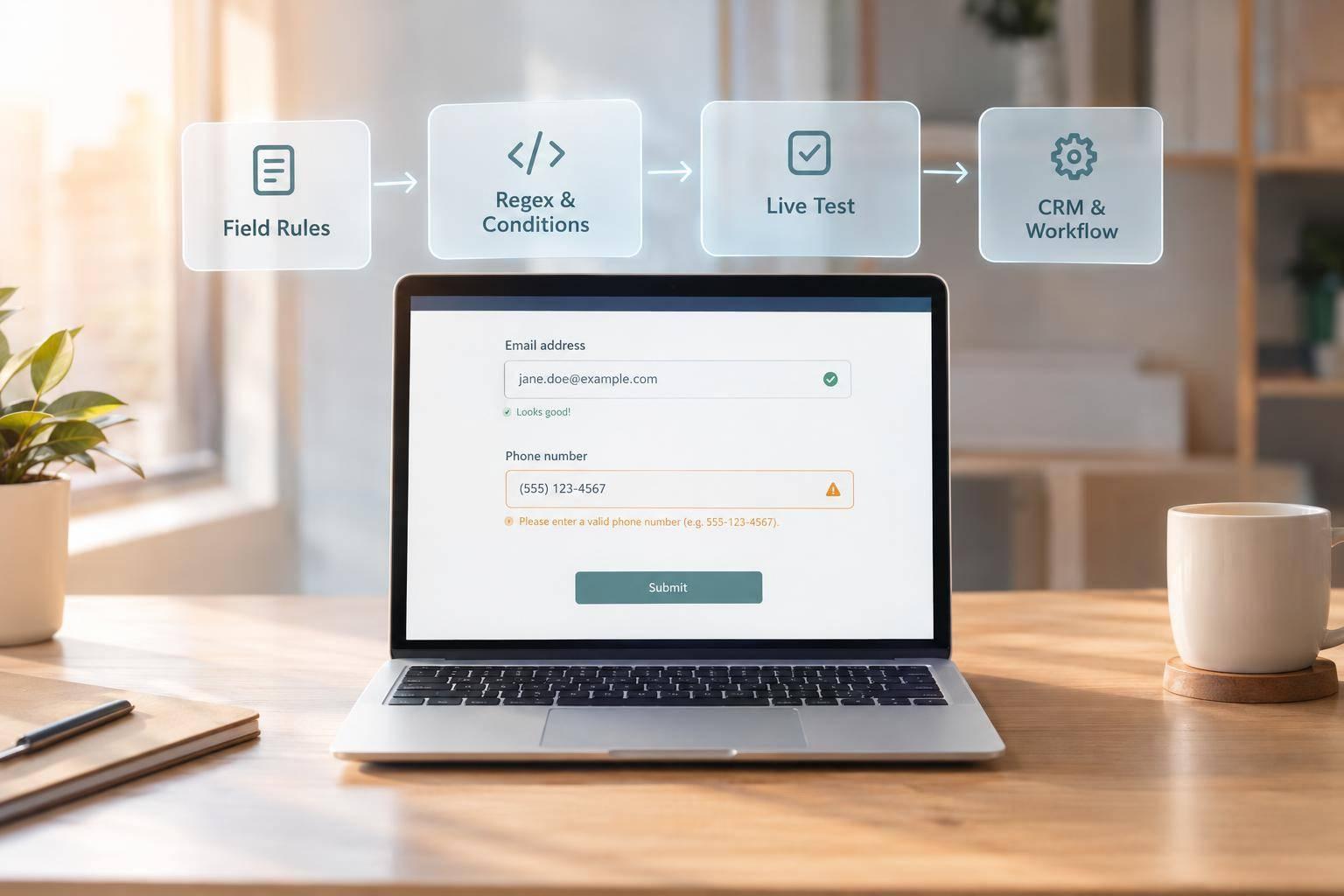
Use built-in spam controls, such as honeypot fields and rate limiting, to block bots. Validate email addresses in real time to keep contact details accurate and reduce bounces.
Use conditional logic to display only relevant fields. Lead enrichment can verify and fill in company details, so visitors have fewer fields to complete.
Before launch, test with synthetic data to check that routing and validation rules work as intended.
Related Blog Posts
Get new content delivered straight to your inbox

The Response
Updates on the Reform platform, insights on optimizing conversion rates, and tips to craft forms that convert.


Drive real results with form optimizations
Tested across hundreds of experiments, our strategies deliver a 215% lift in qualified leads for B2B and SaaS companies.
