
.webp)
Setting Up Auto-Save for Multi-Step Forms



If your multi-step form doesn’t save drafts, you will lose leads. People get interrupted, tabs close, and browsers crash. If a user comes back to an empty form, many won’t start again.
Here’s the short version of what I’d do:
- I’d map the form steps first, with fixed step IDs and clear field groups
- I’d auto-save on step changes, after 500 ms to 2,000 ms of typing pause, and on page exit
- I’d store drafts in local storage, on the server, or both, based on resume needs
- I’d let drafts save even when some fields are invalid
- I’d show plain status text like “Saving...” and “Last saved at 2:15 PM”
- I’d expire old drafts after 14 to 30 days
- I’d test reloads, tab closes, failed saves, and resume flows before launch
A few details matter more than most. Save raw inputs, not computed values. Skip fields like passwords, CVVs, and one-time codes. After restore, send the user back to the last step and move focus to the step title or first field.
Here’s the main tradeoff at a glance:
| Storage option | Best for | Main limit |
|---|---|---|
| Local storage | Same-device resume and low setup work | No cross-device resume |
| Server-side drafts | Logged-in users and cross-device resume | More backend work |
| Hybrid | Fast local save plus server backup | More sync logic |
In short, I’d build auto-save around three things: clear form structure, low-friction save timing, and simple recovery. That’s what keeps progress safe without making the form feel busy.
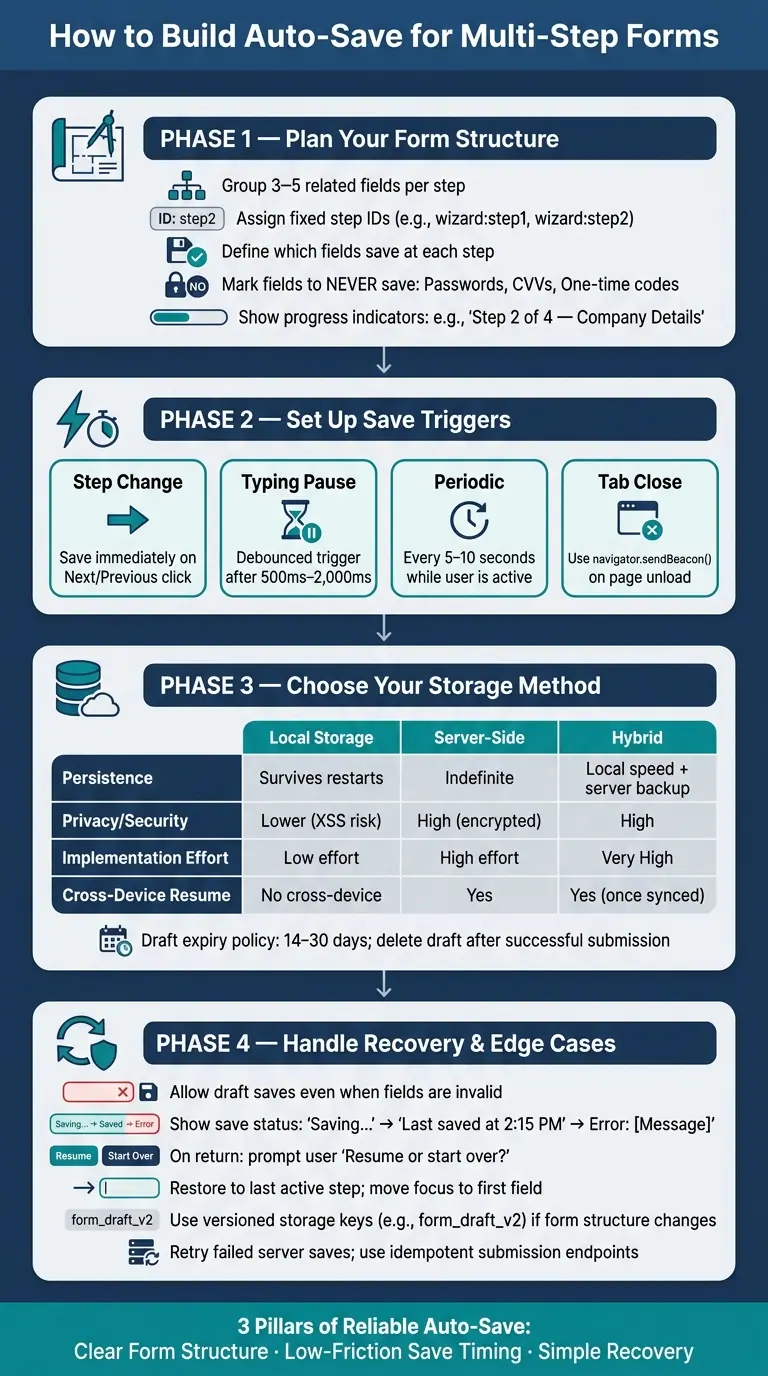
Auto-Save Setup for Multi-Step Forms: Complete Workflow
Plan your multi-step form structure before adding auto-save
Before you set up auto-save, map out your steps and decide which fields belong to each one. Get that structure locked in first. If fields are scattered across the flow, draft saving and recovery become a headache fast.
Group related fields into focused steps
Build each step around a single task. A good target is three to five fields per step. For example, a form might move from personal information to account preferences to payment details.
Don’t split connected inputs just to create more screens. That usually makes the flow feel longer without making it easier.
When your grouping is clean, a saved draft is much easier to map back to the right step.
Use progress indicators and stable step IDs
Show users both where they are and what’s next. Something like "Step 2 of 4 - Company Details" works well because it gives position and context at the same time.
Each step should also have a fixed ID, such as wizard:step1 and wizard:step2. Those IDs help your app return people to the right place when they come back later. If you rename or reorder steps without handling those IDs carefully, saved drafts can fail. Treat step IDs as fixed identifiers from day one.
Define which fields must save at each step
Write down each step’s fields, validation rules, and any branching before you build the save logic. Step 1 should capture things like name and email so the draft connects to a user early.
It also helps to mark fields that should never be stored by auto-save, including:
- Passwords
- CVVs
- One-time verification codes
If your form uses conditional routing, define that now too. For example, the next step might change based on a company size selection.
Once the structure is fixed, you can move on to save triggers, storage, and resume behavior.
sbb-itb-5f36581
Set up auto-save triggers, storage, and resume behavior
Once your step IDs and field map are in place, the next call is simple: when should saves happen, where should drafts live, and how should people get back in?
The aim is to save data with as little friction as possible. People shouldn't feel like the form is busy every second.
Choose save triggers that stay out of the user's way
Step changes matter most. Save right away on every Next or Previous click, before the screen changes.
While someone is typing, use a debounced input trigger. A delay of 500ms to 2,000ms after the user stops typing is a common range. That keeps you from saving on every keystroke, while still keeping the draft up to date. On longer forms, you can also run autosave every 5 to 10 seconds while the user is active.
Another trigger people often miss is tab close or navigation away. Use navigator.sendBeacon() on unload to send one last save when the user closes the tab or leaves the page. It's a small detail, but it can catch partial entries from people who drop off in the middle of a step.
Choose between local, server-side, or hybrid draft storage
Where the draft lives changes the whole tradeoff. Some teams want speed and low setup. Others care more about cross-device resume or tighter data protection.
| Storage Method | Persistence | Privacy/Security | Implementation Effort | Cross-Device Resume |
|---|---|---|---|---|
Local (localStorage) |
Survives browser restarts; persists until cleared | Lower - vulnerable to XSS | Low - no backend needed | No - device-specific |
| Server-Side | Indefinite until deleted by policy | High - encrypted at rest | High - requires an API and database | Yes - via login or token |
| Hybrid | Local for speed; server for durability | High - balances both | Very high - requires sync logic | Yes - once synced |
localStorage is a good fit when people are likely to come back on the same device. Server-side storage makes more sense when cross-device resume matters or when losing a draft would hurt. A hybrid setup gives you fast browser saves first, then syncs to the server on a schedule so the draft can survive across sessions and devices.
You'll also want a draft expiry policy. Old data shouldn't sit around forever. A range of 14 to 30 days is common. Save a timestamp with each draft, clear stale drafts on a schedule, and delete the saved draft after a successful submission so old entries don't pop back up later.
Make draft recovery simple
When someone returns, getting back into the form should feel easy.
For account-based drafts, the path is direct: the user signs in, and the form loads their saved state. For anonymous users, pass a resume token in the URL and load the draft from that token.
If you're using localStorage for same-device recovery, check for a saved draft when the component mounts. If one is there, show a quiet prompt like: "We found a saved draft from [date]. Resume or start over?" Don't prefill the form without asking first.
When you restore a draft, send the user straight to the last active step. Then move focus to the first field or the step heading for accessibility. Save raw user inputs instead of derived values so your conditional logic can run again the right way on restore. And if the form structure has changed since the draft was saved, use versioned storage keys like form_draft_v2 so you don't load stale data into the wrong layout.
Next, handle invalid fields, save feedback, and recovery failures so drafts never get in the way of completion.
Handle validation, save states, and recovery errors
Once people can save a draft and come back later, the next job is simple: make the rough edges less painful. That means handling bad input without wiping progress, showing save status clearly, and dealing with recovery problems in a way that doesn't leave users stuck.
Allow drafts even when some fields are invalid
Auto-save shouldn't depend on perfect input. If saving only works after every field passes validation, people can lose progress the moment they leave a field blank or type something in the wrong format.
A better setup is to save the draft even if some fields are invalid. Show inline validation near the field that needs attention, but don't stop auto-save. Only block movement on Next and the final submit. That gives people room to pause halfway through a step, come back later, and pick up where they left off.
Keep sensitive fields out of drafts.
Show clear save feedback and timestamps
People need to know whether their work is stored. If the interface stays silent, doubt creeps in fast.
Three save states handle most cases:
| Status | Example Text | When to Show It |
|---|---|---|
| Saving | "Saving..." | While a save request is in flight |
| Saved | "Saved" or "Last saved at 2:15 PM" | After a successful save |
| Error | "Error: [Message]" | When a save request fails |
For timestamps, use a familiar U.S. format like "Last saved at 2:15 PM." For accessibility, place these updates inside an aria-live="polite" region, and use role="alert" for save failure notices so screen readers announce them the right way.
Add a review step and handle save failures gracefully
A review step gives people one last pass before submission. It also gives you a clean place to show anything they skipped while working through the draft. Display a summary of all entries, and mark any required field that's still empty with a clear visual cue, such as an exclamation mark.
On the technical side, plan for saves to fail now and then. Retry server-side saves so a brief network issue doesn't drop data. If localStorage is full or unavailable, keep the draft in memory for the current session. And make the submission endpoint idempotent so retries or double-clicks don't create duplicates.
Launch, measure, and maintain your auto-save setup
Test draft saving across real user scenarios
With save-and-resume logic in place, test the entire draft flow before launch.
Focus on the situations people run into in normal use, not just the smooth path. Refresh the page in the middle of a step and make sure the entered data is still there. Close the tab, open it again, and check that the draft comes back. Move backward and forward through the form and confirm state stays intact. Make sure invalid fields don't stop draft saving, and confirm that a successful submission clears the draft as expected.
It also helps to automate the main reload-and-restore path in Playwright or Cypress. Manual testing is good at spotting obvious issues. Automation helps catch regressions later when the form changes.
Track abandonment, draft recovery, and completion rates
Once the flow is working, the next step is simple: see whether people come back and finish.
The main metrics to watch are step-level drop-off, draft recovery rate, and final conversion rate. Step-level drop-off shows where people leave, not just that they leave. That gives you a much clearer picture of what needs fixing.
Track draft recovery rate to see how often users return to a saved draft. That's a direct sign that resume is doing its job. Also watch incomplete submission volume so you can spot how many drafts get saved but never turn into submitted forms.
CRM data quality matters too. After launch, check for duplicate records and make sure recovered submissions don't create duplicates.
Conclusion: Build auto-save around reliability and user confidence
Use launch data to adjust save timing, recovery prompts, and cleanup rules.
A solid auto-save setup usually comes down to a few choices made in the right order: define the form flow first, save at sensible moments without getting in the user's way, choose a storage model that matches your security and resume needs, allow drafts even when fields are incomplete, and show clear save states the whole way through.
If you'd rather skip the engineering overhead, Reform includes multi-step pages, progress indicators, incomplete response tracking, and CRM integrations with draft saving built in.
FAQs
What’s the best auto-save trigger to start with?
Start by auto-saving whenever a relevant form value changes, so people don’t lose progress and don’t need to click anything extra.
To keep the app from firing too many server requests, add a debounce timer - usually around 5 seconds. Then save right away when users go to the next or previous step.
When should I use server-side drafts instead of local storage?
Use server-side drafts when you need version history, access across devices, or support for large, complex data. Local storage is a better fit for simple recovery on one device.
Server-side drafts also make more sense when users need to restore older versions in the interface, or when sensitive information shouldn’t live in the browser.
How do I restore a draft if the form changes later?
If you're using Reform, turn on Save Progress in your form settings. When someone clicks the save button on any step, they enter their email and get a one-of-a-kind link that lets them pick up right where they stopped.
If you want custom auto-save with local storage, check the saved schema version on mount. If the form structure has changed, migrate the old data or clear it so people don't run into broken or mismatched fields.
Related Blog Posts
Get new content delivered straight to your inbox

The Response
Updates on the Reform platform, insights on optimizing conversion rates, and tips to craft forms that convert.




Drive real results with form optimizations
Tested across hundreds of experiments, our strategies deliver a 215% lift in qualified leads for B2B and SaaS companies.
