

How to Sync Facebook Lead Ads to Google Sheets


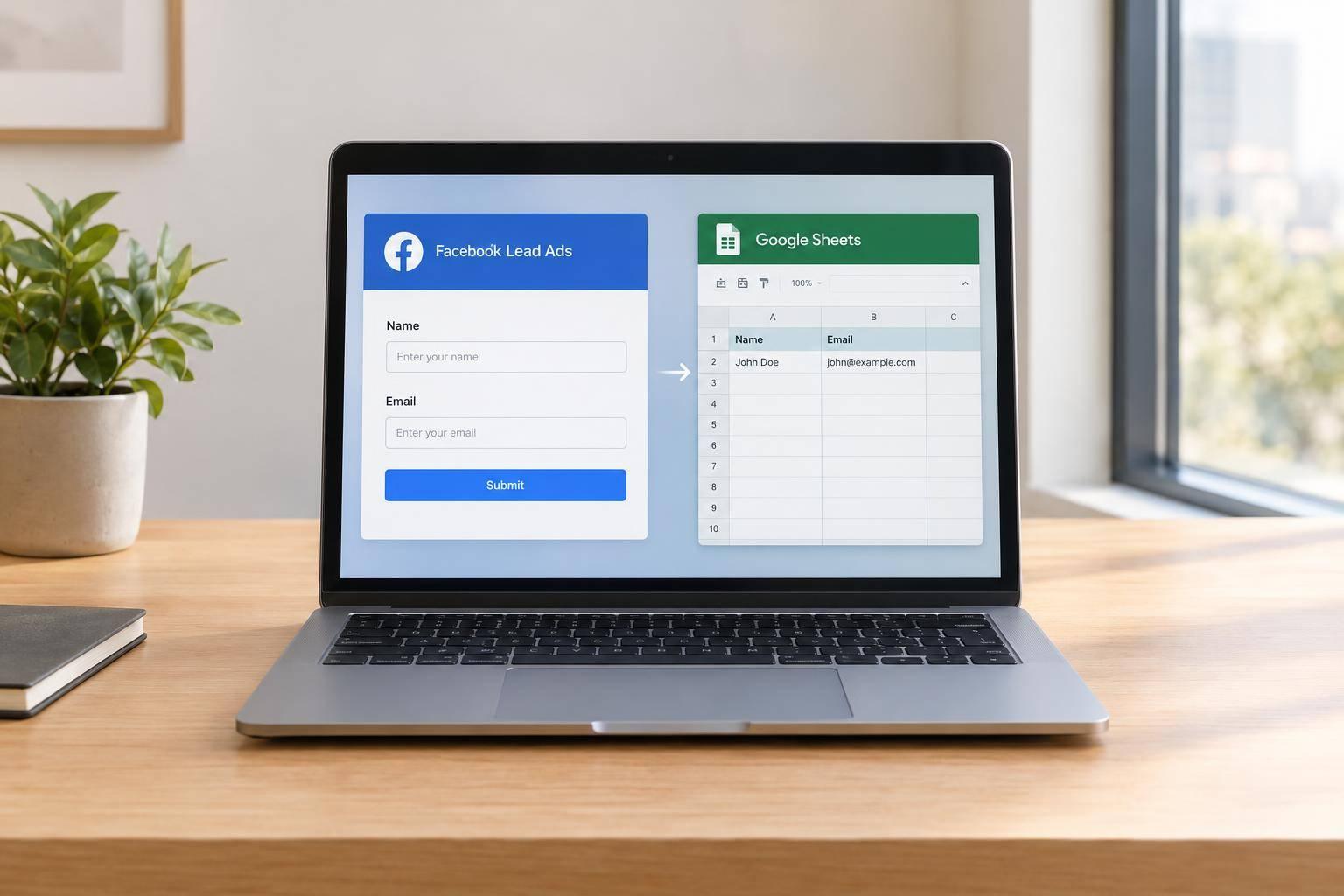
Facebook Lead Ads can send new Instant Form submissions to Google Sheets without code, where Meta’s connection is available. Connect high-converting lead forms, choose the destination spreadsheet and tab, and submit 1 test lead to check that the details reach the right columns.
Setup requires Meta lead permissions and Google Sheets Editor access. Before relying on the sync:
- Check field mapping and whether past leads can be imported.
- Confirm delivery is on, and keep mapped columns unchanged.
- Review missing rows, access issues, and duplicate lead IDs.
- Limit sheet access to the team handling follow-up.

Facebook Lead Ads to Google Sheets: Setup and Testing
Connect Facebook Lead Ads to Google Sheets
With your accounts ready, connect your multi-step form to Google Sheets in three steps.
1. Find the Google Sheets Connection
Open the Google Sheets integration and connect it to your Facebook Lead Ads form. Set Facebook Instant Form as the source and Google Sheets as the row destination.
2. Connect Your Google Account
Sign in with the Google account that has Editor access to the destination spreadsheet. Review the permissions, then approve write access so the integration can add leads to the sheet.
3. Choose the Spreadsheet, Worksheet, and Instant Form
In your connected Google account, choose the spreadsheet and sheet tab where new leads should go. Then select the Facebook Instant Form that will send leads to that sheet.
sbb-itb-5f36581
Review Lead Fields and Test the Connection
4. Check Past Lead Imports and Spreadsheet Columns
Once you save the connection, check that the spreadsheet columns match your mapped lead fields: name, email, phone, submission time, custom answers, and lead ID. Leave integration-managed headers and columns unchanged.
5. Submit a Test Lead and Verify the Row
Activate the connection before you test it. If the interface has a delivery toggle, turn it on. Then use Meta’s Lead Ads Testing Tool or submit a test lead through the connected form.
Check that every supplied value appears in the right column and matches the test lead. Format phone numbers as text to prevent truncation, and make sure the timestamp format and time zone match the submitted lead.
If the test row is correct, leave delivery enabled for live submissions.
6. Confirm Lead Delivery Is Enabled
After the test passes, confirm that delivery is still on. Watch the first few live leads, review their details, and assign follow-up. Limit spreadsheet access to the team handling that follow-up.
Fix Missing Leads and Incorrect Rows
If leads stop arriving or rows look wrong, check the connection in the order below.
Recheck Account Access and Connection Settings
First, confirm that the connected Google account still has Editor access and the Meta user still has Lead Access for the Page and Instant Form.
Use these checks to pinpoint access issues, field-mapping errors, or duplicate delivery.
| Symptom | Likely cause | Corrective action |
|---|---|---|
| Disconnected account | Disconnected Google account or deleted destination | Reconnect the account and confirm that the spreadsheet exists in Google Drive. |
| Missing access | Missing Meta lead access or Google editing rights | Restore Meta permissions or grant Editor access to the connected Google account. |
| Wrong source | Incorrect Page or form selected | Reselect the Facebook Page and specific Instant Form. |
| Wrong worksheet | Wrong, renamed, or deleted destination tab | Reselect the intended spreadsheet and worksheet. |
| Past leads missing | Historical import unsupported or turned off | Check historical-import settings. |
| Wrong columns | Changed form questions or worksheet columns | Restore the expected structure or remap the affected fields. |
| Duplicate leads | Overlapping connections or repeated tests | Compare lead IDs before deleting any rows. |
If new leads arrive but older ones don’t, check whether historical import was turned on. Many connections sync only leads submitted after activation.
Check Form Changes and Duplicate Rows
After replacing an Instant Form or changing its form questions, review the selected form and field mapping. If values land in the wrong columns, restore the expected worksheet layout or update the mapping before sending more leads through the connection.
For repeated entries, trace the source before deleting rows. Overlapping connections or repeated test submissions can cause duplicates. Store the lead ID in a separate column and compare IDs when available. Once you’ve fixed the cause, submit a new test lead to check that the connection works as expected.
Conclusion: Monitor Lead Delivery
After setup and testing, monitor the sync as live leads come in. Before relying on it, send a new test lead and verify delivery. Check the first live rows after any form or permission change.
Keep mapped columns unchanged. Limit spreadsheet access to people allowed to handle lead data.
Check that the connection remains active and that new submissions reach the correct worksheet with the expected values.
FAQs
How quickly should new leads appear in Google Sheets?
New Facebook Lead Ads leads usually appear in Google Sheets within minutes through automated integrations. Many integrations use real-time webhooks to send data as soon as someone submits a form. However, occasional Facebook API delays or inconsistencies can slow or disrupt delivery.
If you use Reform to collect and send form responses, submissions are designed to flow into Google Sheets automatically, in real time.
Can I sync multiple Facebook forms to one spreadsheet?
Yes. With Reform’s Google Sheets setup, you can send responses from multiple Facebook forms to the same spreadsheet. Each new submission adds a new row.
You can also send responses to different spreadsheets based on form logic or respondent data.
Will leads submitted during a disconnection sync later?
No. Leads submitted while your connection is disconnected won’t automatically sync later. Fix any integration issues, permission errors, or network interruptions first. Then manually retry or replay failed syncs if your integration tool supports it.
To prevent permanent data loss, check your logs for failed syncs and keep your admin permissions active.
Related Blog Posts
Get new content delivered straight to your inbox

The Response
Updates on the Reform platform, insights on optimizing conversion rates, and tips to craft forms that convert.


Drive real results with form optimizations
Tested across hundreds of experiments, our strategies deliver a 215% lift in qualified leads for B2B and SaaS companies.
