
.webp)
Troubleshoot HubSpot Form Embed Errors



If a HubSpot form embed fails, the cause is usually one of five things: bad embed code, blocked scripts, page JavaScript errors, CSS hiding the form, or the form target getting replaced after load.
I’d troubleshoot it in this order:
- Match the symptom first: missing form, blank area, missing fields, wrong placement, or failed submit
- Compare the live embed code with the current HubSpot snippet
- Test the standalone form to split form problems from page problems
- Check DevTools: Console for errors, Network for blocked requests, Elements for hidden or replaced containers
- Fix one issue at a time and retest the live published page in a private window
A few fast clues help narrow it down:
- If you see “hbspt is not defined,” the HubSpot script likely didn’t load
- If Network shows 404, the URL or resource is wrong
- If you get 403 or a CSP error, a policy, consent tool, firewall, or extension may be blocking the form
- If the script loads with 200 or 304 but nothing shows, I’d check the DOM and CSS next
- If the standalone form works but the embed fails, the page is likely the problem - not the form —though you might consider high converting forms if the issues persist
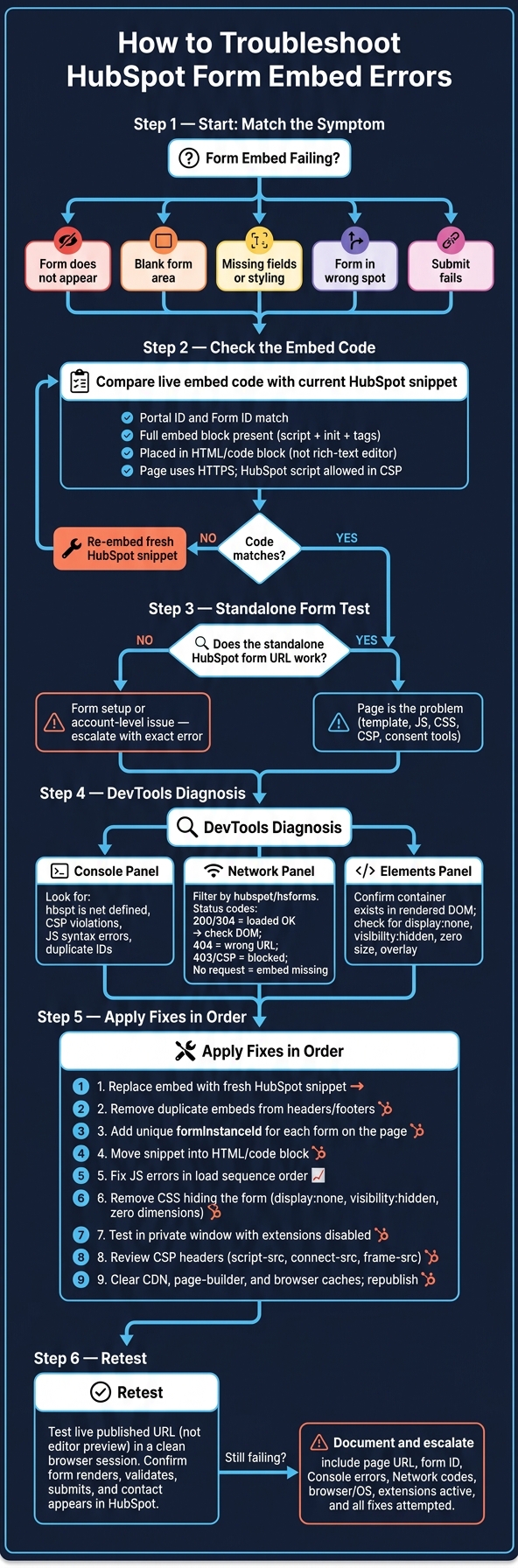
HubSpot Form Embed Troubleshooting Flowchart
Quick Comparison
| Symptom | Likely cause | First step |
|---|---|---|
| Form does not appear | Missing, broken, or blocked script | Check page source and Network requests |
| Blank form area | JS error, hidden container, or consent block | Check Console and rendered DOM |
| Missing fields or styling | CSS conflict or stripped embed code | Inspect DOM and compare live snippet |
| Form shows in wrong spot | Wrong target or duplicate IDs |
Review target selector and form instances |
| Submit fails | Validation, JS error, or blocked request | Test submit flow in Network and standalone form |
Bottom line: I’d start with the visible symptom, confirm the live embed code, test the standalone form, and then use DevTools to find the first error or blocked request. That path cuts guesswork and helps you fix the page faster.
sbb-itb-5f36581
Identify the Error by Symptom
Match the symptom to the most likely cause
Start by matching the visible failure to the most likely cause before you change any code. That saves time and keeps you from chasing the wrong issue.
There’s an important difference here: a missing form usually points to a loading issue, while a blank container often means HubSpot did load, but the form didn’t render.
Use the symptom to decide your first test.
| Symptom | Most Likely Causes | First Check |
|---|---|---|
| Form does not load | Missing or malformed embed code; HubSpot script blocked by an ad blocker, privacy extension, or CSP; wrong portal or form ID; HTTP/HTTPS mismatch | Compare page source to the current HubSpot embed. Check Network for blocked or failed requests. |
| Blank form container | CSS hides the form (display: none, zero height, hidden parent); JavaScript exception during initialization; duplicate form IDs; form rendered into the wrong target; page loads before HubSpot initializes |
Inspect the container in DevTools. Check computed styles and search the DOM for duplicate IDs. Check Console for initialization errors. |
| Form loads inconsistently | Caching or CDN variation; deferred scripts causing a race condition; consent banner state; browser extension interference | Test the published URL in a private window with extensions disabled. Purge the cache and compare successful and failed Network requests. |
| Fields or styling are missing | CSS conflict or theme reset rules; page builder stripping part of the embed; wrong form ID; blocked CSS file | Confirm the live code matches the current HubSpot-generated embed. Inspect missing fields in the DOM and check CSS rules that target inputs or labels. |
| Submission fails | Validation error; broken redirect URL; JavaScript error interrupting the submit handler; blocked submission request; required cookies or tracking scripts blocked | Submit with valid test data and watch Network for the submission request and response. Test the same form on its standalone HubSpot page. |
| Console errors appear | Blocked script, CSP violation, mixed content, JavaScript exception, failed dependency, or duplicate element ID | Copy the first relevant error, find its source URL, and compare it with the Network panel. Focus on errors that show up before the form’s initialization code runs. |
Once the symptom points to a loading, rendering, or browser issue, check the embed code and test the form outside the affected page.
Verify the Embed Code and Test Outside the Affected Page
Check code placement and script integrity
Before you change any settings, open the affected HubSpot form and copy a fresh version of the embed code from Share → Embed code.
Then publish the page and open View Page Source in your browser. Find the HubSpot form code in the live HTML and compare it with the current HubSpot snippet in a text comparison tool. Look at the portal ID, form ID, script URL, initialization settings, and the opening and closing tags.
If anything doesn't match, re-embed the current HubSpot code. If the live source does match, move to the standalone test.
Use this quick checklist before you go further:
- Portal ID and form ID match the account and form you meant to use
- The full embed block is present, including the script, initialization, and tags
- The code sits inside an HTML or code-ready block, not a rich-text or visual editor
- The page uses HTTPS and allows the HubSpot script in CSP
That last point can trip people up, especially when a page has more than one form. If two forms use the same target ID, or if a page builder module and a manual embed both try to load the same form, they can clash. When you have multiple form instances on one page, give each one its own formInstanceId and a different target.
Test the standalone form and the published landing page
If the live source matches, test the form by itself. Open the standalone HubSpot form URL in a separate browser tab and submit it with a test email address. Then confirm that the submission shows up in HubSpot and that the expected thank-you behavior happens.
If the standalone form works but the embedded version does not, the page itself is probably getting in the way. At that point, look at the page template, custom JavaScript, stylesheets, consent tools, and content-security settings instead of the form setup. Test the published URL in a private window, then try another browser.
This is the fastest way to split a form issue from a page issue.
| Test result | What it likely means | Where to look next |
|---|---|---|
| Standalone works; embedded fails | Something on the page is interfering | Template, builder output, scripts, CSS, consent tools, CSP |
| Both standalone and embedded fail | Form setup or account-level issue | Verify the exact error, then escalate with that message |
| Form appears in the wrong container | Wrong target or duplicate target ID | Add a different, valid target selector for each form |
| Editor looks correct but live source differs | CMS or publishing flow changed the snippet | Re-embed from a code-ready block and republish |
Diagnose Console Errors, Network Failures, and Rendering Problems
Check the Console for loading and initialization errors
After the embed test and standalone test, open browser DevTools, clear the Console, and reload the page.
Use the Console to tell load errors apart from render errors. Start with red errors that mention hsforms, hs-scripts, hubspot.com, hbspt, blocked requests, Content Security Policy (CSP) violations, duplicate identifiers, or JavaScript syntax failures. If you see "hbspt is not defined", that usually means the HubSpot forms script didn't load at all or loaded too late. A CSP error means your security policy blocked a HubSpot request. And if there's an earlier syntax error, it can stop hbspt.forms.create() from running.
Treat the first relevant error as your main clue. Everything after that may just be fallout. Before you change anything, note the exact error text, file URL, and line number.
Ignore theme or plugin errors that don't connect to the form, unless they run before form setup.
Review Network requests and the rendered page
If the Console doesn't show what's blocking the form, switch to the Network panel to check whether the script loaded and whether the container rendered. Reload the page and filter by hubspot or hsforms. You're looking for the main forms script, which usually loads from js.hsforms.net/forms/embed/v2.js, plus any follow-up config or submission requests.
The status code gives you a fast read on what's happening:
| Status | What it means | Where to look next |
|---|---|---|
200 OK or 304 Not Modified |
Script loaded successfully | Move to DOM and CSS inspection |
404 Not Found |
URL is wrong or the resource doesn't exist | Check the embed code URL and HubSpot account |
403 Forbidden |
Access blocked by a server, firewall, or consent tool | Review CSP headers, firewall logs, and consent categories |
5xx |
Server-side error | Check for a service or intermediary issue |
| Blocked or canceled | An extension, CSP rule, or browser policy stopped it | Test in a private window with extensions disabled |
| No request | The embed code may not exist in the live page, or an earlier JavaScript error stopped execution | Check the rendered DOM and Console for earlier failures |
If the script loads, stop editing the embed code and inspect the rendered DOM instead.
At that point, shift from requests to markup. When the script loads but the form still doesn't show up, the page itself is usually getting in the way. Open the Elements panel and search for the form's target container. Make sure it exists in the rendered DOM, not just in page source. A builder, personalization script, or framework can swap out the container after load, which leaves the form with nowhere to render. If the form markup appears for a moment and then vanishes, set a DOM breakpoint using Break on > Subtree modifications on the container. That will help you catch the script that's removing it.
If the container is there, check the CSS next. A form can render and still stay invisible because of display: none, visibility: hidden, zero size, clipping, overflow, or an overlay sitting on top of it. Use the Computed styles panel to make sure the container has visible dimensions and isn't covered or clipped.
Apply Fixes in Order and Retest the Live Page
Start with the first matching error or blocked request, and use that to decide your first fix. Replace the embed with a fresh HubSpot snippet. Then remove duplicate embeds from headers, footers, and reusable modules. If the same page shows more than one form, give each embed its own formInstanceId.
Next, make sure the snippet sits inside an HTML or code block, not a visual text field. Then check the Console for JavaScript errors and fix them in the order they appear. Start with the first error in the load sequence. Don’t jump into CSS too early. First get the script running cleanly. After that, inspect the page for CSS rules that may hide a form that already exists in the DOM, such as:
display: nonevisibility: hidden- zero width or height
- stacking or overlay issues
If the script loads, shift from code placement to browser or policy interference. Open the page in a private browser window with extensions turned off. If the form works there, the problem is likely tied to a browser extension, saved consent state, or a page-level restriction.
If you’re working in a managed corporate environment, ask IT to allow the required HubSpot domains. Also review your CSP headers, especially script-src, connect-src, and frame-src, in case they’re blocking HubSpot resources.
Clear CDN, page-builder, and browser caches, then republish the page. Test the live published URL, not the editor preview.
Retest after each change
After each fix, check the live page before touching anything else. Change one thing at a time, then reload the live URL in a clean browser session. Confirm the form renders, validates, and submits as expected.
Then check HubSpot to make sure the contact was created, the field values came through correctly, and any downstream workflows or notifications fired the way they should. Use a clearly labeled test email address, and suppress the record if it shouldn’t enter live campaigns.
Document the issue before escalating
If the page still fails after the full sequence, document the issue before you escalate it. Include:
- Live page URL
- Form name and ID
- Exact Console errors and Network status codes
- Browser and OS tested
- Whether extensions or consent tools were active
- Every fix attempted and whether anything changed
This gives internal developers or HubSpot Support a clear starting point and helps avoid duplicate testing.
FAQs
Why does the form work standalone but not on my page?
If the form works on its standalone page but breaks when you embed it, the problem is usually your site setup, not the form itself.
Start with a simple test: open the page in an Incognito or private window. That helps rule out browser extensions, cached files, or old scripts getting in the way.
Then open your browser’s developer tools with F12 and check these two areas:
- Console: look for JavaScript errors, blocked scripts, or CSP messages
- Network: check whether files fail to load or get blocked
The most common causes are:
- CSS interfering with the form layout
- JavaScript conflicts from other scripts on the page
- iframe sandbox restrictions
- Content Security Policy violations
How do I know if CSP or consent tools are blocking the form?
Open your browser’s developer tools (F12) and check the Console for CSP violation errors. These can block scripts or form submissions without showing a clear message to the user.
Then look at the Network tab for failed requests or blocked scripts. If needed, test the form in an Incognito or private window to rule out browser extensions or local ad blockers.
What should I check if the form flashes, then disappears?
Check the browser console for JavaScript errors, then look at Network, Fetch/XHR, and other failed requests. Blocked scripts, CSP issues, or console errors can stop the embed script from loading.
Also make sure the exact iFrame embed code was copied from Reform without any edits, the embed container has a fixed height of at least 500px, and the form is published.
If the form works on the standalone page, the problem is likely coming from a site script or plugin conflict.
Related Blog Posts
Get new content delivered straight to your inbox

The Response
Updates on the Reform platform, insights on optimizing conversion rates, and tips to craft forms that convert.




Drive real results with form optimizations
Tested across hundreds of experiments, our strategies deliver a 215% lift in qualified leads for B2B and SaaS companies.
