
.webp)
7 Backup Monitoring Checks for Lead Data



A backup that “ran” is not enough. If you can’t show the job finished, stayed on schedule, restored cleanly, reached the right owner with alerts, and left a time-stamped record, your lead data is still at risk.
I’d sum the article up like this: you need to watch 7 checks across lead backups - job completion, failed runs, missed schedules, storage space, restore proof, alert delivery, and audit records. That matters because lead data is more than a form entry. It also includes consent fields, CRM sync data, attribution, submission time, and workflow status.
A few numbers make the point fast:
- 15% of organizations test backups daily
- 25% test disaster recovery once a year or less
- Only 61% of restores hit the wanted outcome
- 46% of backup users have never finished a test restore
- Nearly 48% of tested backups fail integrity checks
If I were starting today, I’d focus first on these three checks:
- Did the backup finish?
- Was the latest backup on time?
- Can I restore the data and prove it?
You also need to monitor the right data, not just names and emails. That means checking:
- Form submissions
- Hidden tracking fields
- File uploads
- Enriched lead fields
- CRM sync payloads
- Consent and opt-out records
- Webhook and API logs
Quick Comparison
| Check | What it tells you | Main risk if missed |
|---|---|---|
| 1. Job status and completion | Whether the backup finished | Lead records may be missing |
| 2. Failed runs and error patterns | Whether the same issues keep happening | Small failures turn into repeat data gaps |
| 3. Missed schedules and overdue backups | Whether backups are late or skipped | Backup data falls behind live lead data |
| 4. Storage use and capacity drift | Whether backup space is running out | Jobs can stop when storage fills up |
| 5. Restore logs and validation results | Whether data can be recovered | Backups fail when you need them |
| 6. Alert routing and notification delivery | Whether the right person sees the issue | Problems sit too long without action |
| 7. Audit records and compliance evidence | Whether you can prove what happened | Reviews and recovery checks lack proof |
Bottom line: I’d treat backup monitoring as proof, not assumption. For lead data, that proof should show the backup ran, stayed current, restored cleanly, and was logged with dates, times, owners, and results - for example, 8/26/2026, 11:15 PM ET.
The rest of the article explains how to check each of those seven areas in a simple, trackable way.
sbb-itb-5f36581
What Lead Data Should Be Covered by Backup Monitoring
Lead data is a lot more than a name and email address. To restore a record that sales or ops can actually use, you need every field and event tied to that lead.
That matters because the job doesn’t end when someone hits submit. After that, the record usually gets enriched, routed, scored, and synced to the CRM. So if backup monitoring only checks the raw form entry, you’re missing a big part of the picture.
Here’s what should be inside your backup monitoring scope:
| Lead Data Category | What to Monitor | Why It Matters |
|---|---|---|
| Core Submissions | Form fields, hidden tracking fields, file uploads | Primary capture record; files may be the only proof of interest or qualification |
| Enriched Lead Records | Firmographics, score, owner, verification results | Drives segmentation and sales follow-up; a restore without enrichment produces incomplete records |
| CRM Sync Payloads | API payloads, field mappings, dedupe results | Reveals whether missing data lives in the form layer, integration layer, or CRM |
| Consent & Suppression Fields | Opt-in status, consent text, unsubscribe flags, do-not-contact markers | Required for GDPR, CCPA, and TCPA compliance; losing these creates compliance risk |
| Integration Logs | Webhook deliveries, API request/response records, retry attempts, error messages | Proves whether a lead left the capture system and whether downstream systems accepted it |
Consent and suppression fields need extra care. If those fields disappear during a restore, your team could contact people who opted out. Just as bad, you could lose the consent trail an auditor expects to see. GDPR also calls for records of who consented, when, how, and which notice version they saw.
If your team uses Reform, monitor both the form response and the downstream CRM sync. That handoff is often where lead data slips through the cracks.
With the scope set, the next step is to prove each backup ran, finished, and can be restored.
What Good Backup Monitoring Should Prove
A backup system can look green across the board and still leave lead records impossible to recover. A job can show as successful while skipping part of the data or failing at restore time. Status alone is not proof.
What matters is not whether the dashboard looks healthy. What matters is whether it proves recoverability. Good monitoring turns a simple status check into proof: the run finished, the data can be restored, and the evidence is kept.
Backup testing still doesn't happen often. Only 15% of organizations test daily, and 25% test disaster recovery once a year or less.
The table below shows the gap between a green dashboard and what monitoring needs to show:
| What a green dashboard shows | What good monitoring must prove |
|---|---|
| The backup job finished | The data was captured and is recoverable |
| No active errors appear | Failures and partial runs are visible and investigated |
| A schedule exists | The schedule is being met, with missed runs flagged |
| Logs exist | Logs are retained as audit evidence and include restore validation |
Restore tests are where the truth comes out. They verify that the backup can recover lead records intact. For lead data, proof means the submission, metadata, and consent fields all come back clean. Quarterly recovery tests are a reasonable baseline for critical lead data.
Next, start with the most basic signal: whether each backup job actually completed.
1. Backup Job Status and Completion
A scheduled run by itself doesn't mean much. The job has to finish successfully.
To confirm that, check the status field along with the start and end timestamps, bytes processed, and record counts. If a job shows a start time but no end time or success status, treat it as incomplete.
Coverage of lead-form data sources
Before you judge completion, make sure every lead-data source has a mapped job. That includes your CRM, marketing automation tools, form builder, analytics systems, and custom databases.
Start with a data inventory that lists each source and its job ID or backup path. Then compare that inventory against your backup logs. If a source never shows up in the logs, you have a coverage gap.
For Reform, include daily lead export jobs in that same backup inventory and verify that they appear in the backup logs. This keeps lead exports inside the monitored backup window.
Useful monitoring signals
Status alone won't tell the whole story. You also need signals that show run time, record count, and success status.
| Evidence to Retain | What It Shows |
|---|---|
| Job logs with timestamps and record counts | The run finished and captured the expected data volume |
| Checksum/hash verification results | Data written to storage matches the source |
Even when a job finishes, you still need to check for errors or partial failures hidden inside the run.
2. Failed Runs and Error Patterns
A single failed backup run might be random noise. But if the same job fails three times in seven days for the same data source, that's no longer random. That's a pattern. And patterns are what put lead data at risk.
Research shows that 64% of backup errors come from just the five most common error codes. So simply labeling a run as "failed" isn't enough. Monitoring should group failures by error type so teams can see what keeps breaking and where to focus first.
Coverage of lead-form data sources
A backup can say "success" and still miss data that matters. This usually happens when new fields get added after a campaign goes live, like UTM parameters, consent flags, or multi-step form responses that weren't part of the first schema.
Marketing teams move fast. A new landing page launches, an A/B test goes live, a form gets one extra field, and suddenly the data shape changes. If the backup path doesn't keep up, records can slip through without anyone noticing.
With Reform, compare daily submission counts against CRM lead counts for the same 24-hour window. If the variance goes past your set threshold, dig in right away before that mismatch turns into a data gap.
Actionability of monitoring signals
Not every failure deserves the same response. Some need immediate action. Others can wait.
Route critical failures to on-call engineering and marketing ops, including:
- Full job outages
- Repeated auth errors
- Schema mismatches on primary lead sources
Send self-recovering errors in a daily digest instead.
Each alert should answer three basic questions: what failed, how serious it is, and what to do next. Include the job name, source system, records attempted versus records backed up, error code, and a link to the runbook. If someone gets paged at 2:00 a.m., they shouldn't have to play detective.
Recovery verification evidence
A backup isn't much help if restore fails when you need it. Only 61% of restore attempts meet the desired outcome, which means nearly 4 in 10 restores fail when data is actually needed.
That's why targeted restore testing matters. Test date ranges that include known failed runs or flaky runs. Then verify that lead records are fully recoverable, including custom fields and consent metadata, not just the base contact data.
Log every restore attempt with:
- Timestamp
- Record count
- Pass/fail status
If restore tests for a lead-critical source haven't passed within your RPO window, treat that as an escalation trigger.
Auditability and ownership tracking
Every failed run should create a structured log entry. At a minimum, that log should include the job ID, data source, environment, error code, where the failure happened in the pipeline, and which team or service account owned the run.
Ownership matters here. Each backup job should have a primary owner and a backup owner, and both should appear in alert notifications. That way, when something breaks, there's no scramble to figure out who's on the hook.
Once failure patterns are visible, the next check is whether backups are running on schedule.
3. Missed Schedules and Overdue Backups
A failed backup is loud: the job runs, then throws an error. A missed backup is much quieter. The job never starts, never finishes, or never reports success. That’s why the job here is simple: spot the gap before it turns into data loss.
Unlike failed runs, missed or overdue backups need missed-run detection. Your monitoring should track the last successful backup timestamp for each job and alert when the gap goes past the allowed window. A practical rule is to alert when the current time minus the last success is more than 25 hours for a daily backup, with a critical escalation if that condition lasts for 10 minutes. If a job runs more often, use the same logic with a shorter window.
Heartbeat checks are a solid way to catch missed runs. Each backup script sends an HTTP ping to a monitoring service only after it finishes successfully. If that ping doesn’t show up within the scheduled window plus a grace period, the alert fires. No ping means the backup did not complete, and that needs attention right away.
Coverage of lead-form data sources
Track missed-schedule signals for each source on its own. One healthy job can easily hide another job that’s overdue.
| Lead Data Source | Schedule Monitoring Signals |
|---|---|
| Lead Forms | Last successful run, expected cadence, heartbeat status |
| CRM Sync | Last sync time, sync lag, missed window |
| API/Integrations | Credential status, job heartbeat, retry failures |
| Backup Storage | Transfer timestamp, last completed copy, overdue age |
For Reform, track exported leads, webhook deliveries, and direct integrations as separate schedule targets.
Actionability of monitoring signals
An overdue backup alert only helps if it tells the right person what to do next. The alert should name the affected source, show how long it has been overdue compared with the RPO, and link straight to the right logs, dashboard, or runbook.
For example: "Critical: nightly lead backup missed its 11:00 PM PT window; last success was yesterday at 10:58 PM PT; check scheduler and database connection."
It also helps to split alerts by severity. Use a warning when a backup is delayed by 10%–20% of its schedule, and a critical alert when the full backup window is missed. Send those alerts to the on-call SRE and marketing ops team so they can move fast.
If the schedule is missed, the next step is to check restore evidence and backup logs.
4. Storage Use and Capacity Drift
If backups are running on schedule but still fail, storage drift is often the next place to look. It can break backups even when the jobs themselves are set up the right way. That’s why capacity monitoring matters: if the backup repository fills up, your lead backups can fail without much warning.
Watch a small set of metrics closely:
- Used capacity (%)
- Growth rate
- Free space
- Estimated full date
Trend lines make this much easier to see. Instead of reacting after a failure, your team can spot when storage is heading toward a wall and step in before a backup job stops working.
Coverage of lead-form data sources
Lead data rarely sits in just one system. Form submissions, form builders like Reform, CRM platforms, marketing automation tools, data warehouses, and custom databases can all write data to different storage locations. If you only watch total storage, one fast-growing source can eat through shared capacity without anyone noticing.
Monitoring should tag capacity by source. That way, you can tell which system is driving growth instead of seeing one big number and guessing.
If you use Reform, factor in added fields that increase storage per record, especially before high-volume campaigns. A form that looks almost the same on the surface can still produce much larger backup growth once extra fields start piling up.
After you map each source, set alerts on the backup storage pools where growth is moving fastest.
Actionability of monitoring signals
Use tiered alerts so the signal is clear. Set a warning at 70–80% utilization and a critical alert at 90–95% that calls for immediate action before new backup jobs begin.
Each alert should spell out what matters right away:
- The affected backup storage pool
- Which lead-data backup jobs write to it
- The recent growth rate
- The estimated days until full
That gives the on-call engineer or data owner enough context to act at once, instead of starting from zero in the middle of an incident.
Each alert should also leave a record showing when capacity crossed the threshold.
Auditability and ownership tracking
Send alerts to the team that owns the data. Also keep a change log for retention, source, and compression changes. That record helps explain sudden storage spikes and makes ownership clear, which matters during compliance reviews.
If storage fills up, backup gaps can show up long before restore testing catches them.
5. Restore Logs and Validation Results
After checking job status, failure trends, missed schedules, and storage drift, there’s one test that matters most: can you actually restore the data? Backup records alone don’t prove much. Restore logs need to show that lead data can be recovered when you need it.
A lot of teams still miss this step. 46% of backup users have never completed a test restore, and nearly 48% of tested backups fail integrity checks in quarterly tests. For lead data, that gap can lead to lost submissions, missing attribution, and messy reporting.
Coverage of lead-form data sources
Restore testing should cover every system that holds lead data, not just the main database. That means web form tools, marketing automation platforms, CRMs, data warehouses, and any queues or ETL pipelines that move data from one place to another.
For each source, log:
- Dataset name
- Restored time range
- Record counts before and after restore
- Any skipped or partial objects
If you use Reform, include both Reform’s submission store and the downstream systems connected to it. That helps confirm lead details like UTM parameters, consent flags, and enrichment data make it through the full path intact.
A simple check works well here: create test leads with clear markers, such as restore-test+web@company.com, then confirm those exact records show up in the restored environment. If they don’t, something in the chain broke.
Recovery verification evidence
For every restore test, keep proof that goes past a basic pass/fail label. Log the start and end times, job IDs, datasets restored, record counts, and checksum comparisons. Then check the data in use, not just at rest.
For example, make sure test leads appear where they should inside the CRM or marketing platform:
- Lists
- Workflows
- Reports
It also helps to keep one sanitized sample record with a timestamp. That gives you a direct way to show that key fields came back correctly.
Each restore test should map back to your RTO and RPO targets. If the restore missed either target, the log should say so plainly. Store all logs in one central compliance folder or DR runbook library so they’re ready for audits and internal reviews. And don’t let that proof live in a random one-off note. It belongs in a permanent restore log.
Auditability and ownership tracking
Every restore log entry should include a unique job ID, initiator, scope, outcome, and timestamp in ISO 8601 format. Store those logs in an append-only system, and assign one named owner for restore testing.
That ownership should also be tied to each data domain, such as lead capture, email engagement, and CRM opportunities. When a compliance review happens, no one should be left asking, “Who owns this?”
In regulated settings, record the reason for the restore and mask any production-like data before using it in non-production tests.
6. Alert Routing and Notification Delivery
Once restore logs show you can recover data, the next issue is simple: can the right person act before the backup window closes? Alert routing only does its job when failures reach the right owner fast enough for that person to step in.
Coverage of lead-form data sources
Map each lead source - forms, CRM lead objects, marketing automation lists, and form tools like Reform - to a single alert policy. That policy should include a named owner, the delivery channel, and the escalation path.
This matters because vague routing creates dead ends. If each source has a clear owner, the alert can point to one person or team instead of disappearing into a shared inbox.
Actionability of monitoring signals
An alert should give enough detail to drive action right away. That means naming the failed system, the last successful backup, the estimated number of lead records at risk, the likely cause, and the next step.
For example: "Production-Leads-US backup failed because storage quota was exceeded; last successful backup was 08/24/2026 at 2:00 AM; estimated records at risk: 25,000; next step: expand storage and rerun the job."
That kind of alert leaves little room for guesswork.
Use CRITICAL alerts for primary lead-data failures and restore validation errors. Route WARN alerts for delays and secondary-system issues to shared channels, with automatic escalation after 15 minutes.
After routing is set, keep every alert and every rule change as evidence.
Auditability and ownership tracking
Log every rule change with who made it, when it happened, and what changed. Delivery logs should record each alert sent, including:
- timestamp
- channel, such as email, SMS, or Slack
- intended recipients
- delivery status: sent, bounced, or acknowledged
Run 2–4 drills a year to check routing, acknowledgment, and escalation.
7. Audit Records and Compliance Evidence
Once alerts are routed, there’s one last check: can you prove what happened? If not, even a smooth backup program can look like a black box during an audit.
Coverage of lead-form data sources
Map each lead source to a named backup job ID, storage target, schedule, restore procedure, and retention policy. Keep that inventory in Git or a CMDB.
It also helps to reference dataset names directly in audit logs, such as marketing_leads_prod or reform_lead_submissions_export. That way, when someone reviews the trail later, they don’t have to guess which system a record came from.
Recovery verification evidence
Restore test records need more than a simple pass/fail result. For each test, record the restored dataset, backup timestamp, test environment, operator, and validation method.
Then log the outcome in full: pass, fail, and any remediation taken. If a restore test breaks, the record should show what went wrong and what changed after that.
Auditability and ownership tracking
Every backup change, restore sign-off, and compliance review should have a named owner attached. That matters for SOC 2, ISO 27001, GDPR, and HIPAA reviews, which require named ownership and sign-off.
Use a RACI matrix to show who approves schedule changes, who signs off on restore tests, and who reviews compliance evidence. Store those sign-offs with job logs and restore artifacts in one centralized evidence package. It cuts down the back-and-forth when audit time comes.
Use one evidence model across jobs, restores, alerts, changes, and reviews. In plain English, don’t track each area in a different format if you can avoid it.
| Audit Record Category | Key Fields to Capture |
|---|---|
| Backup job evidence | Job ID, dataset name, start/end time, status, error code, data volume |
| Restore test evidence | Source backup timestamp, target environment, validation checks, pass/fail, RTO measured |
| Alert and incident evidence | Alert type, severity, routing destination, time to acknowledgment, resolution outcome |
| Configuration change logs | Changed setting, previous value, new value, changed by, timestamp, approver |
| Compliance sign-offs | Review date, scope, findings, remediation actions, reviewer name and role |
Store audit logs in immutable, access-controlled archives that are separate from primary backup storage.
That gives you evidence you can stand behind in an audit and rely on during recovery.
Quick Comparison of the 7 Checks
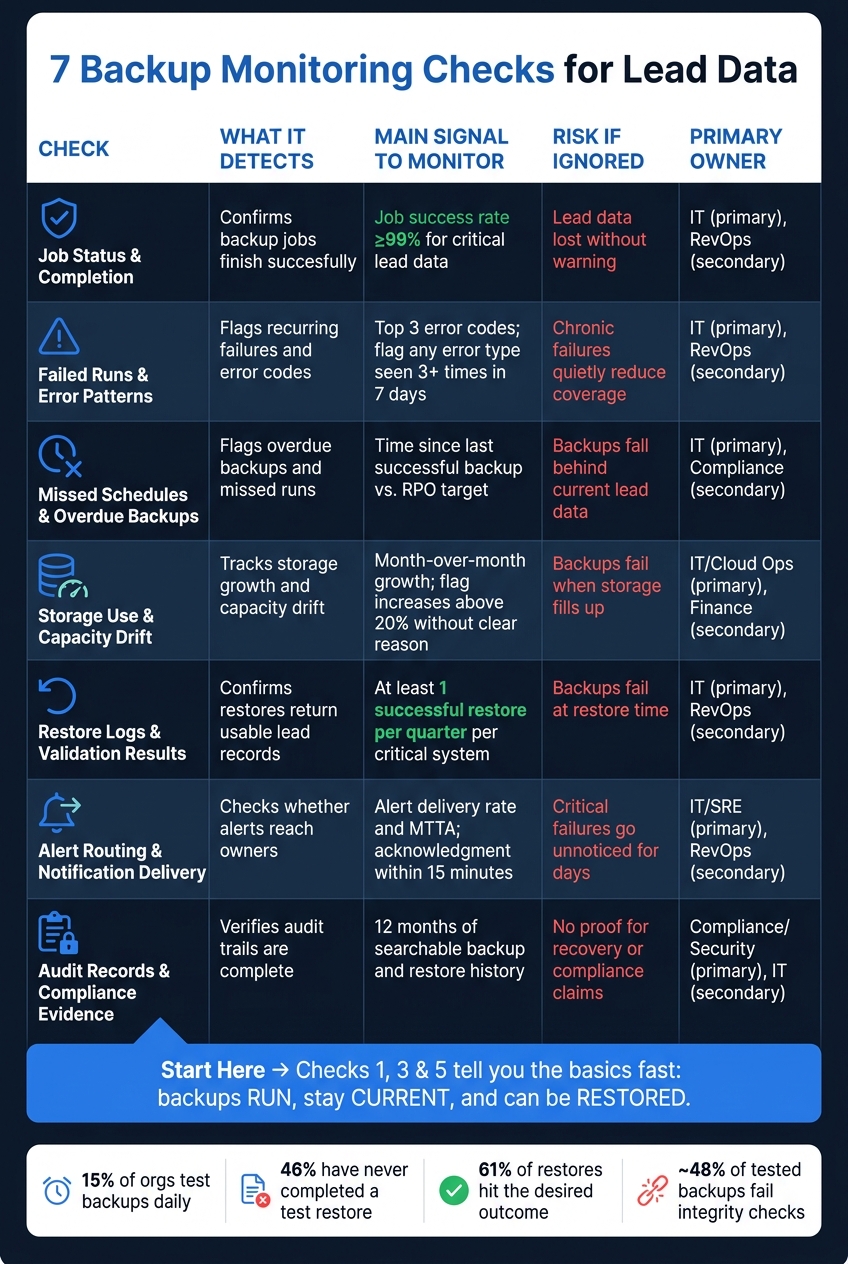
7 Backup Monitoring Checks for Lead Data: At-a-Glance Guide
Here’s how all seven checks compare at a glance.
| Check | What It Detects | Main Signal to Monitor | Risk if Ignored | Primary Owner |
|---|---|---|---|---|
| 1. Job Status and Completion | Confirms backup jobs finish successfully. | Job success rate per system; target ≥99% for critical lead data | Lead data is lost without warning. | IT (primary), RevOps (secondary) |
| 2. Failed Runs and Error Patterns | Flags recurring failures and error codes. | Top 3 error codes; flag any error type seen 3+ times in 7 days | Chronic failures quietly reduce coverage. | IT (primary), RevOps (secondary) |
| 3. Missed Schedules and Overdue Backups | Flags overdue backups and missed runs. | Time since last successful backup vs. RPO target | Backups fall behind current lead data. | IT (primary), Compliance (secondary) |
| 4. Storage Use and Capacity Drift | Tracks storage growth and capacity drift. | Month-over-month storage growth; flag increases above 20% without a clear reason | Backups fail when storage fills up. | IT / Cloud Ops (primary), Finance (secondary) |
| 5. Restore Logs and Validation Results | Confirms restores return usable lead records. | Test restore success rate; at least one successful restore per quarter per critical system | Backups fail at restore time. | IT (primary), RevOps (secondary) |
| 6. Alert Routing and Notification Delivery | Checks whether alerts reach owners. | Alert delivery rate and MTTA; target acknowledgment within 15 minutes | Critical failures go unnoticed for days. | IT / SRE (primary), RevOps (secondary) |
| 7. Audit Records and Compliance Evidence | Verifies audit trails are complete. | Audit-log completeness; 12 months of searchable backup and restore history covering backup runs, restore tests, and retention evidence | No proof backs up recovery or compliance claims. | Compliance / Security (primary), IT (secondary) |
These seven checks point to the gaps most likely to wreck backup recovery. If even one slips, the whole setup can look fine on paper and still fail when you need it.
If you need a place to start, focus on checks 1, 3, and 5. Those three tell you the basics fast: backups run, stay current, and can be restored.
Common Gaps That Lead to Backup Failures
Even if you have all seven checks in place, a few weak spots can still wreck backup recovery.
And most of the time, backup failures aren't loud. They don't show up with flashing warnings or dramatic outages. They happen quietly, in the background, because of a handful of missed details. One cited report says 60% of backups are incomplete and 50% of restores fail.
The gap teams miss most often is schedule drift. A backup job may stop running as expected after a credential change, a cron error, or a rate limit issue. The job can look "fine" at a glance while still missing data. One simple way to catch this early is to compare production lead volume against backup snapshots.
Another common problem shows up after schema changes. Fixed-column lead backup jobs can keep running but leave out new fields, which is a nasty kind of failure because it doesn't always look broken right away. Regular schema-diff checks between production and backup help surface those misses before they turn into restore problems.
Alert routing is another weak point. Notifications often get sent to an old Slack channel, a retired inbox, or an outdated on-call schedule. On paper, alerts exist. In practice, no one sees them. A good test is to trigger synthetic failures and make sure a real person acknowledges them within the target window.
Then there's the last gap: proof. If restore tests aren't documented, lead backups are still unproven. A quarterly restore test should have a written scope, clear steps, success criteria, and assigned roles.
Conclusion
These seven checks work together to show whether lead data backups will hold up when you need them. Each one covers a different way things can fail. Execution spots silent job failures. Timing finds coverage gaps. Storage flags space issues before jobs start breaking. Recoverability shows whether a backup can actually be restored. Notification reliability makes sure the right person sees the problem and acts on it. And audit evidence keeps the whole process visible over time.
The weak spot is simple: backups may exist, but teams often don't verify them. That's where lead data gets lost.
To keep things on track, review the system on a set schedule. Use daily automated alerts, weekly ops reviews, and monthly reviews that include a test restore, an alert routing check, and an audit log scan.
For Reform, keep an eye on raw submissions, enriched fields, and routing decisions, not just CRM or database copies. A lot can go wrong at the handoff between systems, and that's often where blind spots sit.
The goal is straightforward: when something breaks, your team should be able to restore lead data fast, explain what happened, and show the paper trail. These seven checks help make that a normal part of the process.
FAQs
How often should we test lead data restores?
Test restores on a set schedule. A common best practice is to check small data subsets weekly or monthly, then run broader end-to-end recovery drills at least once per quarter to confirm recovery time objectives.
Run these tests in non-production environments. Also document the date, dataset, and outcome so you have audit-ready records.
Which lead data fields are easiest to miss in backups?
The lead data fields people miss most often are usually the ones sitting in the background.
That includes:
- Hidden fields, such as UTM attribution or internal IDs
- Routing or notification fields that control where leads go in the CRM
- Non-submission data, like enrichment data and incomplete or abandoned records
It’s also easy to miss system configurations and newly added resources if they haven’t been added to the backup scope yet.
What’s the best first backup check to automate?
Job status monitoring with real-time failure alerts is the best first backup check to automate. It tells you if each backup job finished the way it should, which matters a lot when you're dealing with time-sensitive lead data.
If a job fails, it should send an immediate notification or create an automated ticket so there's a clear record of what happened. That paper trail makes it easier to track success rates, missed schedules, and storage usage.
Related Blog Posts
Get new content delivered straight to your inbox

The Response
Updates on the Reform platform, insights on optimizing conversion rates, and tips to craft forms that convert.




Drive real results with form optimizations
Tested across hundreds of experiments, our strategies deliver a 215% lift in qualified leads for B2B and SaaS companies.
