
.webp)
Best Practices for Klaviyo Forms on BigCommerce


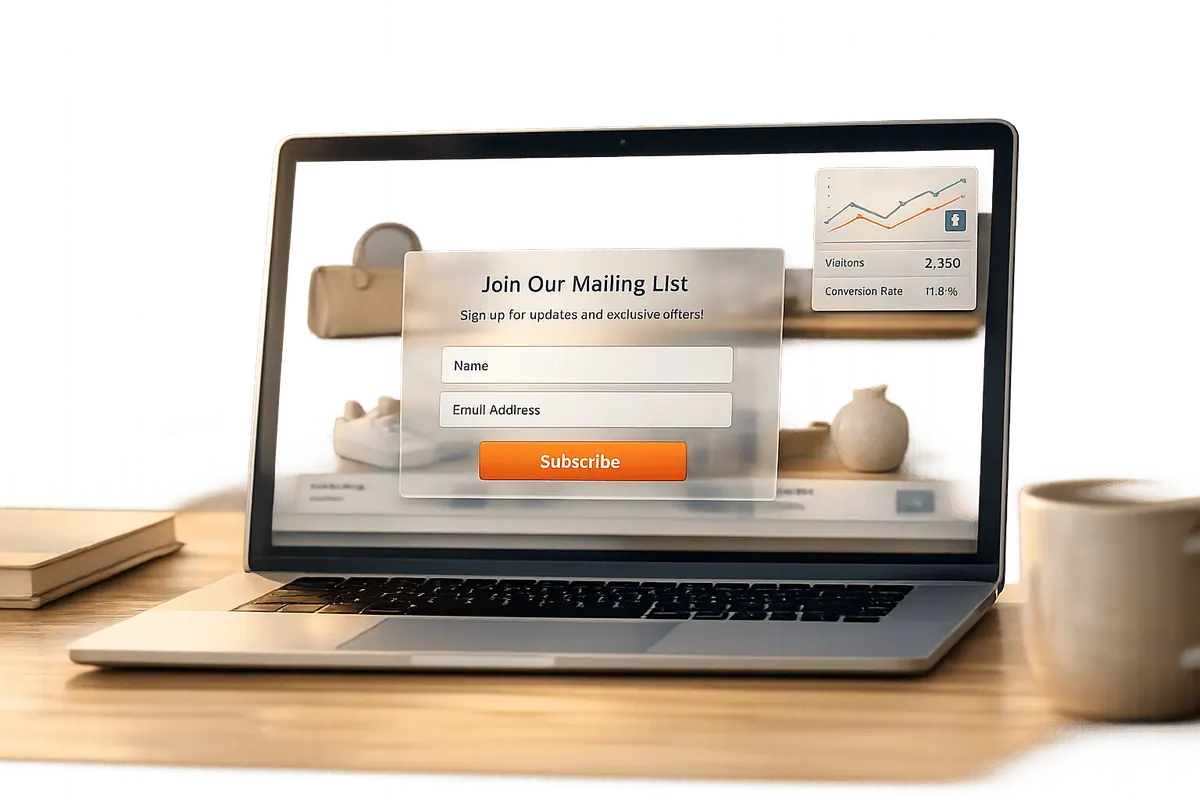
If you're using Klaviyo for email and SMS marketing on BigCommerce, setting up and optimizing forms is essential for growing your subscriber list. Klaviyo forms help collect customer data and integrate seamlessly with BigCommerce for real-time tracking and automations like abandoned cart reminders. Here's a quick summary of what you need to know:
- Form Types: Choose from popups, flyouts, embeds, and full-page forms based on your goals and user experience.
- BigCommerce Integration: Use Klaviyo's API and Script Manager for smooth data syncing and tracking.
- Form Placement: Strategically place forms (e.g., popups for discounts, footer embeds for passive sign-ups) to maximize visibility.
- Design Tips: Match forms to your site’s design, keep them mobile-friendly, and use multi-step forms for better user engagement.
- Compliance: Ensure email and SMS opt-ins meet legal requirements like TCPA for SMS.
- Optimization: Use A/B testing, track performance metrics, and troubleshoot issues like missing forms or syncing errors.
Setting Up Klaviyo Forms on BigCommerce
Configuring the BigCommerce–Klaviyo Integration
To get started, head to Klaviyo and go to Integrations > Explore apps. Search for BigCommerce, then click Install. When you're asked for your store URL, make sure to use the Permanent Address instead of your public storefront URL. You can find this under Account Settings > Store Details in BigCommerce. This unique management URL ensures the connection is authenticated properly.
Once connected, Klaviyo will sync your historical data, including customer profiles, order history, and product catalog. Afterward, it switches to real-time syncing for key events like Placed Order and Started Checkout. Before moving on, double-check that onsite tracking is enabled.
Enabling and Testing Onsite Tracking
During the setup process, make sure to check the box for Automatically add Klaviyo onsite javascript. This installs the Klaviyo.js snippet across your storefront, which is necessary for sign-up forms to appear and to enable Active on Site tracking. If you missed this step during setup, you can always go back to Integrations > BigCommerce, check the box, and hit Save.
However, keep in mind that this automatic setup doesn’t include Viewed Product tracking. To enable it, grab the Viewed Product snippet from Klaviyo's Set up web tracking page. Then, paste it at the bottom of the templates/pages/product.html file in your BigCommerce theme editor. This is a crucial step if you plan to set up browse abandonment flows.
To verify everything is working, use Klaviyo's built-in verification tool. Navigate to Integrations > Manage data > Set up web tracking, enter your store URL, and follow the generated link to your storefront. When you return to Klaviyo, a green success indicator will confirm that data is being received. If forms still don’t show up, try testing your site in an incognito window to rule out cookie-related issues.
For headless stores: If you’re using BigCommerce Catalyst, you’ll need to disable the automatic JavaScript option. Instead, manually install tracking for Active on Site, Viewed Product, and Added to Cart using the repository provided by BigCommerce.
Once tracking is confirmed, the next step is setting up checkout opt-ins.
Checkout Opt-In and Compliance
Klaviyo's integration allows you to collect both email and SMS consent directly at checkout by mapping each channel to its own Klaviyo list. It’s important to use separate lists for email and SMS subscribers to ensure consent is tracked correctly and to stay compliant.
For SMS, compliance with the TCPA (Telephone Consumer Protection Act) is mandatory. To enable SMS consent at checkout, add the Klaviyo-provided script through BigCommerce’s Script Manager (select the Footer and Checkout page). Also, make sure your mobile Terms of Service and Privacy Policy are linked within the Klaviyo integration settings. The opt-in field must include clear language explaining that subscribers are agreeing to receive recurring automated marketing messages. The entire SMS setup process generally takes about 5–10 minutes.
Finally, after launching Klaviyo emails, be sure to disable BigCommerce’s native notifications for orders and abandoned carts to avoid duplicate messages.
Bigcommerce Klaviyo Integration In Minutes(Boost Your Sales)
Embedding and Customizing Klaviyo Forms on BigCommerce
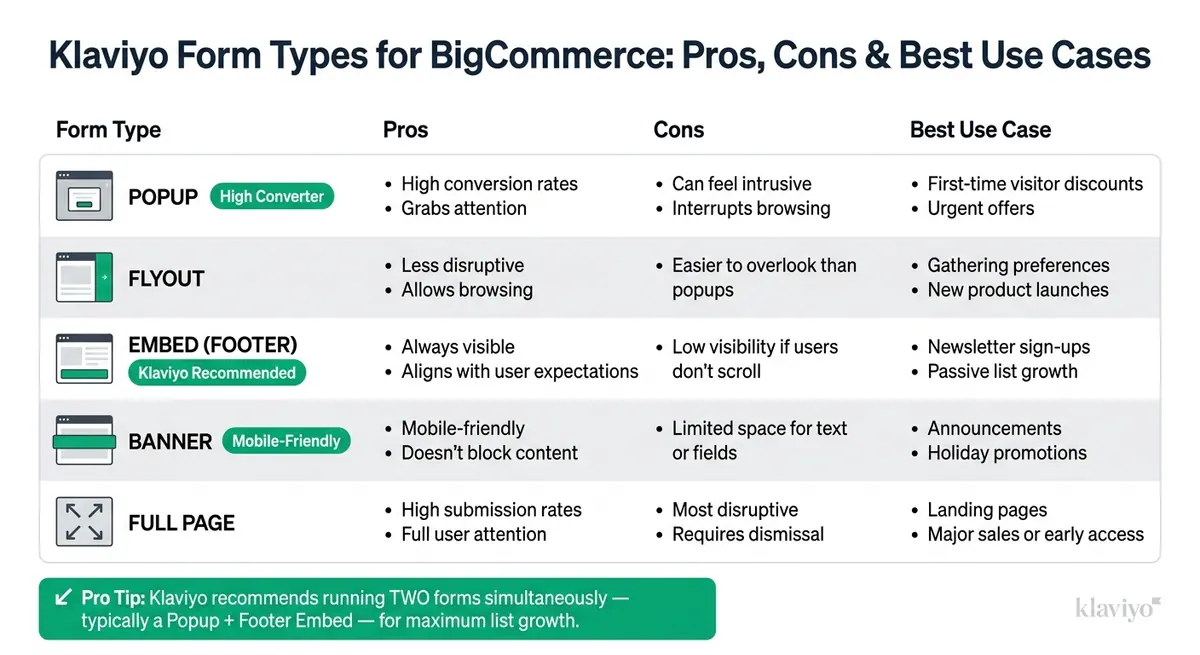
Klaviyo Form Types for BigCommerce: Pros, Cons & Best Use Cases
After successfully setting up your integration and tracking, here’s how you can embed Klaviyo forms into your BigCommerce theme for a seamless user experience.
Embedding Forms in BigCommerce Templates
First, confirm that Klaviyo.js is enabled on your storefront. This step, covered earlier, is essential for your forms to display properly.
To modify your theme files, navigate to Storefront > Themes in BigCommerce. If you’re using the default Cornerstone theme, start by clicking Advanced > Make a Copy to create a backup. Once you’re working in the cloned version, open the file editor and locate templates/components/common/footer.html. From there, follow the link to components/common/subscription-form to find the existing newsletter form code.
Replace only the <form> element with your Klaviyo embed code. Keep the surrounding HTML and CSS unchanged to ensure your form matches the existing design and layout. For order confirmation pages, you can use the Script Manager to add your custom snippet. Make sure to target the checkout page and include your form’s 6-letter Form ID, which you’ll find at the end of the URL in Klaviyo’s form editor.
Tip: Add a hidden field named
$sourcein the Klaviyo form builder. This extra data helps you track where each subscriber signed up, making segmentation easier down the line.
Once your forms are embedded, think about strategic placement to maximize their visibility and effectiveness.
Comparing Form Placement Options
Klaviyo recommends running two forms at the same time - typically a popup and a footer embed. Each type has its strengths and weaknesses, so choose placements based on your goals.
| Form Type | Pros | Cons | Best Use Case |
|---|---|---|---|
| Popup | High conversion rates; grabs attention | Can feel intrusive; interrupts browsing | First-time visitor discounts; urgent offers |
| Flyout | Less disruptive; allows browsing | Easier to overlook than popups | Gathering preferences; new product launches |
| Embed (Footer) | Always visible; aligns with user expectations | Low visibility if users don’t scroll | Newsletter sign-ups; passive list growth |
| Banner | Mobile-friendly; doesn’t block content | Limited space for text or fields | Announcements; holiday promotions |
| Full Page | High submission rates; full user attention | Most disruptive; requires dismissal | Landing pages; major sales or early access |
For footer embeds, keep it simple by limiting the form to just an email field. Adding extra fields often reduces sign-ups. If you need more details (like birthdays or SMS consent), use a multi-step form to keep the initial interaction quick and easy.
Starting December 6, 2024, Klaviyo updated how embed form views are tracked. Now, views are only logged when the form is visible in the user’s viewport. This change could result in higher submit rates in your analytics for footer forms, so keep this in mind when evaluating performance.
Keeping Theme Edits After Updates
Any custom code you add to a theme file - whether it’s for embed forms, product tracking, or other scripts - is tied to that specific theme version. If you update or switch themes, your changes won’t transfer automatically.
To avoid losing your work, always clone your theme before making edits. Keep a simple record of every file you modify (e.g., templates/components/common/footer.html) and include the code snippets you added. For scripts that don’t rely on specific HTML elements, use the Script Manager instead. This tool is more resilient to theme updates than direct file edits.
Once you’ve completed your changes, activate the modified theme by setting it as the Active Theme in BigCommerce. Your edits won’t appear on your live site until this step is complete.
sbb-itb-5f36581
Designing High-Converting Klaviyo Forms
Form Design Best Practices for BigCommerce
Creating effective Klaviyo forms for BigCommerce isn’t just about setting them up - it’s about designing forms that look great, trigger at the right time, and use advanced features to maximize conversions.
Start with visual consistency. Your Klaviyo forms should blend seamlessly with your store’s design. Match your fonts, colors, borders, and input field styling to your site’s overall aesthetic. Forms that feel out of place can disrupt trust and lead to fewer sign-ups.
Pay attention to the technical details. For example:
- Use font sizes of at least 16px for readability.
- Ensure touch targets on mobile are at least 48px tall for easy interaction.
- Since over 35% of online purchases in the U.S. are made on mobile devices, optimizing for mobile is critical. Stick to a single-column layout, use a color contrast ratio of at least 4.5:1, and place labels above input fields for clarity.
- Placeholder text can guide users on what to enter, but it shouldn’t replace proper field labels.
These details not only enhance usability but also make your forms more accessible, which can directly impact your conversion rates.
Behavioral Targeting and Timing
A well-designed form is only effective if it appears at the right moment. Klaviyo offers several trigger options to help you target users based on their behavior:
| Trigger Type | Best Use Case |
|---|---|
| Exit Intent | Reaching visitors as they’re about to leave the page. |
| Time Delay | Engaging users who stay on a page for a set duration. |
| Scroll Depth | Appearing only after users have scrolled through content. |
| Page Views | Targeting users who browse multiple products in one session. |
| Custom Trigger | Activating forms via specific actions, like button clicks. |
One overlooked approach is to disable the "Only display if all selected conditions are met" setting. By using OR-based logic, forms can appear when any condition - like a time delay or scroll depth - is triggered. This increases the likelihood of user engagement.
For frequency, consider re-showing forms to visitors who dismissed them without subscribing. A 1-day interval works well, as some users may close the form by accident.
Strategic timing ensures your forms appear when users are most likely to interact, paving the way for advanced features to shine.
Advanced Features for Better Lead Capture
To collect more data without overwhelming visitors, try multi-step forms. Breaking the process into smaller steps - like starting with a simple question (“Want 10% off your first order?”) - makes it easier for users to say yes.
For more complex needs, tools like Reform can be a game-changer. Reform is a no-code form builder designed to boost conversions. It offers features like:
- Multi-step forms
- Conditional routing
- Lead enrichment
- Built-in spam prevention
It also integrates with marketing and CRM tools, making it easier to manage and use the data you collect.
Spam prevention is another key aspect. Add alt text to form images for better accessibility, and use Klaviyo’s URL targeting with wildcards (e.g., store.com/products/*) to control where forms appear. If you’re running multiple forms at once, use the "Don't show on certain URLs" option to avoid having them overlap on the same page.
Optimizing and Troubleshooting Klaviyo Forms on BigCommerce
Once you've embedded and designed your forms, the real work begins - keeping them optimized and resolving any hiccups to ensure they perform effectively.
List Management and Segmentation
To make sure form submissions go to the right place, use the "List to Submit" setting. This allows forms like your homepage popup, footer embed, or product page form to feed directly into specific audience lists.
For better segmentation, use hidden fields to tag subscribers with a $source property (e.g., "Footer Form" or "Product Page Popup"). If you're running paid campaigns, capture UTM parameters as custom profile properties during consent. This makes it easier to attribute list growth to your ad spend.
Once your forms are set up, track their impact by keeping an eye on performance metrics.
Testing and Monitoring Form Performance
Klaviyo tracks metrics like Total Revenue, Submit Rate, Submits, and Viewed Form events. Among these, Submit Rate - the percentage of viewers who complete the form - is key. For popups and flyouts, aim for a Submit Rate of 3% or higher.
When testing, always use an incognito browser and a unique email address. This avoids interference from Klaviyo's 1-year cookie, which can prevent forms from showing during repeated tests. For multi-step forms, analyze the step funnel view to identify where users drop off and simplify those steps as needed.
If your account has 400,000 or more profiles, Klaviyo's AI optimization can test display timing and apply the best settings over a 90-day period. For smaller accounts, manual A/B testing works well. Test one variable at a time - like a coupon offer, button color, or timing trigger - and avoid changing settings while the test is running.
For more precise insights, use Reform's real-time analytics to spot which specific fields are creating friction, so you can tweak those areas to improve conversion rates.
Troubleshooting Common Integration Issues
If your forms aren't performing as expected, check these common issues and fixes:
| Issue | Likely Cause | Fix |
|---|---|---|
| Form not appearing | Klaviyo.js not enabled |
Enable "Automatically add Klaviyo onsite javascript" in BigCommerce integration settings |
| Form not appearing | Status set to Draft | Switch the form status to Live in the Klaviyo form editor |
| Form not appearing | Targeting restrictions active | Ensure "Don't show to existing Klaviyo profiles" isn't enabled or adjust overly narrow URL rules |
| Submissions not syncing | Button action is wrong | Set the button action to Submit Form |
| Submissions not syncing | Double opt-in pending | Have subscribers check their inbox to confirm their subscription |
| Submissions not syncing | No list selected | Confirm the form's "List to Submit" setting |
| Embed form disappeared | Theme update overwrote the file | Re-insert the embed code into footer.html |
| Form looks broken on mobile | Theme CSS conflict | Use browser developer tools to identify and fix !important CSS overrides |
If you're using Google Tag Manager to deploy the Klaviyo snippet, you might see an "Unable to detect" warning in the integration settings. As long as the form works on your live site, you can safely ignore this message.
Lastly, after any BigCommerce theme update, audit your embedded forms. Double-check their placements and use Klaviyo's "Set up web tracking" tool under Integrations to ensure data is flowing smoothly. A sudden drop in Submit Rate could indicate a theme change is interfering with form performance.
Conclusion and Key Takeaways
To get the most out of Klaviyo forms on BigCommerce, you need a solid technical setup, smart placement strategies, and ongoing refinement efforts. A key step is enabling Klaviyo.js through your BigCommerce integration settings to ensure your forms work as intended.
Once the technical groundwork is set, focus on where your forms appear. Placement can make or break their performance. Add forms to your footer for constant visibility, use the Script Manager to include forms on order confirmation pages, and enable opt-ins during checkout to capture leads when they're most engaged.
Keep your forms simple and effective. Start with just the basics - like an email field - and ask for SMS consent in a follow-up step. Pair each new form with an automated welcome flow to engage new subscribers immediately, when their interest is at its peak.
Regular optimization is a must. After theme updates, audit your code to ensure compatibility and use A/B testing to fine-tune your forms. Tools like Reform’s real-time analytics can help you identify and address any friction points.
The most successful brands don’t just rely on good forms - they strategically place them and follow up effectively. By applying these steps consistently, you can grow your email and SMS lists while improving your overall marketing efforts. Use these best practices to integrate and optimize your forms seamlessly across your BigCommerce store.
FAQs
Why isn’t my Klaviyo form showing on my BigCommerce store?
If your Klaviyo form isn’t showing up on BigCommerce, it’s likely due to an incomplete setup. Here’s what you need to double-check:
- BigCommerce Integration and JavaScript: Make sure BigCommerce is integrated with Klaviyo, and that the Klaviyo onsite JavaScript is enabled.
- Form Published in Klaviyo: Confirm that the form has been published within your Klaviyo account.
- Embed Code in Theme Files: Embed the form’s code into your BigCommerce theme files, and don’t forget to save the changes.
- Targeting & Behavior Settings: Review the form’s Targeting & Behavior settings to ensure they aren’t preventing the form from displaying.
Once you’ve verified these steps, refresh your store to apply the changes.
How do I add product view tracking for browse abandonment on BigCommerce?
To set up product view tracking for browse abandonment on BigCommerce, make sure both Active on Site tracking and the Viewed Product snippet are in place. If the snippet isn’t already installed, you can add it manually. Go to Storefront > My Themes > Edit Theme Files, then paste the snippet into the product.html file.
For Catalyst stores, the process involves cloning the repository and setting up environment variables, such as your Klaviyo Public API Key, in your local environment.
What’s the safest way to keep embedded Klaviyo forms after theme updates?
To keep your embedded Klaviyo forms safe during BigCommerce theme updates, it's important to work on a duplicate of your theme. Here's how you can do it:
- Go to the Storefront section in your BigCommerce dashboard.
- Locate your current theme and click the three dots next to it.
- Select the option to Duplicate your theme.
By making edits to this copied version, your custom code, including Klaviyo forms, will remain unaffected if the original theme gets updated. This simple step ensures your changes stay intact without disruption.
Related Blog Posts
Get new content delivered straight to your inbox

The Response
Updates on the Reform platform, insights on optimizing conversion rates, and tips to craft forms that convert.


Drive real results with form optimizations
Tested across hundreds of experiments, our strategies deliver a 215% lift in qualified leads for B2B and SaaS companies.
