
.webp)
Klaviyo Form Embedding Tips for Magento



Adding Klaviyo forms to your Magento store can help you grow your subscriber list and improve customer engagement. Here's a quick breakdown of how to get started and optimize the process:
- Install Klaviyo.js: Verify the script is installed correctly to track activity and ensure forms function properly.
- Design Your Form: multi-step form design can improve engagement.: Use the Klaviyo dashboard to create and customize an embed form, linking fields to subscriber properties.
- Embed the Code: Insert the form's embed code into Magento's template files, such as
footer.phtml, or use CMS Blocks or Widgets for easier placement. - Ensure Responsiveness: Set the form width to 100% to make it mobile-friendly and test it on various devices.
- Optimize Performance: Avoid duplicate scripts, compress images, and minimize code to improve page load times.
- Segment Subscribers: Use collected data to create targeted segments for personalized marketing campaigns.
- Troubleshoot Issues: Address common problems like script conflicts, incorrect form status, or CSS styling overrides.
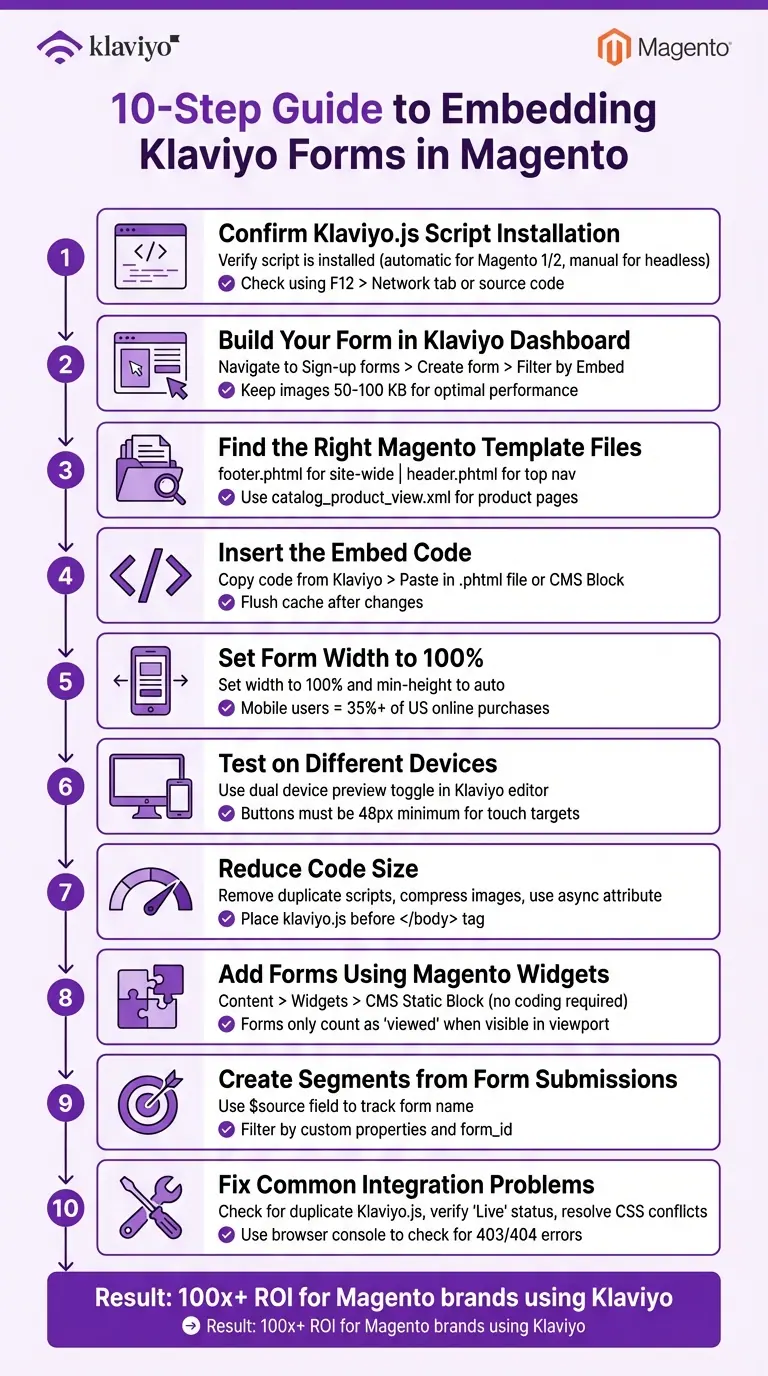
10-Step Guide to Embedding Klaviyo Forms in Magento
How to Create a Sign Up Form in Klaviyo

sbb-itb-5f36581
1. Confirm Klaviyo.js Script Installation
To make sure your forms work correctly and site activity is tracked, you need to verify that Klaviyo.js is installed. This script is essential for enabling "Active on Site" tracking, ensuring that embedded forms display and collect data as intended.
For Magento 1 and Magento 2 stores, Klaviyo.js is usually installed automatically during the native integration process. Julia LiMarzi from Klaviyo clarifies:
The integrations listed above [including Magento] automatically install klaviyo.js when you set up our built-in integration.
However, if your Magento 2 store uses a headless setup with frameworks like React.js or Angular for the frontend, you’ll need to manually add the script to your site’s code.
How to Verify Installation
There are a few ways to confirm that Klaviyo.js is installed:
- Use Klaviyo's "Setup Web Tracking" tool.
- Look for "klaviyo" in your homepage's source code by viewing the page source.
For a live test, you can append ?utm_email=your-email@example.com to your homepage URL, reload the page, and check your Klaviyo profile for an "Active on Site" event. Alternatively, open your browser's developer tools (press F12), go to the Network tab, and refresh the page. Search for the klaviyo.js file in the network activity. If you see a 403 or 404 error, it means there’s a permissions or DNS issue blocking the script.
Manual Installation Tips
If you’re adding the script manually, make sure to replace the PUBLIC_API_KEY placeholder with your six-character public API key from your Klaviyo account settings. Also, double-check that there aren’t duplicate scripts on your site. Having multiple instances of the script can cause conflicts, preventing forms from loading as they should.
2. Build Your Form in Klaviyo Dashboard
Once you've confirmed the Klaviyo.js installation, you're ready to design your embed form. With the script verified, head over to the Klaviyo dashboard to start creating.
Navigate to the Sign-up forms tab in your Klaviyo account, click Create form, and filter by Embed. You can either choose a pre-made template or begin with a blank slate. Give your form a name, select the subscriber list it will connect to, and ensure the form type is set to Embed.
Use the Add Blocks tab to customize the form by dragging and dropping elements like text, images, buttons, or even coupon codes. For input fields, you can include options like required email fields, phone numbers, name fields, radio buttons, dropdowns, or date fields (e.g., for birthdays). Make sure to link each field to a profile property so the subscriber data is stored properly.
Want to collect more detailed information? Multi-step forms are a great solution. They allow you to gather SMS consent, email addresses, and other details gradually:
Multi-step forms can help you learn more about your visitors and collect their consent across multiple channels, without overwhelming them with too many fields at once.
For forms placed in your site's footer, keep it simple by requesting only email addresses. This approach increases the chances of opt-ins.
To track where subscribers are coming from, add a hidden $source field to the submit button. This will help you identify which form or page brought in each sign-up. Once your form is ready, click Publish to generate the unique embed code you'll need to install it on your Magento site. For optimal performance, keep image sizes between 50–100 KB to ensure faster loading times.
You can also use the Visibility settings in the block editing menu to control which elements appear on desktop, mobile, or both. If you're offering a coupon code, display it in the Success step so shoppers can access their discount without leaving your site.
3. Find the Right Magento Template Files
To embed your Klaviyo form in Magento, you first need to figure out where to insert the code within your theme. The correct template file depends on whether you want the form to appear across your entire site or only on specific pages. Once you've created your form, you'll need to edit your Magento theme files to place it exactly where you want.
For forms that should appear site-wide, the footer.phtml file is often the best choice. This ensures your form shows up on every page, making it ideal for newsletter sign-ups and maximizing visibility. If you'd rather have the form in the top navigation, use header.phtml instead.
If your form is intended for specific pages, you'll need to locate the template file for that particular page type. For example, product pages often use templates like catalog_product_view.xml. These are useful if you're adding product-specific forms or tracking snippets. To find the right file, use a code editor to search your theme directory for terms like "newsletter" or "form." Check Layout XML files to identify the relevant containers where your form can be embedded.
Additionally, examine your theme's file paths. If the footer references a component such as components/common/subscription-form, you’ll need to edit that specific file. Once you've identified the proper template or container, you're all set to embed your Klaviyo form.
4. Insert the Embed Code into Your Templates
Now that you've chosen your template file (as discussed in Section 3), it's time to add the embed code. Head over to the Sign-up forms tab in your Klaviyo dashboard, select the embed form you want to use, and click Publish. This will generate an HTML snippet in the "Published successfully" modal - copy that code. Next, update your Magento template to include it.
If you're comfortable editing files, open the relevant .phtml file in a code editor. Paste the Klaviyo <div> embed code into the appropriate spot in the HTML. For instance, if you're placing a multi-step newsletter form in the footer, add the code inside the footer container where you want it to appear.
If editing files isn’t your thing, there’s another option: use a CMS Block. In the Magento Admin, create a new CMS Block, paste the Klaviyo embed code into it, and then call the block in your template using this snippet:
<?php echo $this->getLayout()->createBlock('Magento\Cms\Block\Block')->setBlockId('your_block_id')->toHtml(); ?>
Once that’s done, save your changes and flush the Magento cache. You can do this via the command line (php bin/magento cache:flush) or through the Admin Panel. Afterward, test your form in an incognito browser window to confirm it shows up as expected. Be aware that cookies or targeting settings may prevent the form from appearing during normal browsing.
Lastly, make sure Klaviyo.js (onsite tracking) is enabled in your account, and verify that your form is set to "Live" or "Published" in the Klaviyo dashboard. Simply pasting the code won’t make the form appear - it needs to be active on Klaviyo’s end.
5. Set Form Width to 100% for Responsive Design
Once you've added the embed code, the next step is to make sure your form looks great on all devices by using a high-converting form builder. In the Klaviyo editor, head over to the styles or layout menu. Set the form width to 100% and the minimum height to auto. This ensures the form adapts to its container and scales properly with its content.
Check both desktop and mobile views to confirm the form displays correctly. Considering that mobile users account for over 35% of online purchases in the US, this step is too important to skip.
If the form looks narrow or misaligned, it’s likely due to a CSS conflict with your Magento theme. To fix this, you can add a CSS style block directly to your template file:
.klaviyo-form-YOUR_FORM_ID {
  width: 100% !important;
  max-width: none !important;
}
"The size of the form will depend on the container you're embedding the form in. To adjust this, you can always edit your site code to enlarge the container to the size you want." - David To, Klaviyo Employee
Once styled, test your form on an actual mobile device or use Chrome's device toolbar to simulate different screen sizes. Make sure the form fills the screen without requiring horizontal scrolling. Also, ensure touch targets are at least 48 pixels wide - this accommodates the average adult finger width of approximately 41.6 pixels.
With responsiveness in place, you're ready to move on to testing the form across multiple devices in the next step.
6. Test the Form on Different Devices
Once you've set up responsive design settings, the next step is to ensure you design the perfect landing page form that works seamlessly across various devices. Start by using Klaviyo's dual device preview toggle in the form editor. This handy tool lets you compare how your form appears on both desktop and mobile layouts side by side. To avoid cookie-related issues during testing, use an incognito window - Klaviyo stores cookies for up to a year, which could skew your results. After this, validate the form on actual devices for a more thorough check.
Grab your phone, tablet, and desktop, and open the live page to see how it performs. Pay attention to usability - buttons should be at least 48 pixels in height and width to make tapping easy. Also, ensure there's a minimum of 8 pixels of vertical space between form fields to avoid accidental clicks.
If you notice misaligned elements, use developer tools in Chrome or Firefox to inspect the code. Often, your Magento theme's CSS might override Klaviyo's responsive styles. For example, look out for width settings that aren't set to 100% or custom margins that could push the form out of alignment.
"The distortion is likely due to CSS or responsive design settings not properly adjusting for mobile view. I recommend checking your form's container settings and ensuring that the width is set to 100% for both desktop and mobile." – MANSIR2094, Expert Problem Solver IV
Finally, double-check the Targeting & Behavior tab in Klaviyo to confirm the form is set to display on the devices you're testing. If you're working with mobile popups, consider turning off the "click outside form to close" option. This adjustment can help prevent accidental closures on touchscreens.
7. Reduce Code Size for Faster Page Loading
Improving your Magento store's performance is crucial, especially since page speed directly affects conversion rates. Excess code and large files can slow down page loads, even if sign-up forms load asynchronously and don't block rendering. Repeated scripts or oversized images can still drag down performance.
Start by reviewing your site's source code for unnecessary Klaviyo scripts. Avoid duplicate klaviyo.js instances, as manually added scripts may conflict with Magento's automatic integration. To identify these, use Chrome's Developer Console and check the Network tab for any duplicates.
"Aspects that can cause your Klaviyo forms to be delayed may be caused by additional codes or scripts loading on your website that may be taking up bandwidth." – David To, Klaviyo Employee
Another simple fix is compressing form images to speed up load times. As David To explains, "The size of your image file will correlate to the time it takes for your form to load".
For faster loading, place the klaviyo.js script with the async attribute just before the closing </body> tag. Alternatively, consider coding a native HTML form that posts directly to Klaviyo's subscription endpoint . These adjustments not only improve load times but also create a better foundation for testing and integration in future steps.
8. Add Forms Using Magento Widgets
If coding isn't your thing, Magento Widgets provide a handy way to add forms without touching a single line of code. This feature is especially useful for marketing teams or content managers who don’t have access to template files. Instead of diving into PHP or HTML, you can use the admin panel to drop forms into specific areas of your site, like footers, sidebars, or main content sections.
Here’s how it works: start by creating a CMS Static Block and paste your Klaviyo embed code (which you’ll find in the form’s "Publish" modal). This widget-based approach is a simpler alternative to editing templates directly. It lets non-developers place forms without worrying about breaking the code.
To set it up, go to Content > Widgets in Magento Admin. Add a new widget, choose the "CMS Static Block" type, and assign it to your theme. From there, you’ll specify where the form should appear by configuring page targeting and selecting your static block under Widget Options. In the Layout Updates section, you can decide whether the form appears site-wide, on specific product pages, or in certain categories. Once you’ve chosen the placement, save the widget and flush the cache (just like in earlier steps).
One thing to note: Klaviyo now tracks form views only when the form is visible on the screen. So, if you embed a form in the footer, it won’t count as "viewed" until a user scrolls down to see it.
"Views for embed forms will now only be recorded when the form is visible in the user's viewport. This change may result in a noticeable change in view counts and increase in submit rates, particularly for forms embedded in a site's footer." – Klaviyo Help Center
Lastly, double-check that the form ID in your embed code uses a single set of double quotes - this helps avoid JSON errors. And don’t forget to test the widget’s placement on different devices to make sure it looks and works as intended.
9. Create Segments from Form Submissions
Once you've collected data from your forms, the next step is segmenting those submissions for more focused campaigns. This allows you to deliver personalized messages based on subscriber details like their preferences or how they found your form.
Klaviyo simplifies this process by using a hidden $source field that tracks the form name. To create segments based on the form a subscriber used, go to Audience > Lists & Segments > Create List/Segment. From there, set up criteria such as:
- "If someone can receive marketing > can receive > [Email] marketing"
- "Because person > subscribed"
- "Subscribe method is > Klaviyo form > [Your Form Name]"
This approach is particularly useful for distinguishing between forms like "Magento Sidebar" and "Checkout Popup".
For more precise targeting, you can incorporate custom profile properties. These might include options like radio buttons, checkboxes, or dropdowns in your forms. For example, if a form asks subscribers to select their favorite product category, you can create a segment with criteria like:
- "Properties about someone > [Property Name] equals [Value]"
(e.g., "Product Interest" equals "Men's Shoes").
Keep in mind that custom properties only appear in your segment builder after at least one successful submission. To ensure everything works smoothly, test-submit the form for each option.
Beyond basic segmentation, you can also track repeat interactions. For instance, if a subscriber submits a form multiple times - whether to download a resource or update their preferences - you can segment using the "Form submitted by profile" metric. Filter this by the form_id in the URL for accuracy. Andy from bluesnapper, a Klaviyo Champion & Partner, offers this insight:
"Even if a contact is already in your form's target list, events will be created for 'Form submitted by profile' and 'Form completed by profile'... You can create a flow triggering from these metrics with a trigger filter for the form id".
You can also combine form data with Magento details for even more refined targeting. For example, segment subscribers who indicate "Wholesale Interest" and are part of the Wholesale customer group or belong to specific store views like "UK Store".
10. Fix Common Integration Problems
Let’s address some common challenges you might encounter when integrating Klaviyo forms. These issues can prevent your forms from displaying or functioning as expected, but with a few checks and adjustments, they’re usually easy to resolve.
One of the most frequent problems stems from multiple instances of Klaviyo.js. This happens when duplicate Klaviyo scripts are loaded - either from multiple accounts or overlapping manual and automatic installations. To check, open your page source and search for multiple Public API Keys using Ctrl+F (or Cmd+F) and look for "company_ID." If you spot different keys, go into your Klaviyo account settings and disable the "Automatically add Klaviyo onsite javascript" option for all accounts except one. This ensures only one Klaviyo account manages your scripts, preventing conflicts.
Another key factor is the form status. Forms must be marked as "Live" in the Klaviyo dashboard to display on your site. Check for the green "Live" indicator and make sure the form isn’t stuck in "Draft" or "Editing" mode. Also, confirm you’ve properly installed Klaviyo’s onsite JavaScript and that only one Klaviyo account is linked to your site.
Once you’ve handled the script and form status, turn your attention to CSS styling conflicts. These can cause forms to look distorted or completely different from what you designed in the Klaviyo editor. Use your browser’s "Inspect" tool (right-click on the form) to identify which CSS rules are overriding Klaviyo’s default styles.
"If the forms do not look like how they are in the Klaviyo editor, this is due to the CSS styles from the site overriding it. You will need to check the styles for any popup related styles which may have an 'important' tag which will override Klaviyo".
To fix this, remove unnecessary !important tags from your CSS and perform a hard refresh (Ctrl+F5 or Cmd+Shift+R) to clear cached styles.
For those using Magento 2.4.6 or headless setups, you’ll need to enable "Allow OAuth Access Tokens to be used as stand-alone Bearer tokens" in Stores > Configuration > Services > OAuth > Consumer Settings. Also, ensure the klaviyo object loads properly.
Finally, use your browser’s developer tools to check for console errors. In the Network tab, look for 403 or 404 errors. These errors often indicate blocked access to scripts or OAuth endpoints like /oauth/token/request, which might be restricted by firewalls or .htaccess rules.
"403 and 404 errors indicate that the access to those scripts has been forbidden by the requested server. Usually as a result of a permission issue. The 'failed' error usually indicates the domain name of the script cannot be resolved... Resolving these should cause the form to load immediately".
Conclusion
To embed Klaviyo forms in Magento, start by confirming that Klaviyo.js is installed only once. Next, create your form, grab its embed code, and add it to your Magento templates or through a widget.
For a seamless user experience, set the form width to 100% to ensure it looks great on any device. Test it across different screen sizes to catch any CSS conflicts or loading issues. Keep your site running smoothly by optimizing images and minifying code - small tweaks like these can make a big difference in load times.
When testing, use incognito mode to bypass cached data, and check the developer console for errors like 403 or 404. Also, double-check that your form's status is set to "Live" in Klaviyo.
Why go through all this effort? Because the results speak for themselves: Magento brands see over a 100x ROI. With Klaviyo tracking only visible form views, a well-integrated form can supercharge your segmentation and grow your email list. Following these steps ensures your forms perform well and align with your broader marketing goals.
FAQs
Where should I embed my Klaviyo form in Magento?
To boost visibility and encourage engagement, place your Klaviyo form in a highly noticeable spot on your Magento site. One effective choice is the footer. This placement allows visitors to easily find the sign-up option without disrupting their browsing flow. It’s a smart way to grow your email list while keeping the user experience smooth.
Why isn’t my Klaviyo form showing up on my site?
If your Klaviyo form isn’t showing up, there are a few typical culprits to investigate. First, double-check that the embed code is fully implemented and placed correctly on your site. Issues can also arise from script conflicts, browser extensions like ad blockers, or incorrect code placement.
Additionally, make sure forms are enabled within Klaviyo and that your integration settings are properly configured. If you’re still having trouble, try clearing your browser cache or testing the form in incognito mode to rule out any caching or extension-related issues.
How do I track which page a signup came from?
To keep tabs on the page a signup originated from, you can use the "klaviyoForms" JavaScript event. This event fires during form interactions, such as when a user submits a form.
- Set up an event listener for
"klaviyoForms". - Verify the event type to ensure it’s either
"submit"or"stepSubmit". - Capture the current page URL using
window.location.href. - Attach the URL as metadata to the form submission, making it easy to track where signups are coming from.
This approach ensures you have a clear record of the source page for each signup.
Related Blog Posts
Get new content delivered straight to your inbox

The Response
Updates on the Reform platform, insights on optimizing conversion rates, and tips to craft forms that convert.



Drive real results with form optimizations
Tested across hundreds of experiments, our strategies deliver a 215% lift in qualified leads for B2B and SaaS companies.
