

Facebook Lead Ads Sync Errors: Causes and Fixes


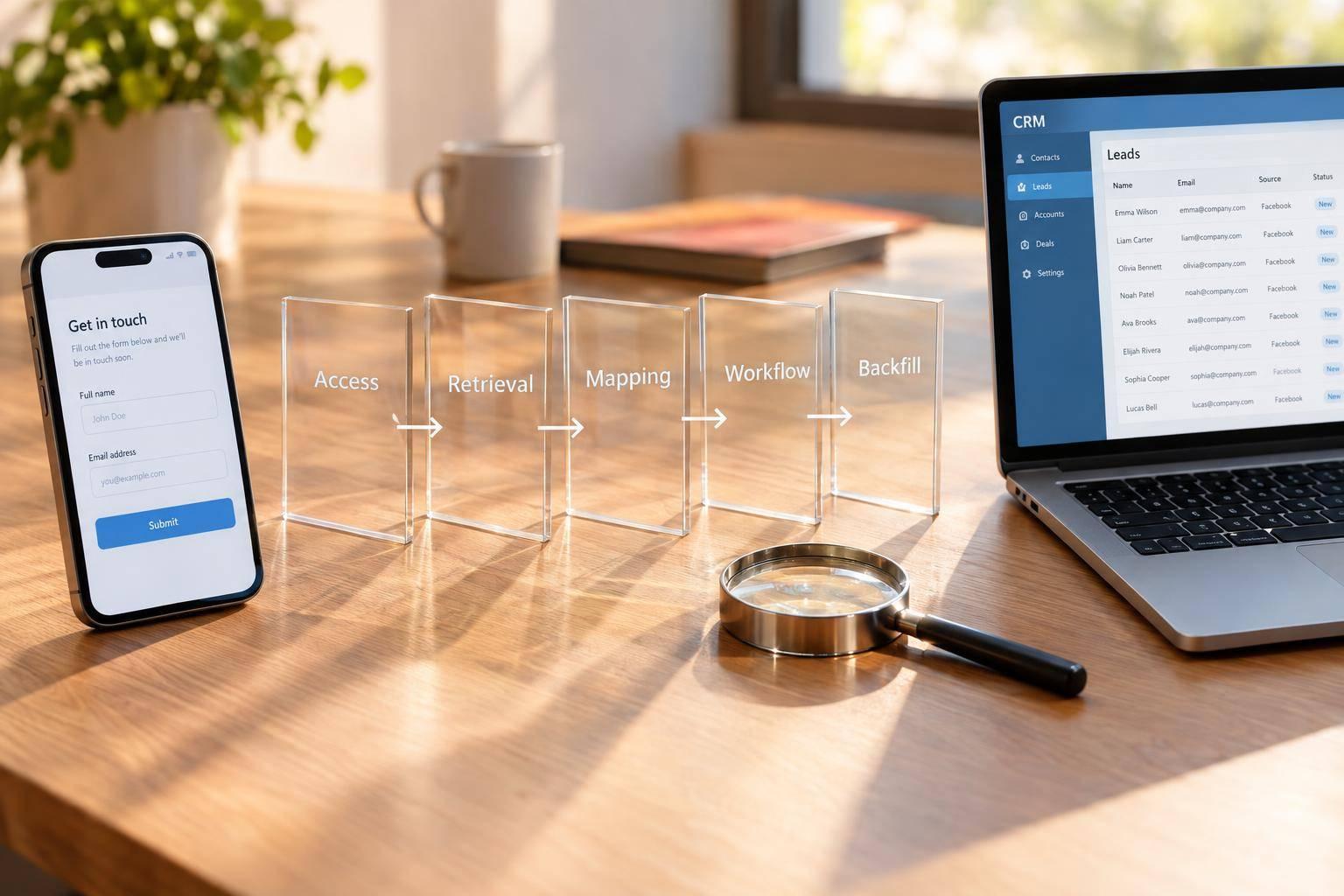
To fix Facebook Lead Ads sync errors, trace one missing lead through four steps: access, retrieval, field mapping, and workflow execution. Confirm the submission exists in Meta, then search integration and CRM logs by its Meta lead ID - not just its email address.
Fix the first failed step: restore permissions, repair webhook or polling delivery, update field mappings, or correct blocked workflow actions. Retry one lead before releasing the queue, and check that it reaches the CRM with the right fields and eligible follow-up, perhaps by using multi-step forms to improve data quality.
Recover missed submissions separately. Compare Meta and CRM records, import only what’s missing, and check consent and past outreach before replaying actions. Then monitor errors and delays so the same problem doesn’t leave more leads waiting.
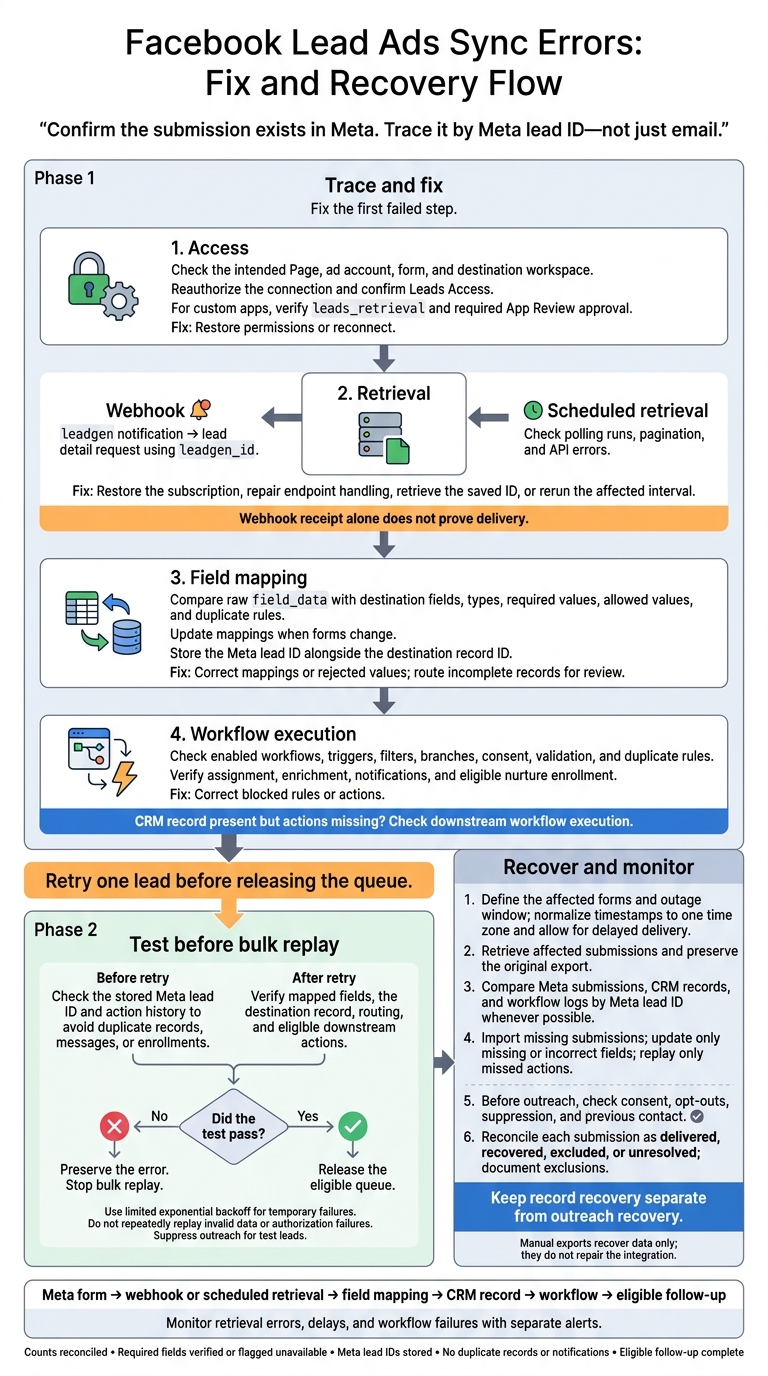
Facebook Lead Ads Sync Errors: Fix and Recovery Flow
Restore Access and Lead Retrieval
Reconnect and Check Lead Permissions
An expired or revoked token, lost Page access, or a disconnected Page can stop lead retrieval - even when the integration looks connected. Reconnect using a Facebook user with access to the intended Page and ad account. Then confirm the correct form and destination workspace.
Before retrying retrieval, check the following:
- Confirm the user is active and the Page, ad account, and form IDs match.
- Reauthorize the connection and grant the required permissions.
- In Meta’s Leads Access settings, confirm that the intended user, app, partner, or CRM has access.
- Confirm the Page is connected and the app has the required App Review approval.
Custom Leads Access settings can exclude other administrators. For custom apps, verify leads_retrieval and any other permissions your implementation needs. Check current Meta documentation, App Review status, and the permissions granted during login - not just those requested in code. Managed connectors may handle these approvals themselves.
Check Webhooks and Scheduled API Retrieval
Once access is restored, find where retrieval stops: the notification, the lead detail request, or polling. For webhooks, verify that /subscribed_apps includes leadgen. An endpoint response alone doesn’t prove the subscription is active. For scheduled syncs, check the polling job, run time, and error logs.
Use this table to locate the problem.
| Delivery step | Timing | Failure modes | Diagnostic check | Recovery action |
|---|---|---|---|---|
leadgen notification |
Near real time | Missing Page subscription, endpoint timeout, signature failure | Check subscription, request logs, response codes, and processing time | Restore the subscription or fix endpoint handling |
| Webhook-triggered detail request | After notification receipt | Expired token, missing lead access, API error | Inspect the request for the received leadgen_id, including status and error body |
Restore access, then retrieve the saved ID |
| Scheduled Graph API retrieval | At the configured polling interval | Disabled job, missed interval, incomplete pagination, rate limits | Check last successful run, UTC versus local time, pagination cursors, and API errors | Rerun the affected interval, follow all pages, and back off when rate-limited |
Confirm that the application both retrieved the lead and saved it to the destination. If polling finds a lead that’s missing from webhook logs, check the subscription and endpoint handling first.
Verify the fix with one recent test lead from the intended form. Record its ID and submission time, then check its fields, attribution, consent, and timestamp in the CRM. Suppress outreach for that test lead.
sbb-itb-5f36581
Fix Field Mapping and Workflow Errors
Once access and retrieval work, check mapping and workflow execution. A lead in the CRM without assignment, enrichment, notification, or nurture enrollment points to a downstream failure - not an import failure. If no destination record exists, check mapping, validation, and destination API failures.
Update Mappings When Forms Change
If the lead arrived but the destination schema rejected it, treat each form ID as a new mapping version. Compare the raw field_data payload against the destination’s field names, data types, required values, allowed values, and duplicate rules.
Update mappings for renamed or deleted questions, set fallback values, and send incomplete records for review. Store the Meta lead ID as the external key alongside the destination record ID.
If the mapping is correct but the lead still doesn’t trigger an action, check workflow filters and validation.
Check Workflow Triggers, Filters, and Validation
Confirm that the workflow is enabled and targets the correct Page and form. Trace the lead through each filter and branch, including campaign, geography, consent, required fields, validation, enrichment, notifications, and duplicate rules. A filter or branch can exclude an imported lead before the workflow starts.
Check destination API responses to separate invalid data from timeouts, server errors, and rate limits.
After changing a rule, replay just one lead.
Test One Retry Before Reprocessing the Queue
After fixing mapping or workflow rules, replay one failed lead using the connector’s supported retry method. First, check the stored Meta lead ID and action history to avoid duplicate records, messages, or enrollments. Before releasing the queue, verify the mapped fields, destination record, routing, and downstream actions.
Retry temporary failures with limited exponential backoff and follow the API’s retry guidance. Stop calls when Meta’s limits are reached. Don’t repeatedly replay invalid data or authorization failures.
Log the lead, form, and Page IDs; submission and retry times; mapping version; destination record ID; error response; retry count; action status; and final result. If the test fails, preserve the error and stop bulk replay.
Recover Missed Facebook Lead Submissions
Once access, retrieval, and workflow issues are fixed, backfill only the missed submissions. Set the outage window from the last successful delivery to the first confirmed failure. Convert all timestamps to one time zone, and add a buffer for delayed webhook or polling delivery. Record the affected Pages, ad accounts, campaigns, forms, and integrations. Before backfilling, confirm that the affected leads are still retrievable.
Download the affected leads from Meta Ads Manager, Instant Forms in Meta Business Suite, or Leads Center. For repeatable backfills, use bulk API retrieval with valid access and leads_retrieval. Keep the original export. Leads Center exports contain limited fields, so use a retrieval method with more detail when you need custom answers or consent data. Manual exports recover data only - they don't fix access, webhooks, automation, or mappings.
Before importing anything, compare Meta records with CRM records and workflow logs.
Compare Meta Leads With CRM and Workflow Records
Compare Meta submissions, CRM records, and workflow or integration logs for the same forms and outage window. Match records by Meta lead ID whenever possible; webhook notifications may show this as leadgen_id. If that ID isn't available, review the form, submission time, campaign, and contact details together. An email address alone doesn't identify a submission.
| Discrepancy | Verification | Recovery action |
|---|---|---|
| Missing CRM record | Check the Meta lead ID against CRM records and import history. | Import the missing submission and keep its Meta ID. |
| Incomplete fields | Compare saved values with the original submission and historical lead form fields. | Update only missing or incorrect values. Keep ownership, notes, and consent history. |
| Missed workflow enrollment | Check enrollment history, filters, suppression, and completed actions. | Replay only the missed action. |
Backfill Leads Without Duplicate Outreach
Keep record recovery separate from outreach recovery. Exclude completed submissions from replay, import missing leads, and update incomplete records without inventing unanswered values. Before enabling messages, check consent, current opt-outs, suppression settings, and previous outreach - including manual contact. Log each decision as imported, updated, skipped, or excluded so another recovery run can't repeat it.
Reconcile totals using the same forms, dates, and time zone. Give each submission one status: delivered, recovered, excluded, or unresolved. Record why any submission was excluded, and track field updates and workflow replays separately.
Investigate any remaining differences, including delayed deliveries, API pagination, duplicate handling, and form filters. Keep the raw export, transformed file, matching rules, exclusion reasons, operator, timestamps, and final CRM batch ID.
Conclusion: Verify Recovery and Monitor Delivery
After fixing access, retrieval, mapping, and workflow issues, check the full path before reopening the queue. Retry one lead first, then release the rest of the eligible queue.
Verify a test submission from start to finish: Meta form → webhook or scheduled retrieval → field mapping → CRM record → workflow → eligible follow-up. Webhook receipt alone does not prove delivery. The lead still needs to be fetched and processed.
Monitor that same flow for retrieval errors, delays, and workflow failures, with a separate alert for each. Set an alert threshold and include the Page, form, leadgen_id, error message, attempt count, and last successful run in every alert. Review alerts daily for the first few days.
Before closing the incident, confirm that:
- Counts match the recovery log, minus documented exclusions, and original Meta lead IDs are stored.
- Required fields match or are flagged as unavailable.
- No duplicate records or notifications exist, and every eligible follow-up is complete.
A lead is fully recovered only when it has been received, written to the CRM, assigned, and followed up as eligible.
FAQs
How can I prevent access tokens from expiring unexpectedly?
Use automatic token refresh. Cache access tokens rather than requesting a new one for every call. Set them to renew before they expire - typically 60 seconds to 10 minutes early, depending on your integration.
Use a dedicated service account so individual password changes or account resets don’t disrupt your integration. Audit your OAuth connections quarterly to check credential health.
How long can I recover missed Facebook leads?
Recovery depends on your team’s sales follow-up service level agreement and how current the data is. Automated retries for asynchronous jobs typically run for 30 minutes to 4 hours. Manual recovery has no fixed expiration if failed submissions are stored in a durable dead-letter queue.
Before replaying leads, check how old they are. Verify whether the original request succeeded so you don’t create duplicates, and confirm that the cause of the failure has been fixed.
How can I catch sync failures before leads go cold?
Catch sync failures early by alerting on silence - not just errors. Track submission volume against your baseline, flag sync delays longer than 5 minutes, and monitor failure rates by error type. Use consistent submission IDs to trace each lead from the form to the CRM.
For temporary failures, retry with increasing delays up to a set cap, and limit how long retries can continue. Use idempotency keys to prevent duplicates. Once retries run out, move the failed submissions to a dead-letter queue for controlled replay.
Related Blog Posts
Get new content delivered straight to your inbox

The Response
Updates on the Reform platform, insights on optimizing conversion rates, and tips to craft forms that convert.



Drive real results with form optimizations
Tested across hundreds of experiments, our strategies deliver a 215% lift in qualified leads for B2B and SaaS companies.
